Click to view
- What is Figma? - Figma is a vector graphics editor and prototyping tool which is primarily web-based. You can check more info on the website - Create a Free account in Figma. - Kindly follow the instructions as shown in this video to create a free Figma account. Watch the video upto **00:50** - How to Check CSS in Figma? - Kindly follow the instructions as shown in this video to check CSS in a Figma screen. Watch the video upto **02:45**. - Export Images in Figma screen - Kindly follow the instructions as shown in this video to export images from a Figma screen. - Click on the Export button to get Export options as shown in the below image.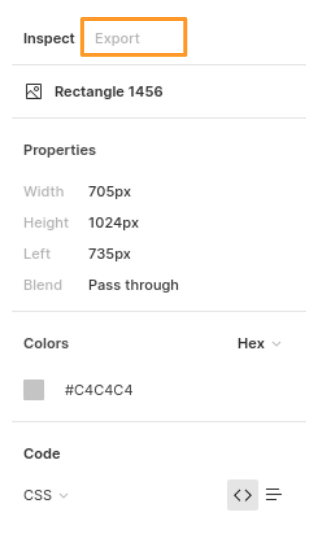
Click to view
- What is GitHub? - GitHub is a web-based version-control and collaboration platform for software developers. GitHub facilitates social coding by providing a web interface to the Git code repository and management tools for collaboration. GitHub can be thought of as a serious social networking site for software developers. Website - GitHub API: - GitHub provides public APIs that allow us to extract the public data of the GitHub users. Read more - Tutorial to generate classic personal access tokensClick to view
- You can check the **Design Files** for different devices here.Click to view
- Download dependencies by running `npm install` - Start up the app using `npm start`Functionality to be added
The app must have the following functionalities - **Home Route** - When a user opens the Home Route, - When a username is provided in the search input and the button with the search icon is clicked - Make an HTTP GET request to the **GitHub User Profile Details API URL** with path parameter value as the username provided in the search input and query parameter `api_key` with the value of GitHub personal access token - For example: When the search input value is **kentcdodds** and search icon is clicked, then the **GitHub User Profile Details API URL** will be as follows ```js const apiUrl = 'https://apis2.ccbp.in/gpv/profile-details/kentcdodds?api_key=289234723783_38' ``` - **_Loader_** should be displayed while fetching the data - After the data is fetched successfully, display the user profile details received from the response - If the HTTP GET request made is unsuccessful, then the failure view given in the **Figma** screens should be displayed - When the **Try Again** button is clicked, an HTTP GET request should be made to **GitHub User Profile Details API URL** - **Header** - When the **GitHub Profile Visualizer** title in the header is clicked, then the page should be navigated to the Home Route - When the **Home** link in the Header is clicked, then the page should be navigated to the Home Route - When the **Repositories** link in the Header is clicked, then the page should be navigated to the Repository Route - When the **Analysis** link in the Header is clicked, then the page should be navigated to the Analysis Route - **Repository Route** - When a user opens the Repository Route - Make an HTTP GET request to the **GitHub User Repository Details API URL** with path parameter value as the username provided in the search input in the **Home Route** and query parameter `api_key` with the value of GitHub personal access token - **_Loader_** should be displayed while fetching the data - After the data is fetched successfully, display the list of user repositories received from the response - If the HTTP GET request made is unsuccessful, then the failure view given in the **Figma** screens should be displayed - When the **Try Again** button is clicked, an HTTP GET request should be made to **GitHub User Repository Details API URL** - When a **Repository** item is clicked, then the page should be navigated to the Repository Item Details Route - All the header functionalities mentioned in the Home Route should work in this route accordingly - When the Repository Route is opened without giving a valid username, then the "No Data" view given in the Figma screens should be displayed. - **Repository Item Details Route** - When an user opens the Repository Item Details Route - Make an HTTP GET request to the **GitHub User Repository Item Details API URL** with path parameter value as the username provided in the search input in the **Home Route** and query parameter `api_key` with the value of GitHub personal access token - **_Loader_** should be displayed while fetching the data - After the data is fetched successfully, display the user repositories item details received from the response - If the HTTP GET request made is unsuccessful, then the failure view given in the **Figma** screens should be displayed - When the **Try Again** button is clicked, an HTTP GET request should be made to **GitHub User Repository Item Details API URL** - All the header functionalities mentioned in the Home Route should work in this route accordingly - **Analysis Route** - When a user opens the Analysis Route - Make an HTTP GET request to the **GitHub User Analysis Details API URL** with path parameter value as the username provided in the search input in the **Home Route** and query parameter `api_key` with the value of GitHub personal access token - **_Loader_** should be displayed while fetching the data - After the data is fetched successfully, display the user analysis details received from the response - If the HTTP GET request made is unsuccessful, then the failure view given in the **Figma** screens should be displayed - When the **Try Again** button is clicked, an HTTP GET request should be made to **GitHub User Analysis Details API URL** - All the header functionalities mentioned in the Home Route should work in this route accordingly - When the Analysis Route is opened without giving a valid username, then the "No Data" view given in the Figma screens should be displayed. - **Not Found Route** - When a random path is provided as the URL, then the page should navigate to the Not Found Route - Users should be able to view the website responsively in mobile view, tablet view as well.
Click to view
- Use **Recharts** package to implement given charts - Recharts Documentation. - Linear chart implementation CodeSandbox. - Pie chart implementation CodeSandbox. - Commit graph implementation CodeSandbox.Click to view
**The following instructions are required for the tests to pass** - **Note:** - Click here to know how to create GitHub personal access token - Don't use any third-party packages other than packages mentioned in the **Quick Tips** - Use media queries for responsiveness. Instead of rendering the same elements twice for responsiveness. - For Mini Projects, You have to use HTML elements to style the React Components. Usage of `styled-components` (CSS in JS) to style React components are not supported in Mini Projects. Test cases won't be passed, If you use styled components. - Refer to the below example for the usage of `data-testid` in the HTML elements. - Example: `
`.
- **Routes**
- Render `Home` Route component when the path in URL matches `/`
- Render `Repository` Route component when the path in URL matches `/repositories`
- Render `Repository Item Details` Route component when the path in URL matches `/repositories/:repoName`
- Render `Analysis` Route component when the path in URL matches `/analysis`
- The Failure View images should consist of alt attribute value as `failure view`
- Wrap the `Loader` component with an HTML container element and add the `data-testid` attribute value as **loader** to it
```jsx
```
- **Home Route**
- The HTML button element with search icon should have the `data-testid` attribute value as **searchButton** to it
- `HiOutlineSearch` icon from react-icons should be used for the **Search Icon** button
- `RiBuildingLine` icon from react-icons should be used for the **Building Icon** in Company
- `IoMdLink` icon from react-icons should be used for the **Link Icon** in Blog
- `IoLocationOutline` icon from react-icons should be used for the **Location Icon** in Location
- The website home page image should consist of alt attribute value as `github profile visualizer home page`
- The user profile picture in the Home Route should have the alt and src as the values of the keys `name` and `avatar_url` from each object in GitHub user profile details Response
- **Repository Route**
- When the **Repository Route** is opened without giving a valid username, then the page should consists of **No Data Found** image with alt attribute value as `empty repositories`
- The user profile picture in the Repository Route should have the alt and src as the values of the keys `login` and `avatar_url` in owner from each object in GitHub user repository details Response
- When the repository API return an empty list, then the No Repositories image should consist of alt attribute value as `no repositories`
- **Analysis Route**
- When the **Analysis Route** is opened without giving a valid username, then the page should consists of **No Data Found** image with alt attribute value as `empty analysis`
- The user profile picture in the Analysis Route should have the alt and src as the values of the keys `login` and `avatarUrl` in user from each object in GitHub user analysis details Response
- When the analysis API return an empty list, then the No Analysis image should consist of alt attribute value as `no analysis`
- **Repositories Item Details Route**
- The Contributors Profile images should consist of alt attribute value as `contributor profile`
- **Not Found Route**
- The Not Found image should consist of alt attribute value as `not found`