Repository navigation
Releases
Mapdown 1.2.0

Branch colors can now show on the nodes themselves, maps export to SVG and PDF, and you choose where each export is saved.
Branch color styles
- A new setting, Branch color style, decides where branch colors show besides the edges:
- Edges only: the default, same as before.
- Borders: nodes get a border in their branch color.
- Tinted: nodes also get a light fill in their branch color that fades toward the outer levels.
- With borders or tints, edges are a little thicker so the branches read clearly. Node sizes and positions do not change.
- The style applies to maps, embedded maps and exports alike.
SVG and PDF export
- SVG: a vector file that stays sharp at any size. Text stays text, so you can select and search it.
- PDF: one page sized to the map, holding a high-resolution image of it.
- Both are in the export menu next to PNG, JPEG, HTML and XMind, and in the command palette as Export to SVG and Export to PDF.
Choose where exports go
- On desktop, Mapdown now asks where to save each export. Cancel and nothing is written.
- Prefer the old way? Set Export location to Save next to the note. Phones and tablets always save next to the note.
- Slow exports show "Exporting…", and a single notice says when the file is ready. Click it to open the file when it is in your vault.
Formulas
- Block formulas written over several lines (
$$on its own line, the formula, then$$) now display correctly in nodes and stay on several lines when saved. - In exported images, formulas show as their source text. The export notice tells you how many.
Better XMind export
- Tasks become XMind task markers, done or not done.
- Inline code loses its backticks, and
$$…$$formulas are written in the form XMind understands. - Importing those files back gives you
[ ]and[x]tasks again.
Fixes
- In exported images, long text no longer spills out of its node.
Install
- BRAT: add
leftlive/mapdown. - Manual: download
manifest.json,main.jsandstyles.cssbelow into.obsidian/plugins/mapdown, then reload Obsidian.
Requires Obsidian 1.5.7 or later.
中文说明
分支颜色现在可以画在节点上,导图能导出成 SVG 和 PDF,导出的文件存在哪里由你来选。
分支配色样式
- 新设置“分支配色样式”决定分支颜色除了连线还画在哪里:
- “只有连线”:默认,和以前一样。
- “边框”:节点边框用分支的颜色。
- “淡底色”:节点再铺一层分支色的淡底,越往外越淡。
- 选边框或淡底色时,连线会稍粗一点,分支看得更清楚。节点的大小和位置不变。
- 导图、嵌入的导图和导出的文件都按这个样式画。
SVG 和 PDF 导出
- SVG:矢量文件,放多大都清楚。文字还是文字,可以选中和搜索。
- PDF:一页,页面大小跟着导图,里面是一张高清图片。
- 导出菜单里和 PNG、JPEG、HTML、XMind 放在一起,命令面板里是“导出为 SVG”和“导出为 PDF”。
导出位置由你选
- 电脑上导出时会弹出保存框,问你存在哪里;取消就什么都不写。
- 想和以前一样?把“导出位置”设成“存到笔记旁边”。手机和平板上总是存到笔记旁边。
- 导出较慢时会显示“正在导出…”,完成后只弹一条提示。文件在库里时,点提示就能打开。
公式
- 写成多行的块级公式(
$$单独一行、公式、再一行$$)现在能在节点里正确显示,保存后仍是多行。 - 导出的图片里公式显示为源码,导出提示会告诉你有几个。
XMind 导出更完整
- 任务变成 XMind 的任务标记,分已完成和未完成。
- 行内代码去掉反引号,
$$…$$公式改写成 XMind 认得的写法。 - 把这样的文件导入回来,任务还是
[ ]和[x]。
修复
- 导出的图片里,长文字不再超出节点框。
需要 Obsidian 1.5.7 及以上。
Mapdown 1.1.0
Maps now live inside your other notes, nodes can be tasks, and text and map open side by side in one click.
Embed maps in your notes
- Write
![[My map]]in any note and it shows as a mind map, in reading view and Live Preview, instead of a long list. - No need to remember the syntax: right-click in the editor and choose Insert mind map…, then pick a map or create a new one.
- Click the embedded map to work with it: the wheel moves it,
Mod+ wheel zooms,Escor a click outside lets go. Until then the wheel scrolls your note as usual. - Double-click a node to open the map at that node. Edits in the map show up in the embed right away.
![[My map#Heading]]shows just that branch.![[My map|300]]sets the height; the default height is in settings.- A map embedded inside a node shows as a small card with the map's name. Click it to open the map.
Tasks
- Nodes written as
- [ ]show a checkbox. Click it to tick it off. - Press
Mod + Enteron a selected node (or use the toggle button on phones) to turn it into a task, tick it, or untick it. - Nodes with tasks below them show how many are done, for example
2/5.
Act on many nodes at once
- Select two or more nodes and a bar appears above them: make tasks, bold, highlight, fold, copy, cut and delete. Right-click shows the same actions; on phones they replace the node toolbar.
Split with sync in one click
- A new button in the map's header opens the Markdown of the same note in a split on the right, with selection sync turned on. Press it again to close the split. It works from the Markdown side too.
Also new
- Quotes and callouts (
> [!note]) inside nodes look the way they do in reading view. - Cleaner look: thinner edges, an even glow, lighter shadows, and a clear accent ring around selected nodes.
- New settings: Show task progress, Show embedded maps as maps, Embedded map height.
Install
- BRAT: add
leftlive/mapdown. - Manual: download
manifest.json,main.jsandstyles.cssbelow into.obsidian/plugins/mapdown, then reload Obsidian.
Requires Obsidian 1.5.7 or later.
中文说明
导图现在可以嵌进别的笔记里,节点可以是任务,文本和导图一键左右分屏。
在笔记里嵌入导图
- 在任何笔记里写
![[某张导图]],阅读视图和实时预览里都显示成一张导图,而不是一长串列表。 - 不用记写法:在编辑器里点右键,选“插入导图…”,再选一张导图或新建一张。
- 点一下嵌入的导图就能操作:滚轮移动,按住
Mod滚动缩放,按Esc或点框外退出。没点之前,滚轮照常滚动笔记。 - 双击节点,打开导图并定位到这个节点。在导图里的修改会马上显示在嵌入框里。
![[某张导图#标题]]只显示这个分支;![[某张导图|300]]设置高度,默认高度在设置里改。- 节点里嵌入的导图显示成一张带导图名字的小卡片,点一下打开那张导图。
任务
- 写成
- [ ]的节点显示复选框,点一下就勾上。 - 选中节点后按
Mod + Enter(手机上用切换按钮),可以把它设为任务、勾上或取消勾选。 - 下面有任务的节点显示完成了几个,例如
2/5。
一次处理多个节点
- 选中两个以上节点时,上方浮出操作条:设为任务、加粗、高亮、折叠、复制、剪切、删除。右键弹出同样的操作;手机上它们换掉节点工具栏。
一键分屏同步
- 导图标题栏多了一个按钮:点一下,在右边分屏打开同一篇笔记的 Markdown,并打开联动选中;再点一下关掉分屏。在 Markdown 那边也能用。
其他
- 节点里的引用和 callout(
> [!note])显示得和阅读视图一样。 - 画面更清爽:连线更细,光晕均匀,阴影更淡,选中的节点有一圈清楚的强调色外环。
- 新设置:“显示任务进度”“把嵌入的导图显示成导图”“嵌入导图的高度”。
需要 Obsidian 1.5.7 及以上。
Mapdown 1.0.1
Fixes from the first days of everyday use.
Editing
- New line inside a node: while editing, press
Shift + EnterorMod + Enter. This also works with Chinese and other input methods. - The map stays still while you type. Typing in a node on the left side no longer pushes the view to the right until the node leaves the screen.
- No more black hover box. Hovering over a node no longer shows a tooltip that repeats its text.
Focus Mode
- Pressing
Fnow centers the whole branch, not just the node. - If you zoomed out to find the node, Focus Mode zooms in to a readable size (up to 100%). A branch that doesn't fit is zoomed out to fit, but not below 50%.
- Pressing
Fagain brings back the view you had before.
Toolbars no longer cover the map
Fit to window, centering, jumping to a node, entering Focus Mode and revealing the node you're typing in now leave room for the toolbar, the phone toolbars and the overview.
Install
- BRAT: add
leftlive/mapdown. - Manual: download
manifest.json,main.jsandstyles.cssbelow into.obsidian/plugins/mapdown, then reload Obsidian.
Requires Obsidian 1.5.7 or later.
中文说明
修复了刚开始日常使用时发现的问题。
编辑
- 节点里换行:编辑时按
Shift + Enter或Mod + Enter,用中文输入法时也可以。 - 打字时画面不再跑:在左侧节点里打字,画面不会再随着输入往右移,直到节点移出屏幕。
- 不再出现黑框:鼠标移到节点上,不再弹出重复节点文字的提示框。
专注模式
- 按
F时把整个分支放在屏幕中间,而不只是这个节点。 - 如果你先缩小导图找到节点,进入专注模式时会放大到看得清的大小(最多 100%);分支放不下时缩小到能放下,但不小于 50%。
- 再按一次
F,回到进入前的画面。
工具栏不再挡住导图
- 适应窗口、居中、跳到节点、进入专注模式、露出正在编辑的节点时,都会避开工具栏、手机上的工具栏和缩略总览。
需要 Obsidian 1.5.7 及以上。
Mapdown 1.0.0
Mapdown 1.0 is rebuilt from the ground up: faster, lighter, and now on phones and tablets. Your notes and maps don't change: they are still plain Markdown.
Upgrading from 0.3
- Save every open map before you update. Unsaved recovery drafts from 0.3 are not read by 1.0.
- Your settings carry over, and maps open unchanged.
- Hotkeys: 0.3 set 24 global hotkeys. 1.0 sets none. The same keys now work only inside the map, so they no longer clash with other plugins. If you bound your own hotkeys to Mapdown commands, they keep working.
- The interface is now in English and Simplified Chinese. Other languages show English.
- The debug command "Display the node's info in console" is gone.
What's new
Faster and lighter
- A 1,000-node map opens about 8× faster (107 ms instead of 812 ms); a 5,000-node map about 30× faster (0.13 s instead of 3.9 s).
- Panning, zooming and typing stay smooth in large maps.
- The plugin is 81% smaller (283 KB instead of 1.55 MB).
Phones and tablets
- Tap to select, double-tap to edit, long-press for the node menu, long-press and drag to move.
- Drag the canvas with one finger, pinch to zoom.
- A node toolbar adds, edits, deletes, moves and indents nodes, folds branches, inserts images, and undoes or redoes.
Focus Mode, refined
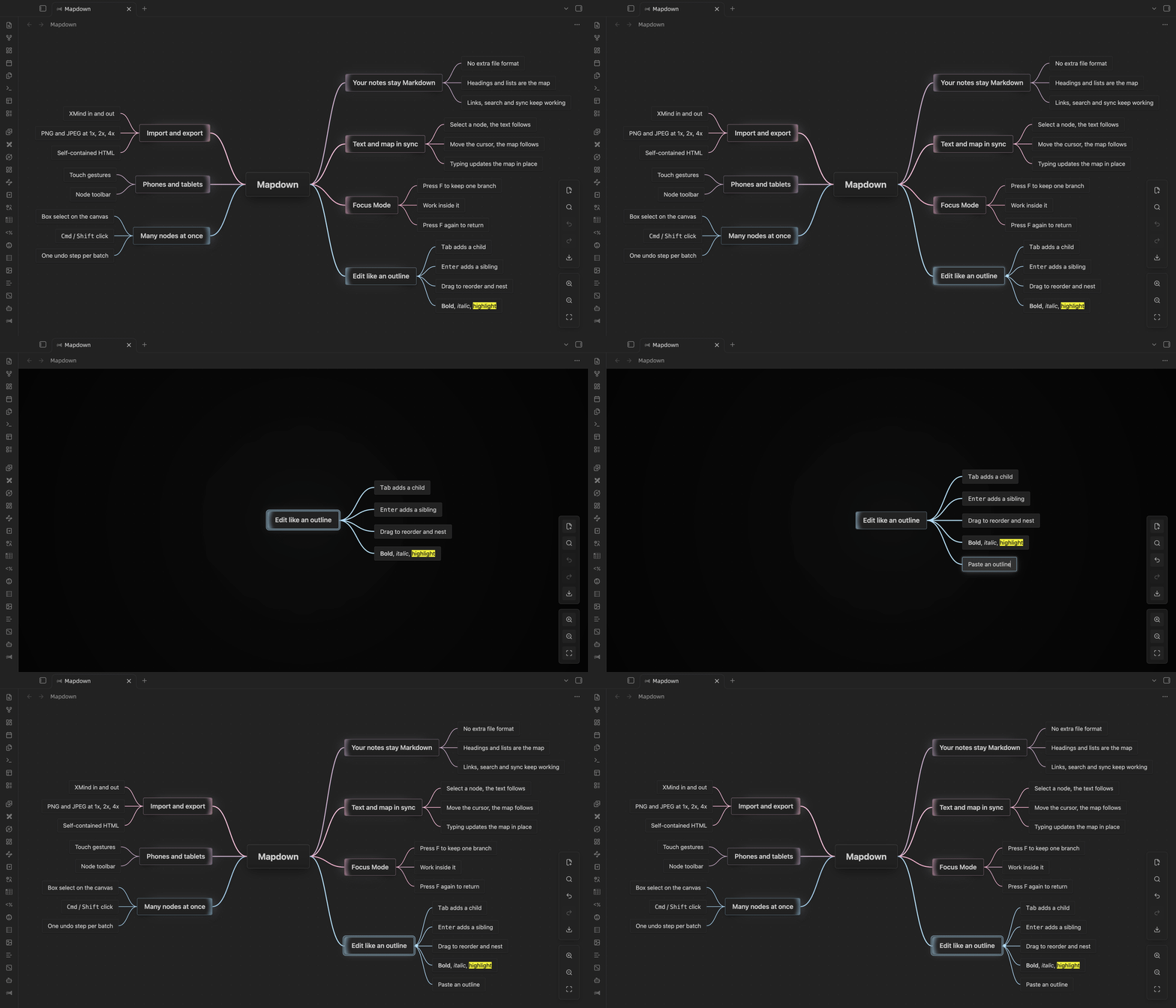
- Press
Fto keep only the selected branch; it keeps its side and colors, so you always know where you are. PressFagain to return.
Images in nodes
- Paste an image, drag one in, or run "Insert image…" to pick from the vault.
- Images are saved where Obsidian keeps attachments, and links follow your link settings.
Editing
- While you drag a node, the map shows where it will land and makes room for it.
- Paste a multi-line outline and it becomes a subtree. Copied nodes paste into other apps as a Markdown list.
Alt + 1…6collapses the whole map to that level.Shift + Tabmoves a node up a level;Mod + Shift + Zredoes.- Maps with more than 300 nodes show a clickable overview in the corner.
Fixes
- Joining nodes can be undone.
- "HQ" export in the toolbar menu is 4x, the same as the command.
- Pasting no longer clears the system clipboard.
- Mapdown no longer turns on the Page preview core plugin by itself; the settings tab tells you when it is off.
- Map commands only appear in the command palette when a map is open.
- Settings can be found with Obsidian's settings search.
Install
- BRAT: add
leftlive/mapdown. - Manual: download
manifest.json,main.jsandstyles.cssbelow into.obsidian/plugins/mapdown, then reload Obsidian and turn on Mapdown.
Requires Obsidian 1.5.7 or later. Works on desktop and mobile.
中文说明
Mapdown 1.0 从头重写:更快、更轻,开始支持手机和平板。笔记和导图都不用改,仍然是普通的 Markdown。
从 0.3 升级
- 更新前请保存所有打开的导图。 1.0 不读取 0.3 留下的未保存恢复草稿。
- 设置会沿用,原有导图照常打开。
- 快捷键:0.3 设了 24 个全局快捷键,1.0 一个都不设。同样的按键改为只在导图里生效,不再和其他插件冲突。你自己给 Mapdown 命令绑的快捷键照常可用。
- 界面语言只保留英文和简体中文,其他语言显示英文。
- 删除了调试用的命令“在控制台输出节点信息”。
主要更新
- 更快更轻:打开 1,000 个节点的导图快了约 8 倍(107 ms,原来 812 ms),5,000 个节点快了约 30 倍(0.13 秒,原来 3.9 秒);大图里拖动、缩放和打字都很流畅;插件体积减小 81%(283 KB,原来 1.55 MB)。
- 手机和平板:轻点选中,双击编辑,长按弹出节点菜单,长按后拖动移动节点;单指拖动画布,双指缩放;节点工具栏可以新增、编辑、删除、移动和升降级、折叠、插入图片、撤销和重做。
- 专注模式:按
F只留下选中的分支,方向和颜色保持不变,不会迷失位置;再按一次回到整张图。 - 节点里的图片:粘贴、拖入,或者用“插入图片…”从库里挑选。图片按 Obsidian 的附件位置保存,链接格式跟随你的设置。
- 编辑:拖动节点时,导图提前让出位置,显示松手后的落点;粘贴多行大纲变成子树,复制的节点粘贴到其他应用里是 Markdown 列表;
Alt + 1…6把整张图折叠到第几层;Shift + Tab升一级,Mod + Shift + Z重做;超过 300 个节点时角落显示可点击的缩略总览。 - 修复:合并节点可以撤销;工具栏菜单里的“高清”导出改为 4 倍,和命令一致;粘贴后不再清空系统剪贴板;不再自动打开核心插件“页面预览”,关着时在设置页提示;导图命令只在打开导图时出现在命令面板里;设置项能用 Obsidian 的设置搜索找到。
需要 Obsidian 1.5.7 及以上,电脑和手机都能用。