The Omni_Control package is designed to facilitate interaction with the Name of Robot. It uses the Sabertooth drivers to manage and control the robot’s motors. Additionally, it uses Arduino as an interface between the computer and the motors.
This package has been tested in ROS Melodic.
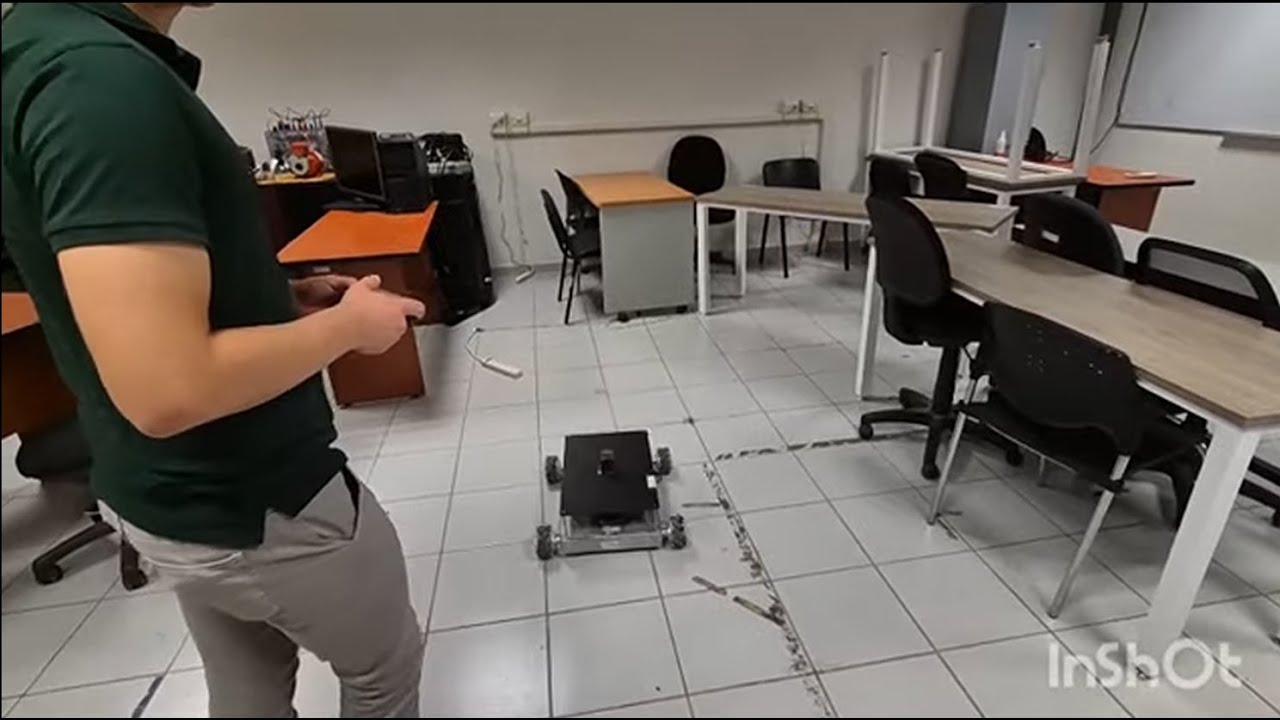
In the following link you can observe the impolementation of this driver.
For this specific application, the Jetson Nano is configured to connect to a specific network with an stati IP address so that it can be manipulated without using a monitor and a keyboard. This is stablished in the configuration file in /etc/network/interfaces.d
# interfaces(5) file used by ifup(8) and ifdown(8)
# Include files from /etc/network/interfaces.d:
source-directory /etc/network/interfaces.d

auto wlan0
iface wlan0 inet static
address 192.168.50.200
netmask 255.255.255.0
gateway 192.168.50.1
wpa-ssid "Robotica_Movil_2.4G"
wpa-psk "turtlebot"
This way you can connect using SSH by connecting to the same network and typing the jetson nano username and static IP address
ssh nano2g@192.168.50.200To clone this package you need to have access to internet so you may have to change the configuration file in /etc/network/interfaces.d to use a different network besides your specific router with nox connection to internet.
# interfaces(5) file used by ifup(8) and ifdown(8)
# Include files from /etc/network/interfaces.d:
source-directory /etc/network/interfaces.d

#auto wlan0
#iface wlan0 inet static
#address 192.168.50.200
#netmask 255.255.255.0
#gateway 192.168.50.1
#wpa-ssid "Robotica_Movil_2.4G"
#wpa-psk "turtlebot"

auto wlan0
iface wlan0 inet static
address 192.168.2.210
netmask 255.255.255.0
gateway 192.168.2.1
wpa-ssid "WIFI_NAME"
wpa-psk "password"
In this case you can comment the previous wifi configuration and add a new configuration. Remember changing the WIFI_Name and the password of your network with wifi. With an static IP address you can connect to the Jetson Nano on headless mode via SSH without a monitor.
-
Install ROS Melodioc on Jetson Nano 2GB (if not already done) by following this guide.
-
You need to have this ROS packages in order to communicate with Arduino using serial port.
sudo apt install ros-$ROS_DISTRO-rosserial-python
sudo apt install ros-$ROS_DISTRO-rosserial-arduino
sudo apt install ros-$ROS_DISTRO-rosserial
-
If you want to control the robot using gamepads you need to have the following packages installed
sudo apt install ros-$ROS_DISTRO-joy
sudo apt install ros-$ROS_DISTRO-tf
-
Create a workspace, clone this package and compile it.
mkdir -p omni_ros_ws/src git clone https://github.com/Luispre99/omni_control.git cd .. catkin_make -
Add the setup.bash to .bashrc to avoid sourcing this file on every terminal
echo "source ~/omni_ros_ws/devel/setup.bash" >> ~/.bashrc
source ~/.bashrc
The SaberTooth drivers for the motors can be found here in case you want to modify the robot behaviour. Otherwise, you can found the Arduino code needed for this ROS package here
This package is prepared to control the robot using a gamepad connected with a USB dongle. You can control the robot by running the following launch file:
roslaunch omni_control omni_joy.launch
It’s possible to make your Jetson Nano execute a specific ROS launch file. You can achieve this using systemd to create a service that runs your roslaunch command. Here’s a step-by-step guide:
There needs to be a shell file with the roslaunch command inside. This file is already in this package and it's called roslaunch_omni_teleop.sh:
Or you can create your own by doing:
cd ~/omni_ros_ws/src/omni_control/config
sudo vim roslaunch_YOUR_LAUNCH_FILE_NAME.sh
And edit it with the following structure
#!/bin/bash
source /opt/ros/melodic/setup.bash
source ~/omni_ros_ws/devel/setup.bash
roslaunch omni_control omni_teleop.launch
Make sure to give it execute permissions:
cd ~/omni_ros_ws/src/omni_control/config
chmod +x roslaunch_omni_teleop.shNext, create a systemd service file. This file will tell systemd to run your script at boot. Create a file named roslaunch_omni_teleop.service in /etc/systemd/system/:
sudo nano /etc/systemd/system/roslaunch_omni_teleop.serviceAdd the following content to the file:
[Unit]
Description=Start ROS Launch at boot
After=network.target

[Service]
ExecStart=/home/nano2g/omni_ros_ws/src/omni_control/config/roslaunch_omni_teleop.sh
User=nano2g
WorkingDirectory=/home/nano2g
Environment=DISPLAY=:0
Environment=ROS_MASTER_URI=http://localhost:11311
Environment=ROS_IP=127.0.0.1

[Install]
WantedBy=multi-user.target
Remember update if neccessary the User variable with your specific user name and ExecStart with the actual path to your shell script.
Enable the service so that it starts at boot:
sudo systemctl enable roslaunch_omni_teleop.serviceCheck the status of your service to ensure it’s running correctly:
sudo systemctl status roslaunch_omni_teleop.serviceTo stop the execution of the launch file process
sudo systemctl stop roslaunch_omni_teleop.serviceHowever, it does not prevent the service from starting again on the next boot or if it is manually started.
If you do want to prevent from starting again you can use the following
sudo systemctl disable roslaunch_omni_teleop.serviceBut this does not stop the service if it is currently running; it only affects future boots. Using both will stop the current execution and prevent from starting again.