Repository navigation
Setup
Settings → Devices & services → SmartLists
The setup suggests your existing to-do lists: pick two or more to create the first combined list right away, or leave it empty.
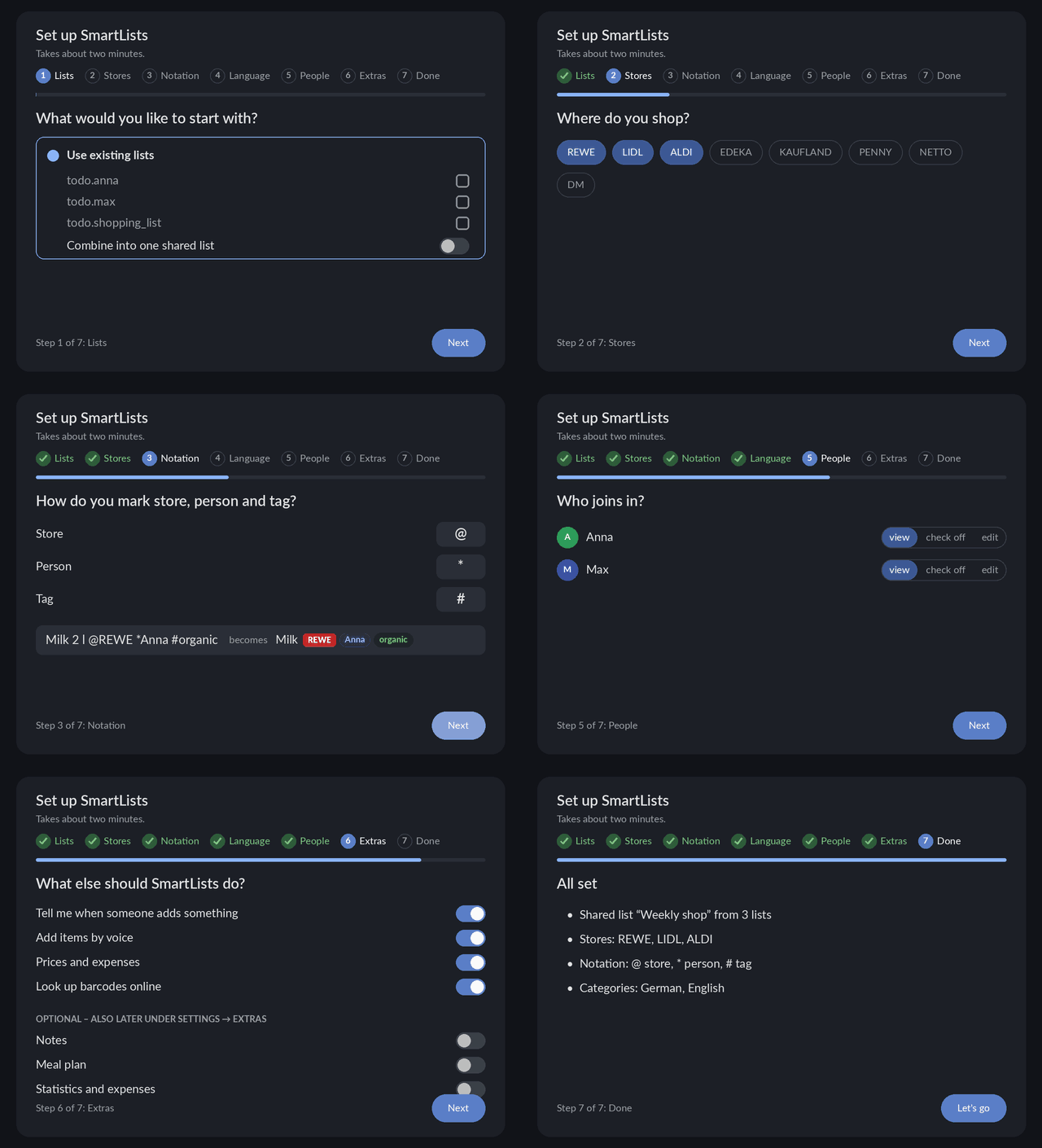
When an admin opens SmartLists for the first time (sidebar page or card), a short assistant appears.
Right after adding the integration, the success message also has a link Open the setup assistant, and
Settings → Devices & services → SmartLists → Configure → Run setup again leads to it any time
(/smartlists?setup=1).
Every step can be skipped and everything can be changed later in the settings. It is not shown to
installations that were already in use before 3.0.0; start it any time under General settings →
Global → Voice, backup, defaults → Run setup again.
- Lists – use the existing to-do lists (optionally combined into one shared list) or create a new own list.
- Stores – the stores you shop at; they are offered while typing.
-
Notation – the characters for store, person and tag (
@*#by default), with a live example. The app takes them when pairing. - Language – which keyword packs recognise the categories.
- People and app – permissions for a new own list; how to pair the app.
- Extras – notifications to your device, Assist, prices and expenses, barcode lookup, sharing via link for owners. Optional, off by default to keep things tidy for beginners: notes, the meal plan and statistics and expenses (can be switched on later under General settings → Global → Extras).
- Done – a summary; Set up applies everything at once.
The assistant is available in all six languages of the interface.
Both are in General settings → Global → Voice, backup, defaults (admins):
- Run setup again opens the assistant with your current data – nothing is reset, it only adds or changes what you pick.
-
Start from scratch … first resets the parts you choose, then opens the assistant:
- Reset settings (on by default) – notation, badges and colours, stores and zones, aisle orders, permissions, voice and automations, list display, keyword packs (back to the Home Assistant language).
- Delete learned data – remembered categories, history and statistics, prices and expenses, templates and meal plan.
- Revoke all share links – shared links stop working immediately.
- Remove combined lists – only the combined views; the source lists stay unchanged.
To-do lists and their items are never deleted, and users' personal settings (For me) stay. The same options are available without the card under Settings → Devices & services → SmartLists → Configure → Run setup again / start from scratch. Tip: export a backup first (Voice, backup, defaults → Export).
Add combined list merges several to-do lists into one new to-do entity (e.g. todo.weekly_shop).
Every SmartLists list (combined and own) appears as a device below its entry on the integration page:
combined lists show their source lists ("Combined from: Anna, Max"), own lists "Own list". Open the device →
Visit jumps straight to the list on /smartlists; the entity opens it in Home Assistant. Combined lists
taken over from the app are linked to the app's device ("via").
| Field | Meaning |
|---|---|
| Origin badge shows / Only these source lists | what the badge on each item shows – the list name (default), the owner of the source list, or "Owner List" – and from which source lists there is a badge at all (empty = all). Source lists without an owner (Local To-do, shopping list …) always show the list name. Admins and the owner can also change this in the card (list window → Origin badges, with a Save button; there you can also give each source list its own colour – by default every source list gets a different one automatically). |
| Owner, may edit / check off / only view | who sees and changes the combined list. "—" = everyone (as before); with an owner only they, admins and the people chosen here – in card, sidebar page, app and Assist. Also in the card: gear → Owner and Sharing. Combined lists taken over from the app belong to the account the app is paired with. |
| Lists to combine | any to-do lists (Shopping List, Local To-do, Google Tasks, Bring!, CalDAV, own SmartLists lists, …) – but not other combined lists |
| Default list for new items | where items added to the combined list go; empty = adding disabled |
| Checking off affects | source list (bidirectional) or this combined list only (sources stay untouched) |
| Show source in item name |
Milk · Anna, [Anna] Milk or hidden (HA's own to-do view) |
| Sort order | by list, by shopping category, open first, alphabetical |
| Foreign lists | items from these lists can only be checked off |
| Show source as person | items from todo.peter get the badge 👤 Peter |
Change or delete a list via ⋮ → Reconfigure.
Since 3.9.4 Settings → Devices & services → SmartLists → Configure only offers Run setup again / start
from scratch and a link Open settings to the SmartLists page (/smartlists?settings=global) – all
settings are there, complete and searchable. The sections below are kept for reference; their content lives in
the general settings now (see Settings).
- Naming convention – which character starts a store, person or tag (or off). See Item text and naming convention.
- Controls – default for everyone – gesture for the item menu (long press, double click, right click), what it does, menu entries, shopping-mode behaviour. Every user can override this in the card's gear menu, optionally per device.
- Remembered categories & history – forget single assignments, clear history.
- Voice & automations – default list for Assist, automatically add due items, install the Assist sentences. See Automations and voice.
- Connected devices – devices with the HA SmartLists app. See App pairing and devices.
New lists created by SmartLists use the same scheme as the app: own lists todo.ha_smartlists_list_<name>,
combined lists todo.ha_smartlists_list_merged_<name>. The display name is the name you typed. Lists
created before 2.8.0 keep their IDs.