Repository navigation
TradingView Integration & Charts
NewsAlerts integrates with TradingView to power both real-time streaming scanner updates and seamless one-click chart charting directly from the terminal.
When active momentum tickers trigger alerts or appear on the scanner, speed of execution is critical. Manually typing tickers into external chart windows wastes precious seconds.
NewsAlerts provides an instant one-click chart launcher docked directly within the News Catalyst Banner / Pane Header:
+------------------------------------------------------------------------------------+
| [LOGO] WORX $4.20 (+94.20%)  [HTB]  Float 1.2M · VWAP: $3.95     [CHART 📈] [REFRESH 🔄] |
+------------------------------------------------------------------------------------+
- Click any row in the Momentum Screener or any print in the Running Tape. The ticker is immediately focused and its catalyst headlines load in the right-hand News pane.
- In the top-right corner of the News Pane Header, locate the Chart Icon (
#news-chart). - Click the Chart Icon (or press the chart shortcut).
- The terminal automatically launches your default operating system browser and opens the live interactive chart for that exact ticker:
https://www.tradingview.com/chart/?symbol=<TICKER> - Your customized TradingView indicators, moving averages, volume profile, and drawing templates are loaded immediately without any manual symbol entry.
By default, unauthenticated TradingView connections receive delayed data (~15-minute delay). Entering your TradingView session cookie enables sub-second real-time streaming:
- Open your browser and log into tradingview.com.
- Press
F12(or right-click → Inspect) to open Developer Tools. - Navigate to the Application tab (Chrome / Edge / Brave) or Storage tab (Firefox).
- Under the Cookies section in the left sidebar, click
https://www.tradingview.com. - Locate the cookie named
sessionidand double-click to copy its value. - In NewsAlerts, click the top-right Gear Icon (Settings) or press
S. - Paste the cookie into the sessionid input field (and optionally
sessionid_sign). Input fields are password-masked. - Click Save Settings. The status indicator in the top header will transition to TradingView — Connected (Real-Time).
-
GUI Saved (
config.json): Stored under"tv": { "sessionid": "...", "sessionid_sign": "..." }in your central application directory (%APPDATA%\NewsAlerts\on Windows,~/Library/Application Support/NewsAlerts/on macOS,~/.config/NewsAlerts/on Linux). -
Standalone Secrets (
keys.toml): Alternatively, place cookies in<APP_DIR>/keys.tomlunder[tradingview](sessionidandsessionid_sign). - For complete details, see the Configuration & Secrets Guide.
(New in v2.8.0)
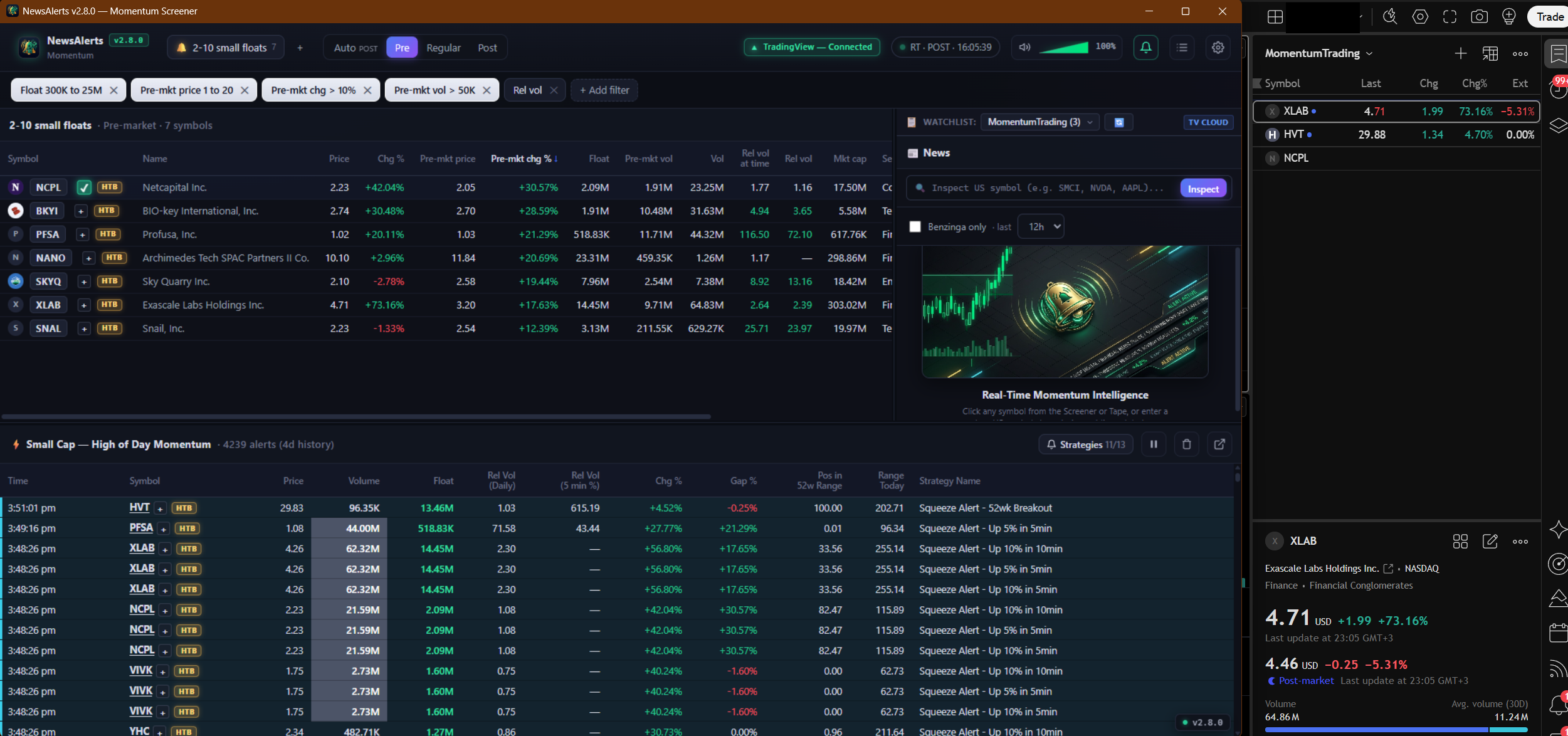
Live Watchlist Synchronization (v2.8.0): Clicking the + button next to NCPL triggers a 3-second green flickering glow (✓) and instantly appends the symbol to the active TradingView cloud watchlist (shown live in TradingView Desktop on the right).
+------------------------------------------------------------------------------------+
| 📋 WATCHLIST: [ MomentumTrading (3)  ▾ ]  [🔄]                       [TV CLOUD]   |
+------------------------------------------------------------------------------------+
-
Location: Positioned directly above the News pane (
#news-pane). - Dynamic Watchlist Dropdown: Displays all custom watchlists registered to your authenticated TradingView account, along with their current symbol count.
-
On-Demand Cloud Sync (
🔄): Click the refresh button to pull any newly added watchlists or external edits without restarting the application. -
5-Minute Periodic Auto-Refresh: In addition to manual on-demand syncing (
🔄), NewsAlerts automatically synchronizes with TradingView every 5 minutes in the background, updating list counts whenever symbols are removed or added externally. -
Connection Badge: Shows
[TV Cloud]when authenticated with TradingView, or[Local]when operating in offline/fallback mode.
Every stock symbol throughout the terminal is equipped with a high-visibility + quick-add button:
- Momentum Screener Table: Beside each symbol badge in the main scanner view.
- Running Momentum Tape: Directly next to the symbol in each momentum print.
- News Header: Next to the active inspected ticker in the catalyst wire.
To maximize trader focus and prevent workflow interruption:
-
🟢 Silent Green Flickering (3 seconds): When a symbol is added (or if it is already present in the target watchlist), the
+button pulses with a vibrant institutional green glow animation and turns into✓for 3 seconds. No disruptive modal popups or confirmation dialogs occur. -
🔴 Red Flickering & Toast (3 seconds): If session credentials expire or a network error occurs, the button pulses red (
✕) for 3 seconds and an alert toast displays the exact diagnostic failure.
- Your session cookies are stored exclusively in your local user configuration directory (
%APPDATA%\NewsAlerts\config.jsonon Windows or~/Library/Application Support/NewsAlerts/on macOS). - Cookies are strictly isolated from git repositories and release packages.
- The terminal communicates directly with TradingView servers via encrypted HTTPS WebSockets.