Windows
This guide explains step by step how to program your M5Stack with the M5Burner utility (Arduino not required).
- Go here: https://docs.m5stack.com/#/en/arduino/arduino_development and download the driver.
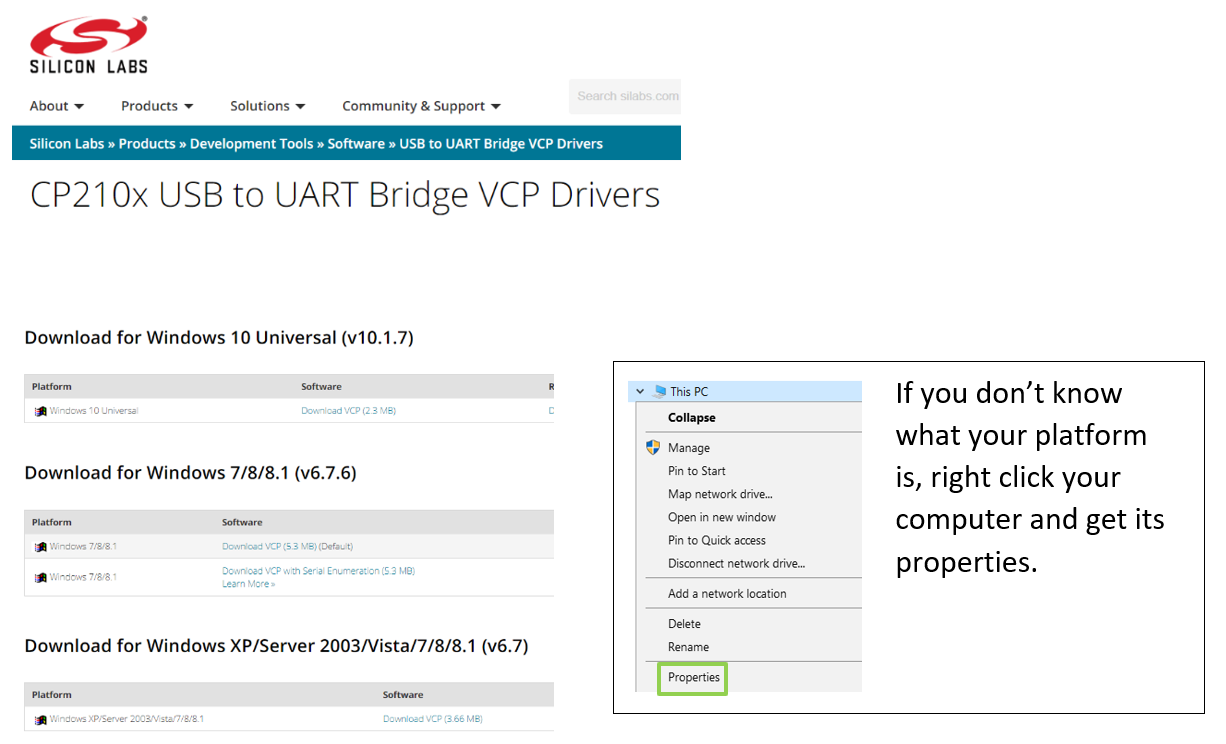
- Go to of SiLabs https://www.silabs.com/products/development-tools/software/usb-to-uart-bridge-vcp-drivers and choose the version matching your operating system.
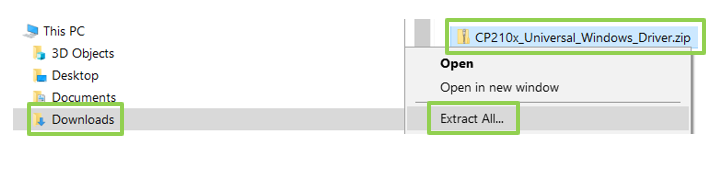
In the Downloads folder, extract the .zip file
Open the extracted folder and run the installer for the correct platform type of the driver.
Next, Accept, Next, Finish.
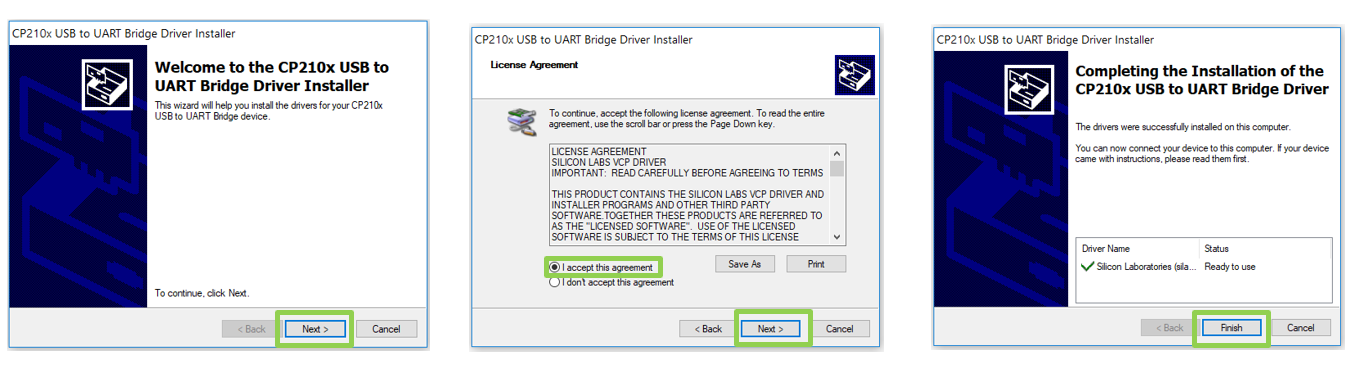
NB: If you have previous versions of SiLabs drivers you might need to remove them in order to see the M5Stack serial port.
Open this link in a new tab https://github.com/mlukasek/M5_NightscoutMon/releases
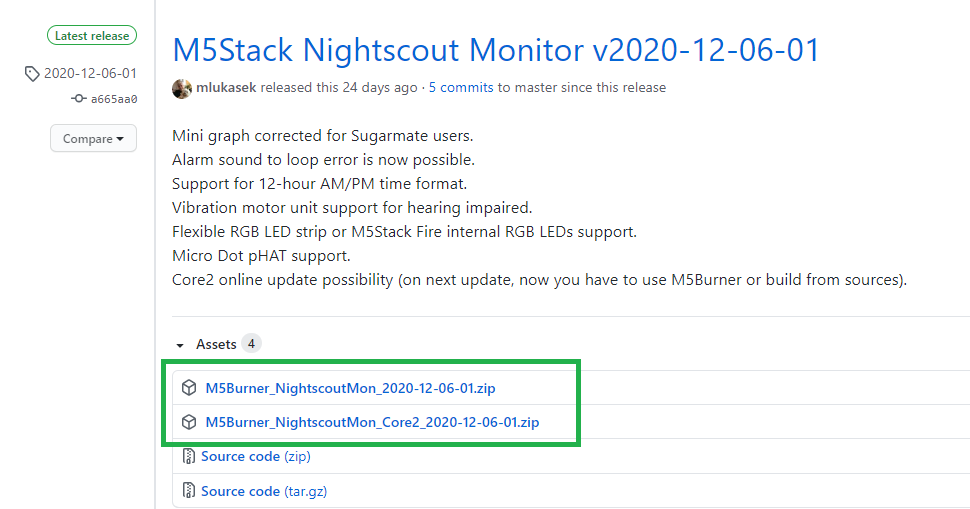
Select the .zip file matching your device (Core or Core2) and download it: Note: take the latest release and not the one from the example below
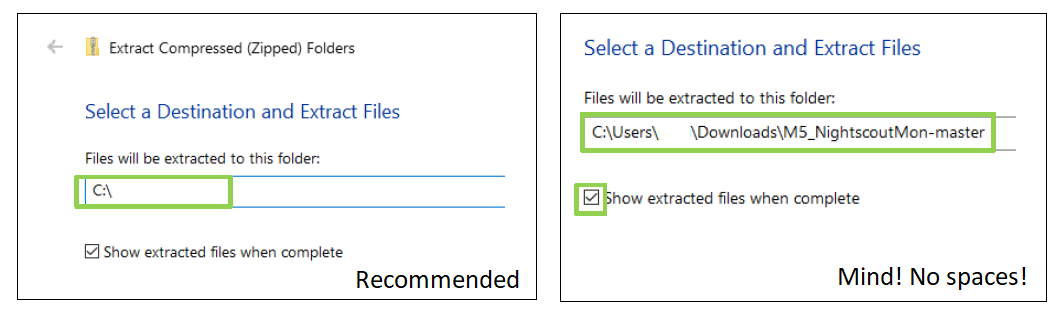
From the Downloads folder, extract the .zip file to C:\
You can extract it wherever you want, but avoid a path name with spaces inside.
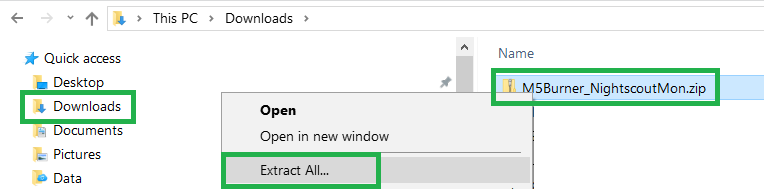
Click Extract
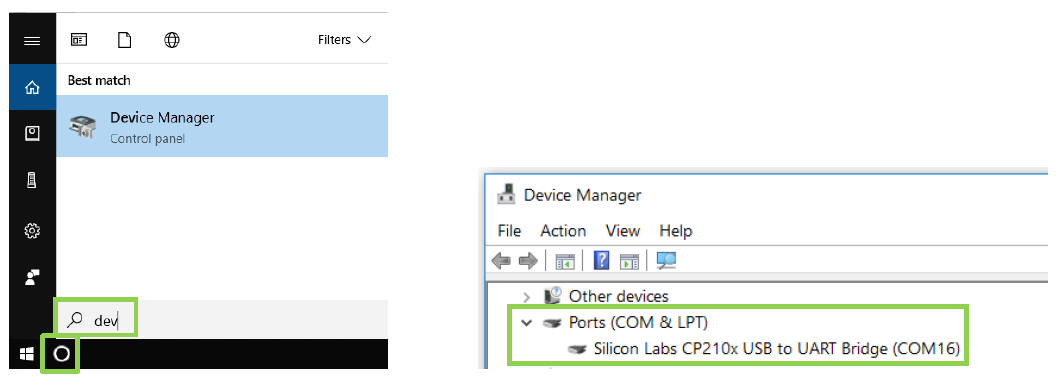
Open the device manager and check:
- M5Stack is there
- Which COM port it uses
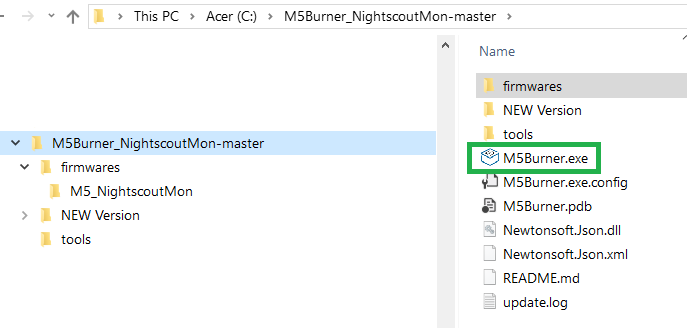
From the folder C:\M5Burner_NightscoutMon-master (or the other folder you selected when extracting the .zip file) run the program M5Burner.exe
If your computer uses Windows Defender you will need to authorize it to run.
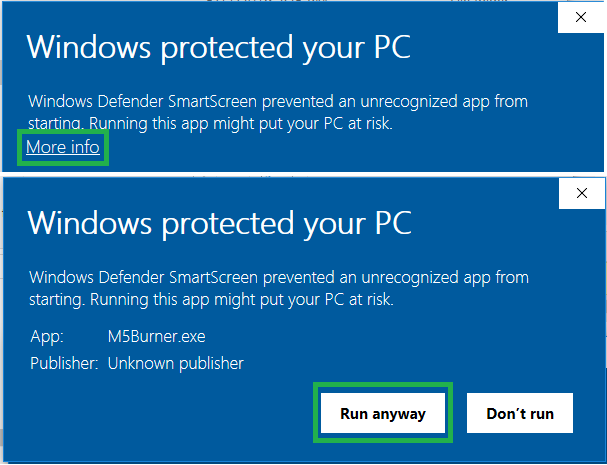
This program was provided directly from M5Stack (Shenzhen Mingzhan Information Technology Co., Ltd.) with authorization to redistribute. We consider it as safe to run.
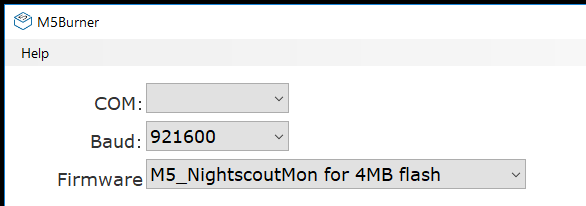
The application opens, select your COM port, make baudrate 921600 and select the M5_NightscoutMon firmware.
Note: I removed the COM number to avoid confusion since it might be different.
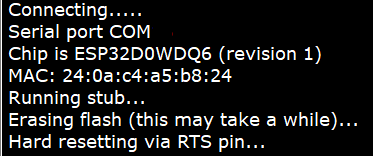
Click Erase, you should see messages in the window.
If you don't see error messages but the operation doesn't seem to complete, skip this step.
Click Burn
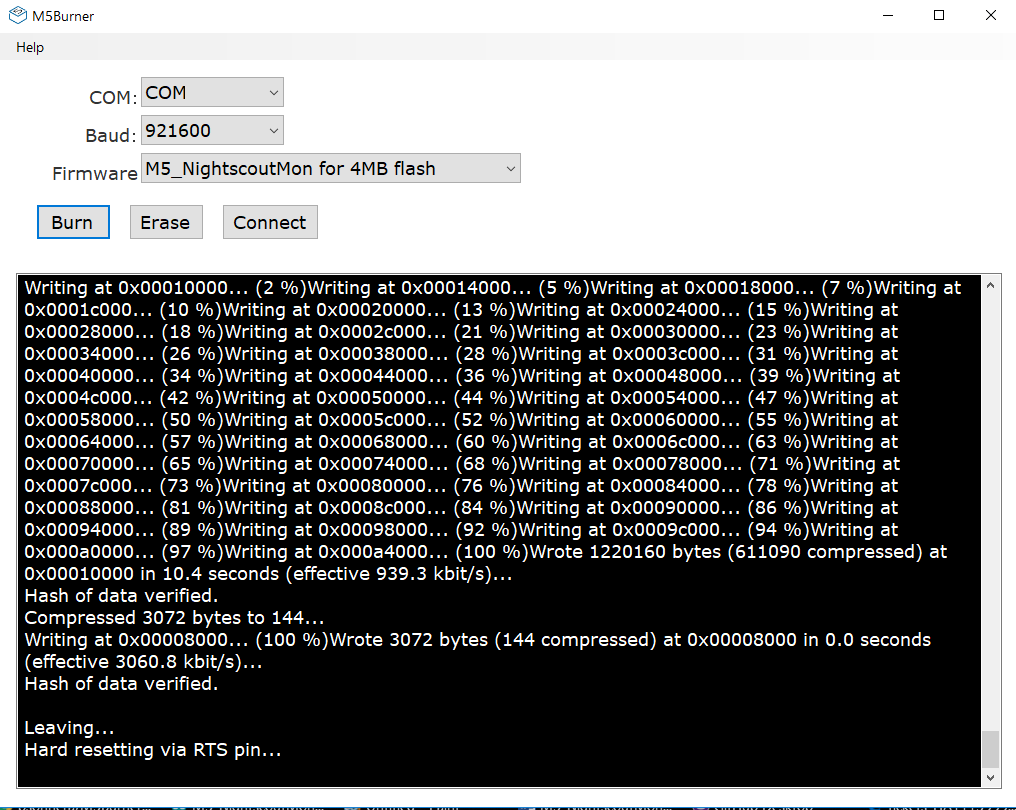
Congratulations, you programmed your M5Stack.
Plug your memory to the PC either directly or through an adapter and verify it’s formatted FAT32.
Copy these two files from the project folder SD: C:\Users\...\Downloads\M5_NightscoutMon-master\M5_NightscoutMon\SD to the SD memory.
Note: Don’t copy the folder: just these two files
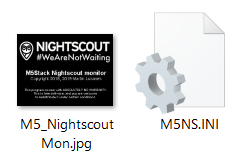
Open the M5SN.ini file with a text editor, like Notepad.
If you don't have a way to read it on your PC and you have an Android phone, insert it in your phone.
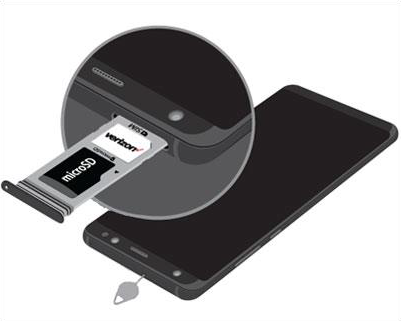
Install https://play.google.com/store/apps/details?id=com.rhmsoft.edit on your phone to edit the M5NS.ini file.
Once you've opened the M5NS.ini with a text editor, add your Nightscout site or Sugarmate json address here.
If your Nightscout site uses https (default) enter the name directly like in the example.
[config]
nightscout = yoursite.herokuapp.com
If your Nightscout site uses http include it:
nightscout = http://yoursite.herokuapp.com
Only if your Nightscout site is secured add the following line:
token = your_security_token
If you're using a Sugarmate json (see here how to do this) add it like this:
nightscout = sugarmate.io/api/v1/XXXXXX/latest.json
Make sure the local web server is enabled, like this you'll continue the configuration with a browser later.
device_name = M5NS
disable_web_server = 0
Browse down the file to [wlan1]:
[wlan1]
ssid = ssid1
pass = pass1
Replace ssid1 with your Wi-Fi network name.
Replace pass1 with your Wi-Fi network password.
Save the file and exit the text editor.
Place the SD card in your M5Stack device. Don't miss the slot else it might fall inside the device and you'll have to open it to recover the memory...
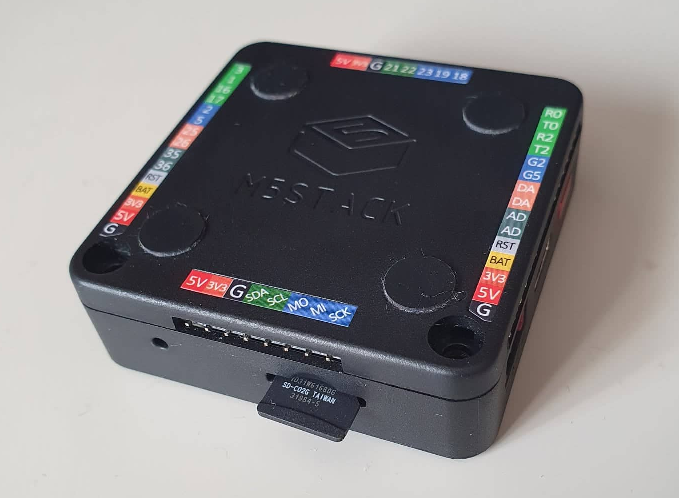
Continue with the setup here.