Repository navigation
Tutorial
This tutorial turns HIB on for one site and plays a video from it. It uses Coverr, a free stock-footage site, so everything you see is safe to show. The same steps work on any site whose pages list videos as cards (a picture, a title, a link).
Before you start: install Imagus Reborn and HIB. If you only have a preview build, see Installing a Preview Build.
Open the site in Firefox. HIB does nothing here yet: it only ever works on sites you add.

Click the HIB button in the toolbar. The popup shows the current site and says HIB is disabled on this site. Click Scan Site for Videos.

The popup now says HIB is enabled on this site, the button reads Stop Video Scan, and a note explains: Video scanning enabled. The site is NOT registered until playback is verified. The site is saved for good the first time a video really plays.

The same popup also holds the default volume, Start Muted, the subtitle language that is shown first and the Video Hover Delay (1 to 10 seconds; 2 is the default).
Scroll down to the cards and move the pointer over one. A thin cyan dashed outline (1 pixel) around the card means HIB recognised it automatically. You do not have to do anything else for this site; skip to step 6.

No outline? Then HIB does not know this site's card layout yet. Use Pick Card (steps 4 and 5).
Click the HIB button and then Pick Card. A panel opens at the bottom right of the page and a 4 pixel cyan outline follows the pointer so you can see exactly what is being highlighted.

Preview Detected Cards shows what HIB already found without changing anything: yellow outlines are thumbnails, cyan outlines are whole cards. Here HIB found 25 of each.

If cards are missing, click Find / Add Card Type. Hover the picture of a card that was not outlined; the outline shows what will be taken as the thumbnail.

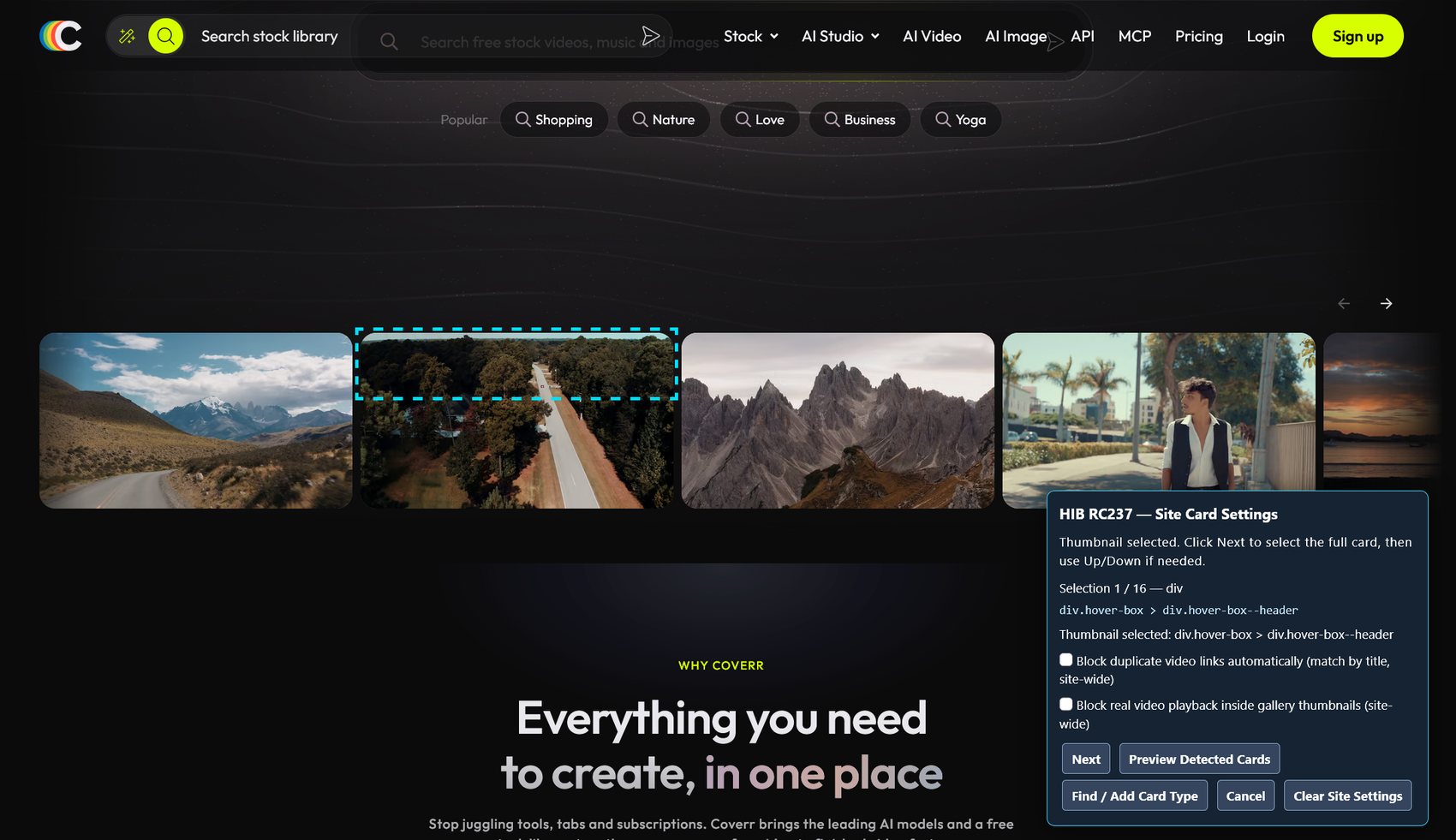
Click it. The panel confirms Thumbnail selected and shows the selector it found.

Click Next (stage 2). Use Up until the outline fits one complete card (you start on the thumbnail layer). If the thumbnail is the entire card, leave it unchanged. Preview Detected Cards is optional. Then click Save Card.

Two site-wide switches sit in the same panel:
-
Block duplicate video links automatically (match by title): when a site lists the same video twice, only one card is used.

-
Block real video playback inside gallery thumbnails: stops a site's own thumbnails from playing small animated previews, so they do not compete with HIB's scan.

After Save Card the panel says how many card types are staged. Add more with Find / Add Card Type, Skip This Type, or finish with Finish & Save Site, which stores everything for this site. Cancel throws away what you changed; Clear Site Settings removes the saved layout.

Firefox blocks sound that starts by itself, and the page HIB scans in the background is treated the same way. The first time you hover a card on a site with autoplay blocked, HIB shows a prompt at the top right of the page after your hover delay:
HIB: Autoplay is still blocked for this site. Click the blocked-autoplay icon at the left of the address bar and choose "Allow Audio and Video" (or Page Info > Permissions > Autoplay), then hover the card again.

- Read the prompt (1).
- Click the blocked-autoplay icon at the left of the address bar (2) and choose Allow Audio and Video for this site. Alternatively open Page Info > Permissions and set Autoplay to Allow Audio and Video.
- Hover the card again. Press Dismiss to close the prompt.
You only do this once per site.
Rest the pointer on a card for the hover delay (2 seconds by default). A spinner appears on the card while HIB checks the video (about 5 seconds on this site).

When the check finishes, the spinner turns into one of three marks:
| Mark | Meaning |
|---|---|
| − (a minus sign in a circle, "half minus") | A playable video was found and verified. Right-click the card to play it. |
| ' (an apostrophe) | A landing page: the page behind the card has no video of its own (or autoplay is blocked). Nothing plays; the picture opens as usual. Hover the card again to scan it again. |
| ! (an exclamation mark) | A dead source: the link behind the card is dead (for example a 404 page), the site is down, or the video type or player is not supported. Nothing plays. Hover the card again later to try again. |


(Versions before 3.0.2 show the apostrophe for a dead source too; the exclamation mark returns in 3.0.2.)
Right-click the card that shows the −. The HIB player opens on top of the page: no new tab and no leaving the list.

Move the pointer over the player to show its controls.

- Title bar (1): the site and the video title.
- Bar, Jump and Volume step (2): how see-through the control bar is, how far the Left / Right keys jump, and how many points the Up / Down keys change the volume.
- Close (3).
- Play / Pause (4) and time played (5) with the cache state: cached means HIB holds the whole video in memory, so jumping is instant.
- Seek bar (6) and total length (7).
- Mute (8) and the volume slider with its percentage (9). The arrow keys Up and Down change the volume; Left and Right jump.
- A− / A+ (10): make subtitles smaller or larger.
- CC (11): subtitles on or off, with a list of languages.
- Full screen (12).
On sites that offer several resolutions a Resolution selector (for example 360p to 1080p) appears in the control bar, and for streams with several qualities a Quality selector. They work with the mouse only, so the arrow keys never change the quality by accident.
- All the other settings and the Tools page: User Guide.
- Something did not work? Click the HIB button, open Tools and use Report Issue; it opens a pre-filled GitHub page and saves a report file for you to attach. Nothing is posted by HIB.