Repository navigation
Northshell 1.5.1 — HTTP request panel, GPU memory and cd-following SFTP

Send HTTP requests without typing curl, see GPU memory, and let the SFTP panel follow cd.
HTTP request panel (⇧⌘R)
- In an HTTP environment, fill in the method, path, headers and body, and press
⌘↩. The response appears next to the terminal with its status, time, size and headers, and JSON is highlighted. - Paste a curl command into the address field — for example “Copy as cURL” from browser dev tools — and the form fills itself.
{{id}}-style parameters are filled in right in the panel. Any request can run in the terminal, be copied as curl, or be saved to the command library and opened back in the form later.- The environment's headers and token are sent only to its own host: other hosts and redirects to them don't get them.
GPU and memory
- Video memory in the status bar and the monitor panel: NVIDIA (
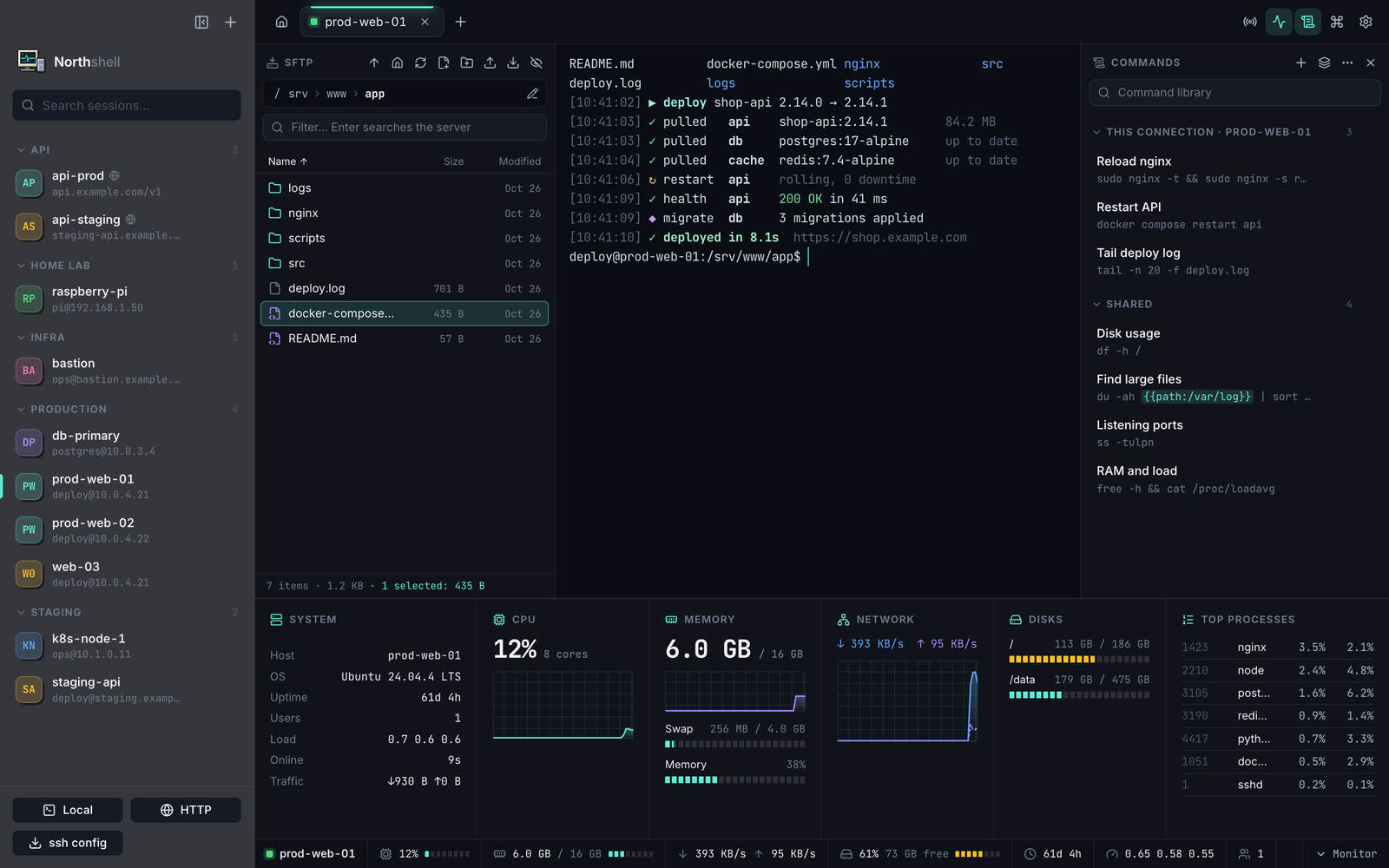
nvidia-smi) and AMD (amdgpu) on Linux servers, and the GPU of your Mac or a macOS server. - Apple Silicon shares memory between CPU and GPU, so the GPU's share is macOS's own estimate (⅔ of RAM up to 36 GB, ¾ above) and is marked with “≈”.
- Fixed: memory on macOS servers was counted differently from Activity Monitor and showed about 1.5 GB less. This Mac and macOS servers now report the same “Memory Used” as Activity Monitor.
SFTP panel follows cd
cdin the terminal moves the file panel of the same connection to that folder. Use the toggle in the path bar to turn this on or off, and the terminal button next to it tocdthe terminal into the folder you are browsing.- Nothing is typed into your shell for this. It doesn't follow inside tmux/screen or after
sudo -i.
Ctrl+A selects the typed command
- As on Windows:
⌫deletes the command, typing or pasting replaces it. PressCtrl+Aagain to jump to the line start as before. - vim, nano, less, tmux and MultiExec mode keep their own
Ctrl+A. You can turn this off in Settings → Terminal.
Install
Download Northshell-1.5.1-arm64.dmg below (macOS 13+, Apple Silicon), open it and drag Northshell into Applications, replacing the old version — sessions and settings are kept. On first launch allow the app in System Settings → Privacy & Security → Open Anyway, or run xattr -dr com.apple.quarantine /Applications/Northshell.app.
SHA-256: 065c55231387ef5cf7957fe7546de0411f2e477e080f79d770bc8b1615aed0fa