Repository navigation
Releases
Northshell 1.6.1 — one-command install and updates inside the app

Install with one command, and from now on update with one button instead of the Terminal.
Install with one command
Open Terminal, paste this and press Return:
curl -fsSL https://raw.githubusercontent.com/nikserbur/northshell/main/scripts/install.sh | bashIt downloads the latest version, checks its SHA-256, puts Northshell into Applications and starts it. macOS doesn't block the app, because that warning only applies to files downloaded through a browser. Read the script first if you like.
Coming from 1.6.0 or older? Run this command once. Those versions can't update themselves yet. Quit Northshell first; sessions and settings are kept.
Updates inside the app
- Northshell checks for a new version at launch and once a day, and shows it in a bar under the tabs.
- Update and restart downloads the new version, checks its SHA-256, the app's identifier and its version, replaces the app and starts it. No Terminal and no "Open Anyway".
- If tabs are open, it asks first, because restarting closes them.
- If anything fails, the installed app stays as it was.
- The check talks only to github.com. You can turn it off in Settings → About.
README
- Installation comes right after the features and is first in the top menu.
- All the screenshots are in one table.
- The version history is easier to scan.
Install with the DMG
Download Northshell-1.6.1-arm64.dmg below (macOS 13+, Apple Silicon), open it and drag Northshell into Applications, replacing the old version. A copy downloaded through a browser still has to be allowed on first launch: go to System Settings → Privacy & Security → Open Anyway, or run xattr -dr com.apple.quarantine /Applications/Northshell.app.
SHA-256: fb3043b29719422ac8b423b08b754bf6b25ef549eb6bcdc7db51ac32e1cad728
Northshell 1.6.0 — disk speed, who loads the server, and a full HTTP client
See who is loading a server's disks, CPU and network, and work with APIs in a full HTTP client.
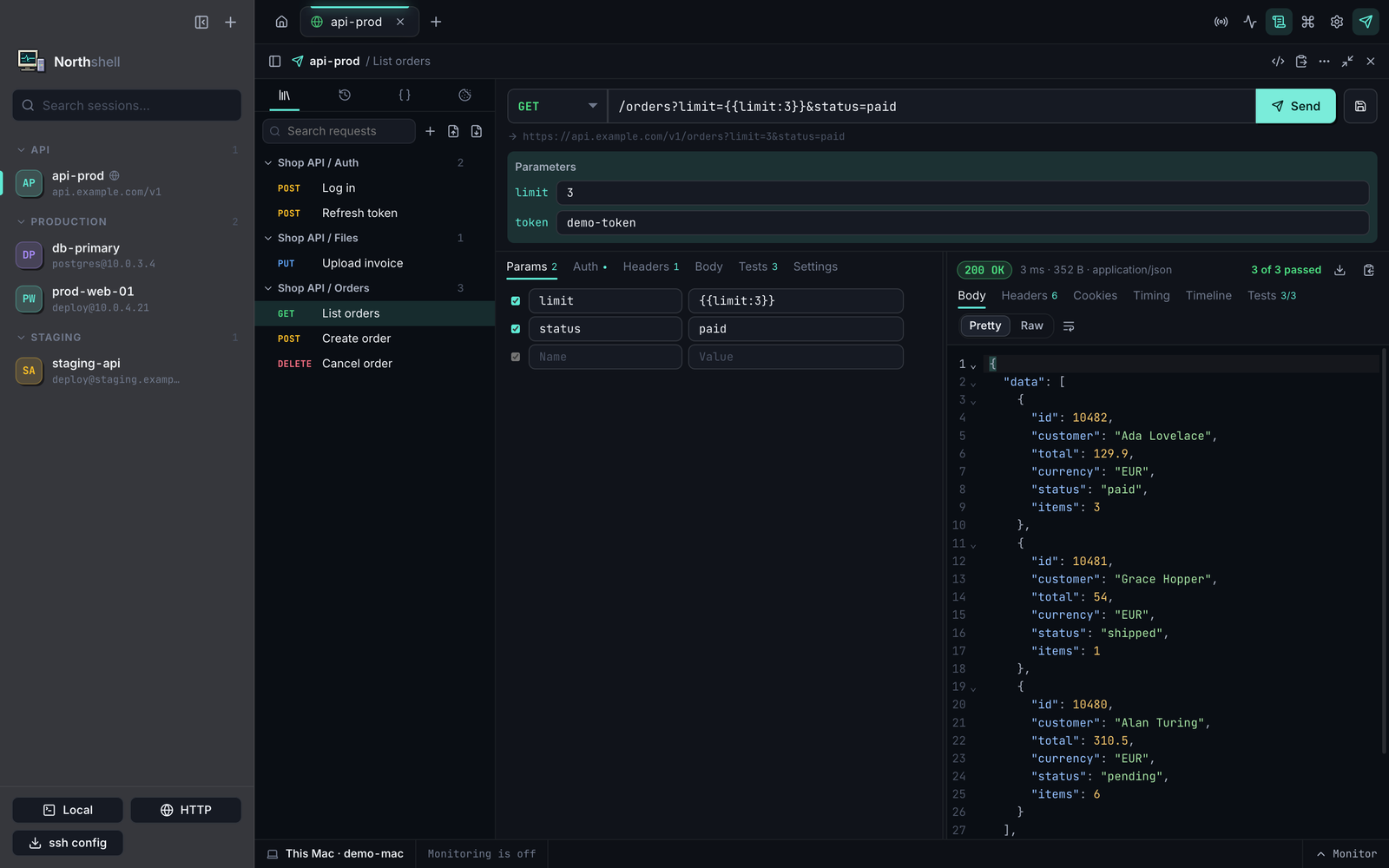
Monitor: who is loading the server
- Disk speed: a new Disk I/O card with read and write speed and a graph, for the whole host and for each device. It updates with the rest of the monitor (every 3 seconds by default).
- Top users: rank users by CPU, RAM, disk or network right in the panel. Pick a user to see their share on every card and their processes.
- Enlarge (⤢) for an htop-like view: every process with sorting by any column, search, a process tree and the full command line, plus a table of users.
- Disks page: who is reading and writing now, and who takes up the space on each volume. Space per user walks the files, so it runs when you press the button, at the lowest CPU and disk priority.
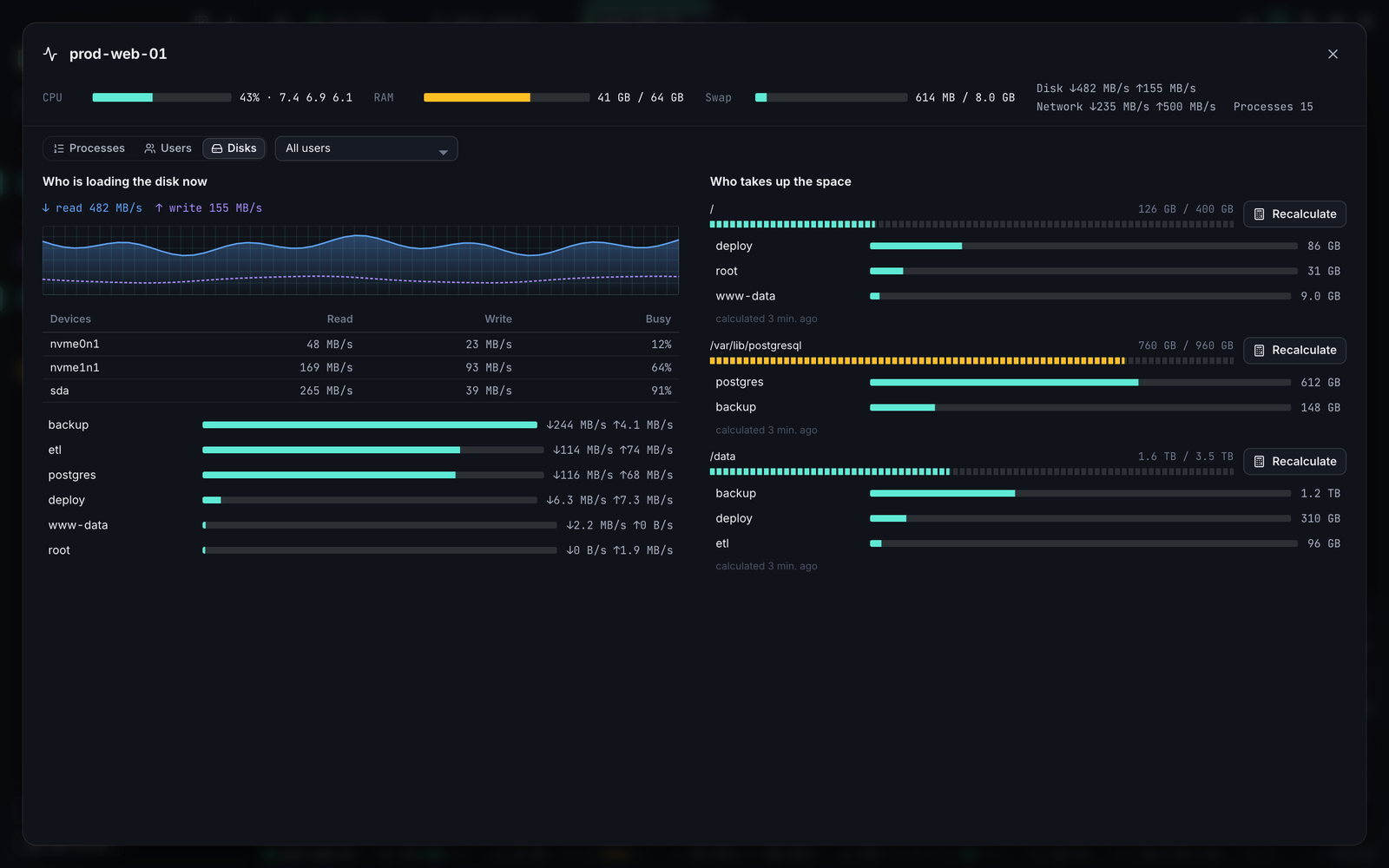
What you can see depends on the server:
- On Linux, reads and writes of other users' processes are visible to root only, so connect as root to see everyone.
- Traffic per user counts TCP connections only.
- macOS has no per-process disk counters, so only its total speed shows.
The per-user numbers are new. If they look wrong on your server, please open an issue.
HTTP client, like Postman and Insomnia
- Workspace: fills the window, and one button puts the terminal back beside it.
- Collections: folders of saved requests (
⌘S), with history and variables kept between launches. Import Postman v2 and Insomnia collections, export to Postman. - Requests: Bearer, Basic and API key auth; JSON, XML, text, form, multipart, file and GraphQL bodies; on/off switches for parameters and headers.
- Responses: folding and search (
⌘F), HTML and image preview, cookies, a time breakdown, curl's log with credentials masked, and saving the whole response to a file. - Checks and runs: check the status, time, size, a header or a JSON path, and copy a value from a response into a variable, such as a token after login. Run a whole folder in order and get a report.
- Code: generate a request for curl, fetch, Python requests or HTTPie.
There are no JavaScript scripts, OAuth 2 sign-in, WebSocket, gRPC, mock servers or cloud sync.
Terminal
⌘Aselects the command you are typing, and pressing it again selects all output.⌫deletes the selection and typing replaces it, and the same works for a part selected with the mouse.Ctrl+Agoes to the line start again.
Changes to how things work
$TOKENstays on the environment's own host: a request to another host that uses it now shows an error instead of being sent, so an imported collection cannot carry your token away.- The HTTP workspace covers the terminal by default. Your choice is remembered.
- Plain-text storage: collections, variables and cookies are readable only by your user but aren't encrypted. Keep secrets in
$TOKEN, because a token typed into a form is saved as typed.
Install
Download Northshell-1.6.0-arm64.dmg below (macOS 13+, Apple Silicon), open it and drag Northshell into Applications, replacing the old version — sessions and settings are kept. On first launch allow the app in System Settings → Privacy & Security → Open Anyway, or run xattr -dr com.apple.quarantine /Applications/Northshell.app.
SHA-256: 429173f02e651a04ad376aa9034a6385a04080e01365596ac1bf5c7d9e0a6d2c
Northshell 1.5.1 — HTTP request panel, GPU memory and cd-following SFTP
Send HTTP requests without typing curl, see GPU memory, and let the SFTP panel follow cd.
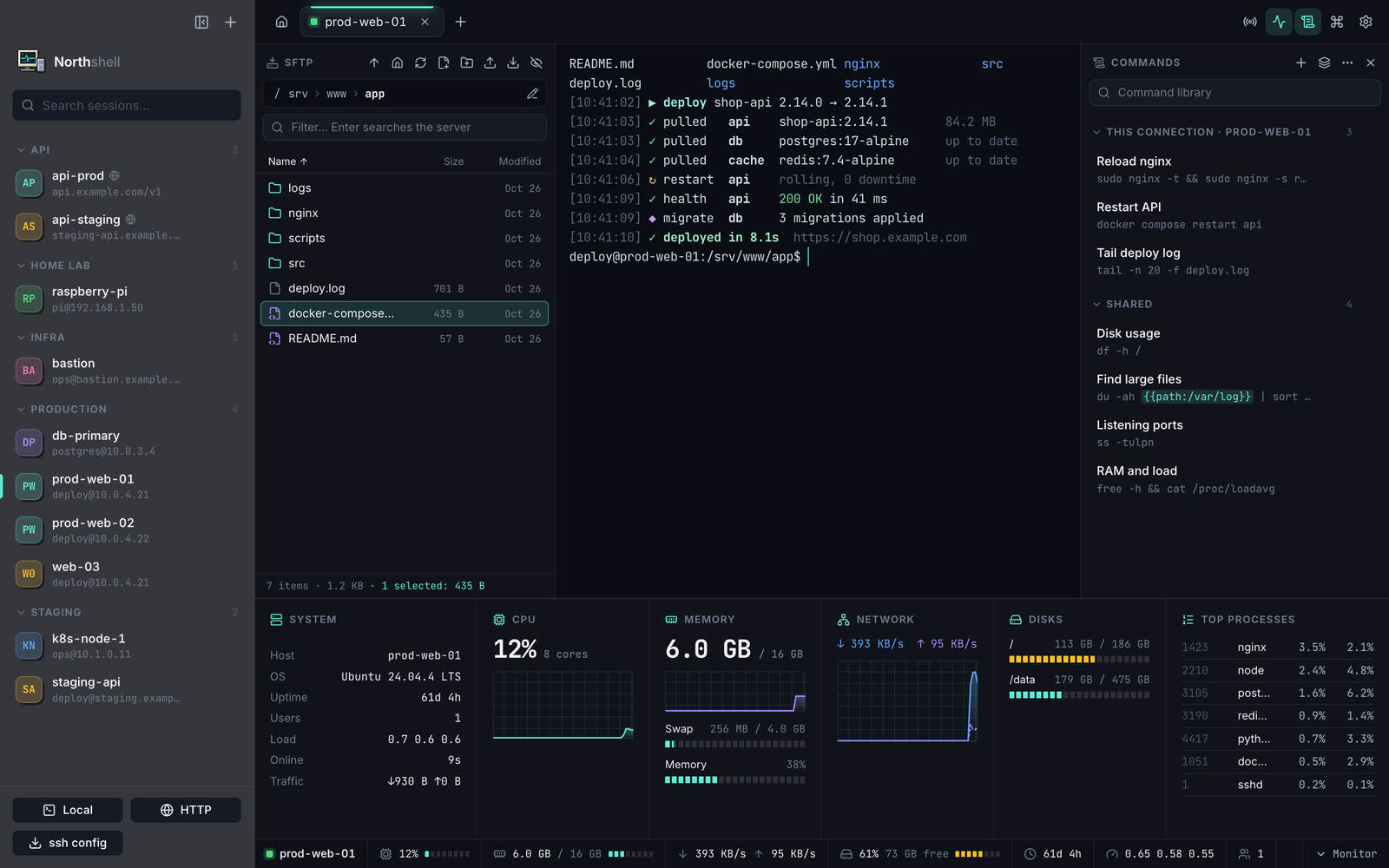
HTTP request panel (⇧⌘R)
- In an HTTP environment, fill in the method, path, headers and body, and press
⌘↩. The response appears next to the terminal with its status, time, size and headers, and JSON is highlighted. - Paste a curl command into the address field — for example “Copy as cURL” from browser dev tools — and the form fills itself.
{{id}}-style parameters are filled in right in the panel. Any request can run in the terminal, be copied as curl, or be saved to the command library and opened back in the form later.- The environment's headers and token are sent only to its own host: other hosts and redirects to them don't get them.
GPU and memory
- Video memory in the status bar and the monitor panel: NVIDIA (
nvidia-smi) and AMD (amdgpu) on Linux servers, and the GPU of your Mac or a macOS server. - Apple Silicon shares memory between CPU and GPU, so the GPU's share is macOS's own estimate (⅔ of RAM up to 36 GB, ¾ above) and is marked with “≈”.
- Fixed: memory on macOS servers was counted differently from Activity Monitor and showed about 1.5 GB less. This Mac and macOS servers now report the same “Memory Used” as Activity Monitor.
SFTP panel follows cd
cdin the terminal moves the file panel of the same connection to that folder. Use the toggle in the path bar to turn this on or off, and the terminal button next to it tocdthe terminal into the folder you are browsing.- Nothing is typed into your shell for this. It doesn't follow inside tmux/screen or after
sudo -i.
Ctrl+A selects the typed command
- As on Windows:
⌫deletes the command, typing or pasting replaces it. PressCtrl+Aagain to jump to the line start as before. - vim, nano, less, tmux and MultiExec mode keep their own
Ctrl+A. You can turn this off in Settings → Terminal.
Install
Download Northshell-1.5.1-arm64.dmg below (macOS 13+, Apple Silicon), open it and drag Northshell into Applications, replacing the old version — sessions and settings are kept. On first launch allow the app in System Settings → Privacy & Security → Open Anyway, or run xattr -dr com.apple.quarantine /Applications/Northshell.app.
SHA-256: 065c55231387ef5cf7957fe7546de0411f2e477e080f79d770bc8b1615aed0fa
Northshell 1.4.0 — command library and HTTP environments
Two new ways to stop retyping the same things: a command library and HTTP environments for curl.
Command library (⇧⌘L)
- A side panel with your frequent commands. Each one is either shared (every connection) or private to one connection.
- Double-click or ▶ runs a command; ↵ inserts it without pressing Enter. Commands are also in the command palette (
⌘P). - Placeholders:
{{id}}or{{limit:20}}ask for a value before the command runs (with a preview).\{{keeps literal braces, e.g. for Go templates. - Everything is stored in a plain
commands.jsonin~/Library/Application Support/Northshell/. Edit it by hand and the app picks up the changes immediately; refer to a connection by name with"session": "prod-web". Import and export move a library between Macs or to your team.
HTTP environments (curl, no SSH)
- A new connection type for APIs: HTTP at the bottom of the sidebar or
⌥⌘N. - Opens a local terminal with
$BASE_URLand$TOKEN(the token is kept in the Keychain), and your default headers — e.g.Authorization: Bearer $TOKEN— are added to everycurlautomatically: just runcurl $BASE_URL/health. - Optional
curl -kfor self-signed certificates. The headers apply to everycurlin that tab, so use another tab for other hosts. - The generated curl config lives in a private temporary folder and is deleted when the tab closes (and cleaned up after a crash).
Install
Download Northshell-1.4.0-arm64.dmg below (macOS 13+, Apple Silicon), open it and drag Northshell into Applications, replacing the old version — sessions and settings are kept. On first launch allow the app in System Settings → Privacy & Security → Open Anyway, or run xattr -dr com.apple.quarantine /Applications/Northshell.app.
SHA-256: 37772b2dec8904fa0075496c5e89739914cd7aab26b32d01da42d6845a547018
Northshell 1.3.0
Termora is now Northshell — a free, open-source MobaXterm alternative for macOS. The name changed because "Termora" is already used by another SSH client.
Changes
- New name, bundle identifier and DMG.
- On first launch Northshell imports sessions, settings and known hosts from Termora. Saved passwords are not carried over (they were encrypted with the old app's Keychain key) — Northshell asks for them on the next connection.
- Documentation: installation guide, FAQ, comparison with other Mac SSH clients and known limitations.
Install
Download Northshell-1.3.0-arm64.dmg below (macOS 13+, Apple Silicon), open it and drag Northshell into Applications. On first launch allow the app in System Settings → Privacy & Security → Open Anyway, or run xattr -dr com.apple.quarantine /Applications/Northshell.app. If you used Termora, you can delete it afterwards.
SHA-256: 0b397633d86a9ca9736dfefe34301d3c1addd4dd64a58e2f09183fc66dd01f25
Termora 1.2.0 — MobaXterm theme
Что нового в 1.2.0
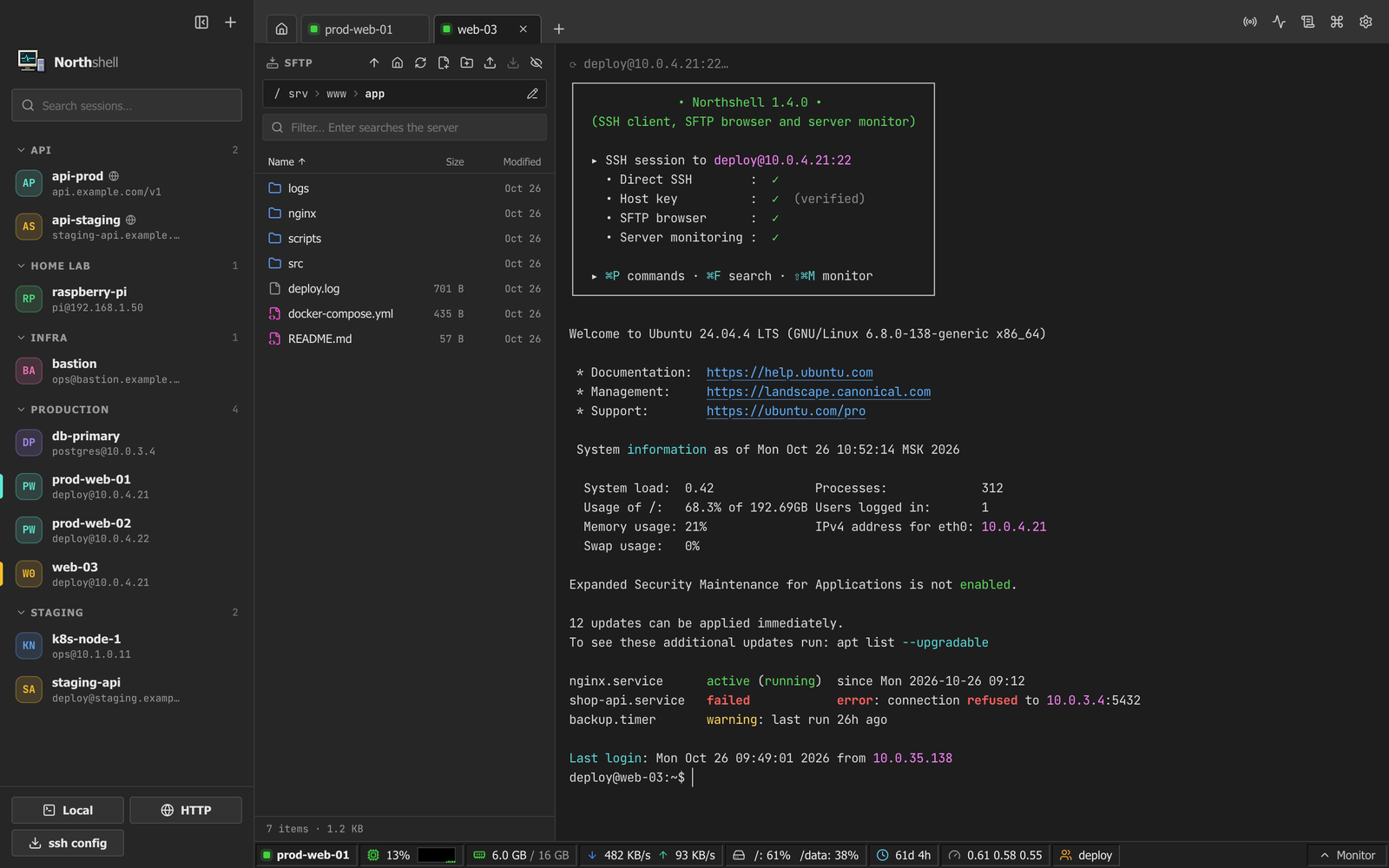
- Тема MobaXterm — тёмный Windows-интерфейс, скруглённые вкладки сессий и панель мониторинга как в Moba: ячейки с цветными значками, мини-график CPU, все диски (красным при заполнении ≥ 90%) и имена пользователей.
- Подсветка вывода как в MobaXterm — IP-адреса, ссылки,
error/failed,warning,ok/enabled/running, флаги команд. Не мешает полноэкранным программам (vim, htop). - Информационная рамка при подключении — адрес, SSH, проверенный ключ хоста, SFTP и мониторинг.
- Адаптивный интерфейс — нижняя строка больше не обрезается при сужении окна: менее важные блоки прячутся по приоритету; в узких панелях кнопки сворачиваются до значков.
- Тема Visual Studio: кнопка «+» на одной линии с вкладками, спокойная строка состояния без оранжевого.
⬇️ Установка
Скачайте Termora-1.2.0-arm64.dmg ниже (macOS 13+, Apple Silicon) и перетащите в Applications.
Если macOS блокирует запуск: правый клик → Открыть, или xattr -dr com.apple.quarantine /Applications/Termora.app.
SHA-256: 1ce0f8a989ce664e73f520d112834a997c451f912c41706e8d5221c93c1ff091
English: adds a MobaXterm theme (Moba-style monitoring bar, info box on connect, output highlighting), an adaptive status bar that never clips, icon-only buttons in narrow panels, and Visual Studio theme fixes.
Termora 1.1.0 — Visual Studio & Windows 95 themes
Что нового в 1.1.0
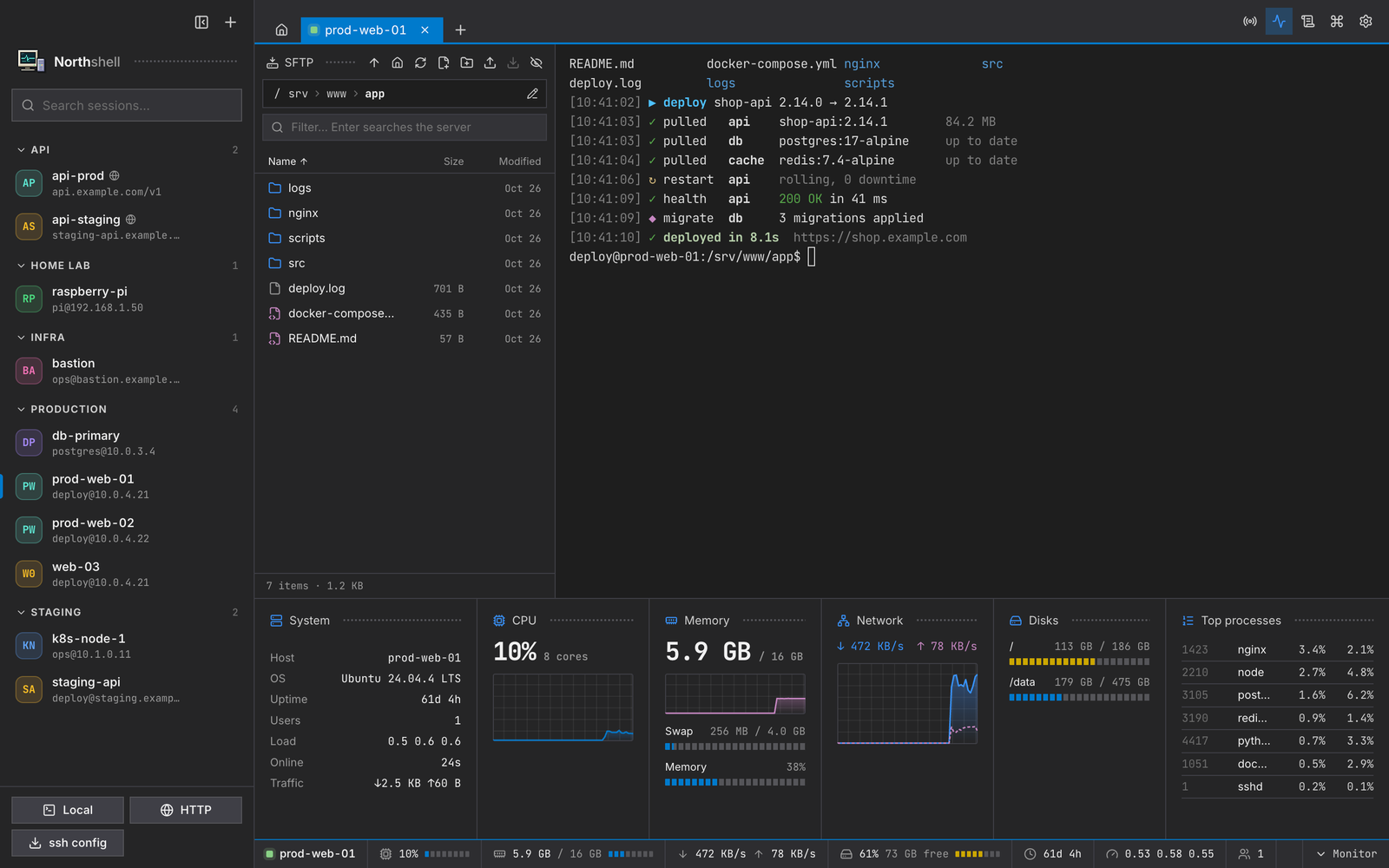
- Тема Visual Studio — как VS 2019 Dark: синяя активная вкладка, точечные заголовки панелей, оранжевая строка состояния, подсветка кода VS Dark.
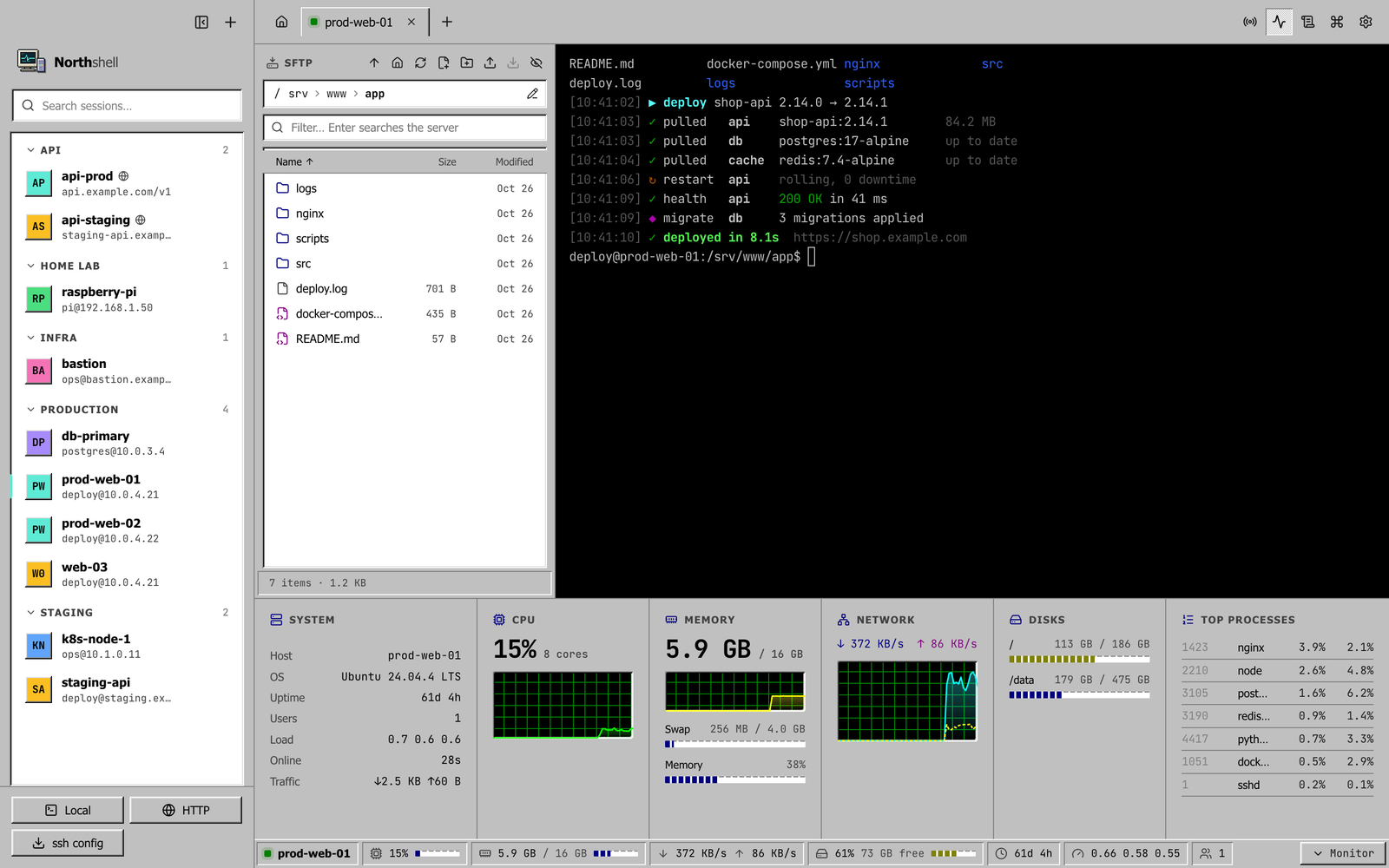
- Тема Windows 95 — серые объёмные кнопки, синие заголовки окон, бирюзовый рабочий стол, графики как в Диспетчере задач и терминал MS-DOS.
- Выбор темы с превью в настройках; новые схемы терминала Visual Studio Dark и MS-DOS.
- Подсказки при наведении на все кнопки — с горячими клавишами.
- Ширина панели сессий и SFTP меняется перетаскиванием границы (двойной клик — по умолчанию).
⬇️ Установка
Скачайте Termora-1.1.0-arm64.dmg ниже (macOS 13+, Apple Silicon) и перетащите в Applications.
Если macOS блокирует запуск: правый клик → Открыть, или xattr -dr com.apple.quarantine /Applications/Termora.app.
SHA-256: 7a37d2ed3e40a89e4e72daf5c1b379a5270f6451a51504709fa4a367d4c339bc
English: adds Visual Studio (VS 2019 Dark) and Windows 95 themes, a theme picker with previews, hover tooltips with shortcuts, and drag-to-resize side panels.
Termora 1.0.0
Первый релиз Termora — современного SSH-терминала для macOS в духе MobaXterm.
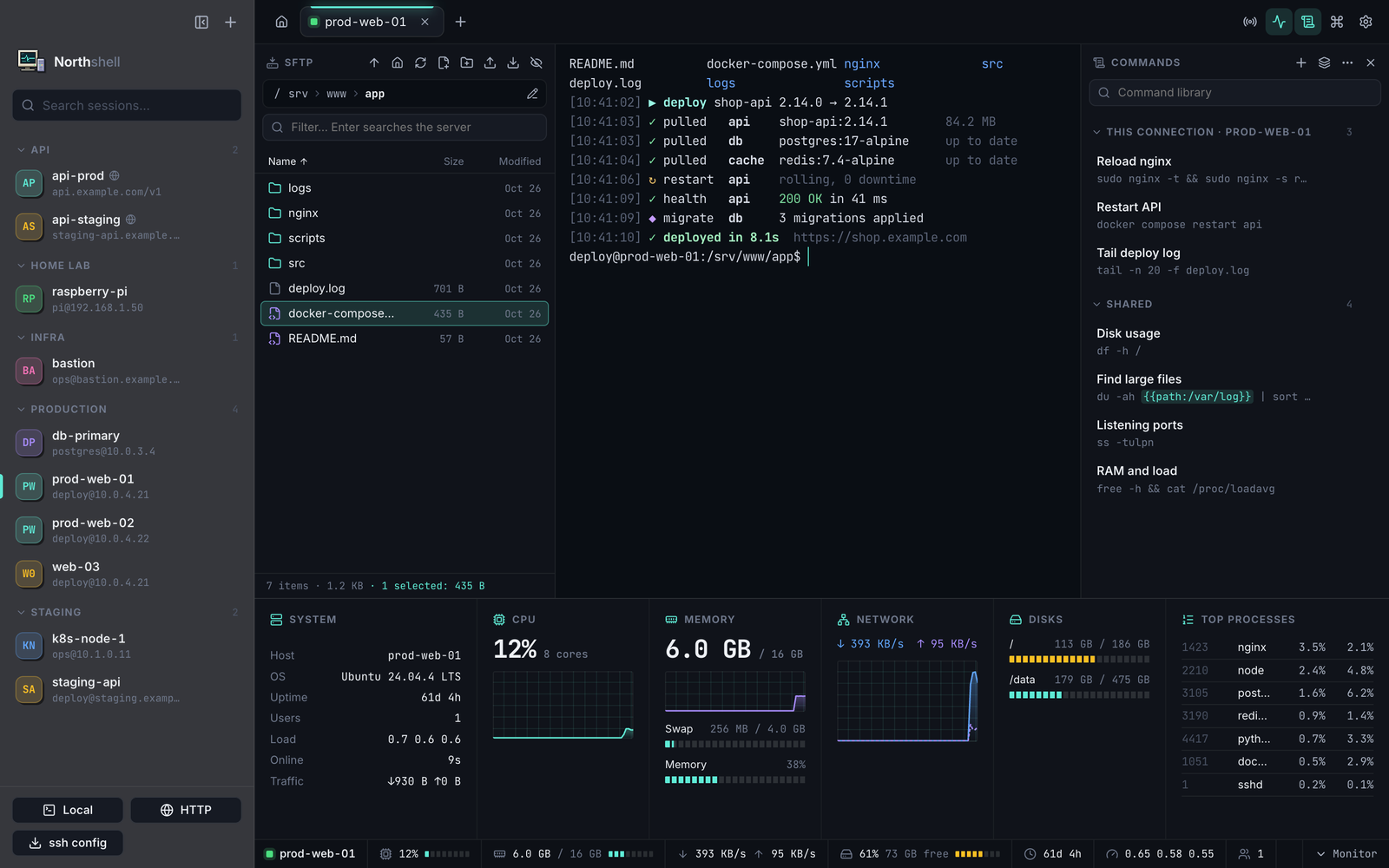
✨ Что внутри
- Сессии: папки, цветные метки, импорт
~/.ssh/config, быстрое подключениеuser@host:port - Аутентификация: пароль, SSH-ключ (с passphrase), ssh-agent, 2FA; секреты в macOS Keychain; проверка ключа хоста по SHA256
- Терминал: локальный и SSH во вкладках, MultiExec, поиск, 6 цветовых схем, светлая/тёмная тема, RU/EN
- SFTP: хлебные крошки, сортировка по имени/размеру/дате, фильтр и поиск по серверу, встроенный редактор с
⌘S, chmod, drag & drop, очередь передач - Мониторинг без агентов: CPU, память, диски, сеть, нагрузка, аптайм и топ процессов для Linux и macOS
⬇️ Установка
- Скачайте
Termora-1.0.0-arm64.dmgниже (macOS 13+, Apple Silicon). - Перетащите Termora в Applications.
- Приложение не подписано сертификатом Apple — при блокировке: правый клик → Открыть, или
xattr -dr com.apple.quarantine /Applications/Termora.app
SHA-256: bb9752655a8f5e6661eb09bd2828191c7ddd4aab5acd2d6088a9d4e628459c6f
English: first release of Termora, a modern MobaXterm-style SSH terminal for macOS — saved sessions, SFTP browser with a built-in editor, and agentless server monitoring. Download the DMG below (Apple Silicon, macOS 13+). See the README for details.