Version: 0.1.0 Rev 057
A lightweight, opinionated Python/Pygame UI framework that makes building complex tabbed interfaces ridiculously simple.
Easy to get right, hard to get wrong. Define your entire app structure with one
TAB_LAYOUTdictionary — no routing, no manual widget management, no layout math. IPUI handles scaffolding, discovery, reactivity, and the full Pygame lifecycle for you.


Actively developed • First public release — May 2026
IPUI is developed and tested against
pygame-ce. It is imported in code aspygame.
Full installation in section 2 but if you are just looking for the pip command...
python -m pip install ipui- The IPUI Advantage
- Any Screen
- Performance
- Installation
- Why IPUI Does Things Differently
- Quick Start
- Run the Showcase
- Core Concepts
- The IPUI WAY
- Updating the UI
- Lifecycle Hooks
- Widget Catalog
- Layout System
- Tabs and Panes
- Tabless Mode
- Construction-Time Safety
- Inline Parent — Construction is Attachment
- Two Paths to
on_click - Styling and Theming
- Debug Tools
- Launching Your App
- API Reference
- Dependencies
- Appendix A: Why IPUI Does Things Differently
- Appendix B: The Game Loop
- Appendix C: Tab Switch Lifecycle
- Appendix Z: Detail of Widget Layout Process
- Why IPUI Does Things Differently
- Lifecycle Timing
- Layout Guide
- Naming Conventions
- Reading IPUI Source Code
- 🗂️ First-Class Tab System: Define your app's tabs, panes, and flex ratios from a single simple dictionary. IPUI scaffolds the structure and keeps each tab cleanly modular:
  TAB_LAYOUT = {
      "Dashboard": ["main_view"],                             # 1 full-screen pane
      "Settings" : ["sidebar", "options"],                    # 2 equal panes
      "Analytics": [("nav", .2), ("graph", .6), ("log", .2)]  # Custom flex sizing
}- 📐 Declarative Layout: Simple, flexible syntax that handles the math so you can focus on the logic.
- 🔗 Construction IS Attachment: No floating widgets or
add()calls. If you build it inside a container, it's attached automatically. - 🧩 Built to Extend: Custom widgets get layout, events, and styling automatically. Standard widgets take 5–10 LOC; even tools like a network diagram widget come in under 150 LOC.
- 📜 One-Touch Scrolling: Make any Card scrollable with a single parameter—no complex viewport setup required. Scrollbars are styled automatically.
- 📱 Resolution Independent: UI scales automatically to physical screen height, so it stays usable on an old laptop or a 4K monitor. Changing aspect ratio can still cause issues
- 🔄 Multiple Update Styles: Use DAG-based reactivity, pipeline-driven synchronization, or direct widget access—whichever fits the job best.
- 🎨 **Styles and Palettes you can skin to whatever tastes/colors you need.
- ⛓️ Data Pipeline: Bind widgets to a Pipeline Key and let IPUI propagate updates automatically. Derives stay in sync with zero manual update code.
- 🎮 Pygame Lifecycle Hooks:
ip_think,ip_draw, andip_draw_hudgive you full access to the game loop without fighting the framework. - 💡 Multi-Tier Tooltips: Choose between standard hover tips or "Super Tooltips"—pinnable, scrollable windows capable of displaying deep technical data.
- 🗃️ Automatic Widget Registry: When DAG or pipeline isn't the right fit, named widgets stay easy to reach across tabs and panes; no reference plumbing required.
- 🐞 Pro Debug Mode: Includes a live Widget Tree and layout overlays to make positioning issues easy to diagnose.
- 💻 Beautiful Code Boxes: Display source code by passing a string or a file path; IPUI handles the formatting.
- 🗺️ Tab Map: A bird's-eye view of your entire application for quick review and navigation.
- 📊 Grid: The baddest grid in the pygame ecosystem — and not just because it looks good. Feed it lists, dicts, SQLite tables, or SQL queries; it handles pagination, sorting across pages, and query-wrapped filtering/sorting for database-backed views. It adapts to your workflow.
- 📚 Self-Documenting: Documentation stays in sync with the framework by reading the source code directly.
- 📈 Live Matplotlib Charts: Embed real-time updating research visuals directly in your pygame UI—useful for training curves, experiment monitoring, and diagnostics.
Can you tell which of these is running at 700×450 and which is at 3840×2160?
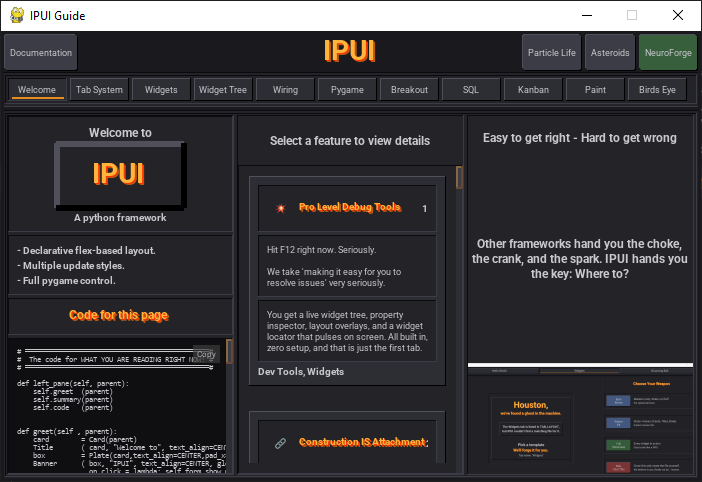
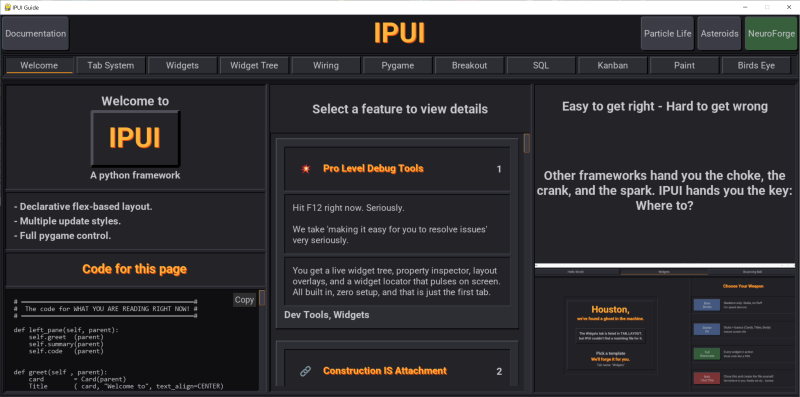
Neither should embarrass you on a laptop or a 4K monitor.
IPUI handles resolution automatically through three layered mechanisms:
1. Declarative layout is inherently unitless. Flex ratios, pane weights, and container relationships are all proportional. There are no hardcoded pixel coordinates to break when the window grows.
2. Text widgets are semantic, not sized.
You don't ask for "14pt bold." You ask for a Title, Heading, Body, or Detail. IPUI maps those roles to sizes tuned for the current resolution — automatically.
3. Spacing tokens scale with the display. Padding, gaps, borders, and scrollbars are all derived from a single multiplier that snaps to a resolution bucket at startup:
| Screen Height | Multiplier | Vibe |
|---|---|---|
| < 600px | 1× | Tiny / embedded |
| 600–1199px | 2× | Laptop / 1080p |
| 1200–1999px | 3× | 1440p / ultrawide |
| 2000px+ | 4× | 4K and up |
Want autopilot? Do nothing — it just works.
Want fine-grained control? Override Style.TOKEN_MULTIPLIER and call Style.recalculate() to tune any token to your exact spec.
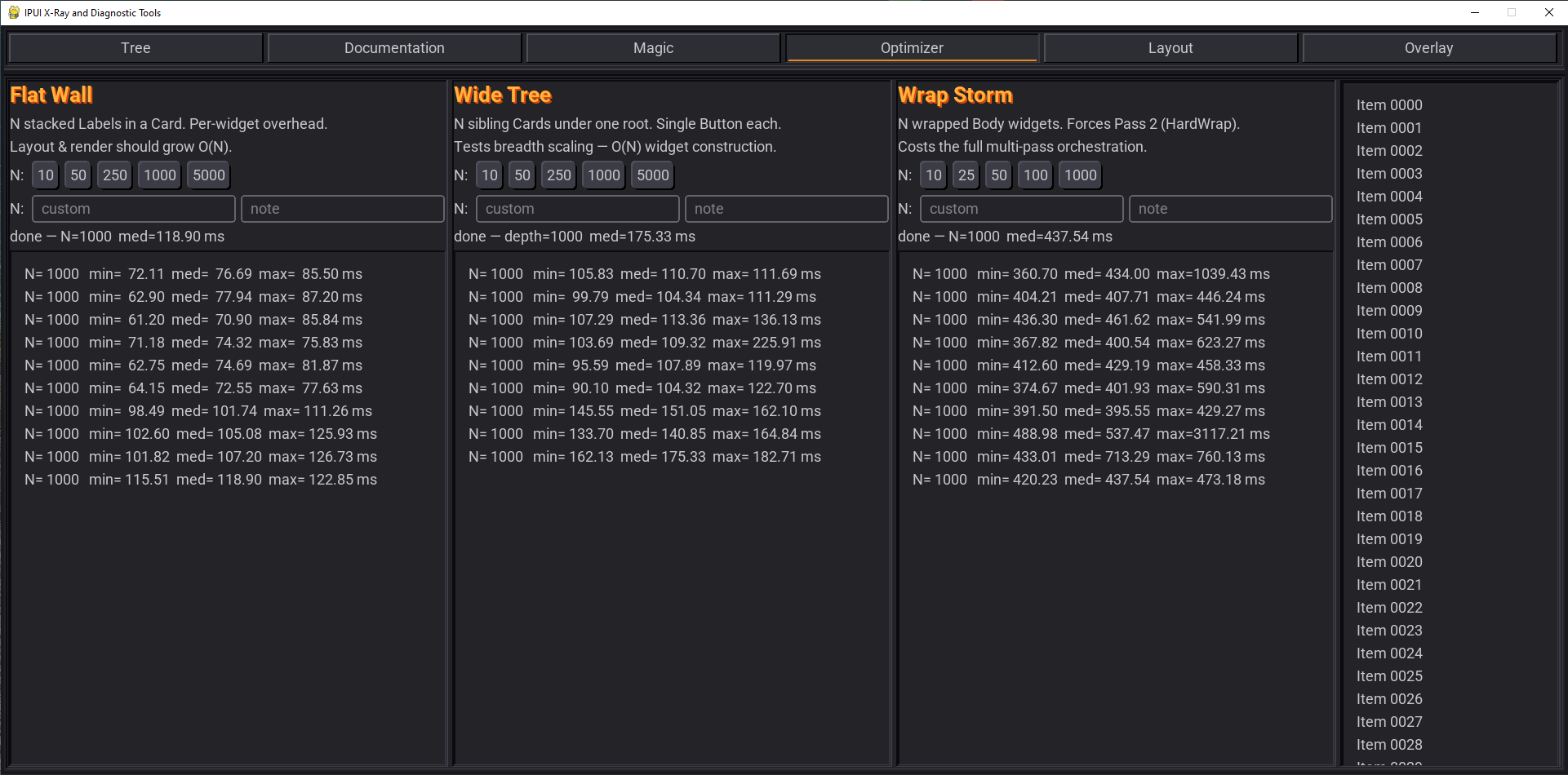
No guessing here! IPUI ships a benchmark tool — open the dev tools (F12), hit Optimizer, and run the numbers yourself.
Three scenarios, 5 samples each, N=1000:
| Scenario | What it tests | med ms |
|---|---|---|
| Flat Wall | 1,000 stacked Labels in a Card | ~75 ms |
| Wide Tree | 1,000 sibling Cards under one root | ~110 ms |
| Wrap Storm | 1,000 wrapping Body widgets (multi-pass) | ~430 ms |
A typical IPUI screen has 20–200 widgets. At that scale, layout runs in low double-digit milliseconds.
Wrap-heavy layouts cost more — text wrapping forces a second layout pass. If you're building a wall of wrapping prose, you'll feel it.
But not bad for an interpreted language.
If raw machine-level speed is the only thing that matters, this is the wrong hill to die on. Use C, C++, Go, or hand-tune the hot path in assembly.
IPUI is chasing a different kind of speed: The speed of building, debugging, and changing a UI without losing your mind.
Create a clean project folder. Any name works — ipui-test is just an example.
mkdir ipui-test
cd ipui-test
Create and activate a virtual environment:
python -m venv testenv
rem This may take a moment. If it succeeds, Python returns to the prompt without printing a success message.

testenv\Scripts\activate.bat
rem After activation, your prompt should change to something like:
rem (testenv) C:\ipui-test
Install ipui:
python -m pip install ipuiWant to see what IPUI can do before you build a thing? Run docs() and you'll get a fully interactive widget gallery — every widget, every layout pattern, every trick, all live and clickable. It's the fastest way to go from "looks interesting" to "now I know what to steal."
from ipui import *
docs()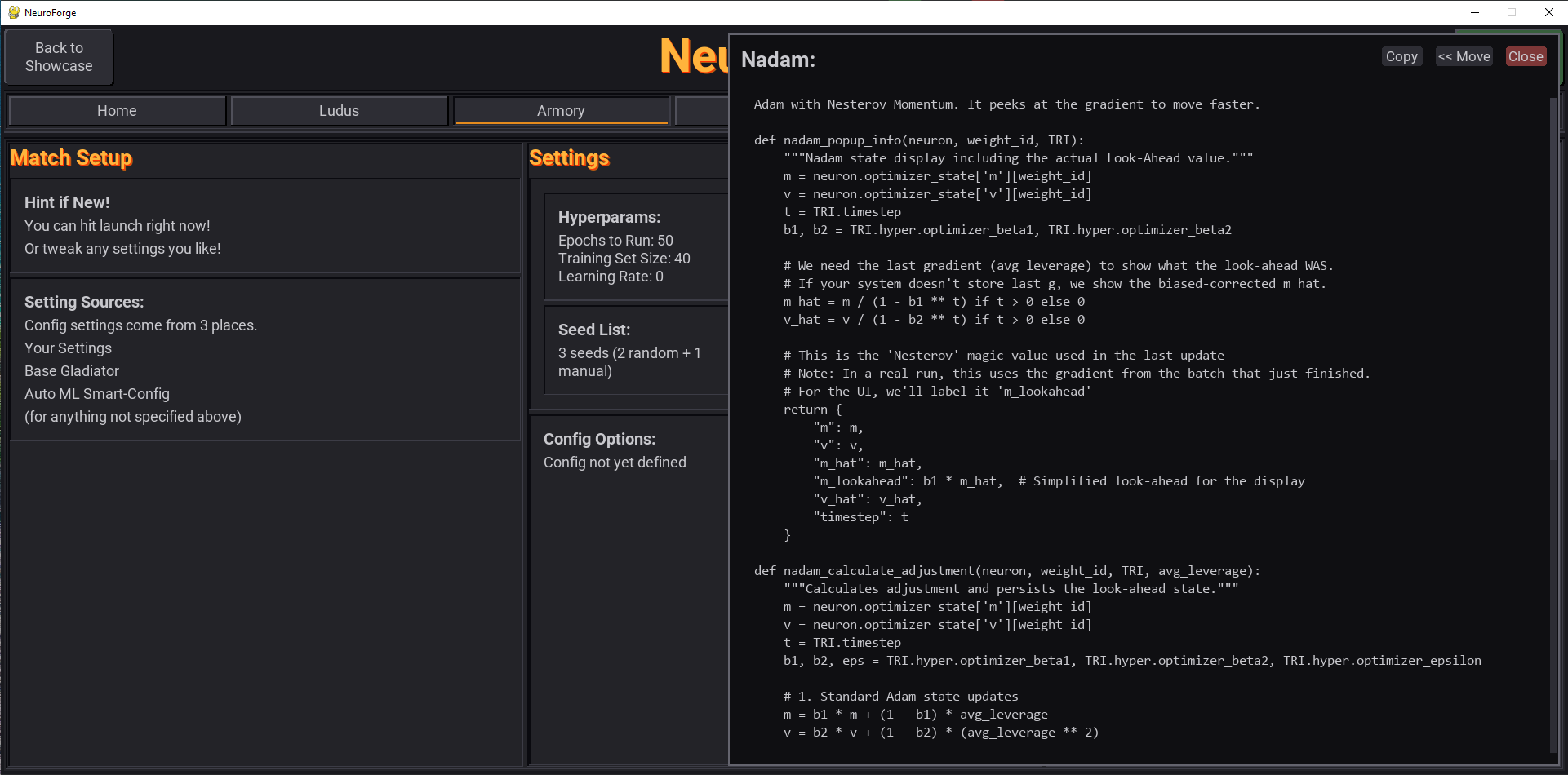
IPUI intentionally makes choices that look unconventional if you're coming from tkinter, Qt, web UI frameworks, or typical Python library design.
Those choices are not accidents. They come from one core idea:
Anything the framework can solve once should not be re-solved by every user, in every widget, forever.
This affects many decisions.
We know Python's conventions and PEP 8; where we differ it is intentional.
For the full reasoning behind these design choices, see:
Appendix A: Why IPUI Does Things Differently
IPUI is built to grow across files, but the fastest way to start is with one file.
Get it running first. Then let IPUI help you split things out as your app grows.
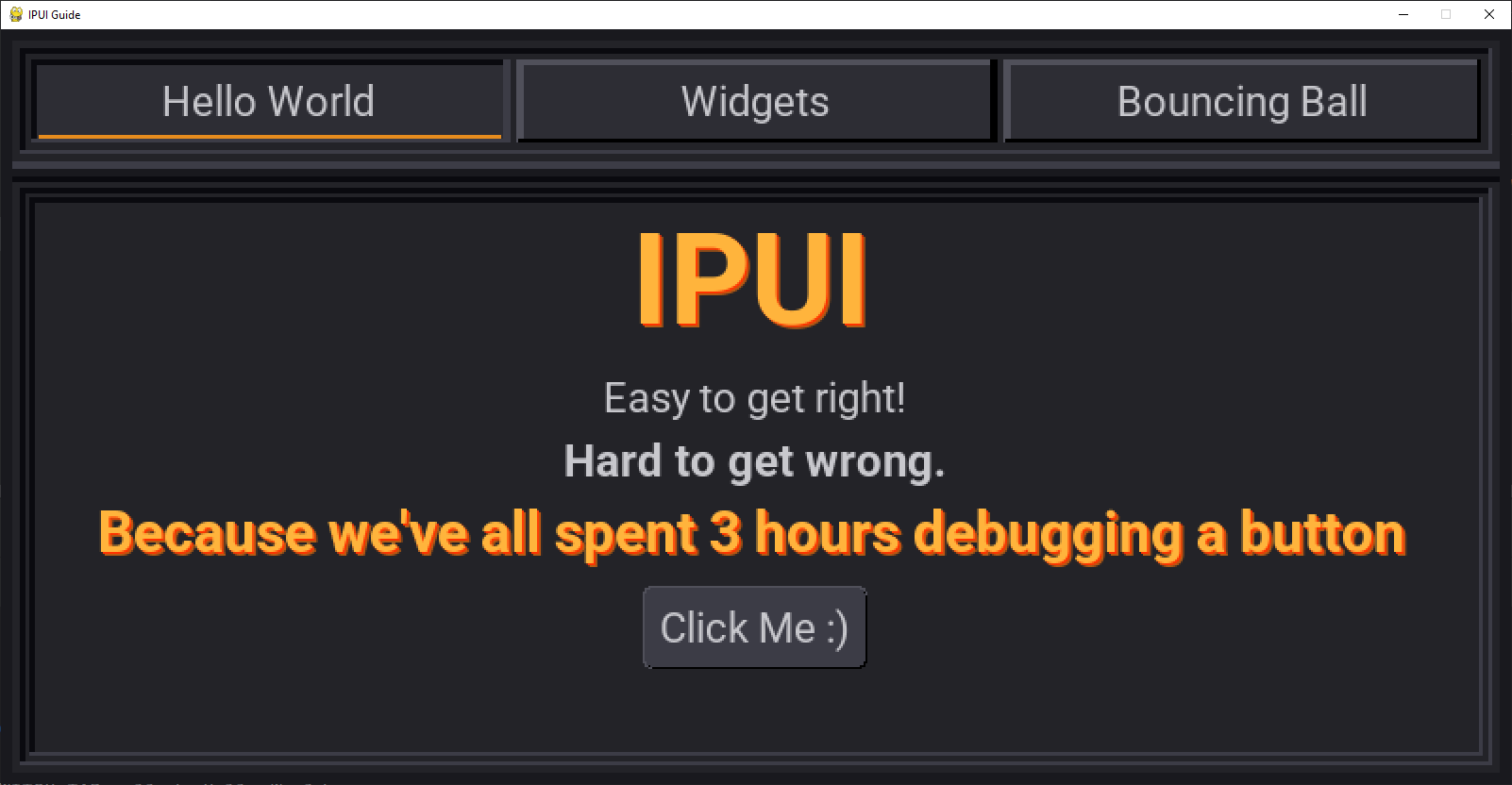
With just a few simple lines you will have
- 3 Tabs
- 4 Different labels
- Button with modal message
notepad SmokeTest.pycopy the below code and save.
from ipui import *

class SmokeTest(_BaseForm):                 # ← Doesn't need to match file but can
    TAB_LAYOUT = {
        "Hello World"   :["welcome"     ],   # ← The "Hello World" tab runs the builder 'welcome'
        "Widgets"       :["demo","demo2"],   # ← Will trigger template picker
        "Bouncing Ball" :["arena", None ],   # ← Will trigger template picker
    }

    def welcome(self, parent):               # ← Builder from "Hello World" in TAB_LAYOUT
        Banner  (parent, "IPUI"              , text_align=CENTER, glow=True)
        Body    (parent, "Easy to get right!", text_align=CENTER)
        Heading (parent, "Hard to get wrong.", text_align=CENTER)
        Title   (parent, "Because we've all spent 3 hours debugging a button", text_align=CENTER, glow=True)
        Button  (parent, "Click Me :)"       , on_click=lambda: self.form.show_modal("Hello"))

if __name__ == "__main__": show(SmokeTest)
python SmokeTest.py # or whatever you named your file.Three tabs appear immediately:
- Hello World — fully working with banner, text, and button
- Widgets — show IPUI's helper card with template options
- Bouncing Ball — show IPUI's helper card with template options
Something not sitting where you expect? Press F12 while it’s running and pop open the X-Ray debug tools.
Change to the 'Widgets' tab.
The welcome method defined the content for the Hello World tab. Widgets and Bouncing Ball do not have matching content yet.
Problem? Not even a little.
Instead of throwing an error or even showing an empty tab, IPUI steps in with a helper card:
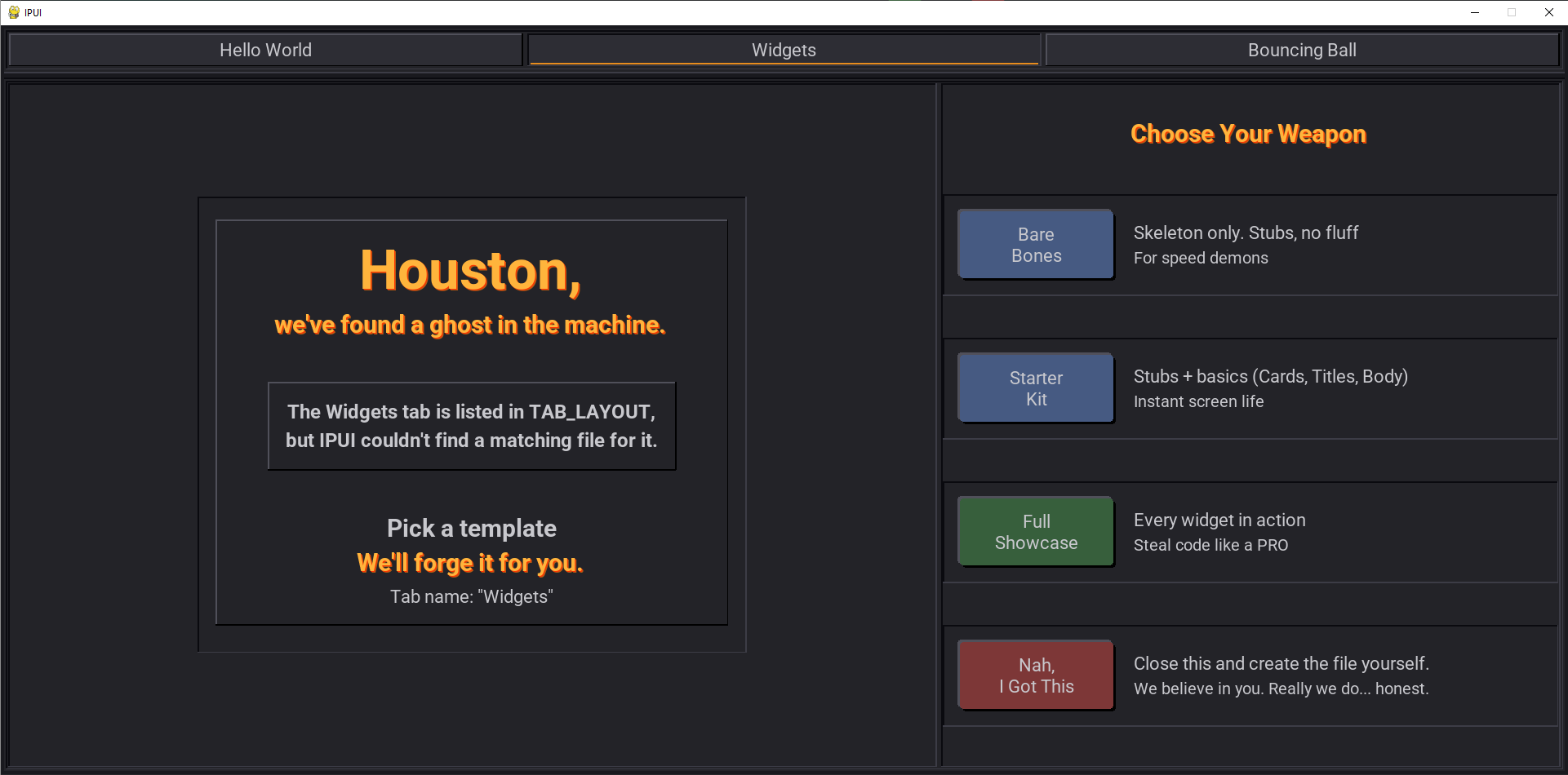
Pick Full Showcase on the Widgets tab. IPUI will create Widgets.py and hot-swap in a complete, interactive widget playground with real working controls (buttons, textboxes, cards, grids, etc.).
It's not a dead stub — it's a cookbook of live code you can immediately click, rearrange, and copy-paste from.
IPUI generates Widgets.py a placeholder method named after the first pane you declared in TAB_LAYOUT.
Replace the placeholder content
In Widgets.py delete placeholder lines (11-39):
def demo(self, parent):
    Title(parent, "My Widget Tree", glow=True)
Save the file and re-run to see your changes.
This is the normal workflow:
- Add (or modify) entries in TAB_LAYOUT
- Let IPUI discover or generate the file(s)
- Edit the builder methods on your _BaseTab class
- Save and keep going
You can define pane methods directly inside _BaseForm (as in the smoke test) or in separate files — both work seamlessly.
The TAB_LAYOUT dictionary is the core blueprint for your IPUI application. It defines your tabs and how their space is divided.
TAB_LAYOUT = {
    #Name of Tabs    Panes dividing up each tab.
    "Hello World"   :["welcome"     ],  # Tab 'Hello World'   with one pane 'welcome'
    "Widgets"       :["demo","demo2"],  # Tab 'Widgets'       with two panes.
    "Bouncing Ball" :["arena", None ],  # Tab 'Bouncing Ball' with one pane 'arena' and a blank Pygame area
}
(Note: A pane value of None creates a raw, blank region for direct Pygame drawing!)
Divide the tab into visual regions (using optional flex numbers for sizing). Act as method names IPUI automatically looks for a method matching the pane's name to populate that specific region.
Where IPUI Looks for Pane Methods IPUI is highly flexible and will look for these methods in two places:
-
The Main Form File (The Quick & Dirty Prototype) What you just did in SmokeTest.py
-
Dedicated Tab Files When you are building a real application, you want modularity. IPUI uses a powerful, zero-friction file-linking system to manage this automatically.
If your tab is named "Hey There", IPUI will scan your project tree for a file named Hey_There.py (or HeyThere.py). Inside that file, it just looks for a class inheriting from _BaseTab. The actual class name does not matter.
This creates a clean, predictable hierarchy: Main Form ➔ Tab File (Hey_There.py) ➔ Pane Methods (def welcome(self):)
This unconventional approach solves three major UI development headaches:
- Visual Project Structure: You can find tab logic by looking at your file explorer tree. There is no need to open files just to hunt down class names.
- NO IMPORTS NEEDED — not needing them is nice. Not needing to maintain them as you revise content is even nicer.
- NO CIRCULAR IMPORTS No extra imports. No extra risk of throwing this little party :)
The less we need to get right, the better!
# Widgets.py
from ipui import *

# The class name can be anything, as long as it inherits from _BaseTab
class TotallyWhateverNameYouWant(_BaseTab):

    # This matches the 'demo' pane in TAB_LAYOUT
    def demo(self, parent):
Title(parent, "Hello from Widgets.py")What happens if IPUI finds a demo() pane builder in both your main _BaseForm and an external Widgets.py file?
The external _BaseTab file always wins. This is deliberate. The main form is great for a fast start, but once a tab earns its own file, that file becomes the boss. If you extract a method into a new file and leave the old one behind, IPUI gracefully switches over to the new dedicated file.
Your main file should always end with:
if __name__ == "__main__": show(SmokeTest)Don't skip this! In a one-file setup, this standard Python guard prevents accidental re-entry during import.
Construction IS attachment.
AnyWidget(what_widget_do_i_attach_to, any_other_options, ...)
When you create a widget, the first argument is always the widget it attaches to.
Every pane method receives a parent parameter — the root widget of that pane.
Each pane has 1 tree and parent is the trunk.
def demo(self, parent): # ← parent is this pane's root widget card = CardCol(parent) # card attaches to the pane Title(card, "My Tree") # Title attaches to card Heading(card, "Same parent") # also attaches to card
No add(). No pack(). No grid(). Construction IS attachment — an entire
class of "widget exists but isn't visible" bugs is gone.
Need to go deeper? Same rule:
        def demo(self, parent):                 # ← parent is root widget.
            card  = Card(parent)                # This Card's parent is parent.
            Title(card, "My Tree")              # This Heading's parent is card.
            Heading(card, "Same parent")

            inner = Card(card)                  # A card nested inside the first card
            Body(inner, "I'm one level deeper") # A branch of inner
            Body(inner, "So am I")

            plate= Plate(inner)
            row1 = Row(plate)                   # back in the outer card, now horizontal
            Body(row1, "We Are")
            Body(row1, "Stuck")
            Body(row1, "Together")

            row2 = Row(plate,justify_spread=True)
            Body(row2, "We Have")
            Body(row2, "Plenty")
            Body(row2, "of Space")
Everything stacks vertically by default. Need widgets side by side? Row is a
transparent horizontal container — pure structure, no visual chrome:
    def demo(self, parent):            # ← parent is the pane root
        card  = Card(parent)           # card attaches to the pane
        Title(card, "My Tree")         # Title attaches to card
        Heading(card, "Same parent")

        inner = Card(card)
        Body(inner, "I'm one level deeper")
        Body(inner, "So am I")

        row = Row(card)                 # back in the outer card, now horizontal
        Body(row, "Left")
        Body(row, "Middle")
        Body(row, "Right")
The pattern never changes:
- First argument is the parent,
- Attachment is Immediate.
- Build the tree by building widgets.
IPUI sets up the pygame engine and ensures all superclasses get the right parameters. So where does your code go?
You've already seen part of the answer: pane methods build the widget tree in the panes you defined in TAB_LAYOUT. The other half is ip_* hooks — they're how you talk to the game loop:
ip_setup_early(self, ip)— runs once before this pane's widgets are built. Initialize state your pane builders will read.ip_setup(self, ip)— runs once after the widget tree is built. Initialize game/animation state.ip_activated(self, ip)— runs each time this pane (or form) becomes visible.ip_think(self, ip)— runs every frame. Update state, run physics, decide things.ip_draw(self, ip)— runs every frame, before widgets draw. Custom rendering behind the UI.ip_draw_hud(self, ip)— runs every frame, after widgets draw. Overlays, FPS counters, anything on top.
The framework calls these; you override them. Together with pane methods, that's the whole split:
If it lays out widgets, it goes in a pane method. If it ticks, decides, animates, or paints custom graphics, it goes in an
ip_*hook.
- Run SmokeTest
- Click Bouncing Ball
- Try scaffolding 'Bare Bones'
- It will create BouncingBall.py with the methods and parameter ready to go.
from ipui import *
import pygame

class BouncingBall(_BaseTab):

    def arena(self, parent):                         # ← pane method: builds the UI
        Title(parent, text="Bouncing Ball - Your Code")
        card = Card(parent, scroll_v=True)
        CodeBox(card, data=__file__)

    def ip_think(self, ip):                          # ← runs every frame
        self.ball_x += self.ball_dx * ip.dt          # ip.dt = seconds since last frame
        self.ball_y += self.ball_dy * ip.dt
        self.bounce_off_walls()

    #####################################################################
    ##### Nothing below here changes in the next examples ###############
    #####################################################################

    def ip_setup(self, ip):                          # ← runs once
        self.ball_x,  self.ball_y  = 0.5, 0.5        # start in the middle (normalized)
        self.ball_dx, self.ball_dy = 0.4, 0.3        # velocity (normalized units / sec)

    def ip_draw(self, ip):                           # ← custom rendering
        pos = ip.to_screen(self.ball_x, self.ball_y) # normalized → screen pixels
        r   = ip.scale_y(0.02)                       # normalized radius → pixels
        pygame.draw.circle(ip.surface, (255, 160, 40), pos, r)

    def bounce_off_walls(self):
        if self.ball_x < 0: self.ball_dx =  0.4
        if self.ball_x > 1: self.ball_dx = -0.4
        if self.ball_y < 0: self.ball_dy =  0.3
        if self.ball_y > 1: self.ball_dy = -0.3
Notice
ball_xandball_yare normalized:0is the left/top edge,1is the right/bottom edge. IPUI worries about the real pixel resolution.
Every lifecycle hook receives a single argument: ip. It's the IPUI Service Portal — one object that gives you everything you need. Type ip. in your IDE and autocomplete shows every attribute and method, organized by family.
You already used it in the example above: ip.dt for frame timing, ip.to_screen() to convert normalized coordinates to pixels, ip.scale_y() to scale a radius. Without the portal, that same ip_draw looks like this:
# ── Without ip (spelunking) ──────────────────────────────────────
# THIS IS THE CODE YOU DO NOT WANT TO RUN!!!!
def ip_draw(self, ip):
    arena = self.form.tab_strip.panes[1].rect             # find the canvas by hand
    sx    = arena.left + int(self.ball_x * arena.width)   # offset + scale manually
    sy    = arena.top  + int(self.ball_y * arena.height)
    r     = int(0.02 * arena.height)
    pygame.draw.circle(ip.surface, (255, 160, 40), (sx, sy), r)

# ── With ip (portal) ─────────────────────────────────────────────
def ip_draw(self, ip):
    pos = ip.to_screen(self.ball_x, self.ball_y)
    r   = ip.scale_y(0.02)
    pygame.draw.circle(ip.surface, (255, 160, 40), pos, r)
Three lines. No spelunking. No manual math. Resolution-independent. The portal absorbs the coordinate plumbing so you can focus on what you're actually drawing.
The full set of ip attributes and methods is covered in The ip Service Portal below. The full set of hooks and when each fires is in Lifecycle Hooks.
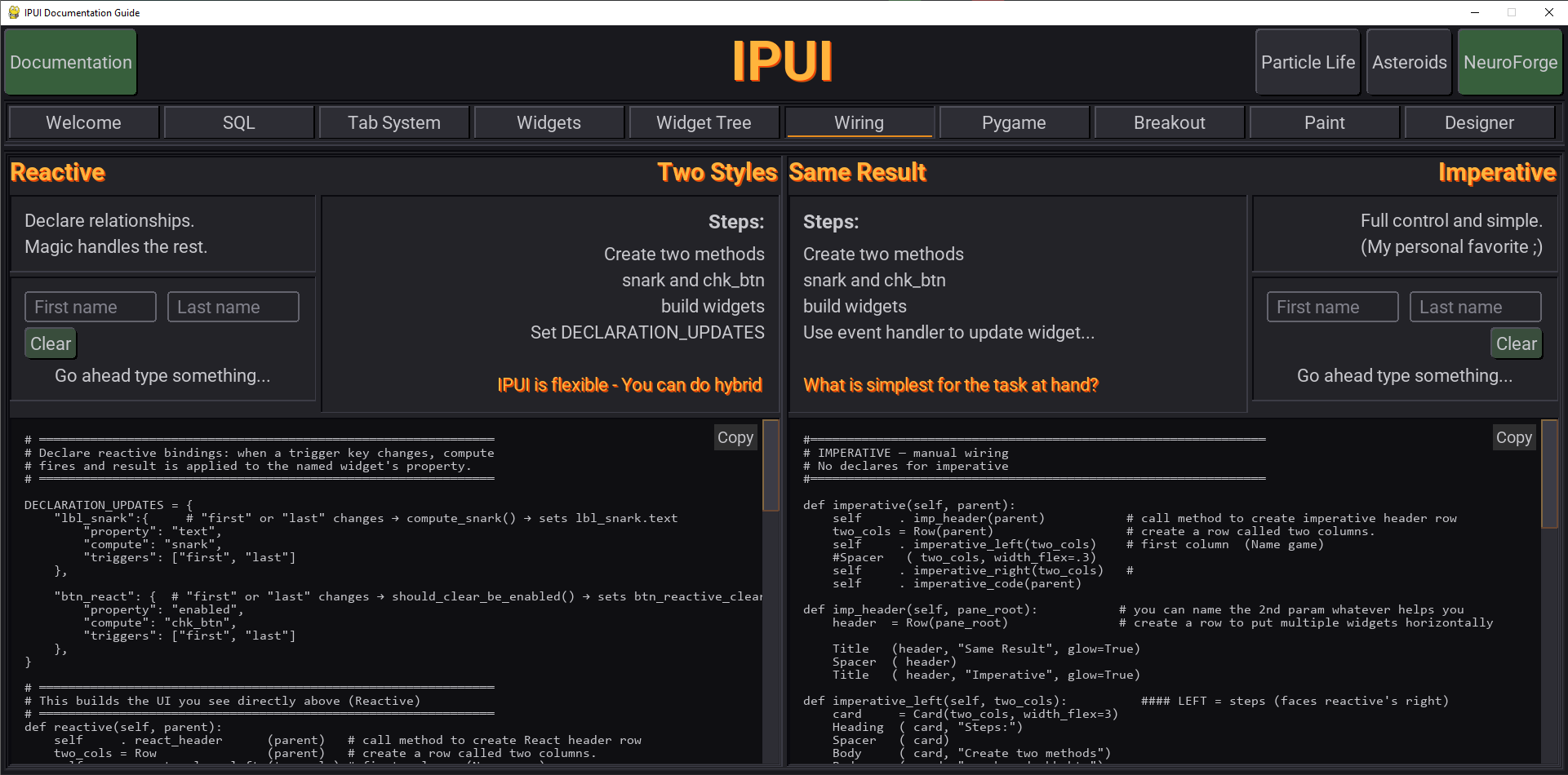
IPUI gives you three ways to keep the UI in sync with state. Mix them freely.
- Imperative — store references, update by hand. Surgical and direct.
- Pipeline — bind widgets to keys; write to a key and every bound widget updates. No widget references, no callbacks, no per-update code.
- Reactive — declare derived values in
BINDINGS; the framework recomputes when triggers change.
Most real apps use all three: imperative for one-off direct updates, pipeline for state that drives many widgets (or crosses tabs), reactive for derived display logic. Pick whichever fits each call site.
Store widget references, update them by hand:
class BouncingBall(_BaseTab):

    # REPLACE METHOD ARENA
    def arena(self, parent):                                # ← pane method: builds the UI
        self.lbl_quadrant  = Body(parent, "Quadrant: —")    # NOTE: Now we are storing reference to the widgets
        self.lbl_direction = Body(parent, "Direction: —")
        self.lbl_warning   = Body(parent, "")

    # Add bottom 3 lines to ip_think
    def ip_think(self, ip):
        self.ball_x += self.ball_dx * ip.dt                 # No change
        self.ball_y += self.ball_dy * ip.dt                 # No change
        self.bounce_off_walls()                             # No change

        # Imperative Update
        self.lbl_quadrant .set_text(f"Quadrant: {self.compute_quadrant(self.ball_x, self.ball_y)}")
        self.lbl_direction.set_text(f"Direction: {self.compute_direction(self.ball_x, self.ball_y)}")
        self.lbl_warning  .set_text(self.compute_warning(self.ball_x, self.ball_y))


    # Add these three methods (safe to put in the won't change area :)
    def compute_quadrant (self, ball_x, ball_y):  return f"Quadrant: {('NW' if ball_y<0.5 else 'SW') if ball_x<0.5 else ('NE' if ball_y<0.5 else 'SE')}"
    def compute_direction(self, ball_dx, ball_dy): return f"Direction: {'Right ' if ball_dx>0 else 'Left '}{'Down' if ball_dy>0 else 'Up'}"
    def compute_warning  (self, ball_x, ball_y):  return "I don't want to hit the wall" if min(ball_x, ball_y, 1-ball_x, 1-ball_y) < 0.05 else ""
Every update is an explicit line you can grep for and breakpoint on. Great when one widget reflects one piece of state.
The pipeline is a centralized key-value store. Write to it, and any widget that declared a dependency is automatically updated:
# Write
self.form.pipeline_set("training_active", True)

# Read
active = self.form.pipeline_read("training_active")
The pipeline also pushes values back to source widgets — if you call
pipeline_set("my_key", "")all widgets withpipeline_key="my_key"updates its displayed text automatically.
Seeding initial values: declare PIPELINE_DEFAULTS on your form to populate the pipeline at startup:
class MyApp(_BaseForm):             # Be sure to put this in form - not a _BaseTab file.
    PIPELINE_DEFAULTS = {
        "training_active": False,
        "epoch":           3141596,
        "config_valid":    True,
}BINDINGS is a class-level dict that wires pipeline keys to widget properties. When a key changes, the framework calls your compute method and applies the result — no manual update code needed:
from ipui import *
import pygame

class BouncingBall(_BaseTab):

    BINDINGS = {
        "lbl_quadrant":  {"property": "text", "compute": "compute_quadrant",  "triggers": ["ball_x", "ball_y"]},
        "lbl_direction": {"property": "text", "compute": "compute_direction", "triggers": ["ball_dx", "ball_dy"]},
        "lbl_warning":   {"property": "text", "compute": "compute_warning",   "triggers": ["ball_x", "ball_y"]},
    }

    # replace Arena with this - Reactive uses named widgets instead of instance references
    def arena(self, parent):
        Body(parent, "Quadrant: —"  , name="lbl_quadrant" ) # NOTE: No self.lbl_quadrant
        Body(parent, "Direction: —" , name="lbl_direction") # NOTE: No self.lbl_direction
        Body(parent, ""             , name="lbl_warning"  ) # NOTE: No self.lbl_warning


    def ip_think(self, ip):
        self.ball_x += self.ball_dx * ip.dt                 # No change
        self.ball_y += self.ball_dy * ip.dt                 # No change
        self.bounce_off_walls()                             # No change

        # Replace Imperative update with Reactive update.   # Set pipeline values
        self.form.pipeline_set("ball_x",  self.ball_x)      # framework sees the change,
        self.form.pipeline_set("ball_y",  self.ball_y)      # calls the right compute methods,
        self.form.pipeline_set("ball_dx", self.ball_dx)     # and updates the widgets.
        self.form.pipeline_set("ball_dy", self.ball_dy)


    def ip_draw(self, ip):                           # ← custom rendering
        pos = ip.to_screen(self.ball_x, self.ball_y) # normalized → screen pixels
        r   = ip.scale_y(0.02)                       # normalized radius → pixels
        pygame.draw.circle(ip.surface, (255, 160, 40), pos, r)

    def compute_quadrant (self, ball_x, ball_y):  return f"Quadrant: {('NW' if ball_y<0.5 else 'SW') if ball_x<0.5 else ('NE' if ball_y<0.5 else 'SE')}"
    def compute_direction(self, ball_dx, ball_dy): return f"Direction: {'Right ' if ball_dx>0 else 'Left '}{'Down' if ball_dy>0 else 'Up'}"
    def compute_warning  (self, ball_x, ball_y):  return "I don't want to hit the wall" if min(ball_x, ball_y, 1-ball_x, 1-ball_y) < 0.05 else ""

    def bounce_off_walls(self):
        if self.ball_x < 0: self.ball_dx =  0.4
        if self.ball_x > 1: self.ball_dx = -0.4
        if self.ball_y < 0: self.ball_dy =  0.3
        if self.ball_y > 1: self.ball_dy = -0.3
Feels like a little more work doesn't it?
But add a fourth widget? One new entry in BINDINGS. ip_think doesn't grow.
Honest answer: this example is roughly a tie. You have four
pipeline_setcalls vs. threeset_textcalls — neither version is obviously cleaner at this scale. Reactive starts to win when state drives many widgets, or when several places update the same state. Imperative stays clearer when one widget reflects one piece of state and you want a single named method everyone calls. Mix them in the same tab. IPUI doesn't have an opinion on which paradigm is "correct" — only that you should have the choice and that both should be cheap.
Mix all three freely. Each one earns its keep: pipeline shines when one piece of state drives many widgets — including across tabs — and you don't want to maintain explicit wiring. Reactive shines when widget display depends on combinations of state. Imperative shines for surgical one-off updates. Same engine underneath, three access patterns on top.
We make the right path the easy path.
We think what would be the easiest api to do 'whatever' and build that.
- Simple things should be trivial
- Missing structure should be fixable, not fatal
- Scaling out should feel natural
- Boilerplate should be eliminated or scaffolded by IPUI, not copied around by hand
- Learning should happen by playing with real, running examples
That's why the Full Showcase template gives you a fully functional widget gallery — click, rearrange, copy-paste, and keep building. Start stealing code before you've written your first line.
No event loop setup. No manual sizing. No coordinate math. IPUI handles the Pygame lifecycle, layout, rendering, and event dispatch automatically.
| Attribute | Type | Description |
|---|---|---|
ip.form |
_BaseForm | Active Form instance |
ip.form_name |
str | Name of the active form |
ip.tab |
_BaseTab | Active Tab instance (or the form, in tabless mode) |
ip.tab_name |
str | Name of the active tab |
ip.is_active_tab |
bool | Is this the visible tab? |
| Attribute | Type | Description |
|---|---|---|
ip.dt |
float | Seconds since last frame |
ip.fps |
int | Current frames per second |
ip.frame |
int | Monotonically increasing frame counter |
ip.elapsed |
float | Total seconds since app started |
| Attribute | Type | Description |
|---|---|---|
ip.surface |
Surface | The pygame draw surface |
ip.events |
list | All pygame events this frame |
ip.unhandled |
list | Events the UI did not consume |
| Attribute | Type | Description |
|---|---|---|
ip.rect_pane |
Rect | Your drawing canvas — the None pane slot, or the whole pane if no None slot exists |
ip.rect_tab_area |
Rect | The entire tab content row (all pane slots combined) |
ip.rect_screen |
Rect | The full pygame surface |
Use ip.rect_pane for all custom rendering in ip_draw and ip_draw_hud. No need for spelunking through the widget tree — the framework finds your canvas for you.
Work in normalized coordinates (0.0–1.0) and let IPUI handle the pixel math:
| Method | Description |
|---|---|
ip.to_screen(nx, ny) |
Normalized (0–1) → screen pixel tuple within rect_pane |
ip.to_local(sx, sy) |
Screen pixels → normalized (0–1) within rect_pane |
ip.scale_x(n) |
Normalized width → pixel width |
ip.scale_y(n) |
Normalized height → pixel height |
ip.local_to_screen(x, y) |
Pane-local pixel coords → screen coords |
ip.screen_to_local(x, y) |
Screen coords → pane-local pixel coords |
| Attribute / Method | Type | Description |
|---|---|---|
ip.mouse_x |
int | Mouse x position (screen) |
ip.mouse_y |
int | Mouse y position (screen) |
ip.mouse_pos |
tuple | Mouse (x, y) tuple |
ip.mouse_wheel |
int | Scroll wheel delta this frame |
ip.mouse_down(Mouse.LEFT) |
bool | Is the button held this frame? |
ip.mouse_pressed(Mouse.LEFT) |
bool | Was the button just pressed this frame? (edge detect) |
ip.mouse_released(Mouse.LEFT) |
bool | Was the button just released this frame? |
ip.mouse_inside(widget) |
bool | Is the mouse inside this widget's rect? |
ip.mouse_inside_pane() |
bool | Is the mouse inside rect_pane? |
ip.mouse_inside_content() |
bool | Is the mouse inside rect_tab_area? |
ip.mouse_hits(rect) |
bool | Is the mouse inside an arbitrary rect? |
ip.mouse_local_pos() |
tuple | Mouse position relative to rect_pane |
ip.mouse_local_pos(widget) |
tuple | Mouse position relative to a widget |
ip.mouse_local_x() |
int | Mouse x relative to rect_pane |
ip.mouse_local_y() |
int | Mouse y relative to rect_pane |
Constants: Mouse.LEFT, Mouse.MIDDLE, Mouse.RIGHT. Import with from ipui import *.
| Attribute / Method | Type | Description |
|---|---|---|
ip.mod_shift |
bool | Shift held? |
ip.mod_ctrl |
bool | Ctrl held? |
ip.mod_alt |
bool | Alt held? |
ip.key_down(Key.SPACE) |
bool | Is this key held this frame? |
ip.key_pressed(Key.SPACE) |
bool | Was this key just pressed this frame? |
ip.key_released(Key.SPACE) |
bool | Was this key just released this frame? |
Constants live on the Key class — autocomplete shows everything. Examples:
Key.LEFT, Key.RIGHT, Key.UP, Key.DOWN, Key.SPACE, Key.RETURN, Key.ESCAPE,
Key.TAB, Key.BACKSPACE, Key.A–Key.Z, Key.NUM_0–Key.NUM_9, Key.F1–Key.F12,
Key.HOME, Key.END, Key.PAGEUP, Key.PAGEDOWN, Key.DELETE.
A simple key-value scratch pad. Persists across tabs but has no connection to the reactive pipeline — it does not trigger derives or update widgets.
| Method | Description |
|---|---|
ip.cache_get(key, default=None) |
Read a value |
ip.cache_set(key, value) |
Store a value |
ip.cache_has(key) |
Check if key exists |
ip.cache_del(key) |
Remove a key |
For reactive state, use self.form.pipeline_set() / self.form.pipeline_read().
For scratch data (animation counters, drag state, accumulators), use ip.cache.
| Method | Description |
|---|---|
ip.request_redraw() |
Mark pane as needing repaint |
ip.request_layout() |
Mark pane as needing layout recalc |
Currently IPUI renders every frame, so these are effectively no-ops. They exist so your code will work unchanged when dirty-flag optimization lands.
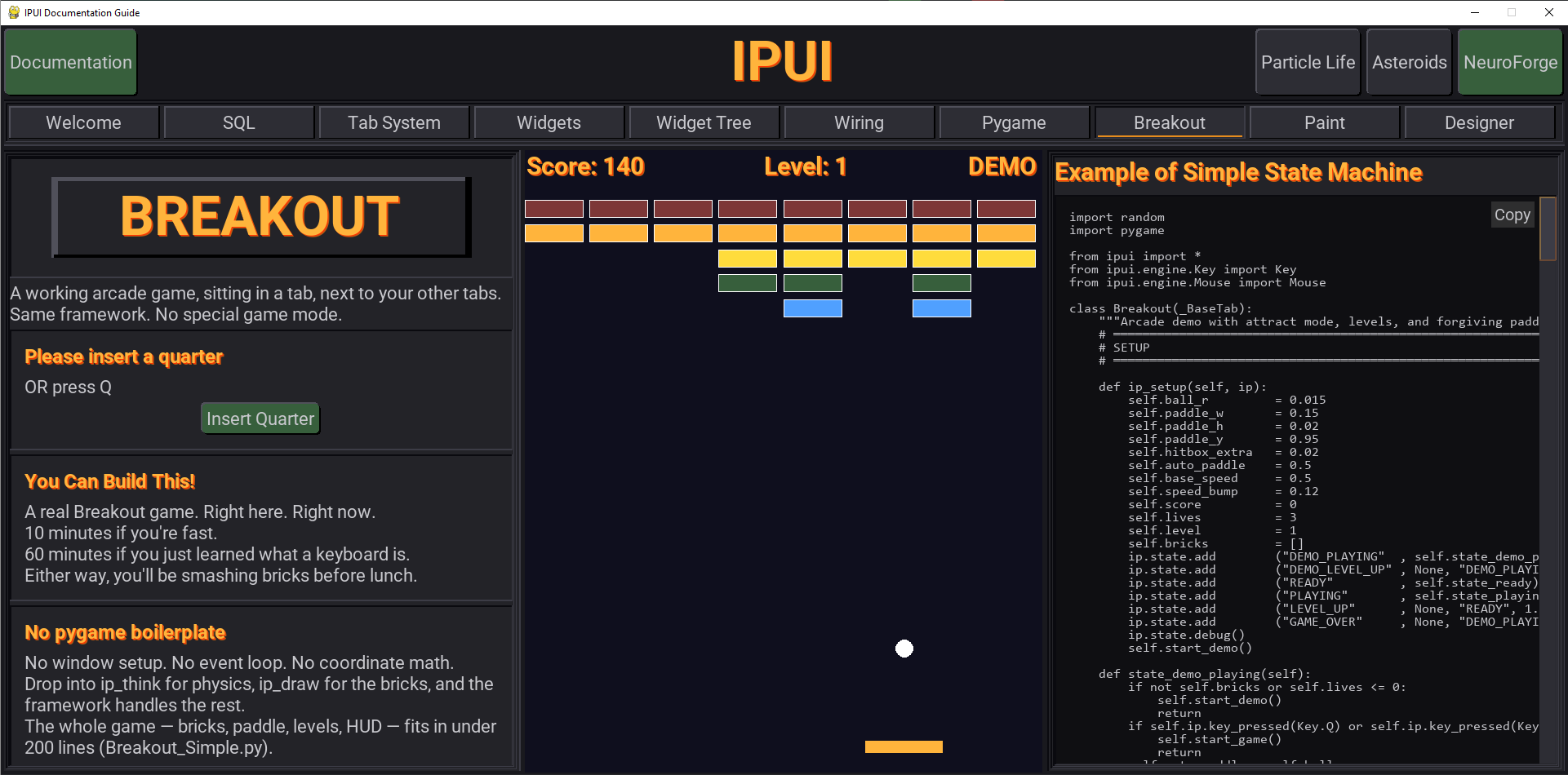
ip.state is a built-in state machine available everywhere — panes, forms, hooks. Each state pairs a name with a delegate (a method to run while in that state). States can chain to a follow-up state and auto-advance after a duration.
- Register a method for each state.
- The state machine tracks what state you're in.
- The state machine calls that method each frame.
- You can set up a state to last for a fixed time or switch it manually in code.
Register states with add(), transition with go():
Excerpt — see Breakout in docs() for the full runnable version
class Breakout(_BaseTab):
    def ip_setup(self, ip):
        ip.state.add("DEMO"     , self.state_demo)
        ip.state.add("READY"    , self.state_ready)
        ip.state.add("PLAYING"  , self.state_playing)
        ip.state.add("LEVEL_UP" , None,    "READY",     1.5)   # auto-advance after 1.5s
        ip.state.add("GAME_OVER", None,    "DEMO",      2.5)   # auto-advance after 2.5s
        ip.state.go("DEMO")


    def state_demo(self):       ...    # called every frame while in DEMO
    def state_ready(self):      ...    # called every frame while in READY
    def state_playing(self):    ...    # called every frame while in PLAYING
When a state has a duration, the engine counts down automatically and transitions to the named follow-up state when the timer expires. A None delegate means "do nothing this frame" — useful for pure timed transitions like flash messages where your draw code reads ip.state.current and renders accordingly.
API:
| Method / Property | Description |
|---|---|
ip.state.add(name, delegate, next=None, duration=0) |
Register a state |
ip.state.go(name, duration=None) |
Transition to a state (override duration optional) |
ip.state.next_state() |
Follow the registered chain to the next state |
ip.state.is_("NAME") |
True if current state matches |
ip.state.current |
Current state name (or None) |
Branch your logic on the current state:
def ip_think(self, ip):
    if ip.state.is_("READY"):
        if ip.mouse_pressed(Mouse.LEFT):
            ip.state.go("PLAYING")
        return

    if ip.state.is_("PLAYING"):
        self.run_physics(ip)
Simple Default — if you just need one, easiest to use 'ip.state'.
Multiple state machines — if you need more than one you can name them.
ip.state("combat").add("IDLE", self.combat_idle)
ip.state("combat").go("IDLE")
ip.state("ui").go("MENU_OPEN")
ip.state and ip.state() both return the default machine. ip.state("name") returns a named one, created on first access.
🚧 Coming soon: declarative state config via a
STATESclass dict andip.state.configure(self.STATES), plusip.state.in_("A", "B")for multi-name membership tests.
IPUI gives you six hooks into the application lifecycle. Each one fires at a specific moment, has a clear job, and works identically whether you're on a _BaseTab or a _BaseForm.
ip_setup_early(self, ip) — Runs once, before the pane's widgets are built. This is the place to set self.X = ... for any state your pane builders will read while constructing widgets — column modes, file paths, configuration, lookup tables. By the time this fires, self.form and self.widgets are wired, but no widgets in this tab exist yet.
def ip_setup_early(self, ip):
    self.column_mode = "flex"
    self.db_path     = self.form.pipeline_read("db_path")
    self.catalog     = load_widget_catalog()
ip_setup(self, ip) — Runs once, when the pane is first created. Initialize your state here: positions, velocities, counters, loaded assets, state machine configuration. By the time this fires, self.form, self.ip, and the widget tree are fully wired.
def ip_setup(self, ip):
    self.ball_x  = 0.5
    self.ball_y  = 0.5
    self.speed   = 0.4
    self.score   = 0
    ip.state.add("READY"  , self.state_ready)
    ip.state.add("PLAYING", self.state_playing)
    ip.state.go("READY")
ip_activated(self, ip) — Runs every time this pane or form becomes visible. On a _BaseTab, this fires when the user switches to your tab, and also on the initial load after ip_setup. On a _BaseForm, this fires when IPUI.show() or IPUI.back() brings the form to the front.
Use it to refresh data that might have changed while you were off-screen, restart animations, or sync state from the pipeline.
def ip_activated(self, ip):
    self.refresh_leaderboard()
    self.resume_particle_effects()
Note on
ipinsideip_activated: Identity (ip.form,ip.tab,ip.tab_name,ip.is_active_tab) and geometry (ip.rect_pane,ip.rect_tab_area) are correct when this hook fires. Per-frame fields likeip.dt,ip.events, andip.surfacereflect the last completed frame —ip_activatedruns at lifecycle transitions, not inside the per-frame loop, so use the per-frame fields with care here.
ip_think(self, ip) — Runs every frame. This is your logic tick: state machines, physics, AI, input polling, data checks. We recommend drawing in ip_draw() but it's a free country (and really doesn't hurt anything).
By default, ip_think only fires on the active pane. Set THINK_ALWAYS = True on your _BaseTab subclass if you need background processing even when the tab isn't visible (useful for simulations that shouldn't pause when the user switches tabs).
def ip_think(self, ip):
    if ip.state.is_("PLAYING"):
        self.ball_x += self.ball_dx * ip.dt
        self.ball_y += self.ball_dy * ip.dt
        if self.ball_y > 1.0:
            ip.state.go("GAME_OVER")
ip_draw(self, ip) — Runs every frame, before the widget tree draws. This is where you paint game worlds, backgrounds, visualizations — anything that should appear behind your widgets.
def ip_draw(self, ip):
    pos = ip.to_screen(self.ball_x, self.ball_y)
    r   = ip.scale_y(self.ball_r)
    pygame.draw.circle(ip.surface, (255, 160, 40), pos, r)
ip_draw_hud(self, ip) — Runs every frame, after the widget tree draws. Overlays, cursors, FPS counters, debug text — anything that should appear on top of everything else.
def ip_draw_hud(self, ip):
    font = Style.FONT_DETAIL
    surf = font.render(f"FPS: {ip.fps}", True, Style.COLOR_TEXT_ACCENT)
ip.surface.blit(surf, (10, 10))Every frame follows this sequence:
ip_think       →  your logic runs
Layout pass    →  widget tree measures and positions
ip_draw        →  you paint behind the widgets
Widget render  →  the UI draws itself
ip_draw_hud    →  you paint on top of everything
ip_setup_early, ip_setup, and ip_activated are not per-frame — they fire at lifecycle transitions.
Override any hook directly on your _BaseTab subclass:
class BouncingBall(_BaseTab):
    def ip_setup(self, ip):
        self.x, self.y   = 0.5, 0.5
        self.dx, self.dy = 0.4, 0.3

    def ip_activated(self, ip):
        self.x, self.y   = 0.5, 0.5      # reset position on tab switch

    def ip_think(self, ip):
        self.x += self.dx * ip.dt
        self.y += self.dy * ip.dt
        if self.x < 0 or self.x > 1: self.dx = -self.dx
        if self.y < 0 or self.y > 1: self.dy = -self.dy

    def ip_draw(self, ip):
        pos = ip.to_screen(self.x, self.y)
        pygame.draw.circle(ip.surface, (255, 160, 40), pos, ip.scale_y(0.02))

    def ip_draw_hud(self, ip):
        surf = Style.FONT_DETAIL.render(f"FPS: {ip.fps}", True, Style.COLOR_TEXT_ACCENT)
ip.surface.blit(surf, (10, 10))Override on your _BaseForm subclass for app-wide logic. Form hooks fire in addition to pane hooks — the form thinks first, then the active pane thinks.
class MyApp(_BaseForm):
    def ip_setup(self, ip):
        self.global_timer = 0

    def ip_activated(self, ip):
        # Fires when IPUI.show() brings this form to the front
        self.refresh_global_state()

    def ip_think(self, ip):
        self.global_timer += ip.dt
Pane render hooks only fire for the active pane. Form render hooks fire once per frame before/after the active pane render hook.
By default, all hooks only run on the active tab.
- ip_setup runs the first time a tab is activated.
- ip_activated runs when the user returns to the tab.
- Obviously, no point in the two draws if the tab isn't visible.
- But with ip_think, you have a choice.
Use THINK_ALWAYS to switch that default behavior. If your pane runs a simulation or background process that shouldn't pause when the user switches tabs, set THINK_ALWAYS to True and ip_think will run regardless of active tab:
class TrainingMonitor(_BaseTab):
    THINK_ALWAYS = True

    def ip_think(self, ip):
        if not ip.is_active_tab:
            self.training_step()     # keep training even when not visible
            return
self.update_charts() # only update visuals when visible| Hook | Receives ip? |
When it fires | Fires on inactive pane? |
|---|---|---|---|
ip_setup_early |
Yes | Once, at creation before Widgets | N/A — only fires once |
ip_setup |
Yes | Once, at creation after Widgets | N/A — only fires once |
ip_activated |
Yes | Each time pane/form becomes visible | N/A — fires on activation |
ip_think |
Yes | Every frame | Only with THINK_ALWAYS = True |
ip_draw |
Yes | Every frame, before widgets | Active pane only |
ip_draw_hud |
Yes | Every frame, after widgets | Active pane only |
IPUI scales text proportionally to your physical screen. You pick semantic roles, not font sizes:
| Widget | Purpose | Example |
|---|---|---|
Banner |
App title. | Banner(parent, "NeuroForge", glow=True) |
Title |
Pane/section header. | Title(parent, "Settings", glow=True) |
Heading |
Subsection label. | Heading(parent, "Hyperparams:") |
Body |
The workhorse. Most text is this. | Body(parent, "Configure your model.") |
Detail |
Fine print, timestamps. | Detail(parent, "Last updated: 2:30pm") |
All text widgets support glow=True (molten-orange forge effect) and text_align=CENTER or RIGHT.
- IPUI widgets are not divided into rigid categories like "containers" and "leaves."
- Shared behaviors live in the framework layer.
- Widgets become what they are by opting into the behaviors they need.
Any widget can be a container/parent. Drop an icon inside a button; that button is a parent. But these widgets are setup to make nice containers for you
| Widget | Direction | Chrome | Usage |
|---|---|---|---|
Row |
Horizontal | None | Row(parent, justify_spread=True) |
Col |
Vertical | None | Col(parent) |
CardRow |
Horizontal | Beveled, filled | CardRow(parent, flex_width=1) |
CardCol |
Vertical | Beveled, filled | CardCol(parent, scroll_v=True) |
Card |
Vertical | Beveled, filled | Card(parent, flex_height=1) |
Row/Col are invisible structure. CardRow/CardCol/Card have a background and beveled edges.
Button
Button(parent, "Launch",
    color_bg = Style.COLOR_BUTTON_CTA,
    on_click = self.launch_training,
    flex_width = 2)
Automatic hover brightening, press bevel inversion, disabled dimming using HSL math.
Note: Automatically generating hover/disabled colors saves a lot of work but isn't always perfect. You can always override the automatically generated colors.
TextBox
TextBox(parent,
    placeholder  = "Enter learning rate",
    pipeline_key = "learning_rate",
    on_change    = self.rate_changed)
With pipeline_key, writes to the pipeline on every keystroke. With on_change, you get a callback too. Use both, either, or neither.
SelectionList
SelectionList(parent,
    data          = {"SGD": {...}, "Adam": {...}, "RMSProp": {...}},
    pipeline_key  = "optimizer",
    single_select = True,
    on_change     = self.optimizer_changed)
DropDown
DropDown(parent,
    data          = {"SGD": {}, "Adam": {}, "RMSProp": {}},
    pipeline_key  = "optimizer",
    single_select = True)
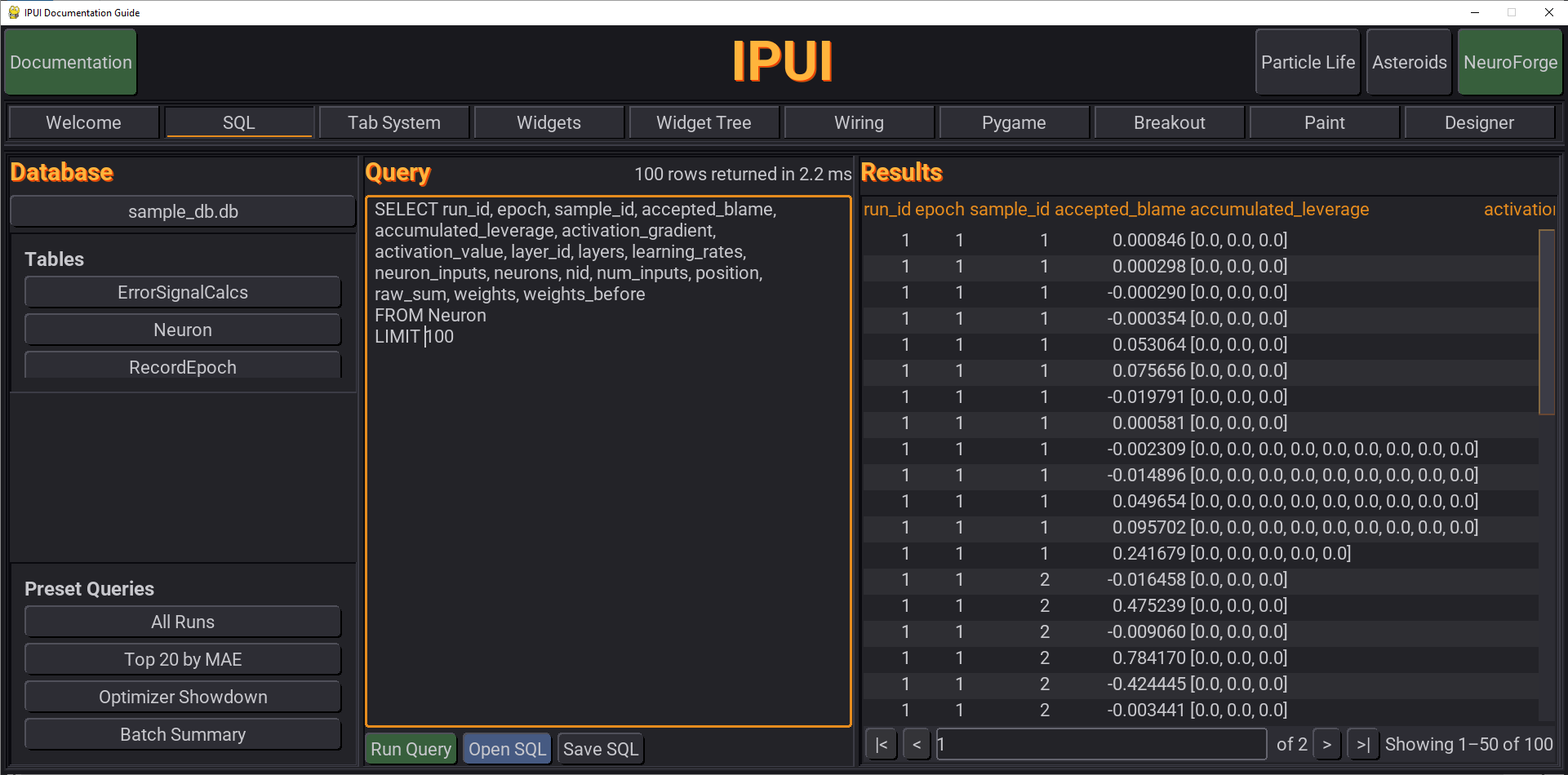
PowerGrid
grid = PowerGrid(parent, name="results_grid")
grid.set_data(rows, columns=["Run", "Accuracy", "Loss"])
grid.set_column_max("Run", 200)
grid.set_page_size(50)
grid.on_row_click(self.on_row_selected, column="Run")
PowerGrid also accepts SQL databases directly:
grid.set_data("path/to/database.db",
    query="SELECT run_id, accuracy FROM batch_history ORDER BY accuracy DESC")
Or load an entire table:
grid.set_data("path/to/database.db", table="batch_history")Sorting works across pages — sort the full dataset, then paginate the sorted result.
Chart
chart = Chart(parent, flex_width=1, flex_height=1)
chart.set_data(
    lines   = {"Train Loss": [(0, 0.9), (1, 0.7), (2, 0.5)],
               "Val Loss":   [(0, 0.95),(1, 0.75),(2, 0.6)]},
    x_label = "Epoch",
    y_label = "Loss"
)IPUI uses a flex-inspired layout. Set flex_width or flex_height to a weight; the remaining space is distributed proportionally:
row = Row(parent)
Col(row, flex_width=1)   # gets 1/3 of width
Col(row, flex_width=2)   # gets 2/3 of width
Unset (or 0) means the widget takes its natural size. No explicit pixel math required.
Scrollable containers:
CardCol(parent, scroll_v=True, flex_height=1)Scrollable containers clip and scroll their children automatically. Scrollbars support both mouse wheel and click-and-drag.
Tab layout is declared in one dict on your form:
class MyApp(_BaseForm):
    TAB_LAYOUT = {
        "Config":  ["settings", "hyperparams"],
        "Results": ["chart",    "grid"],
        "Log":     ["log"],
    }
Each value is a list of method names. IPUI discovers the corresponding _BaseTab subclass by tab name (matching a Python file in the same directory), calls those methods to build each pane, and arranges them side-by-side.
# Config.py
class Config(_BaseTab):
    def settings(self, parent):
        Title(parent, "Settings")
        ...

    def hyperparams(self, parent):
        Title(parent, "Hyperparameters")
...Use None in the pane list to create a transparent, chrome-free drawing canvas:
TAB_LAYOUT = {
    "Game": ["controls", None, "scoreboard"],
}
The None slot becomes ip.rect_pane — your game's arena. Draw in ip_draw, read mouse position with ip.mouse_local_x(), convert coordinates with ip.to_screen(). Zero framework spelunking required.
Control relative pane widths with tuples:
TAB_LAYOUT = {
    "Dashboard": [("sidebar", 1), ("main", 3)],
}
Bare strings default to weight 1. Mix freely: ["info", ("detail", 3)].
Reuse pane methods from other tabs with dot notation:
TAB_LAYOUT = {
    "Armory":  ["match_hints", "match_settings", None],
    "Pro":     ["Armory.match_settings", "Forge.workbench", "Forge.preview"],
}self.form.switch_tab("Results")
self.form.hide_tab("Log")
self.form.show_tab("Log")
self.form.set_pane(1, self.rebuild_results)
self.form.refresh_pane(1)Early-load tabs (pre-built at startup instead of on first click):
class MyApp(_BaseForm):
    tab_early_load = ["Config", "Results"]
Hidden tabs (initially hidden, shown later via show_tab):
class MyApp(_BaseForm):
tab_hidden = ["Colosseum"]Sometimes you need to block a tab switch — for example, "the user hasn't picked a project yet, so don't let them leave Home." That's the job of tab_on_change.
Set tab_on_change to the name of a method on your form. IPUI calls it before every tab switch and lets it veto the change by returning False:
class FormNeuroForge(_BaseForm):
    TAB_LAYOUT     = {"Home": ["..."], "Forge": ["..."], "Pro": ["..."]}
    tab_on_change  = "guard_tab_switch"

    def guard_tab_switch(self, name, current):
        if current == "Home" and not self.has_active_project():
            self.show_modal("Pick a project first!")
            return False           # ← veto: tab does NOT switch
        return True                 # ← allow the switch
Signature: method(name, current) — name is the destination tab, current is the tab the user is leaving.
Return value:
False→ veto. The tab strip stays where it is. Noip_activatedfires.- Any other value (
True,None, missing return) → switch proceeds normally.
This is a different superpower from ip_activated. tab_on_change is a gate — it can stop a switch before it happens. ip_activated is a welcome mat — it runs after the switch is already in motion. Both can coexist on the same form.
For the full lifecycle of a tab switch — including exactly when each hook fires — see Appendix C.
Not every app needs tabs. Games, visualizations, single-screen tools — sometimes you just want a window and some widgets.
Skip TAB_LAYOUT entirely. Build widgets in build(). Use the same lifecycle hooks you already know.
from ipui import *

class MyApp(_BaseForm):
    def build(self):
        Banner(self, "My App", glow=True, text_align=CENTER)
        Title(self, "No tabs. No panes. Just widgets.", text_align=CENTER)
        Body(self, "Everything lives right here.", text_align=CENTER)
        Button(self, "Do Something", color_bg=Style.COLOR_BUTTON_CTA, on_click=self.do_something)

    def do_something(self):
        self.show_modal("It works!")

if __name__ == "__main__":
    show(MyApp)
No TAB_LAYOUT. No _BaseTab. One class, one file, name it whatever you want.
The same hooks work on a tabless form as on any _BaseTab pane:
    from ipui import *
    import pygame

    class Asteroids(_BaseForm):
        def build(self):
            self.lbl_score = Title(self, "Score: 0")

        def ip_setup(self, ip):
            self.ship_x  = 0.5
            self.ship_y  = 0.5
            self.speed   = 0.4
            self.bullets = []
            ip.state.add("READY"    , self.state_ready)
            ip.state.add("PLAYING"  , self.state_playing)
            ip.state.add("GAME_OVER", None, "READY", 2.5)
            ip.state.go("READY")

        def state_ready(self):    pass
        def state_playing(self):  pass

        def ip_think(self, ip):
            if ip.state.is_("PLAYING"):
                self.ship_x += self.speed * ip.dt
                self.lbl_score.set_text(f"Score: {len(self.bullets)}")

        def ip_draw(self, ip):
            pos = ip.to_screen(self.ship_x, self.ship_y)
            pygame.draw.circle(ip.surface, (255, 160, 40), pos, ip.scale_y(0.02))

        def ip_draw_hud(self, ip):
            font = Style.FONT_DETAIL
            surf = font.render(f"FPS: {ip.fps}", True, Style.COLOR_TEXT_ACCENT)
            ip.surface.blit(surf, (10, 10))

    if __name__ == "__main__":
        show(Asteroids)
Every hook — ip_setup, ip_activated, ip_think, ip_draw, ip_draw_hud — works identically whether it lives on a _BaseForm or a _BaseTab. Move code between the two freely.
| Scenario | Approach |
|---|---|
| Quick prototype, single screen | Tabless — one class, build() |
| Game or visualization | Tabless — full hook access, no tab chrome |
| Multi-view app | Tabbed — TAB_LAYOUT with _BaseTab files |
| One-file demo with tabs | Tabbed — builder methods on the form |
Tabless is the on-ramp. Tabs are the highway. Both use the same engine.
🧠 Engineering for Fitts's Law IPUI doesn't just put pixels/ on the screen; it optimizes for the human hand and eye. Every interaction is designed to minimize cognitive load and physical movement.
🎯 The Prime Pixel & The Zero-Distance Pin We leverage Fitts's Law — which states that the time to acquire a target is determined by distance and size — to make your workflow feel instantaneous.
- The Prime Pixel: Our "Super Tips" utilize the most valuable real estate on your screen: the pixel where your cursor already sits.
- Zero-Distance Acquisition: By spawning the Pin button directly under the mouse after a brief intent delay, we reduce the movement distance (D) to zero. This makes pinning information a near-instant action.
⏲️ Temporal Guardrails To prevent accidental interactions (misclicks), IPUI implements Temporal Buffering:
- Hover State (1.5s): Standard tooltip appears — non-invasive and follows the mouse.
- Engagement (0.5s): The Super Tip expands, providing deep contextual data.
- Action Readiness (0.5s later): The Pin button manifests. This staggered entry ensures that a click meant for the underlying button isn't accidentally "stolen" by the tooltip.
IPUI catches mistakes when you make them, not when users hit them:
| Mistake | Error raised |
|---|---|
Override __init__ in a widget |
TypeError at class definition |
Override __init__ in a pane |
TypeError at class definition |
justify_center AND justify_spread |
ValueError at construction |
text_align='x' |
ValueError at construction |
widgets["typo"] |
RuntimeError listing valid names |
on_click_me(non_callable) |
TypeError at registration |
on_click_me(func_with_params) |
ValueError at registration |
IPUI error messages always announce themselves with the same banner: Houston we have a problem! — easy to spot in a long traceback.
Want to wrap a Row in a Plate? Just do it:
right = Row(Plate(header, flex_width=1), flex_width=1, pad_y=0)Same as:
plate_wrapper = Plate(header, flex_width=1)
right = Row(plate_wrapper, flex_width=1, pad_y=0)Any widget can be made clickable. There are two ways to wire the callback, and the difference is intentional:
on_click=(constructor kwarg) — pass the callback when you build the widget. Fast, no validation. You're trusted to pass a zero-arg callable.widget.on_click_me(callback)— register the callback after construction. Validates that the callback is callable and takes zero arguments, raising at registration time if not.
Both end up at the same place (self.on_click). Use the kwarg for inline construction, use on_click_me when you're wiring a handler after the fact and want the safety net.
self.on_click); collapsing the names creates a method-shadows-attribute collision that surfaces as a "not callable" error at click time.
All styling lives in Style. Import and use constants — don't hard-code colors or sizes:
from ipui import *

Button(parent, "Go"     , color_bg  =Style.COLOR_BUTTON_CTA)
Body(parent,   "Status" , font      =Style.FONT_BODY)
Color constants: COLOR_BACKGROUND, COLOR_MODAL_BG, COLOR_PANEL_BG, COLOR_CARD_BG, COLOR_TEXT, COLOR_TEXT_SECONDARY, COLOR_TEXT_MUTED, COLOR_TEXT_ACCENT, COLOR_BORDER, COLOR_BORDER_SUBTLE, COLOR_BUTTON_BG, COLOR_BUTTON_CTA (green), COLOR_BUTTON_DANGER (red), COLOR_BUTTON_SECONDARY (blue), COLOR_BUTTON_ACCENT (orange), COLOR_BUTTON_WARNING, COLOR_CODE_BG
Font constants: FONT_BANNER, FONT_TITLE, FONT_HEADING, FONT_BODY, FONT_DETAIL, FONT_MONO
Tokens: TOKEN_PAD, TOKEN_PAD_TIGHT, TOKEN_GAP, TOKEN_GAP_TIGHT, TOKEN_BORDER, TOKEN_SCROLLBAR, TOKEN_CORNER_RADIUS
Screen: SCREEN_WIDTH (default 1900), SCREEN_HEIGHT (default 900), FONT_SCALE (default 0.369)
IPUI ships with built-in developer tools so you never have to guess what the layout engine is doing.
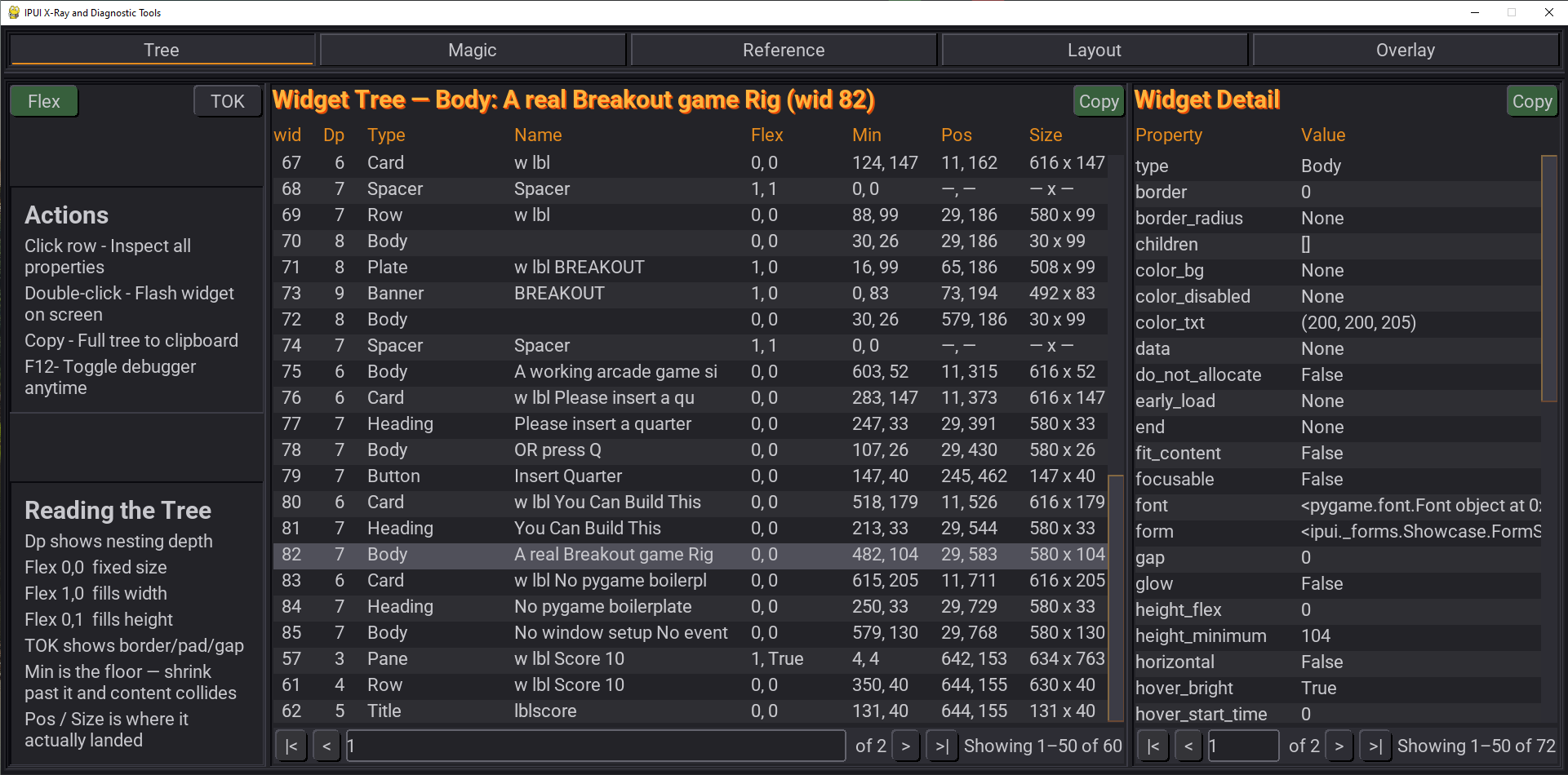
F12 — Professional Grade Debug Tools
Press F12 to open the IPUI X-Ray. Tabs include:
- Tree — Live view of every widget: flex settings, minimum sizes, actual rects. Click any row to inspect all properties. Copy the full tree to clipboard for sharing.
- Magic — Live view of all reactive pipeline keys, values, and registered derives.
- Reference — Searchable framework documentation with table of contents, built from the source code itself.
- Layout — Layout debugging surface (under active development).
- Overlay — Diagnostic overlay controls.
F11 — Layout Overlay
Press F11 to toggle a translucent overlay that draws every widget's rect directly on your running app. Instantly see padding, gaps, and alignment without opening the inspector.
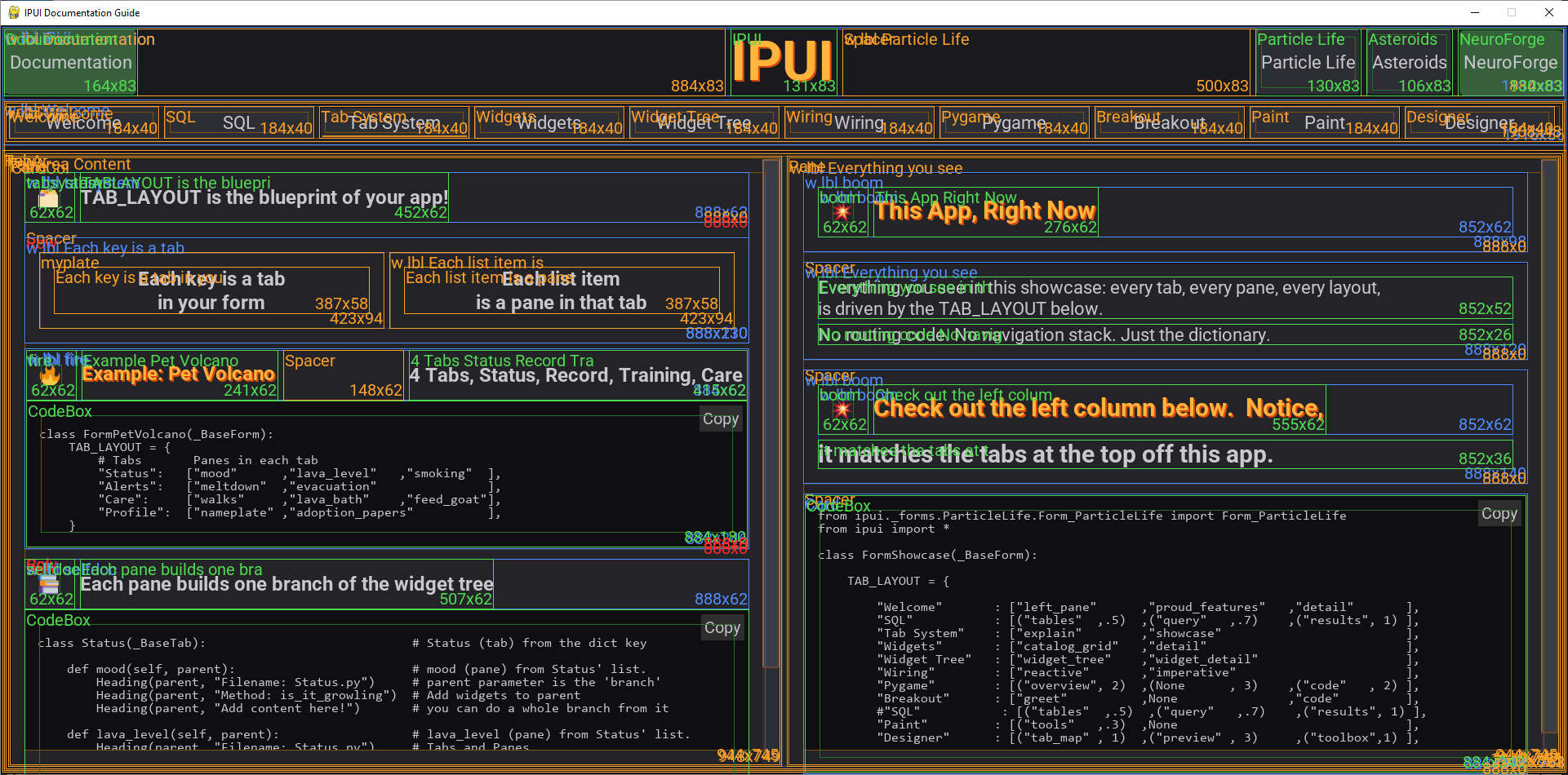
Both tools work on any IPUI app with zero setup — no flags, no config, no imports.
I personally like to have a 'main.py' at the top of the pyramid that at least makes it easy to see where it starts.
import ipui
from myapp import MyApp

ipui.show(MyApp, "My Application")  #MyApp is your _BaseForm class - IMPORT REQUIRED
ipui.show() starts the Pygame loop on the first call. On subsequent calls (from within a running app) it switches the active form — letting you navigate between entirely different screens. Use ipui.back() to return to the previous form.
| Attribute | Type | Description |
|---|---|---|
TAB_LAYOUT |
dict | Tab name → list of pane method names |
PIPELINE_DEFAULTS |
dict | Initial pipeline keys/values seeded at form creation |
tab_early_load |
list | Tab names to pre-build at startup |
tab_on_change |
str | Name of method on this form to call before every tab switch. Signature: method(self, name, current). Return False to veto the switch. |
tab_hidden |
list | Tab names initially hidden |
pipeline_debug |
bool | Log all pipeline activity to console |
| Method | Description |
|---|---|
pipeline_set(key, value) |
Write to pipeline; triggers derived updates |
pipeline_read(key) |
Read current pipeline value |
switch_tab(name) |
Switch to named tab |
set_pane(index, builder, *args, tab_name=None, weight=None, **kwargs) |
Replace pane content at runtime |
refresh_pane(index) |
Rebuild current pane from its existing builder |
hide_tab(name) |
Hide a tab button |
show_tab(name) |
Show a hidden tab button |
get_tab(name) |
Return cached _BaseTab instance |
prepare(name) |
Force-load a tab's _BaseTab |
show_modal(msg, min_seconds=2, work_func=None) |
Show modal message; optionally run work_func while displayed for at least min_seconds |
ip_think(ip) |
Per-frame logic hook (override for app-wide state) |
ip_draw(ip) |
Pre-render hook (override for backgrounds) |
ip_draw_hud(ip) |
Post-render hook (override for overlays) |
All widgets accept these parameters:
| Parameter | Type | Default | Description |
|---|---|---|---|
parent |
widget | — | Parent widget (auto-attaches on construction) |
text |
str | None | Display text |
name |
str | None | Registers widget in form.widgets |
flex_width |
int | 0 | Flex weight horizontal (0 = natural size) |
flex_height |
int | 0 | Flex weight vertical (0 = natural size) |
pad |
int | TOKEN_PAD | Internal padding |
gap |
int | TOKEN_GAP | Gap between children |
border |
int | TOKEN_BORDER | Chrome border thickness |
justify_center |
bool | False | Center children in available space |
justify_spread |
bool | False | Spread children evenly |
visible |
bool | True | Show/hide widget |
font |
Font | None | Override font |
text_align |
str | LEFT | LEFT, RIGHT, CENTER |
color_bg |
tuple | None | Background RGB tuple |
glow |
bool | False | Molten-orange glow effect |
data |
any | None | Arbitrary data payload |
single_select |
bool | False | Enforce single selection (lists/dropdowns) |
placeholder |
str | None | TextBox placeholder text |
initial_value |
any | None | Starting value |
enabled |
bool | None | Can accept a click/focus |
on_submit |
callable | None | Submit callback |
on_change |
callable | None | Change callback |
on_click |
callable | None | Click callback |
on_double_click |
callable | None | Double-click callback |
wrap |
bool | False | Allow text wrapping when width-constrained |
tab_order |
int | None | Focus order for keyboard navigation |
early_load |
bool | None | Pre-build at startup instead of on-demand |
pipeline_key |
str | None | Pipeline read/write key |
tooltip |
str | None | Hover tooltip text |
tooltip_class |
class | None | Custom tooltip class |
scroll_v |
bool | False | Enable scrolling for this container |
scroll_glow |
float | 0.369 | Scrollbar bevel intensity (0 = flat) |
start |
str | None | CodeBox: start-of-range marker |
end |
str | None | CodeBox: end-of-range marker |
fit_content |
bool | False | Size to content width instead of stretching |
border_radius |
int | None | Rounded corner radius (pixels) |
| Method | Description |
|---|---|
set_text(text) |
Update text and rebuild layout |
clear_children() |
Remove all child widgets |
on_click_me(callback) |
Register validated click handler (zero-arg) |
tap(func) |
Run func(self) and return self — inline post-construction helper |
display_name |
Property: human-readable identity (name → text → type) |
| Attribute | Type | Description |
|---|---|---|
BINDINGS |
dict | Reactive derive declarations (see below) |
THINK_ALWAYS |
bool | If True, ip_think fires even when this pane isn't visible |
Lifecycle hooks (override on your pane):
| Method | Description |
|---|---|
ip_setup_early(ip) |
One-time setup (runs once before widget tree is built) |
ip_setup(ip) |
One-time setup (runs once after widget tree is built) |
ip_activated(ip) |
Each time the pane becomes visible |
ip_think(ip) |
Per-frame logic. State, physics, AI. |
ip_draw(ip) |
Draw before UI. Game worlds, backgrounds. |
ip_draw_hud(ip) |
Draw after UI. Overlays, cursors, effects. |
BINDINGS entry format:
"widget_name": {
    "property": "text",          # or "enabled", or any widget attribute
    "compute":  "method_name",   # method on this _BaseTab
    "triggers": ["key1", "key2"] # pipeline keys that trigger recompute
}| Method | Description |
|---|---|
get_selected() |
List of selected item names |
get_selected_data() |
Dict of selected items with their data |
set_filter(text) |
Filter visible items by text |
sync_from_pipeline() |
Sync selection state from pipeline |
selected_count |
Property: number of selected items |
| Method | Description |
|---|---|
get_selected() |
List of selected item names |
get_selected_data() |
Dict of selected items with their data |
set_filter(text) |
Filter visible items |
set_max_visible(n) |
How many rows show when dropped down |
sync_from_pipeline() |
Sync from pipeline and update textbox |
| Method | Description |
|---|---|
set_data(lines, x_label, y_label) |
Update chart data (dirty-flag render) |
| Method | Description |
|---|---|
set_data(data, columns=None) |
Set grid data (list of lists, list of dicts, or dict of lists) |
set_data(path, query="...") |
Load from SQLite database with a query |
set_data(path, table="...") |
Load an entire SQLite table |
set_column_max(col, max_width) |
Cap a column's pixel width (accepts index or column name) |
set_page_size(n) |
Set rows per page (0 = no pagination) |
on_row_click(callback, column=None) |
Register row click. column=None → dict of row, "name" → that value, int → that index |
- Python 3.10+
- pygame-ce
- OPTIONAL: matplotlib (for Chart)
IPUI makes choices that look unconventional if you're coming from other UI frameworks. This explains the design intent behind choices that may look unusual if you’re coming from other UI frameworks.
Every framework design decision lives on one side of a line:
- Framework-side — O(1). Solved once, inside the framework. Every user gets it for free. Zero defect surface. Zero tech debt.
- User-side — O(N). Every user re-solves it for each usage. Each solution carries a fixed build cost, widens the defect attack surface, and accumulates ongoing tech debt.
IPUI pushes as much as possible to the framework side. When something can be handled once — reliably, invisibly — there's no reason to ask every user to handle it themselves, every time, forever.
This principle drives nearly every decision below.
Here's how custom widgets work in tkinter:
class ScrolledList(tk.Frame):
    def __init__(self, parent, **options):
        tk.Frame.__init__(self, parent, **options)   # ← you must get this right
        self._list = tk.Listbox(self)
        self._scrollbar = tk.Scrollbar(self)
        self._list.pack(side=tk.LEFT)
        self._scrollbar.pack(side=tk.LEFT)
And PyQt:
class PowerBar(QWidget):
    def __init__(self, steps=5, *args, **kwargs):
        super().__init__(*args, **kwargs)             # ← you must get this right
        layout = QVBoxLayout()
        self._bar = _Bar(steps)
        layout.addWidget(self._bar)
        self._dial = QDial()
        layout.addWidget(self._dial)
        self.setLayout(layout)
Every subclass must call the parent constructor with the right arguments in the right order. Every user, every widget, every time. Forget it and you get a half-initialized widget that fails in confusing ways later. That's O(N).
Here's the same idea in IPUI:
class PowerBar(_BaseWidget):
    def build(self):
        self.color_bg = Style.COLOR_CARD_BG
        MgrColor.apply_bevel(self, "sunken")
No super().__init__(). No *args, **kwargs forwarding. No parent parameter to thread through. The framework handles all of that before build() is called — self.parent, self.form, self.children, and every attribute are already wired. You literally cannot forget to pass the framework's parameters because you never see them.
If you try to override __init__, you get a clear error at class definition time. Not at runtime. Not in production.
card = CardCol(parent)
Title(card, "Settings")
Body(card, "Change stuff")
No add(). No pack(). No grid(). When you construct a widget inside a container, it's attached. Period.
This eliminates the entire category of "widget exists but isn't on screen" bugs — O(1). In frameworks where attachment is a separate step, every user must remember to attach every widget every time — O(N).
IPUI uses a star import deliberately. Conventional wisdom says they're dangerous because you don't know what you're importing.
IPUI controls __all__ explicitly. You get exactly the public API — the widgets, the base classes, the style constants — and nothing else. One import line, and you're building. No ceremony, no six-line import blocks to maintain, no "which subpackage was PowerGrid in again?"
The alternative is asking every user to maintain their import list for every file — O(N).
IPUI uses underscores for structural meaning, never as 'suggested scope modifiers'. _BaseWidget means "structural base class." private_enabled means "backing storage." A leading underscore never means "don't touch this."
Every .py file contains one public class. The filename matches the class name exactly. Button.py has Button. PowerGrid.py has PowerGrid.
This makes discovery trivial — in your file browser, in your IDE, in conversation. No hunting through a 2,000-line widgets.py to find the class you need. And it's how IPUI's tab discovery system works: a tab named "Settings" automatically finds Settings.py.
No loose functions at module level. No executable code outside if __name__ == "__main__":.
For one, this eliminates order dependency.
Also, module-level code runs on import, in whatever order Python resolves dependencies. That's a source of subtle, order-dependent bugs that are painful to diagnose. Wrapping everything in classes eliminates this entirely — O(1) structural protection instead of O(N) discipline from every developer on every file.
IPUI scales to the physical screen automatically. You work in semantic sizes (FONT_BODY, TOKEN_PAD) and normalized coordinates (ip.to_screen(0.5, 0.5)). The framework does the pixel math.
The alternative is every user doing coordinate math for every element, then redoing it when someone runs the app on a different monitor — O(N).
Your entire app structure is one dictionary at the top of your form:
TAB_LAYOUT = {
    "Config":  ["settings", "hyperparams"],
    "Results": ["chart",    "grid"],
}
No router. No navigation stack. No registration calls. The dictionary is the structure, and IPUI builds everything from it — tab buttons, pane slots, file discovery, hot-reload.
"Why not tkinter? Why not Qt? Why not web?"
Because IPUI was built for applications that think every frame — neural network experimentation, simulations, games. The pygame loop gives you ip_think, ip_draw, and ip_draw_hud as first-class hooks. You get 60fps rendering, real-time input, and a game-loop architecture that widget-tree frameworks can't offer without bolting on a separate threading model.
And thanks to the ip service portal, you never touch the raw pygame API for layout, input, or coordinate math unless you want to.
This is the design choice that pays the biggest compound dividend.
Most UI frameworks divide the world into container widgets and leaf widgets. Containers can hold children. Leaves cannot. If you want a widget that's mostly a leaf but needs to hold one child in one situation, you're subclassing, wrapping, or fighting the type system.
IPUI doesn't classify widgets this way. There are no "container" or "leaf" types. Every widget inherits from _BaseWidget, which handles children, layout, scrolling, events, and drawing. Whether a widget actually has children is just a runtime fact, not a type-level constraint.
The analogy is security entitlement management: never grant permissions directly to a user. Instead, grant permissions to groups, and add users to groups. In IPUI: never hard-code capabilities into specific widget subclasses. Instead, put behaviors on _BaseWidget, and let widgets opt in through attributes.
Scrolling is a perfect example. There is no ScrollableContainer class. There is no ScrollView, ScrollPane, or ScrollArea. There's scroll_v=True — a parameter on any widget. The scrolling behavior lives once, on _BaseWidget, tested once, debugged once. Any widget that sets the flag gets it for free.
The effect is easy to see in the codebase. Look at CardCol — the most-used container in IPUI:
class CardCol(_BaseWidget):
    def build(self):
        if self.color_bg is None: self.color_bg = Style.COLOR_CARD_BG
        MgrColor.apply_bevel(self, "sunken")
Two lines of behavior. It's not a special container subclass. It's _BaseWidget with a background color and a bevel. That's it. And yet it can hold any number of children, scroll them, clip them, lay them out — because those are behaviors on the base, not features of a special container type.
Row is three lines. Button is about ten. Banner is two. Across 36+ widget classes, there is almost zero behavioral drift, near-perfect DRY, and total consistency — because the behaviors live in one place and widgets simply declare which ones they want.
Every time a capability gets baked into a specific widget subclass instead of the base, it's a small tax on the entire system: one more place that can drift, one more thing to test separately, one more special case to document. IPUI treats those exceptions like technical debt — always looking to eliminate them, always pushing behavior back to the base where it's solved once.
O(1).
The best evidence isn't an argument — it's the code. Run the smoke test, open F12, and browse the widget tree. Check the Widget Catalog tab and see 36+ widgets built on a single, uniform foundation. Read CardCol.py and count the lines.
Then try building something. If the approach works for you, you'll feel it in the first ten minutes.
IPUI manages the pygame loop. Each frame executes in this order:
1. Snapshot input state     ( ip.dt, ip.mouse_*, ip.key_*)
2. Process pygame events    → UI consumes what it needs
3. ip_think(ip)             → Form, active pane, plus THINK_ALWAYS panes
4. Layout pass              → Measure, flex solve, assign rects
5. Screen clear
6. ip_draw(ip)              → Form, then active pane only
7. UI render                → Widget tree draws
8. ip_draw_hud(ip)          → Form, then active pane only
9. Display flip
Two form-level features can run during a tab switch: tab_on_change (the gate) and ip_activated (the welcome mat). They have similar-sounding names but completely different jobs. This appendix lays out exactly what fires when, and why you'd reach for one over the other.
When the user clicks a tab — say, switching from Home to Forge:
User clicks tab "Forge"
  │
  ▼
TabStrip.switch_tab("Forge")
  │
  ├─► allow_switch("Forge")               ◄── tab_on_change handler fires
  │     │
  │     └─► guard_tab_switch("Forge", "Home")
  │           returns False  → ABORT switch (vetoed; tab strip stays on "Home")
  │           returns True / None → continue
  │
  ├─► cache_active_content()              ◄── snapshot Home's widgets
  ├─► self.active_tab = "Forge"
  ├─► update_button_visuals()             ◄── tab strip highlight moves
  ├─► build_tabs_widget_tree("Forge")     ◄── may run ip_setup() on first visit
  │
  └─► notify_activated("Forge")           ◄── Forge.ip_activated(ip) fires
If tab_on_change returns False, the workflow stops at the gate. Nothing else happens — no caching, no ip_activated, no visual change. If it returns anything else (or doesn't return at all), the switch proceeds and ip_activated fires on the destination tab at the end.
tab_on_change |
ip_activated |
|
|---|---|---|
| Lives on | _BaseForm (one handler for the whole form) |
_BaseTab (per-tab) — also _BaseForm for tabless / form-level activation |
| Fires | Before the switch happens | After the switch happens |
| Signature | handler(name, current) — destination and current tab names (strings) |
ip_activated(self, ip) — receives the service portal |
| Can veto? | Yes — return False to block the switch |
No — by the time it runs, the switch is done |
| Use case | "Don't let user leave Home until they pick a project" | "I'm now visible — refresh data, restart animations, sync from pipeline" |
Use tab_on_change when you need to prevent a tab switch. Common cases:
- The user has unsaved changes in the current tab.
- A required prerequisite hasn't been met (no project loaded, no model selected, etc.).
- A confirmation dialog needs to gate the switch.
- App-wide policy: e.g. during training, don't allow leaving the training tab.
Use ip_activated when the switch is fine to proceed and you just need to react to becoming visible:
- Refresh data that may have changed while the tab was off-screen.
- Restart an animation or particle effect.
- Sync UI state from the pipeline (e.g. update a label to reflect the current project).
- Reset positions, counters, or scroll offsets on each visit.
Both can coexist on the same form. tab_on_change runs first; if it allows the switch, ip_activated runs on the destination tab afterwards. They aren't redundant — they're sequential checkpoints in the same lifecycle.
ip_activated also fires at the form level when IPUI.show() brings a form to the front (or IPUI.back() returns to a previous one). The framework sets up the service portal — ip.form, ip.tab, ip.tab_name, ip.is_active_tab, and the geometry rects — before calling the hook, so they're correct when your code runs. Per-frame fields (ip.dt, ip.events, ip.surface) reflect the last completed frame.
Every frame, before a single pixel is drawn, IPUI runs a four-pass pipeline that
turns your declarative widget tree into concrete pixel rectangles. The whole
thing is orchestrated from one method on _BaseForm so you can read it top to
bottom without spelunking through nested constructors.
def sane_layout(self):
    NotNP_HardLayout(self).RunLayout()           # Pass 1
    if NotNP_HardWrap(self).RunLayout():         # Pass 2
        NotNP_HardLayout(self).RunLayout()       # Pass 3 (conditional)
    NotNP_HardHug(self).RunLayout()              # Pass 4
Three peer classes, no hidden orchestration, no engine swapping, no recursion into other passes. Each class does exactly one job.
Layout is a chicken-and-egg problem. To know how tall a paragraph is, you need to know how wide it can be. To know how wide it can be, you need to know how much horizontal space its parent has to give. To know what its parent has to give, you need to know how much its siblings need. To know how much siblings need, you need to know how tall they are. Round and round.
The honest way out: stop trying to solve it in one shot. Lay everything out once with the information you have, fix the things that need fixing, lay it out again. Two more cleanup passes for the rest. Done in bounded time, deterministic, no infinite loops, no convergence math.
A two-phase walk over the entire tree.
Measure (bottom-up). Each widget caches min_width and
min_height based on its own surface, its children's mins, and its frame
(pad + border + gap). Flex children clamp their min to just their frame —
agreeing to be squeezable in exchange for getting fair-share growth later.
Layout (top-down). Starting at the trunk's rect, hand each container its
inner area, run the flex solver against its children, and assign each child a
concrete pygame.Rect. Recurse. The flex solver is iterative-greedy: lock
non-flex kids at their minimum, find the worst violator (a flex child whose
minimum exceeds its fair share), lock it at its minimum, redistribute, repeat
until no violators remain. Whatever survives gets fair share.
After Pass 1, every widget has a rect. Most of the time, the rect is right.
The exception is text widgets that got allocated a width narrower than their single-line surface. They render their full text into a too-narrow rect, which would clip without intervention.
Bottom-up walk over the tree, looking only at leaf widgets that have
text, a font, a surface, and wrap=True. For each one, ask a simple
question: is the surface wider than the rect it was given?
If yes, re-render the surface wrapped to the allocated width. The new
surface is narrower (because we asked it to be) and taller (because the text
took more lines to fit). Replace node.my_surface with the new one.
The pass returns True if any surface changed size, False otherwise.
That bool is the only output. The pass mutates surfaces; it does not touch rects, mins, flex weights, or anything else.
In a typical app, most frames return False — text widgets are usually wide
enough. When the bool comes back True, the orchestrator knows Pass 1's rect
math is now stale (some leaves grew taller) and re-runs it.
Same code as Pass 1. Different inputs.
The wrapped leaves now report their wrapped surface dimensions during the measure phase. Their height-mins propagate upward through their parents. Vertical layout settles around the new heights. Sibling positions shift down to make room.
In your app's structure, widths are decided top-down by parent allocations that don't depend on child surface widths, so Pass 3 typically only changes heights and vertical positions. But the algorithm doesn't know or care — it's the full layout pass running again with current data.
This pass converges in one shot. Pass 2 only fires when allocated width is less than content width; after Pass 3 the allocated widths haven't changed, so if Pass 2 ran a hypothetical fourth time it would have nothing to do. Bounded. Deterministic. No ping-pong.
Bottom-up walk. For any widget with hug_parent=True, ask its parent to
symmetrically shrink to wrap the bounding box of its visible children, plus
its own pad and border.
Two hard rules:
- Floor: never below the parent's
min_width/min_height. - Ceiling: never beyond the rect Pass 3 settled on. Hug only shrinks.
Children never move. The parent stays centered on its original center, both edges crawling inward equally. The rect mutates in place.
Hug runs last because it depends on every previous pass having settled. You can't hug to content size if the content's surfaces are still about to wrap.
| Pass | Mutates | Reads |
|---|---|---|
| 1. Layout | min_width, min_height, rect, scroll_active, scroll_offset |
surfaces, frame, flex weights, children |
| 2. Wrap | my_surface (text leaves only) |
rect, wrap, surface, frame |
| 3. Layout | same as Pass 1 | same as Pass 1, with new wrapped surfaces |
| 4. Hug | rect (parents of hug children only) |
hug_parent, sibling rects, mins |
No pass touches anything outside its column. That's how four passes coexist without stepping on each other.
Every widget in the tree has:
- A
rectthat reflects its final on-screen position and size. - A
my_surfacesized correctly for its rect (including any wrapping). - A
min_width/min_heightconsistent with its current surface. - A
scroll_activeflag andscroll_offsetclamped to the legal range.
render() then walks the tree drawing each widget into its rect. The drawing
pass reads the layout output and never writes back to it. Layout and drawing
are clean halves.
- Each pass has one job. You can read any of the four classes top to bottom and understand it without holding the others in your head.
- The orchestration is visible. Open
_BaseForm.sane_layoutand the whole pipeline is right there in eight lines. - Bounded work per frame. Layout runs once or twice, never more. Wrap runs once. Hug runs once. No while-loops, no convergence checks.
- Deterministic. Same widget tree in, same rects out. No frame-to-frame drift, no subtle timing dependencies.
- Honest naming. The classes are called what they do. The orchestrator
is called
sane_layoutbecause that's what it is.
IPUI — Because life's too short for layout bugs.