Repository navigation
Kibitz
👷♀️🛠️
Watch, Discuss and Analyze Games Together
Kibitz verb/noun — To watch a game being played, especially chess or Go, and comment on or discuss the play, usually as a spectator rather than a participant. (Roughly paraphrased from Merriam Webster: Kibitzer)
With the introduction of Kibitz rooms, OGS adds a place to hang out and watch a game together with others. A room brings the game, conversation and shared analysis into one place: follow the live board, discuss the position with other viewers, and explore or share variations without losing track of the game. You can join an existing room or host one yourself.
Chatting and sharing variations is already possible in the regular game chat. However, the Kibitz rooms improve on this in three ways:
- The room owner can change which game everyone is watching, and everyone else follows automatically. This way, after you are done discussing one game, you can easily move on to a next game without having to coordinate with each other. This makes it much easier to kibitz. It is also especially useful for teachers and for tournament organisers who want to control what their students / followers see.
- The live ongoing game and the created variations can be shown side-by-side (desktop/laptop only). Never lose track of the live game just to explore variations.
- The Variations list is your personal shortlist of variations you have opened. Imagine 10 people sharing variations in chat. Soon this becomes difficult to track. However, in a Kibitz room, you can add someone's variation to your Variations list by simply clicking it. You can have up to 7 variations in the list.
The idea is simple: make watching and discussing games together feel as easy as gathering around the same board.
On desktop, Kibitz is designed so you can keep the game, discussion and analysis in view at the same time.
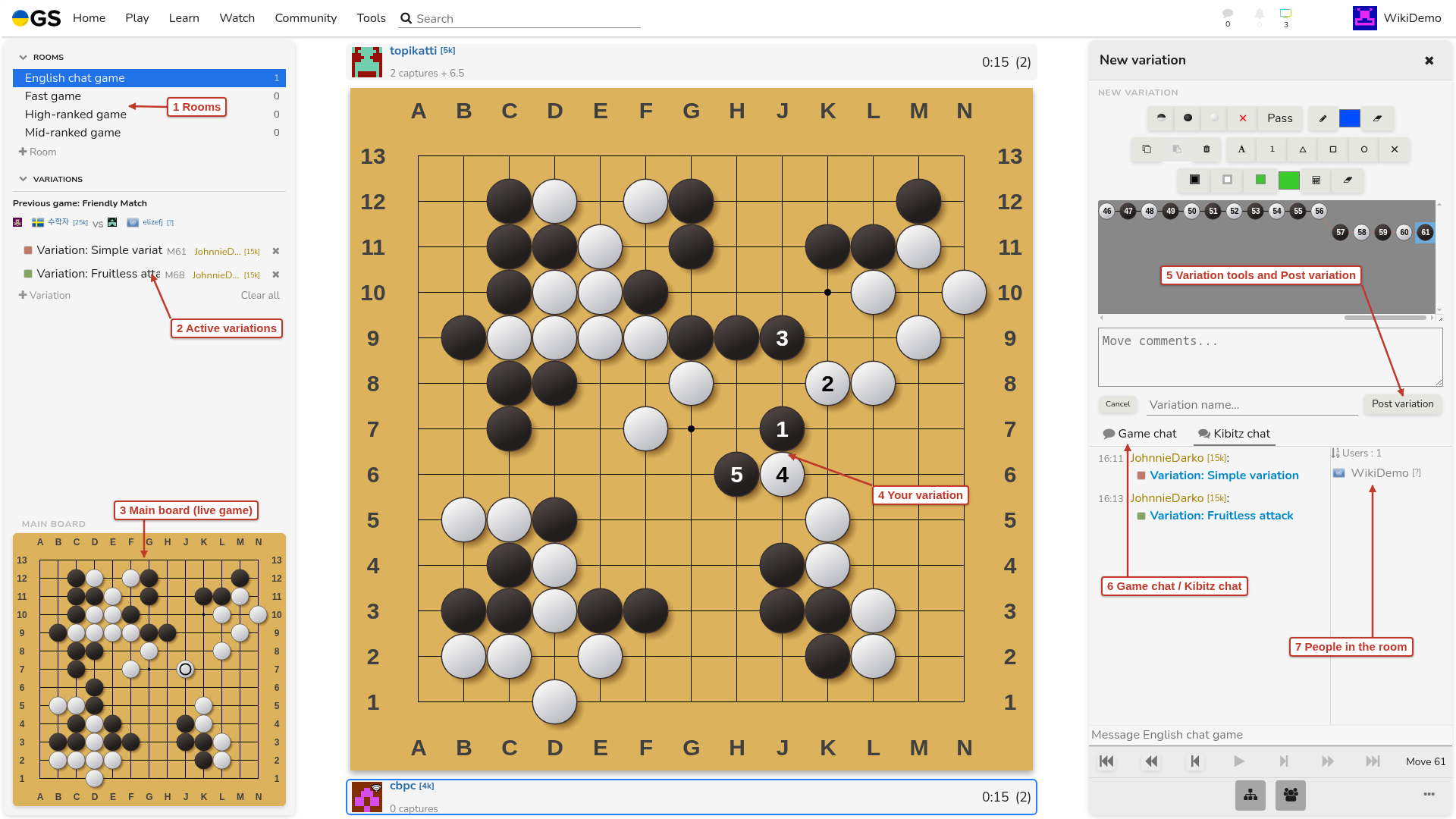
The left side has two lists. Rooms lets you move between Kibitz rooms. Variations holds the variations you have opened. The people list on the right shows who else is watching with you. Use the people button below the chat to show or hide it.
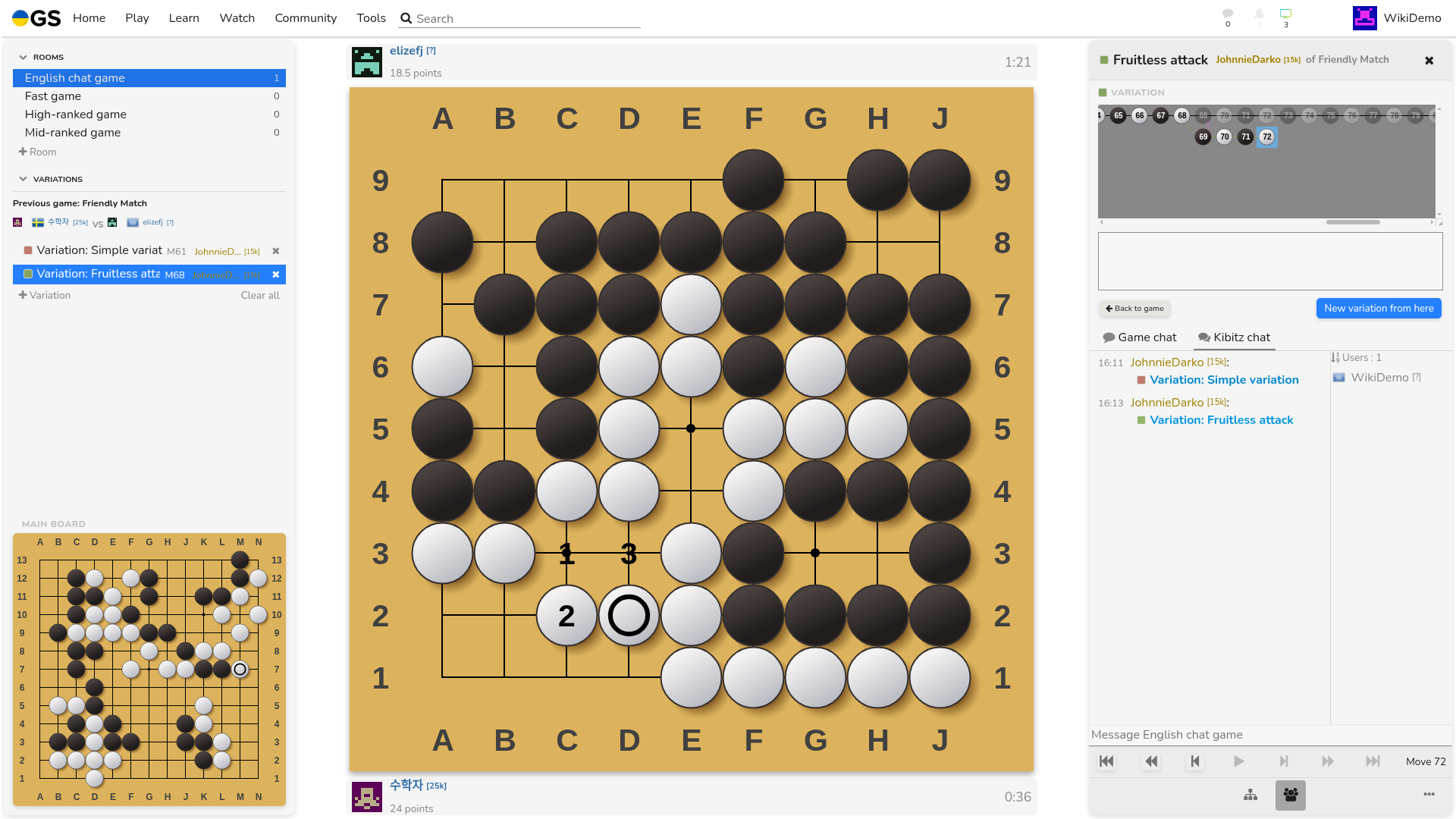
The center board normally shows the game the room is following. When you start a new variation or open a posted one, the center board shows the variation instead. The live game then moves to a small Main board in the lower left, so you can explore a line without losing track of what is actually happening in the game. Select Back to game or the × at the top of the variation panel to put the live game back on the center board.
Variations posted in Kibitz chat are added to your Variations list when you open them. From there you can quickly switch between several ideas. The × on a row removes that variation from your list, and Clear all removes all of them. Removing a variation does not delete it. You can open it again from Kibitz chat.
The right-hand side also keeps Game chat and Kibitz chat separate: Game chat lets you follow what was said in the actual game, while Kibitz chat is the conversation between the kibitzers watching together.
This makes the desktop layout especially useful for group analysis: the live game remains the common reference point, while everyone can independently explore and compare variations.
Each room keeps its own chat and variations. The game being shown on the main board can also be changed by the room owner without creating a new room. A few preset rooms, run by OGS, choose their game automatically. These are good rooms to get started in; see Preset rooms below.
A preset room is a Kibitz room that OGS runs itself. Nobody owns it, and it always shows a live game that OGS has picked automatically, so there is always something to watch and people to talk to. Preset rooms are listed under Preset rooms at the top of the room list.
Because OGS chooses the game, nobody can change it, and there is no owner to ask. If you want to keep discussing a game after the room has moved on, or to watch a different game with the same people, create your own room from that game.
A game stays on the board until it ends, even once it is past the point where the room would have picked it. When it ends, the result is posted in Kibitz chat, and the room keeps showing the finished game for a couple of minutes so the discussion can finish. The room then announces the next game in Kibitz chat and shows a Next game in countdown above the board. After about 20 seconds the new game appears. Variations you had open for the old game stay in your Variations list under the heading "Previous game".
If the next game ends before the countdown finishes, the change is cancelled and the room picks again.
All preset rooms pick from the same pool of games:
- public 19×19 games between two people (no bot games);
- games slow enough to talk about: roughly the pace of a Live automatch game or slower. Blitz and rapid games are not picked;
- games in the opening or early middle game, so there is plenty left to discuss, but past the first moves, so the players have committed to it.
A game is shown in at most one preset room. The rooms pick in the order listed below, so a game already on another preset room's board is skipped.
| Room | How it chooses its game |
|---|---|
| High-ranked game | The strongest eligible game on the site. |
| Mid-ranked game | The strongest eligible game where both players are kyu-ranked (below 1 dan). |
| English chat game | The strongest eligible game where one of the players has been in the English chat room within the last hour. If no such game is being played, it shows the strongest eligible game not already in another preset room. This room also appears as a card at the bottom of the people list in the English chat room. |
The High-ranked room picks first and then keeps its game until it ends. So it is a room where there is always a strong game, not necessarily the strongest game on the site at that moment. Another room may well be showing a stronger one.
Kibitz keeps two kinds of conversation separate:
- Game chat shows messages that were sent in the actual game.
- Kibitz chat is where the people in the Kibitz room talk to each other.
This means kibitzers can discuss the game freely without adding their discussion to the players' game chat.
You need to be signed in with a validated email address to send chat messages.
Kibitz uses a different layout on smaller screens. The board is at the top and one panel is below it. Use the toolbar at the bottom of the screen to choose the panel.
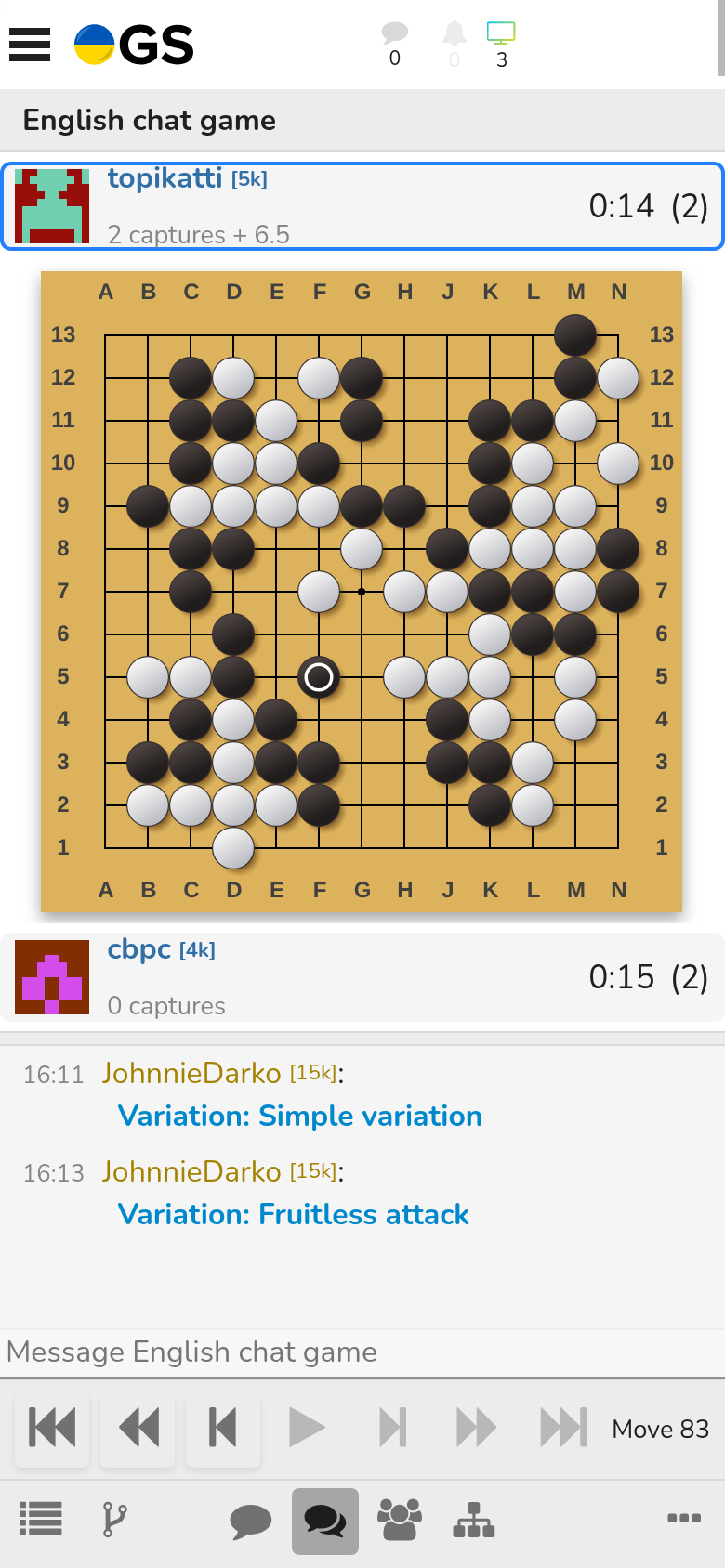
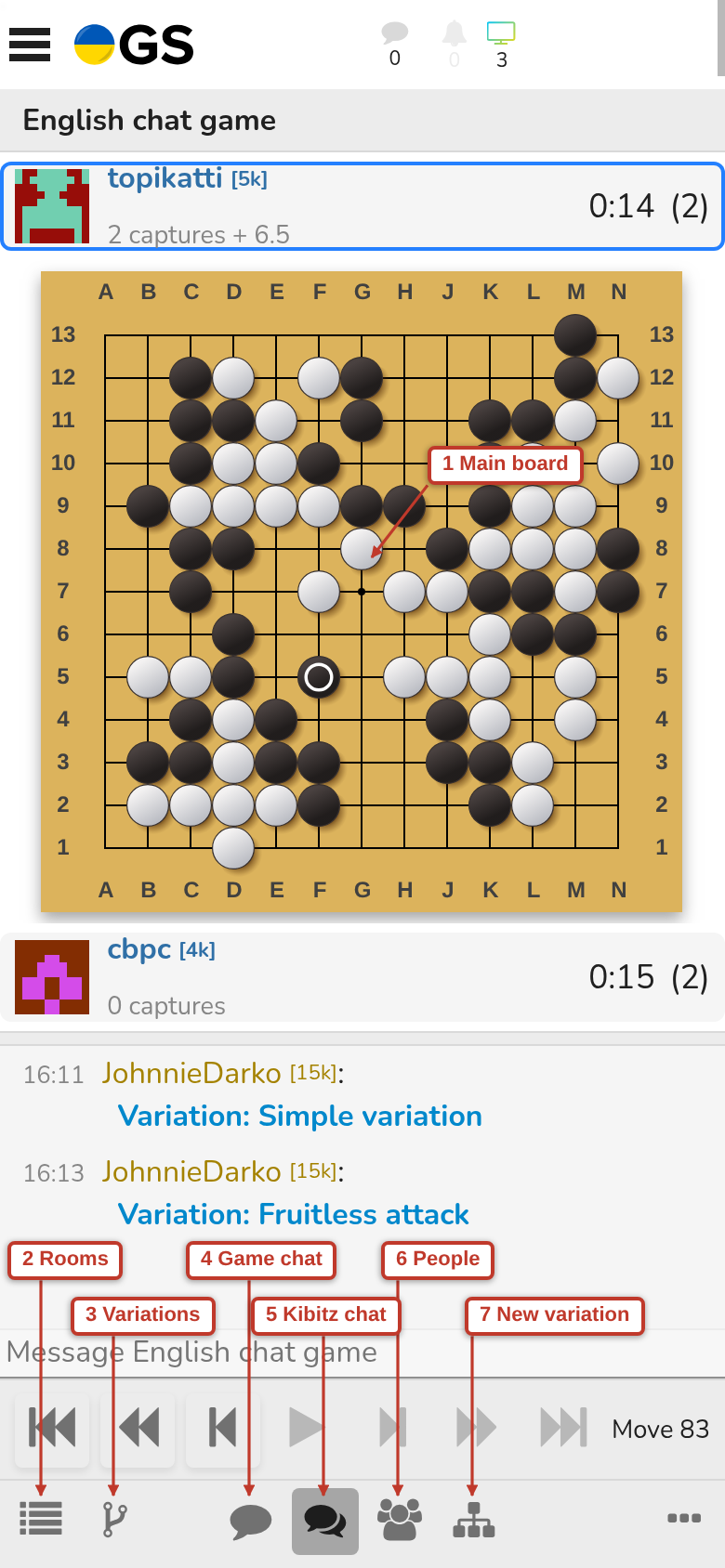
The toolbar buttons are, from left to right:
- Rooms: the room list. Tap a room to switch to it.
- Variations: your Variations list.
- Game chat and Kibitz chat.
- People: who else is in the room.
- New variation: start a variation from the position on the board.
The size of the board is adjustable by dragging the handle between the board and the panel.
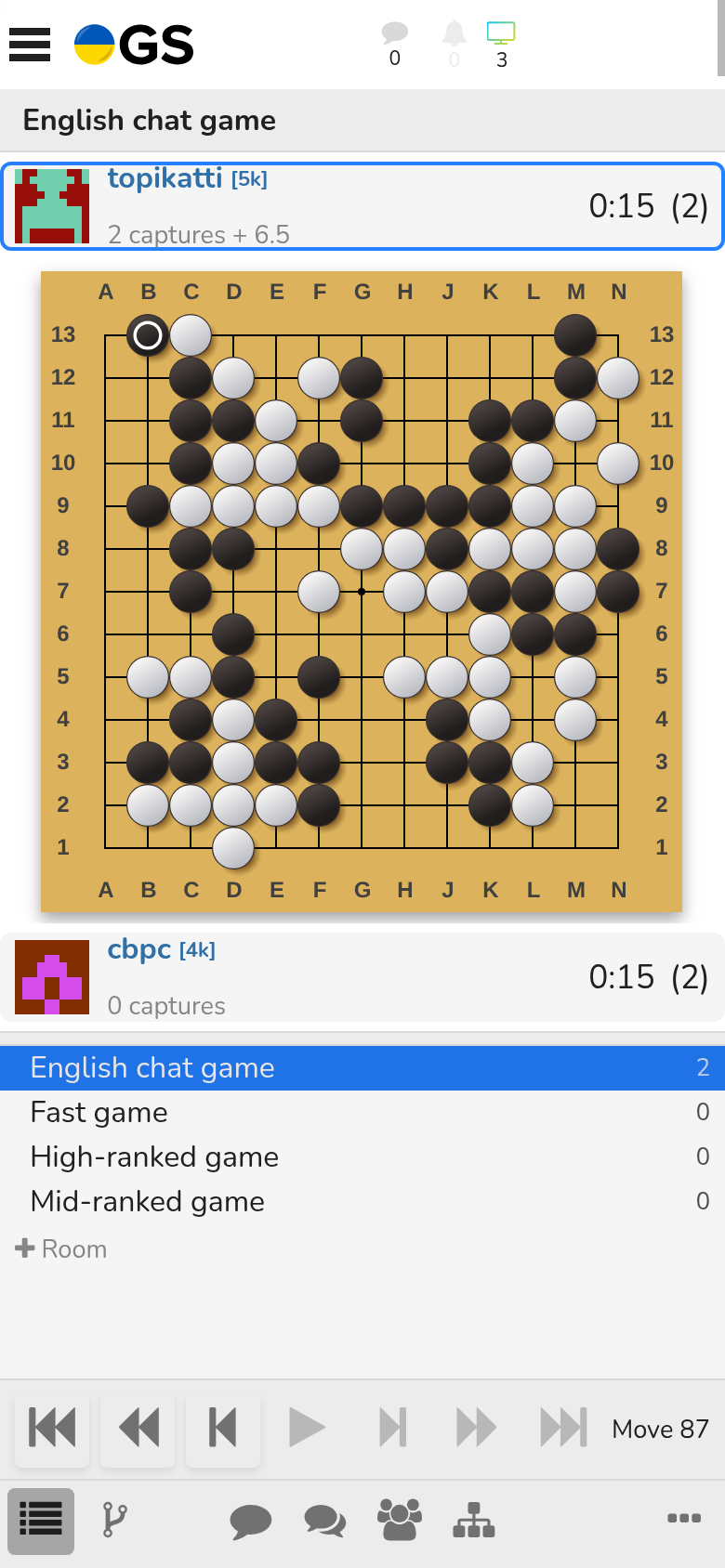
Unlike desktop, mobile shows only one board at a time. When you open or create a variation, the variation board replaces the main board on screen. Tap the × at the top of the screen, or Back to game below the variation, to return to the room's live game.
Variations let you show other people in the room what you think could happen next. Variations are shared through Kibitz chat. Clicking somebody's variation opens it on your board and adds it to your Variations list, so you can easily switch between several ideas. On desktop you can compare a variation with the live game side by side; on mobile you switch between the main board and the variation.
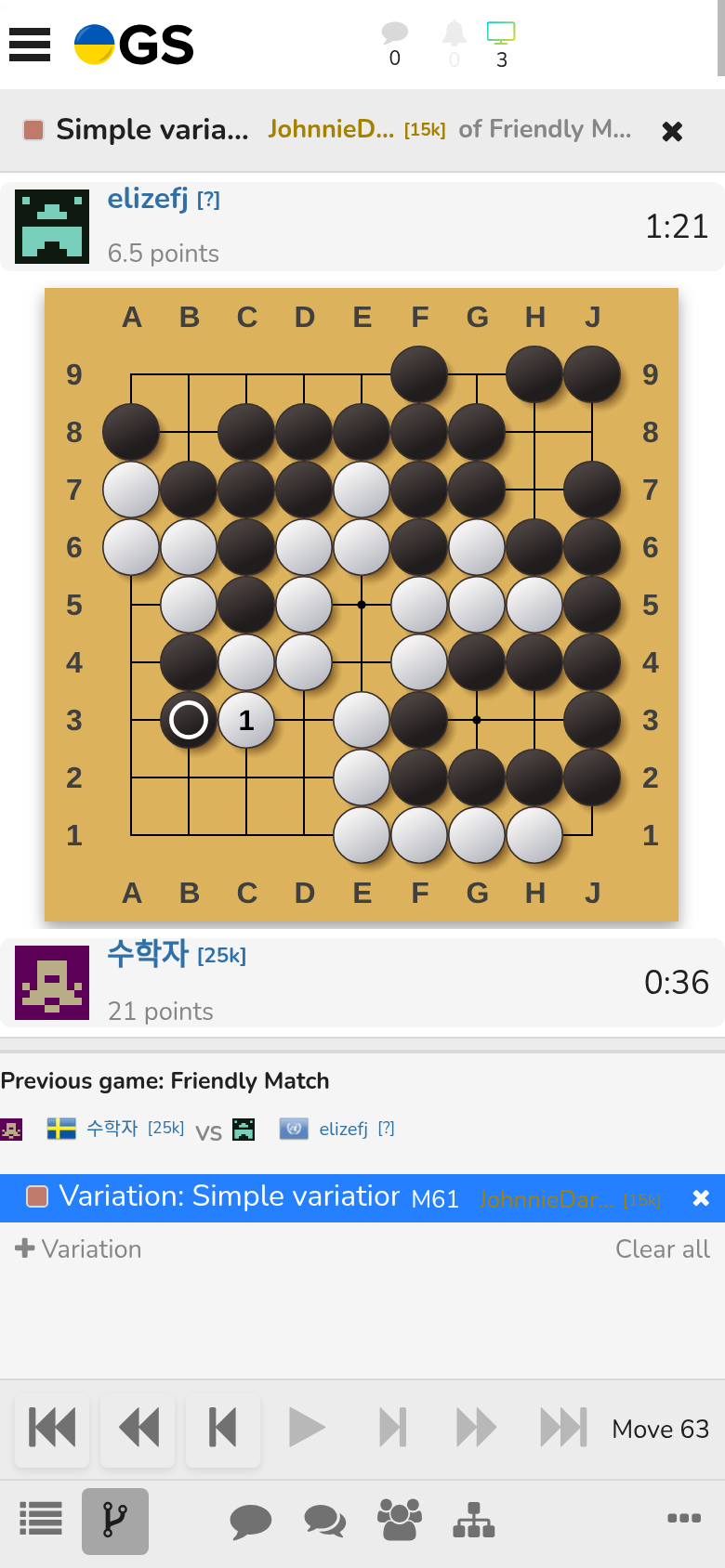
The same workflow is available on mobile, but the variation occupies the board area while you are looking at it. Tap the × at the top of the screen whenever you want to check the live game again.
It may happen that the main game switches to a new game, while you still have variations of previously watched games in your Variations list. In that case, the list shows the game they belong to above them ("Previous game"), as is the case in this screenshot example.
The result is that everyone stays anchored to the same live game, while each viewer is free to explore different ideas. When an idea is worth sharing, post the variation to the room and others can open it themselves.
When you open Kibitz, you can enter one of the preset rooms, existing rooms made by others, or create your own.
If somebody has already created a Kibitz room for that game, you can simply join the existing room instead. We recommend you start in one of the existing rooms.
To create a room, choose a public OGS game. You can select an ongoing game or enter an OGS game ID or game URL. Give the room a name and, optionally, a description, then create it.
You need to be signed in to create a room.
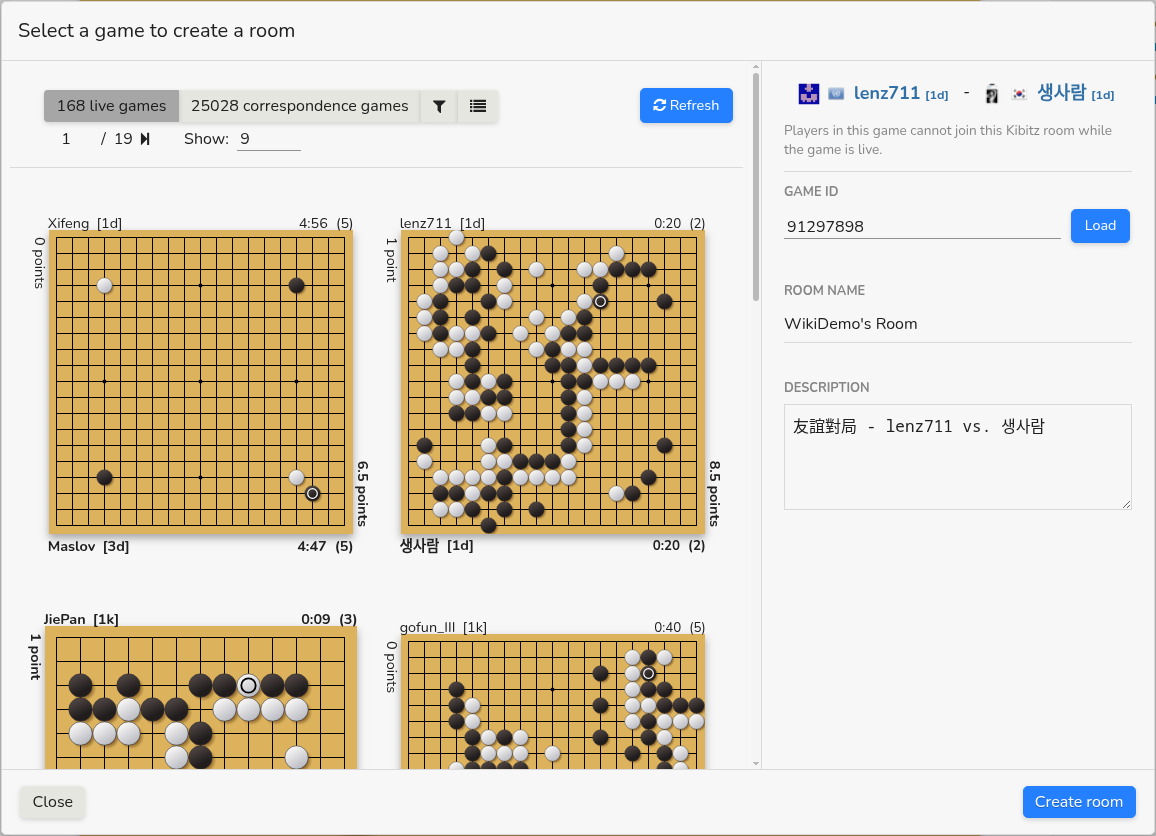
Select + Room below the room list. This will show you ongoing live games. You can select an ongoing game, or you may paste a game ID or OGS URL in the Game ID box and select Load. After selecting the game, you can choose the room name and description before creating the room. If you want to change the name or description later, use Edit room details in the More actions menu (the ⋯ button below the chat).
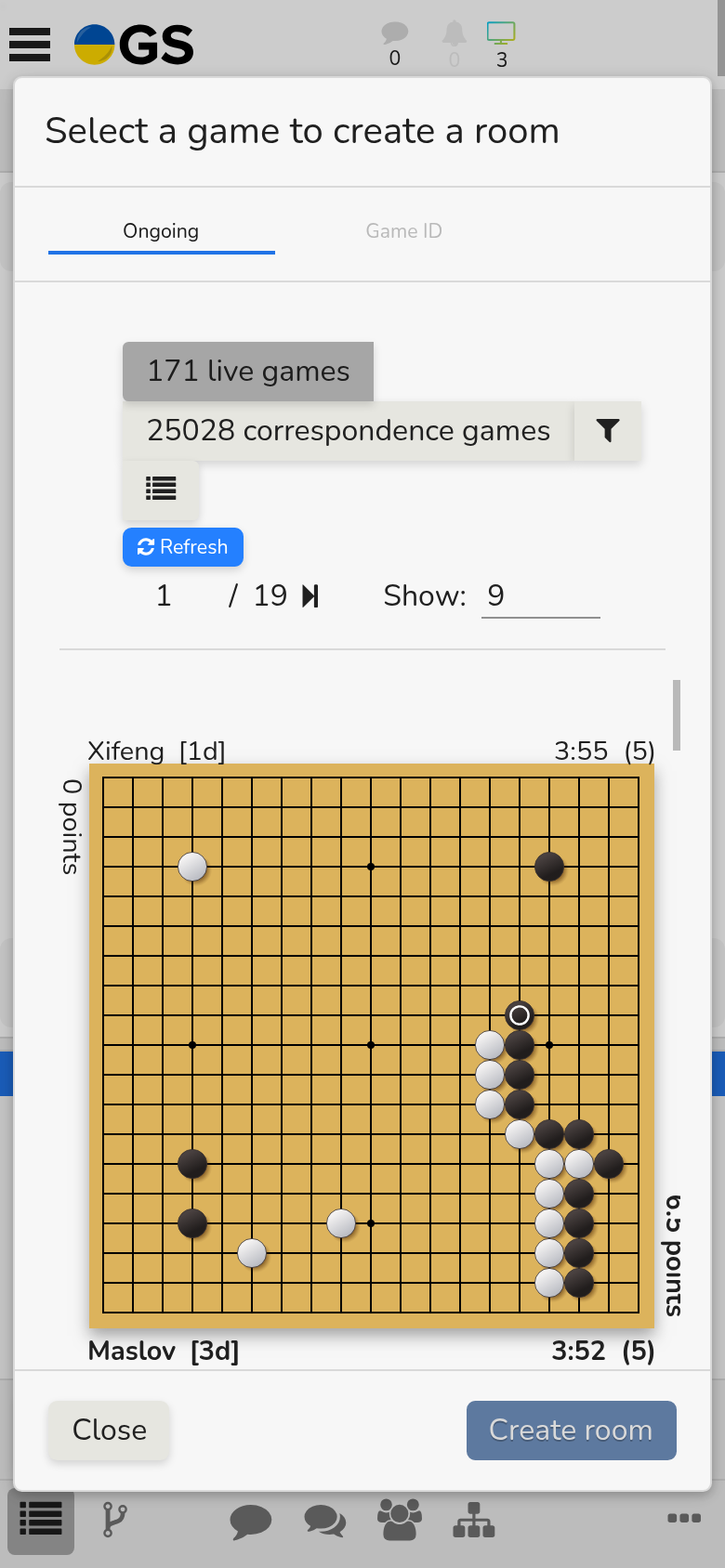
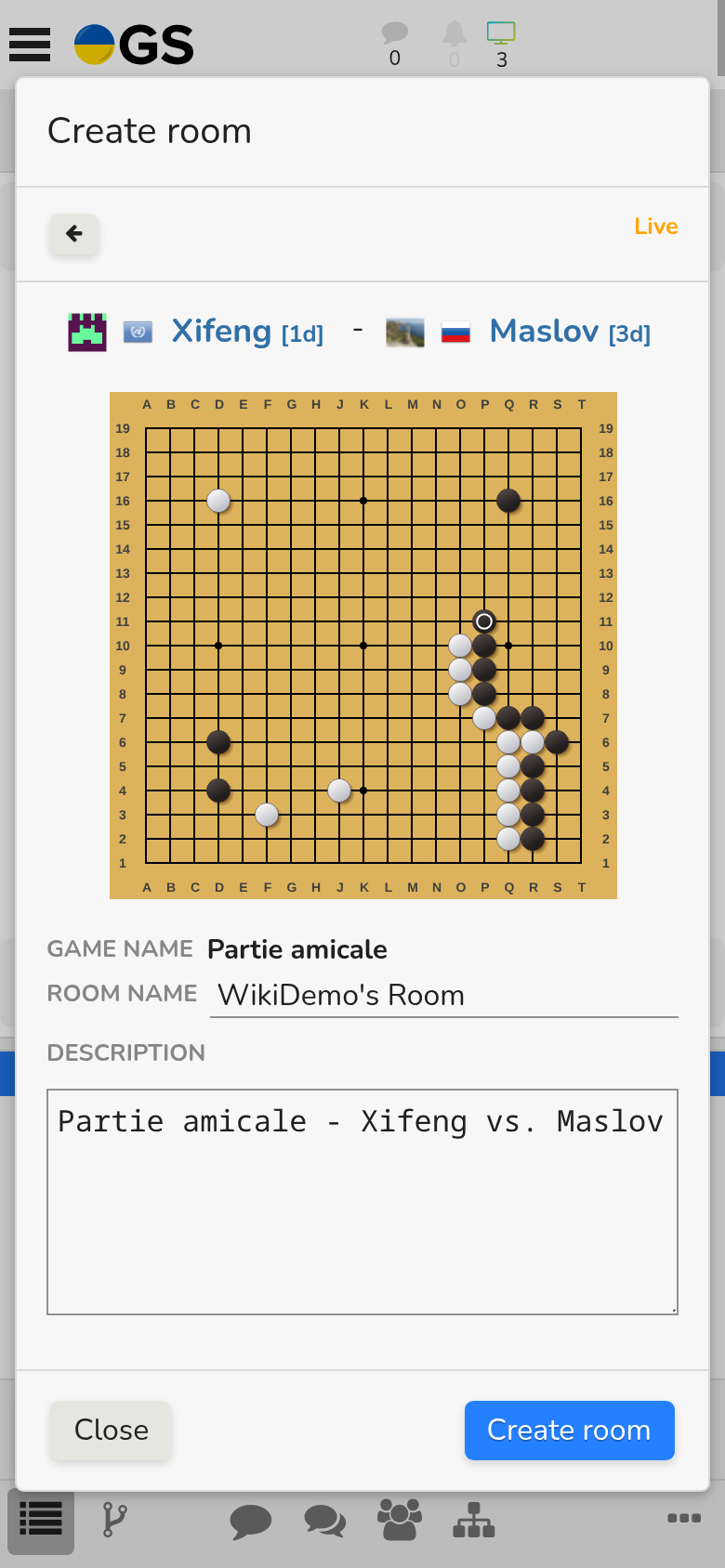
Open the Rooms panel and tap + Room. The mobile room picker first lets you choose a game, from the Ongoing list or by Game ID. It then shows a preview where you can confirm the game and room details.
To create one:
- Select + Variation below the Variations list, or the New variation button below the chat (on mobile, in the toolbar).
- Play the moves you want to explore on the variation board.
- You can give the variation a name if you want.
- Select Post variation.
The variation is then added to Kibitz chat with the notification that you shared a variation. Others can open it by clicking it from the chat. Likewise, when others post variations in the chat, you can open those. Opened variations appear in your Variations list, so you can quickly switch between lines posted by you and others.
You can have up to 7 variations in your Variations list. Select the × on a row to remove one from the list; this does not delete the posted variation, and you can open it again from Kibitz chat. To stop working on a draft without posting it, select Cancel.
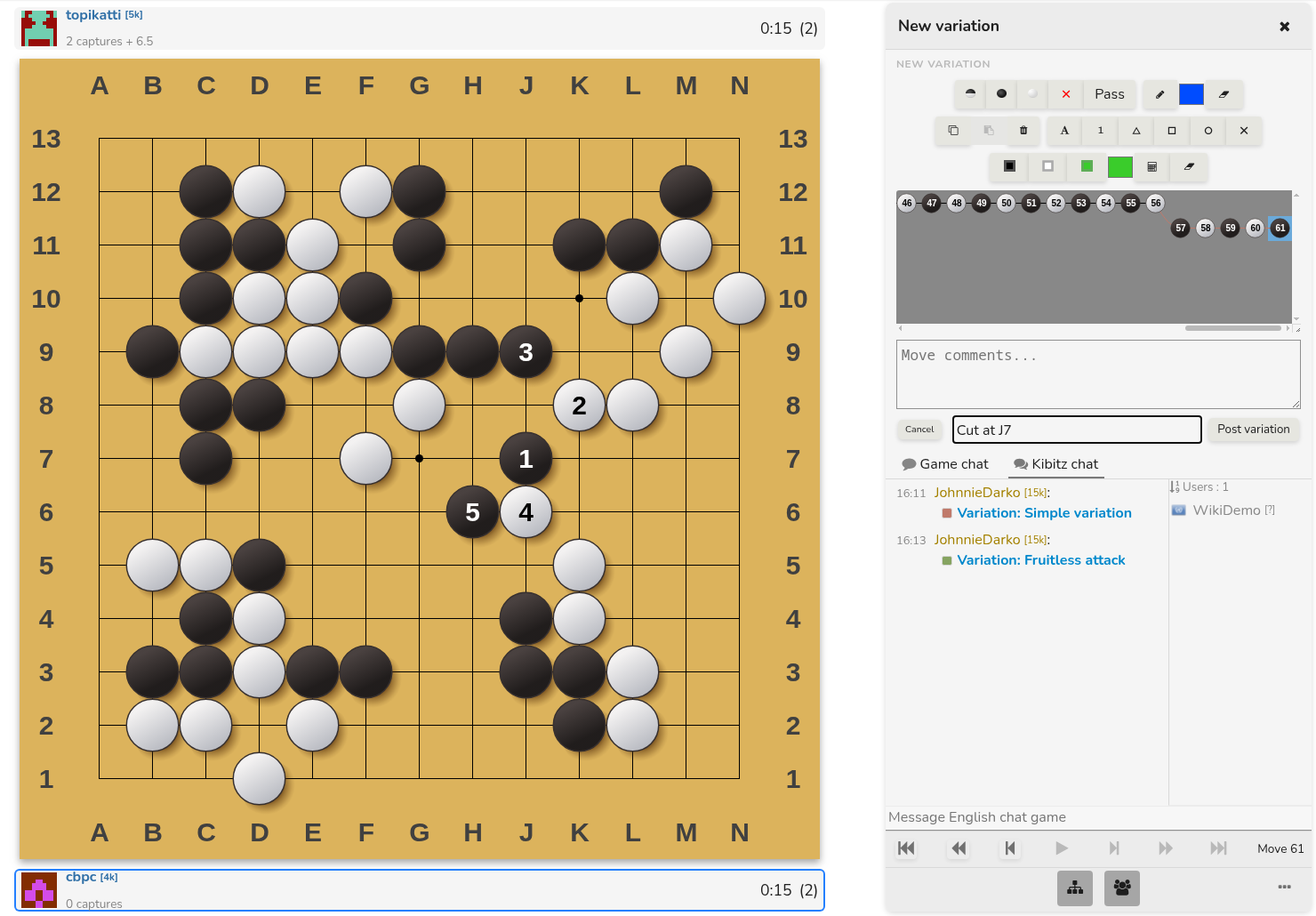
Posting a variation never changes the actual game on the main board. You need to be signed in to post a variation.
In summary: The main board is shared by the room; your variation board is personal. A variation becomes shared when you post it to Kibitz chat.
Open a posted variation from Kibitz chat or from your Variations list to see the moves its author shared.
On desktop, the variation is displayed on the center board and the live game stays visible as the small Main board, so you can compare the two directly.
On mobile, opening the variation switches the board area to that variation. Tap the × at the top of the screen to return to the game.
If you want to continue exploring from somebody else's posted variation, select New variation from here. This creates a new draft starting from that position. It does not edit or replace the original variation.
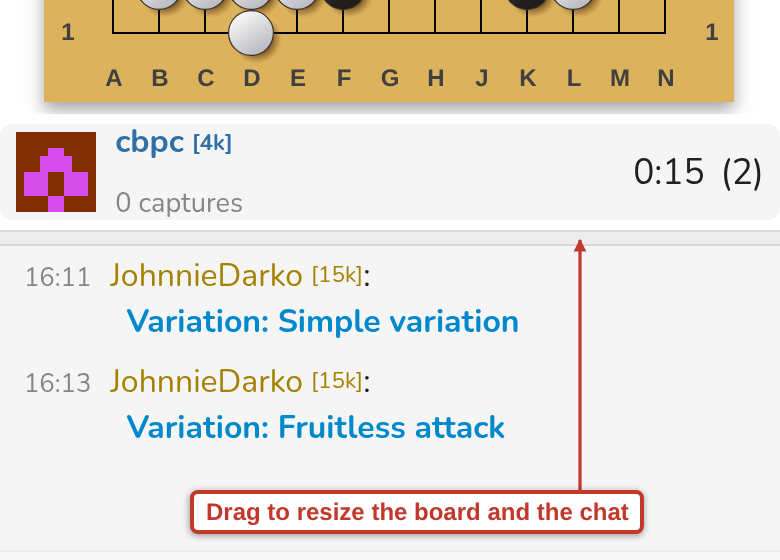
On mobile, the room's main board takes most of the screen. You can resize the board and chat areas by dragging the handle between them.
You can use the board controls to look back through earlier moves.
If new moves are played while you are looking at an earlier position, use the Return to live button to jump to the latest move again. It is below the chat on desktop and in the toolbar on mobile.
Room owners manage their room from the More actions menu: the ⋯ button below the chat, or at the right end of the toolbar on mobile.
Edit room details lets the owner change the room name and description, or delete the room. Change live game puts a different game on the room's main board. Other viewers see Room information in the same menu, which shows who owns the room.
Changing the live game does not create a new room. The room, its conversation, and its history remain in place; only the game on the main board changes.
Kibitz is for spectators and discussion, not for getting outside help during your own game.
You cannot create or join a Kibitz room for a game that you are currently playing. Such rooms remain unavailable to the players while their game is live.
Only public games can be used for Kibitz rooms.
It is currently not possible to save variations to SGF. Chats are not saved forever.
Kibitz is a new feature that brings together observing, chat and shared analysis. We'd love to hear how it works for you. If something feels unclear, you have an idea, or you encounter a bug, please let us know on the OGS forums. Bug reports can also be submitted directly on GitHub.