Linkaro is a premium, cloud-synced browser extension designed to store, manage, and share your social and professional links with elegance and efficiency. Built with Manifest V3 and Firebase, it keeps your digital ecosystem synchronized across all your devices.
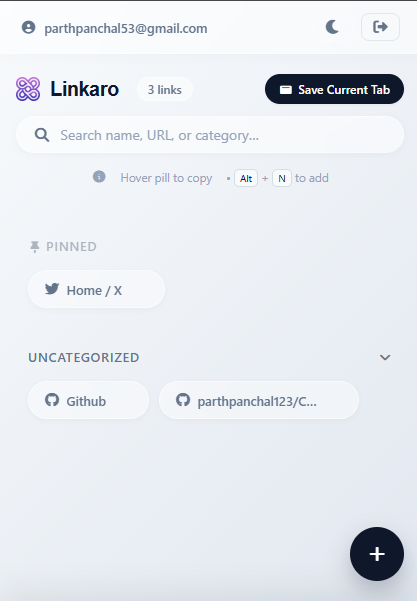

- ☁️ Cloud Sync: Real-time synchronization via Firebase Firestore.
- 🔐 Secure Auth: Seamless login with Google OAuth.
- 🌓 Adaptive UI: Fully responsive design with Dark/Light Mode support.
- 🔍 Intelligent Search: Instantly filter through your links by name or URL.
- 🖼️ Dynamic Favicons: Brand-aware icons with Chrome favicon fallback for visual consistency.
- ⚡ Quick Copy: One-click clipboard functionality for effortless sharing.
- 🛠️ Smart Extraction: Automatically identifies and labels links during entry.
- Core: HTML5, CSS3, Vanilla JavaScript (ES6+)
- Storage: Firebase Firestore
- Identity: Firebase Auth (Google Provider)
- Extension API: Manifest V3
- Icons: Local Font Awesome assets + Chrome favicon endpoint
Follow these steps to set up Linkaro for local development or personal use:
- A Google Account (for Firebase and OAuth).
- A Chromium-based browser (Chrome, Edge, Brave, etc.).
git clone https://github.com/parthpanchal123/Linkaro.git
cd LinkaroLinkaro uses Firebase for real-time link synchronization.
- Go to the Firebase Console.
- Create a new project named Linkaro.
- In your project, enable Firestore Database (start in Test Mode or locked with appropriate rules).
- Navigate to Project Settings > General and add a Web App.
- Copy your Firebase configuration object.
- Rename
firebase-config.example.jstofirebase-config.js. - Replace the placeholders in
firebase-config.jswith your project's credentials.
- In the Firebase Console, go to Authentication > Sign-in method.
- Enable the Google provider.
To use Google Login in a browser extension, you need an OAuth Client ID specifically for extensions.
- Go to the Google Cloud Console.
- Select your Firebase project.
- Go to APIs & Services > Credentials.
- Click Create Credentials > OAuth client ID.
- Select Chrome extension as the Application Type.
- Provide the extension ID (you'll get this after loading the extension in Step 6, or use a temporary placeholder).
- Rename
manifest.example.jsontomanifest.json. - Add your
client_idto theoauth2section inmanifest.json.
- Open your browser and navigate to
chrome://extensions. - Enable Developer Mode in the top right corner.
- Click Load unpacked.
- Select the
Linkarofolder from your local machine.
- Login: Click the extension icon and sign in with your Google account.
- Add Links: Use the "+" button to add a new link. Type the name (e.g., "GitHub") and the URL.
- Search: Use the search bar at the top to find specific links instantly.
- Copy/Share: Click the Copy button on any link bubble to copy it to your clipboard.
- Customize: Toggle between Light and Dark modes using the theme icon in the header.
Contributions are what make the open-source community such an amazing place to learn, inspire, and create. Any contributions you make are greatly appreciated.
- Fork the Project
- Create your Feature Branch (
git checkout -b feature/AmazingFeature) - Commit your Changes (
git commit -m 'Add some AmazingFeature') - Push to the Branch (
git push origin feature/AmazingFeature) - Open a Pull Request
If you find Linkaro useful, please consider giving the repository a 🌟!