Sync your code to any server without leaving VS Code.
🔒 More Secure · 📦 Updated Libraries · ⭐ More Features


🍴 Forked & Modernized from Natizyskunk/vscode-sftp, originally based on the abandoned liximomo/vscode-sftp. Updated dependencies, new features, and full compatibility with the latest VS Code APIs.
✨ Features · ⚡ Quick Start · 🔧 Config Examples · 🔐 Security · 🐛 Debug · ❓ FAQ
| Feature | Description |
|---|---|
| 🌐 Remote Explorer | Browse & manage remote files like a local filesystem |
| ⬆️⬇️ Upload / Download | Single files, folders, or entire projects |
| 🔄 Sync | Bi-directional or one-way directory sync |
| 💾 Upload on Save | Auto-push changes as you code |
| 👁️ File Watcher | Auto-upload on external file changes |
| 🎭 Profiles | Switch between dev / staging / prod in one click |
| 🔒 Secure Storage | Passwords saved in your OS keychain — never in sftp.json |
| 📂 Multi-Context | Sync different local folders to different servers |
| 🔗 SSH Hopping | Jump through bastion hosts to reach internal servers |
| 🖥️ SSH Terminal | Open an SSH connection straight from the sidebar |
Grab it from the VS Code Marketplace or install the .vsix from Releases.
Open the Command Palette (Ctrl+Shift+P / Cmd+Shift+P) and run:
SFTP: Config
A sftp.json file is created under .vscode. Fill in your server details:
{
  "name": "My Server",
  "host": "example.com",
  "protocol": "sftp",
  "port": 22,
  "username": "root",
  "remotePath": "/var/www/html",
  "uploadOnSave": true
}
💡 No password? Leave
"password"out (or set it tonull) — you'll be prompted once and can save it securely to your OS keychain. See 🔐 Security.
| Action | Command Palette |
|---|---|
| Download project | SFTP: Download Project |
| Upload current file | SFTP: Upload Active File |
| Sync local → remote | SFTP: Sync Local -> Remote |
| Browse remote | View: Show SFTP (sidebar) |
Right-click any file or folder in the Explorer for quick upload / download / diff options.
Switch between environments on the fly:
{
  "username": "deploy",
  "remotePath": "/app",
  "profiles": {
    "dev": { "host": "dev.example.com", "uploadOnSave": true },
    "prod": { "host": "prod.example.com", "uploadOnSave": false }
  },
  "defaultProfile": "dev"
}
Use SFTP: Set Profile to switch.
Sync different parts of your project to different places:
[
  {
    "name": "Frontend",
    "context": "client/dist",
    "host": "cdn.example.com",
    "remotePath": "/static"
  },
  {
    "name": "Backend",
    "context": "server",
    "host": "api.example.com",
    "remotePath": "/var/api"
  }
]Reach a server through a bastion host:
{
  "name": "Target",
  "host": "bastion.example.com",
  "username": "jumpuser",
  "privateKeyPath": "~/.ssh/id_rsa",
  "hop": {
    "host": "target.internal",
    "username": "appuser",
    "privateKeyPath": "~/.ssh/id_rsa"
  }
}
📖 For the full list of options check the Wiki.
SFTP Neo stores passwords & passphrases in your OS credential store (macOS Keychain, Windows Credential Manager, Linux libsecret) via VS Code's Secret Storage API — so your sftp.json stays clean and commit-safe.
How to use it:
- Set
"password": null(or omit it) insftp.json:{ "host": "example.com", "username": "root", "password": null, "remotePath": "/var/www" } - Connect — you'll be prompted for the password.
- Click "Save password to Secret Storage".
- Future connections are automatic & encrypted.
The same works for private key passphrase.
🧹 Manage saved credentials anytime with
SFTP: Delete Saved Password.
Browse your remote server directly in the VS Code sidebar.
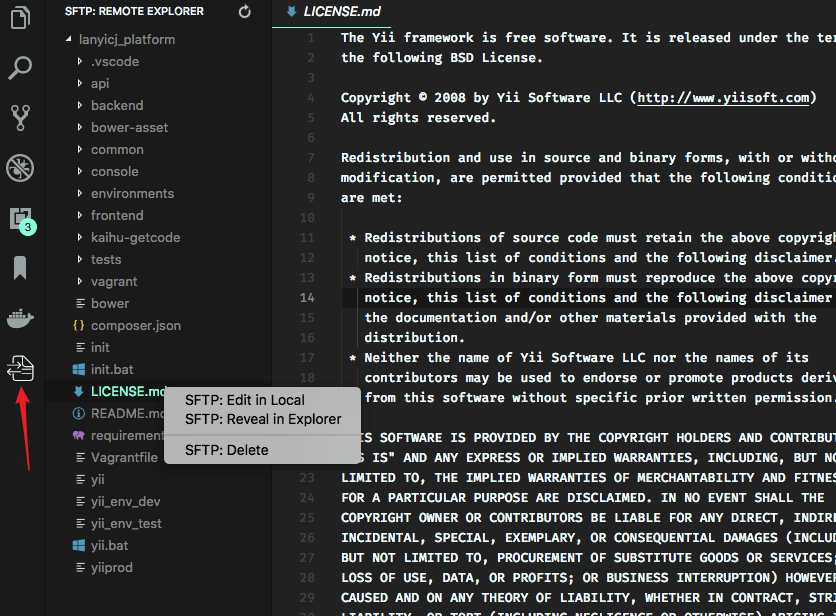
Open it via:
- Command Palette →
View: Show SFTP - Or click the SFTP icon in the Activity Bar
Select multiple files with Ctrl/Shift to download or upload in batches.
Need to troubleshoot?
- Open Settings (
Ctrl+,/Cmd+,). - Search for
sftp.debugand set it totrue. - Reload VS Code.
- View logs in Output → SFTP.
See FAQ.md for common questions and solutions.
Made with ☕ & 🐛 squashing by Philip Daoud