Repository navigation
How to create RL78 FreeRTOS with Smart Configurator
- Return to Home / ホーム に戻る
- The Japanese page is here: RL78 FreeRTOSの作成方法 (Smart Configurator対応版)
The procedure for creating a FreeRTOS project for an RL78 microcontroller supported by the Smart Configurator is described on this page.
In the procedure for creation, a project for the following environment is given as an example.
| Item | Tool Name (Version) |
|---|---|
| Board | RL78/G24 Fast Prototyping Board |
| IDE | e2 studio (2026-04.2) |
| Compiler | CC-RL (V1.16.00) |
| Hardware debug configuration | COM port |
| Item | Specifications |
|---|---|
| Main system clock |
|
| FreeRTOS | V11.1.0 (Can be obtained from Blinky Demo (R20AN0819EJ0100)) |
| System timer |
|
| FreeRTOS memory allocation implementation | heap_4 |
| User application |
|
✅ Note:
- A demonstration program, the Blinky Demo, includes FreeRTOS which includes the portable layer for CC-RL. Download this before creating a project.
- The items of the operating environment, which are not referred to in the above table, conform with the specifications of the Blinky Demo.
- Customize the operating environment to suit the requirements of the user system.
- For details on the RL78/G24 microcontroller or peripheral functions, refer to the RL78/G24 User’s Manual: Hardware.
-
Creating a bare-metal project
-
After invoking e2 studio, select
Filemenu -New-Renesas C/C++ Project-Renesas RL78to open the wizard for creating a new project. -
Select
Renesas CC-RL C/C++ Executable Project, enter the project name in<Project name>, and selectRL78G24_FastPrototypingBoardforTarget Board(andTarget Deviceto be used).
After that, click onNext.

-
Select the
Use Smart Configuratorcheckbox, select theBare Metal - Minimalcheckbox, and click onFinish.


-
Change the C language standard to C99.
Right-click on<project name>inProject Explorer, selectProperties-C/C++ Build-Settingsthen, on theTool Settingstabbed page, selectCompiler-Source-Language, and selectC99 language standardforLanguage standard of C language.
-
-
Adding FreeRTOS
-
Add the FreeRTOS kernel for the CC-RL to the bare-metal project of the user.
Copy the directory of the kernel of the FreeRTOS supplied with the Blinky Demo to the project.- From [Blinky Demo]:
r20an0819xx0100-rl78/RL78/rl78g23_fpb_blinky/src/kernel - To [User project]:
<project name>/src/kernel
- From [Blinky Demo]:
-
Exclude the examples of FreeRTOS from the targets for building.
Right-click on the<project name>/src/kernel/examplesfolder inProject Explorerand selectProperties-C/C++ Build-Settings, then select theExclude resource from buildcheckbox. -
Set the include path of the common part of FreeRTOS.
Right-click on<project name>inProject Explorer, selectProperties-C/C++ Build-Settingsthen, on theTool Settingstabbed page, selectCompiler-Source, and add the following file path toInclude file directories."${workspace_loc:/${ProjName}/src/kernel/include}"
-
-
Setting the portable layer of FreeRTOS
-
Set the portable layer for the CC-RL compiler and the memory management function as the targets for building.
-
Start by setting portable layer as non-targets for building to simplify operations.
Right-click on the<project name>/src/kernel/portablefolder inProject Explorerand selectProperties-C/C++ Build-Settings, then select theExclude resource from buildcheckbox. -
Return the portable layer for the CC-RL compiler back as a target for building.
Right-click on the<project name>/src/kernel/portable/Renesas/RL78folder inProject Explorerand selectProperties-C/C++ Build-Settings, then deselect theExclude resource from buildcheckbox. -
Return the memory management function (heap_4.c) back as a target for building.
Right-click on the<project name>/src/kernel/portable/MemMangfolder inProject Explorerand selectProperties-C/C++ Build-Settings, then deselect theExclude resource from buildcheckbox.
Next, right-click on the following files under the<project name>/src/kernel/portable/MemMangfolder and select theProperties-C/C++ Build-Settings, then select theExclude resource from buildcheckbox.- heap_1.c
- heap_2.c
- heap_3.c
- heap_5.c
✅ Note:
Since the operation of excluding targets from building cannot be performed for multiple files at the same time, files must be excluded from building one at a time. -
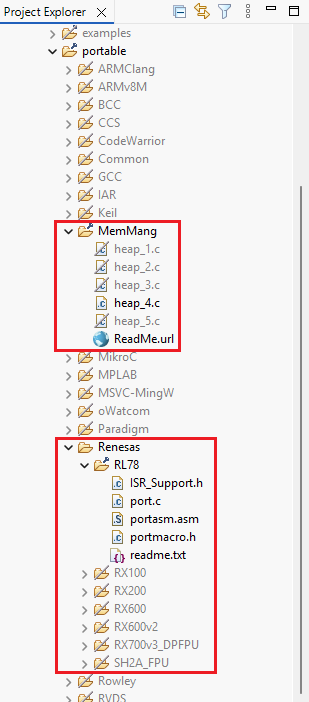
If the settings have been made correctly, the portable layer settings in
Project Explorerwill become as follows:
-
-
Set the include path of the portable layer for the CC-RL compiler.
Right-click on<project name>inProject Explorer, selectProperties-C/C++ Build-Settingsthen, on theTool Settingstabbed page, selectCompiler-Source, and add the following file path toInclude file directories."${workspace_loc:/${ProjName}/src/kernel/portable/Renesas/RL78}"
-
Check the interrupt handler of the software interrupt (vector interrupt that is generated by executing a
BRKinstruction).
Confirm that the vector table number of_vPortYieldin<project name>/src/kernel/portable/Renesas/RL78/portasm.asmis0x7E. (Since the vector table number of the software interrupt is0x7Ein both the RL78/G23 and RL78/G24, if portasm.asm is the file copied from the Blinky Demo, no changes are required.); /* brk */ _vPortYield .VECTOR 0x7E
✅ Note:
When using another microcontroller, check the vector table number of the software interrupt in the hardware manual and change it as required.
-
-
Setting the system timer
For the specifications of the system timer given as examples in this procedure, see the operating environment.
-
Using the Smart Configurator, set up the hardware related to the setting of the system timer in advance.
✅ Note:
Although setting up hardware is properly a procedure that should be performed independently of the setting of the system timer, it is explained here as part of the setting of the system timer for convenience.-
Open the Smart Configurator (double-click on
<project name>.scfginProject Explorer). -
Set the clock source of the peripheral timer used for the system timer.
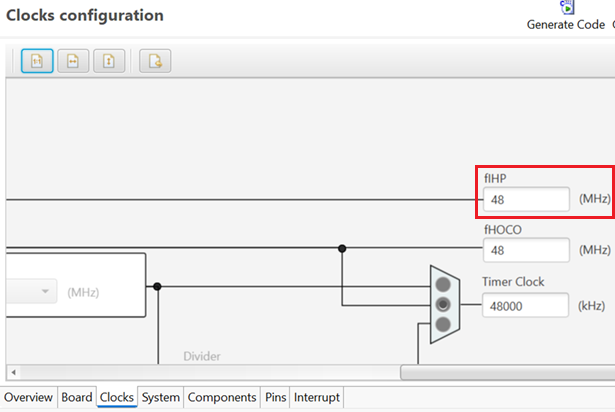
Open theClockstabbed page of the Smart Configurator and set the frequency of the main system clock or the clock provided to the peripheral timer and related items. Specifically, set theFrequencyof theHigh-speed on-chip oscillatorto48MHz, and setfIHPto48MHz.

-
-
Using the Smart Configurator, install the driver of the peripheral timer used for the system timer.
-
On the
Componentstabbed page of the Smart Configurator, click onAdd componentto open the Software Component Selection window.

-
Select
Interval Timeras the component type and click onNext.

-
Select
16 bit count modeforOperationandITL000_ITL001forResource, then click onFinish.

-
Select
ITL000_ITL001(visible in the left pane on theComponentstabbed page) that was selected earlier, setfIHPfor theOperation clock (fITL0)andfITL0for theClock source, and then set1msfor theInterval value.✅ Note:
When using a different RTOS tick frequency, adjust the interval value according to the RTOS tick frequency.
-
-
Check the interrupt handler for the system timer.
Confirm that the vector table number of_vPortTickISRin<project name>/src/kernel/portable/Renesas/RL78/portasm.asmis0x38. (Since the vector table number of the interrupt of the system timer (ITL000_ITL001) used in the operating environment is0x38, if portasm.asm is the file copied from the Blinky Demo, no changes are required.); /* 32bit interval timer */ _vPortTickISR .VECTOR 0x38
✅ Note:
When using another microcontroller or peripheral timer, check the vector table number of the interrupt of the peripheral timer in the hardware manual and change it as required. -
Exclude the default interrupt handler generated by the Smart Configurator from the targets for building.
-
Open the Smart Configurator (double-click on
<project name>.scfginProject Explorer) and click onGenerate Code. This operation automatically generates the default interrupt handler. -
Right-click on the
<project name>/src/smc_gen/general/r_cg_itl_common_user.cfile inProject Explorerand selectProperties-C/C++ Build-Settings, then select theExclude resource from buildcheckbox.✅ Note:
When using another microcontroller or peripheral timer, a different file is used for implementing the default interrupt handler.
-
-
-
Implementing FreeRTOS-related applications
-
Make FreeRTOS settings.
-
Copy the directory of the settings of the FreeRTOS supplied with the Blinky Demo to the project.
- From [Blinky Demo]:
r20an0819xx0100-rl78/RL78/rl78g23_fpb_blinky/src/application/config - To [User project]:
<project name>/src/application/config
- From [Blinky Demo]:
-
Set the include path of the settings of FreeRTOS.
Right-click on<project name>inProject Explorer, selectProperties-C/C++ Build-Settingsthen, on theTool Settingstabbed page, selectCompiler-Source, and add the following file path toInclude file directories."${workspace_loc:/${ProjName}/src/application/config}"
-
Adjust the setting macros of
src/application/config/FreeRTOSConfig.hto suit the requirements of the user system.
For details on the setting macros, refer to the official Web page.✅ Note:
Note the heap size setting (configTOTAL_HEAP_SIZE) that is dependent on the microcontroller used or the user system requirements.
-
-
Implement the hook function and kernel startup processing.
-
Copy the directory of the startup of the FreeRTOS supplied with the Blinky Demo to the project.
- From [Blinky Demo]:
r20an0819xx0100-rl78/RL78/rl78g23_fpb_blinky/src/application/startup - To [User project]:
<project name>/src/application/startup
- From [Blinky Demo]:
-
Set the include path for the startup of FreeRTOS.
Right-click on<project name>inProject Explorer, selectProperties-C/C++ Build-Settingsthen, on theTool Settingstabbed page, selectCompiler-Source, and add the following file path toInclude file directories."${workspace_loc:/${ProjName}/src/application/startup}"
-
Change the hook function file copied from the Blinky Demo (for RL78/G23) to match the operating environment.
Specifically, change the following two points.-
vApplicationSetupTimerInterrupt()(infreertos_user.c): Change the code so thatR_Config_ITL000_ITL001_Start()is called instead ofR_Config_ITL_Start(). -
vApplicationTickHook()(infreertos_start.c): Confirm thatITLS0 = 0U;is implemented in the body of the function. This is for setting the interrupt request signal (INTITL) for each of the timer interrupts to the low level (for details, see the hardware manual).
✅ Note:
When using another microcontroller or peripheral timer, modify the hook function to suit the requirements of the user system. -
-
Implement the kernel startup processing.
Changemain()as follows: after callingProcessing_Before_Start_Kernel()insrc/application/startup/freertos_user.c, callvTaskStartScheduler(), which starts the scheduler.✅ Note:
main()is implemented insrc/application/app/main.csupplied with the Blinky Demo, and is copied to the project in the "Implementing the user application" procedure described later. Therefore,main()does not yet exist in the project at this point in the procedure.✅ Note:
Processing_Before_Start_Kernel()is provided for the purpose of generating RTOS objects before the scheduler of the kernel is started. The implementation or calling of this function is arbitrary and can be changed to suit the requirements of the user system.
Also,Processing_Before_Start_Kernel()copied from the Blinky Demo generates a task withmain_task()(implemented insrc/application/app/main.c) as the entry function. If you are going to use this without change, add an implementation ofmain_task()to the user application.
-
-
Integrate the code generated by the Code Generator with FreeRTOS.
-
Open the Smart Configurator (double-click on
<project name>.scfginProject Explorer) and click onGenerate Code. -
Change the setting of
BSP_CFG_RTOS_USEDinsrc/smc_gen/r_config/r_bsp_config.hto1. -
Change the setting of
BSP_CFG_ASM_RTOS_USEDinsrc/smc_gen/r_config/r_bsp_config.incto1.
-
-
-
Implementing the user application
-
Copy the directory of the user application supplied with the Blinky Demo to the project.
- From [Blinky Demo]:
r20an0819xx0100-rl78/RL78/rl78g23_fpb_blinky/src/application/app - To [User project]:
<project name>/src/application/app
- From [Blinky Demo]:
-
Set the include path of the user application.
Right-click on<project name>inProject Explorer, selectProperties-C/C++ Build-Settingsthen, on theTool Settingstabbed page, selectCompiler-Source, and add the following file path toInclude file directories."${workspace_loc:/${ProjName}/src/application/app}"
-
Set the LED connection pins (the P62 port pin for LED1 and P63 port pin for LED2) through the Smart Configurator.
For details on the connection pins, refer to the user’s manual for the board.-
Install the driver for the I/O ports.
On theComponentstabbed page of the Smart Configurator, selectAdd componentto open the Software Component Selection window.
SelectPortsas the component type and click onNext. After that, selectPortforResource, then click onFinish. -
In the pane for making detailed settings of the
Portdriver on theComponentstabbed page of the Smart Configurator, select thePORT6checkbox. -
Set
P62andP63on thePORT6tabbed page toOut. -
Click on
Generate Codein the Smart Configurator.
-
-
Exclude
src/<project name>.cfrom the targets for building. This is to avoid overlapping withmain()existing insrc/application/app/main.c.
Right-click on the<project name>/src/<project name>.cfile inProject Explorerand selectProperties-C/C++ Build-Settings, then select theExclude resource from buildcheckbox. -
Open the Smart Configurator (double-click on
<project name>.scfginProject Explorer) and click onGenerate Code.
This operation automatically generates the source code for the code (and SIS modules) that were set with the Smart Configurator.
✅ Note:
When implementing an original user application, implement the tasks, peripheral drivers, and interrupt handlers. A peripheral driver made by Renesas can be added through the Smart Configurator. -
-
Debug configurations
For the specifications of debugging given as examples in this procedure, refer to the development environment.
-
Connect the board to the debugger. For debugging through a COM port, use a USB-to-serial connection to connect the board to a Windows PC on which the e2 studio has been started.
-
Select
Runmenu -Debug Configurations. -
Select the debug configuration profile of the project (
<project name> HardwareDebug) from the left pane in the pop-up window. -
On the
Connection Settingstabbed page on theDebuggertabbed page, set the COM port number that is used for connection to the board inCOM Port. -
After setting the other debug configurations as required, click on
Applyto fix the settings.
-
-
Building and program execution
-
Right-click on
<project name>inProject Explorerand selectBuild Project. -
After building has finished successfully, start the debugger by selecting
Runmenu -Debug As-Renesas GDB Hardware Debugging, then execute the program. -
Confirm that the program is running normally.
When the user application of the Blinky Demo is in use, LED1 and LED2 will blink on and off.
-