Repository navigation
Mobile
The iOS app, in apps/mobile, shows every thread on every one of your computers. It runs on iPhone and talks to each computer's plxd directly. Agents keep running on the computers, not the phone.
The repository has no App Store or TestFlight build, so you build it yourself (below).
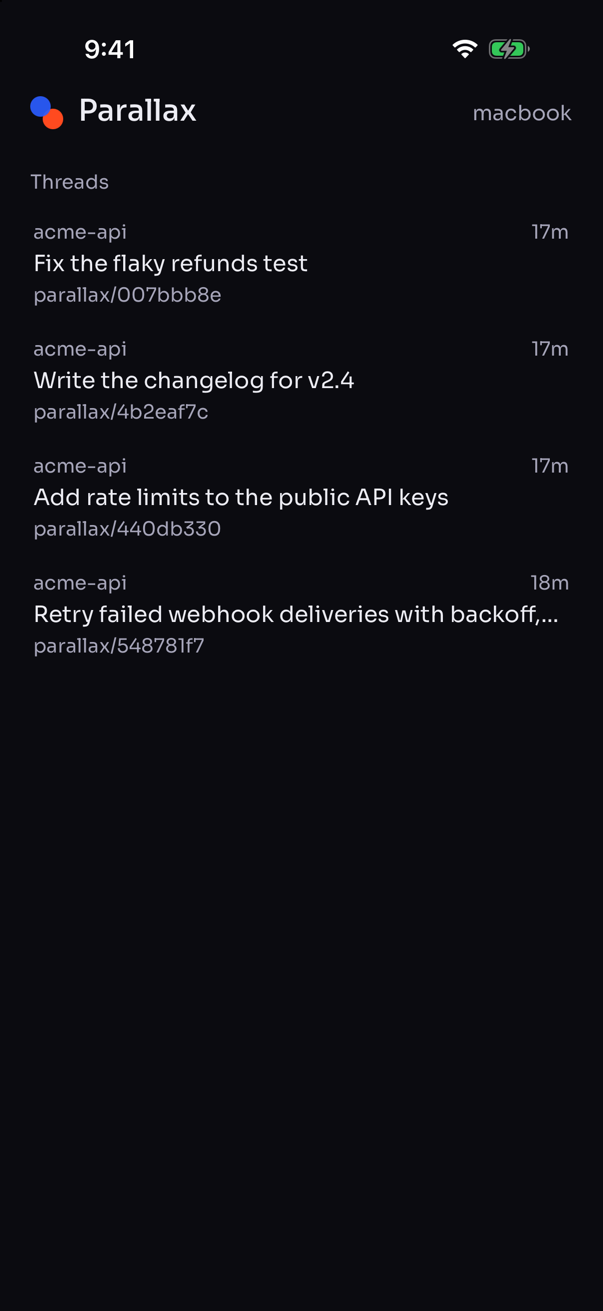
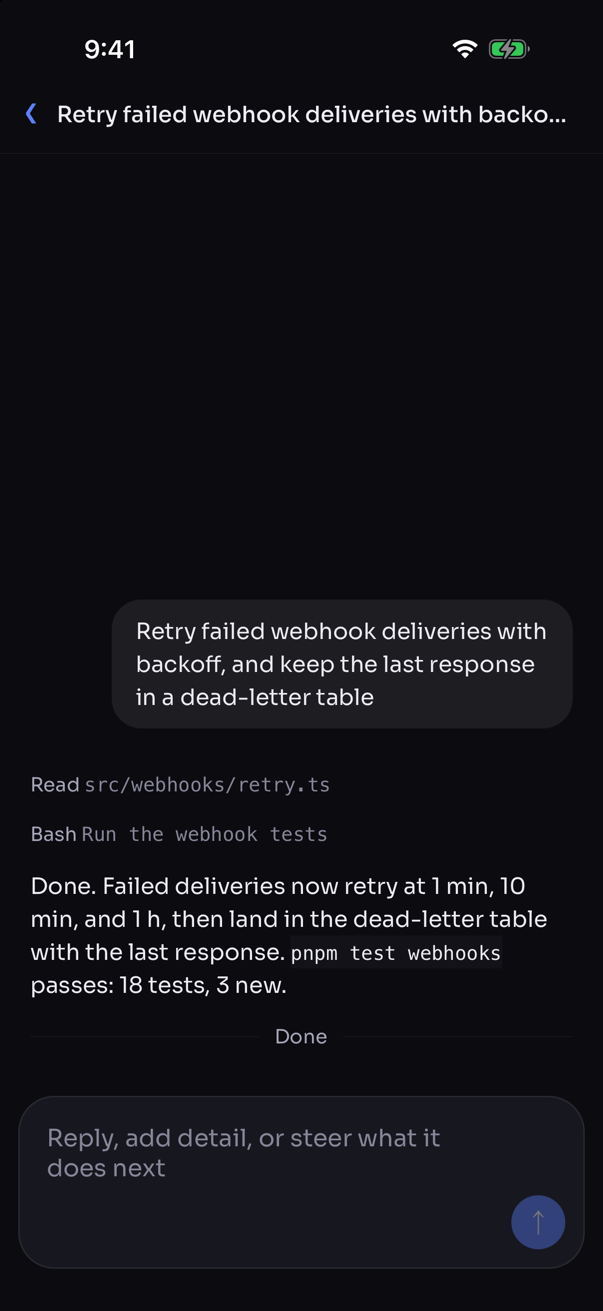
The app reaches your computers over Tailscale with Parallax Connect, so nothing is paired. Set up Connect on your computers first (Remote Access).
- Sign in. The app needs a Parallax account, the same one the desktop app uses. Sign in or Create an account opens Clerk's page.
- Connect with Tailscale. Install Tailscale on the phone and sign in as the Tailscale user your computers use.
-
Find your computers. Enter the name or Tailscale address of any computer with Parallax Connect on, such as
ryans-mac-minior100.64.0.1. The app asks that computer for the rest and connects to each one. - Choose your default computer. New threads start there. You see threads from all of them.
- Stay in the loop. Turn on notifications, or choose Not now.
Each computer lets the phone in because Tailscale says it's your own untagged device, as it does for your other computers.
At Find your computers, choose No Tailscale? Pair on this Wi‑Fi instead. On the computer, turn on Pair computers on this network in Settings > Connections and choose Pair a device. On the phone, pick the computer showing a code, or type its address, then enter the code.
The phone keeps one computer paired this way at a time.
Settings > Connections on the phone lists your computers, with Add computer and the phone's Tailscale status. Each computer's page has Reconnect and Remove from this phone. Settings > Threads has New threads, with the default Computer and Access.
- Browse. The sidebar lists every computer's threads and Projects, pinned threads, and threads grouped by day or repository, each with its status. Filter it to one computer or repository, and search every thread and Project.
- Read. A thread shows its messages, the agent's steps, the files it changed with their diffs, and the files it presented.
- Reply. Write a message, attach photos and files, and change the model, reasoning effort, and access for what follows. Edit takes back your latest message while the agent hasn't answered it.
- Answer requests. Allow or Deny a permission request, and save or decline a secret the agent asks for.
- Start threads. Pick a repository from any computer, or no repository, and the computer it runs on.
- Manage threads. Swipe to archive, or long press to pin, snooze, rename, or archive.
-
Pull requests. See the pull requests linked to threads on any computer, with their status, activity, and diff, and merge or close them. The computer's own
ghtalks to GitHub, so the phone needs no GitHub sign-in. - Settings and usage. Change a computer's settings and providers, and see usage across all of them. Sign-ins that run in a terminal stay on the desktop.
Every message goes through an outbox on the phone. While a computer can't be reached, its messages wait there and go out in order once it reconnects. A message whose answer was lost is sent again, and plxd takes it once.
The app notifies you when a thread needs your approval or an answer, finishes its turn, or fails, on any computer. Settings > General > Notifications turns each kind on or off and sends a test.
The app posts these itself, with the thread's title, which never leaves the phone. That works while the app is open and for about 30 seconds after you leave it.
Notifications while the app is closed are designed to come through Parallax Relay, with a fixed text and no thread content (0068). The relay isn't running yet and push isn't wired to Apple's service, so today they come only while the app is open.
-
Parallax Connect. Traffic goes over Tailscale, which encrypts it. Each computer checks with
tailscale whoisthat the phone is your own untagged device. - Pairing on Wi‑Fi. The phone pairs as a desktop computer does: SPAKE2 with the code confirms the computer's certificate, and the phone pins it and refuses any other. Its session key and token stay in the iOS Keychain, on this phone only, and aren't restored to another phone from a backup.
- Account. The refresh token stays in the Keychain on this phone. The access token stays in memory.
You need a Mac with Xcode, Node, and pnpm through corepack. The app shares code with the desktop renderer in apps/desktop/src, so work from a full checkout.
corepack enable
cd apps/mobile
pnpm install
pnpm ios        # builds the app with its native module and runs it in the Simulator
pnpm start      # starts Metro for the development build
pnpm check      # type-checks, with the desktop files it shares
pnpm test
The app has a native module for pinned TLS (modules/pinned-tls), so it runs as a development build, not in Expo Go.
In a development build, setting EXPO_PUBLIC_DEV_COMPUTER to a computer's address skips sign-in and finds your computers from that one, for the Simulator.