Repository navigation
Releases
Routewell 0.20.6 beta

Routewell 0.20.6 beta
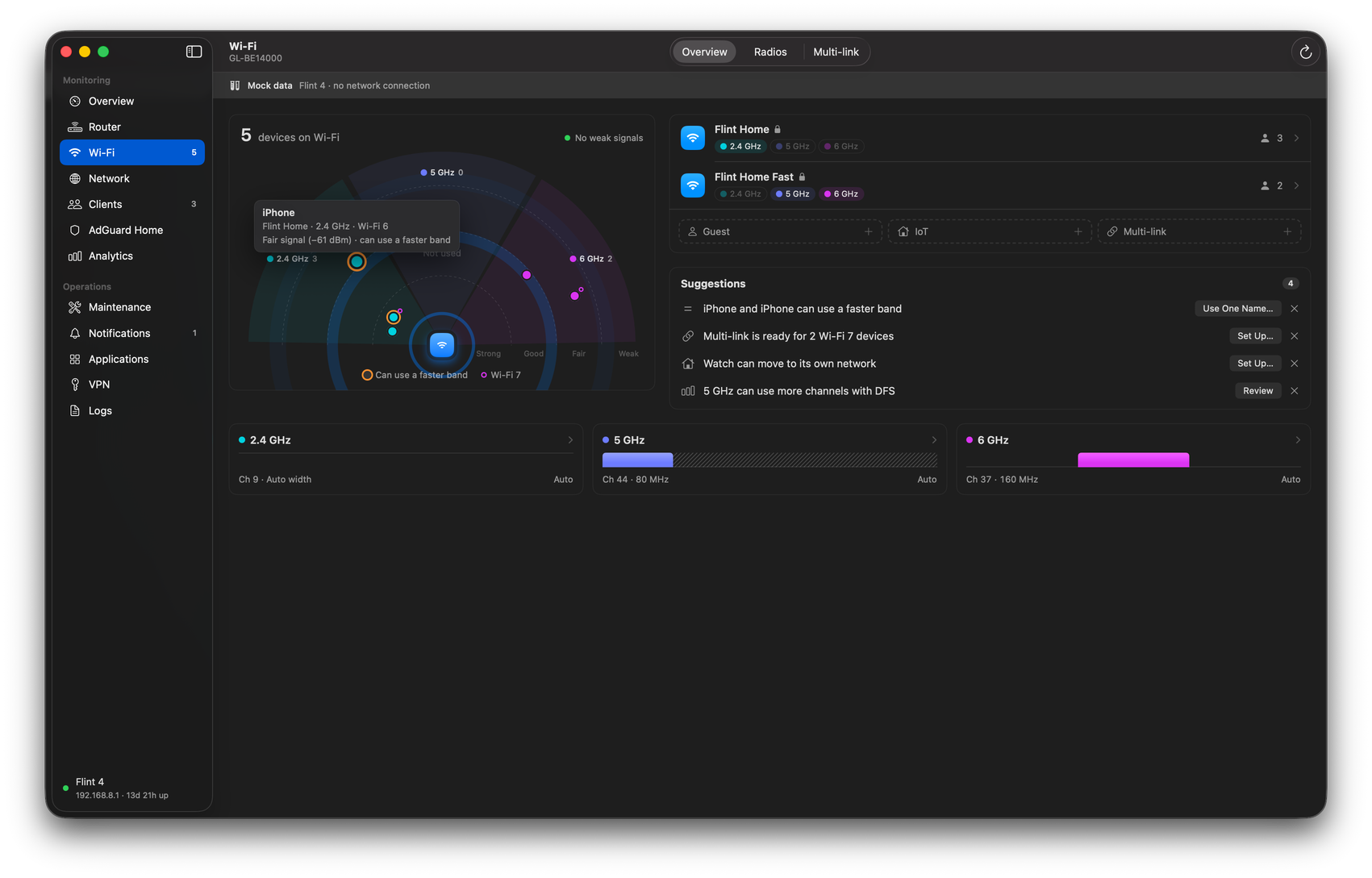
This release adds a Wi‑Fi screen. See every Wi‑Fi device on a map, get suggestions, and change your Wi‑Fi safely. Add guest, IoT, and multi-link networks from your Mac.
Warning
This is a beta release. Some screens are not finished yet, and you can find bugs. Routewell has been tested on one router only: the GL.iNet Flint 4 (GL-BE14000) with firmware 4.9.1. Use it at your own risk.
Wi‑Fi changes restart one or more radios, and devices can lose Wi‑Fi for a short time. For your first change, connect your Mac to the router with Ethernet.
New in this release
- Wi‑Fi map. See each Wi‑Fi device by band and signal strength. A dot nearer the centre has a stronger signal. Hover over a dot to see the device, its network, its Wi‑Fi version, and its signal.
- Suggestions. Routewell finds things to improve: devices that can use a faster band, Wi‑Fi 7 devices that are ready for multi-link, smart devices that can move to their own network, and more 5 GHz channels with DFS. Each suggestion has one action. Routewell never changes anything by itself.
- Change your Wi‑Fi safely. Edit the name, password, security, bands, and visibility of each network. Join with a QR code. Use one name on all bands. Before you apply, Routewell shows which radios restart, about how long it takes, which devices must join again, and what happens to this Mac.
- Guest and IoT networks. Set up a guest network or a separate network for smart home devices. Choose what each network can reach: the internet, each other, your modem, your devices, and router settings. Share the network with a QR code. For IoT, Routewell shows each device when it joins.
- Multi-link for Wi‑Fi 7. Set up multi-link in three steps. Choose the bands, and use a new name or the name of a network you already have.
- Radios. Set the channel, width, and power of each band, and the Wi‑Fi versions it allows. Use DFS channels on 5 GHz. With SSH on, also set roaming and Auto DFS.
Wi‑Fi has moved from the Router screen to its own place in the sidebar.
Requirements
- macOS 26 or later, on Apple silicon or Intel
- A GL.iNet router running firmware 4.9.1 (other routers and firmwares may work but have not been tested)
- SSH is optional. Without it, roaming and Auto DFS are read-only.
Install
- Download
routewell.zipbelow. - Unzip it.
- Move Routewell to your Applications folder. If you have an older version, replace it.
The app is signed with a Developer ID and notarized by Apple, with the ticket stapled. It runs in the App Sandbox with the Hardened Runtime.
See the README for all features.
Feedback
Please open an issue for bugs and ideas. Tell us your router model and firmware version.
Routewell 0.19.4 beta
461ba0d  simonsolts
Simon
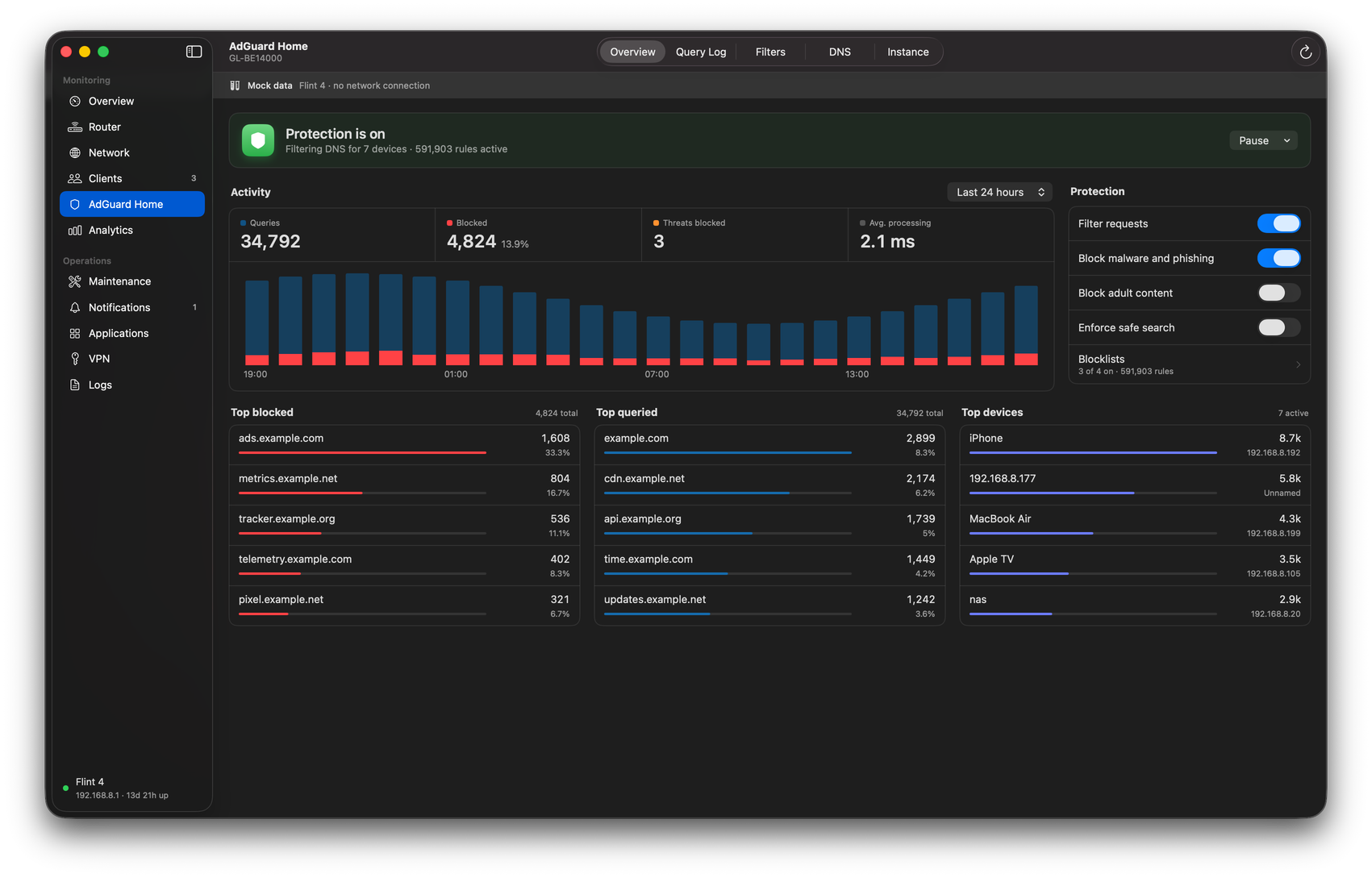
Routewell is a native macOS app for GL.iNet routers. This is the first beta. The main new feature is a full AdGuard Home screen: see every DNS request, manage blocklists and rules, and change DNS settings from your Mac.
Warning
This is a beta release. Some screens are not finished yet, and you can find bugs. Routewell has been tested on one router only: the GL.iNet Flint 4 (GL-BE14000) with firmware 4.9.1. Use it at your own risk.
New in this release
- AdGuard Home. One screen with five tabs replaces Protection and DNS Activity.
- Overview. See if protection is on. Pause it for 30 seconds or until tomorrow. See queries, blocks, and response time over a time range. Turn filtering, malware blocking, adult content blocking, and safe search on or off. See the top blocked domains, queried domains, and devices.
- Query Log. Read every DNS request, live. Search by domain or client, and filter by status. Open a request to see why it was blocked or allowed. Block or unblock a domain, or show only one client. Routewell does not save a copy of the log.
- Filters. Turn blocklists and allowlists on or off. Add a list from the built-in catalog or from a URL. Update lists now. Edit custom rules. Routewell tells you when a rule conflicts with another rule.
- DNS. Set upstream servers and test them. Set fallback and bootstrap servers, the blocking response, the cache, DNSSEC, and the rate limit. Changes wait until you click Apply, and you can revert them.
- Instance. Turn AdGuard Home on or off, or restart it. See when an update is available. Set how long to keep the query log and statistics, and clear them.
- AdGuard Home backups (SSH). Back up AdGuard Home's settings to your Mac, export a backup, and restore it. Before a restore, Routewell saves the current settings. If the restore fails, Routewell puts them back.
- Setup assistant. The first time you open Routewell, it finds your router on your network. You sign in, trust the router's certificate, and set up SSH. You can skip SSH and set it up later.
- Settings › Router. The router name, address, password, certificate, SSH, and AdGuard Home settings are now in one place. Use Test Connection to check them, or Start Setup Again.
- Clients. The Clients screen now has one list. The Known Clients view is gone.
What works
- Overview. See the status of your router, internet connection, AdGuard Home, and connected devices. See load, memory, temperature, and uptime.
- Clients. See every device on your network, with its IP address, connection, Wi‑Fi signal, and DNS queries. Routewell tells you when a new device joins.
- Client details. See when a device was online, its recent DNS requests, and its top requested and blocked domains. Give a device a name, a category, and notes. Ping it or wake it.
- AdGuard Home. See above.
- Router. See performance, DNS, Wi‑Fi, and SQM settings. Check for firmware updates and read the release notes.
- SSH (optional). See ports, storage, and system logs, and back up AdGuard Home. SSH uses a key file. It never uses a password. You approve each new host key, and Routewell refuses a host key that changes.
- Menu bar. Check your router, internet, and AdGuard Home status from the menu bar.
Not available yet
These screens show in the sidebar but are not finished: Network, Analytics, Maintenance, Notifications, Applications, VPN, and Logs. When a value is not available, Routewell shows "Unknown". It does not guess.
Requirements
- macOS 26 or later, on Apple silicon or Intel
- A GL.iNet router running firmware 4.9.1 (other routers and firmwares may work but have not been tested)
Install
- Download
routewell.zipbelow. - Unzip it.
- Move Routewell to your Applications folder.
The app is signed with a Developer ID and notarized by Apple, with the ticket stapled. It runs in the App Sandbox with the Hardened Runtime. The first time you open it, macOS asks you to confirm that you want to open an app from the internet.
You can also build Routewell from source. See Building Routewell.
Feedback
Please open an issue for bugs and ideas. Tell us your router model and firmware version. To report a security problem, see the security policy.
v0.15.0 (Alpha)
9357e05
simonsolts
Simon
Routewell 0.15 alpha
This is the first public release of Routewell, a native macOS app for GL.iNet Flint routers.
Warning
This is an alpha release. Many screens are not finished yet, and you can find bugs. Routewell has been tested on one router only: the GL.iNet Flint 4 (GL-BE14000) with firmware 4.9.1. Use it at your own risk.
What works
- Overview. See the status of your router, internet connection, AdGuard Home, and connected devices. See load, memory, temperature, and uptime.
- Clients. See every device on your network, with its IP address, connection, Wi‑Fi signal, and DNS queries. Routewell tells you when a new device joins.
- Client details. See when a device was online, its recent DNS requests, and its top requested and blocked domains. Give a device a name, a category, and notes. Ping it or wake it.
- Protection. Turn AdGuard Home protection on or off, or pause it for a short time.
- Router. See performance, DNS, Wi‑Fi, and SQM settings. Check for firmware updates and read the release notes.
- SSH (optional). Turn on SSH in Settings › Router to see ports, storage, and system logs. SSH uses a key file. It never uses a password. You approve each new host key, and Routewell refuses a host key that changes.
- Menu bar. Check your router, internet, and AdGuard Home status from the menu bar.
Not available yet
These screens show in the sidebar but are not finished: Network, Analytics, Maintenance, Notifications, Applications, DNS Activity, VPN, and Logs. Protection rules and filters are also not finished. When a value is not available, Routewell shows "Unknown". It does not guess.
Requirements
- macOS 26 or later
- A GL.iNet Flint router running firmware 4.9.1 (other firmwares may work but have not been tested)
Install
- Download
Routewell-0.15-alpha.zipbelow. - Unzip it.
- Move Routewell (Alpha) to your Applications folder.
The app is signed and notarized by Apple. The first time you open it, macOS asks you to confirm that you want to open an app from the internet.
You can also build Routewell from source. See Building Routewell.
Feedback
Please open an issue for bugs and ideas. Tell us your router model and firmware version.