Repository navigation
Screens
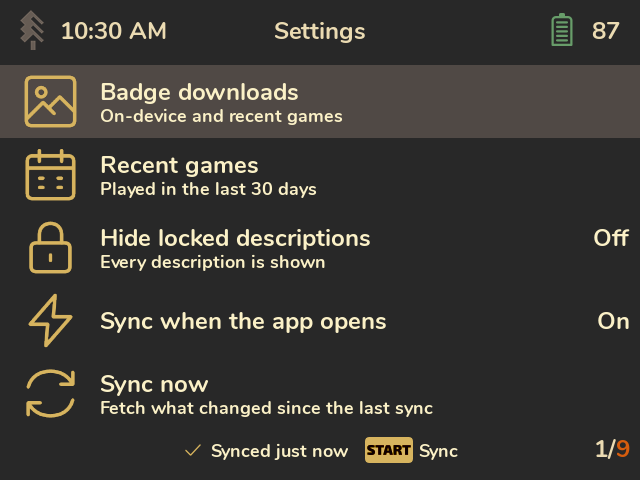
Your profile at a glance, and the way into everything else: Profile, Games, Recent unlocks, Awards and Settings. The bottom bar shows the sync status: when the last sync ran, or what the current one is doing. Press Start to sync.
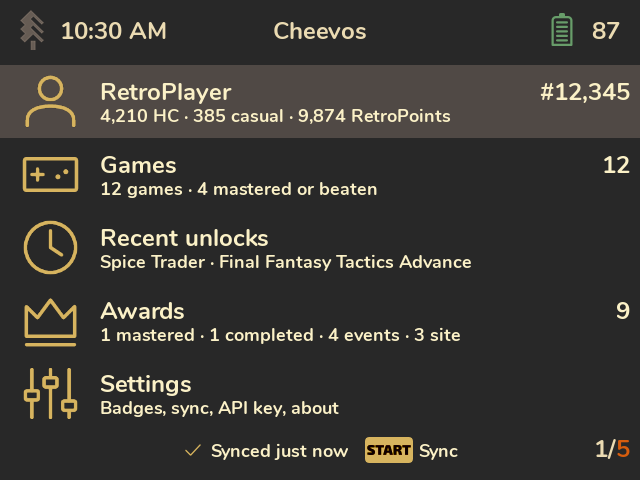
One page with everything about your account. Scroll it with the D-pad (L1/R1 jump a page).
- Your rank, member date and when you were last active.
- Hardcore points, casual points and RetroPoints.
- Last played: the game and what you were doing in it (RetroAchievements' rich presence).
- Player stats: achievements unlocked, games beaten, RetroRatio, and how many of the games you started you've beaten.
- Games by console: how many games you've played, beaten and mastered, in total and on the five consoles you played most recently.
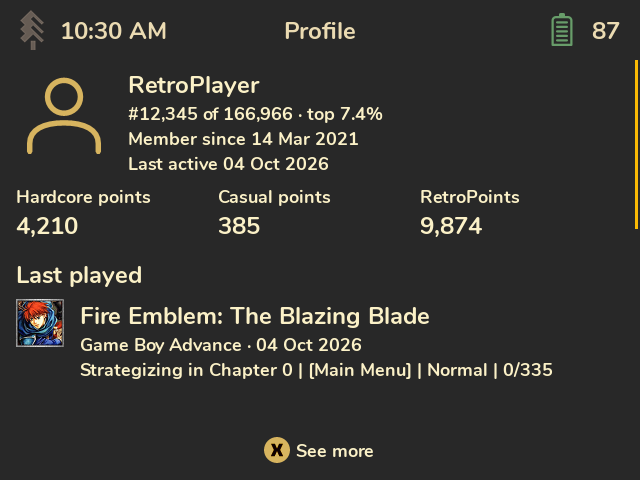
Press X (See more) for points earned in the last 7 and 30 days, average points per week, average completion, a chart of the last 30 days, and every console you've played. The recent points need Wi-Fi the first time: they're the only numbers fetched when you ask for them rather than during sync.
Every game you've played, newest activity first.
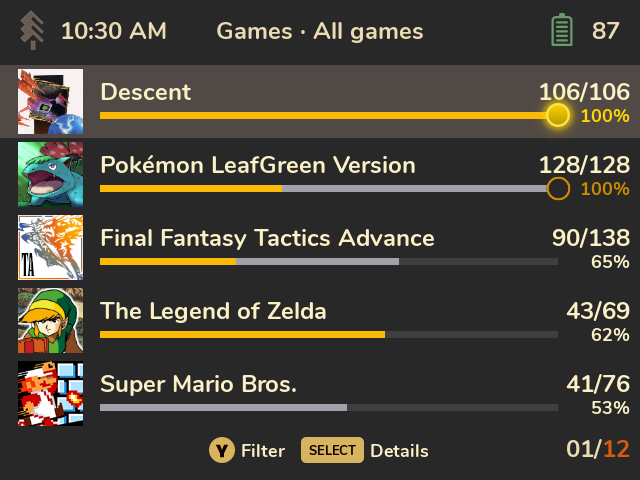
How to read a row:
- The count on the right is achievements unlocked out of the total, like on the site.
- The bar shows progress the way RetroAchievements does: gold for hardcore unlocks and grey for casual unlocks, side by side. A hardcore unlock counts as unlocked in both modes, so 30% gold plus 35% grey means 65% of the set.
- The circle at the bar's right end marks an award: a filled gold circle with a bright rim and glow for mastered, a hollow amber ring for completed in casual, a filled grey circle for beaten in hardcore, or a hollow grey ring for beaten in casual. The percentage takes the award's colour.
Press Select to switch between the bars and a details view (console, award or last activity). Cheevos remembers your choice.

Press Y to filter (all, on this device, in progress, mastered or beaten, not started) or sort (recent activity, title, console, completion). "On this device" lists games Spruce has already recognised on your SD card (see Limitations).
You can open these directly from Spruce's per-game Menu popup: View achievement progress. A game Spruce has already identified opens immediately. Otherwise Cheevos identifies the ROM while Spruce shows "Checking RetroAchievements..." (B cancels): it hashes the ROM with RAOfflineProxy's hasher, without changing the proxy, and looks the hash up in the proxy's cache, then on RetroAchievements. That lookup sends only the ROM's hash and needs no sign-in; without Wi-Fi it works only for ROMs the proxy already knows. Spruce explains if no RetroAchievements game matches the hash. Resolved game IDs are saved on the SD card by ROM path, so later launches skip the checking step. Replacing or patching a ROM at the same path keeps its game association: viewing progress doesn't require a currently RA-compatible ROM, and a ROM version RetroAchievements lists as untested or incompatible still opens its game. An unmatched path is checked again after a week. This needs a Spruce build with the Cheevos integration and a compatible Cheevos installation. Cheevos shows saved progress immediately and refreshes only this game when online. Start refreshes or cancels that game's request; B from the list returns to the same game in Spruce. Offline, previously downloaded progress remains available. Opening Cheevos from Apps still opens Home and uses your normal sync preference.

Every achievement with its badge, points, type and unlock date, or how rare it is if you haven't unlocked it yet. "screenshot" means there's an unlock screenshot for it. The top bar shows how many you've unlocked, with a smaller version of the game's award circle if it has one. Hardcore badges have a gold outline in both the list and grid. Casual unlocks and pending offline unlocks have plain colour badges; locked badges are grey. Unlocks waiting in RAOfflineProxy's queue are labelled Pending sync in the list and grid details. Their cards say Unlocked offline · waiting to sync, with the queued date.
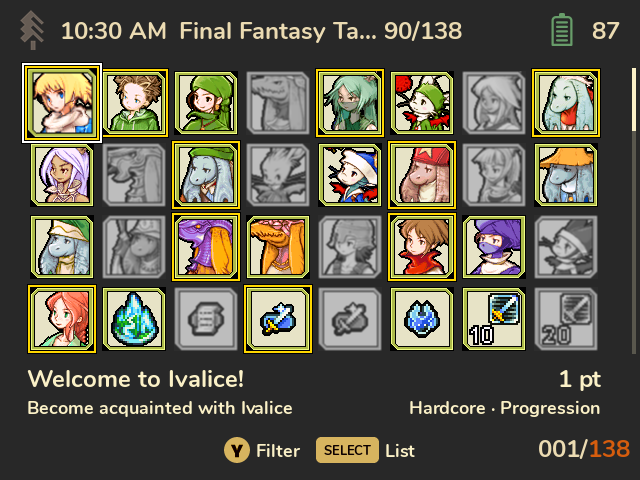
Achievements start in the badge grid unless you've saved another view. Press Select to switch between grid and list, and Y to filter (locked, unlocked, missable, progression and win) or sort (RA display order, points, rarest first, unlocked first or locked first). RA display order is the default: the set's display order on RetroAchievements, with achievement ID breaking ties. Cheevos remembers your sort and list/grid choice for all games, including games opened from Awards, and saves them when you exit the app.
The grid packs the badges close together, like the achievement wall on a RetroAchievements profile. The selected badge is drawn larger, with a white frame. Under the grid you'll see its title and points, its description, whether you unlocked it (hardcore, casual, pending sync or locked) and its type. Long text is shortened; press A for the full card. "Hide locked descriptions" hides descriptions here too. L1/R1 move a screen at a time, and a scrollbar on the right shows where you are. Back from a card, you're on the same page.
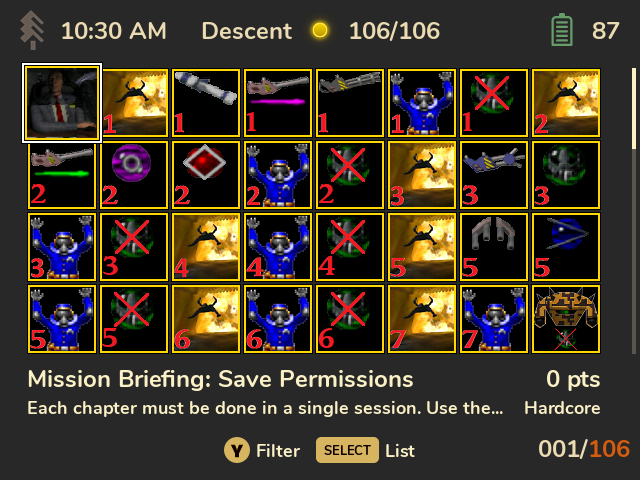
If a game has no achievements, Cheevos says so. Press A or B to return to the calling screen (or Spruce when opened from its game menu).
The badge, title, points, type, when you unlocked it, how many players have it, and the description. Hardcore badges have the same gold outline here. If RetroArch saved a screenshot when you unlocked it, it's shown too: press A for full screen.
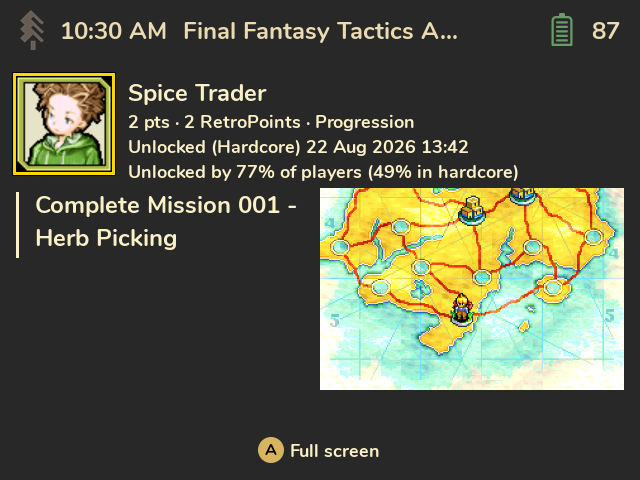
With Hide locked descriptions on (see Settings), a locked achievement shows "Description hidden" instead; press X to reveal it.
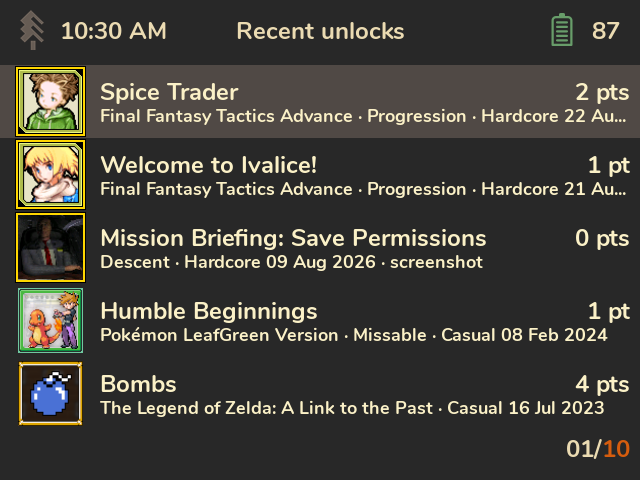
Your latest 100 unlocks across all games, newest first, saved during sync even when a game's full achievement list hasn't been downloaded. Unlocks still waiting in RAOfflineProxy come first, marked "Pending sync". Press A to open one. The card's title, description and unlock date work offline; missing player statistics load in the background when you're online. Until those statistics are available, rarity shows —. Hardcore unlocks have a gold outline around their badges. Casual and pending unlocks stay plain.
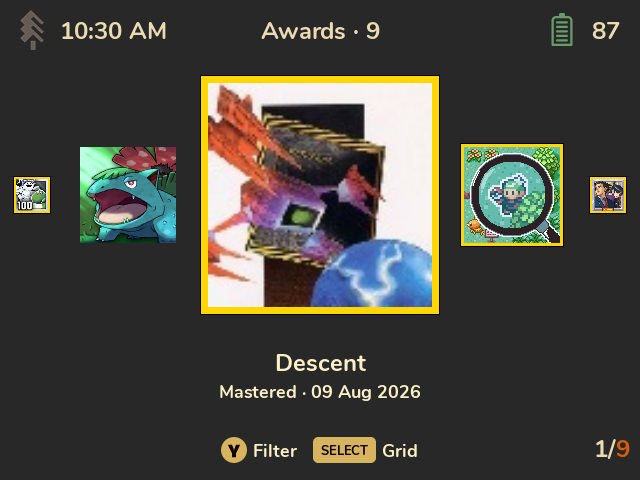
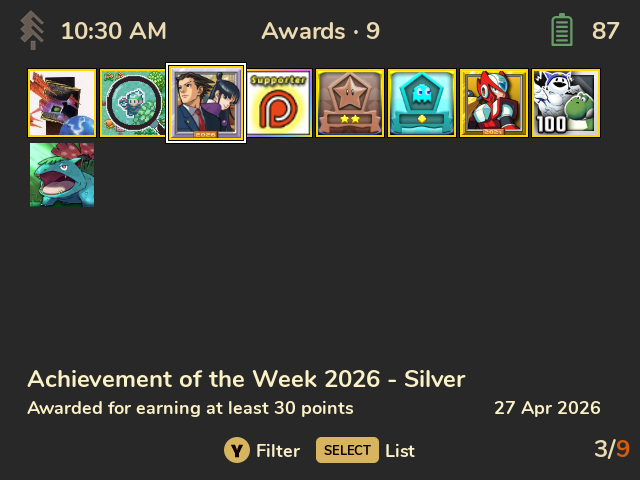
The badges on your RetroAchievements profile: Game Awards (mastered and completed games), Event Awards and Site Awards (such as Patreon or developer badges). Awards you hid on your profile don't show. Beaten games aren't awards here, as on the site: they're in Games and your profile's statistics.
Each badge has its frame from the site: gold for mastered games and events, plain for completed games, and a rainbow holographic frame for the $2 Patreon badge. Under it: its title, what it was awarded for ("Mastered", "Awarded for earning at least 30 points", "Awarded for completing this event"…) and the date.
Press Select to switch between three views; Cheevos remembers your choice:
- Carousel (default): one large badge in the middle, its neighbours getting smaller towards the edges. Left and right slide through them.
- Grid: many badges at once, like the profile page.
- List: one row per badge, with its title, description and date.
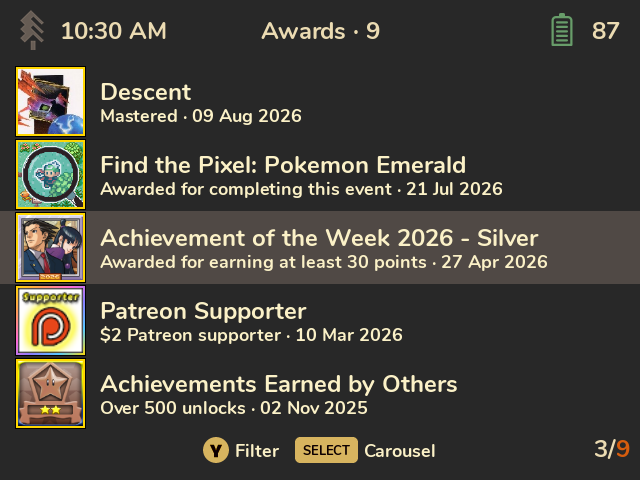
Press A on a game to open its achievements, and B to come back to the same badge. Event and site badges show everything they have on the screen itself, so A does nothing on them.
Press Y to choose the view, filter (All, Game Awards, Mastered, Completed, Event Awards, Site Awards, each with how many you have) or sort: newest first, the order of your profile on the site (Site order), title, or console (game awards).
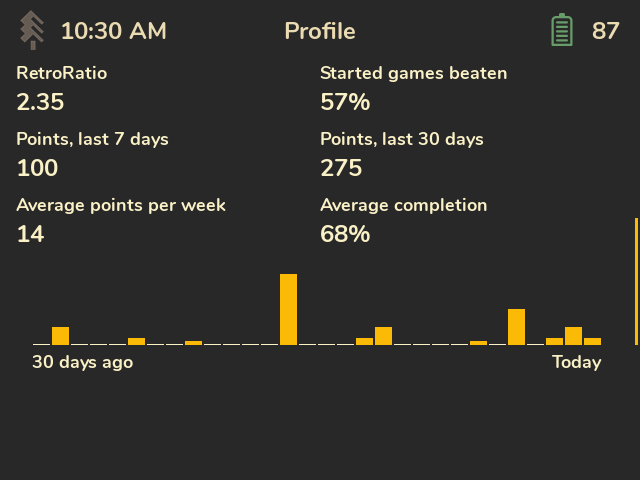
See Settings.