Repository navigation
Releases
RockWheel 1.4.1


Firmware for the iPod Video (5G / 5.5G), based on Rockbox. A follow-up to 1.4: Now Playing as on a stock iPod, colors for every theme, playlists in order, and a long list of fixes, many from Rockbox itself. Details of each feature are in the README.
Tested on one iPod: 5.5G, 32 MB RAM, iFlash, ~13,000 songs, macOS 26.
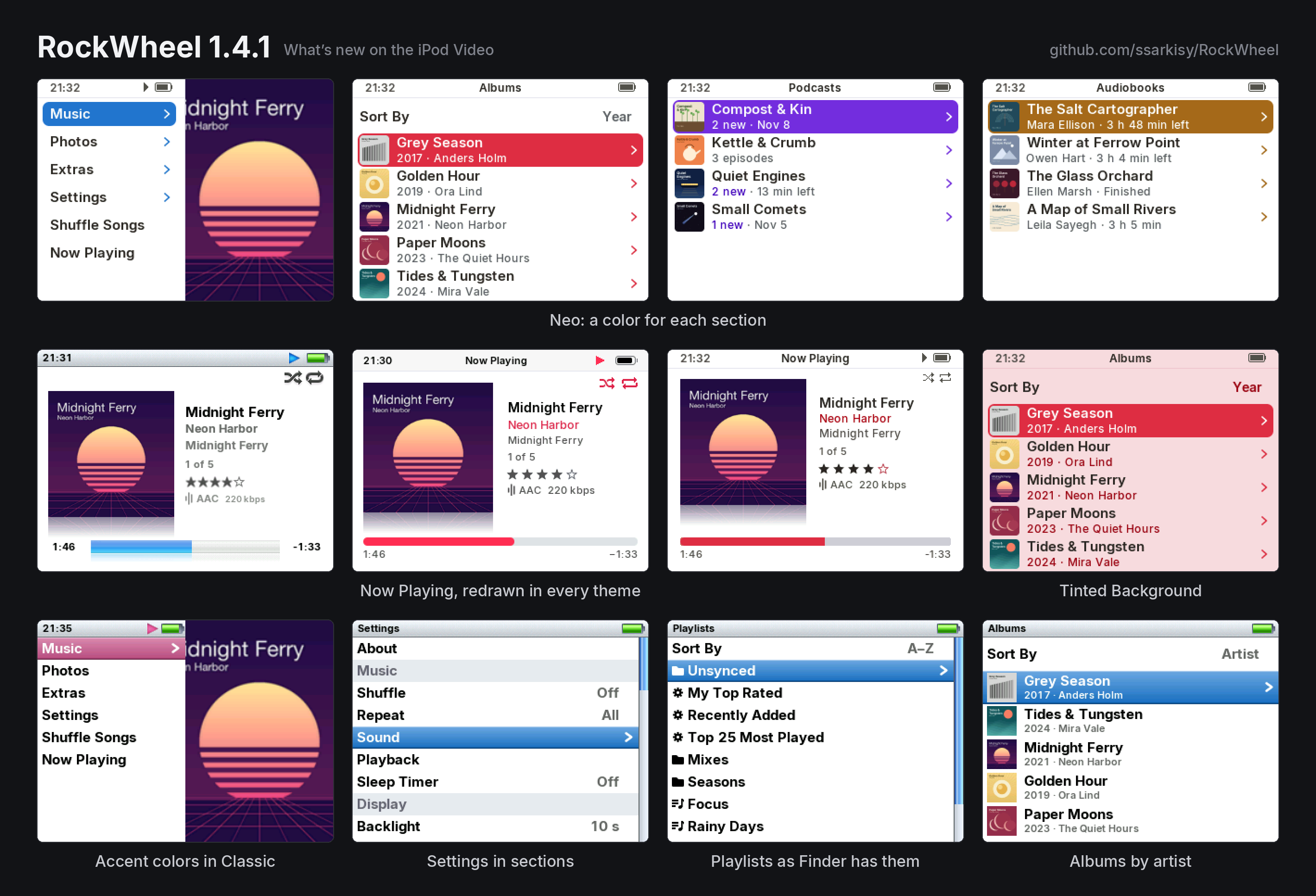
Highlights
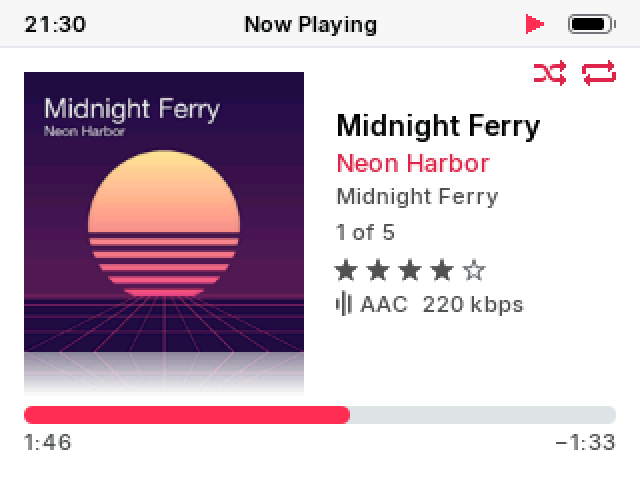
- Now Playing as on a stock iPod: the song's details centered against the cover, its place in the list, Shuffle and Repeat in the corner
- Neo in Multicolor: Music, Podcasts and Audiobooks each in a color of their own, on a neutral background
- Classic in the accent color of your choice
- Modern with larger type, and Settings in the gray of Music on a Mac
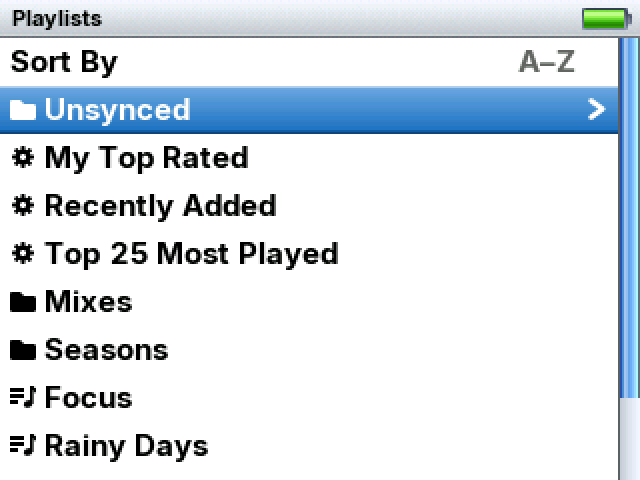
- Playlists sorted by name, your own in Unsynced, smart playlists together
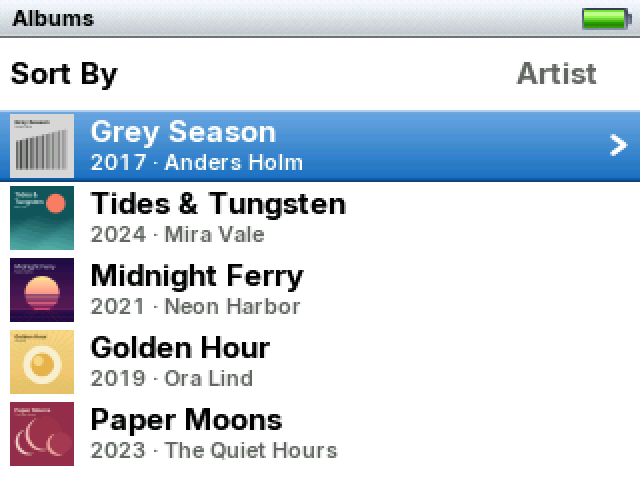
- Settings in sections; Albums sorted by artist
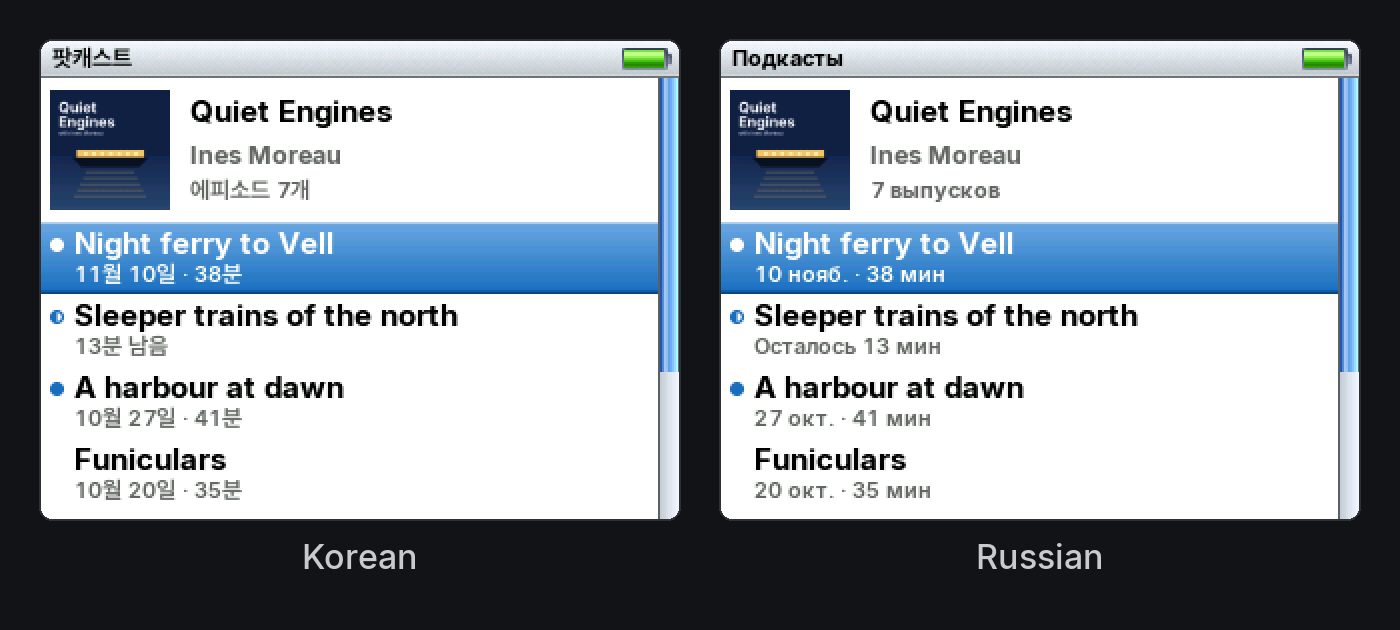
- Dates written as your language writes them; changing the menu language sorts the library for it at once
- Fixes from Rockbox: sound after unplugging, playlist freezes, Eject in Finder, ALAC, damaged covers, the wheel, Cover Flow
- About 30 MB smaller on the iPod
Before you update
- Use the installer again (
install.sh/install.ps1). Settings, play counts, ratings and places are kept. - Update the games too: 1.4 games don't run on 1.4.1. The installers do this.
- The format and bitrate line in Now Playing is now off by default, as on a stock iPod. Settings › Appearance › Format and Bitrate brings it back.
- Neo starts in Multicolor if you never chose a color; a color you chose stays.
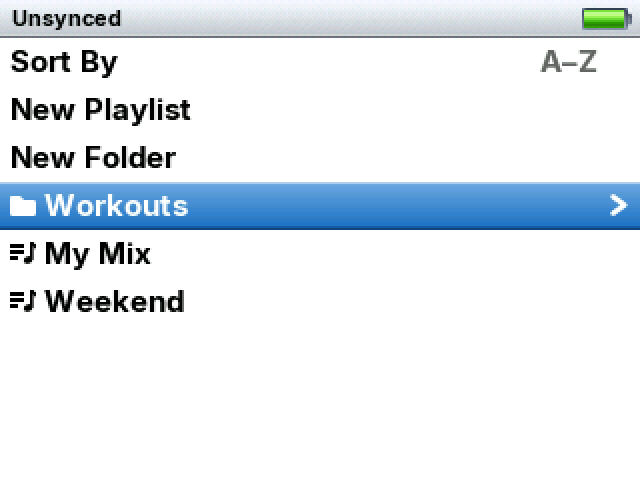
- Playlists are now sorted A–Z. Playlists you made on the iPod are in Unsynced, at the top of Playlists. Any that were inside a synced folder move there at the first start.
- The first start also sets up your synced playlists again from what is already on the iPod, so smart playlists get their gear without a sync. It happens once, on the Updating Library screen.
- The Wake-Up Alarm is gone: it couldn't wake every iPod reliably. An alarm set in 1.4 is switched off at the first start.
- With menus in a language with its own alphabet, the first start sorts the library for it once.
New
Now Playing
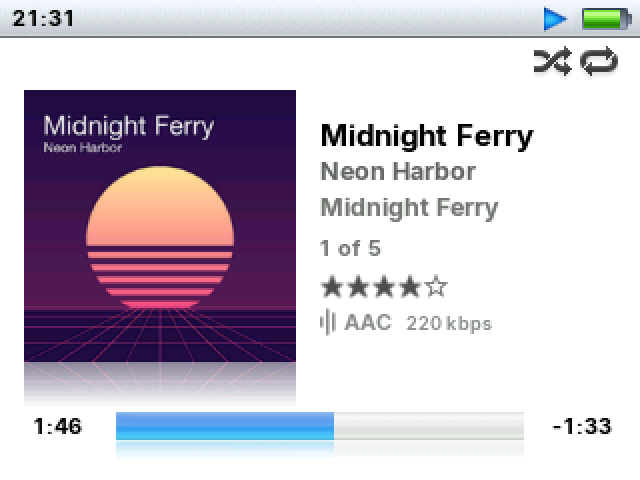
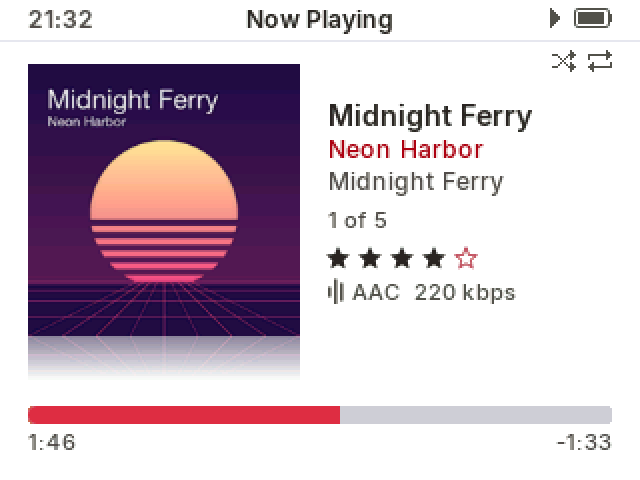
- In all three themes, the title, artist, album, "3 of 12", stars and format stand together, centered against the cover
- Shuffle and Repeat icons in the top right corner, under the status bar, only in Now Playing
- Settings › Appearance › Rating: Always, Only Rated, Never
- Settings › Appearance › Format and Bitrate: On / Off (Off by default); the format and the bitrate in one color
- Neo: the cover higher, with a reflection under it, flat or angled; a thicker bar
- Modern: a thicker bar, lower, with the times under it; a reflection under the cover
- Covers without rounded corners in Modern and Neo; Angled Cover in Modern
- With a podcast or a book at another speed, the speed stays whole beside the time left
- Holding Play with the music stopped opens Now Playing on the song Resume would play, paused at its place; Play starts it. Held on, Play still turns the iPod off, without a sound
- In the dark theme, the reflection under the cover shows more
Neo
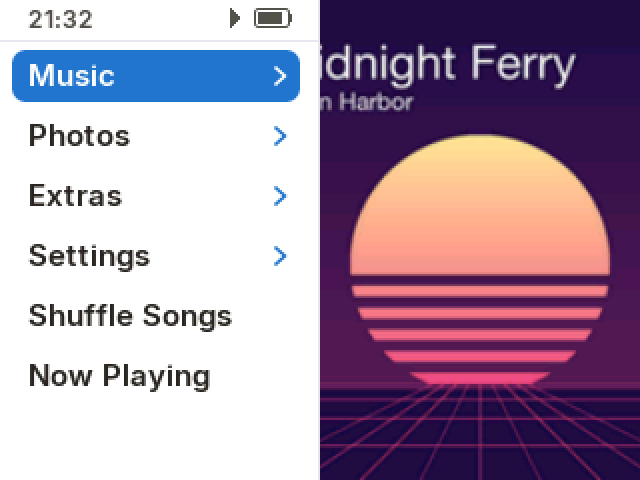
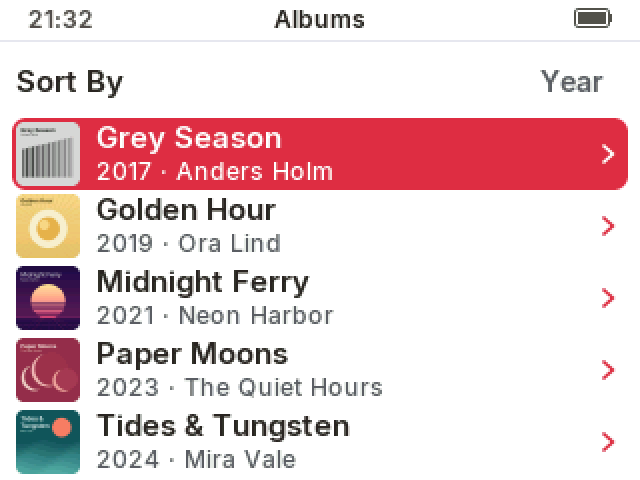
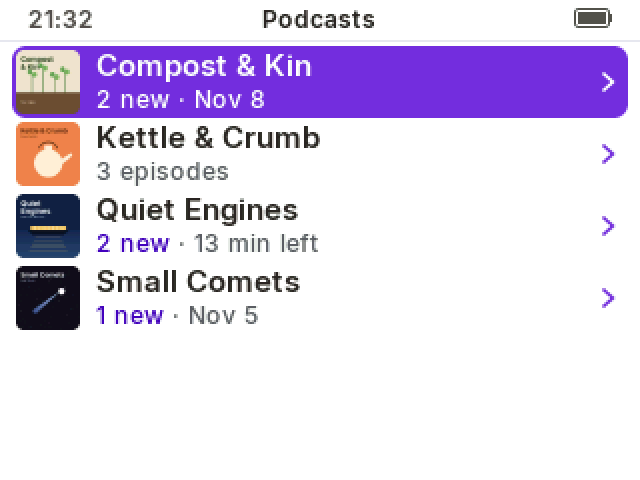
- Color › Multicolor, the new default: Music in red-pink, Podcasts in purple, Audiobooks in orange, everything else in blue, as apps on a Mac with Multicolor
- Any other color is used on every screen, as before
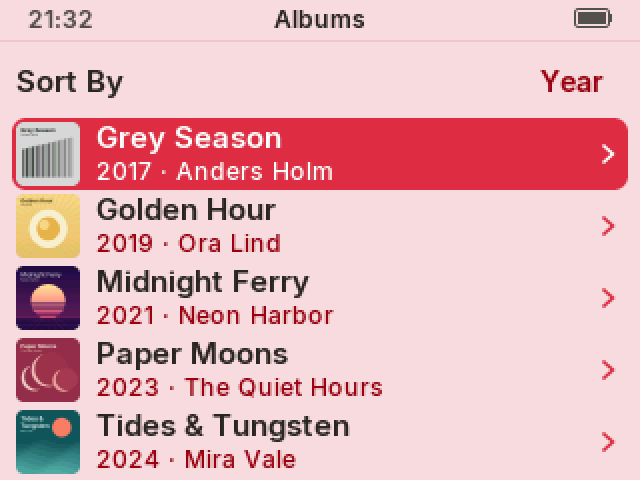
- Tinted Background (Off by default): off, the backgrounds are neutral grays and the color is on the selection, the icons, the artist and the bars; on, everything takes a tint of the color, as in 1.4
- On/Off settings as switches
- A cover in a list row stands as far from the selection's edges on all sides
Classic
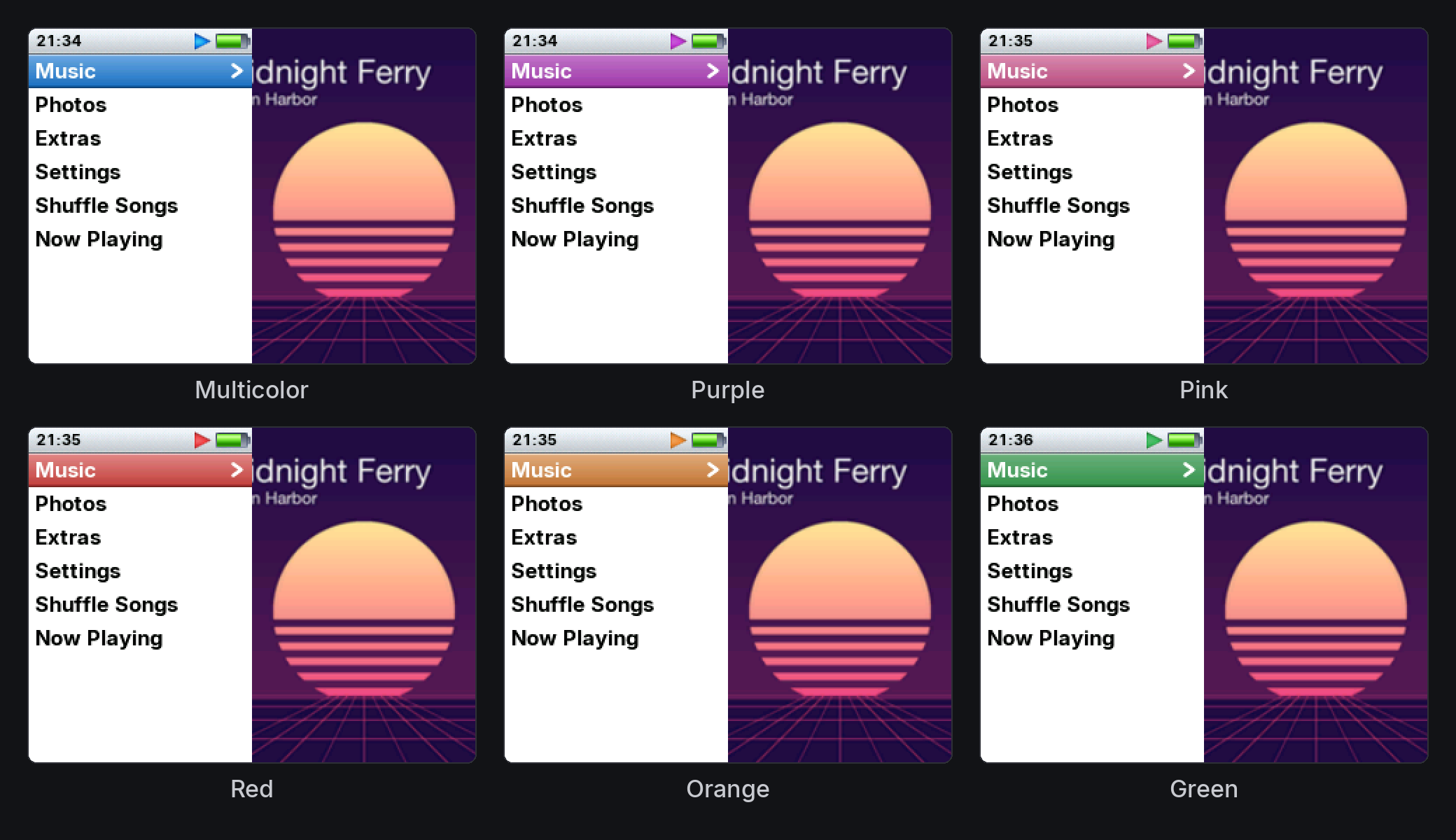
- Settings › Appearance › Color: Multicolor, Blue (default), Purple, Pink, Red, Orange, Yellow, Green, Graphite
- White text stays readable on every color
Modern
- The row heights and type of Neo: larger, easier to read
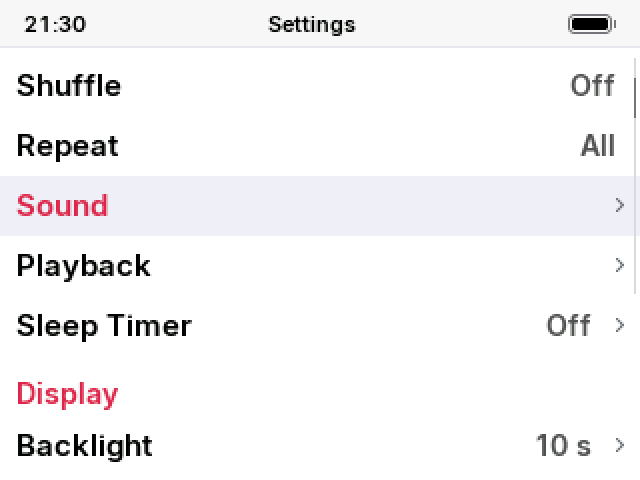
- Settings and its folders take a light gray selection, as in Music on a Mac; the rest keeps the red bar
- Values in menus in a bolder weight
- Lyrics in a bolder weight
Settings
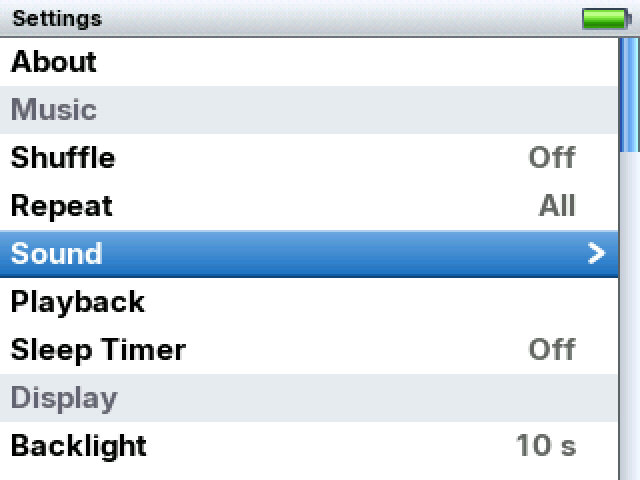
- Settings in sections: Music, Display, Menus, System; Sleep Timer moved to Music
- Appearance in sections too
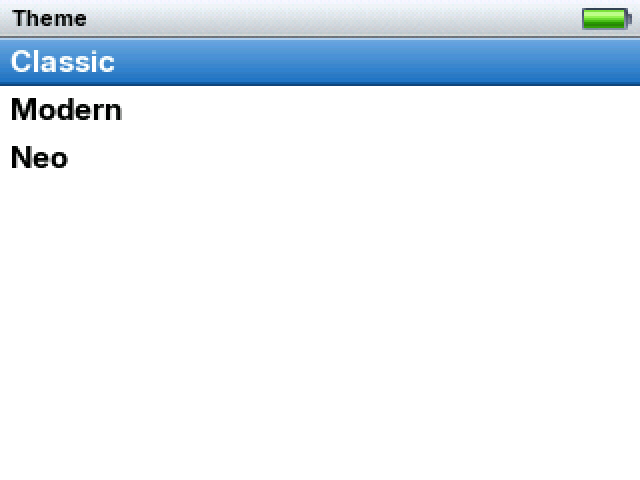
- Theme opens a list of the three themes instead of stepping through them
- A setting's hint appears once you stop on it, not at every step of the wheel
Playlists
- Sort By at the top: A–Z (default) or Z–A, as in Music on a Mac: names starting with a symbol such as ★ first, then numbers, then letters
- Unsynced: the playlists and folders you made on the iPod, with New Playlist and New Folder inside it
- Smart playlists together, after Unsynced, each with a gear
- One icon for a playlist and one for a folder, synced or not
- On-The-Go last
- Everything the iPod makes goes into Unsynced: new playlists, a saved On-The-Go, Save Playlist from Now Playing
- A folder synced from your Mac with the same name as one of yours gets " 2" on the iPod
Library and languages
- Albums › Sort By: Year, Name, Artist. By album artist, The/A/An aside, each artist's albums oldest first
- Changing the menu language sorts the library for that language's alphabet right away, on a "Sorting for New Language" screen; music stops and Resume Playback picks it up
- Dates as each language writes them: "20 May 2023", "May 20, 2023", "2023년 5월 20일", "20 мая 2023 г.", in About, Date & Time and podcast episodes
- Translations checked against Apple's own terms; Korean corrections from a Korean user
- In Modern and Neo, a title too wide for the status bar takes the clock's place, whole and still; it no longer scrolls
Fixed
From Rockbox (ported into RockWheel, each credited in its commit):
- No sound until a restart after unplugging USB at the wrong moment
- The iPod freezing on any playlist action after USB, on a full disk or with a full playlist
- A freeze when starting a playlist file while music played
- Eject in Finder, shutting down and updating now tell the drive to write out its cache, so a sync isn't lost to a flat battery right after
- A damaged cover in a song could corrupt memory or hang the iPod
- ALAC: a damaged file could overwrite memory; 24-bit ALAC played at about 16-bit precision
- The click wheel doing nothing after a screen change until a button was pressed
- Cover Flow: the covers left of the last album stayed blank
- FLAC files with variable block sizes: wrong times and seeking
- A damaged DSD (.dff) file could hang the library update
- A database search that failed could leave a file open, until no file could be opened
RockWheel:
- A queue where no song can play (unsupported or damaged files) cycled through them without end with Repeat on, keeping the disk spinning; it now stops
- Covers in MP3s with older ID3 tags of a certain kind showed blurry or not at all; with Moving Cover their bottom could be garbled
- A precaution in how free memory is counted, from PodBox: no case in RockWheel is known to hit it, but a miscount there could keep playback from starting
- Questions such as Rebuild Synced Covers left the list's edges showing beside them
- Small text: letters set a little apart, no longer touching
- Digits in the lists of Modern and Neo evenly spaced: "2017" no longer reads as "20 17"
- Modern's Shuffle icon redrawn; it looked crooked
- Files that macOS adds when ...
RockWheel 1.4
Firmware for the iPod Video (5G / 5.5G), based on Rockbox. Details of each feature are in the README; what changes for an existing install is in Updating to 1.4.
Timings are from the test iPod: 5.5G, 32 MB RAM, iFlash, ~13,000 songs.
Highlights
- Podcasts and Audiobooks screens, with playback speed and chapters
- Three themes: Classic, Modern, Neo (13 colors), each light or dark
- Shuffle: Off / Songs / Albums
- Album lists with covers, album screen with track numbers, Songs sort options, Recently Added
- Sharp cover beside the main menu, optional Moving Cover
- Performance: Resume Playback starts instantly, full library rebuilds 34 s shorter, lighter syncs
- Plays and ratings now reach Finder with podcasts on the iPod
- Reliability fixes for disk, USB and settings
Before you update
- Use the installer again (
install.sh/install.ps1). Settings, play counts, ratings and resume places are kept. - Download ~63 MB, ~145 MB on the iPod (1.3.1: ~37 MB), almost all of it fonts (support for 40+ languages). Needs ~180 MB free; the installer checks before copying anything.
- First start rebuilds the library once (new format, Music-style sorting). Play counts, ratings, last played dates and audiobook/podcast places are kept.
- Nearly full iPod: "Not Enough Space" on first start, and the library may be empty or incomplete until you free space. Nothing is lost; the update finishes by itself at the next start.
- Update the games too: 1.3.1 games don't run on 1.4. The installers do this.
- The iPod starts in the Classic theme, light or dark as before.
- Going back to 1.3.1? Sync first: 1.3.1 rebuilds its library and loses plays of songs copied outside Finder.
New
Shuffle
- Shuffle is now Off / Songs / Albums, as on a stock iPod
- In Settings and in Now Playing's hold menu; Select on the row cycles the three
- Shuffle Albums: whole albums, each in disc and track order, the next album picked at random
- Works on whatever you play: all songs, an artist, a playlist
- The song you pick plays first, then the rest of its album
- Own status bar icon
- Shuffle Albums can be added to the main menu (Settings > Main Menu): all your music, an album at a time
- Resume Playback restores the same shuffled order, also after a sync
- A show's episodes and a book's parts always play in order
- Starting a song from Songs with Shuffle on Albums: 0.70 s on 13,188 songs
Podcasts
- Music > Podcasts: each show with its cover and what's waiting
- "2 new · 9 Nov" (new episodes and the newest one's date)
- "6 new · 13 min left" (with an episode you started)
- Time left alone, or the episode count, when nothing is new
- Show screen: header with cover, name, author and episode count
- Episodes newest first: "20 May 2023 · 22 min", or "28 min left" once started
- Dot for unplayed, half dot for started
- Synced episodes take your computer's marks until you play them on the iPod
- When an episode ends, the next unplayed one below it plays
- Played episodes are skipped; playback stops after the last unplayed one
- With Repeat on, nothing is skipped
- Play Next, Play Last and On-The-Go play exactly what you queued
- Hold Select on an episode: Start from Beginning, Mark as Played, Mark as Unplayed (synced episodes)
- Now Playing: show, episode date, time left; Select from the large cover shows the episode notes
- Scrubber: Previous −15 s, Next +30 s, with small signs under the bar; the wheel moves in 5 s steps
- Podcasts copied by hand: detected by genre Podcast or a Podcasts folder; they keep their place, use the podcast speed and stay out of shuffles
Audiobooks
- Music > Audiobooks: each book with cover, author and "6 h 12 min left", "Finished" or its length; started books first
- Book screen: "8 parts · 9 h 5 min", then Resume (with the part it continues from) or Listen Again, then the parts with their start times
- One place per book: starting another part moves the book's place there
- Hold Select on a part: Start Over, Mark as Finished (both confirmed)
- Now Playing: author, and the chapter name or the book title
- Books copied by hand:
.m4b, genre Audiobook(s) or an Audiobooks folder - Times over an hour read "1 h 33 min" in lists and Now Playing
Speed
- Settings > Playback > Podcast Speed: Normal, 1.25×, 1.5×, 1.75×, 2×
- Audiobook Speed: the same plus 0.75×
- Pitch preserved; music always plays at normal speed
- Speed view in Now Playing: Select past the scrubber, choose with the wheel, applied when you leave the view
- A speed other than Normal shows in Now Playing where the stars are
Chapters
- Episodes, audiobooks and songs of 10+ minutes play by the chapters in the file
- Next: next chapter, or the next track after the last chapter
- Previous: start of the chapter, or the previous chapter within its first 3 s
- Holding Previous / Next still rewinds and fast-forwards
- Chapter name under the progress bar ("Chapter 2 · Objects and stories"); books also show "Chapter 5 of 12"
- Hold Select > Chapters: list with start times, opened at the current one
- Skipping through a long song by chapters doesn't count it as played
- Read from MP3 (ID3v2 chapter frames) and MP4/M4B (Nero chapters, QuickTime chapter tracks)
Music lists
- Sorted as in Music on a Mac and on a stock iPod
- "The", "A", "An" ignored; accented letters with their base letter; numbers by value
- Sort fields from Music or the file's tags are followed
- Artists lists album artists: an album stays whole, guests on one song get no row (Settings > Music Menu > Group by Album Artist)
- Artist with 2+ albums: All Songs on top, with Sort By: Album (songs under a bar per album, "2009 · The Fame") or Name
- Album screen: cover, name, album artist and "2019 · 16 songs" in a header; track numbers and lengths; Disc 1, Disc 2 for multi-disc albums
- The header scrolls away with the list and comes back at the top
- Albums: two-line rows with cover, year and album artist
- Same-named albums by different artists are separate rows
- Same-year albums in release-date order
- Settings > Appearance > Artist under Album, Covers in Lists
- Songs: Sort By Name, Artist, Album or Year
- With covers, a second line: artist, "Album · Artist" or "1979 · Artist"
- Opens in 0.36 s with 13,163 songs in any order but Name
- Music > Recently Added: the last 50 albums, newest first (can be hidden in Settings > Music Menu)
- Scrollbar on long lists (Settings > Appearance > Scrollbar)
- Large letter when you spin the wheel fast in lists of 100+ rows (the year in Albums by year)
- While it shows, each wheel step jumps a letter; it stays while your thumb rests on the wheel
- Settings > Appearance > Jump by Letter turns the jumping off
- Hold Select on any song: Go to Artist, Go to Album; on an album row or in Cover Flow: Go to Artist
- Empty lists say so: "No Podcasts", "No Composers"
- Untagged songs under Unknown Artist / Album / Genre, last in their lists, in every language
- Protected purchases show "This item is protected and can't be played"
Cover Flow
- Ordered by album artist, each artist's albums by release date; the year after the artist: "LINKIN PARK · 2000"
- Hold Select > Sort By: Artist or Year
- Hold Previous / Next to run to the first / last album; a press still moves one
- Go to Artist in the hold menu
Now Playing
- Hold menu: Playing From (opens the list the music came from, at the current song), Up Next, Chapters
- Slides in from playlists and Search too
- After a restart, the playing list shows the speaker beside the current song again
Main menu
- Sharp cover beside the menu
- Synced music: Finder's 240 px cover, shown at once
- Other music: drawn from the song's file a few seconds into the track (2.5–3.9 s for ordinary covers); the last 48 are kept
- At first start, 1.4 adds the 240 px format to the iPod's description file (
SysInfoExtended); the original is kept asSysInfoExtended.original. Music synced from then on gets the sharp covers - Settings > Rebuild Synced Covers, for music synced before
- Shows the space needed and free, and asks first; stops the music
- Synced songs show no covers until the next sync, when Finder makes every cover again (~3.3 GB and ~12 min for 13,000 songs)
- Old covers are removed after the sync; choosing it again before syncing puts the old covers back
- Resume Playback starts instantly, without "Loading…"
- With nothing playing, its song's cover shows beside the menu, also after a restart or a sync
- Settings > Appearance > Moving Cover (off by default): the cover pans slowly while music plays or is paused; uses more battery
Themes
- Settings > Appearance > Theme: Classic, Modern, Neo, each light or dark
- Each has its own lists, main menu, Now Playing, USB screen, icons and fonts
- Changing the theme stops the music; Resume Playback picks it up
- Classic: the RockWheel look you know
- Modern: white or black with one accent color
- Selected row as a full-width accent bar; accent section names and artist; chevrons on rows that lead on
- Clock in the status bar; six rows of Search results
- No Cover Colors, no Angled Cover
- Neo: flat, rounded selection, always in your color
- Settings > Appearance > Color: 13 colors, each with a swatch
- Small text, hints, section names, scrollbar, progress bar and knob in your color
- Clock in the main menu; centered Now Playing with a two-line title
- Cover Colors acts on Now Playing (Off, Text and Stars, Whole Screen, Fill); a near-gray cover keeps your color
- Modern and Neo end long names with "…"
Photos
- Each photo album has its own collage, shown beside the list
- Play pauses and resumes the music in Photos
- Ope...
RockWheel 1.3.1
RockWheel 1.3.1 is a fix release for 1.3: lyrics in every alphabet, a lighter Korean typeface, and smoother screen transitions around Now Playing.
Upgrading from 1.3
- Run
install.shon a Mac, orinstall.ps1on Windows. Settings, the database, play counts and ratings are kept. - The first boot runs Updating Library once, to rebuild the library fonts with the new characters.
- Release files are the same as in 1.3:
rockbox.zip,bootloader-ipodvideo.ipod,ipodpatcher(macOS) andSHA256SUMS;rockbox-games.zipwithSHA256SUMS-games;ipodpatcher.exewithSHA256SUMS-windows. The bootloader is unchanged.
Fixed
- Lyrics in Korean, Chinese, Japanese, Hebrew, Arabic and Thai now display entirely in RockWheel's fonts. Before, characters that didn't appear in your song titles were drawn in an older fallback font, larger and thinner than the text around them. Every Korean syllable, the full Hebrew, Arabic, Thai and kana alphabets, and the 7,174 most common Chinese and Japanese characters are now included, regardless of the menu language. The library fonts take about 5 MB more disk space.
- Screen transitions between Now Playing and the menus: Now Playing now stays still while the menu slides over it or away, title bar and panel included. Before, the menu's title bar and the top of its panel appeared at once while the panel was still sliding in, which looked like a glitch. The menu over Now Playing now slides over Now Playing itself rather than over a blank screen.
- When a list gets wider or narrower beside the panel, as from Music to Albums, the title bar now grows or shrinks along with the slide.
Changed
- Korean is set in a lighter, larger Pretendard (SemiBold 18, Medium 15 and SemiBold 14 instead of Bold 16, SemiBold 13 and Bold 12), matching the size of the Latin text beside it. In lyrics and Settings hints, Korean is now as tall as the Latin text.
- Korean translation: Appearance is now 테마 and Extras is 기타.
Diagnostic RockWheel build
This is RockWheel 1.3.1 plus a recorder. It tests the disk for a few seconds at start-up, then
writes what the iPod is doing into the .rockbox folder while it shows "Checking Songs". Run it
once and send us the files it leaves. You need a phone or camera and a clock.
Run the test on battery: charge the iPod first, then keep it unplugged except where a step says
to plug it in. No dock or other accessory, Hold switch off. (Being on a charger changes what the
iPod does when you plug it into the PC, and that is one of the things we want to see.)
Install (iPod connected to the PC, say as drive E:)
- In File Explorer, right-click E:.rockbox > Cut, then right-click the Desktop > Paste.
(Don't drag it: dragging to another drive copies.) Check that E:\ has no .rockbox folder now.
The folder on your Desktop is your backup; leave it as it is. - Right-click RockWheel-1.3.1-diag.zip > Extract All... > choose E:\ > Extract.
E:\ now has a new .rockbox folder. - Eject the iPod, unplug it, and at once hold Menu + Select until it restarts.
The test (note the time when it starts)
- It shows the logo with "Reading Library", then "Checking Songs". Leave it alone.
If the language list or the main menu ever appears by itself, skip the photos and go to step 8. - At 4 minutes: press the centre button once. A page of small text appears (if the screen was
dark and the press only lit it, press again). Take a photo of it and leave it showing. - Still at 4 minutes: plug the iPod into the PC and wait up to 3 minutes.
- If drive E: appears: copy every file whose name starts with "diag" from E:.rockbox to the PC,
then eject. (The iPod may restart by itself after that. Fine.) - If it doesn't appear, do nothing.
Either way, unplug it again.
- If drive E: appears: copy every file whose name starts with "diag" from E:.rockbox to the PC,
- At 15 minutes: if a page of small text or "Checking Songs" is on the screen, take two photos.
First the text page (press the centre button until it shows), then press the centre button
once more for the second page and photograph that. If the button does nothing, photograph
the screen as it is. These two photos matter most if the iPod is stuck. - Hold Menu + Select until the iPod restarts. It should show "Diagnostics saved. Connect to
computer." and then the language list or the main menu. Whatever it shows, wait one minute
and go on to step 9.
Send me the files
- Plug the iPod into the PC and wait up to 2 minutes for drive E:.
- From E:.rockbox copy every file whose name starts with "diag", and drive.txt if it exists.
Send them to me with the photos (and the files from step 6, if you got any. My mail in my profile).
They hold the names of your music folders and files and facts about the drive (model and
firmware version, no serial number). Nothing else personal.
If drive E: does not appear in step 9
- Unplug the iPod and hold Menu + Select. As soon as the screen goes dark or the logo appears,
let go and hold Select + Play until the Disk Mode screen shows. Plug it in and do step 10.
Going back to your current setup
- Delete E:.rockbox, then copy the .rockbox folder from your Desktop to E:\ (it must be called
exactly .rockbox, directly on E:). Keep the Desktop copy until your old setup runs again. - Eject, unplug, and at once hold Menu + Select to restart.
RockWheel 1.3
Figures below were measured on the test iPod: a 5.5G with 32 MB of RAM, an iFlash card and about 13,000 songs. More measurements are in performance.md.
Highlights
- Search with the click wheel, on a ring of letters. With Smart Search, on by default, the wheel skips letters that wouldn't find anything.
- Playlists on the iPod itself: create them, rename them, put them in folders, add and remove songs, and edit the
.m3u8and.m3uplaylists you copy onto it. On-The-Go is back and saves as a playlist. - Smart playlists synced from Music or iTunes update on the iPod as you listen, with rules based on rating, play count or media kind.
- Music copied directly onto the iPod joins your synced library, with covers.
- A refreshed interface: Settings in folders with hints, Cover Flow laid out as on an iPod classic, albums listed chronologically by year, and customizable menus and Now Playing.
- An installer for Windows.
Upgrading from 1.2
- Run
install.shon a Mac, orinstall.ps1on Windows. Settings, the database, play counts and ratings are kept. The installer asks once whether to add the games. - The Windows installer is new and has had little testing. If it goes wrong, a report with the output of
-DryRunhelps. - The first boot runs Updating Library once: the library fonts and Cover Flow's slides are rebuilt, and covers are prepared for music copied outside
iPod_Control. With many copied albums this can take several minutes. - Fatigue Reduction has been removed and is off after upgrading.
- Settings moved into folders: a setting you don't find at the top level is now under Sound, Playback, Appearance or General.
- Update plugins together with the firmware. A plugin from another build could crash the iPod, so it is rejected with "Incompatible version". Both installers update plugins automatically; when installing by hand, extract
rockbox.zip, androckbox-games.zipfor the games, at every update. - Release files:
rockbox.zip,bootloader-ipodvideo.ipod,ipodpatcher(macOS) andSHA256SUMS, as in 1.2;rockbox-games.zipwithSHA256SUMS-games;ipodpatcher.exewithSHA256SUMS-windows.install.shfrom 1.2 still works with this release.
Added
Library
- Automatic library updates for music copied directly onto the iPod. Copied music appears alongside synced songs in Artists, Albums, Search, Cover Flow and Shuffle Songs. The check runs at boot and after every USB disconnect; when no files have changed, it takes 0.1 s.
- Songs deleted from the iPod leave the library at the next check, and a moved or renamed file keeps its play count and rating. Plays and ratings of copied songs stay on the iPod.
- Album art for copied music is prepared during the library update, from the file or an image in its folder, and cached. New cover-cache entries are created only if at least 64 MB will remain free on the iPod's drive.
- Song titles in Korean, Japanese, Chinese, Hebrew, Arabic and Thai are displayed with fonts built during the library update from the characters your library uses.
.rockbox/drive.txtdescribes the drive (make, firmware, size, power-on time), without its serial number, for bug reports.
Search
- Music > Search: type with the click wheel on a ring of letters. Artists, albums and songs appear as you type, matched by the start of any word, ignoring case and accents.
- The ring holds the menu language's alphabet, Latin, digits and every other alphabet in your library, Korean and Japanese kana included.
- Settings > General > Smart Search (default On) dims and skips letters that wouldn't find anything.
Playlists
- Playlists made on the iPod. New Playlist and New Folder are at the top of Playlists, and names are typed with the click wheel. Hold Select on one of these playlists to rename it, move it to a folder or delete it, and on one of its songs to remove it. Playlists copied into
/Playlistsby hand can be edited the same way. - Add to Playlist... in the menu opened by holding Select in Music, Search, Cover Flow and Now Playing, listing the playlists made on the iPod. Songs added to a playlist that is playing join the queue too.
- Icons distinguish synced playlists from local playlists: a computer marks synced ones, which can't be changed on the iPod, and an iPod marks local ones, made on the iPod or copied onto it, which can be edited.
- After a sync, playlists made on the iPod drop songs that were deleted and follow songs the sync moved.
- On-The-Go. Add to On-The-Go is the first item of the menu opened by holding Select on a song, album, artist or playlist, and in Now Playing and Cover Flow. On-The-Go is the last row of Playlists; Save Playlist turns it into a playlist of its own, and Clear Playlist empties it. Like every playlist made on the iPod, it stays on the iPod: it doesn't appear in Music or iTunes.
- Live smart playlists. For smart playlists synced from Music or iTunes, rules on rating, play count and media kind, with limits by songs or time, are evaluated on the iPod: at boot, after a sync, and when the playlist is opened after a rating or play count changed. Smart playlists with other rules stay as synced.
- Library playlists open like Songs, in the order set in Music or iTunes, with Shuffle Songs first.
- Playlist folders: from Music on a Mac (
install.sh --folders) or iTunes on Windows (install.ps1 -Folders), they appear in Playlists after the next sync.
Cover Flow
- Holding Select on an album, or on one of its songs, opens the menu Music's lists have: Add to On-The-Go, Add to Playlist..., and while music plays Play Next and Play Last.
- Settings > Playback > Pause in Cover Flow (default On). With it Off, music keeps playing while you browse.
Now Playing
- The cover has a reflection in every color mode and in the dark theme. Angled Cover (default Off) tilts it.
- Settings > Appearance > Status Bar, Rating and Progress Bar: iPod or iOS style. The iOS icons, stars and bar were drawn by Linus (u/Linusssk).
- Settings > Appearance > Bold Text: Now Playing, lyrics and Cover Flow's captions in bold.
- Settings > Appearance > Status Icons: the colors of the status bar icons when Cover Colors fills the screen.
- Settings > Now Playing Menu: choose which of the 14 items the menu opened by holding Select in Now Playing shows.
Menus and controls
- Settings > Main Menu and Settings > Music Menu: choose the items. Sections of Music, such as Artists or Songs, can be added to the main menu.
- Hints under the settings whose names don't explain them, in all menu languages.
- Settings > General > Wake Screen. With Select & Menu (default), only those two buttons turn the screen on; Play, Previous and Next work with it off, and in Now Playing the wheel sets the volume.
- Settings > General > Return to Now Playing: during playback, menus and lists return to Now Playing when the screen turns off (default), after another 10 or 30 seconds, or never.
- In lists, the playing song has a speaker icon; Select on it opens Now Playing.
- An artist's albums are listed by year, oldest first, with the year before each name: in Artists, Genres, Composers and Go to Artist. An album's year is the latest year among its songs.
- Music > Albums: Sort By, at the top, switches between Year (default) and Name.
- Screens slide when entering and leaving menus.
Sound
- EQ preset WH-1000XM4C, under Headphones, for the Sony WH-1000XM4C by cable in Active Mode (headphones switched on).
Extras
- Optional
rockbox-games.zipwith eight more games: Rockblox, 2048, Sudoku, Sokoban, Reversi, Space Rocks, Bubbles and Clix. - Extras > Games is sorted by name in the menu language. Clock, Calendar, Stopwatch and the built-in games are translated into the menu languages, help screens included.
Changed
- Settings are organized into folders: Sound, Playback, Appearance and General.
- Cover Flow is laid out as on an iPod classic: a light background in the light theme, larger covers, no status bar. Previous and Next now move one album at a time, and keep going while held; in an album's song list they open the next or previous album. The song list shows lengths.
- Lists in Music and Playlists use the full screen width.
- Wheel acceleration follows the stock iPod's: faster in stages beyond one turn per second; short lists don't accelerate. Wheel steps are no longer dropped while the screen draws.
- Volume moves in 100 equal steps, shown in Now Playing as a percentage.
- Now Playing's rating and play count come from the database. After changing the rating, Select returns to the first Now Playing view.
- Choosing another song in a list starts it without the Fade on Stop fade.
- Songs opens in 0.21 s and reopens instantly while the library is unchanged.
- Text contrast in Cover Colors modes: 7:1 for the title, 4.5:1 for other text, 3:1 for lyrics not being sung.
- Holding Select on Music's own sections (Artists, Albums, Songs and the rest) opens nothing, as on a stock iPod. Play Next and Play Last there queued the whole library or a single album.
- Music, chosen in the main menu, opens at the Music menu rather than the last list.
- Resume Playback is hidden in the main menu when there's nothing to resume.
- The database and the directory cache load under the boot logo, before the main menu.
- Removed the previous import caps of 256 playlists and 128 playlist folders.
- SD card adapters that don't report themselves as flash are treated as flash when their first read after power-on is fast.
- Removing deleted songs during a library update is faster: 50 songs take 0.7 s.
Fixed
- Adding an artist with Add to On-The-Go, Add to Playlist, Play Next or Play Last added only its first album; it now adds all of its songs, album by album. A genre or a composer adds all of its songs.
- Since 1.2.4, the screen...
RockWheel 1.2.4
Fixes for libraries synced with iOpenPod, and a few small ones.
- Songs whose files carry no tags, as iOpenPod leaves the ones it converts, now show their titles, artists and albums in Now Playing and Cover Flow.
- Covers now show for libraries whose database is in the older format iOpenPod keeps for some iPods. They appear after your next sync.
- Cover Flow shows the same grey note as Now Playing for an album without a cover, instead of a question mark.
- Ringtones, voice memos and iTunes U episodes stay in playlists.
To update, run the same command as before. Your settings, library and play counts are kept.
RockWheel 1.2.3
RockWheel 1.2.3
Fixes for what the first users found. Thank you for writing in.
- A first start with only a few songs on the iPod no longer stops on "PANIC tagtree OOM".
- Movies, music videos and TV shows no longer appear as playlists.
- Search uses the same font as the menus, so the letters are easy to read.
- The "Do not disconnect" and "OK to disconnect" signs no longer have coloured rings around them.
- The README now has the steps for installing from Windows.
To update, run the same command as before. Your settings, library and play counts are kept.
RockWheel 1.2.2
Smoother volume, clearer settings, and a quicker start.
- The volume follows the wheel smoothly, even as a new song starts, and moves in even steps of its bar. Under the bar you see how loud it is while you turn, then your volume limit.
- The volume limit and Night Mode's volume are now set in percent. The volume tops out at 0 dB, as above it loud music distorted in the amplifier, so without the EQ the loudest setting is 6 dB quieter than in 1.2.1.
- EQ presets no longer clip on loud music, and switching them is heard at once, without a jump in volume.
- Night Mode shows a small moon in the status bar.
- The menu over Now Playing is as wide as Settings, with values on the right, and opens at once after a pause.
- Current Playlist shows song titles, and a song's menu in the lists offers Play Next, Play Last and Add to Playlist.
- Settings behave as on an iPod: Menu leaves a list unchanged without a message, and the backlight offers Off, 2 to 30 seconds, or Always.
- Lyrics stay easy to read on the album's colours, and Sound Check only ever lowers a song.
- With an iFlash card, the iPod responds at once after a pause, and it starts about a third of a second sooner.
To update, run the same command you installed with. Your settings, library and play counts are kept, and the bootloader hasn't changed.
RockWheel 1.2.1
Faster in the moments you notice most.
- Skipping a song. The next song and its cover are on the screen the moment you press.
- Syncing. When a sync brings nothing new, the library update is shorter. Removing songs is quicker, and the collage of your photos is made again only when they change.
- Connecting to your Mac. Your play counts are ready for Finder ten times faster.
- Starting up. Fonts load in a few large reads, so the iPod is ready a little sooner.
To update, run the same command you installed with. Your settings, library and play counts are kept.
RockWheel 1.2.0
A dark theme. The whole iPod can go dark, from the menus and Now Playing to the dialogs and the clock. It changes in about half a second while the music plays on. Hold Select in Now Playing, or find it in Settings.
Night Mode. With one press, or on a schedule that can run past midnight, the iPod goes dark, quiets the wheel, dims the screen and lowers the volume limit. You choose which of these it does, and when it ends everything goes back to how it was.
A tidier EQ. Each pair of headphones has a row of its own, and iTunes' 22 presets are kept together.
Beside the main menu. A collage of your photos, your iPod and its free space beside Extras too, and a sharper music note.
Fixed. Reset Settings could crash.
To update, run the same command from the README. Your settings, library and play counts are kept.
RockWheel 1.1.0
Now Playing can take on the colours of your music, and everything you reach for while listening is now one long press away.
Colours from the album
Hold Select in Now Playing and choose Colours, or find Cover Colours in Settings.
- Fill spreads the album's colour across the whole screen, so the cover melts into it. The text turns light or dark to stay easy to read.
- Whole Screen keeps the screen light and gives all of it a soft tint, down to the status bar and the progress bar.
- Text and Stars leaves the screen white and colours only the words and your rating.
Now Playing
- A new layout, with the title, artist and album closer together.
- The format and bitrate sit beside a small sound wave.
- Repeat and shuffle moved to the status bar.
- A song stays on screen until it ends, instead of showing the next one early.
The menu over Now Playing
Hold Select to go to the song's artist or album, and to change shuffle, repeat, the EQ, the volume limit, Sound Check, brightness and colours. Press Menu in a list you opened from there, and you're back where you were.
Sound
- EQ presets no longer make your music quieter.
- A new preset for the Koss KPH30i headphones.
Lists
Lists are calmer under your thumb and slow down with it, so you stop on the row you meant.
Updating
Run the same install command: your settings, library and play counts are kept. The first start takes a little longer, about half a minute on a large library, while each album's colour is worked out once. At the same volume, EQ presets now play louder than before, so turn it down a little before you listen.