The SIFT User's Guide
The Satellite Information Familiarization Tool (SIFT) was designed at SSEC/CIMSS to support scientists during forecaster training events. It provides a graphical interface for visualization and basic analysis of geostationary satellite data.
The first thing to do with SIFT: Download the version you wish to use. The latest downloads are available at this ftp site. There are versions for unix (.gz), Apple (.dmg) and Windows (.exe); Grab what you need, and download and expand it. You do not need to compile anything.
SIFT will directly read in GOES-16 (and GOES-17) data that has been requested and received from the NOAA CLASS Archive. Many different data sources are available from CLASS: You want to choose 'GOES-R Series ABI Products (GRABIPRD) (partially restricted L1b and L2+ Data Products)' and then click on the 'GO' next to the ">>" that sits next to the drop down menu that includes all the products. SIFT will display either Radiance/Reflectance files, or CMI (Cloud/Moisture Imagery) files. Order what you want, and await the email from CLASS that says it is ready to be downloaded. Download the data onto your computer.
Once the data are in place, start up SIFT. How this is done varies by operating system. In RedHat linux, for example, it's done by executing a script. On Windows 10, you might click on an Icon. The SIFT Window should appear, as shown below.(Version 1.0.3 is being used).
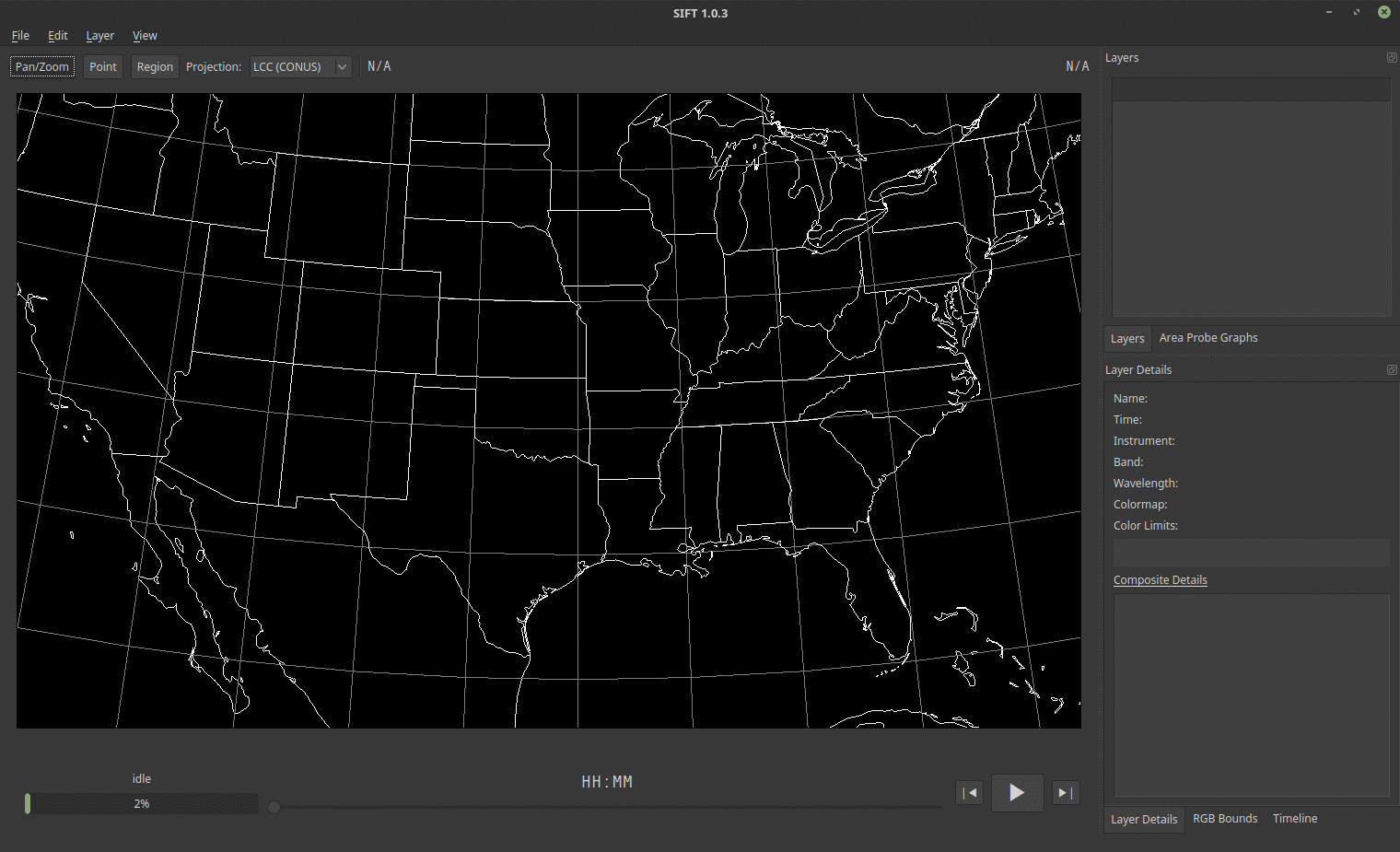
The image above shows SIFT. In addition to the main SIFT display, note other windows that -- upon opening -- are not populated with information (Yet): The 'Layers' window (upper right); the 'Area Probe Graphs' (upper right, underneath the 'Layers' window; you can bring it forward by clicking the tab); the 'Layer Details' window (center right); and 'Composite Details' that are in the lower right: 'Layer Details' ; 'RGB Bounds'; 'Timeline')
When you have data, under the 'File' Tab in the SIFT window, click on File-Open (or CTRL-O) and select the netCDF files on your computer that you have acquired from CLASS. If you’ve downloaded the data below, you can also ‘Open from Cache’ or ‘Open Recent’. SIFT also allows you to open Himawari imagery -- but you have to configure the data to something resembling the GOES-R files first, using AXI-tools that are available at SSEC/CIMSS.
When data have been loaded, the ‘Layers’ and ‘Layer Details’ windows within the SIFT display will contain information. In the example below, all 16 ABI channels from 15:07:19 on November 2017 have been loaded. Note that Band 1 is highlighted – in blue – in the ‘Layers’ list – this means it’s being displayed. The check marks in the other bands means they are ready to be displayed if you animate this field (in which case you’ll see all 16 bands sequentially) or if you hit the ‘Pg Up’ key (Up Arrow) or ‘Pg Dn’ key (Down Arrow) on the keyboard to cycle through the bands. (If you load multiple times, the Right/Left arrows change view of the scene to the next/previous time, respectively). If the Check Box is checked, then the top-most check-box will be what you see on the screen. When SIFT animates, you’ll note that check boxes are turned off. You can also turn them off manually by clicking on them, toggling them off.
There are a couple of YouTube tutorials available. A shorter video describes how to use SIFT to create the Split Window Difference that can be used to detect dust (or moisture differences) in the atmosphere. (Link). A second video describes how to create an Air Mass RGB. (Link).