Getting started
First, download the the latest Gaia Framework MXP file and install it. Once Gaia is installed, launch Flash and in the top menu select Windows > Other Panels > Gaia Framework. You may also want to clear your ASO files, as well.
All set? Let's get started!
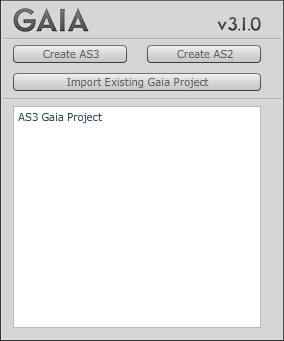 The first step in creating a new Gaia project is to pick which version of Actionscript you want to use. Click Create AS3 or Create AS2. This will take you to the Project Panel.
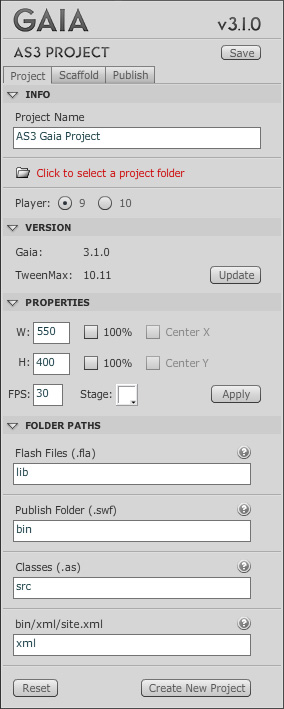
- The lib folder contains main.fla, preload.fla.
- The bin folder is where all the published files go
- The src folder contains all the class files for the framework
- The templates folder contains template fla and class files
- The project.gaia folder is an xml configuration file that contains all the information about your project.
Gaia uses an XML file to define the site structure called site.xml.
Open the site.xml file in your favorite xml editing program. The default site.xml looks like this:
  <site title="Gaia Scaffold Site: %PAGE%" menu="true">
      <page id="index" src="background.swf">
          <page id="nav" src="nav.swf" depth="top">
              <page id="home" title="Home" src="home.swf" menu="true"/>
          </page>
      </page>
  </site>
Gaia uses branches (like a tree) as a metaphor for how it structures sites. Branches work like folder paths and urls, with forward slashes separating each page id.
The above xml is a site with only a single branch: "index/nav/home".
A branch consists of page nodes, each of which can have any number of other page nodes as their children. Each page node represents a swf that will load in as part of that branch.
Gaia loads entire branches, from the index page to the final page of a single branch (the terminal page). In the above example, you could not load the branch "index/nav" because the page "nav" has at least one child, in this case a page with an id of "home". If you try to load "index/nav" Gaia will automatically load "index/nav/home". You can override this behavior by using the landing attribute in the page node.
Detailed information about the site.xml nodes and their attributes can be found in the Site-XML section of the documentation.
Before we start customizing the site.xml, let's take a look at its structure and how that relates to how Gaia loads in content. Gaia loads files in order from the top of a branch to the bottom, stacking the swfs so that the child clips are on top of their parent clips. You can override this behavior using the depth attribute as described below.
The root node of the site.xml is called <site></site>. The <site></site> node has no required attributes, and has the optional title and menu attributes set for you.
The first child of the <site></site> node is a <page></page> node with the id="index". One of Gaia's few conventions is to name the first page "index".
The "index" page is special for two reasons: it can be set to load by itself and transition in before any other pages are loaded, and it also loads in behind every other page by default.
In the template site.xml, the first child of the "index" page is a page node with the id "nav". The "nav" page has been set up to function as global navigation: it loads in above all other pages by setting the optional "depth" attribute to "top" and, more importantly, in this configuration it is persistent because it is the only child of the "index" page and is therefore part of every branch in the tree below it.
The next child page is our last page in the example branch and, in this case, is called "home". This page has a title attribute set to "Home". This will appear in the browser title bar where you see the string token %PAGE% in the site node attribute title. This is also known as a "terminal page" as it is the last child in a branch.
Only the terminal pages of a branch (or pages with landing="true") will have their title displayed in the browser title bar, so you only need to put a title on terminal pages to have it replace the %PAGE% token.
The preloader passes the titles of individual pages it is loading on its progress event, so if you want to put a title on every page for this purpose, you can, and this topic is covered in the Preloader section of the documentation.
A site with only one branch isn't much of a site, so let's add some more pages!
&amp;amp&#59;lt&amp;&#35;59&#59;site title&amp;amp&#59;&amp;&#35;35&#59;61&amp;&#35;59&#59;&amp;amp&#59;quot&amp;&#35;59&#59;Gaia Scaffold Site&amp;amp&#59;&amp;&#35;35&#59;58&amp;&#35;59&#59; %PAGE%&amp;amp&#59;quot&amp;&#35;59&#59; menu&amp;amp&#59;&amp;&#35;35&#59;61&amp;&#35;59&#59;&amp;amp&#59;quot&amp;&#35;59&#59;true&amp;amp&#59;quot&amp;&#35;59&#59;&amp;amp&#59;gt&amp;&#35;59&#59;
&amp;amp&#59;lt&amp;&#35;59&#59;page id&amp;amp&#59;&amp;&#35;35&#59;61&amp;&#35;59&#59;&amp;amp&#59;quot&amp;&#35;59&#59;index&amp;amp&#59;quot&amp;&#35;59&#59; src&amp;amp&#59;&amp;&#35;35&#59;61&amp;&#35;59&#59;&amp;amp&#59;quot&amp;&#35;59&#59;background.swf&amp;amp&#59;quot&amp;&#35;59&#59;&amp;amp&#59;gt&amp;&#35;59&#59;
&amp;amp&#59;lt&amp;&#35;59&#59;page id&amp;amp&#59;&amp;&#35;35&#59;61&amp;&#35;59&#59;&amp;amp&#59;quot&amp;&#35;59&#59;nav&amp;amp&#59;quot&amp;&#35;59&#59; src&amp;amp&#59;&amp;&#35;35&#59;61&amp;&#35;59&#59;&amp;amp&#59;quot&amp;&#35;59&#59;nav.swf&amp;amp&#59;quot&amp;&#35;59&#59; depth&amp;amp&#59;&amp;&#35;35&#59;61&amp;&#35;59&#59;&amp;amp&#59;quot&amp;&#35;59&#59;top&amp;amp&#59;quot&amp;&#35;59&#59;&amp;amp&#59;gt&amp;&#35;59&#59;
&amp;amp&#59;lt&amp;&#35;59&#59;page id&amp;amp&#59;&amp;&#35;35&#59;61&amp;&#35;59&#59;&amp;amp&#59;quot&amp;&#35;59&#59;people&amp;amp&#59;quot&amp;&#35;59&#59; src&amp;amp&#59;&amp;&#35;35&#59;61&amp;&#35;59&#59;&amp;amp&#59;quot&amp;&#35;59&#59;people.swf&amp;amp&#59;quot&amp;&#35;59&#59;&amp;amp&#59;gt&amp;&#35;59&#59;
&amp;amp&#59;lt&amp;&#35;59&#59;page id&amp;amp&#59;&amp;&#35;35&#59;61&amp;&#35;59&#59;&amp;amp&#59;quot&amp;&#35;59&#59;friends&amp;amp&#59;quot&amp;&#35;59&#59; title&amp;amp&#59;&amp;&#35;35&#59;61&amp;&#35;59&#59;&amp;amp&#59;quot&amp;&#35;59&#59;Friends&amp;amp&#59;quot&amp;&#35;59&#59; src&amp;amp&#59;&amp;&#35;35&#59;61&amp;&#35;59&#59;&amp;amp&#59;quot&amp;&#35;59&#59;friends.swf&amp;amp&#59;quot&amp;&#35;59&#59; menu&amp;amp&#59;&amp;&#35;35&#59;61&amp;&#35;59&#59;&amp;amp&#59;quot&amp;&#35;59&#59;true&amp;amp&#59;quot&amp;&#35;59&#59;/&amp;amp&#59;gt&amp;&#35;59&#59;
&amp;amp&#59;lt&amp;&#35;59&#59;page id&amp;amp&#59;&amp;&#35;35&#59;61&amp;&#35;59&#59;&amp;amp&#59;quot&amp;&#35;59&#59;family&amp;amp&#59;quot&amp;&#35;59&#59; title&amp;amp&#59;&amp;&#35;35&#59;61&amp;&#35;59&#59;&amp;amp&#59;quot&amp;&#35;59&#59;Family&amp;amp&#59;quot&amp;&#35;59&#59; src&amp;amp&#59;&amp;&#35;35&#59;61&amp;&#35;59&#59;&amp;amp&#59;quot&amp;&#35;59&#59;family.swf&amp;amp&#59;quot&amp;&#35;59&#59; menu&amp;amp&#59;&amp;&#35;35&#59;61&amp;&#35;59&#59;&amp;amp&#59;quot&amp;&#35;59&#59;true&amp;amp&#59;quot&amp;&#35;59&#59;&amp;amp&#59;gt&amp;&#35;59&#59;
&amp;amp&#59;lt&amp;&#35;59&#59;page id&amp;amp&#59;&amp;&#35;35&#59;61&amp;&#35;59&#59;&amp;amp&#59;quot&amp;&#35;59&#59;tree&amp;amp&#59;quot&amp;&#35;59&#59; title&amp;amp&#59;&amp;&#35;35&#59;61&amp;&#35;59&#59;&amp;amp&#59;quot&amp;&#35;59&#59;The Family Tree&amp;amp&#59;quot&amp;&#35;59&#59; src&amp;amp&#59;&amp;&#35;35&#59;61&amp;&#35;59&#59;&amp;amp&#59;quot&amp;&#35;59&#59;familytree.swf&amp;amp&#59;quot&amp;&#35;59&#59;/&amp;amp&#59;gt&amp;&#35;59&#59;
&amp;amp&#59;lt&amp;&#35;59&#59;/page&amp;amp&#59;gt&amp;&#35;59&#59;
&amp;amp&#59;lt&amp;&#35;59&#59;/page&amp;amp&#59;gt&amp;&#35;59&#59;
&amp;amp&#59;lt&amp;&#35;59&#59;page id&amp;amp&#59;&amp;&#35;35&#59;61&amp;&#35;59&#59;&amp;amp&#59;quot&amp;&#35;59&#59;home&amp;amp&#59;quot&amp;&#35;59&#59; title&amp;amp&#59;&amp;&#35;35&#59;61&amp;&#35;59&#59;&amp;amp&#59;quot&amp;&#35;59&#59;Home&amp;amp&#59;quot&amp;&#35;59&#59; src&amp;amp&#59;&amp;&#35;35&#59;61&amp;&#35;59&#59;&amp;amp&#59;quot&amp;&#35;59&#59;home.swf&amp;amp&#59;quot&amp;&#35;59&#59; menu&amp;amp&#59;&amp;&#35;35&#59;61&amp;&#35;59&#59;&amp;amp&#59;quot&amp;&#35;59&#59;true&amp;amp&#59;quot&amp;&#35;59&#59;/&amp;amp&#59;gt&amp;&#35;59&#59;
&amp;amp&#59;lt&amp;&#35;59&#59;/page&amp;amp&#59;gt&amp;&#35;59&#59;
&amp;amp&#59;lt&amp;&#35;59&#59;/page&amp;amp&#59;gt&amp;&#35;59&#59;
&amp;amp&#59;lt&amp;&#35;59&#59;/site&amp;amp&#59;gt&amp;&#35;59&#59;
Now we've got a whopping three branches! They are
- "index/nav/people/friends"
- "index/nav/people/family/tree"
- "index/nav/home"
If you want to have a right-click context menu to navigate through your site, add the "menu" attribute to the site node and set it to "true".
If you want a particular page to show up in the right-click context menu, set menu="true" on the page node and give that page node a title.
Note: Pages without titles will not show up in the context menu.
Also, as you can see, the family page node has the context menu on it, but it is not the final page of that branch. That's fine because Gaia will show "Family" in the context menu, but it will navigate to "index/nav/people/family/tree".
Alright! We've got enough of a site structure to scaffold our test site so let's do it. Copy and paste the above xml into the site.xml file and save it.
left Ok, now it's time for the exciting part. Scaffolding!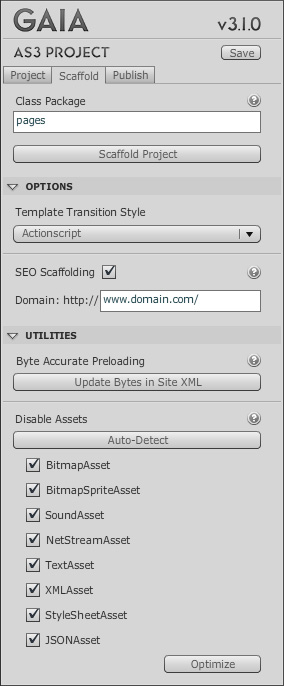
Go back into Flash and in the Gaia Framework panel. The Scaffold tab is selected already, and at the top is the Class Package input field with "pages" already filled in.
If you're not familiar with class packages, don't worry, it's easy. The basic rule to follow is take the client's website domain and reverse it, and then add the project name.
For instance, if your cilent's website is company.com, and the project is called website, your class package would be:
com.company.website
For Gaia projects, it is recommended to add "pages" to the end of your class packages. So, it would be:
com.company.website.pages
For now, leave the class package as the default "pages".
Now, all you have to do is click the Scaffold Project button and Gaia takes care of the rest!
Gaia Scaffolding creates all the FLAs for this site based on the .swf names in your site.xml. It sets up all their publish paths to the publish folder (bin), adds each of the page files to the Publish Panel, creates a class file for each page and sets the class as the document class of each Flash page. AS2 scaffolding creates exclude.xml files for each Flash page file to dramatically reduce swf file sizes.
Once it's done generating all the site files, the Publish tab becomes available, and Gaia publishes the entire site and launches main.fla.
Using your right click-menu, you can navigate through the site and watch the sections transition in and out as you do.
You can open the lib and bin folders and see all the Flash and swf files, and you can look inside the src folder for the "pages" folder and see all the page classes Gaia generated, named after each page id.
Congratulations, you've just built your first Gaia Framework site in just a few minutes!
Now, it's time to head to the Pages documentation to learn more about how Gaia works.