
GWASViewer is a Google Web Toolkit (GWT) widget for displaying interactive Manhattan plots. It is a composite of multiple different GWT widgets:
- dygraphs-gwt as the actual Manhattan plot and statistic plots
- GeneViewer as the gene annotation track
- LDViewer as a LD triangle viewer
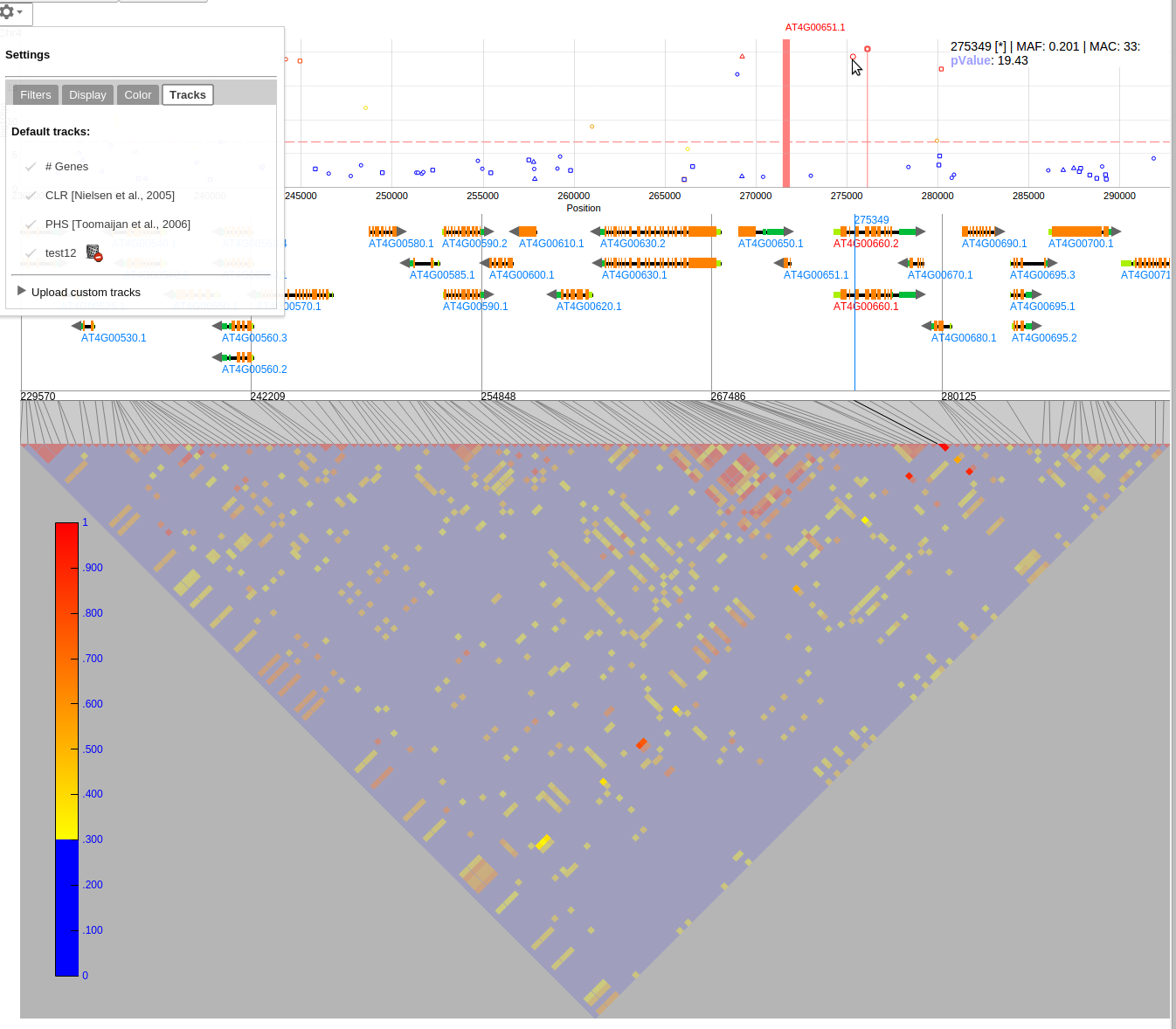
Following minimum steps are required:
// create a GeneDataSource for the `GeneViewer` to dynamically fetch genes
final GeneDataSource geneDataSource = new GeneDataSource() {
    @Override
    public void fetchGenes(String chr, int start, int end, boolean getFeatures, FetchGenesCallback callback) {
        // fetch the genes for the provided region from the backend for example
    }
    @Override
    public void fetchGeneInfo(String name, FetchGeneInfoCallback callback) {
        // fetch the gene info/description for the specific gene name
    }
};

// the default color of the Manhattan plot is blue and the marked regions are green
GWASViewer viewer = new GWASViewer("Chr1",new String[]{"blue"},"green",geneDataSource);

// draw the manhattan plot
viewer.draw(dataTable, maxScore, fdrThreshold, chrLengths);GWASViewer can display a list of tracks when the user opens the settings popup.
The user can set this list by using the setTracks function:
Tracks[] listOfTracks = // get from server for example
viewer.setTracks(listOfTracks);
When the user selects a track from the popup, an SelectTrackEvent event will be fired. The user can handle the event
retrieve the data from the backend and then call setTrackData to display the track:
viewer.addHandler(new SelectTrackEvent.Handler() {
     @Override
     public void onSelectTrack(SelectTrackEvent event) {
        DataTable dataTable = //get track data from backend for example
        viewer.setTrackData(event.getId(),event.isStacked(),dataTable);
     }
},SelectTrackEvent.getType());
The track data has to be provided as a gwt-charts DataTable object with 2 columns (position, and value).
To display the LD triangle plot use the loadLDPlot function and for coloring the Manhattan plots based on LD
the user can use showColoredLDValues. For more information refer to the LDViewer documentation.
To highlight one or multiple regions, use the addDisplayFeature function and to clear it use clearDisplayFeatures():
viewer.addDisplayFeature(new DisplayFeature("AT4G00651.1", 271486, 271879, "red"), true);
viewer.addDisplayFeature(new DisplayFeature("Some interesting region", 8753993, 9241760, "green"), true);
To select one or more SNPs use setSelections and to clear clearSelections():
selections.add(148);
selections.add(1220);
selections.add(2240);
// false will redraw after SNPs are select. If it is set to true, use viewer.refresh() to update the plot
viewer.setSelections(selections,false); By default the DefaultTrackUploadWidget is displayed. It supports uploading to a backend or to the local storage.
The upload url can be changed with setDefaultTrackUploadUrl. The file has to be a comma separated file that can be either
provided by URL or by selecting it with the a file input.
When the user uploads a track the UploadTrackEvent is fired.
To implement a custom upload widget, create a Composite that implements the UploadTrackWidget marker interface
and use the setUploadTrackWidget. To disable the upload functionality call the function with null.
See the sample app below for an example how to use those events
| Event | When fired ? | Parameters | Component |
|---|---|---|---|
| ClickGeneEvent | When the user clicks on a gene in the gene annotation track | Gene instance |
GeneViewer |
| HighlightGeneEvent | When the user moves the mouse over a gene in the gene annotation track | Gene instance |
GeneViewer |
| UnhighlightGeneEvent | When the user moved out of a gene in the gene annotation track | - | GeneViewer |
| ZoomChangeEvent | When the user changes the zoom level of the Manhattan plot | start and end | GWASViewer |
| HighlightPointEvent | When the user highlights a point in the Manhattan plot | x, Point[], row, seriesName | GWASViewer |
| ClickPointEvent | When the user clicks on a point in the Manhattan plot | x, Point[] | GWASViewer |
| SelectTrackEvent | When the user selects a track from the settings popup | id | GWASViewer |
| UploadTrackEvent | When the user uploads a custom track | - | GWASViewer |
| DeleteTrackEvent | When the user deletes a custom track | id | GWASViewer |
If you're using Maven, you can add the following to your <dependencies>
section:
    <dependency>
      <groupId>com.github.timeu.gwtlibs.gwasviewer</groupId>
      <artifactId>gwasviewer</artifactId>
      <version>1.0.0</version>
    </dependency>
GeneViewer uses GWT 2.8's new JSInterop feature and thus it has to be enabled in the GWT compiler args. For maven:
<compilerArgs>
    <compilerArg>-generateJsInteropExports</compilerArg>
</compilerArgs>
or passing it to the compiler via -generateJsInteropExports
You can also download the jar directly or check out the source using git from https://github.com/timeu/gwasviewer.git and build it yourself. Once you've installed LDViewer, be sure to inherit the module in your .gwt.xml file like this:
<inherits name='com.github.timeu.gwtlibs.gwasviewer.GWASViewer'/>- Check out the sample app (Source Code) for a full example of using GeneViewer.