Skip to content

TokenLook ‐ TokenUse

vrikodar edited this page Jun 21, 2026 · 29 revisions

Introduction

This directory inside the main repository contains source code files and configuration files, which will use the JWT tokens to perform mail related actions.

The main.py file

  • This is the main source file which calls multiple methods and functions which are implemented in the tokenlook.py file
  • The file is intended for the command line interface of the tool, and currently takes no command line arguments

The tokenlook.py file

The app.py file

The tokenlook_config.json configuration file

  • The example structure of the JSON configuration is below
{
  "current_jwt": ["JWT-VALUE1", "JWT-VALUE2"],
  "data_dir": "local_data",
  "proxy": ["http://127.0.0.1:8080", "PROXY2", "PROX3"],
  "mail_numb": 10,
  "keyword_search": ["pass", "username", "credentials", "key"]
}
Example execution

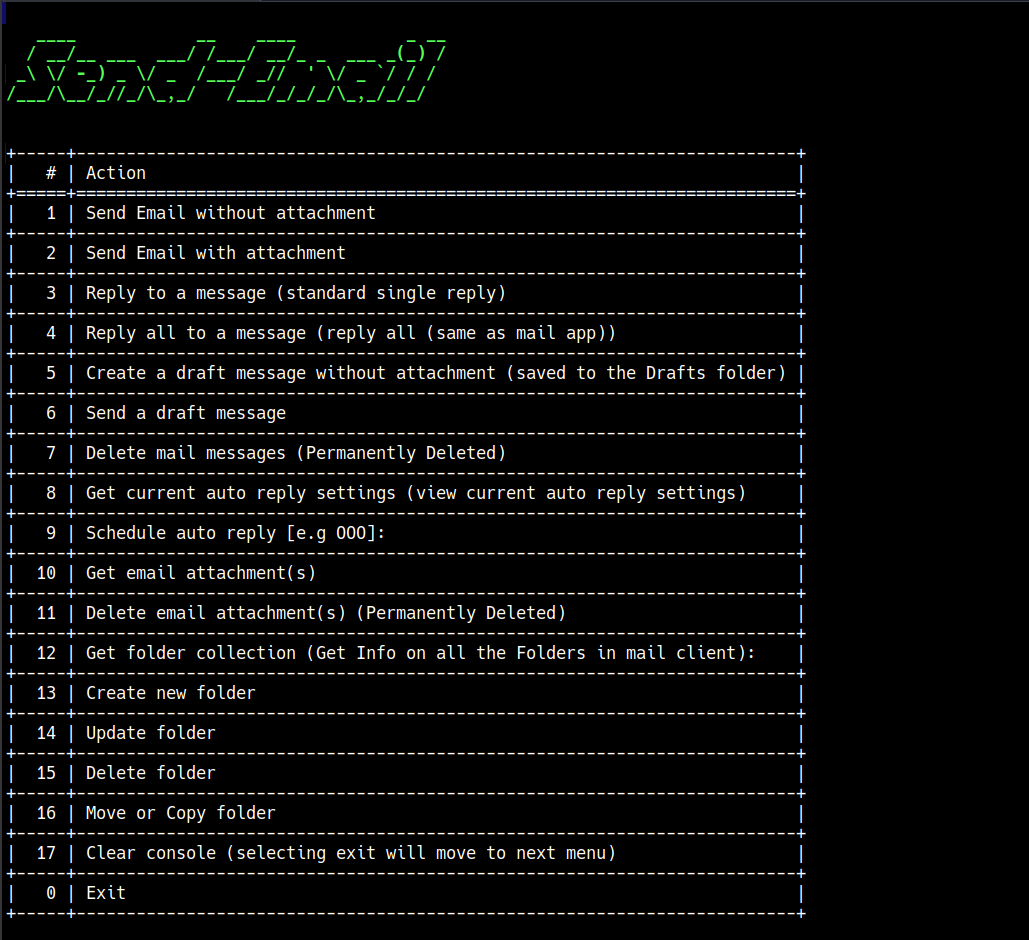
The Send-Email menu

Send-Email Menu

  • Once the tool is finished extracting number of emails specified in the config file for all the JWT user contexts
  • It will automatically run the Send-Email menu
  • The Send-Email menu is what allows the user to perform various mail related action
  • Currently the menu has 18 options out of which 16 are mail related activities

Send Email without attachment - Menu option1

Send Email with attachment - Menu option2

Reply to a message (standard single reply) - Menu option3

Reply all to a message (reply all (same as mail app)) - Menu option4

Create a draft message without attachment (saved to the Drafts folder) - Menu option5

Send a draft message - Menu option6

Delete mail messages (Permanently Deleted) - Menu option7

Get current auto reply settings (view current auto reply settings) - Menu option8

Schedule auto reply [e.g OOO] - Menu option9

Get email attachment(s) - Menu option10

Delete email attachment(s) (Permanently Deleted) - Menu option11

Get folder collection (Get Info on all the Folders in mail client) - Menu option12

Create new folder - Menu option13

Update folder - Menu option14

Delete folder - Menu option15

Move or Copy folder - Menu option16

Clone this wiki locally