TokenLook ‐ TokenUse
This directory inside the main repository contains source code files and configuration files, which will use the JWT tokens to perform mail related actions.
- This is the main source file which calls multiple methods and functions which are implemented in the
tokenlook.pyfile - The file is intended for the command line interface of the tool, and currently takes no command line arguments
- Source code implementing most API methods of the Outlook REST API.
- Also implements other misc functions used in the
main.pyfile - This file has reusable classes and functions, they will also be used in the
app.py, which is the WebUI version of the tool
- WebUI implementation of the TokenLook tool
- The example structure of the JSON configuration is below
{
  "current_jwt": ["JWT-VALUE1", "JWT-VALUE2"],
  "data_dir": "local_data",
  "proxy": ["http://127.0.0.1:8080", "PROXY2", "PROX3"],
  "mail_numb": 10,
  "keyword_search": ["pass", "username", "credentials", "key"]
}-
current_jwt: specify single or multiple JWT token values, the token values could be for different user accounts -
data_dir: specify the directory path to which the tool will save emails extracted in JSON format, as well as attachments extracted on demand -
proxy: specify the proxy to tunnel traffic through, leave empty to avoid using any proxy. Useful for debugging traffic, by using proxies such as BurpSuite -
mail_num: specify the maximum number of emails to extract, minimum value requirement is 10. Note that the tool extracts the emails universally, without specifying any specific folder such as Inbox or DRAFT. The maximum number specified here will be extracted globally, combined from all folders. -
keyword_search: specify a list of words to search inside the extracted emails, useful for scenarios such as looking for clear text credentials inside email content
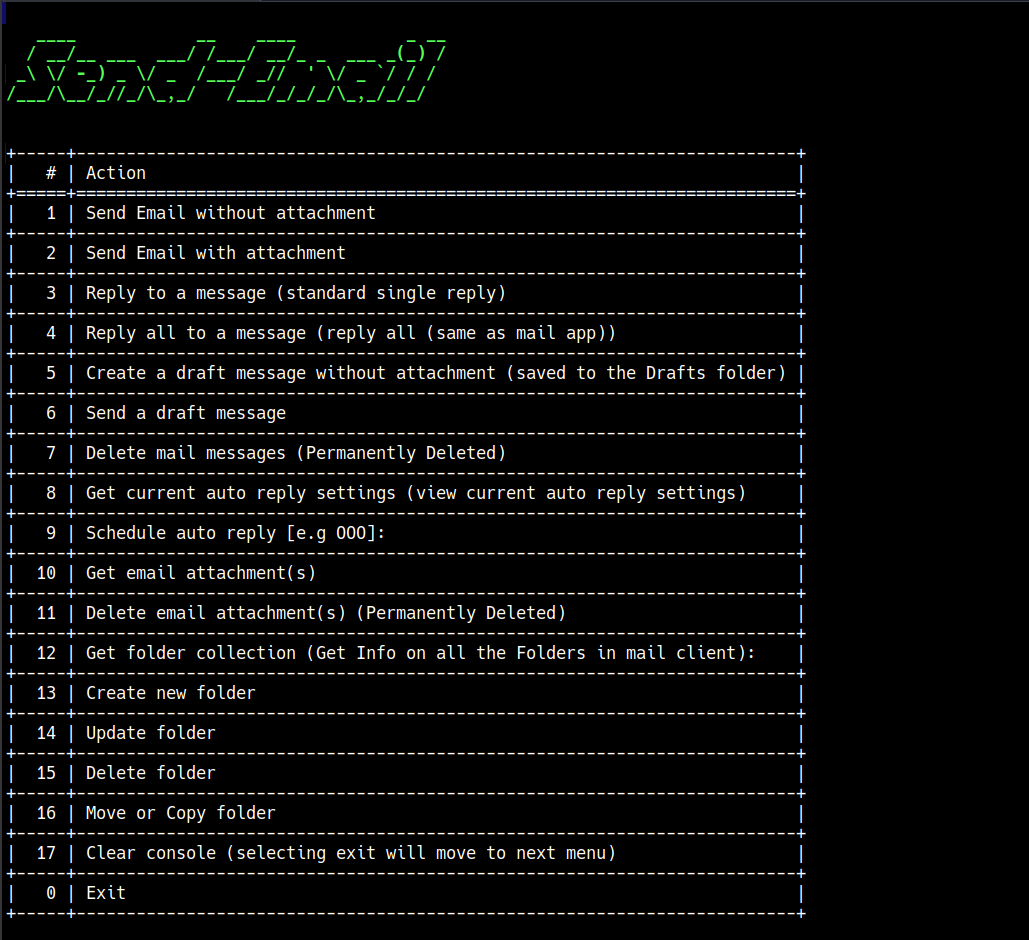
- Once the tool is finished extracting number of emails specified in the config file for all the JWT user contexts
- It will automatically run the
Send-Emailmenu - The
Send-Emailmenu is what allows the user to perform various mail related action - Currently the menu has
18options out of which 16 are mail related activities