
A Linux like shell for windows with some extras. The goal was to have a almost like exprience how the bash shell works on linux, a bit modified, but with same simplicity. And works perfect as a layer over Powershell and CMD.

.NET 10 SDK
xTerminal checks the latest GitHub release when an interactive session starts. If a newer version is available, it displays the current and latest versions and asks whether you want to update.
Choose Y to start the updater. The updater downloads the package for the detected Windows architecture (x64 or x86), verifies the release asset's SHA-256 digest, installs the new files, and restarts xTerminal. Choose N to skip the update and continue the current session.
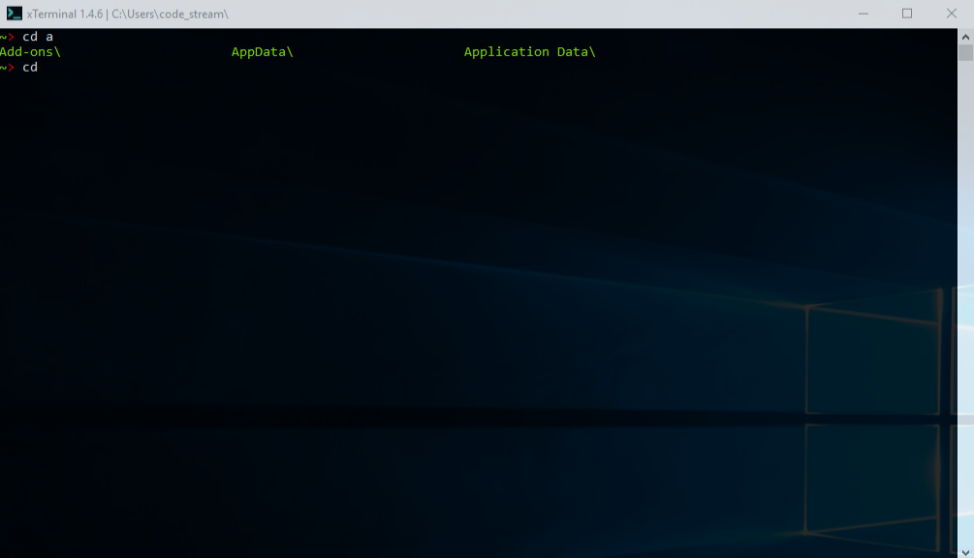
xTerminal accepts auto suggestion for file and folder (depends on command use case) on following comands: cd, cat, ls, odir, hex, mv, fcopy, fmove, md5, edit, start, cp, del, ccs, sort, xcel, ln, exif
Example:
~> cd win
Double press TAB key and will suggest you all the directories that starts with the letters 'win' from current location.
~> ./ ap
Double press TAB key and will suggest you all the files that starts with the letters 'ap' from current location.
This is the full list of commands that can be used in xTerminal:
------------------------ System ------------------------
ls -- List directories and files on a directory. Use -h for additional parameters.
-h : Displays this message.
-d : Display only directories.
-f : Display only files.
-dup : Display duplicate files in a directory and subdirectories.
Example1: ls -d <directory_path>
Example2: ls -d -e <directory_path> (scans for duplicate files with same extension)
Example3: ls -d <directory_path> -o <file_to_save>
Example4: ls -d -e <directory_path> -o <file_to_save> (scans for duplicate files with same extension).
Example5: ls -d -length (sets the length of bytes from where will be the MD5 hash extracted. If is set to 0 or less than will scan the entire file.)
-s : Displays size of files in current directory and subdirectories.
-c : Counts files and directories and subdirectories from current directory.
-cf : Counts files from current directory and subdirectories with name containing a specific text.
Example: ls -cf <search_text>
-cd : Counts directories from current directory and subdirectories with name containing a specific text.
Example: ls -cd <search_text>
-ct : Display creation date time of files and folders from current directory.
-la : Displays last access date time of files and folders from current directory.
-hl : Highlights specific files/directories with by a specific text. Ex.: ls -hl <higlighted_text>
-o : Saves the output to a file. Ex.: ls -o <file_to_save>
-t : Display tree structure of directories. Use with param -o for store the output in a file: Ex.: ls -t -o <file_name>
Use -l to set the depth of the tree structure. Ex.: ls -t -l 2
-n : Displays only names of files and directories.
ch -- Displays a list of previous commands typed in terminal. Use -h for additional parameters.
For display the last X commands that was used: ch x(numbers of commands to be displayed)
-h : Displays this message.
-d : Displays the date when the command was executed. Can be used with x(numbers of commands to be displayed) as well.
-sz : Set the limit of commands that can be stored in history. Default set is 2000.
Example: ch -sz 1000
-rz : Read the limit of commands that can be stored in history.
chistory -- Clears the current history of commands!
./ -- Starts an application. Ex.: ./ <file_name> OR ./ <file_name> -param <file_paramters>.
Can be used with the following parameters:
-h : Displays this message.
-u : Can run process with different user.
-we : Disable wait for process to exit.
-wi : Show new process window.
-swd : Set working directory for the process.
-wd : Check current working directory for the process.
-param: ./ process with specified parameters.
Example1: ./ -u <file_name>
Example2: ./ -u <file_name> -param <file_paramters>
Both examples can be used with -we parameter.
kill -- Kills a running process by name or id.
Example:
kill <process_name>
kill <process_name> -e : Kill entire process tree.
kill -i <process_id>
kill -i <process_id> -e : Kill entire process tree.
plist -- List current running processes and their child processes in a tree views.
Example:
C:\Users\MrX\Projects\~ $ plist
├─ csrss.exe (936)
└─ wininit.exe (848)
├─ services.exe (1140)
│ ├─ svchost.exe (1348)
│ │ ├─ WmiPrvSE.exe (4588)
clear -- Clears the console.
cd -- Sets the currnet directory. (cd .. for parent directory).
odir -- Open current directory or other directory path provided with Windows Explorer.
ps -- Opens Windows Powershell. It can use PowerShell commands:
Example: ps <ps_command_>
cmd -- Opens Windows Command Prompt. It can use Command Prompt commands:
Example: ps <cmd_commmand>
ver -- Displays the xTerminal version.
reboot -- Reboot the Windows OS. Use -h for additional parameters.
reboot : reboots system normaly.
reboot -f : force reboots system.
reboot -m <remotePC> : reboot a remote system normaly.
reboot -f -m <remotePC> : force reboot a remote system normaly.
shutdown -- Shutdown the Windows OS. Use -h for additional parameters.
shutdown : shutdown system normaly.
shutdown -f : force shutdown system.
shutdown -m <remotePC> : shutdown a remote system normaly.
shutdown -f -m <remotePC> : force shutdown a remote system normaly.
sleep -- Sleep/Hibernate the Windows OS.
logoff -- It force logoff current user.
lock -- Locks the screen(similar to Win+L key combination).
bios -- Displays BIOS information on local machine or remote. Use -h for additional parameters.
-h : Displays this message.
-r : Displays BIOS information on a remote pc.
sinfo -- Displays Storage devices information on local machine or remote. Use -h for additional parameters.
-h : Displays this message.
-r : Displays Storage devices information on a remote pc.
hex -- Display a hex dump of a file.
-o : Saves the output to a file. Ex.: hex <file_name> -o <file_to_be_saved>
pcinfo -- Display System Information.
nt -- Starts new xTerminal console.
-u : Starts new xTerminal console with other user option.
alias -- Create alias commands for built in xTerminal commands.
-add : Creates a alias command with parammeters (alias <commandName>*<parameters>).
Example: alias -add lz*ls -s (Creates a command lz that will run parameter ls -s)
-del : Deletes a alias command.
Example: alias -del lz (Deletes lz command and parameters for it.)
-update: Update a alias command.
Example: alias -update lz*ls -ct (Updates command lz with new parameters. Works if command already exist!)
-list : List all alias commands.
-clear : Clears all alias commands.
Alias commands can use internal parameters with % character. % will take the input and pass to internal command.
Example:
~ $ alias -add np * cmd start %
~ $ np notepad
Attention: Alias commands cannot overwrite terminal commands!
shred -- Overwrites and deletes a file that will be difficult to recover after. Use -h for additional help.
Example: shred <file_path> : Will shred the file with the default of 3 passes.
-i : Will shred the file with the specified number!
Example: shred <file_path> -i <number_of_passes>
file -- Check file type singatures (magic numbers). Use -h for additional help.
file <file_path> : Display file path, extension, hex signature, and signature description.
file <file_path> -ext : Display extension only.
file -h : Display this help message.
Hex signature list is based on https://en.wikipedia.org/wiki/List_of_file_signatures
pwd -- Prints current working directory.
cal -- Display current date calendar.
cal month-year : Display calendar of a specific year and month.
Example : cal 02-2023
time -- Display current time.
sc -- Manage local or remote computer services (Requires administrator privileges).
Local:
-list : List all local services names, status and description running on computer.
-list --noinfo: List all local services names running on computer.
-des <service_name> : Return the description for a specific service.
-status <service_name> : Return the state for a specific service.
-stop <service_name> : Stops a specific service.
-start <service_name> : Starts a specific service.
-restart <service_name> : Restarts a specific service.
Remote:
-list -r <machine_name/IP> : List all local services names, status and description running on a remote computer.
-list --noinfo: List all local services names running on a remote computer.
-des <service_name> -r <machine_name/IP> : Return the description for a specific service.
-status <service_name> -r <machine_name/IP> : Return the state for a specific service.
-stop <service_name> -r <machine_name/IP> : Stops a specific service.
-start <service_name> -r <machine_name/IP> : Starts a specific service.
-restart <service_name> -r <machine_name/IP> : Restarts a specific service.
fw -- Manage local firewall rules
-list : List all firewall rules.
-list -in : List all inbound firewall rules.
-list -out : List all outbound firewall rules.
-add : Add firewall rule with following options:
-n : Set rule name.
-e : Enable or disable the rule. Ex.: -e true or -e false. (Default true)
-p : Set path to application executable.
-pf : Set profile code. (See list bellow).
-di : Set rule direction. Ex.: -di IN or -di OUT. (IN = inbound, OUT = Outbound)
-a : Set action. Ex.: -a allow or -a block
-lP : Set local port.
-rP : Set remote port.
-lA : Set local address.
-rA : Set remote address.
-pr : Set protocol code. (See list bellow).
-de : Set description.
Example : fw -add -n New Rule -p c:\a b\test.exe -e true -pf 3 -pr 17 -di IN -a block -de Block test.exe for private connections type UDP.
-del : Removes firewall rule by name.
-en : Enable firewall rule by name.
-dis : Disable firewall rule by name.
Profiles code:
1 : Domain
2 : Private
3 : Domain, Private
4 : Public
5 : Domain, Public
6 : Private, Public
7 : All
Protocols code:
-1 : Unknown
0, 256 : ANY (default)
1 : ICMPv4
2 : IGMP
4 : IPv4
6 : TCP
17 : UDP
41 : IPv6
47 : GRE
58 : ICMPv6
Note: Requires administrator privileges.
enc -- Set input/output encoding for xTerminal.
enc defalut : Set input/output encoding to default .NET encoding.
enc utf8 : Set input/output encoding to UTF8.
enc unicode : Set input/output encoding to Unicode.
enc ascii : Set input/output encoding to ASCII.
enc -current : Show the current input/output encoding.
ln -- Create shortcut of a file/folder.
ln <path_file_folder> : Create shortcut of a specific file/directory on Desktop.
ln <path_file_folder> -o <path_location_shortcut> : Create shortcut in a specific location.
zip -- Create Zip archive files.
zip <file_/directory_name> -n <name_of_archive> : Creates zip archive with the file/folder mentioned.
zip <file*dir*dir1*file1> -n <name_of_archive> : Creates zip archive with the multiple files/folders mentioned.
zip -list <zip_file_path> : Lists the content of the Zip archive file.
zip -x <zip_file_path> : Decompress zip archive.
zip -c : Sets the compression level (default is Fastest). Example: zip -c s
Compression levels:
o - Optimal
nc - NoCompression
f - Fastest
s - SmallestSize
tee -- Stores previous pipe command stdout to a file.
tee <file_name> : Writes previous command output to a file.
tee -a <file_name> : Appends previous command output to an existing file.
Example: ls | cat -t 10 | tee data.txt | cat -s exe
xclip -- Copies previous pipe command stdout to the clipboard and passes it through.
xclip : Copies previous command output to the clipboard.
xclip <text> : Copies the provided text to the clipboard.
Example: ls | xclip | cat -s .txt
bc -- Display running background commands.
hash -- Display the MD5, SHA256 and SHA512 hash of a file. Use -h for additional help.
hash <file_path> : display the MD5 hash for the file.
hash -sha256 <file_path> : display the sha256 hash for the file.
hash -sha512 <file_path> : display the sha512 hash for the file.
wtop -- Displays a list of running processes in a terminal UI. Use -h for additional help.
-h: Display this help message.
Inside the wtop command:
q : Quit the wtop interface.
↑/↓ : To navigate through the process list.
k : Kill the selected process.
/ : Search for a process by name.
C : Sort processes by CPU usage.
M : Sort processes by memory usage.
N : Sort processes by name.
ssh -- (Wrapper for built in) SSH, or Secure Shell, is a network protocol that provides a secure, encrypted way for computers to communicate over an unsecured network
env -- Manage environment variables across Process, User and System scopes. Use -h for additional help.
env : List all variables across Process, User and System sections.
env -t <user|system|process> : List variables for the specified scope only.
env [-t <scope>] get <NAME> : Get a variable's value.
env [-t <scope>] set <NAME> <VALUE> : Set (overwrite) a variable.
env [-t <scope>] del <NAME> : Delete a variable.
env [-t <scope>] addval <NAME> <VALUE> : Append an entry to a semicolon-separated variable (e.g. PATH).
env [-t <scope>] delval <NAME> <VALUE> : Remove an entry from a semicolon-separated variable.
env [-t <scope>] load <file> : Load variables from a .env file.
env [-t <scope>] export <file> : Export variables to a .env file.
Note: 'system' scope requires elevated (Administrator) privileges to write.
Example: env -t user addval PATH C:\MyTool\bin
Example: env -t system get PATH
watch -- Re-run a command at a fixed interval and refresh its output. Use -h for additional help.
watch -n <seconds> <command> : Run command every N seconds (default: 2).
watch -c <command> : Clear screen between runs.
Press Q or Esc to quit.
Example: watch -n 5 "plist"
note -- Persistent terminal notepad. Use -h for additional help.
note add <text> : Add a new note.
note list : List all saved notes with index.
note del <index> : Delete note at given index.
note clear : Delete all notes.
Example: note add Remember to update the config
fsmon -- Real-time file system monitor. Use -h for additional help.
fsmon [path] : Monitor the current (or given) directory for changes.
fsmon -r [path] : Monitor recursively including all sub-directories.
fsmon -l <logfile> [path] : Log events to a file in addition to the console.
fsmon -r -l <logfile> [path] : Recursive monitoring with logging.
fsmon -r [path] -l <logfile> : Flags can appear in any order, before or after the path.
Displays timestamp, event type (CREATED/DELETED/MODIFIED/RENAMED), actor user and path.
User shown from Security Event Log when elevated + Object Access auditing is enabled,
otherwise falls back to the file ACL owner.
Press Q or Esc to quit.
Examples:
fsmon -r C:\Projects\myapp
fsmon -l C:\logs\audit.log C:\Windows\Temp
fsmon -r C:\Users\<username>\Downloads -l C:\Users\<username>\audit.log
bench -- Benchmark a command by running it N times. Use -h for additional help.
bench -n <count> <command> : Run command N times and show min/avg/max/total timings.
Example: bench -n 10 "ls -s"
ctx -- Save and restore named terminal contexts (working directory + env vars). Use -h for additional help.
ctx save <name> : Save current directory and environment snapshot.
ctx load <name> : Restore a saved context.
ctx list : List all saved contexts.
ctx show <name> : Display a context without applying it.
ctx del <name> : Delete a saved context.
Example: ctx save myproject
chain -- Create and run named command chains. Use -h for additional help.
chain create <name> <cmd1 ; cmd2 ; ...> : Create a named chain of commands.
chain run <name> : Execute all commands in the chain sequentially.
chain add <name> <command> : Append a command to an existing chain.
chain show <name> : Display commands in a chain.
chain list : List all saved chains.
chain del <name> : Delete a chain.
Example: chain create deploy "ctx save pre ; cd src ; bench -n 3 dotnet build".
uninstall -- Uninstall installed applications. Use -h for additional help.
uninstall -list : List installed applications.
uninstall -list <filter> : List installed applications matching filter text.
uninstall <application_name> : Start the uninstaller for an installed application.
Example: uninstall "Google Chrome"
xup -- Check for new version of xTerminal and update it. Use -h for additional help.
xup -e : Enables checking for updates on startup.
xup -d : Disables checking for updates on startup.
xup -s : Check if auto-update is enabled or disabled.
xup -c : Checks for updates and displays the result.
---------------------- File System ---------------------
cat -- Displays the content of a file. Use -h for additional parameters.
-h : Displays this message.
-t : Displays first N lines from a file.
Example: cat -t 10 <path_of_file_name
-b : Displays last N lines from a file.
Example: cat -b 10 <path_of_file_name>
-l : Displays data between two lines.
Example: cat -l 10-20 <path_of_file_name>
-s : Outputs lines that contains/starts with/equals/ends with a provided text from a file.
Example1: cat -s <search_text> -f <file_search_in> -- contains text
Example2: cat -s -st <search_text> -f <file_search_in> -- starts with text
Example3: cat -s -eq <search_text> -f <file_search_in> -- equals text
Example4: cat -s -ed <search_text> -f <file_search_in> -- ends with text
-so : Saves the lines that contains/starts with/equals/ends with a provided text from a file.
Example1: cat -so <search_text> -f <file_search_in> -o <file_to_save>
Example2: cat -so -st <search_text> -f <file_search_in> -o <file_to_save> -- starts with text
Example3: cat -so -eq <search_text> -f <file_search_in> -o <file_to_save> -- equals text
Example4: cat -so -ed <search_text> -f <file_search_in> -o <file_to_save> -- ends with text
-sa : Output lines that contains/starts with/equals/ends with a provided text from all files in current directory and subdirectories.
Example1: cat -sa <search_text>
Example2: cat -sa -st <search_text> -- starts with text
Example3: cat -sa -eq <search_text> -- equals text
Example4: cat -sa -ed <search_text> -- ends with text
Example5: cat -sa <search_text> -f <part_of_file_name>
Example6: cat -sa -st <search_text> -f <part_of_file_name> -- starts with text
Example7: cat -sa -eq <search_text> -f <part_of_file_name> -- equals text
Example8: cat -sa -ed <search_text> -f <part_of_file_name> -- ends with text
-sao : Saves the lines that contains/starts with/equals/ends with a provided text from all files in current directory and subdirectories.
Example1: cat -sao <search_text> -o <file_to_save>
Example2: cat -sao -st <search_text> -o <file_to_save> -- starts with text
Example3: cat -sao -eq <search_text> -o <file_to_save> -- equals text
Example4: cat -sao -ed <search_text> -o <file_to_save> -- ends with text
Example2: cat -sao <search_text> -f <part_of_file_name> -o <file_to_save>
Example3: cat -sao -st <search_text> -f <part_of_file_name> -o <file_to_save> -- starts with text
Example4: cat -sao -eq <search_text> -f <part_of_file_name> -o <file_to_save> -- equals text
Example5: cat -sao -ed <search_text> -f <part_of_file_name> -o <file_to_save> -- ends with text
-sm : Output lines that contains/starts with/equals/ends with a provided text from multiple fies in current directory.
Example1: cat -sm <search_text> -f <file_search_in1**file_search_in2*file_search_in_n>
Example2: cat -sm -st <search_text> -f <file_search_in1*file_search_in2*file_search_in_n> -- starts with text
Example3: cat -sm -eq <search_text> -f <file_search_in1*file_search_in2*file_search_in_n> -- equals text
Example4: cat -sm -ed <search_text> -f <file_search_in1*file_search_in2*file_search_in_n> -- ends with text
-smo : Saves the lines that contains/starts with/equals/ends with a provided text from multiple files in current directory.
Example1: cat -smo <search_text> -f <file_search_in1*file_search_in2*file_search_in_n> -o <file_to_save>
Example2: cat -smo -st <search_text> -f <file_search_in1*file_search_in2*file_search_in_n> -o <file_to_save> -- starts with text
Example3: cat -smo -eq <search_text> -f <file_search_in1*file_search_in2*file_search_in_n> -o <file_to_save> -- equals text
Example4: cat -smo -ed <search_text> -f <file_search_in1*file_search_in2*file_search_in_n> -o <file_to_save> -- ends with text
-lc : Counts all the lines(without empty lines) in all files on current directory and subdirectories.
-lfc : Counts all the lines(without empty lines) that contains a specific text in file name in current directory and subdirectories.
Example: cat -lfc <file_name_text>
-con : Concatenate text files to a single file.
Example: cat -con file1*file2*file3 -o fileOut
Parameters -st, -eq, -ed can be used with text pattern(text between ') like:
Exammaple: cat -s -st 'text;c' -f file.txt to not treat ';' as a coommand separator
mkdir -- It creates a directory in the current place.
mkdir dir_name : Create one directory.
mkdir dir_name1*dir_name2*dir_name3 : Create multiple directories.
mkdir new*new2{snew1,snew3{dnew1,dnew3}}*new3{rnew1{tne1,tne2},rnew2} : Create directories with nested subdirectories.
Root directories are splitted with '*'
Sub directoriers must be between '{' '}' and splited by ','
mkfile -- It creates a file in the current place.
mkfile <file_name> : Create one file.
mkfile <file_name1*file_name2*file_name3> : Create multiple files.
fcopy -- Copies a file with CRC checksum control. Use -h for additional parameters.
-h : displays this message
-ca <destination_directory> : copy all files from current directory in a specific directory
-ca : copy source files in same directory
mv -- Renames a file or direcotry in a specific directory(s).
Example: mv <old_file/dir_name> -o <new_file/dir_name>
fmove -- Moves a file with CRC checksum control. Use -h for additional parameters.
-ma <destination_directory> : moves all files from current directory in a specific directory
edit -- Sets a text editor for open files(default is notpead). Usage: edit <file_path>
-set : Sets the text editor you want to use. (Default is notepad)
Example: edit -set <path_to_editor_binary>
-current : Displays the current used editor.
-h : Displays this message.
del -- Deletes a file or folder without recover. Use -h for additional parameters.
-h : Displayes this message.
-a : Deletes all files and directories in current directory.
-af : Deletes all files in current directory.
-ad : Deletes all directories in current directory.
Example1: del <dir_path>
Example2: del <dir_path1*dir_path2*dir_path3>
Pattern can be used to delete directories with special charaters. Directory name must be between ' character :
Example: del ';cd new2'
cp -- Check file/folder permissions.
md5 -- Checks the md5 checksum of a file. Use -h for additional parameters.
md5 <file_name> : Display the MD5 CheckSUM of a file.
md5 -d <dire_name> : Display the MD5 CheckSUM list of all the files in a directory and subdirectories.
md5 -d <dire_name> -o <save_to_file> : Saves the MD5 CheckSUM list of all the files in a directory and subdirectories.
sort -- Sorts ascending/descending data in a file. Use -h for additional help.
Example 1: sort -a filePath (Sort data ascending and displays it.)
Example 2: sort -a filePath -o saveFilePath (Sort data ascending and saves it to a file.)
Example 3: sort -d filePath (Sort data descending and displays it.)
Example 4: sort -d filePath -o saveFilePath (Sort data descending and saves it to a file.)
locate -- Searches for files and directories, in the current directory and subdirectories that contains a specific text.
Example 1: locate <text> (Displays searched files/directories from current directory and subdirectories that includes a specific text.)
Example 2: locate <text> -o <save_to_file> (Stores in to a file the searched files/directories from current directory and subdirectories that includes a specific text.)
Parameters:
-s : Displays searched files/directories from the current directory and subdirectories that starts with a specific text.
Example 1: locate -s <text>
Example 2: locate -s <text> -o <save_to_file>
-e : Displays searched files/directories from the current directory and subdirectories that ends with a specific text.
Example 1: locate -e <text>
Example 2: locate -e <text> -o <save_to_file>
-eq : Displays searched files/directories from the current directory and subdirectories that equals a specific text.
Example 1: locate -eq <text>
Example 2: locate -eq <text> -o <save_to_file>
-d : Filter only directories. (Parameter should be added to end of command)
-f : Filter only files. (Parameter should be added to end of command)
echo -- Write/append data to a file.
echo <text> : Displays in console the <text> data.
> : Write data to a file.
Example: echo hello world > path_to_file
>> : Append data to a file.
Example: echo hello world >> path_to_file
-con : Concatenate files data to a single file.
Example: echo -con file1*file2 -o file3
-e : Displays text in console including Unicode escape sequances.
Example: echo -e <text>
diff -- Outputs the difference between two files.
Example 1: diff first_file_name*second_file_name : Display the difference from second file in comparison to first file.
Example 2: diff first_file_name*second_file_name -verbose : Display the entire second file with the difference in comparison to first file.
Example 3: diff first_file_name*second_file_name -f save_to_file_name : Saves to file the difference from second file in comparison to first file.
Example 4: diff first_file_name*second_file_name -f save_to_file_name -verbose : Saves to file the entire second file with the marked difference in comparison to first file.
exif -- Extracts image metadata.
Example : exif <path_to_iamge_file>.
xcel -- Opens spreadsheet files in a terminal grid editor.
Supported: .xlsx, .xlsm, .xltx, .xltm, .xls, .csv, .tsv, .txt
Example : xcel <spreadsheet_file>
Keys : Arrows move, Shift+Home/End jump top/bottom, mouse wheel scrolls, Shift+wheel scrolls columns, Shift+Arrows/mouse select, column click selects a column, Ctrl+C copy, Ctrl+S save.
Note : .xls save uses Excel XML format with the .xls extension.
pjson -- Prettify the JSON data.
Example 1: pjson <file_path> : Will prettify the JSON data and stores back in file.
Example 2: pjson <file_path> -o <new_file_path> : Stores the prettified JSON in new file.
attr -- Displays/Sets/Removes the current attributes of a file or directory
Example 1: attr -s <attribute list> : Sets the attribute/attributes to a file or directory. Attributes needs to be splited by ';' if more then 1 are added.
Example 2: attr -r <attribute list> : Remove the attribute/attributes to a file or directory. Attributes needs to be splited by ';' if more then 1 are added.
cmp -- Check if two files are identical by comparing MD5 hash.
Example: cmp <firstFile>*<secondFile>
waifu -- Host temporary files on https://waifuvault.moe/.
-cb : Create bucket.
-u : Upload file (From path or URL).
-b : Specify bucket token. (optional)
-p : Specify file password. (optional)
-o : One time download. (optional)
-e : Expire download link. A string containing a number and a unit (1d = 1day). Valid units are m, h and d. (optional)
-h : Hide file name.(optional)
-db : Delete bucket. Example : waifu -db <bucket_token>
-lb : List all files from bucket with detailed information: waifu -lb <bucket_token>
-df : Delete file. Example : waifu -df <file_token>
-gf : Get uploaded file information. waifu -gf <file_token>
-lr : List wifuvault restrictions types.
Example: waifu -u <file_path> -p <password> -b <bucket_token> -o -e 1h -h
fxp -- Opens built in console file explorer.
snap -- Directory snapshot and diff. Use -h for additional help.
snap save [name] : Snapshot the current directory (default name: 'default').
snap diff [name] : Compare the current state against a saved snapshot.
snap list : List all saved snapshots.
snap del <name> : Delete a snapshot.
Diff output uses labeled lines (added:/deleted:/modified:) and supports pipe filtering.
Example: snap save before-install
Example: snap diff before-install | cat -s deleted
---------------------- Networking ----------------------
ifconfig -- Display onboard Network Interface Cards configuration (Ethernet and Wireless)
ispeed -- Checks the internet speed with Google.
icheck -- Checks if a Domain or IP address is online.
extip -- Displays the current external IP address.
wget -- Download files from a specific website.
-h : Display this message.
--tls: Activate tls1,tls2,tls3 and ssl3
-o : Save to a specific directory.
Example2: wget <url> -o <directory_path>
WGet command can be used with --noping parameter to disable ping check on hostname/ip.
Example: wget <url> -o <directory_path> --noping
ping -- Pings a IP/Hostname.
Example 1: ping google.com (for normal ping with 4 replies)
Example 2: ping google.com -t 10 (for 10 replies)
Example 3: ping google.com -t (infinite replies)
Ping with -t can be canceled with CTRL+X key combination.
cport -- Checks if a specific port is open/closed on a Hostname/IP. Use -h for additional parameters.
Example 1: cport IPAddress/HostName -p 80 (checks if port 80 is open)
Example 2: cport IPAddress/HostName -p 1-200 (checks if any port is open from 1 to 200)
Example 3: cport stimeout 100 (Set check port time out in milliseconds. Default value is 500.)
Example 4: cport rtimeout (Reads the current time out value)
Cport check command can be used with --noping parameter to disable ping check on hostname/ip.
Example: cport IPAddress/HostName -p 80 --noping
wol -- Sends Wake over LAN packet to a machine.
Example 1: wol -ip IPAddress/HostName -mac MAC_Address : sends wake packet for ip/mac.
Example 2: wol -ip IPAddress/HostName -mac MAC_Address -port number_port : sends wake packet for ip/mac and custom WOL port.
dspoof -- The command detects MITM(man in the middle) attacks using ARP spoof method. Use -h for additional parameters.
trace -- Traces the route to a specific IP/Hostname. Use -h for additional parameters.
Example 1: trace google.com (for normal tracerout command)
Example 2: trace google.com -ipv6 (for IPv6 traceroute enabled)
Example 3: trace google.com -hops 50 (for traceroute with 50 hops)
Example 4: trace google.com -timeout 1000 (for traceroute with 1000 ms timeout)
Example 5: trace google.com -hops 50 -timeout 1000 -ipv6 (for traceroute with 50 hops, 1000 ms timeout and IPv6 traceroute enabled)
latmon -- Real-time multi-host latency monitor dashboard. Use -h for additional help.
Pings any number of hosts concurrently and shows a live table with sparkline history,
current / avg / min / max latency, and packet loss — colour-coded by latency tier.
Colour tiers: green <50ms · yellow 50-150ms · red >150ms · gray timeout
Sparkline chars: ▁▂▃▄▅▆▇█ (· = timed-out probe)
latmon <host1> [host2] ... : Monitor at 1-second interval.
latmon -n <ms> <host1> [host2] ... : Custom interval in milliseconds.
Example: latmon google.com cloudflare.com 8.8.8.8
Example: latmon -n 500 192.168.1.1 192.168.1.254
Supports pipe output (one probe round, labeled lines):
Example: latmon google.com 8.8.8.8 | cat -s timeout
---------------- TermXT / C# Code Runner and Add-ons -------------
ccs -- Compiles and runs in memory C# code directly from a file using Roslyn. Usage:
Example 1: ccs <file_name>
Example 2: ccs <file_name> -p <parameter>
! -- Run or add custom C# code addons as a command. Use -h for additional help.
-h : Displays help message.
-p : Uses command with parameters.
Example: ! <command_name> -p <parameters>
-add : Adds new code from a file and stores in Add-ons directory under xTerminal.exe
current directory with a command name.
Example: ! -add <file_name_with_code> -c <command_name>*<command_description>
-del : Deletes an Add-on.
Example: ! -del <command_name>
-list : Display the list of the saved add-ons with description.
xt -- TermXT: a scripting language for xTerminal. Use -h for additional help.
xt <script.xt> : Run an TermXT Script file.
xt <script.xt> -p <args> : Run with parameters ({1}, {2}... in script).
xt -new <script.xt> : Create an empty script template.
xt -edit <script.xt> : Open script in the built-in Vim-style TermXT editor.
xt -check <script.xt> : Validate syntax without running.
xt -ver : Display TermXT version.
Language features:
set <var> = <value> : Variables with {var} interpolation.
set <var> = eval <expr> : Math expressions (+ - * / % parentheses).
set <var> = upper/lower/len/trim : String operations.
set <var> = substr/replace : Substring and replace.
print "text with {var}" : Output with interpolation.
run <command> : Execute any xTerminal command (supports pipes).
capture <var> = <command> : Store command output in a variable (supports pipes).
input <var> = "prompt" : Read user input.
if <a> <op> <b> / elif / else / end : Conditionals (==, !=, >, <, contains, startswith, endswith).
Logical operators: && (and), || (or).
loop <n> / end : Repeat block N times ({i} = iteration).
while <cond> / end : Loop while condition is true.
each <var> in <a,b,c> / end : Iterate comma-separated values.
each <var> in lines:<varname> / end : Iterate lines of captured output.
func <name> / end : Define reusable functions.
call <name> [args] : Call function with args ({1},{2}...).
return <value> : Return from function (stored in {result}).
try / catch / end : Error handling.
break / continue : Loop control.
read <var> = <file> : Read file contents into a variable.
write <file> "text" : Write text to a file (overwrite).
append <file> "text" : Append text to a file.
wait <ms> : Pause execution.
exit : Stop script.
Example script (monitor.xt):
set hosts = google.com,cloudflare.com,8.8.8.8
each host in {hosts}
print "Checking {host}..."
run ping {host}
end
capture ip = extip
print "My external IP: {ip}"
capture exeFiles = ls | cat -s exe
each f in lines:{exeFiles}
print "Found: {f}"
end
xte -- Built-in Vim-style TermXT code editor with syntax highlighting.
xte <script.xt> : Open a TermXT script.
xte -new <script.xt> : Create a template and open it.
Detects disk-side changes when returning to the editor; use :e! to reload or :w! to overwrite.
Supports TermXT, C#, C, C++, Rust, JavaScript, and Python syntax.
Shows editor diagnostics with red error and yellow warning notifications; press F2 for the complete scrollable list.
Use :errors, :warnings, :next-error, and :next-warning to inspect or navigate diagnostics by severity.
In TermXT buffers, IntelliSense suggests keywords, set expressions, functions after call, and variables inside {braces} or after lines:.
In C# buffers, IntelliSense opens automatically while typing and after '.', with member suggestions resolved from declared/imported symbols.
Ctrl+Space opens suggestions; arrows select, Enter/Tab accepts, and Esc closes the popup.
In C# buffers, use :nuget <package> to add the latest stable package, or :nuget list packages, :nuget add <package> [version], :nuget remove <package>, and :nuget restore to manage package usage.
Ctrl+A selects the entire document.
Ctrl+X cuts the selection, or the current line when nothing is selected.
Ctrl+D duplicates the current line.
-------------------- UI Customization -------------------
ui -- Customize the PS1(Prompt String 1). Use -h for additional help.
::Predefined Colors: darkred, darkgreen, darkyellow, darkmagenta, darkcyan, darkgray, darkblue,
red, green, yellow, white, magenta, cyan, gray, blue
::Predefined indicators: > , ->, =>, $, >>
-h : Displays this help message.
-u : Enables or disables current user@machine information with a predefined color from list:
Example1: ui -u -c <color> :e -- enables information with a predefined color from list.
Example2: ui -u -c <color> :d -- disables information (need to specify color anyway).
-i : Changes command indicator and sets a predefined color from list:
Example1: ui -i -c <color> -s <indicator> -- sets a custom indicator from predefined list with a predefined color from list.
Example2: ui -i -c <color> -s -- sets default indicator($) with a predefined color from list.
-cd : Changes current directory with a predefined color from list:
Example1: ui -cd <color> -- sets a predefined color from list to current directory path. (Resets the disable show current working directory when used)
Example2: ui -cd :e -- enable display current working directory in console.
Example3: ui -cd :d -- disable display current working directory in console.
-r : Reset console foreground and background color to default.
-p : Change color of success output data. Default is gray.
Exanmple: ui -p red
-------------------- Password Manager -------------------
pwm -- A simple password manager to store locally the authentication data encrypted for
a application using Rijndael AES-256 and Argon2 for password hash.
Disclaimer: Use it at your OWN risk.
Useage of password manager commands:
-h : Display this message.
-createv : Create a new vault.
-delv : Deletes an existing vault.
-listv : Displays the current vaults.
-addapp : Adds a new application to vault.
-dela : Deletes an existing application in a vault.
-updatea : Updates account's password for an application in a vault.
-lista : Displays the existing applications in a vault.
-------------------- OpenAI/OpenRouter -------------------
cgpt -- Ask OpenAI(chatGPT), OpenRouter and Ollama questions and display answer in terminal.
cgpt -setkey : Store the API key provided by OpenAI or OpenRouter
cgpt -setmodel : Set model to use with OpenAI or OpenRouter.
cgpt -currm : Display current used OpenAI or OpenRouter model.
cgpt <question_you_want_to_ask> : Display the answer for your question.
Ollama parameters:
cgpt -l : Will list the Ollama models.
cgpt -sm <model_name> : Set a specific model to use for Ollama.
cgpt -cm : Display current used Ollama model.
cgpt -o <question_you_want_to_ask> : Display the answer for your question with Ollama.
------------------------ Games --------------------------
flappy -- Play Flappy Birds in console!(Created by Phan Phu Hao https://github.com/haophancs/cs-flappybird-game)
snake -- Play Snake game in console!(Created by https://github.com/mkbmain)
------------- Multiple commands run legend --------------
A; B -- Run A and then B, regardless of success of A
A && B -- Run B if and only if A succeeded
A || B -- Run B if and only if A failed
A & -- Run A in background.
All xTerminal commands can be used from other terminals as Command Line Arguments. Example:
C:\work\xTerminal\xTerminal.exe extip
For both ccs command and ! -add the code must be formatted and runned using the following example:
// Optional package references for ccs, add-ons, and xte C# diagnostics:
// nuget: Newtonsoft.Json 13.0.3

using System;
// You can add more dependencies.

namespace Test_Code
{
  class Test
  {
     static void Main(string[] args)
     {
   	// Do the stuff.
     }
  }
}
You can use Top Level Statement too.
As most of the password managers we start by creating a vault where we store the applications data. For that we use following command:
pwm -createv
You will be asked for the vault name and master password. Master password must meet the following complexity:
Password must be at least 12 characters, and must include at least one upper case letter, one lower case letter, one numeric digit, one special character and no space!
To see if the vault is created we list the current existing vaults by typing in console the following command:
pwm -listv
Adding the application information just type:
pwm -addapp
You will be prompted for vault name, master password to login in it, application name to be added, account name and password to be stored.
To list the accounts from a specific application or entire vault lists type:
pwm -lista
To delete a specific account from an application just use:
pwm -dela
To update password for a specific account in a application type:
pwm -updatea
To delete a vault type:
pwm -delv
TermXT is the xTerminal scripting language. It runs .xt files and can execute any xTerminal command, capture command output, use variables, branch, loop, call functions, and read/write files.
Current manual (TermXT 1.0.2): Documents/TermXT_Scripting_Language_User_Manual.md
PDF edition: TermXT Scripting Language User Manual v1.0.2
xt script.xt
xt script.xt -p production 8080
xt -new script.xt
xt -edit script.xt
xt -check script.xt
xt -h
Arguments passed after -p are available as {1}, {2}, and so on. Use {argc} to check how many were supplied, for example if {argc} >= 1. Missing arguments remain literal placeholders.
| Syntax | Description |
|---|---|
# comment |
Line comment. |
set name = value |
Create or update a variable. |
set n = eval 2 + 3 * 4 |
Math expression with +, -, *, /, %, and parentheses. |
set x = upper text |
Convert to uppercase. |
set x = lower text |
Convert to lowercase. |
set x = len text |
Get text length. |
set x = trim text |
Trim whitespace. |
set x = substr text start length |
Extract a substring. |
set x = replace text old new |
Replace text. |
print "Hello {name}" |
Print interpolated text. |
run command |
Run any xTerminal command. Pipes are supported. |
capture var = command |
Run a command and store stdout in a variable. Pipes are supported. |
input var = "Prompt" |
Read user input. |
if condition, elif, else, end |
Conditional blocks. |
loop 5, end |
Repeat a block. {i} is the 1-based iteration. |
while condition, end |
Loop while a condition is true. |
each item in a,b,c, end |
Iterate comma-separated values. |
each n in 1..5, end |
Iterate an inclusive numeric range. |
each line in lines:var, end |
Iterate lines stored in a variable. |
func name, call name args, return value, end |
Define and call reusable functions. |
try, catch, end |
Handle command/script errors. |
break, continue |
Control loops. |
read var = file |
Read a file into a variable. |
write file "text" |
Write a file, overwriting existing content. |
append file "text" |
Append text to a file. |
wait ms |
Pause execution. |
exit |
Stop the script. |
TermXT supports truthy checks, not, logical operators, numeric comparisons, and text comparisons. Parentheses group conditions; precedence is not, then &&, then ||. Compact forms such as {count}>=2&&{count}<5 work. Operators inside quoted text or variable values remain literal.
if {env} == production
if {count} >= 10
if {name} contains admin
if {path} startswith C:\
if {file} endswith .log
if not {error}
if {host} == google.com || {host} == cloudflare.com
if {ok} == true && {error} == false
Supported operators:
== != > < >= <= contains startswith endswith
| Variable | Value |
|---|---|
{DATE} |
Current date as yyyy-MM-dd. |
{TIME} |
Current time as HH:mm:ss. |
{USER} |
Current Windows username. |
{PC} |
Computer name. |
{CWD} |
Current xTerminal working directory. |
{i} |
Current loop iteration. |
{argc} |
Number of arguments in the current script or function call. |
{result} |
Return value from the last function call. |
{error} |
true when the last command failed, otherwise false. |
{error_message} |
Message from the last caught error. |
Save as healthcheck.xt:
# Basic TermXT health check
set target = {1}

capture ip = extip
print "External IP: {ip}"

try
    capture ping_result = ping {target}
    print "{ping_result}"
catch
    print "Ping failed: {error_message}"
end

set hosts = google.com,cloudflare.com,8.8.8.8
each host in {hosts}
    print "Port check: {host}:443"
    run cport {host} -p 443 --noping
end
Run it:
xt healthcheck.xt -p github.com
Ready-to-run .xt scripts are provided in the Documents/TermXT_Examples/ folder.
| Script | Description | Usage |
|---|---|---|
greet.xt |
Beginner demo — variables, input, if, numeric range loop, func/call/return. |
xt greet.xt |
countdown.xt |
Countdown timer using while, eval arithmetic, and wait. Warns at ≤ 5 seconds. |
xt countdown.xt -p 30 "Coffee break" |
portcheck.xt |
Checks a comma-separated list of ports on a target host and summarises open / closed results. | xt portcheck.xt -p github.com 22,80,443 |
sysreport.xt |
Collects PC, BIOS, storage, network interface, and external-IP info and saves a timestamped report file. | xt sysreport.xt |
netaudit.xt |
Advanced network audit — NIC inventory, DNS reachability sweep, port scan, traceroute analysis, and a scored summary log. | xt netaudit.xt -p google.com 80,443 |
language_features.xt |
Local demo of optional arguments, grouped conditions, functions, quoted file paths and error recovery. Creates TermXT demo output.txt. |
xt language_features.xt -p "Ada Lovelace" |
- Begin commands: are used at the beginning of the pipe commands that stores the output for the next command.
- Middle commands: are used to manipulate data from first pipe command and output or transmit to next command.
- End commands: are used to display the output data from other commands and is used in the end of the pipe commands.
Here is the list of commands that work as with pipe too and which position:

Pipe commands cand be added even to alias commands. You can use multiple pipe middle commands as well.
- Video presentation :
pipe_progress.mp4
- WTop process manager:

- Using the Password Manager:

- Using hex command:

- Using NeoVim in xTerminal:

- Auto suggestion for files and folders :
- Video presentation :
addon_xterminal.mp4
xt.mp4
