Repository navigation
Documentation
This is the user documentation for EqualizerAPO-XT. If you write your own APO or want to build the project from source, see the Developer documentation instead. Once you have it installed, the detailed command list lives in the Configuration reference.
XT publishes a small compatibility front-door installer together with six CPU-specific 64-bit packages. The APO/application payload has no 32-bit build — only x64 and ARM64.
- Open the Releases page and download
EqualizerAPO-XT-Setup.exe. - Run it while connected to the internet. It detects the native architecture and the highest AVX level that both the CPU and Windows support, downloads the matching Velopack installer, verifies it against the release's
SHA256SUMS.txt, and only then starts it. The window shows the four steps (the CPU it detected, the download, the SHA-256 check, the hand-off to the installer); an error offers an Open releases page button, and closing the window cancels a running download.EqualizerAPO-XT-Setup.exe --silentsuppresses every dialog and passes--silenton to the package installer, for scripted installs. - For an offline transfer, recovery, or an intentionally fixed build, the per-channel
EqualizerAPO-XT-<channel>-<channel>-Setup.exefiles remain available (the channel appears twice in the name because the package id already carries it). The channels arex64-sse2,x64-avx,x64-avx2,x64-avx512,x64-avx10-1andarm64-neon; choose one manually only when you know the target machine supports it. The auto-detect installer design documents the exact selection and integrity checks. - The selected Velopack installer unpacks the application and registers EqualizerAPO-XT. You do not need to remember an install path; the location is recorded in the registry (see Where things live). In the Start menu, on the desktop and under Apps & Features the program appears as EQ APO XT (the SSE2 build), EQ APO XT AVX, EQ APO XT AVX2, EQ APO XT AVX-512, EQ APO XT AVX10 or EQ APO XT Neon.
- After the first install the Device Selector opens. Tick the playback and/or recording devices that Equalizer APO should attach to. If you are unsure, pick your default output device — you can see which one that is under Start → Settings → System → Sound. You can run the Device Selector again at any time from the installation folder if you want to add or remove devices later. Recording devices are supported the same way as playback devices: a recording endpoint carries one APO, in the pre-mix (stream) slot, so the post-mix options are disabled for it, and most microphones and virtual cables publish no effect chain of their own, so installing creates the registry key the driver never made. That path is measured on every build by a CI gate that installs a virtual cable driver and checks that a recording app hears the configured preamp.
- Allow Windows to restart the audio service (or reboot). A freshly registered APO is not picked up until the audio engine restarts.
- Once the service has restarted the APO is active. With the bundled example configuration this is only noticeable as a small drop in volume and a mild low-frequency boost. To make it do something useful, continue with the First configuration section.
EqualizerAPO-XT records its paths in the registry key HKEY_LOCAL_MACHINE\SOFTWARE\EqualizerAPO:
-
InstallPath— the directory the application was installed to. -
ConfigPath— theconfigfolder that holds your configuration files. A normal XT install uses%LOCALAPPDATA%\EqualizerAPO-XT\config; an intentionally chosen custom path is preserved, so the registry value is authoritative. -
ASIO\<wrapper CLSID>— one subkey per ASIO entry the Device Selector registered (a wrapped ASIO driver, or an endpoint offered in exclusive mode; see ASIO and WASAPI exclusive mode), holdingMode,DeadlinePercent,DeadlineUs,AutoStartandRegister32.
The easiest way to reach the configuration folder is to open the Configuration Editor, which points at it directly (or Settings → Open program folder for the installation directory). The folder ships with config.txt (the main file, loaded automatically) plus several ready-made examples: example.txt, demo.txt, convolution.txt, iir_lowpass.txt, multichannel.txt and selective_delay.txt, and a SubwooferRouting subfolder with the Issue 246 Front Rear 4.1.swxt.json profile.
The installation folder also holds VST3\EapoXtSubwooferRouting.vst3 (the standalone subwoofer-routing plug-in with its MIT LICENSE), the ASIO wrapper EqualizerAPOAsio.dll with its engine host EqualizerAPOHost.exe (and a 32-bit wrapper under x86\ on x64 builds), and the two license texts License.txt (GPL version 2 or later, the program's license) and License-gpl-3.0.txt (GPL version 3, which the ASIO wrapper and the installers that ship it are distributed under).
XT installs through Velopack, so updates are delivered per build channel rather than by reinstalling from scratch.
The Configuration Editor updates itself: about a minute after launch it quietly downloads a newer build for your channel in the background, then applies it silently when you close the editor. The new version comes up the next time you start it.
- Open the configuration folder (see above). The main file is
config.txt; Equalizer APO loads it automatically and reloads it whenever you save. - Open
config.txtin the Configuration Editor or any text editor. It defines a preamplification value and then includesexample.txt. To confirm the APO is running, start any audio playback and change thePreampvalue while sound is playing — the volume should change the moment you save the file. - To build your own correction, the classic approach is to measure your system with Room EQ Wizard (REW) and export the result as filter text. EqualizerAPO-XT also includes a graphical Configuration Editor where you can add and tune filters directly, which many users find easier for small adjustments.
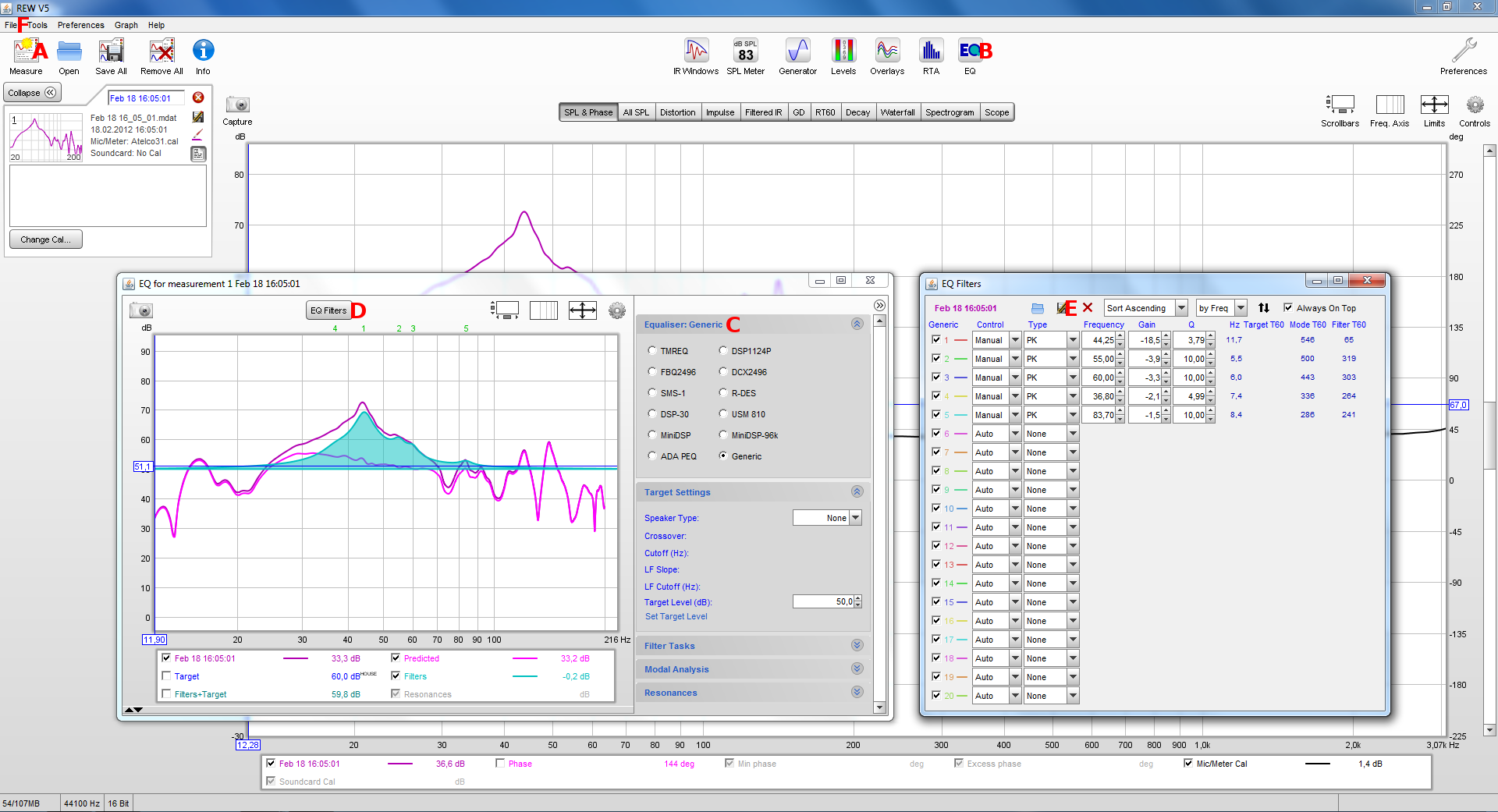
Room EQ Wizard (the markers A–F are referenced in the steps below)
A full Room EQ Wizard tutorial is outside the scope of this page, but the basic measurement-to-filters flow is:
- Click Measure (mark A) to open the measurement dialog. Run Check Levels first, set a sensible output volume, then Start Measuring. A frequency-response graph appears when it finishes.
- Click EQ (mark B) and choose an equalizer type (mark C). Use Generic, or FBQ2496 if you prefer bandwidth over Q. Other equalizer types are not guaranteed to be compatible.
- Click EQ Filters (mark D). Add filters by setting Control to Manual, Type to PK/PEQ, then adjusting Frequency, Gain and Q/Bw Oct. The graph updates live. Peaking filters are usually the right choice for room correction, though the other filter types are available too.
- Save the REW filter set with Save this filter set (mark E) so you can reload it later.
- Export in the format Equalizer APO reads: from the main window open File (mark F) → Export → Filter Settings as text, and save it into the configuration folder under a new name.
- Edit
config.txtso itsIncludeline points at your new file. The change takes effect immediately.
That is your first working configuration. For the complete syntax — filters, channel routing, delay, convolution, graphic EQ and the expression language — see the Configuration reference. The REW help explains the measurement side in much more depth.
One of the reasons to use the XT fork is its convolution support. The Convolution command loads an impulse response from a sound file (WAV, FLAC, OGG and the other formats handled by libsndfile) and convolves the selected channels with it. XT removes the impulse-response length cap of the original and simplifies the setup; the bundled convolution.txt is a starting point. The impulse response's sample rate must match the audio device's sample rate, and configurations reload automatically when an impulse-response file inside the config folder changes.
An APO lives inside the Windows audio engine, so it processes every stream the engine mixes and none that go around it. ASIO and WASAPI exclusive mode both go around it. XT reaches those streams through an ASIO wrapper driver of its own:
-
ASIO drivers. Every ASIO driver on the machine appears in the Device Selector's playback and recording lists as
ASIO <driver name>. Tick the playback entry to process what an application sends to the interface, the recording entry to process what the interface records, or both, and confirm. In the application choose<your driver> (EQ APO XT)as the ASIO driver; the original entry stays available and bypasses XT. -
Any other device, in exclusive mode. Onboard audio, HDMI, a USB DAC or headset that came without an ASIO driver, a virtual cable: select the endpoint in the Device Selector, open the troubleshooting options and tick Use in ASIO apps. The entry
<device> - <endpoint> (EQ APO XT)then appears in the ASIO driver list. An application that picks it opens the endpoint in WASAPI exclusive mode (no audio engine, no mixing or resampling, the device's own smallest period, the sample rate the application asks for) and the EQ runs on the way. A playback endpoint gives an output-only device and a recording endpoint an input-only one; the entry belongs to the endpoint's APO installation and is removed with it. Such an entry prefers the smallest power of two at or above the smallest exclusive period the driver declares (a virtual cable at 48 kHz: 128 frames; a USB DAC with a 3 ms minimum: 256) and offers the sample type the device takes in exclusive mode, usually an integer one; the wrapper converts. Smaller buffers, down to an eighth of the preferred size and never below 32, open too, so a game that offers only 64 or 128 works on that DAC; the device then still runs at the preferred size and takes the game's buffers two, four or eight at a time, so the sound comes out exactly as late as at the preferred size. Ticking Use in ASIO apps also unfolds the entry's own options under it, the same ones an ASIO driver's entry has: Remove the buffer with its Wait time, Start the engine host automatically at boot, and 32-bit host support.
In both cases the same config.txt applies and the same Editor edits it. The engine does not run inside the application: the first time the application opens the device, EqualizerAPOHost.exe starts, loads the configuration, and only then does the device open, so the first buffer that reaches the hardware is already processed. The host leaves a minute after the last stream ends. For the configuration an ASIO stream is a device like any other: its string is ASIO <driver name> {driver CLSID} (an endpoint entry keeps the endpoint's own name and GUID, so one Device: {endpoint GUID} line matches its APO and its entry alike), Stage: capture blocks apply to the input direction and everything else to the output direction, and channel names follow the channel count (2 → L R, 6 → 5.1, 8 → 7.1, otherwise numbers).
By default the wrapper hands each buffer to the host and plays the previous one: one buffer of extra latency (1.3 ms at 64 frames and 48 kHz), reported to the application, and no dependence on how quickly the host answers. Selecting the driver's entry and ticking Remove the buffer in the troubleshooting options removes that buffer; a buffer whose answer misses the deadline then passes through unprocessed, and Wait time (up to a quarter, half or three quarters of the buffer) sets how long a buffer waits. Two more options are off by default: Start the engine host automatically at boot and 32-bit host support (the entry is registered where 32-bit applications look; unavailable on ARM64 and not yet applicable to endpoint entries). The feature document docs/features/asio.md has the measurements and the details.
This section collects the usual reasons Equalizer APO might not behave as expected.
By default Equalizer APO tries to keep the effects that shipped with your sound-card driver (the "original APOs") working alongside it. On some systems this chaining causes glitches. If playback or recording becomes unstable, open the Device Selector, select the affected device, enable the troubleshooting options, and clear both Use original APO checkboxes.
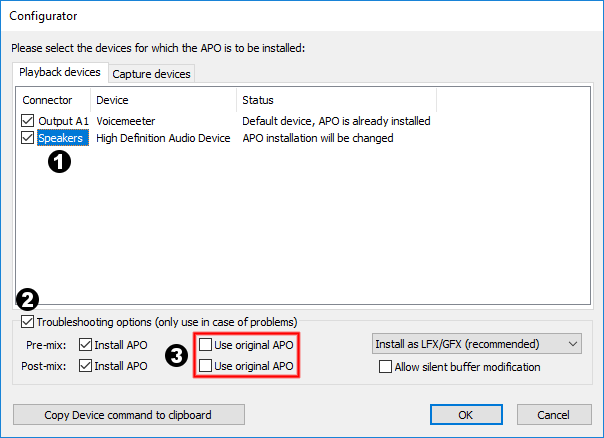
Disabling the original APOs in the Device Selector
Doing this loses any effects the driver provided through its own APOs, so you can also try clearing only one box to keep part of that functionality. Some drivers disable their own options when they detect another APO; installing Equalizer APO into only the pre-mix or only the post-mix stage (via the Install APO checkboxes) can recover some of those driver features for the other stage.
A slot Equalizer APO fills is registered for every processing mode of its direction (Default, Communications and Speech for recording; Default, Media, Movie, Communications and Notification for playback), so streams that voice-chat apps tag Communications reach the APO on drivers that declare modes (Realtek, Intel SST and the like). Installations made before version 2.49.0 were listed for the Default mode only; they take the new list after an uninstall and reinstall from the Device Selector (untick the device, OK, tick it again, OK).
DeviceSelector --install-endpoint {endpoint-guid} and DeviceSelector --uninstall-endpoint {endpoint-guid} do what the dialog's OK does for one endpoint, run the same device test, and exit 0 when the APO reported itself alive from inside the audio engine. --install-mode lfx-gfx|sfx-mfx|sfx-efx pins a slot pair, --no-original-apo drops the driver's own APOs from the chain, --asio-entry adds the endpoint's ASIO entry (--exclusive-mode-eq, its first name, still works), --receive turns on the Send option so the endpoint plays what Send: lines of other endpoints hand to it (playback endpoints with the post-mix stage only), and --no-test skips the device test. Elevation is required, as for the dialog, and every line also goes to DeviceSelector.log.
If nothing you change in the configuration file has any audible effect, APOs may be switched off for the device in the Windows sound settings. Open Start → Settings → System → Sound, open the device's properties, and:
- if there is an Enhancements tab, make sure Disable all enhancements is unchecked — even if you use none of the listed enhancements;
- if there is no Enhancements tab, open the Advanced tab and make sure Enable audio enhancements is checked.
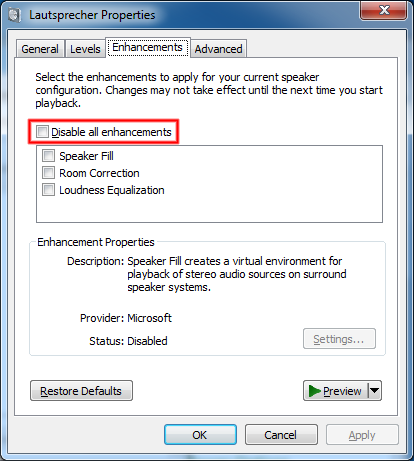
"Enhancements" tab — leave "Disable all enhancements" unchecked
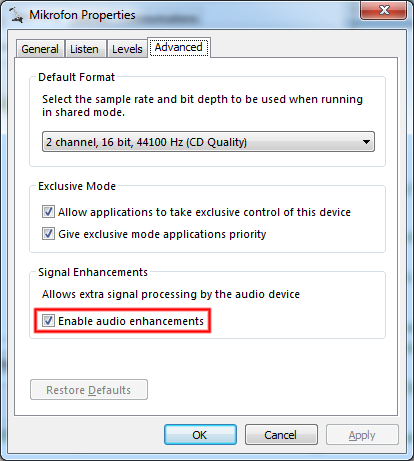
"Advanced" tab — keep "Enable audio enhancements" checked
When Equalizer APO hits a critical problem it appends a line to:
C:\Windows\ServiceProfiles\LocalService\AppData\Local\Temp\EqualizerAPO.log
Under normal operation the file does not even exist — it is only created on an error. For more detail you can enable trace output: open regedit.exe, go to HKEY_LOCAL_MACHINE\SOFTWARE\EqualizerAPO, and set the value EnableTrace to true. Lines marked (TRACE) are then written during normal playback or recording, which is useful for checking how your configuration files are interpreted. Set EnableTrace back to false when you are done so the log does not grow without need.
XT's user-facing diagnostics live under %LOCALAPPDATA%\EqualizerAPO\logs:
-
Editor.logrecords Editor, install/update-hook and save failures. -
DeviceSelector.logrecords device installation, removal and repair. -
EqualizerAPOAsio.logandEqualizerAPOHost.logrecord the ASIO wrapper and its engine host; an ASIO entry that refuses to open states its reason and the HRESULT there. - Running
Editor.exe --diagnosewritesdiagnose-<time>.txtthere (and to an attached console). It only inspects the installation and does not need administrator rights. - Editor crash minidumps and text reports go in the
crashsubfolder.
Equalizer APO runs inside the Windows audio engine as an APO, so it processes every stream the engine mixes and none that go around it. Which kind a stream is depends on the application, not on the installation:
-
WASAPI exclusive mode (a player's "WASAPI exclusive" output, a streaming app's "exclusive mode" switch, HQPlayer, JRiver and the like) sends the audio straight from the application to the driver. The engine never sees it, so no APO runs. To keep the EQ, give the application an ASIO output to pick instead: tick Use in ASIO apps on the endpoint's options page in the Device Selector and choose the
<device> - <endpoint> (EQ APO XT)entry in the application (see ASIO and WASAPI exclusive mode). Applications without an ASIO output keep the EQ only in shared mode. -
ASIO bypasses the engine the same way. For an interface with its own ASIO driver, XT's
<your driver> (EQ APO XT)entry is the way to keep the EQ on such streams. -
Low-latency shared streams (games, DAWs and communication apps that ask for small buffers through IAudioClient3 or AudioGraph) stay inside the engine and pass through Equalizer APO like any other; the APO just gets smaller blocks. It has been run down to 32-frame blocks. Two things to know: a convolution filter's block follows the engine period, so a long impulse response costs more CPU while such an application runs; and if sound drops out only while one of them runs, enable
EnableTrace(see Log files), look for theLockForProcesslines that appear when the application starts, and attach that log to a report. -
Raw mode streams (an application that sets
AUDCLNT_STREAMOPTIONS_RAW) skip the stream slot (SFX) but still pass the post-mix slot: the mode effect on Windows 10 and later, the endpoint effect always. An installation with both stages ticked keeps applying the post-mix part of the configuration to them. A recording endpoint has no post-mix slot, so an app that asks for raw capture gets no EQ at all. The driver decides whether raw mode exists at all; a virtual cable, for example, has none.
The Configuration Editor shows a configuration as cards, one per line, in one of five skins (Minimal, Signal Matrix, Rack, Soft and Studio), each in a light and a dark mode; the Legacy editor is the sixth presentation, the original row layout kept as it was. The interface is available in English, Korean, German, French and Simplified Chinese. A few things worth knowing:
- The analysis graph switches between Mag, Phase and GD (group delay); all three come from one analysis run. Under Phase and GD a checkbox, off by default, puts the configuration's bulk delay back into the reading (a configuration that is nothing but
Delay: 10 msreads flat with it off and 10 ms of group delay with it on). The line breaks where the response is zero. - A VST plug-in's panel is fed live audio while it is open: the Editor taps the system output and runs it through the preview instance, so meters and analyzers move, and the processed copy is discarded. Audio a plug-in generates itself (calibration noise, a test sweep) is played to the default output a few seconds after the system goes quiet.
EAPO_DISABLE_PANEL_FEED=1turns the feed off;EAPO_DISABLE_PANEL_MONITOR=1turns the playback off and keeps the meters. Moving a control in a panel applies it to the engine at once unless auto-apply was turned off. - File dialogs accept a pasted path (including the quotes "Copy as path" adds), and their sidebar carries the upstream Equalizer APO config folder, recently opened config folders and every drive root.
- A broken
Filter,IIR,Delay,Preampor any other filtering line says what is wrong on the line itself, in the card and in the analysis panel, and the log records the reason with a file and line stamp. - Hold Shift while dragging a knob or a value box for fine adjustment. Every key and gesture is listed in Keyboard shortcuts.
Applications that use OpenAL usually pose no problem because they fall back to DirectSound, which supports APOs. Some vendors, however, ship hardware-accelerated OpenAL libraries that talk to the hardware directly and bypass APOs entirely. There is no way to add APO support to hardware-accelerated OpenAL, so the options are to switch the application to another output backend, or to force OpenAL into software mode — for example by replacing OpenAL32.dll with the OpenAL Soft build, or by renaming the vendor's hardware OpenAL library (often named like *_oal.dll) in C:\Windows\System32 or C:\Windows\SysWOW64. The latter changes the sound driver and is not officially supported.
- Configuration reference — every command and its syntax.
- Developer documentation — building XT and writing your own APO.
- 이 문서의 한국어판 (Korean)