Repository navigation
Handheld Gallery
Manual home · Handheld guide · PC gallery
These screenshots show the installed plugin on a ROG Ally running SteamOS, captured on 15 October 2026. Steam supplies the controller glyphs. The files and pictures are demonstration content; network discovery shows the real local test network. Individual images are native handheld captures; the labelled legend comparison retains four earlier captures arranged into a grid.
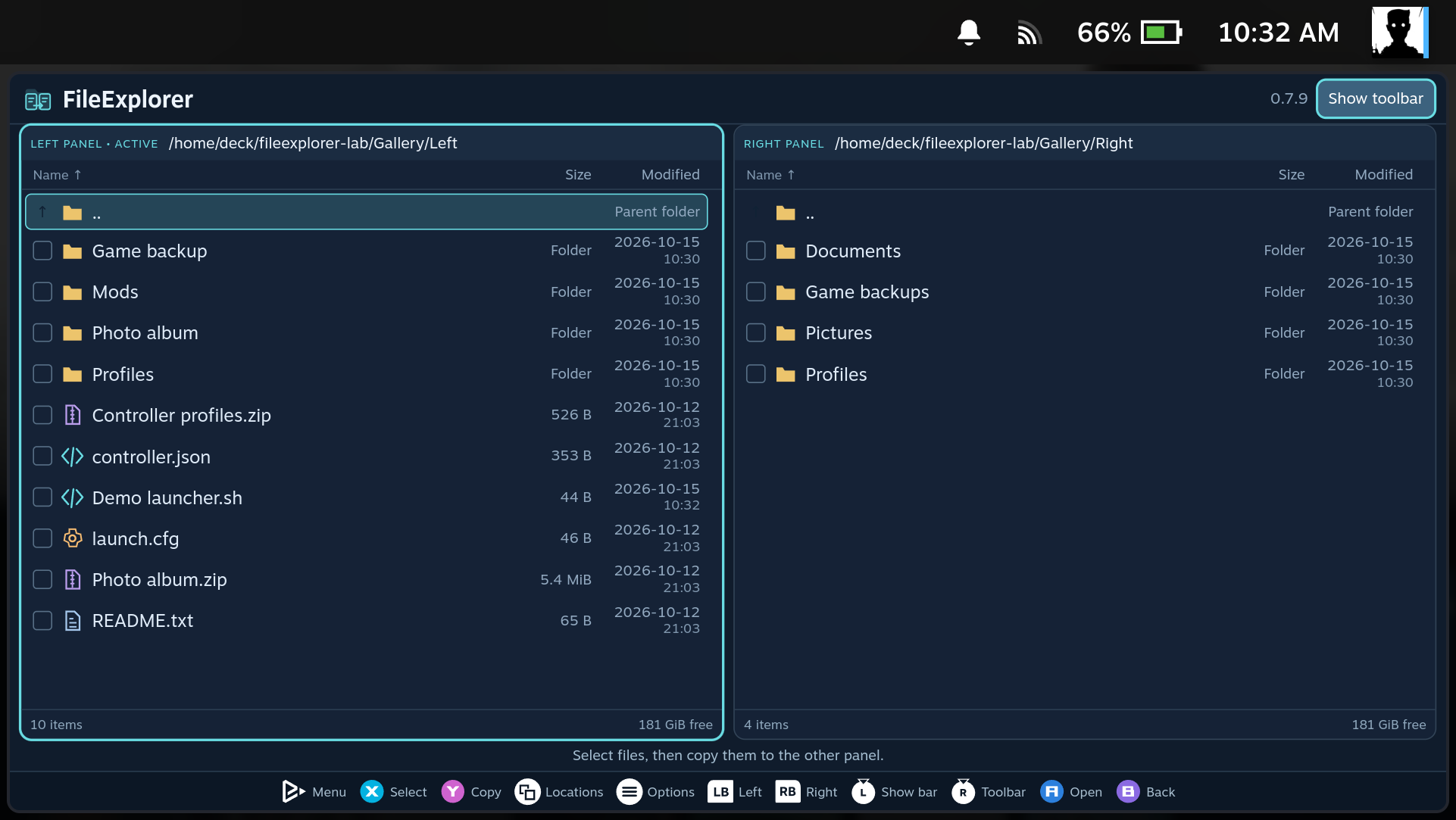
The window fills the available space below Steam's system header. The Handheld profile uses 70% interface scale, default text size, an opaque panel, a hidden file toolbar and controller hints only inside FileExplorer. The labelled scaling examples use 80%; toolbar demonstrations temporarily reveal the bar.
Choose a profile and review its settings. The handheld wizard fills the available space; its settings scroll above fixed Save and Back buttons.


The centered splash appears once for three seconds; repeat displays are off by default.

Press the controller Help button on any setup setting for its explanation.

The dark, rounded scrollbar matches the file panels. Controller navigation keeps the focused file visible; the other panel can stay at its own position.

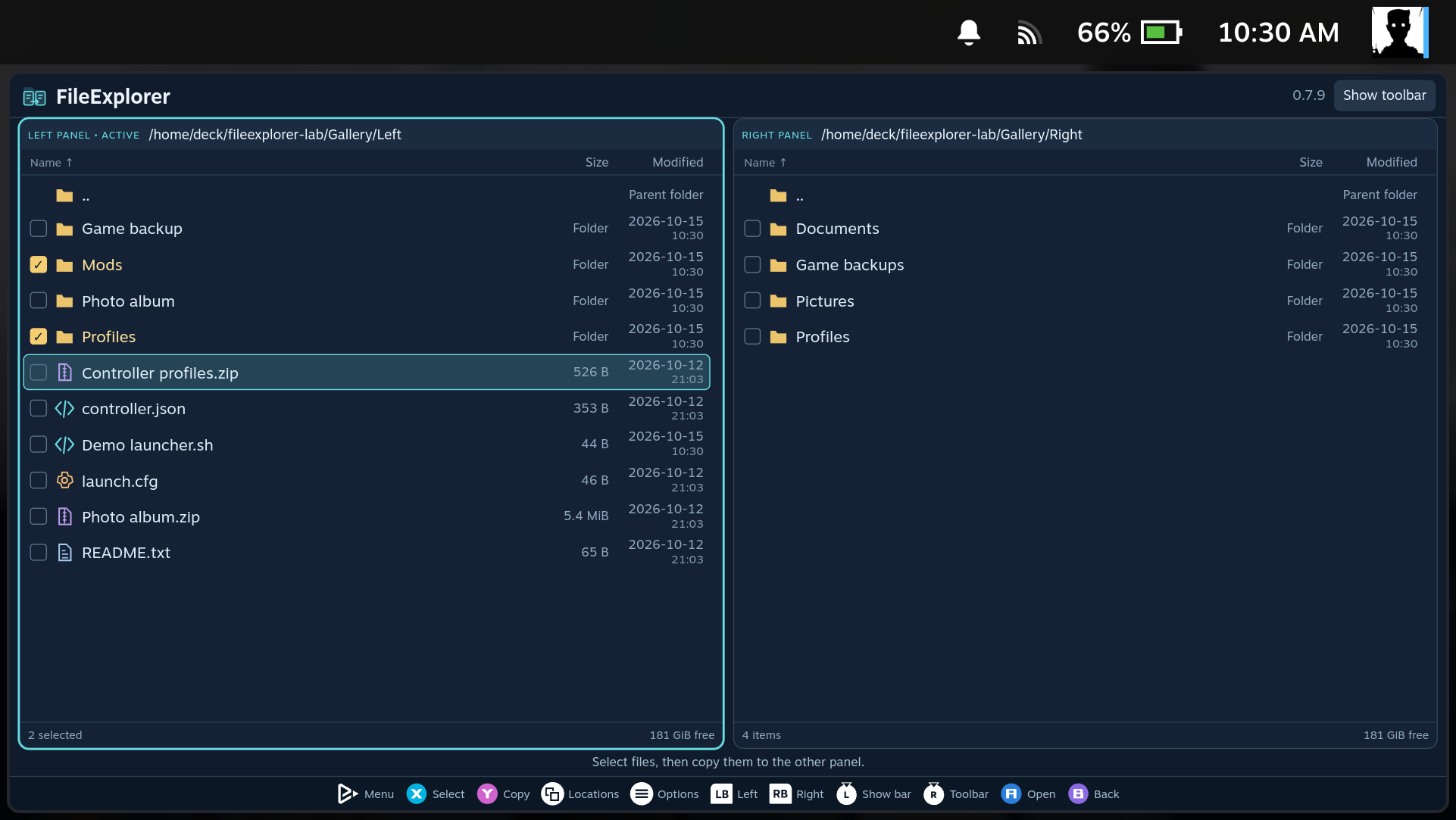
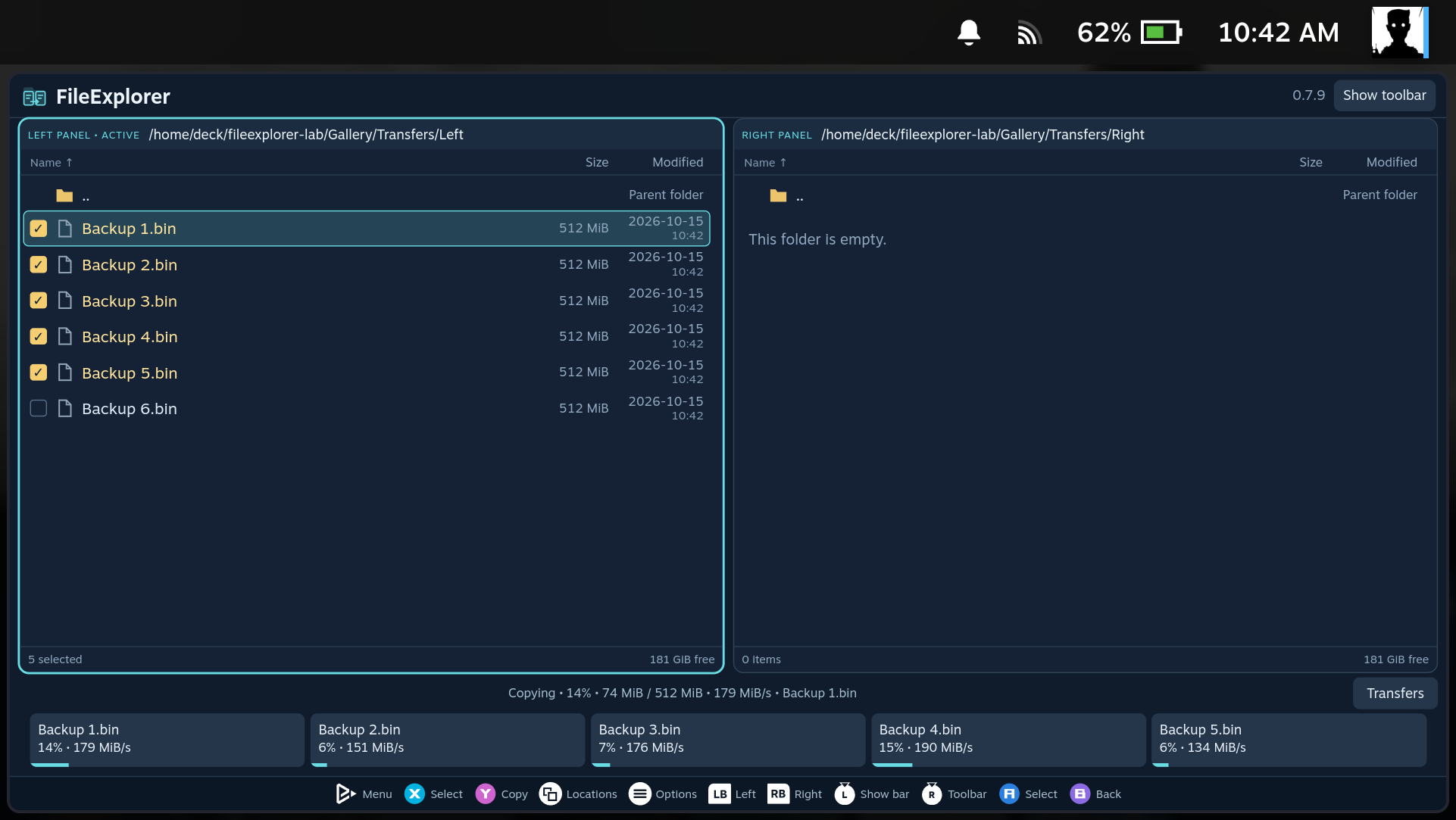
Select with X, switch panels with L1/R1, and copy with Y.
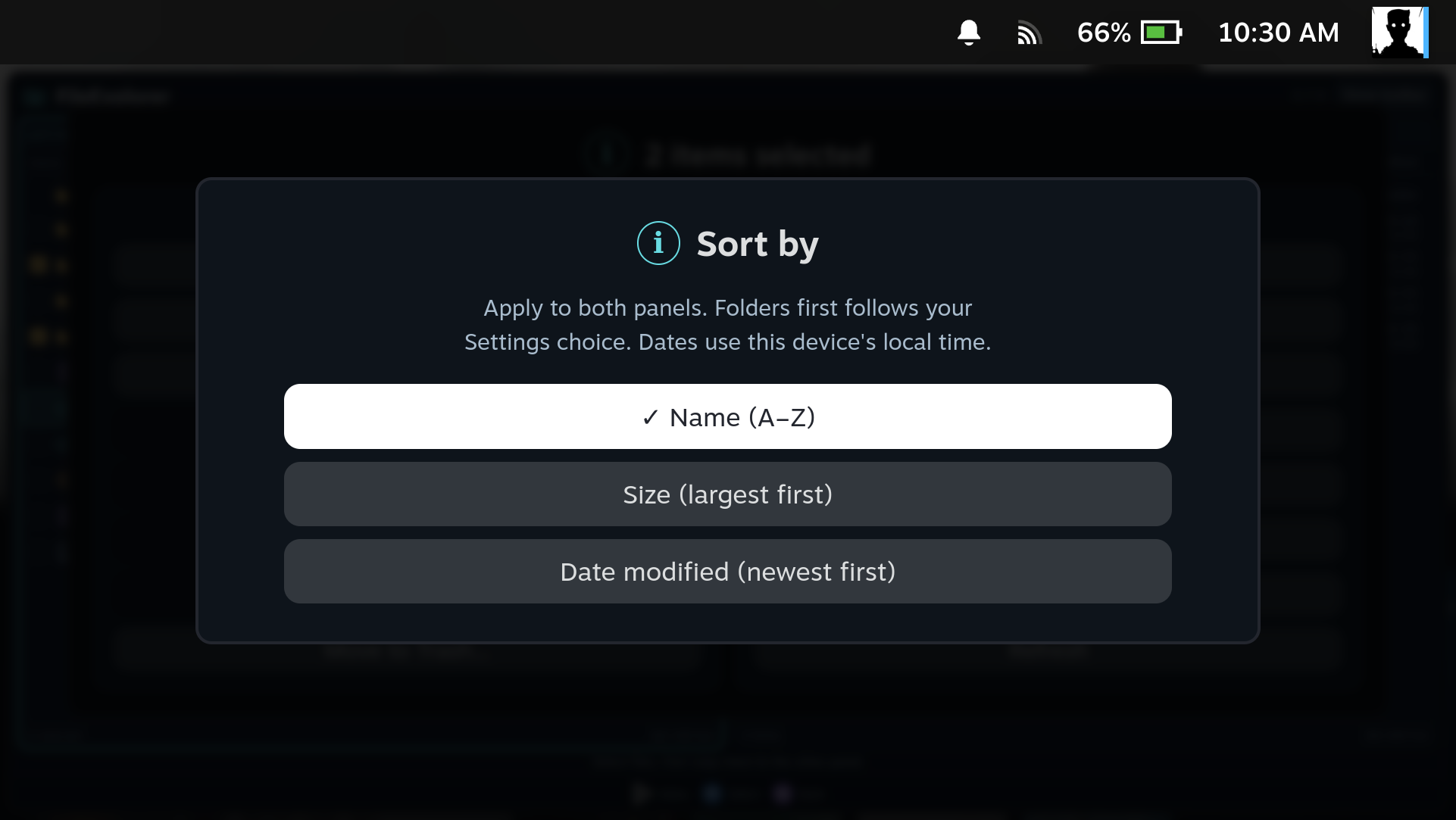
The Modified column shows local date and time for files and folders. Options → Sort by… changes the order of both panels immediately.
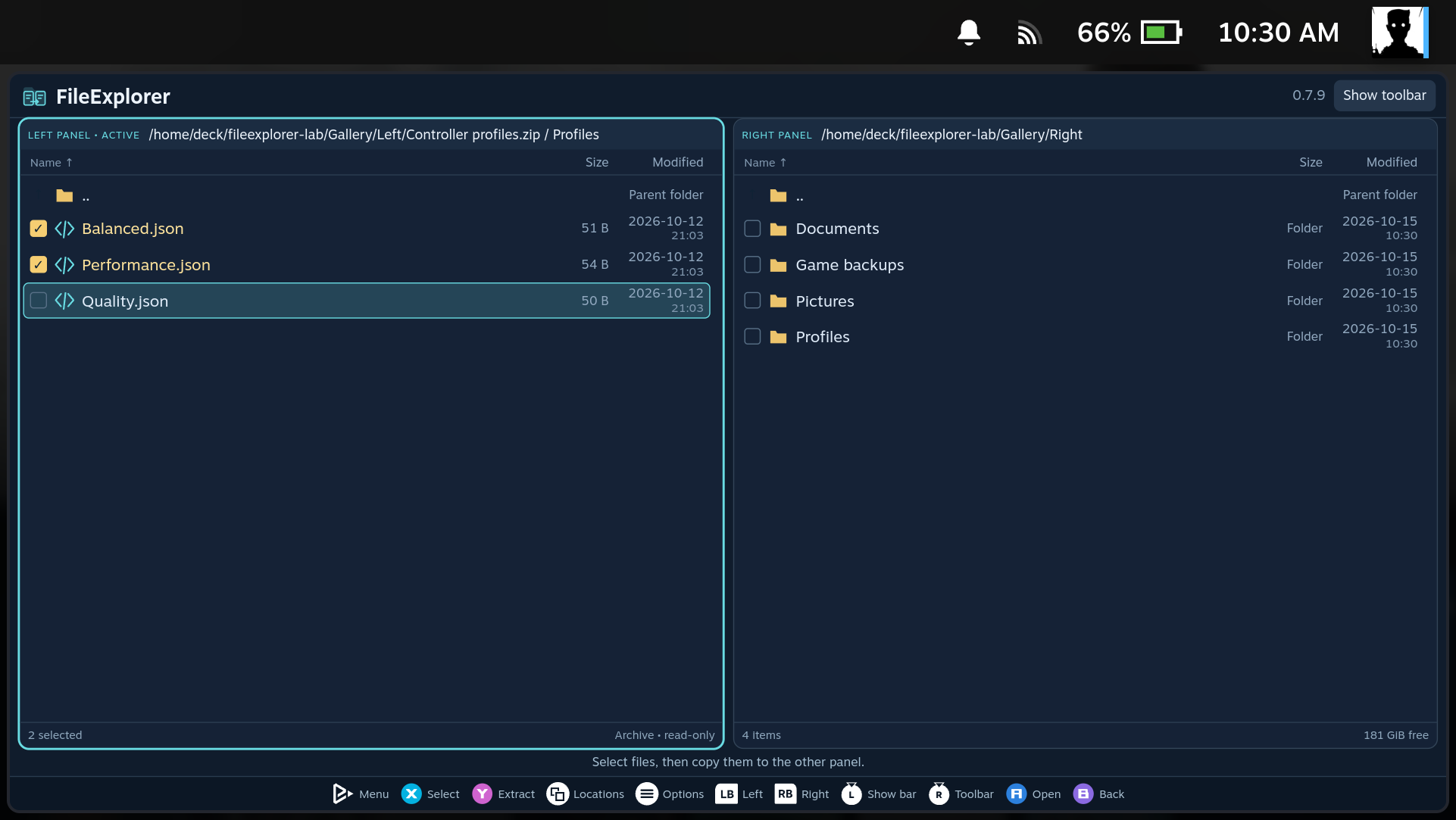
Open an archive with A, select individual items, and use Y to extract them into the other panel.
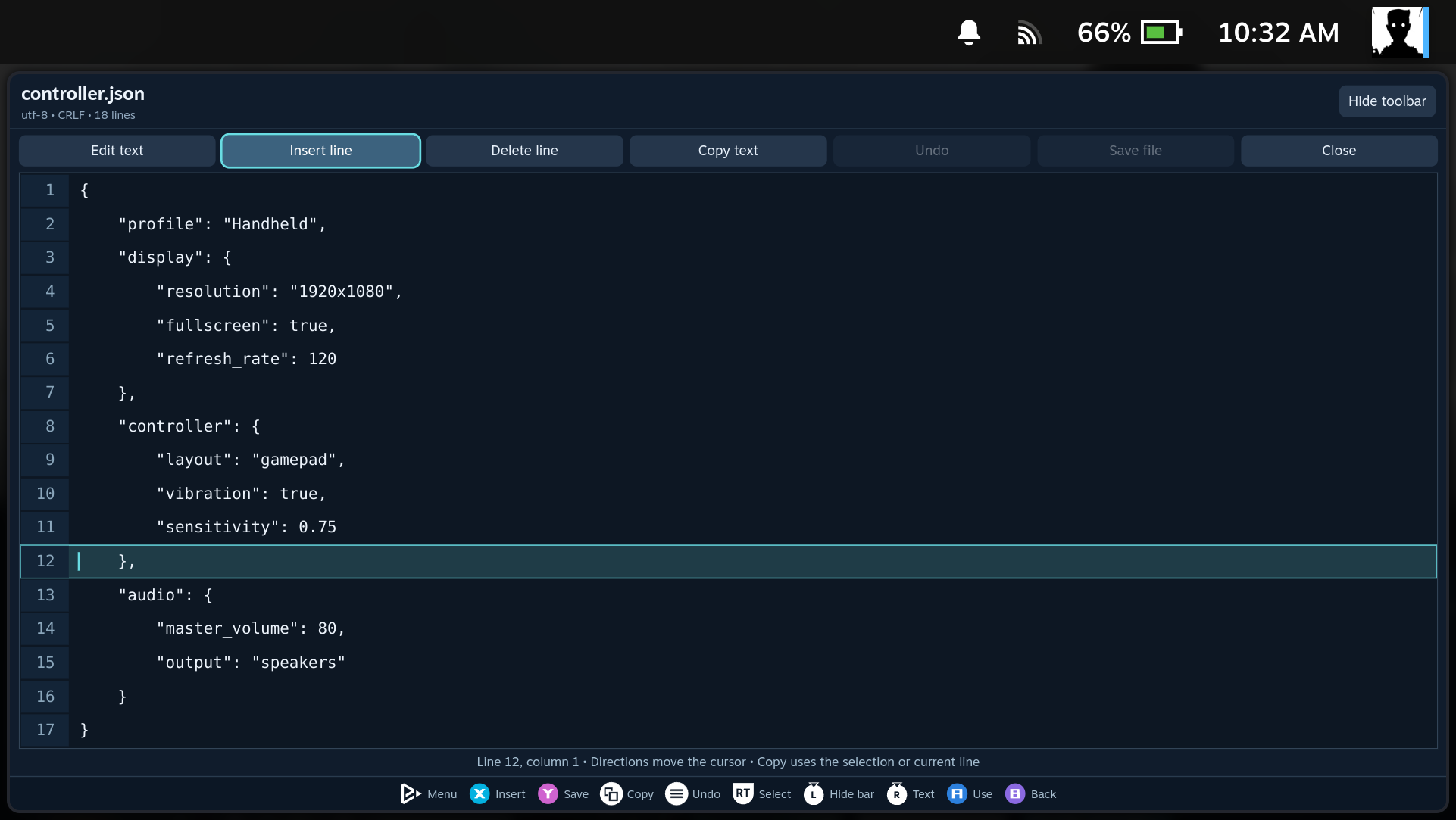
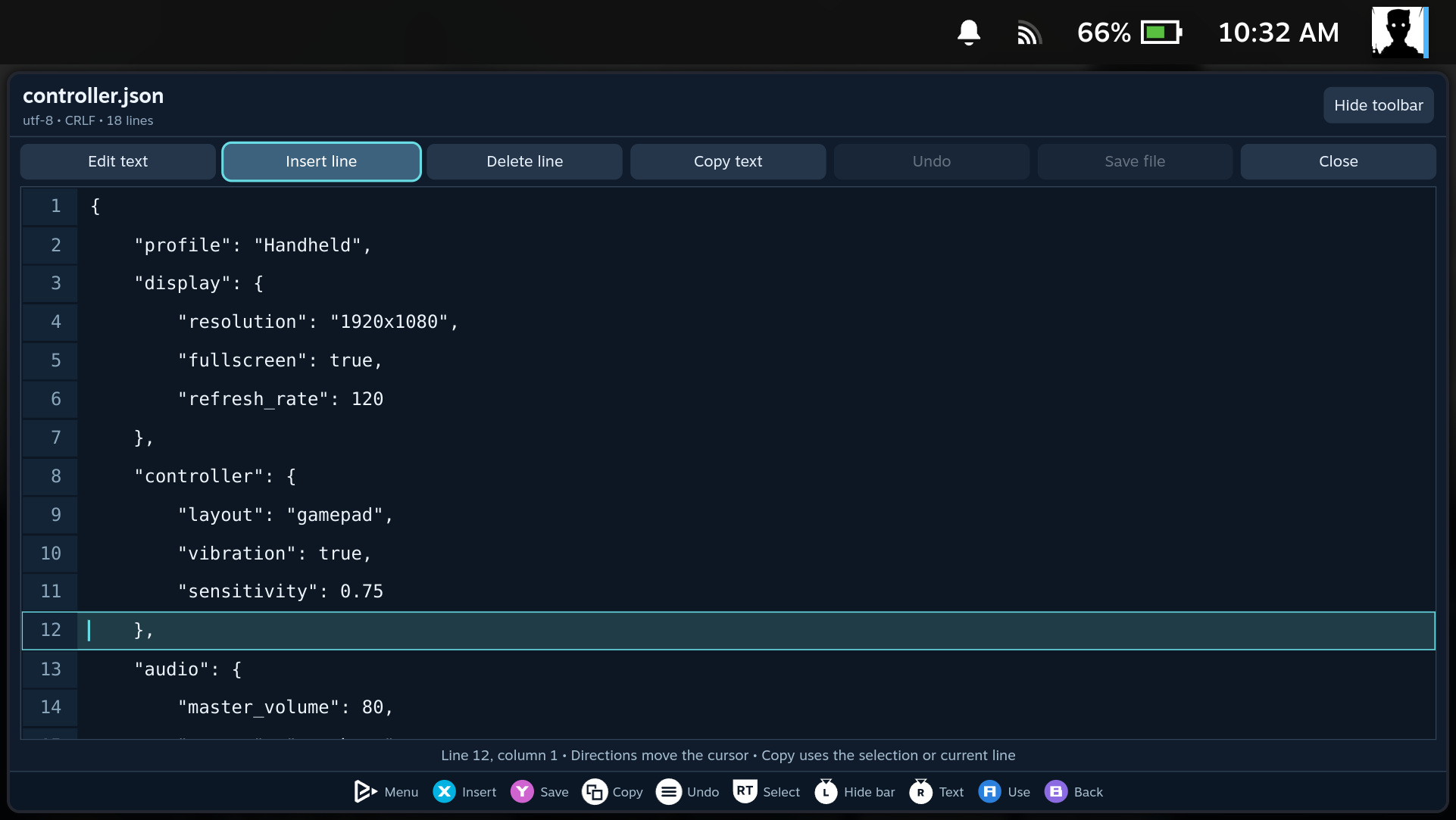
Press R3 to reach the toolbar; use left/right to choose an action. Press R3 again to return to your cursor. Menu/Start performs Undo directly.
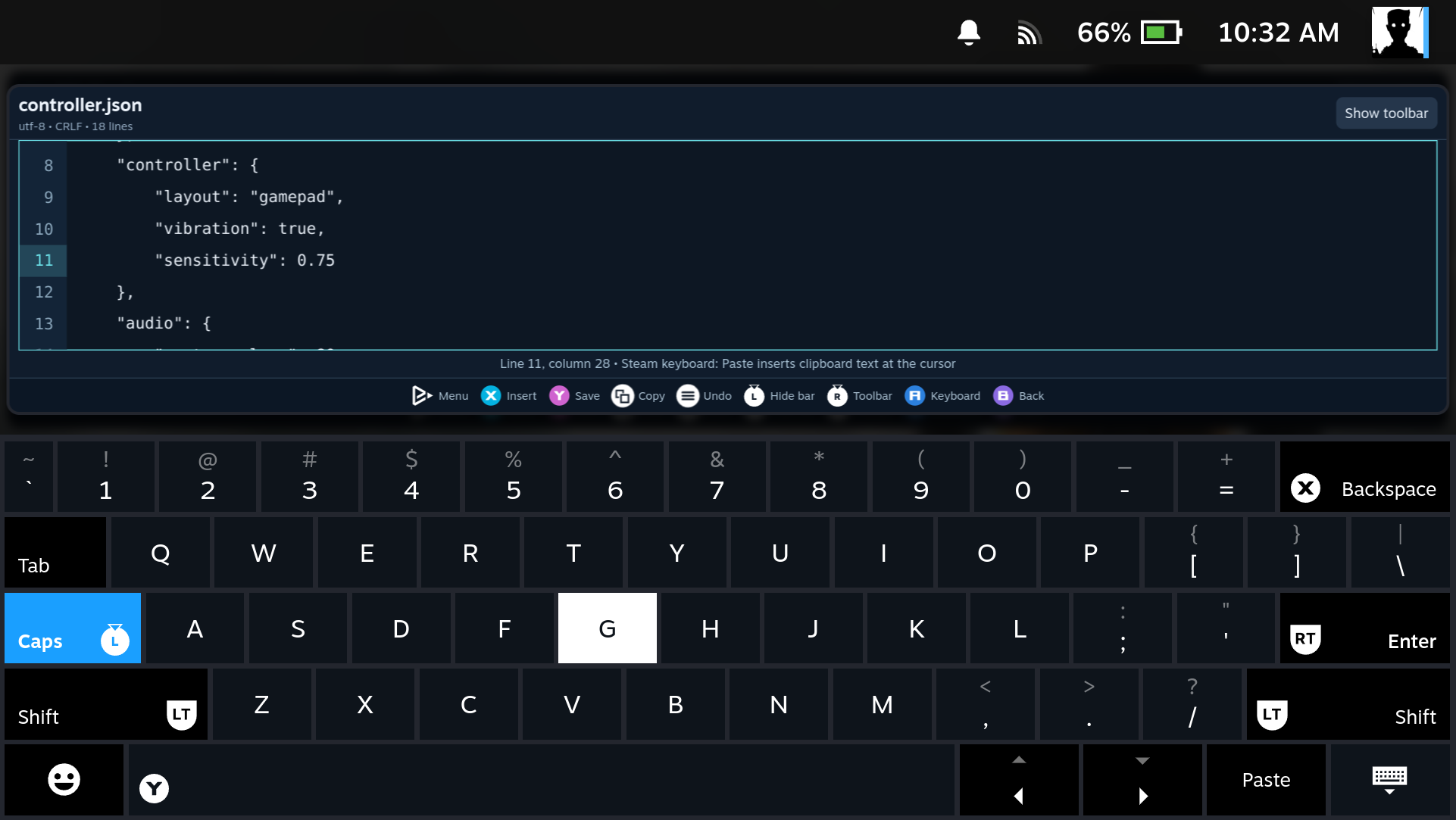
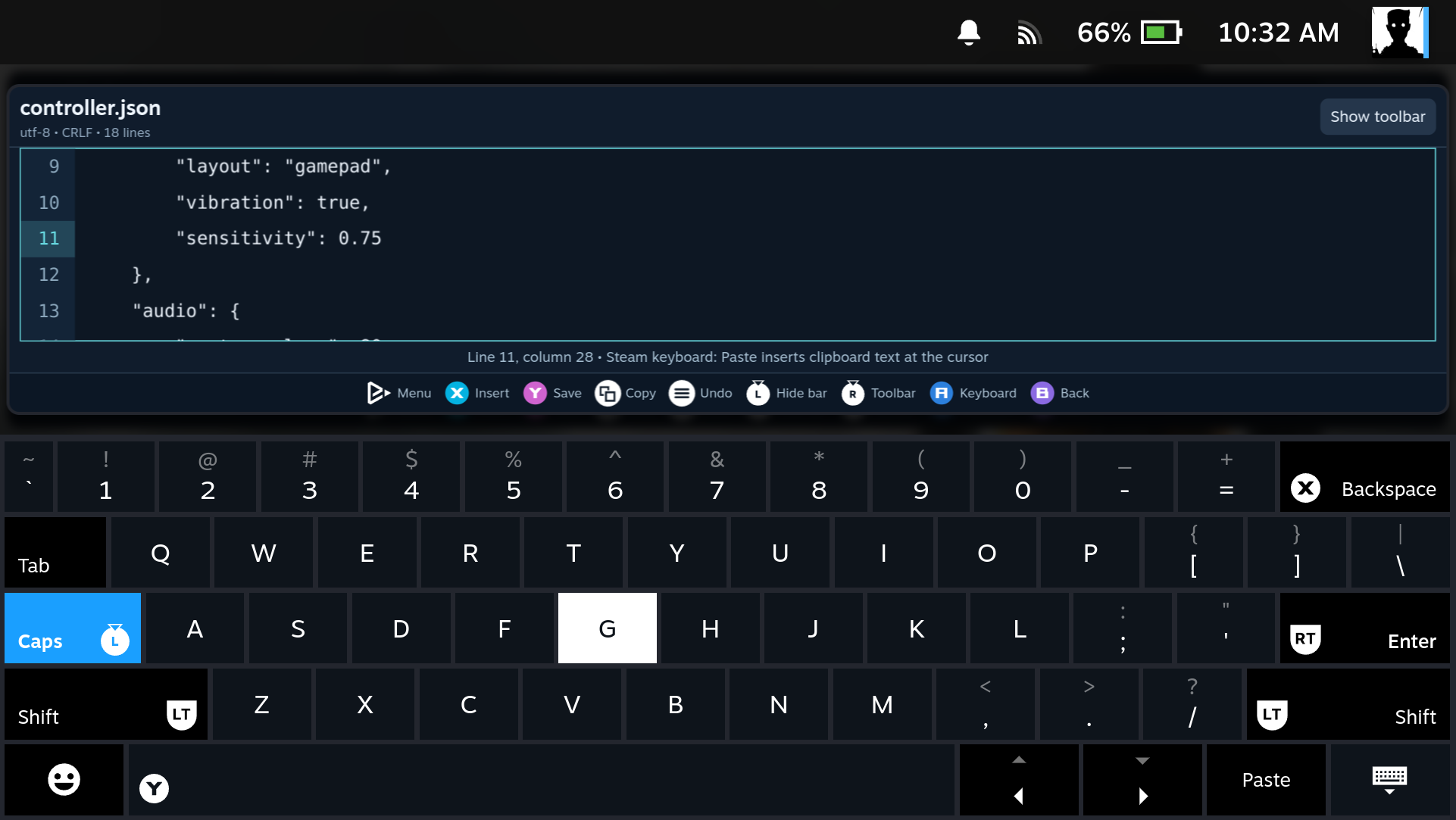
Press A in the text to open Steam's keyboard. The whole editor moves above it and keeps the current line visible.
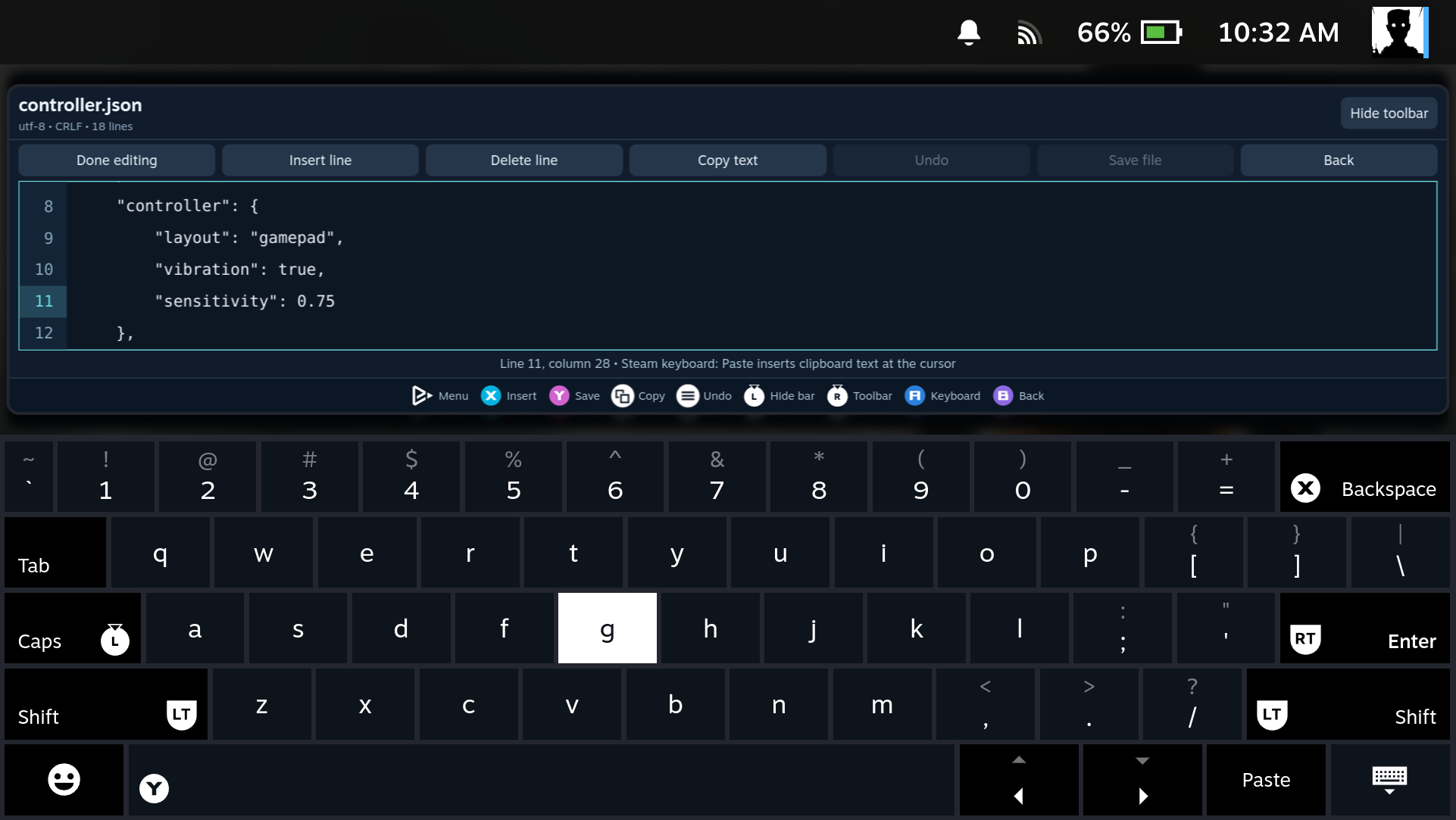
Press L3 to hide the toolbar and gain more text space. L3 works while the keyboard is open. Press it again to show the toolbar; R3 also reveals it.
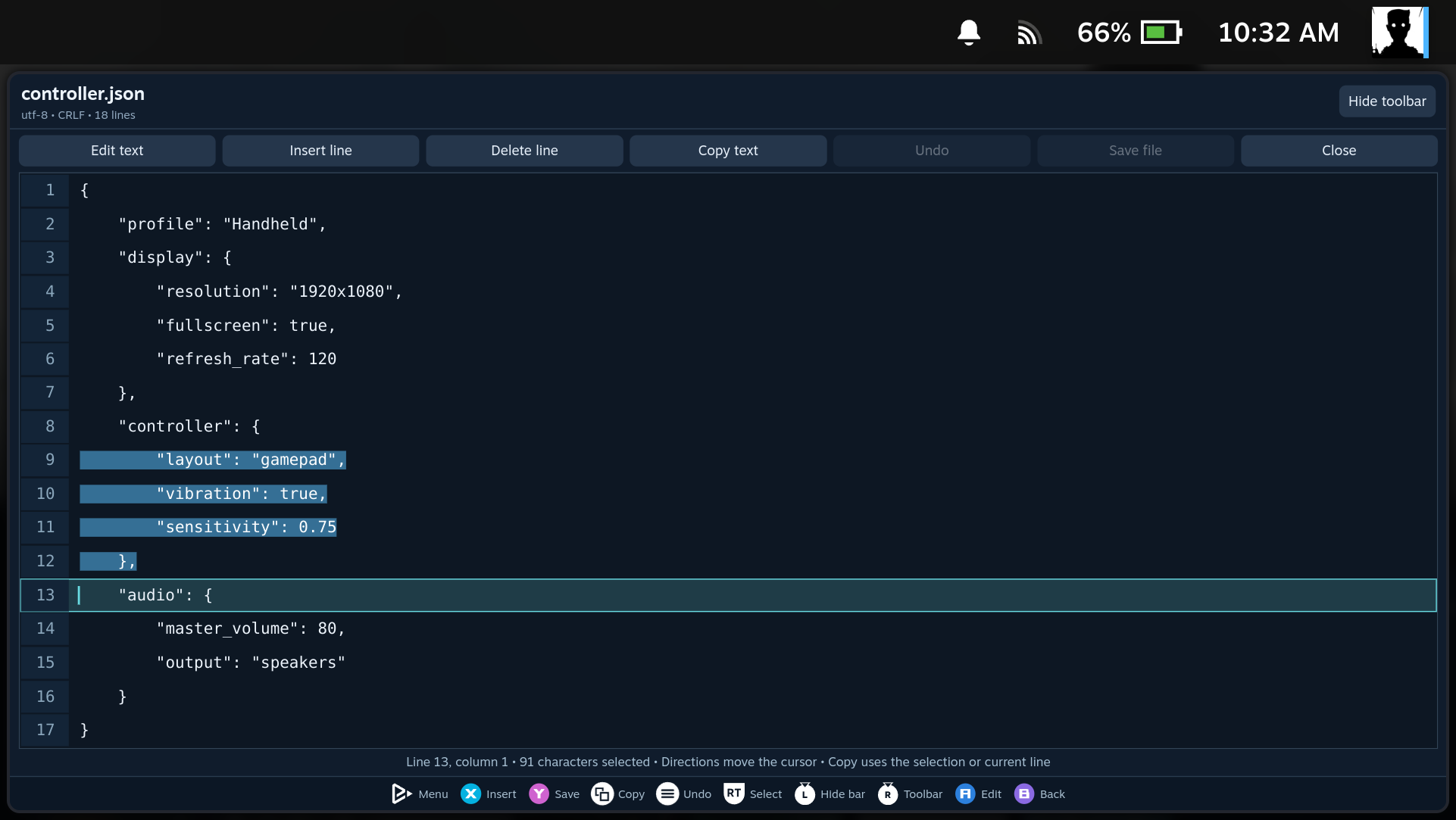
With the keyboard hidden, hold RT + directions to select text, then use View/Select to copy. Steam's keyboard provides Paste.
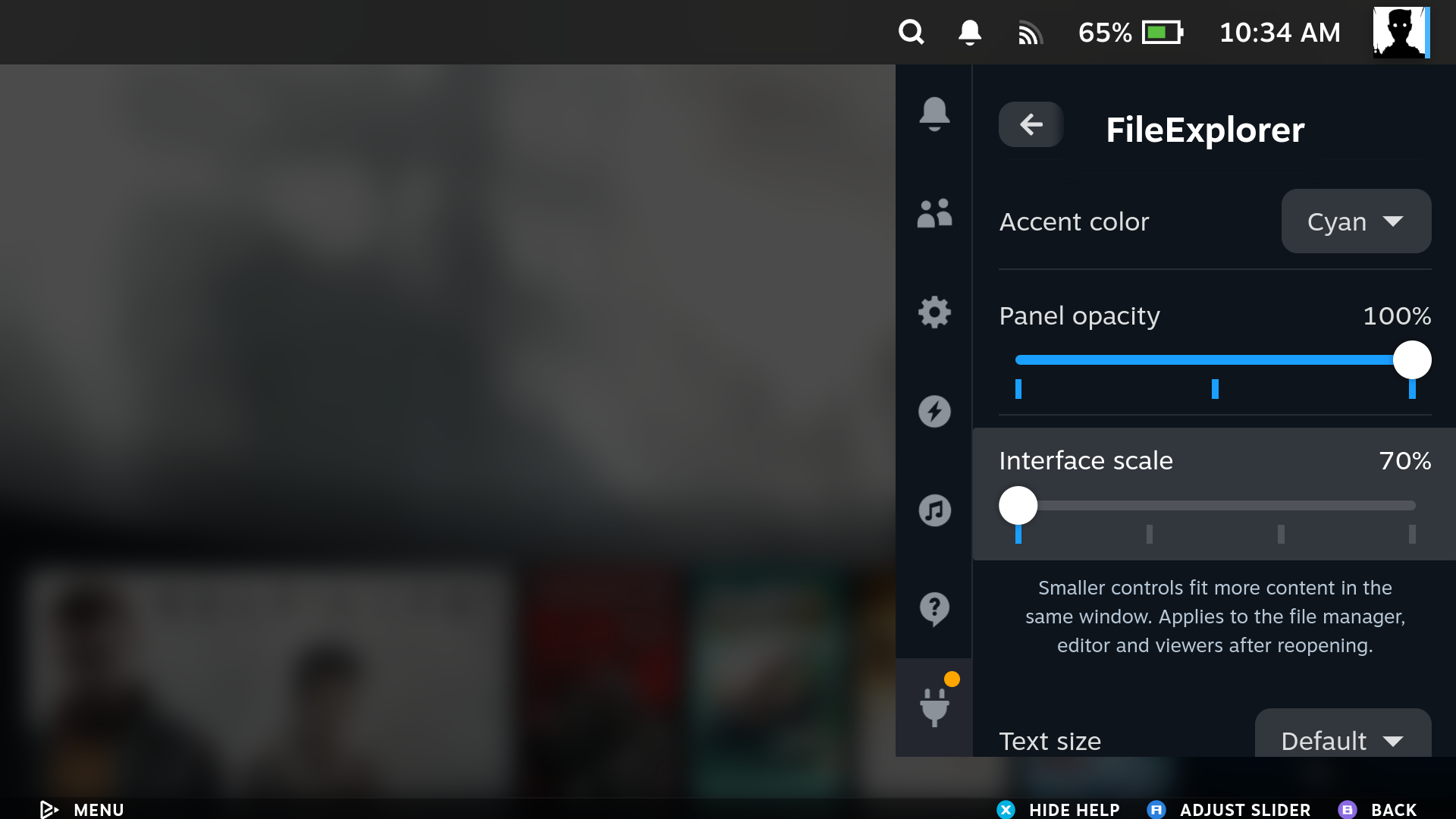
Open Decky → FileExplorer → Settings → Interface scale. Choose 90%, 80% or 70%, then reopen FileExplorer. The Handheld profile starts at 70%; Steam PC starts at 100%. The setting scales the file manager, editor, image viewer and media player together. Text size can be adjusted separately.
These examples use 80% interface scale and the default text size. The window still fills the same space, leaving more room for files and text.
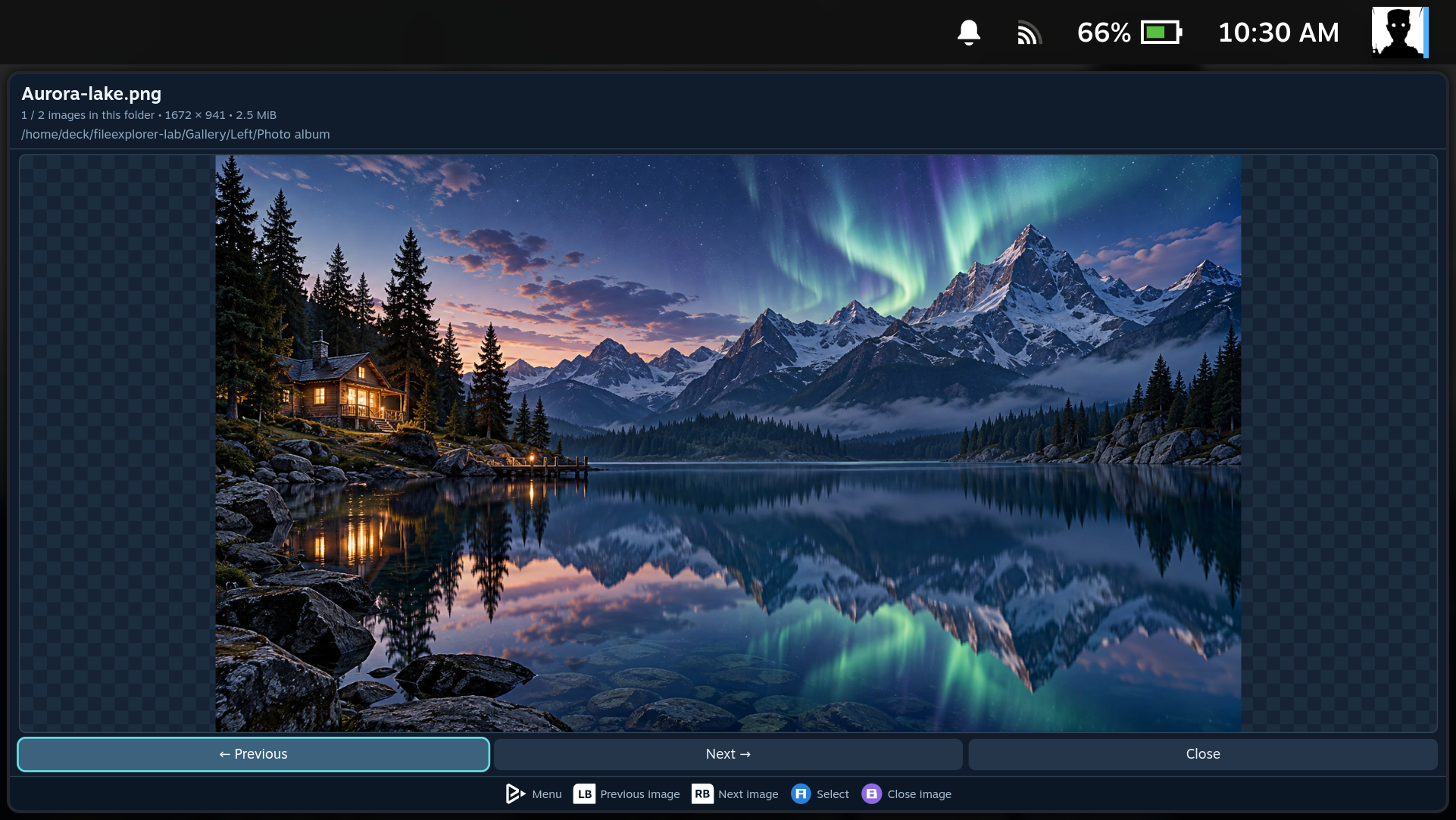
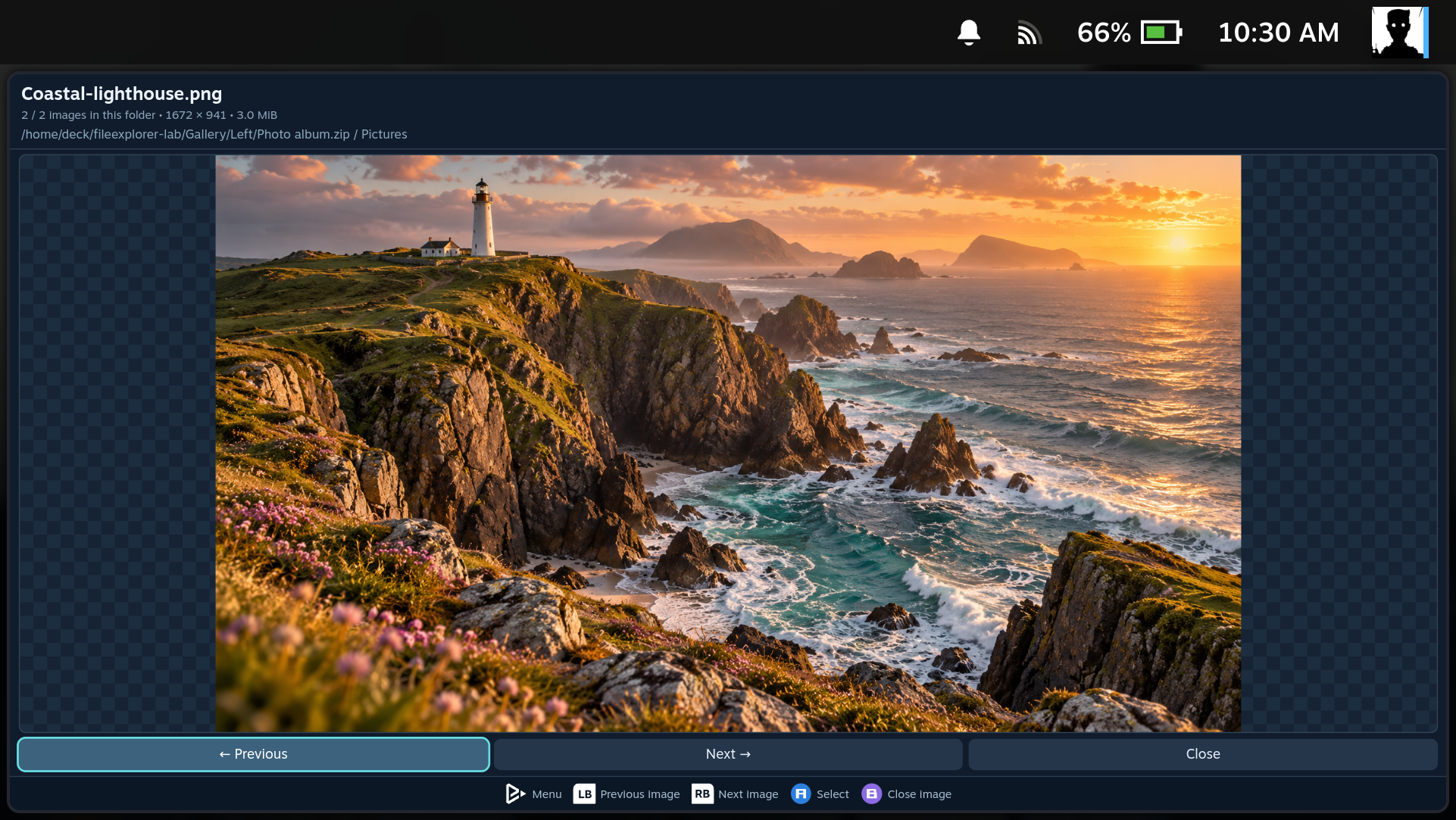
Press A on an image. Left/right or L1/R1 changes the picture within the current folder; B closes the viewer. The generated demonstration illustrations below are displayed by the real image viewer.
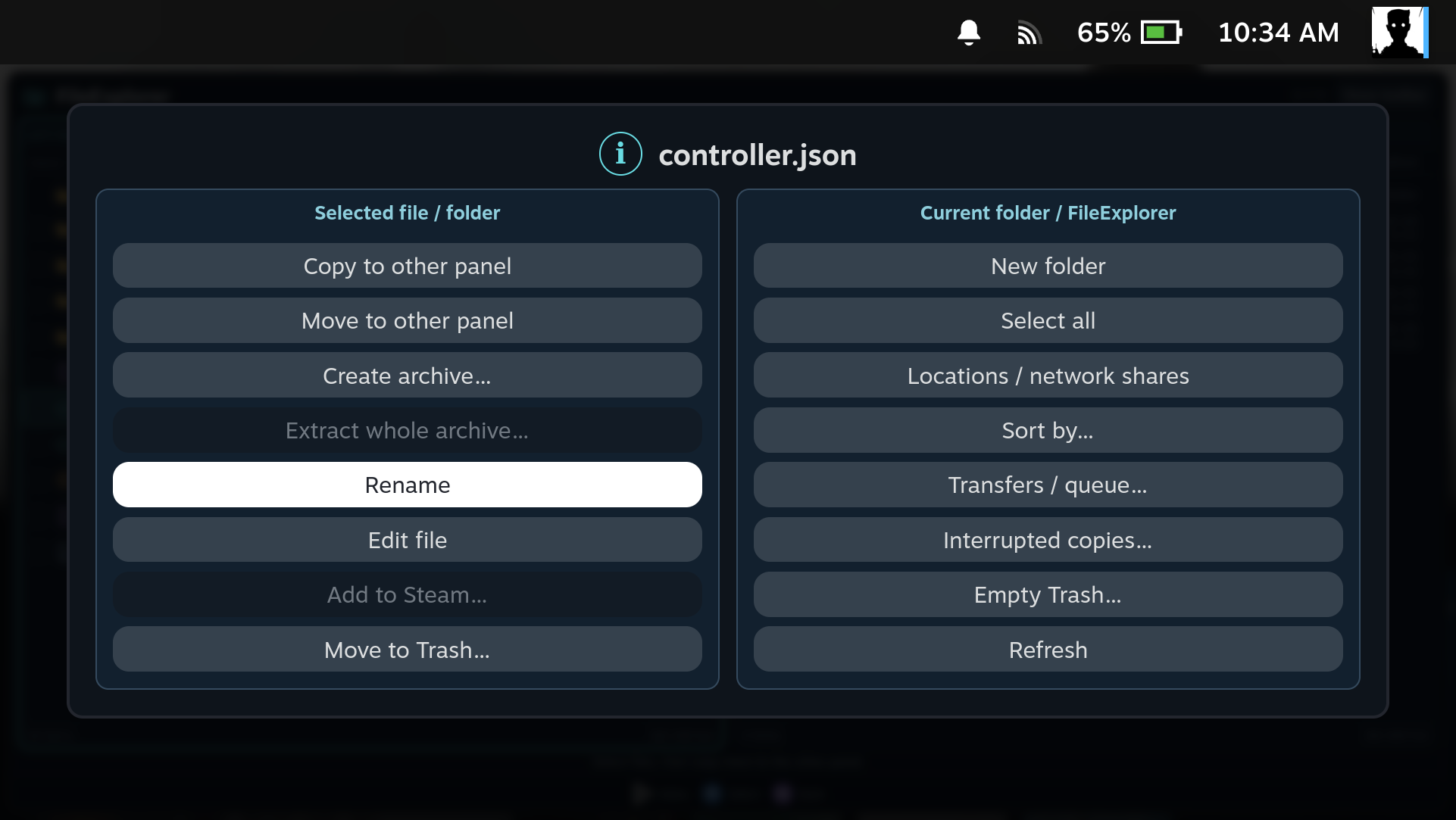
Use Menu/Start to open Options for the current file.
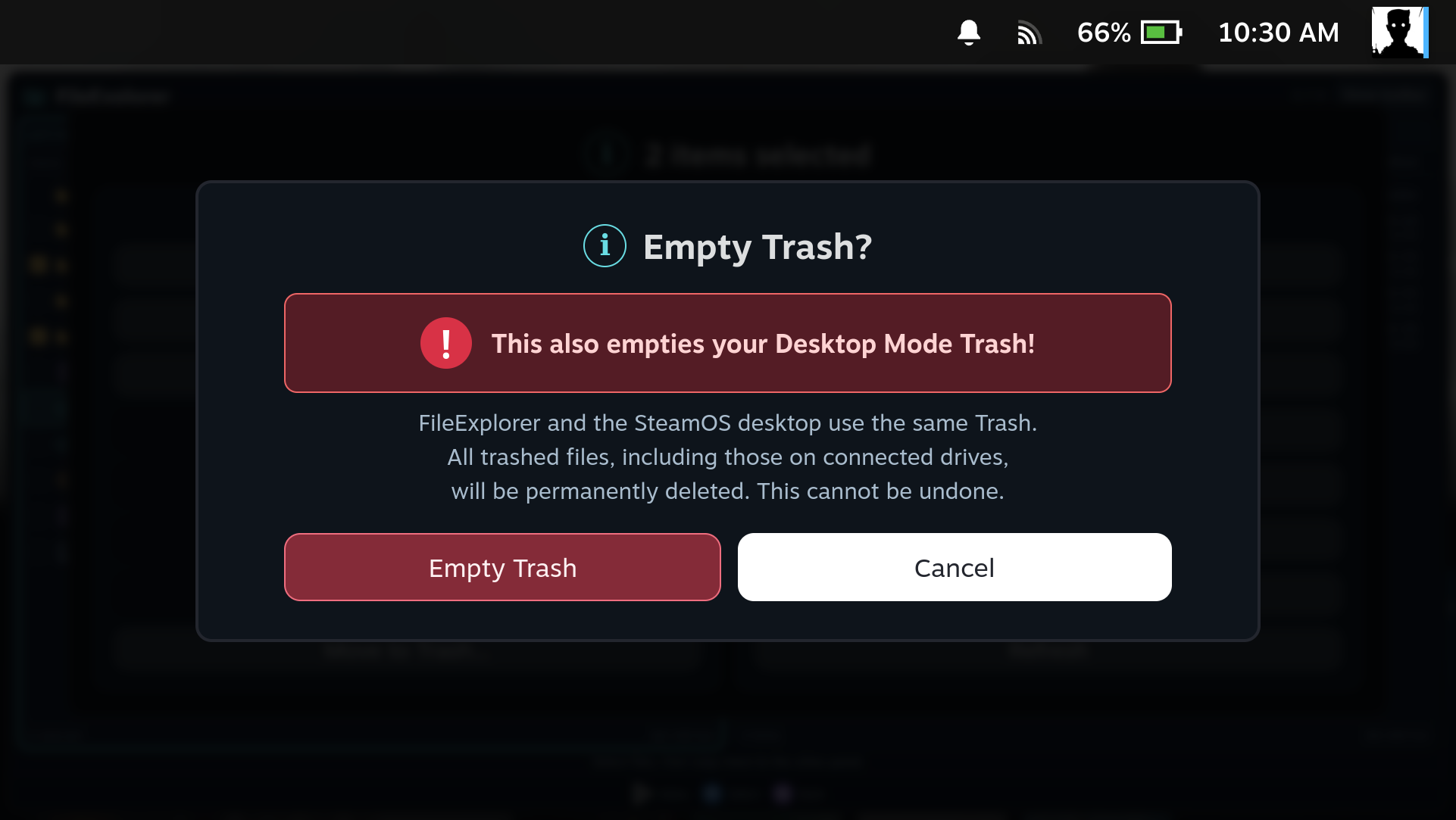
Empty Trash warns that Desktop Mode uses the same Trash. This dialog was cancelled for the screenshot; no user files were deleted.
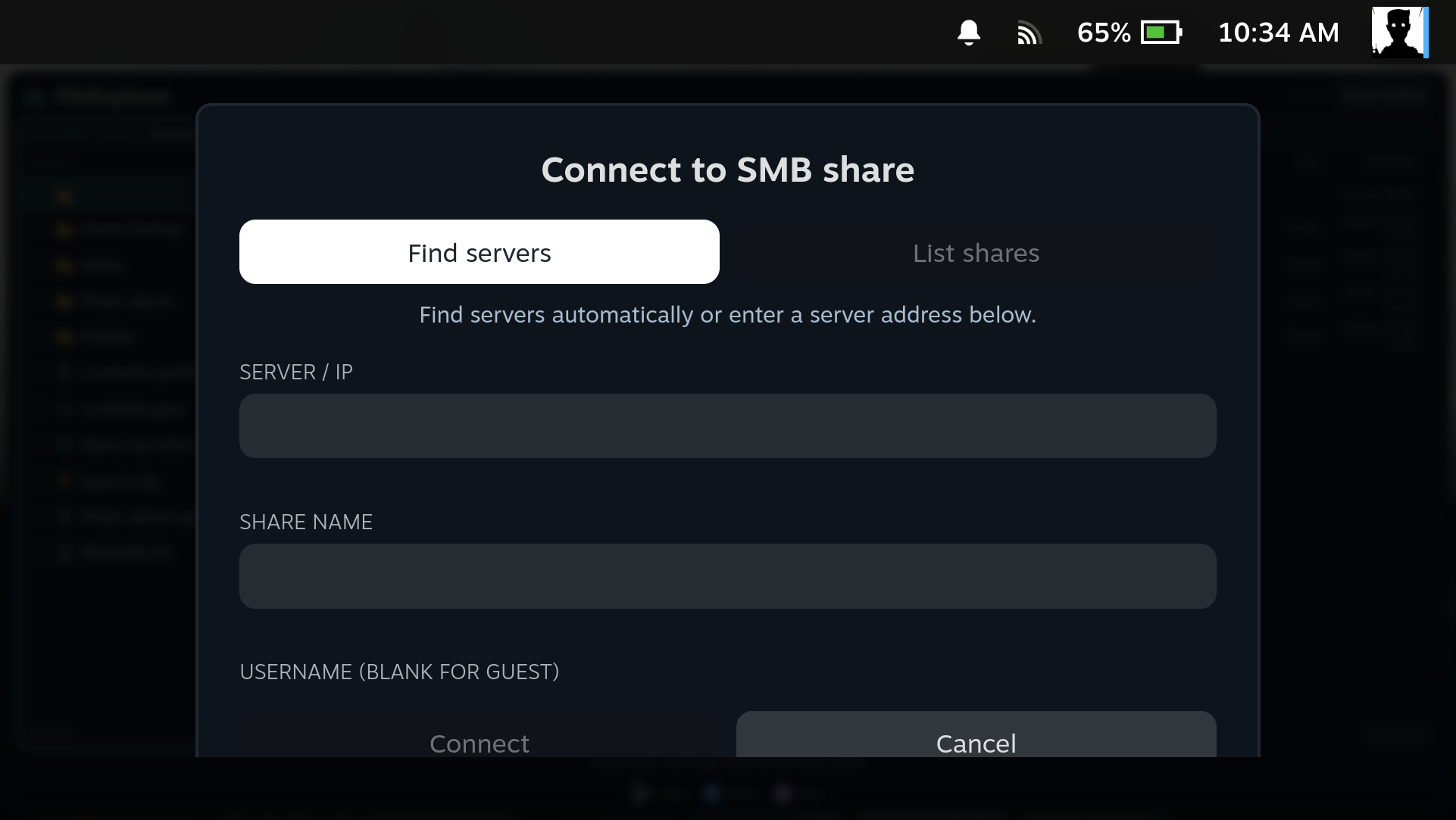
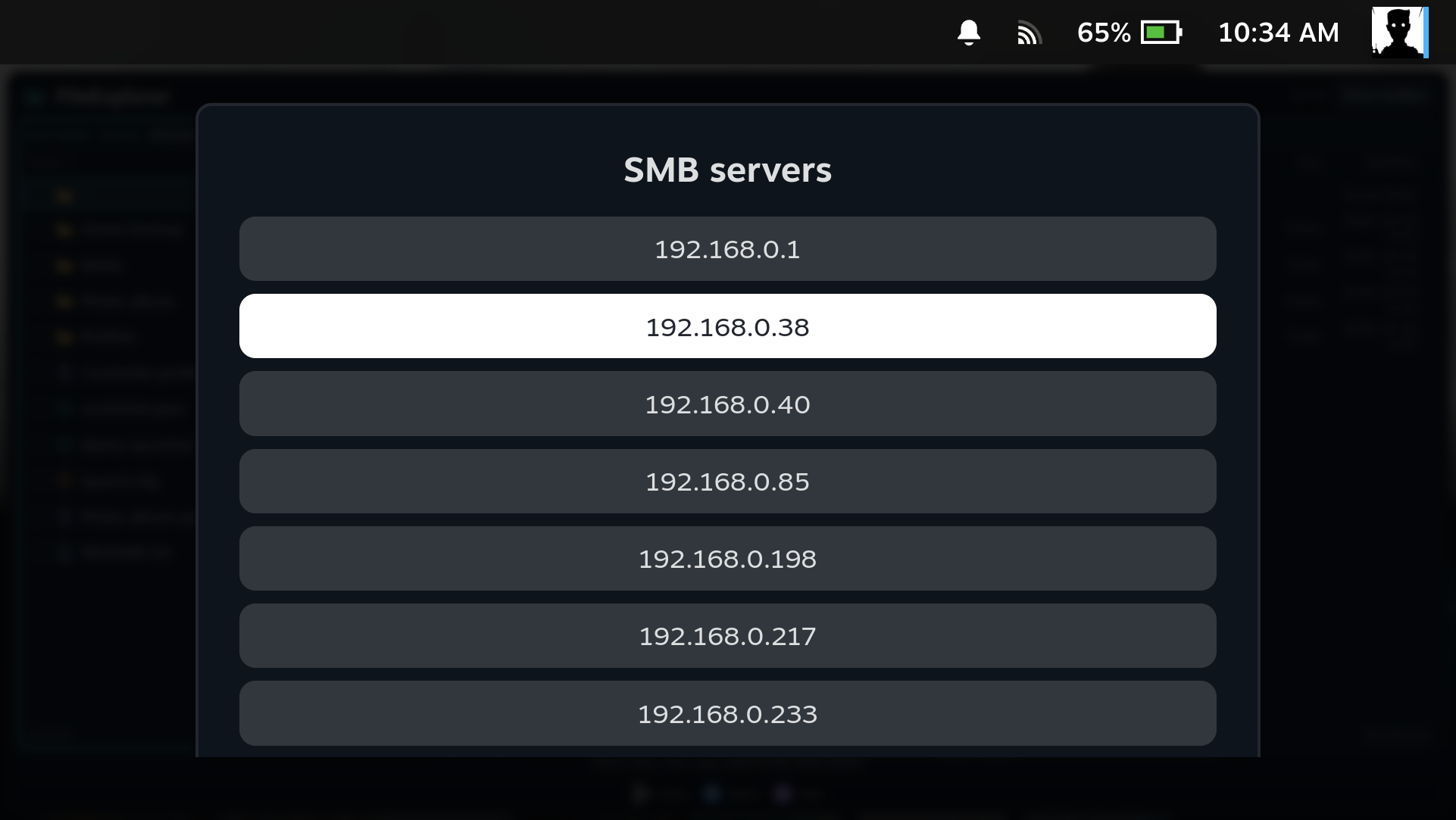
Choose Locations → Add SMB share → Find servers to discover local servers. Choose a server, then use List shares and enter credentials if needed.
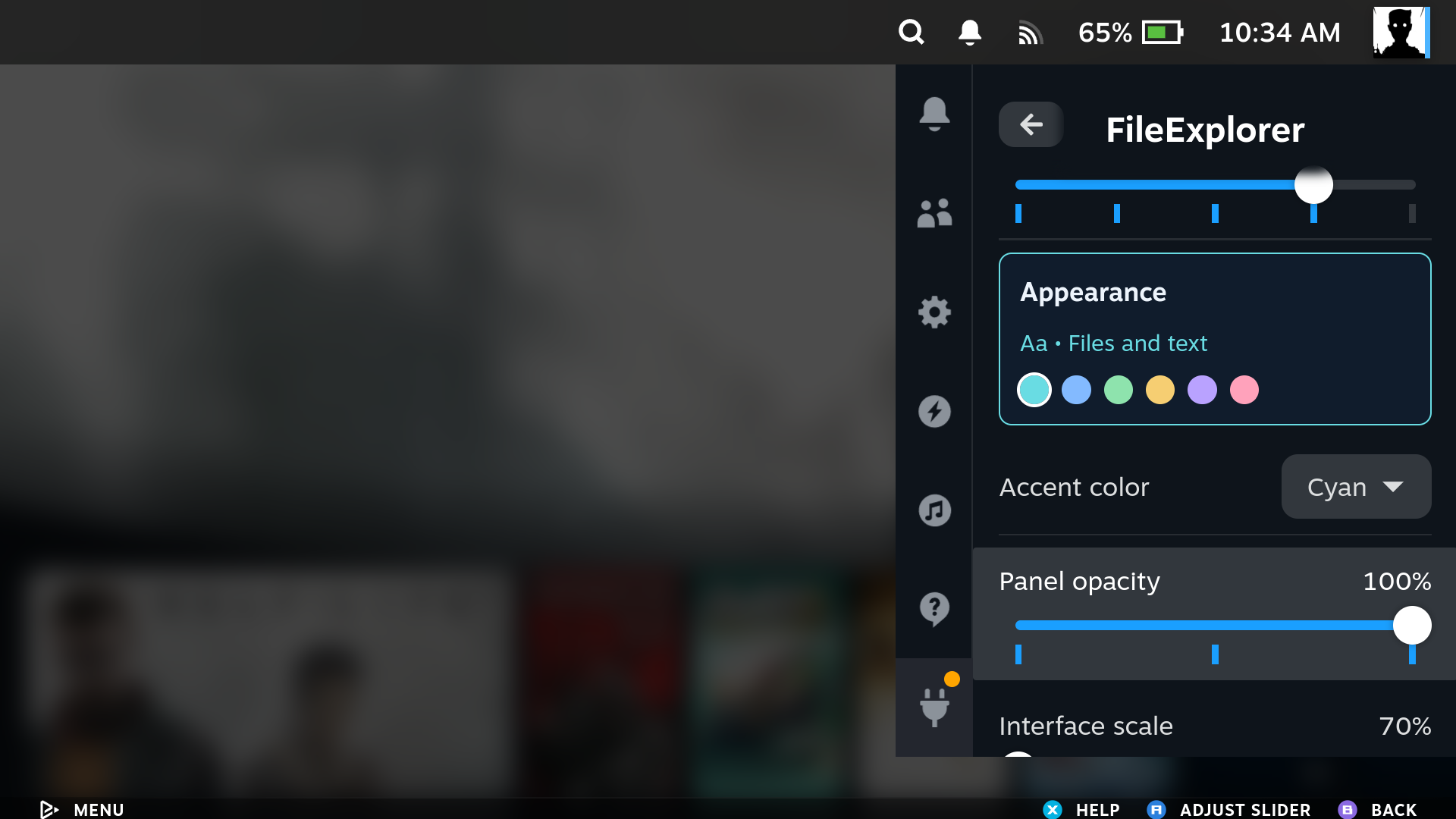
Appearance options and the optional startup update check stay in Decky's sidebar. Opacity, interface scale and extraction limit use sliders. Press X for a setting's explanation; up/down closes it and continues through the list.
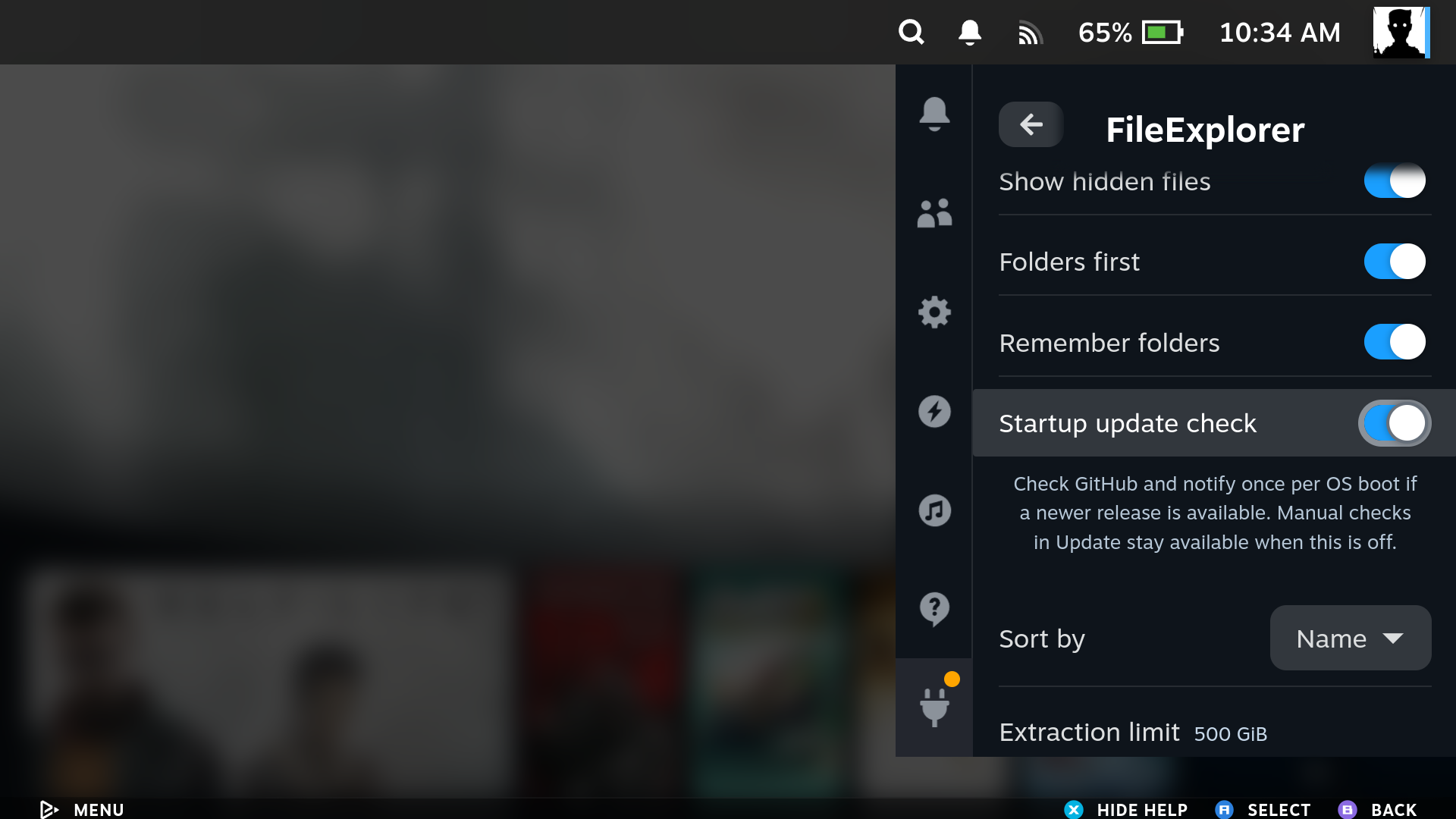
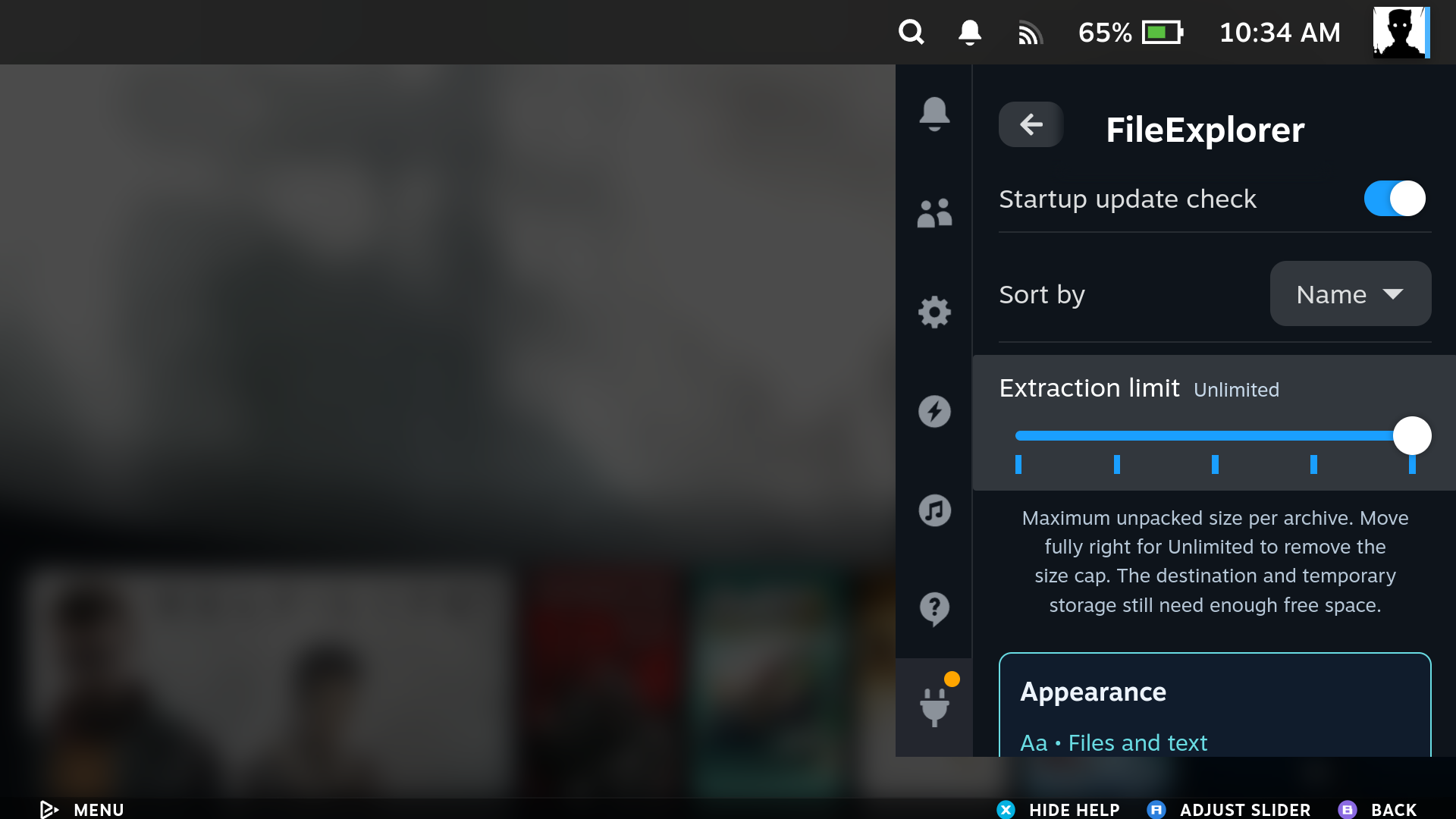
The rightmost extraction-limit position is Unlimited. This removes the size cap while retaining archive path and link checks.
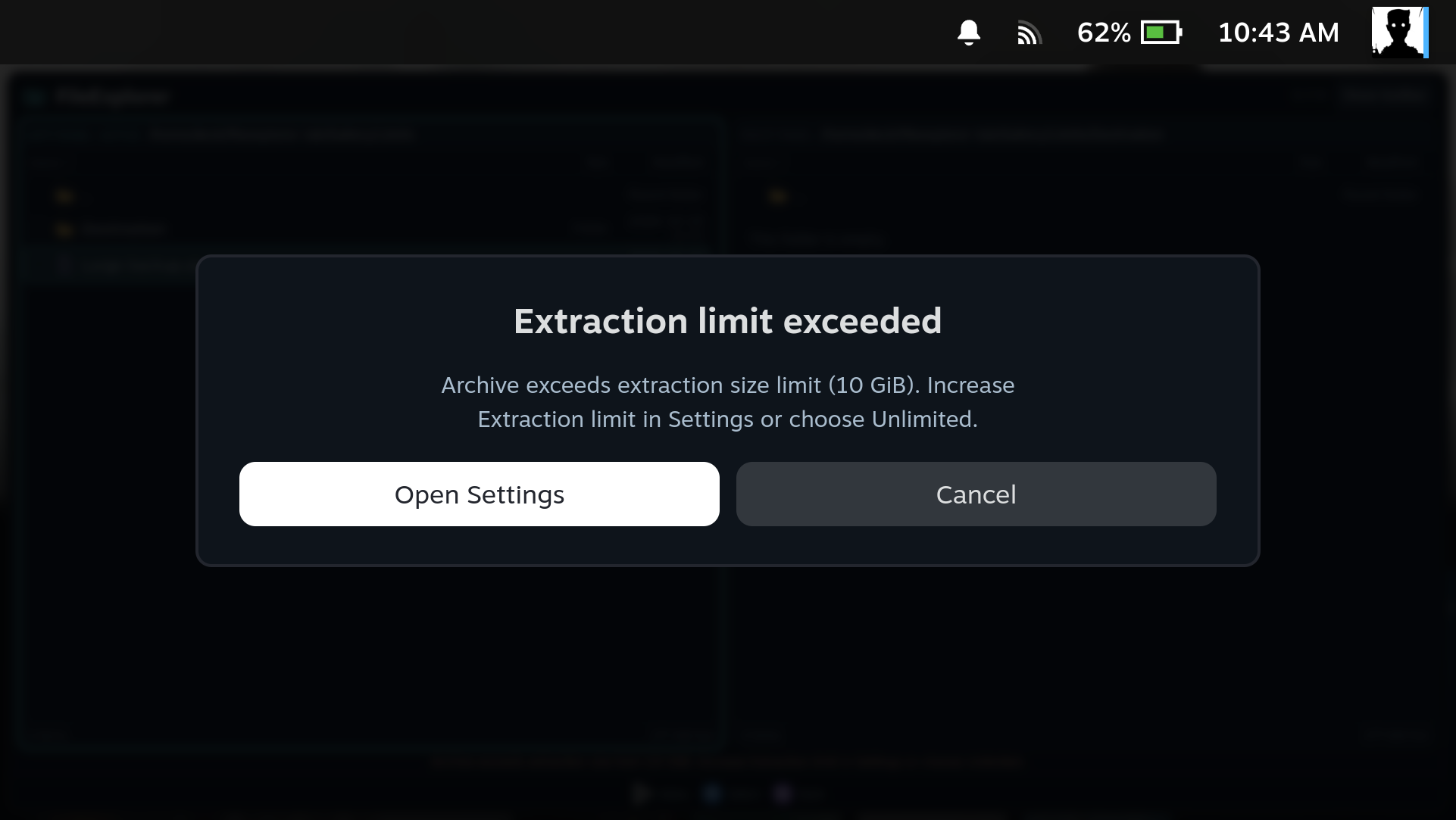
An archive exceeding the selected size cap shows the current limit and an Open Settings button that takes you directly to Extraction limit.
Copying and extraction continue after closing FileExplorer. See the four background extraction notifications captured during a real background extraction on this handheld.


Panel only, Steam bar only, both and hidden. Four native captures arranged side by side.


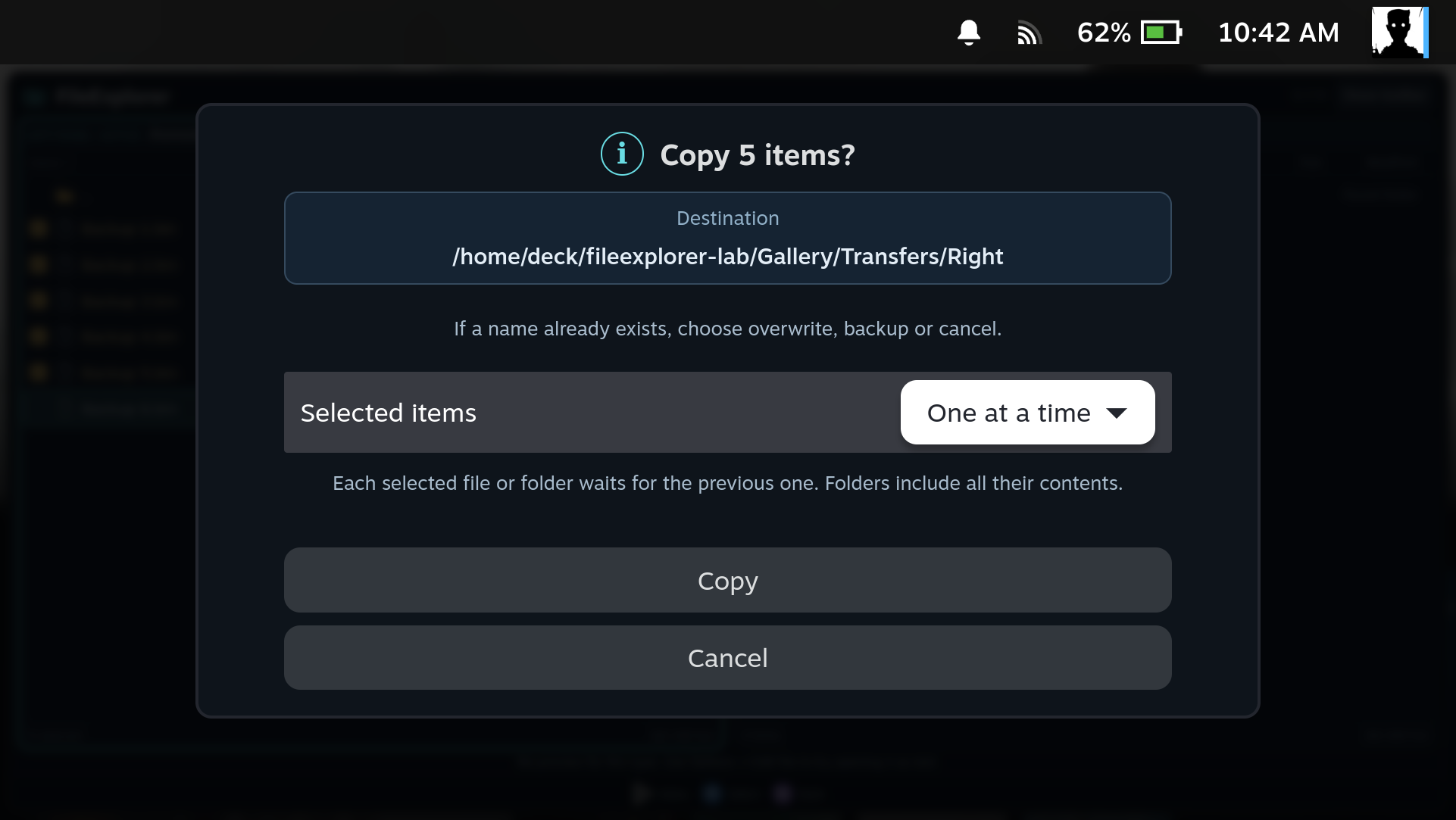
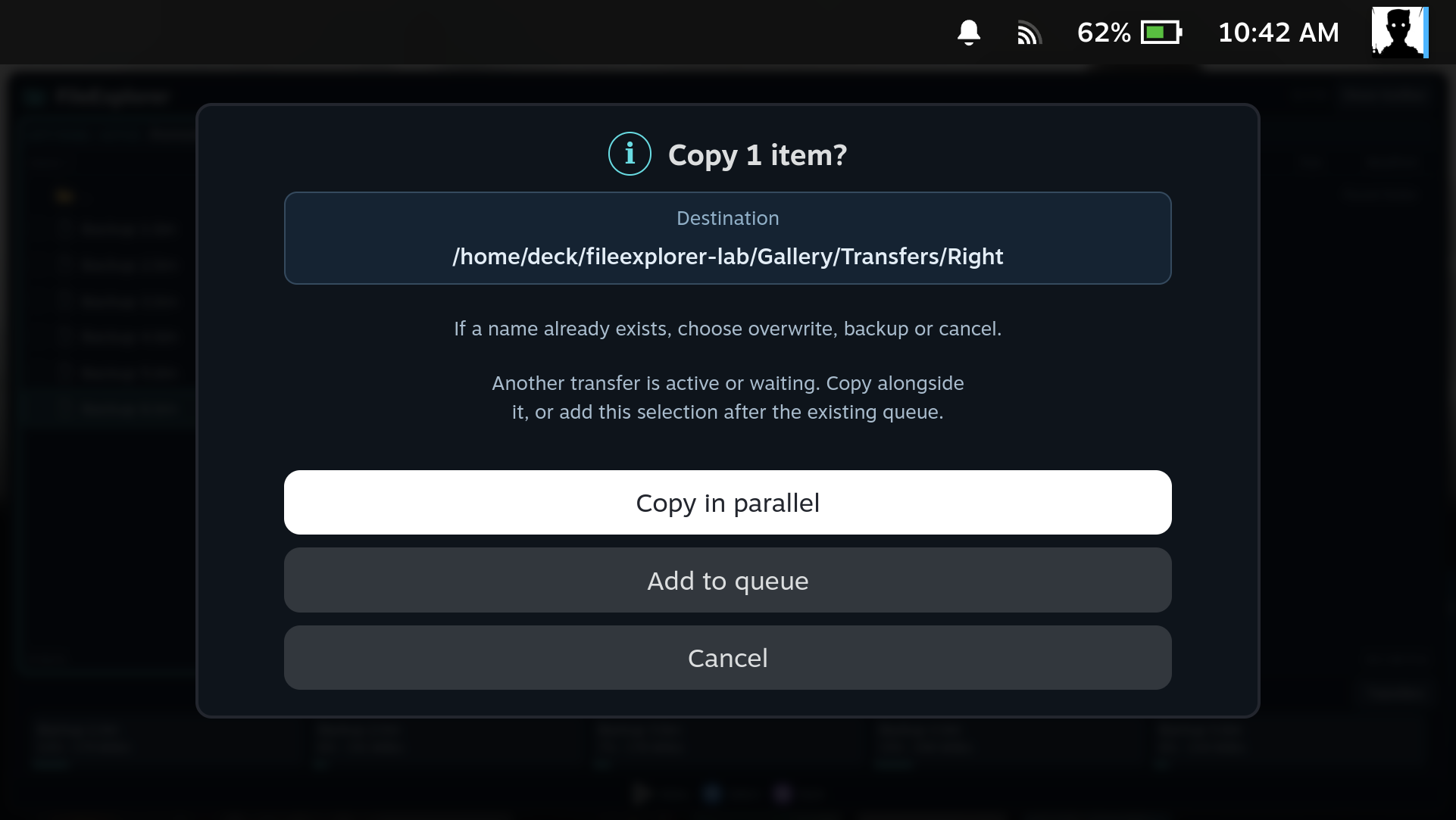
Each task has its own progress. Choose up to five copies, or queue the selection after existing tasks.
Restore a saved draft after interruption, keeping the original file unchanged until Save.

File actions and folder controls occupy separate columns. Copy and move conflicts use six actions, with a separate backup or overwrite confirmation.


