Repository navigation
Installation
You need a SteamOS system with a working Decky Loader installation. FileExplorer runs as your Steam user and uses the system's Python, systemd user services and libarchive. Its Python package dependencies are included in the ZIP.
FileExplorer was tested on SteamOS 3.8.28 / Decky Loader 3.2.10 on an x86-64 PC. It has no kernel module or exact-kernel bundle requirement. Other SteamOS releases and physical controllers have not all been individually tested.
- Download the FileExplorer plugin ZIP from the latest release.
- Save it somewhere accessible on the SteamOS machine, such as Downloads. Keep it as a ZIP. The automatically generated source-code archives are not installable plugin packages.
If you downloaded on another computer, copy the ZIP to SteamOS first.
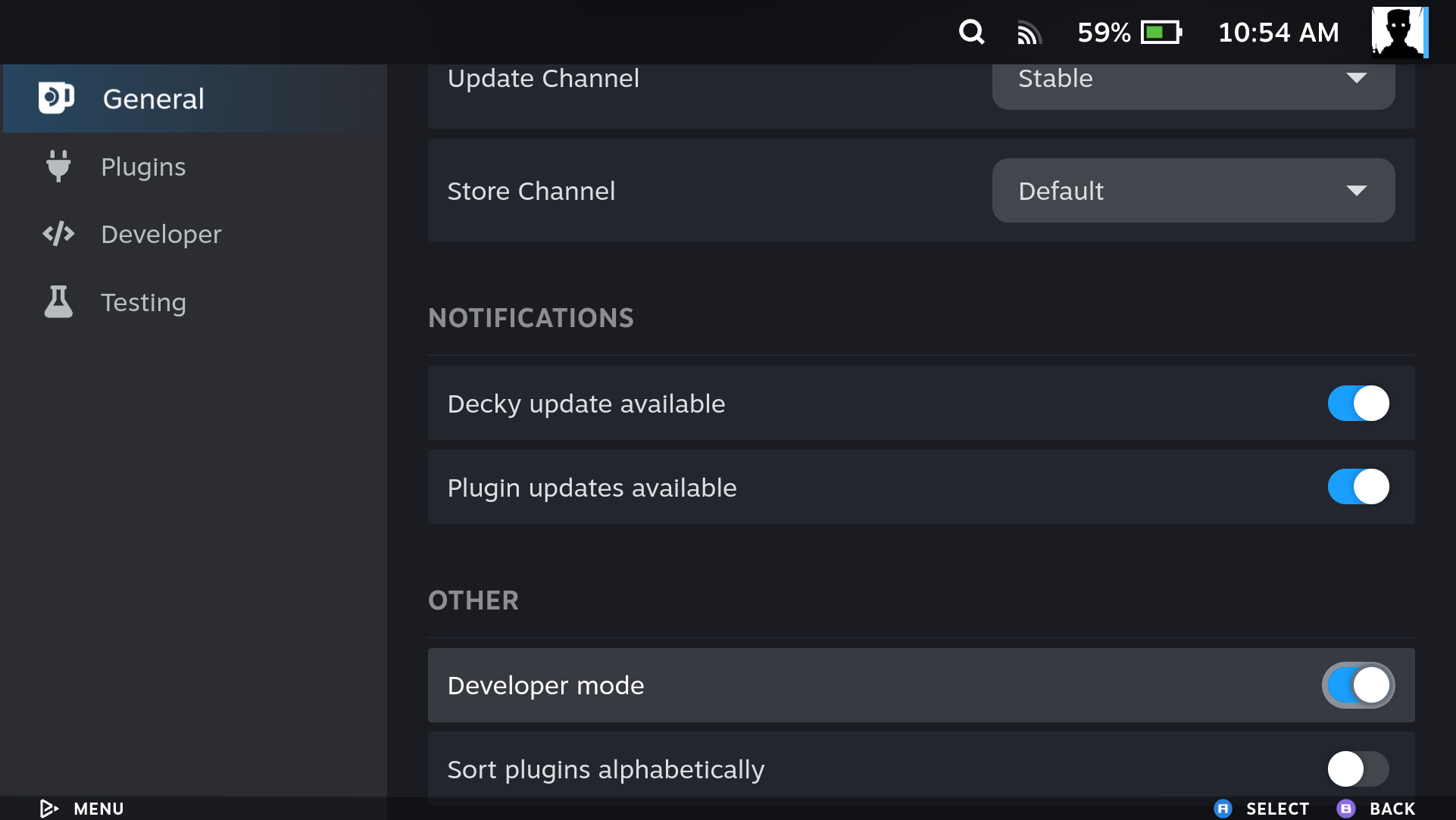
In Gaming Mode, open the quick-access menu, select Decky and open its settings. In General, scroll to Other and enable Developer mode. This is Decky Loader's setting.
Open Developer in Decky's settings sidebar.
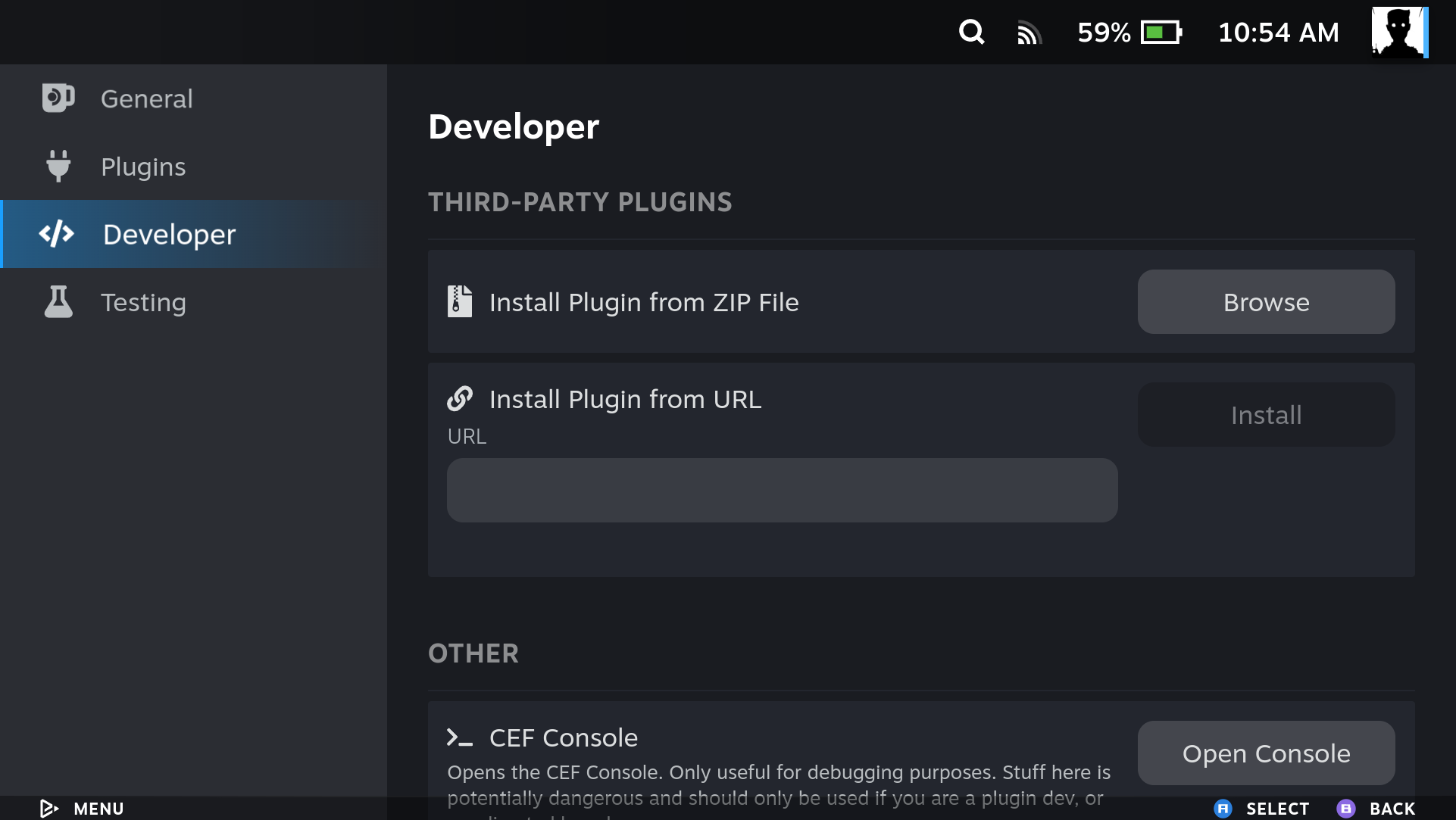
- Under Install Plugin from ZIP File, select Browse.
- Select the downloaded FileExplorer plugin ZIP.
- Accept Decky's installation prompt and wait for installation to finish.
- Copy the direct download link for the FileExplorer plugin ZIP attached to the release. Do not use the release page, repository address or source archive.
- Paste it into Install Plugin from URL and select Install.
- Accept Decky's installation prompt.
The public release download links work directly in Decky without a GitHub login.
Return to Decky, open FileExplorer, then choose Launch FileExplorer. The Decky settings screenshots show the same installation controls on a SteamOS handheld.
Follow the first setup: welcome, Handheld or Steam PC profile, then editable settings. Select Save to open the file manager. Nothing changes until you save, and all options remain available in Settings afterward.
Both panels start in your home folder unless remembered locations are available. Use Locations to choose Home, Downloads, a mounted drive or a network share. Each panel has its own location. Follow Everyday use for the controls.
Updates contain the complete plugin. You can skip intermediate releases.
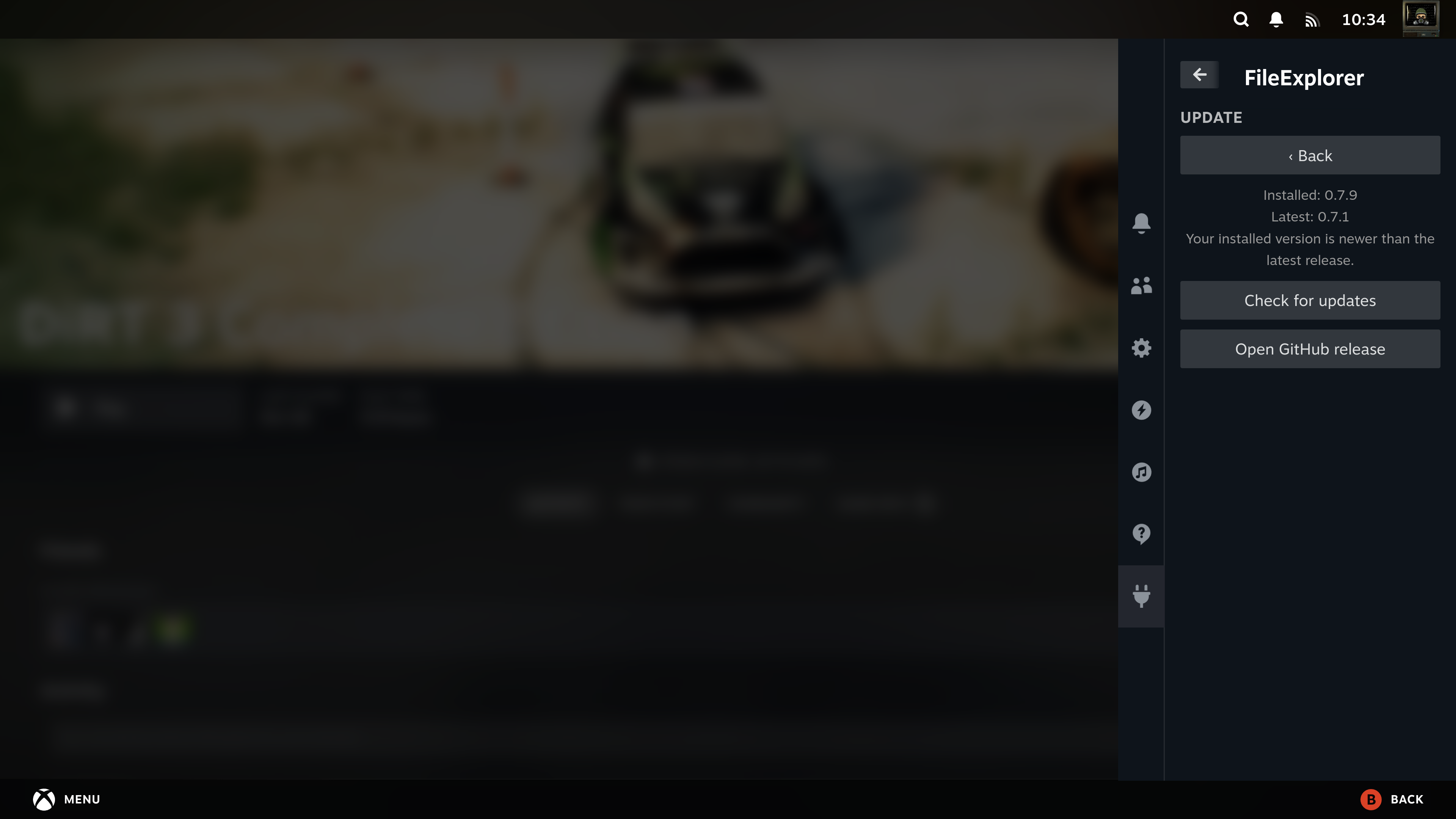
- Open FileExplorer → Update → Check for updates.
- Read the available version and release notes, then select Download and install.
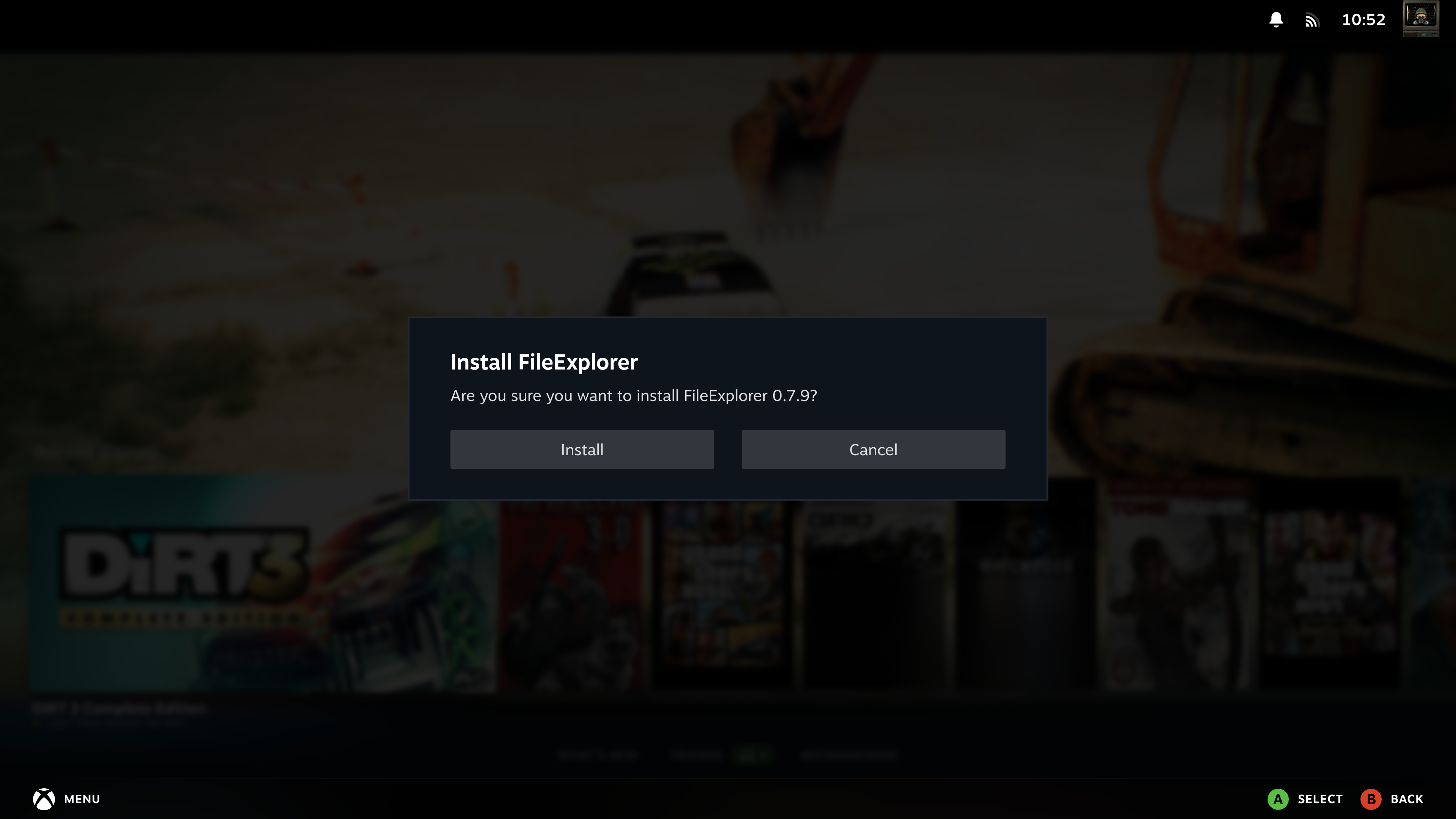
- Wait for download verification, then confirm Install in Decky's prompt.
- Reopen FileExplorer's Update or About page to check the installed version.
This screenshot was taken before the installed version was published. At capture time, there was no newer public version to download. Download and install appears when a newer release is available.
FileExplorer checks GitHub when Decky starts and reports a newer stable release at most once per OS boot. Reloading Steam or the plugin does not repeat the notice. Turn off Settings → Startup update check to disable automatic checks and notifications. Manual checks remain available. An offline startup retries quietly every five minutes until a check succeeds; installation always requires your action.
You can also download the plugin ZIP from the latest release and install it through Decky's Developer settings.
Settings and remembered connections are stored separately from the plugin files. An already running copy, move, extraction or packing job has its own worker files and can continue through a plugin reload or replacement. Notifications become available again when Steam and Decky are running. A system reboot still interrupts the operation.
The installation package is the same for PC and handheld. Launch FileExplorer from Decky in Gaming Mode; its window adapts to the available space automatically. For more visible files or editor lines, adjust Interface scale in Settings and reopen the window. See the handheld guide for the keyboard, L3/R3 toolbar controls and controller legend settings.
Finish or cancel the current operation and wait for its final status. Then use Decky's plugin management to uninstall FileExplorer. Removing the plugin is not the control for cancelling a transfer; use Cancel in the open file manager.
If you want to remove saved SMB login details first, use FileExplorer → Settings → Saved connections → Forget for each connection. Files you copied to other folders are ordinary files and are not removed by uninstalling the plugin.