Repository navigation
Handheld Guide
Manual home · Handheld gallery
The same plugin works on a SteamOS PC and a SteamOS handheld. There is no separate handheld download or layout switch. FileExplorer adapts to Steam's available window size, including when using an external display. Installation and updates use the same Decky procedure.
On a smaller screen, the file manager and its viewers fill the space between Steam's system header and controller bar. Larger viewports use a centered window. The screenshots in this guide were captured on a ROG Ally running SteamOS; they are real handheld captures, not scaled-down PC screenshots.
Open Decky → FileExplorer → Launch FileExplorer. Press L1 / LB for the left panel or R1 / RB for the right, then use the D-pad or left stick to move through its files. A opens a folder or supported preview, X selects items, and Y copies them into the other panel. Menu / Start opens file options. Steam draws the glyphs for the active controller.
File and folder dates appear beside their sizes, including on a small screen. Use Options → Sort by… → Date modified (newest first) to find recent items.
The Options menu separates file actions and current-folder actions into two columns. Use all four directions to navigate. Copy/move confirmations have a centered information heading and a separate destination card. If the name already exists, the interruption dialog has six buttons in two columns: Resume, Start again, Change name, Overwrite, Cancel and Open FileExplorer. Overwrite asks whether to retain a backup. See copying and conflicts.
Use B to go back one menu level. Cancelling Rename, New folder or Empty Trash returns to Options and restores the focused button. Add SMB share and Enter path return to Locations, then another B returns to Options.
Press R3 to reach the top toolbar without scrolling to the first file. During a transfer, the next R3 reaches Cancel and Transfers; another R3 returns to your row. Without a transfer, the second R3 returns directly. L3 hides or shows only the toolbar, giving the file lists more space while keeping your chosen legend mode. R3 also reveals a hidden toolbar. Steam's panel-switch hints use Left and Right to leave space for the stick shortcuts.
The Handheld setup profile starts at 70% scale, with the toolbar hidden and controller hints inside FileExplorer. You can edit every value before saving and later in Settings. X selects an item and moves to the next one; vertical menus and file lists wrap from their first item to their last and back.
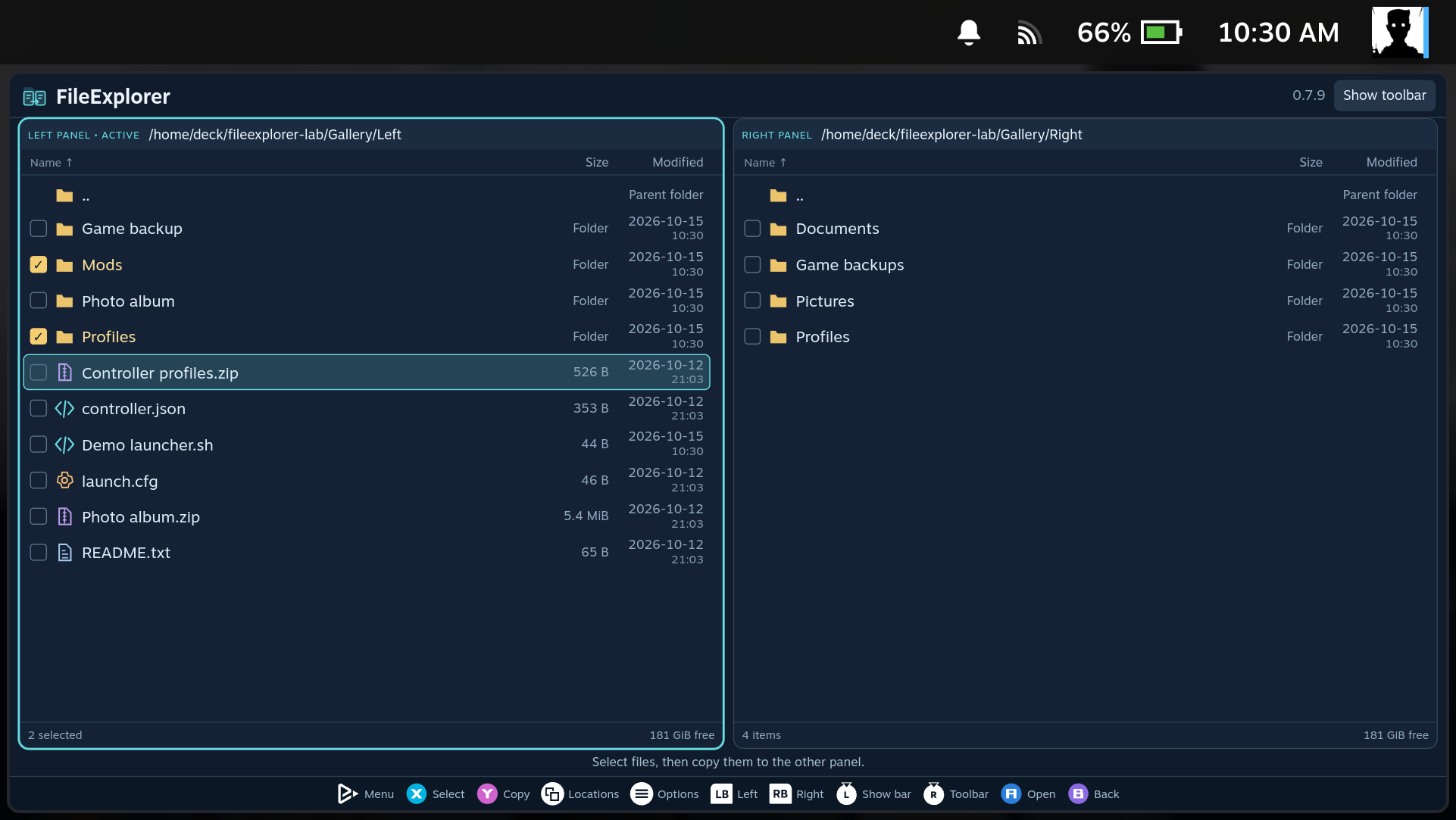
For archives, A enters the archive, X selects its contents and Y extracts them into the other panel. See Everyday use and Archives for the complete controls.
- Open Decky → FileExplorer → Settings → Interface scale.
- Choose 70%, 80%, 90% or 100%. Handheld starts at 70%; Steam PC starts at 100%.
- Reopen FileExplorer to apply the appearance settings.
- Adjust Text size separately if file names or editor text need to be larger.
The outer window keeps its available size. A smaller interface scale fits more content into it, including in the text editor and media player. For an initial comparison, try 80%, then keep the size that is comfortable to read on your screen.
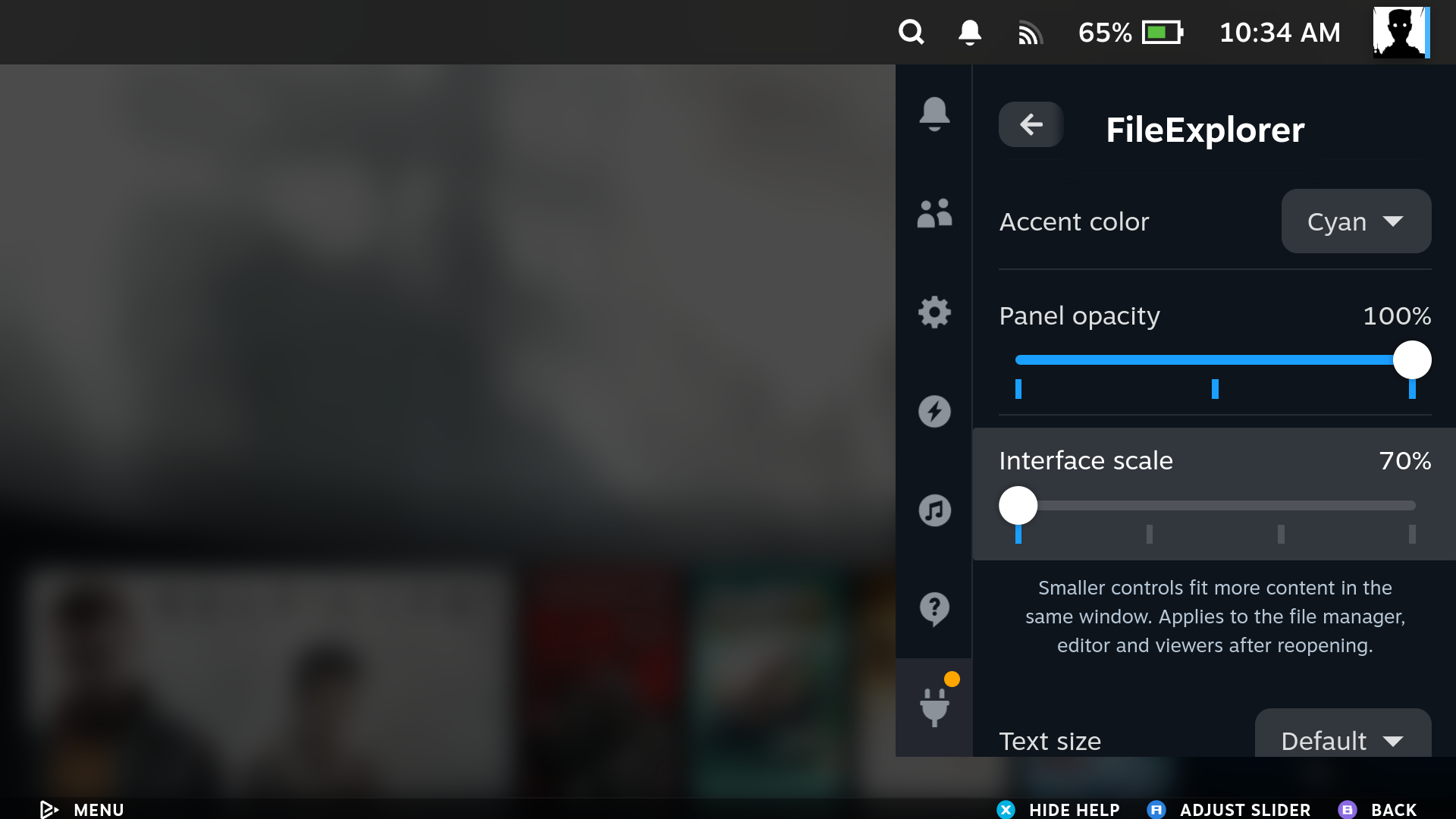
Settings remain in Decky's compact sidebar. Use up/down to choose a setting, left/right to change a slider and X to expand its explanation. Moving up/down closes the explanation. B returns to FileExplorer's own menu.
Settings → Controller legend offers Panel only, Steam bar only, Both and Hidden. Reopen FileExplorer after changing it. Hiding the hints keeps controller actions available; closing FileExplorer restores Steam's normal controls. The panel and Steam bar use the same active hints and order.

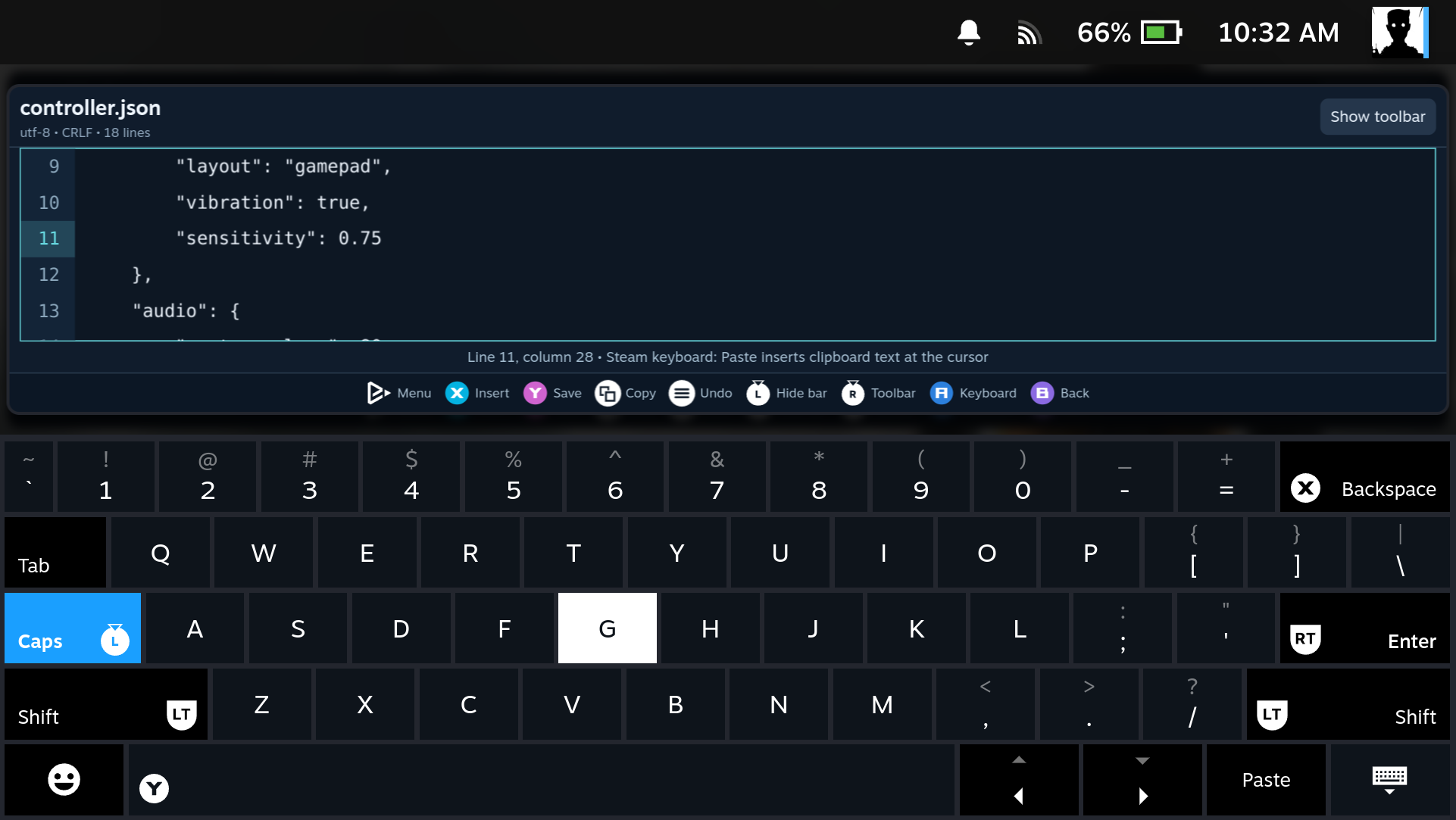
Press A on a text file, move to the desired position and press A again to open Steam's keyboard. The editor keeps its width and reduces its height to fit above the keyboard, scrolling the active line into view.
- L3 hides or shows the toolbar, including while the keyboard is open.
- R3 reveals and focuses the toolbar; it hides the keyboard when necessary. Use left/right to choose an action. R3 again returns to the text.
- Menu / Start performs Undo. Y saves; hiding the keyboard does not save.
- With the keyboard hidden, hold RT / R2 + directions to select text and use View / Select to copy. Open Steam's keyboard and choose Paste to insert it. While that keyboard is open, RT/R2 belongs to its Enter action.
See Text editor for formatting, encodings and limits.
The editor automatically saves a recovery draft while you type. If the battery runs out, reopen the same file and choose Restore draft. Draft saved confirms the last checkpoint; Y / Save is still required to change the original.
A opens a supported picture, audio or video file. In the image viewer, left/right changes pictures. In the media player, A plays or pauses, left/right seeks ten seconds, L1/R1 changes files, X stops and Y switches video fullscreen. R3 reaches the media toolbar. B leaves fullscreen first, then closes the player.
See Image viewer, Media player and the supported formats. Those guides include handheld captures.
Transfers do not block file selection, the editor or media playback. Choose sequential copying or up to 5 parallel tasks for a multi-item selection. Starting another copy offers Copy in parallel / Add to queue / Cancel. The bottom progress area splits between active tasks; Transfers opens the full list, including waiting tasks. After a restart, choose Resume queue for items that had not started, and Interrupted copies for interrupted workers.
The handheld has the same SMB discovery and connection controls as the PC. Both panels can use a local folder or SMB share. Copying, moving, packing and extraction continues when FileExplorer closes, with progress notifications at 25%, 50%, 75% and completion. Keep the device awake and the source and destination available. Closing the panel is different from shutting down, restarting or ending the SteamOS user session, which interrupts the worker.
A failed background copy offers Resume, Start again, Change name, Overwrite, Cancel and Open FileExplorer. Change name and Overwrite are enabled for name conflicts. Overwrite opens a second choice to keep a backup or replace permanently. When stopping a copy yourself, choose Keep for later or Remove partial files. After a shutdown or another operation, Options → Interrupted copies lists retained tasks. Resume verifies saved bytes first; it does not restart automatically. See Copying and background jobs for recovery details and actual handheld extraction notifications. For display or control issues, use Troubleshooting.
Press Menu / Start on a file or selection for Move to other panel and Create archive…. Packing lets you choose a name, destination, format and compression level. On a small screen, the fields scroll while the Create/Cancel buttons stay at the bottom. Read Archives for the formats and background jobs for move verification and cancellation.
Executable files and scripts also offer Add to Steam…. While a game is running, its Steam menu includes Open in FileExplorer below View game details. Both use native controller navigation. See Steam integration for launch permissions, Windows compatibility and network drive requirements.