Repository navigation
Flying and Controls
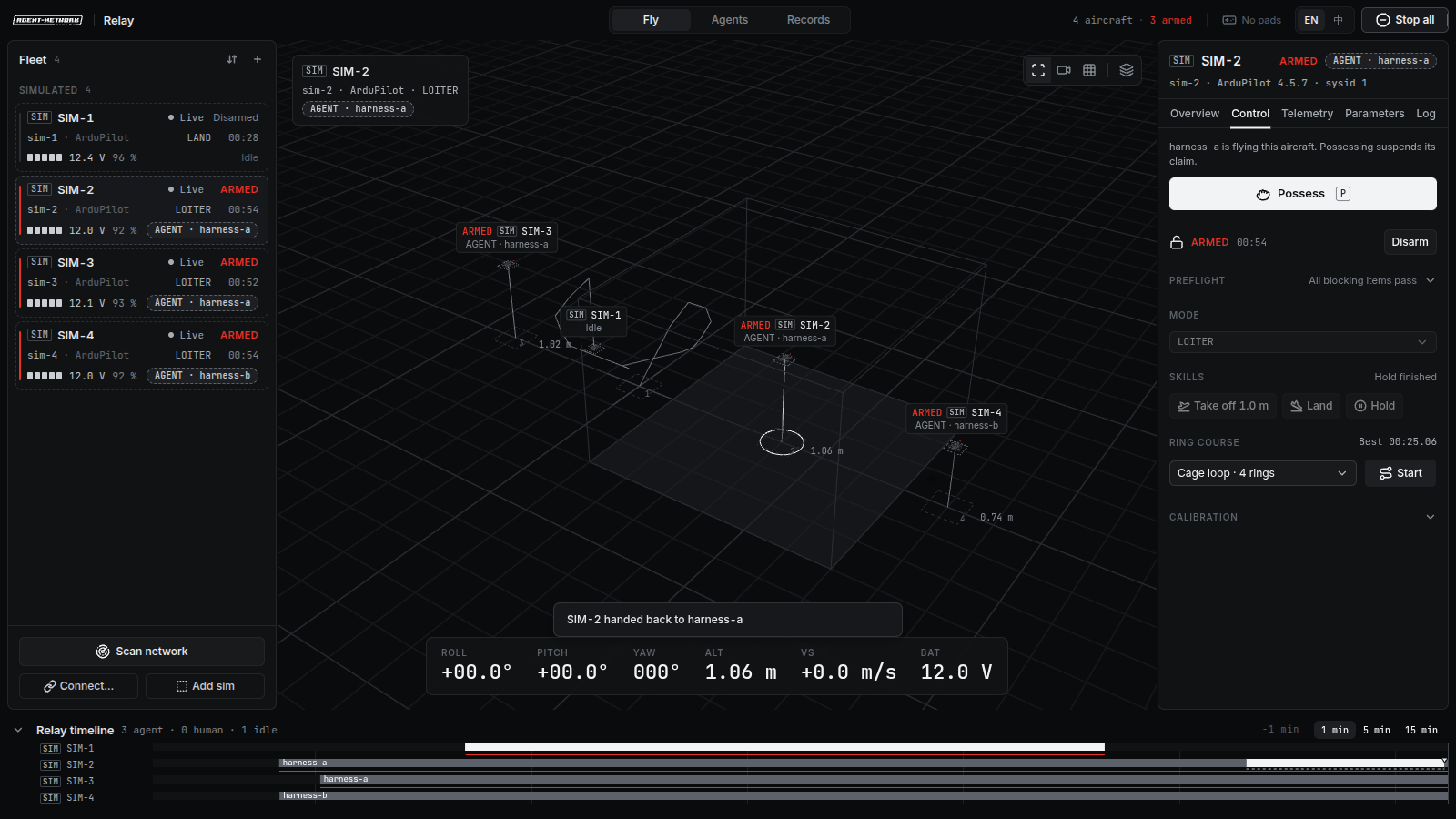
Possessing an aircraft needs no confirmation, because an operator must be able to take over at once. The agent's claim is suspended; on release it resumes and the agent receives relay_handback. The relay timeline along the bottom gives every aircraft a lane: white for the operator, grey for an agent, empty when nobody flies it. An aircraft in the air without a controller raises a standing alert. Possession also pauses an onboard program, and releasing never resumes it on its own.
| Input | Keyboard | DualSense |
|---|---|---|
| Possess or release | P |
Options, hold 1 s |
| Throttle and yaw |
R F / Q E
|
Left stick |
| Pitch and roll |
W S / A D
|
Right stick |
| Arm or disarm (simulators) | inspector, Control tab | L1 + R1, hold 1 s |
| Stop this aircraft | Esc |
L2 + R2, fully pressed |
| Stop all aircraft |
⌘. / Ctrl+.
|
– |
| Hover assist (simulators) or altitude hold (real aircraft) | H |
Triangle |
| Throttle to the hover point | Z |
– |
| Control feel sharper or gentler | – | D-pad up / down |
| Fire (simulators, arena) |
X, held |
R1, held |
| Ring course | G |
Square |
| Camera: overview, chase, top | C |
Touchpad press |
| Command palette |
⌘K / Ctrl+K
|
– |
Stop sets throttle to zero for 50 ms, then requests a disarm. It never changes who controls the aircraft.
Gamepads bind on their own only to simulators; binding one to a real aircraft is always an explicit choice. Up to four gamepads fly four aircraft at once. If a gamepad disconnects, Relay stops its stick stream at once, puts a simulator in the air into loiter and waits three seconds for the same gamepad before releasing the aircraft.
RC transmitters in USB joystick mode (EdgeTX, OpenTX, RadioMaster, Jumper, FrSky, TBS and others) are recognised with an AETR default and an absolute throttle. Set up mapping in the controller panel learns axes, directions, centres and end points for any other device and binds switches to hover assist, fire, arm (simulators) and stop. A transmitter sends sticks only once its throttle is lowest, or centred in hold modes.
Three feel presets, Gentle, Standard and Sport, scale tilt, yaw and keyboard reach without changing flight-controller parameters. Mode 1, Mode 2 and per-axis inversion are in Settings → Controllers. The driving HUD shows the mode, hover assist, the feel and the throttle actually sent against the hover point.
Open the inspector's Control tab while possessing an aircraft. Flight actions take off to a set height, hover, move by a step, turn and land. Sequence holds an editable list of steps (for example take off 1 m, hover 3 s, forward 1 m, back 1 m, turn 45°, land) and flies it in one go; any stick movement takes over and ends it. Without a local position source, moves are timed tilts whose distance is an estimate.
Without a position source the sequence flies on the throttle stick in altitude hold. The Throttle panel under the steps sets the two sticks it uses: Climb (default 72 %) lifts the aircraft off and climbs, Hold (default 50 %) holds the height. Raise Climb when the aircraft does not lift off and Hold when it sinks while hovering; a change applies at once, also while the sequence flies. While the aircraft is armed the panel shows the height, climb rate, throttle stick and motor output.
Control → Timeline sequence → Open timeline opens a dock under the stage. You can also open it from the command palette, or from Records → Open as sequence for a past flight. A timeline is four tracks, throttle, pitch, roll and yaw, each a row of blocks: a block is one operation, for example "throttle 0.75 for 2.5 s" or "pitch −0.06 for 3 s".
- Both sticks at a glance. The strip above the time axis draws the left and right stick at every moment a stick changes; click a pair to jump there. The two stick pads at the top of the side panel show both sticks at the cursor (the playhead while flying): drag a stick to set both sticks from that moment on, and the blocks under the cursor split there. The pads follow your stick mode in Settings → Controllers (Mode 2: throttle on the left).
-
Change a block.
- Drag it up or down to change its stick; hold Shift for fine steps.
- Drag its right edge to change how long it lasts; later blocks move with it.
- Drag its left edge to move only its start.
- Double-click a block to split it.
-
Keys. With a block selected:
- Up and Down change the stick by 0.01 (Shift: 0.05).
- Left and Right change the length by 0.1 s (Shift: 0.5 s).
- S splits the block at the cursor, Delete removes it, and Ctrl or ⌘ + Z undoes.
- Block panel. Holds the block's name, the exact stick and duration, whether it holds or ramps to the next block, and Split, Insert after and Remove.
- Trim. Pitch, roll, yaw and throttle offsets are added to every frame and apply in flight as soon as you let go. If the aircraft drifts forward, move Pitch below zero instead of editing the tracks.
- Modes. Stabilize, altitude hold, position hold and (since 0.5.4) Acro, where the sticks set body rates and the aircraft can flip. While waiting to arm the throttle is 0 on ArduPilot (4.6 and later refuse to arm otherwise) and 50 % on PX4 in the hold modes.
- Fly sequence. Switches the mode, arms on the ground (a real aircraft asks for ARM) and plays; a red playhead follows the flight. Fly from cursor starts part-way. Edits to blocks not yet flown take effect at once. Stop sequence never cuts the motors: in the air, altitude hold hands over to a hover and stabilize keeps the throttle of that moment. In the dock, Esc first clears the selected block; with nothing selected it stops the aircraft as everywhere else.
- Record. Fly by hand with the gamepad or keyboard; the sticks become blocks you can then edit.
- Takeoff template. Spool, climb, hover, descend and settle, each a named block: to change the take-off throttle, select Climb and type a value.
-
Files. Export saves an
.arsfile (ANet Relay Sequence), Import opens one. The same file flies a simulator and a real aircraft.
The .ars format is described in the Agent API and in design 10.
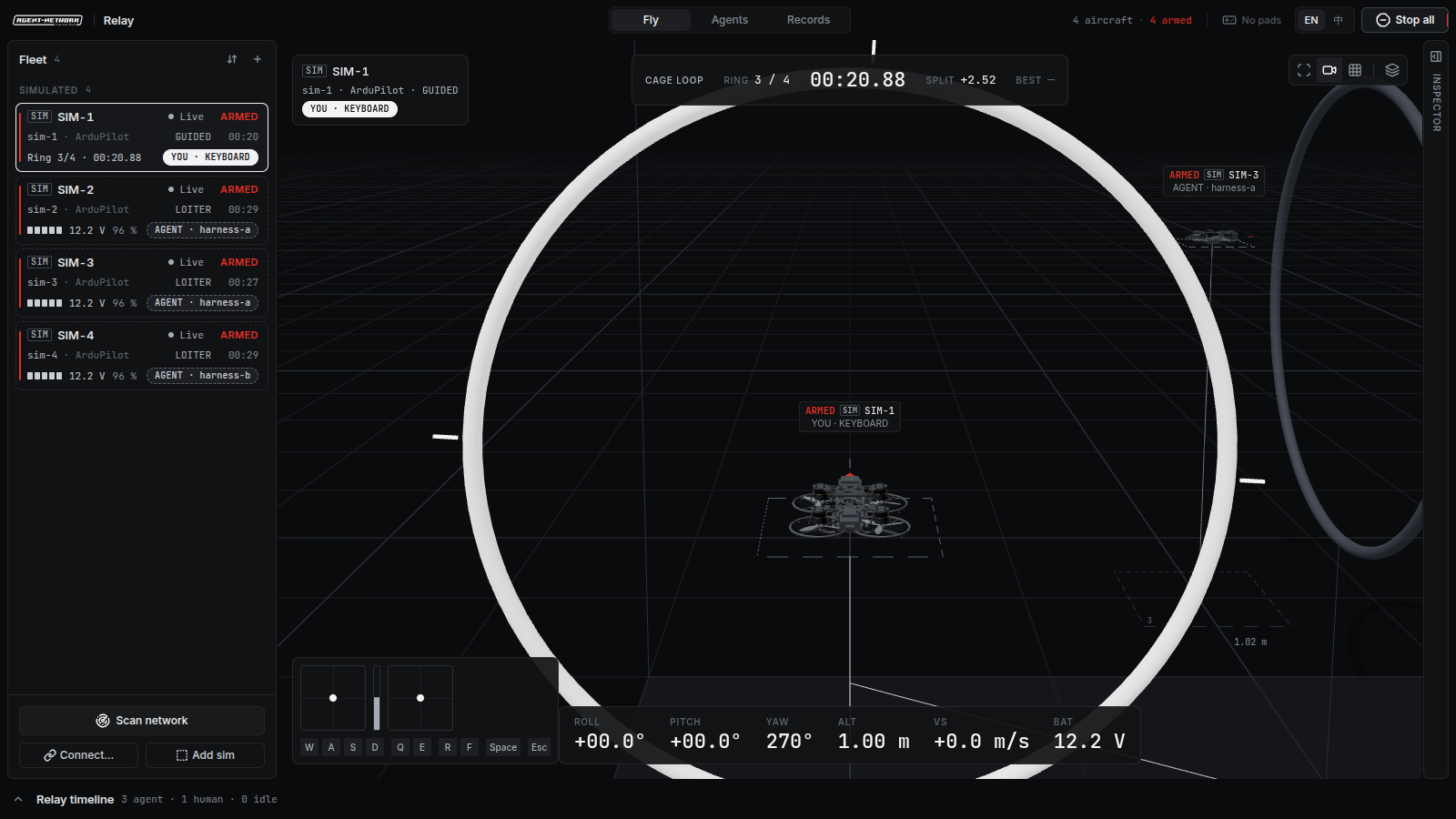
Courses cage-loop, slalom and climb time every split. Rings are solid tori since 0.5: a pass counts only when the whole aircraft clears the tube; a scrape still counts and is reported as ring_touch; a fast hit crashes. Real aircraft fly the virtual rings when they report a local position at 5 Hz or more.