Repository navigation
Tracking Inventory
This page describes CORE's implementation of perpetual inventory. The major components are counts, orders, and sales. There's also some routine maintenance.
You always get started by counting what you currently have. Inventory only attempts to track items that have a count entered into the system. It's OK to have some items included in inventory and others excluded.
Counts are entered on the Inventory Counts page. You can enter counts for a single item (by UPC) or for all items from a vendor. The optional super department filter is sometimes useful with larger vendors. In either case you have the option to enter a new count, a new par, or both. The count is how many individual, salable units you have. The par is how many individual, salable units you want to keep in stock. To update only the par leave count blank.
If an item is purchased in one size but sold in multiple sizes, counts and pars are given in the smallest unit. For example, if Emergen-C is sold by the box and by the individual packet, counts and pars are given in individual packets. These type of items are managed as Breakdowns under Manage Vendors.
Tracking always operates based on the most recent count for an item. When you enter a new count, the system starts over and works from that number. If counts were taken on paper and entered into the electronic system later, you can click Adjust Dates to back-date any counts as needed.
Orders must be entered into CORE for inventory tracking to function. Order entry and management tools are all found item the Item Maintenance menu under Purchase Orders.
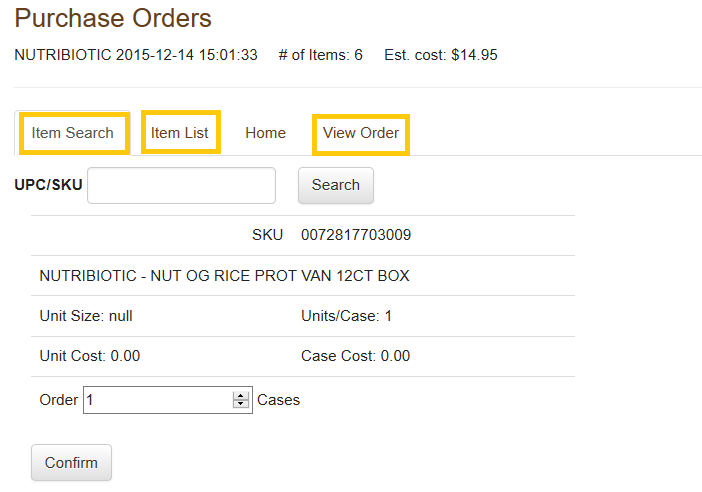
To create a new order, use Create Order => By Vendor. This creates a single order built from a single vendor's catalog of items. On the Item Search tab order you can search for items by SKU or UPC and add them to the order. On the Item List tab you can see all items currently on the order and alter quantities. When you're done click View Order.
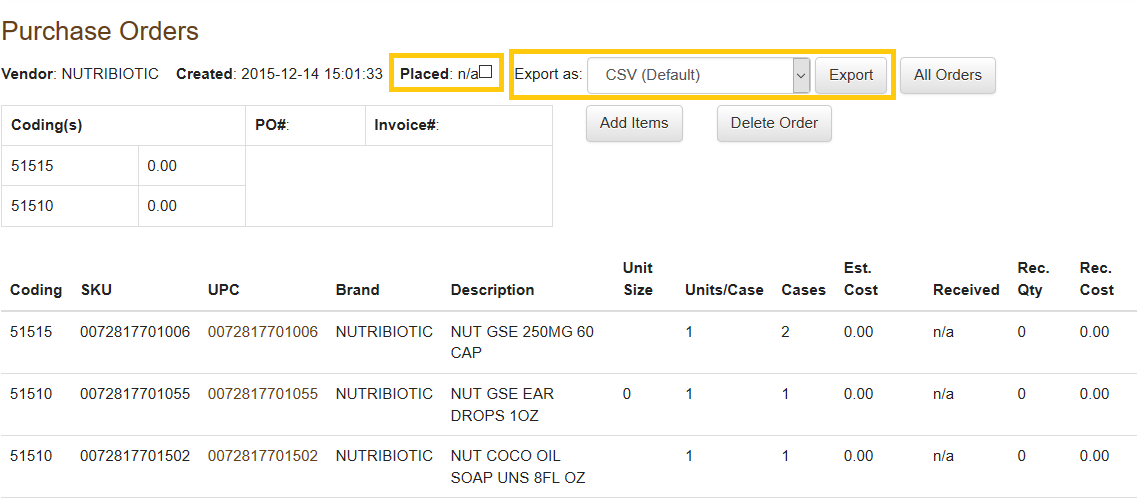
CORE is not currently capable of transmitting orders to directly to vendors. The next steps will typically be:
- Export the order and submit it to the vendor somehow (obviously this is going to vary by vendor)
- Check the box for Placed. Once an order is placed, tracking will immediately add those quantities to inventory.
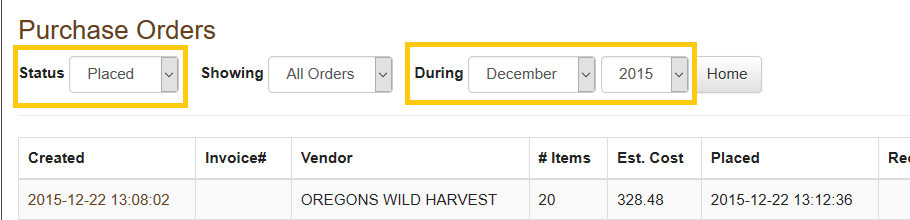
To receive an order, first find your order by going to the Purchase Orders main page and choosing View Orders. The default view shows all Placed orders from the current month. Change the month or year to view older orders or the status to view orders that are not yet marked Placed. In the order click the Receive Order button. The receiving tool is currently very handheld oriented and works one item at a time. Enter a SKU (or UPC) to view that line-item of the order and adjust the received quantity or received cost as needed.
CORE can also generate orders based on the defined pars. Go to the main Purchase Orders page and choose Create Order => Generate Order then designate which vendor(s) you want to create orders for. The remainder of the process is identical to creating an order from scratch.
Sales should be deducted from inventory automatically. Shrink is counted separately but is also deducted automatically. The numbers shown may sometimes be "as of the end of yesterday". Returns are not added back into inventory. Special Orders are also current ignored (this only pertains to special orders created via CORE's special order system).
The Inventory (Approximate) task should be scheduled to run nightly. This recalculates inventory based on the day's activity. Auto Order can generate orders based on pars if that seems like a good idea.
There is also a fair amount of data maintenance to ensure the different components fit together - items need to belong to a vendor, they need a corresponding vendor catalog entry defining case size / order-able quantity, the UPCs on sales, orders, and counts have to agree, etc.