Slideshow AudioReactive Guide
How to use Fracturing Fog's hands-free guided-tour mode, including the audio-reactive engine that lands transitions on detected beats.
Companion pages: User Index · Regions Guide · Capture Guide
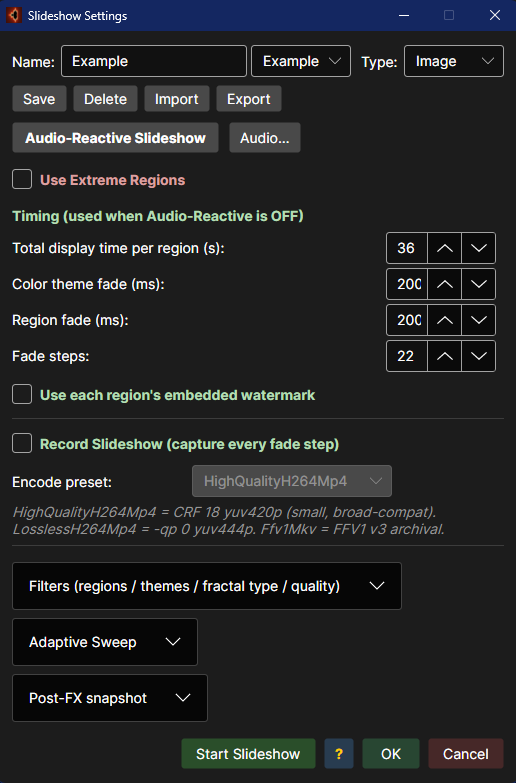
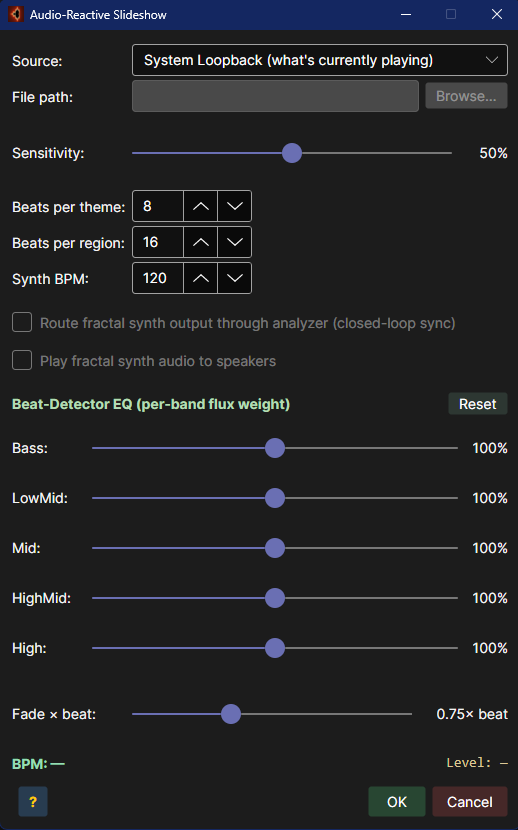
The slideshow is Fracturing Fog's hands-free mode: it picks one of your saved regions, paints it with a theme, cross-fades to the next region after a while, and keeps going forever. If you turn on audio-reactive mode, those transitions land on the beat of whatever music is playing — your desktop audio, a file, a microphone, or a synth the app generates from the fractal itself.
The whole experience can be recorded to MP4 — so you can leave it running for an hour and end up with a video to share.
- Have at least two regions in your Region dropdown (the built-ins are enough).
- Floating Menu → click Slideshow.
- Watch.
The app cycles themes every ~10 seconds and regions every ~30 seconds by default. To stop, press
Esc or click the Stop button (the Slideshow button changes label while it is running).
- Start the music in Spotify / browser / any app — whatever you would normally listen to.
- Floating Menu → click Slideshow Settings…
-
Source =
System Loopback(the default). -
Sensitivity =
50%(default — raise it if the music has no strong drums). -
Beats per Theme =
8(about 2 bars in 4/4). -
Beats per Region =
32(about 8 bars). - Audio-Reactive checkbox → tick it.
- Click OK.
- Floating Menu → Slideshow.
The next theme change will land on the next strong beat the detector hears. If the music is too quiet, raise sensitivity; if every cymbal triggers a change, lower it.
Tip
No music? Set Source = Fractal Synth. Fracturing Fog will synthesise a generative arpeggio based on the current view. Tempo is configurable; it sounds nothing like Spotify but it lands transitions perfectly because the synth is the detector.
- Set up the slideshow exactly as above.
- Floating Menu → Video Slideshow.
- Pick an output
.mp4filename. - Duration →
5minutes, framerate →30. - Click Render. The app starts a slideshow internally, runs it for 5 minutes, encodes every frame, and writes the video.
Important
Audio-reactive timing of recorded slideshows uses the live timing from when the recording started. Re-running the same audio source on a different day produces a different video — that is by design (real-time response). If you want frame-exact reproducibility, record once and keep the file.
- Basic Slideshow
- Slideshow Settings Dialog
- VCR Transport
- Single-Shot Video Zoom
- Video Slideshow Loop
- Recording
- Audio-Reactive Engine
- Worked Audio Scenarios
- Troubleshooting
Click Slideshow (Floating Menu) to start an auto-cycle of regions + themes.
Default timing (no audio):
| Event | Default | Configurable in |
|---|---|---|
| Theme change | 10 s | Slideshow Settings → Beats per Theme |
| Region change | 30 s | Slideshow Settings → Beats per Region |
| Cross-fade duration | 3 s | Slideshow Settings → Fade duration |
| Watermark visible | Yes | Toolbar Watermark toggle |
Modifiers:
| Action | Effect |
|---|---|
| Shift+click Slideshow | Lock current region — only themes cycle |
| Esc | Stop the slideshow |
| Click ▶▶ / ◀◀ | Skip to next / previous region |
The Slideshow button label flips to Stop while running.
Open via Floating Menu → Slideshow Settings…. Modeless — you can leave it open while the slideshow runs.
| Tab | Contents |
|---|---|
| Timing | Beats per Theme, Beats per Region, Fade duration |
| Filter | Include extreme regions, Theme filter, Per-fractal filter |
| Audio | Master enable, Source, Sensitivity, Synth options, EQ |
| Video | Output format, dimensions, fps, ffmpeg flags |
| Watermark | Show region name, theme name, program label, opacity |
OK commits to disk (slideshow-settings.json + audio-settings.json). Cancel discards.
The slideshow VCR row sits at the bottom of MainWindow, between the render surface and the status bar. Visible only while the slideshow is running.
◀◀ ◀ ▮▮ ▶ ▶▶
| Button | Action |
|---|---|
| ◀◀ | Skip back to the previous region (resets theme counter) |
| ◀ | Skip back one theme within the current region |
| ▮▮ | Pause / Resume |
| ▶ | Skip forward one theme |
| ▶▶ | Skip forward to the next region |
The VCR row is in its own layout band — never occluded by the GPU swap-chain HWND.
The Video button in the Floating Menu animates a smooth zoom from the current view to the currently-selected region. Independent from the slideshow.
Two-phase motion:
- Pan phase (first 5 % of duration) — pan to the target center at the current zoom. Avoids the ""zoom-and-drift"" feel.
- Zoom phase (remaining 95 %) — log-zoom interpolation with center fixed.
Both phases smoothstep-ease.
Frame rate is calculation-bound, not wall-clock. The loop advances by elapsed wall-clock time so total duration is honored even when individual frames are slow.
While running, the Video button label reads Stop and three extra Live TAA sliders appear in the Floating Menu:
| Slider | Purpose |
|---|---|
| TAA Alpha | Temporal blend strength between frames. Higher = more smoothing, more ghosting. |
| Fade Start | Zoom at which deep-zoom artifact fade begins. |
| Fade End | Zoom at which fade reaches full strength. |
Continuous variant: zoom in → pause → zoom out → next region → repeat.
| Leg | Default |
|---|---|
| Zoom in duration | 30 s |
| Pause at target | 7 s |
| Zoom out duration | 30 s |
| Inter-region gap | 0 s |
Stops independently from the single-shot Video feature (Esc or the Slideshow button toggles off).
Configure in Slideshow Settings → Video tab.
| Format | Container | Encoder | Needs ffmpeg? |
|---|---|---|---|
| None | — | — | No |
| MP4 (built-in) | .mp4 | Media Foundation H.264 | No |
| Lossless H.264 | .mp4 | libx264 -qp 0, yuv444p, +faststart | Yes |
| Lossless FFV1 | .mkv | FFV1 v3 | Yes |
| H.264 HQ | .mp4 | libx264 -crf 18, yuv420p | Yes |
| PNG sequence | folder | (sidecar; can pair with any video format) | No |
ffmpeg.exe discovery order:
- App folder.
-
<install>\Tools\,<install>\Resources\. - PATH.
Two-phase workflow when ffmpeg is engaged:
- Render every frame to disk as
frame_NNNNNN.png(image2-compatible). - Invoke ffmpeg with the preset's argument set; ffmpeg progress feeds a second progress meter.
--keep-frames / --no-keep-frames in the batch CLI controls whether the PNG folder is retained. Interactive recording follows the same on-disk flag.
The audio-reactive engine replaces fixed-duration timers with a beat counter driven by spectral-flux onset detection. Open via Slideshow Settings → Audio tab, or Floating Menu → Audio Settings…
The Audio-Reactive checkbox is the master switch. OFF = fixed-duration timing. ON = beat-driven, even if the dialog is closed.
State persists between launches via %APPDATA%\FracturingFog\audio-settings.json.
| Source | Description |
|---|---|
| System Loopback | Captures whatever is currently playing on the default audio output (Spotify, browser, video player, game). Nothing else to configure. |
| Audio File | MP3 / WAV / FLAC / OGG / AIFF / WMA. Plays through speakers AND drives the detector — you hear what's being analyzed. |
| Microphone | Default capture device. Good for live shows / external speakers. |
| Fractal Synth | Internally generated audio derived from the fractal itself (closed-loop showcase). |
Range 0 – 100 %, default 50. Controls the onset-detection threshold. Lower = only strongest hits register (heavy drums); higher = subtler transients fire (ambient, speech).
| Setting | Default | Meaning |
|---|---|---|
| Beats per Theme | 8 | ≈ 2 bars at 4/4 |
| Beats per Region | 32 | ≈ 8 bars at 4/4 |
A region change resets the theme counter so both events never fire on the same beat.
| Setting | Range | Default |
|---|---|---|
| Synth BPM | 30 – 240 | 120 |
| Route through analyzer | — | On |
| Route to speakers | — | On |
5 band-weight sliders, 0 – 200 %:
| Band | Default % |
|---|---|
| Bass | 100 |
| Low-Mid | 100 |
| Mid | 100 |
| High-Mid | 100 |
| High | 100 |
Steer which instruments drive the beat detector. Boost Bass to lock onto kick drums; boost High-Mid for cymbal hats.
Range 0.10 – 2.00, default 0.75. Cross-fade duration as a fraction of one detected beat. Hard minimum of 120 ms even at high BPM.
- Source: System Loopback
- Sensitivity: 60
- Beats per Theme: 4 (≈ 1 bar)
- Beats per Region: 32 (≈ 8 bars)
- EQ: Bass 150, others 100
- Fade × beat: 0.5
- Start Spotify, hit Slideshow.
Result: theme flips every bar, region every 8 bars, all snapped to the kick.
- Source: Microphone
- Sensitivity: 80 (drones are subtle)
- Beats per Theme: 16
- Beats per Region: 64
- EQ: Bass 80, Low-Mid 120, Mid 120, High-Mid 100, High 80
- Fade × beat: 1.25 (long cross-fades match the mood)
- Source: Fractal Synth
- Synth BPM: 110
- Route to speakers: ON (you hear the closed-loop audio)
- Route through analyzer: ON
- Beats per Theme: 8
- Beats per Region: 32
- EQ: defaults
Use this when recording a video — the synth deterministically produces the same audio every time, so two renders match frame-for-frame.
- Source: Audio File → pick the next track
- Sensitivity: 50
- Beats per Theme: 4
- Beats per Region: 16
- Fade × beat: 0.625
- Lock the region with Shift+click Slideshow if you want to focus on one location while themes cycle.
No beats firing.
- Confirm the source is producing audio (loopback: another app is playing; file: file has started; mic: input meter moving).
- Lower Sensitivity.
- Boost the Bass band in the EQ if you're listening to drum music.
Beats too frequent.
- Raise Sensitivity.
- Reduce Bass / Low-Mid band weights.
- The detector reports onsets, not just downbeats — for pure 4/4 downbeat sync, set Beats per Theme to 4 (≈ 1 bar) rather than 1.
Audio cuts out mid-slideshow.
- File mode: end-of-file ends silently. Switch source or pick another file.
- Loopback: the source app stopped playing. Restart it.
- Mic: input device changed (e.g., headset unplugged). Reopen Audio Settings.
Cross-fades feel wrong tempo.
- Adjust Fade × beat. At 0.5 the fade ends in half a beat (snappy). At 1.5 it sprawls (cinematic).
Synth doesn't make sound.
- Tick Route to speakers. Without it, the synth is analyzer-only.
Slideshow advances on every loopback noise (notification ping, system sound).
- Raise Sensitivity. The detector is too eager.
- Switch source to a dedicated audio app rather than system loopback if other apps are sharing the output.
Slideshow audio settings aren't sticking between launches.
- Make sure you clicked OK (commit), not Cancel. The file is
%APPDATA%\FracturingFog\audio-settings.json.
Slideshow + Audio-Reactive Guide · Fracturing Fog · © 2026