
Define, run, and manage your project's custom shell tasks from a dedicated VS Code sidebar.



Replace manual terminal management with a GUI - keep npm run start, pnpm dev,
docker compose up -d, etc. one click away (with live status, PID). Think
IntelliJ-style run configurations for VS Code: save your project's commands as
named, reusable tasks and launch, stop, and watch them from a dedicated sidebar.
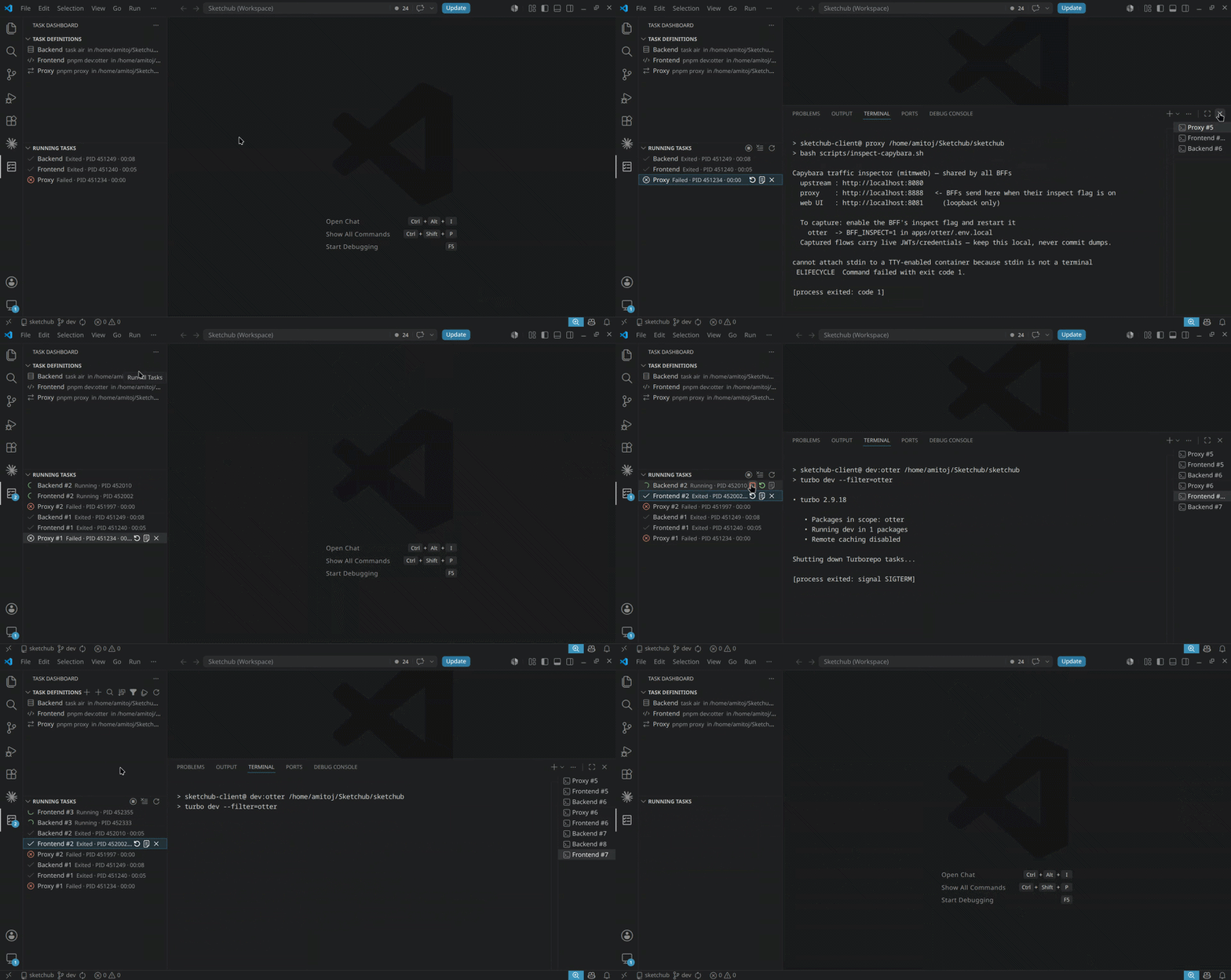
- Task Definitions view - create and organize your commands. Each task captures its command, working directory, environment variables, shell, and restart policy.
- Running Tasks view - see every active instance with a live status icon, PID, and uptime. Stop, restart, or jump to its output instantly.
- Real terminals for output - each running task gets its own Pseudoterminal-backed terminal with native ANSI colors, search, clickable links, copy, and auto-scroll. No bundled terminal emulator, no webview surface for output.
- Modern Add/Edit editor - a hardened webview form for the full task model, plus a native Quick Add for the fast path.
- Run controls - Run, Stop, Restart, Run All, Stop All. Graceful stop (SIGTERM → SIGKILL) with whole-process-group / tree kill so nothing is orphaned.
- Auto-restart - opt-in restart on crash, guarded by a crash-loop breaker.
- Search, sort, and scope filtering - find tasks fast and split global vs. workspace definitions. Sort by name or most-recent, or drag tasks into a manual order of your own.
- Persisted, file-free storage - tasks live in VS Code state, not in stray files in your repository.
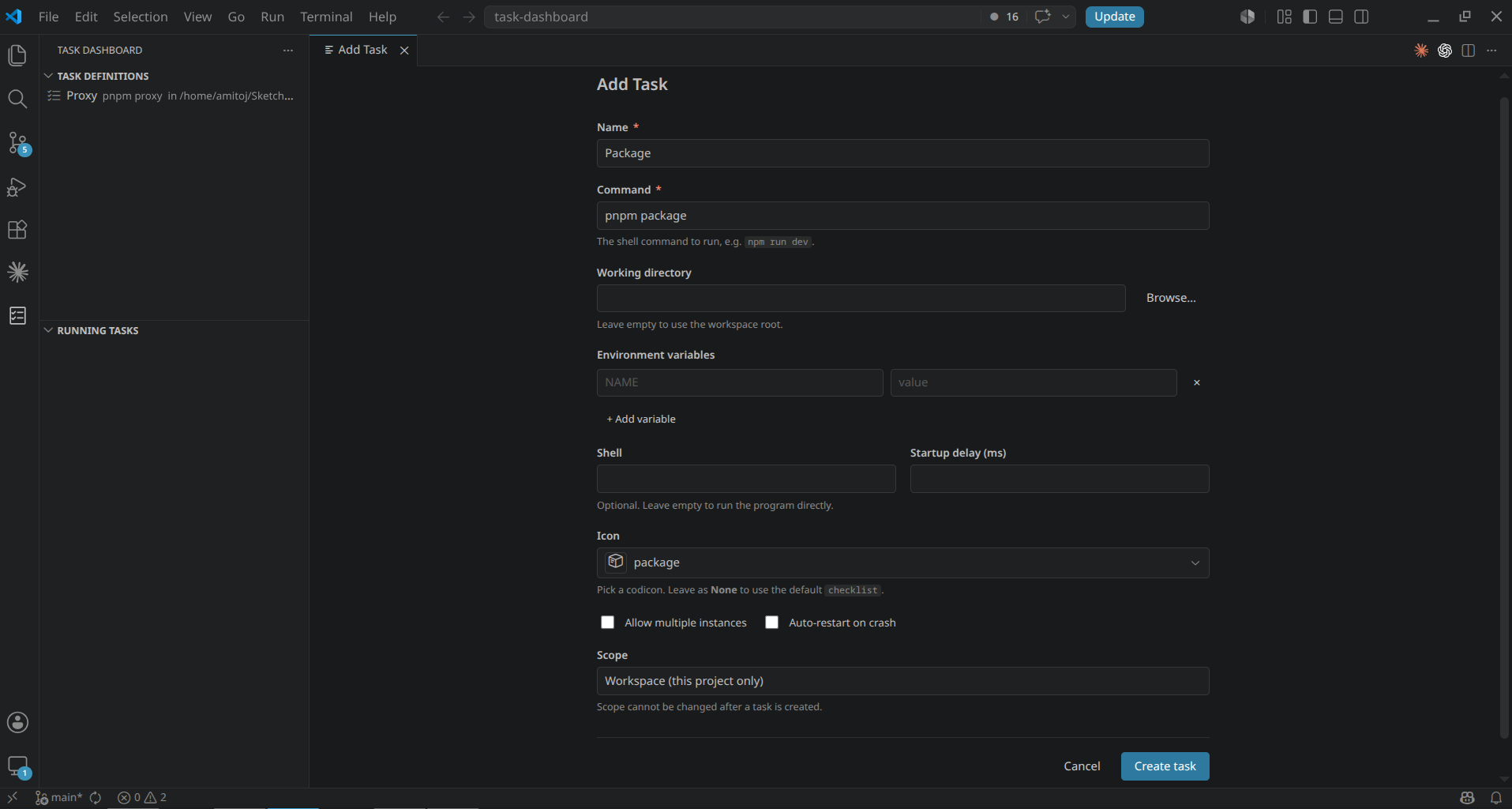
Add / Edit editor - capture the command, working directory, environment, shell, icon, and restart policy in one form.
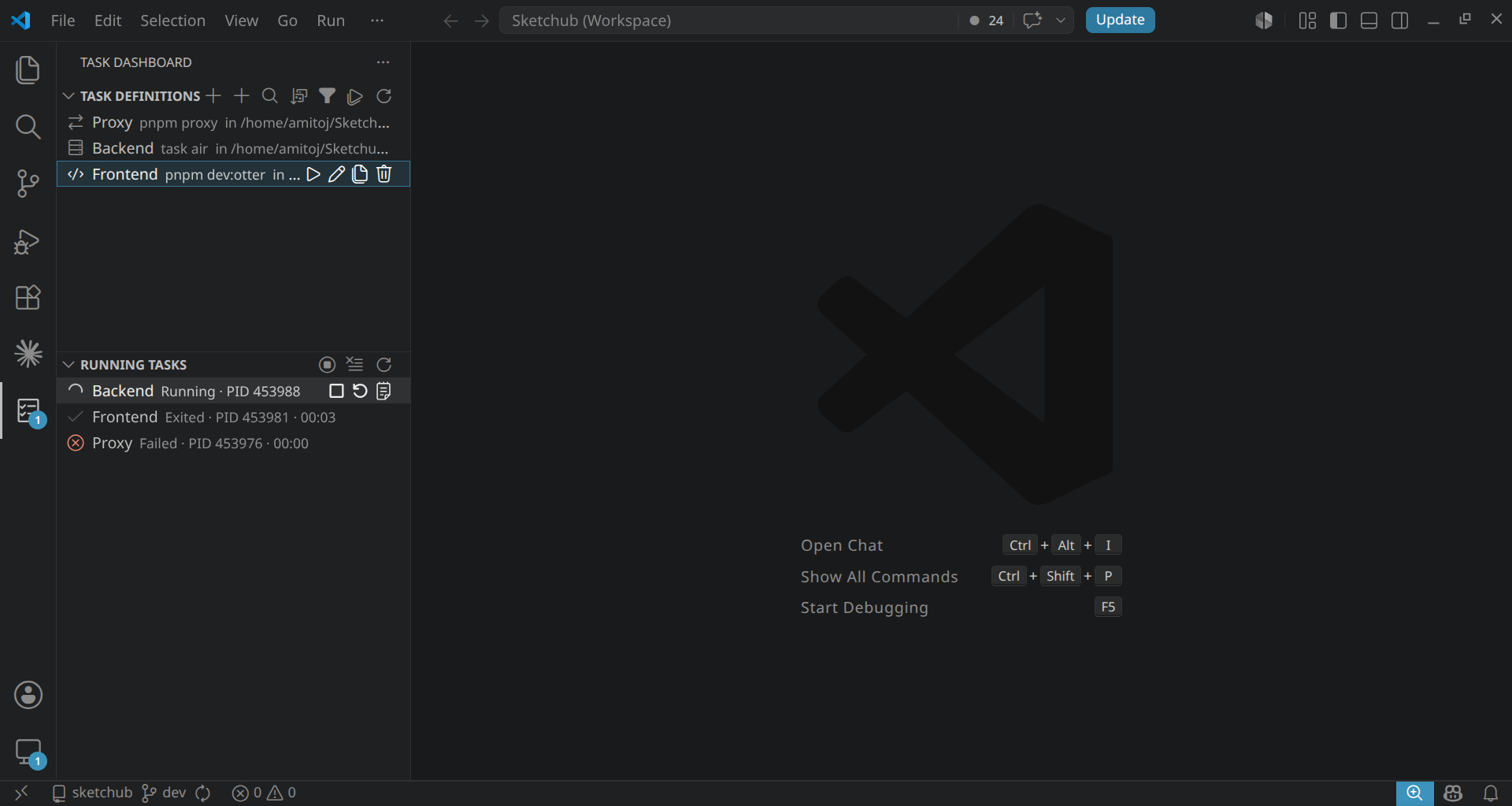
Task Definitions & Running Tasks - organize your commands, then watch live status, PID, and uptime at a glance.
- Open the Task Dashboard icon in the activity bar.
- Click Add Task (rich editor) or Quick Add Task (fast prompt) in the Task Definitions view.
- Fill in the name, command, and working directory; optionally set environment variables, shell, and auto-restart.
- Use the inline Run action (or select a task) to start it.
- Watch it in the Running Tasks view; select an instance to open its terminal.
- Stop, Restart, or use Run All / Stop All as needed.
Use the sort toggle in the title bar to cycle name, most-recent, and manual order. In any sort, drag a task (or a multi-selection) onto another row to reorder it; the list switches to manual sort and remembers the arrangement. Drag-reordering is per scope, so it rearranges global and workspace tasks within their own groups.
Definitions are restored when you reload the window. Nothing auto-runs on startup.
| Setting | Type | Default | Description |
|---|---|---|---|
taskDashboard.logRetentionBytes |
number | 262144 |
Bytes of recent output retained in memory per running instance (tail buffer). |
taskDashboard.stopGraceMs |
number | 5000 |
Milliseconds to wait after a graceful stop signal before force-killing a task. |
taskDashboard.defaultShell |
string | "" |
Shell to use for shell tasks that do not specify one. Empty uses the platform default. |
taskDashboard.confirmDelete |
boolean | true |
Ask for confirmation before deleting a task definition. |
taskDashboard.closeTerminalBehavior |
string | "stop" |
What to do with a running task when its terminal is closed (stop or keep). |
taskDashboard.maxRestartsPerMinute |
number | 5 |
Maximum auto-restarts within a minute before the crash-loop breaker trips. 0 disables restart. |
taskDashboard.notifications |
string | "errorsOnly" |
Which task notifications to show (errorsOnly, all, or none). |
- VS Code
^1.122.0. - No additional runtime dependencies. Tasks run with your existing system shell and
toolchain, so make sure the commands you configure are available on your
PATH.
Task configuration is treated as untrusted: commands are never eval'd. By default
a command is parsed into an argv vector and the program is spawned directly; shell
execution is opt-in and passes the command as a single argument to the shell.
