AMP Manager is designed with special consideration for students and junior developers.
This document explains the reasoning behind, and why certain safety decisions were made.
When learning local development, students often:
- Modify config files to "see what happens"
- Accidentally delete or corrupt important files
- Break Docker settings while experimenting
- Lose hours of work trying to recover
AMP Manager implements multiple safety layers to prevent these issues.
Every time a user logs in, AMP Manager runs 5 validation steps:
flowchart TD
    A[Login] --> B[Config Integrity]
    B --> C[Env Status]
    C --> D[CA Status]
    D --> E[Scan Domains]
    E --> F[Sync to data/ folder]
    F --> G[Dashboard Ready]
Caching would be faster, but users wouldn't notice:
- Docker stopped running
- CA certificate expired
- Domain configs broken
For local environments, seeing problems immediately is better than being fast.
What it does:
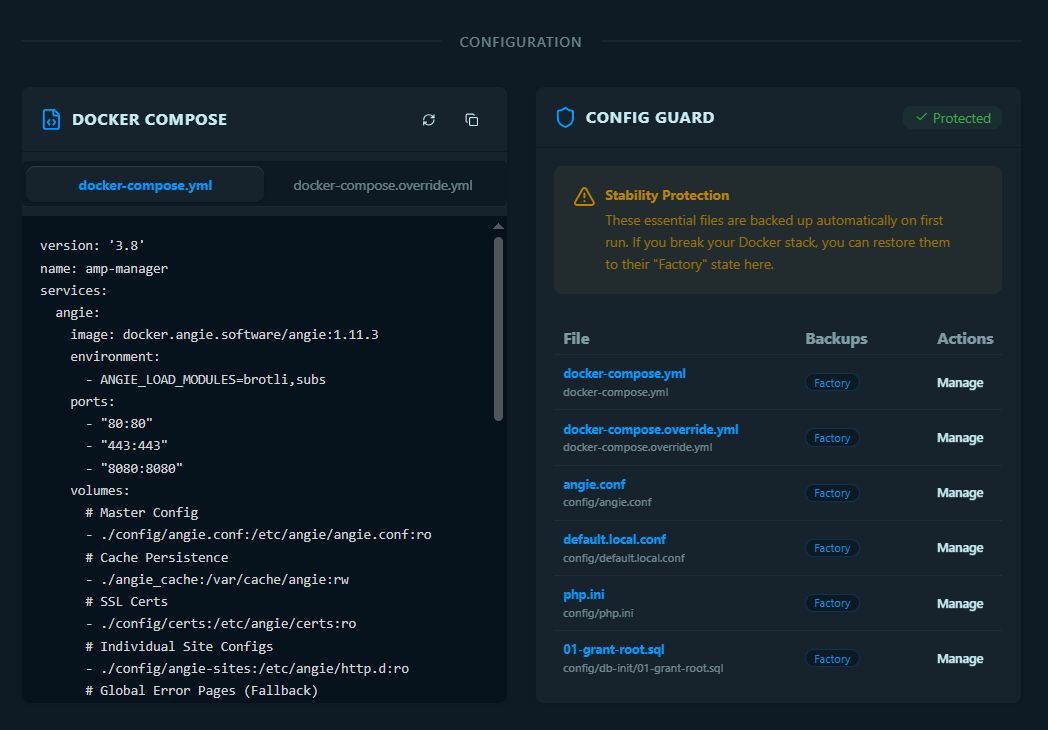
- Copies clean versions of essential config files
- Stores in
users/folder (encrypted)
Why:
- If users break
angie.conf, they can restore from factory backup - No need to re-download or reconfigure
Essential files captured:
docker-compose.ymldocker-compose.override.ymlconfig/angie.confconfig/default.local.confconfig/php.iniconfig/db-init/01-grant-root.sql
Location: src/services/ConfigGuardService.ts
What it does:
- Checks Docker is running
- Verifies all required folders exist
- Confirms mkcert is installed
- Validates CA root exists
Why:
- Prevents "why doesn't my site work?" when Docker isn't running
- Shows clear errors instead of confusing failures
- Catches missing tools before they cause issues
Toast Messages:
- Docker not running -> "Open Docker Desktop to manage your local sites"
- CA missing -> "Install CA in Settings to enable SSL"
What it does:
- Validates mkcert certificate authority
- Checks certificate expiration
Why:
- Without valid CA, new domains won't have SSL
- Students need working SSL to test HTTPS features
If missing:
- Toast prompts user to install CA in Settings
- Prevents confusing SSL errors later
What it does:
- Reads Windows hosts file for
.localdomains - Checks AMP Manager's config folder
- Validates SSL certificates exist
Why:
- Syncs current system state to users/ folder
- Shows domain health on dashboard
- Catches orphaned domains (deleted files but still in hosts)
What it does:
- Updates all domain statuses in
users/user_{username}/domain_status.json - Updates sites in
users/user_{username}/sites.json - Stores last sync timestamp in
users/user_{username}/settings.json - JSON files in users/ folder are the single source of truth for the UI
- Ensures dashboard shows accurate information
- Persists across app restarts
AMP Manager implements multiple security layers:
flowchart TB
    subgraph OS["Operating System"]
        UAC[UAC Elevation]
    end

    subgraph App["AMP Manager"]
        subgraph Frontend["Frontend"]
            AL[nativeAllowList]
            TW[AMP_TASKS Whitelist]
        end

        subgraph Backend["Backend"]
            BAT[amp-tasks.bat]
            OP[Protected Operations]
        end
    end

    UAC --> AL
    AL --> TW
    TW --> BAT
    BAT --> OP

    OP --> H[Hosts File]
    OP --> SSL[SSL Certs]
    OP --> D[Docker Control]
    OP --> F[File System]

    style OS fill:#0a1920,stroke:#01579b
    style App fill:#0a1920,stroke:#01579b
    style TW fill:#c62828,stroke:#e65100
    style Backend fill:#273078,stroke:#1b5e20
| Layer | Protection | File |
|---|---|---|
| UAC | OS-level admin elevation | Windows |
| nativeAllowList | Blocks unauthorized Native API calls | neutralino.config.json |
| AMP_TASKS whitelist | Only approved commands executable | public/js/main.js |
| Batch dispatcher | Controlled command routing | amp-tasks.bat |
AMP runs with elevated privileges (admin rights from UAC). If JavaScript is compromised (XSS attack), the allowlists prevent the attacker from:
- Deleting arbitrary files
- Running unauthorized commands
- Accessing sensitive data
All user data is stored in the users/user_{username}/ folder.
The user_ prefix avoids conflicts with MariaDB databases:
| File | Content | Encrypted? |
|---|---|---|
users/user_{username}/user.json |
User auth (salt + validation token) | No |
users/user_{username}/sites.json |
Domain configurations | No |
users/user_{username}/tags.json |
Tags | No |
users/user_{username}/tunnels.json |
Active tunnels | No |
users/user_{username}/activity_logs.json |
Activity history | No |
users/user_{username}/domain_status.json |
Domain health status | No |
users/user_{username}/databases.json |
Database metadata | No |
users/user_{username}/databases_cache.json |
Database cache | No |
users/user_{username}/notes.json |
Notes | YES |
users/user_{username}/credentials.json |
Credentials | YES |
users/user_{username}/settings.json |
User settings | YES |
users/user_{username}/workflows.json |
Workflows | YES |
users/user_{username}/site_configs.json |
Config backups | YES |
config.json |
App settings (lastUser + instanceId, pid, port, launchedAt) | No |
- Visible - Students can see their data with any text editor
- Persistent - Survives app restarts (stored in app folder)
- Portable - Easy to backup (copy
users/folder) - Secure - Sensitive data encrypted with AES-256-GCM
| Feature | Implementation |
|---|---|
| Algorithm | AES-256-GCM |
| Key Derivation | PBKDF2 (310,000 iterations) |
| Salt | Random 16 bytes per user |
| IV | Random 12 bytes per encryption |
| Component | Location |
|---|---|
| App folder | AMP-Manager/users/ (Neutralino's app data path) |
| Neutralino storage | AMP-Manager/.storage/ (for small settings) |
Located in Settings -> Backup/Restore:
- Export: Copies
user_name/folder to json file - Import: Restores from backup json
Located in Docker -> Config Recovery:
- Factory: Original config files from Step 1
- Snapshots: Manual backups before destructive operations
The backup system does exactly what is expected: it merges multiple user JSON files into a single JSON file for portability.
users/user_name/
├── sites.json        ─┐
├── notes.json         │
├── credentials.json ──┼──►  amp-backup-2026-04-20.json
├── workflows.json     │
└── tags.json        ──┘
Step-by-step:
| Step | Action | Code |
|---|---|---|
| 1 | Load ALL data from user JSON files | loadSitesJSON(), loadNotesJSON(), etc. (line 23-29) |
| 2 | If "includeSensitive" checked: decrypt notes & credentials | decryptWithKey() (lines 31-58) |
| 3 | Merge into single object with metadata | { version, timestamp, sites, notes, credentials, workflows, tags } (lines 61-69) |
| 4 | Save as single JSON file | amp-backup-2026-04-20.json |
amp-backup-2026-04-20.json  ──►  users/user_name/
                                      ├── sites.json
                                      ├── notes.json
                                      ├── credentials.json
                                      └── ...
Step-by-step:
| Step | Action | Code |
|---|---|---|
| 1 | Load JSON file | Read from file picker |
| 2 | If overwrite: clear all user files | saveXxxJSON(username, []) (lines 73-80) |
| 3 | Merge with existing data | loadXxxJSON() + [...existing, ...data] (lines 83-95) |
| 4 | If notes/credentials need re-encryption: encrypt with current key | encryptWithKey() (lines 100-131) |
| 5 | Save to individual JSON files | saveNotesJSON(), saveCredentialsJSON(), etc. |
| Feature | How It Works |
|---|---|
| Decryption on export | Gets user's current session key to decrypt notes/credentials before saving to JSON |
| Re-encryption on import | Gets current session key to re-encrypt before saving to user files |
| Merge vs Overwrite | Import has two modes: merge (add to existing) or overwrite (replace all) |
| Portability | Single JSON file is easy to transfer, share, or backup |
| Security warning | If "includeSensitive" is checked, backup contains plain-text secrets |
Reads all encrypted user files → decrypts with session key → merges into one JSON → saves to file
Reads JSON file → merges with existing user files → re-encrypts sensitive data with current key → saves to individual files
This design keeps the portability of a single file while maintaining security through on-the-fly encryption/decryption.
AMP Manager provides a complete data wipe function for testing or reset scenarios:
Function: deleteUserData(username) in src/lib/db.ts
What it deletes:
- User-specific JSON files in
users/user_{username}/ - Updates
config.jsonto clearlastUser
Location in UI: Settings -> Account -> "Delete All Data"
Use cases:
- Complete app reset for fresh start
- Testing clean installation scenarios
- User wants to remove all data before giving away device
Warning: This action cannot be undone. All user data, domains, credentials, and settings will be permanently deleted.
| Safety Feature | Purpose |
|---|---|
| Sequential sync | Prevents race conditions |
| Factory backup | One-click restore |
| Always validates | Catches problems early |
| Defense-in-depth | Limits damage from attacks |
| Per-user JSON | Data isolation |
This design prioritizes reliability and stability, making it safe for users to learn through experimentation without breaking the app.
On app startup, AMP Manager restores user state to enable JSON operations without re-login:
flowchart TD
    A[App Starts] --> B[Load config.json]
    B --> C[Get lastUser]
    C --> D[setCurrentUser lastUser]
    D --> E[Global _currentUser set]
    E --> F[JSON operations work]
Flow:
main.tsxloadsconfig.json→ getslastUser- Calls
setCurrentUser(lastUser)indb.ts - Global
_currentUserenablesensureUser()for JSON operations
Why this matters:
- Users need to re-login after app restart
- JSON storage functions work immediately without auth errors
- Dashboard loads correct user data on startup
Key files:
src/lib/db.ts:12-14-setCurrentUser()functionsrc/lib/db.ts:28-31-ensureUser()throws if not setsrc/main.tsx:16-18- Restores user on startup
Security note: The encryption key is NOT stored - users must re-login to decrypt encrypted files. Only the username is persisted in
config.json.
AMP Manager includes a built-in watchdog that monitors the app for Neutralino.js zombie states and auto-recovers.
flowchart TD
    A[App Starts] --> B[Generate Instance ID]
    B --> C[Get PID from Neutralino]
    C --> D[Save to config.json]
    D --> E[Acquire Lock File]
    D --> F[Spawn Watchdog Process]
    F --> G[Every 20s: Check exitFlag & PID]
    G --> H{exitFlag true?}
    H -->|Yes| I[Cleanup & Exit]
    H -->|No| J{PID Alive?}
    J -->|Yes| G
    J -->|No| K[Increment Failure Count]
    K --> L{Failures ≥ 3?}
    L -->|No| G
    L -->|Yes| M[Restart App]
    M --> G
| Step | File | Action |
|---|---|---|
| 1 | main.tsx |
Generate instanceId, get NL_PID |
| 2 | db.ts:updateInstanceInfo() |
Save to config.json (merges with existing) |
| 3 | AMPBridge.ts:killStaleWatchdogs() |
Cleanup stale watchdogs on startup |
| 4 | AMPBridge.ts:spawnWatchdog() |
Spawn background process |
| 5 | amp-tasks.bat :WATCH |
Read config.json, monitor PID, check exitFlag |
{
  "lastUser": "nuno",
  "instanceId": "amp-1234567890-abc123",
  "processName": "amp-manager-win_x64.exe",
  "pid": "12345",
  "exitFlag": false,
  "launchedAt": 1234567890123
}Prevents duplicate watchdogs from running simultaneously:
%TEMP%\amp_watchdog.lock
| Step | Action |
|---|---|
| 1 | Check if lock file exists → if yes, another watchdog running, exit |
| 2 | Create empty lock file to claim "ownership" |
| 3 | Run monitoring loop |
| 4 | On exit: delete lock file |
Distinguishes clean user exit from app crash:
| Scenario | exitFlag | Result |
|---|---|---|
| User clicks X | true (set by frontend) |
Watchdog cleans up lock, exits |
| App crash | false |
Watchdog counts failures, restarts app |
Why this matters:
- User clicks X → app sets exitFlag → watchdog exits cleanly
- App crashes → exitFlag never set → watchdog detects PID gone → restarts app
When user clicks the X button:
// src/components/layout/Layout.tsx:245-277
const handleClose = async () => {
  // STEP 1: Set exitFlag = true
  const config = await loadConfigJSON() ?? {};
  config.exitFlag = true;
  config.exitTime = Date.now();
  await saveConfigJSON(config);

  // STEP 2: Delete lock file
  await window.Neutralino.os.execCommand({
    command: 'del "%TEMP%\amp_watchdog.lock" 2>nul'
  });

  // STEP 3: Exit app
  await window.Neutralino.app.exit();
};When updating config.json, always merge with existing data to preserve instance info.
DON'T do this:
// WRONG - overwrites entire config
await dataStorage.save('config.json', { lastUser: username });
Use merge:
// CORRECT - merges with existing
const existing = await dataStorage.load('config.json') || {};
await dataStorage.save('config.json', { ...existing, lastUser: username });
Files that update config.json:
main.tsx- Saves instance info on startupAuthContext.tsx- Saves lastUser on login/register/logoutdb.ts:deleteUserData()- Clears lastUser on data deletion
All use the merge pattern to preserve instance info.
| Problem | Solution |
|---|---|
| NeutralinoJS single-threaded event loop | Watchdog monitors from outside |
| Backend becomes unresponsive (zombie) | PID check detects failure |
serverOffline event unreliable |
Independent 20s check cycle |
| App appears frozen but process runs | Force restart after 3 failures |
| No way to distinguish exit vs crash | exitFlag pattern enables clean detection |