

Claude Code or Codex does the work. You just press OK on the remote.



As seen on







| 🧹 Removes the junk Bloatware, ads and sponsored rows, gone. |
📺 A calm home screen Your apps, your HDMI inputs and a clock. Nothing else. |
↩️ Undo anytime Apps are turned off, never deleted. |
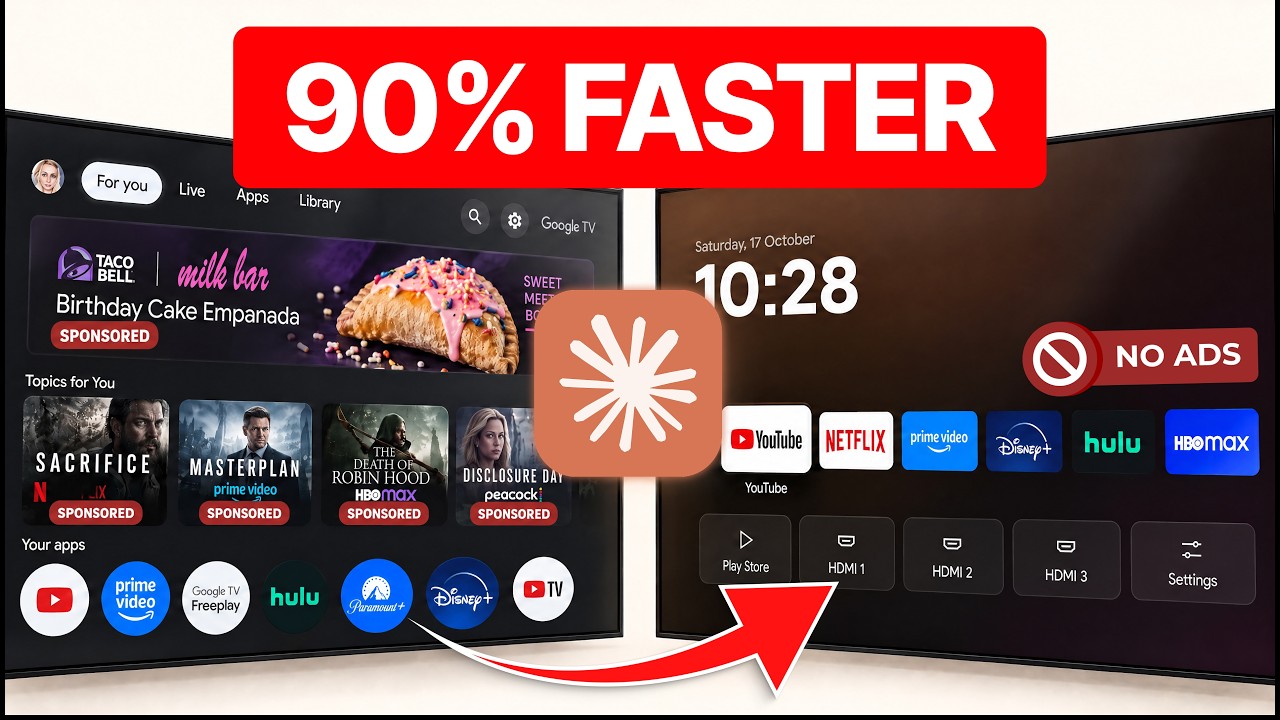
▶ Claude Made My Old Android TV Feel Brand New · the full setup on a real TV, in 4 minutes.
1. Turn on developer mode on the TV. Settings → Device Preferences → About → press Build 7 times. Then turn on USB debugging in Developer options. Stuck? Read the notes and warnings first.
2. Open Claude Code or Codex on your laptop. The laptop and TV must be on the same Wi-Fi.
3. Paste this in.
Help me clean up my Android TV and make it faster.
My TV is a <brand and model>.

1. Before you change anything, tell me in plain words:
   this turns off system apps, and that has some risk.
   A few TVs got stuck at the logo or kept restarting,
   and you're an AI, so you can make mistakes. undo.sh
   and your undo list turn everything back on. Ask me to
   confirm I want to go ahead.
2. Connect to my TV over Wi-Fi. Walk me through anything
   I need to tap on the TV.
3. Before changing anything, list every app in plain English:
   safe to turn off, needed by the TV, and apps I use.
   Check free memory.
4. Ask me before every change. Turn apps off instead of
   deleting them. Keep a list of what you changed and how
   to undo it.
5. Never turn off: Google Play services
   (com.google.android.gms), Google Play, Settings,
   System UI, setup apps, the keyboard, Bluetooth, my HDMI
   inputs, the TV's input and tuner framework, or anything
   else the TV needs to start. On Google TV or Chromecast,
   also never turn off Google TV's home screen
   (com.google.android.apps.tv.launcherx). If you're not
   sure, leave it on.
6. Install the home screen: download
   https://github.com/Ansub/tv-detox and run its
   install.sh with my TV and these apps: <your apps>.
7. Turn off animations and make the TV sleep after 5
   minutes. Then check the model name and ask me if the TV
   is OLED. Keep the screensaver on unless I say it's not
   OLED.
8. Wait 30 seconds after the last change, then restart the
   TV once and check it starts up normally before you say
   you're done. Show me free memory before
   and after.
9. Once everything is checked, remind me to turn off USB,
   Network and Wireless debugging (or Developer options)
   on the TV. Left on, other devices on my network can ask
   to control it. I only turn it back on for undo.sh or
   updates.
That's it. It asks you before every change.
4. Turn debugging off when it's done. In Developer options, turn off USB debugging, plus Network debugging or Wireless debugging if you turned them on. Or turn off Developer options completely.
Warning
Do it at your own risk. This turns off system apps. A few TVs got stuck at the logo or kept restarting, and the AI can make mistakes. It asks you before every change, and undo.sh plus its undo list turn everything back on. This is what worked for us, not professional advice. You're responsible for your own TV, and I'm not liable if something goes wrong.
Warning
Google TV and Chromecast with Google TV: don't turn off the TV's own home screen. On some of these devices that left them stuck restarting, and the only fix was a factory reset. Since v1.4.1, install.sh leaves it on for Google TV unless you opt in with GOOGLE_TV=1. The cleanup still works and makes the TV faster. You just keep Google TV's own home screen.
Warning
OLED TVs: keep the screensaver on. It stops a still picture from burning into the screen. Don't leave any home screen, this one included, on for hours.
Note
Turn debugging off afterwards. While USB, Network or Wireless debugging is on, other devices on your network can ask to control the TV. Turn it off once setup is done, and back on only to run undo.sh or update.
How do I turn on developer mode?
- On the TV, open Settings, then Device Preferences (or System), then About.
- Press OK on Build 7 times until you see "You are now a developer."
- Go back, open Developer options and turn on USB debugging. If you see Network debugging or Wireless debugging, turn that on too.
- The first time your laptop connects, the TV asks "Allow debugging?" Tick "Always allow" and press Allow.
- When setup is done, turn USB debugging, Network debugging and Wireless debugging off again (or turn off Developer options). Turn them back on only to run
undo.shor update.
Chromecast with Google TV and other newer Google TVs usually only have Wireless debugging, which needs a pairing code. install.sh <TV_IP> alone won't connect. Instead:
- In Developer options, open Wireless debugging and choose Pair device with pairing code. Leave that screen open.
- On your laptop, run
adb pair <IP>:<pairing port>with the IP and port shown under the code, and type the code. - Back on the Wireless debugging screen, note the IP and port shown there (it's a different port), and run
adb connect <IP>:<port>. - Use that same address for every script:
sh install.sh <IP>:<port>,sh undo.sh <IP>:<port>.
The port changes every time the TV restarts, and the connection can drop. If a script says it can't reach the TV, pair and connect again. Don't restart the TV halfway through a cleanup.
Menus differ a bit by brand. If you're stuck, ask Claude or Codex: "I have a <brand and model> TV. How can you connect to it from my laptop and take control of it?"
Which TVs does it work on?
Android TV 9 (a real TV), 11 and 12, and Google TV 14 (also a real TCL TV, see TCL notes). Every change is tested automatically on emulators.
Can I do this on a Fire TV, Roku, Samsung or LG?
- Amazon Fire TV: partly. Fire TV is Android underneath, so the cleanup works. Amazon blocks changing the home screen on current Fire TVs, so you keep Amazon's. Tell Claude what you want to keep, like Alexa voice search on the remote.
- Roku: no. Roku runs its own system, not Android, so nothing can connect to it to turn things off.
- Samsung (Tizen): no, for the same reason.
- LG (webOS): no. You can still cut down the ads by turning off Home Promotion and Content Recommendation in the TV's home settings.
If your TV or streaming box runs Android TV or Google TV, it should work. That includes many Sony, TCL, Hisense, Philips and Xiaomi TVs, Chromecast with Google TV and Nvidia Shield. Some of those brands also sell Roku or other non-Android models, so check Settings > About if you're not sure.
What about projectors or Android phones?
- Android projectors: probably. If it has Developer options and USB debugging, the cleanup should work. Cheap projectors often run a custom Android, so the home screen may act a bit differently.
- Android phones: only the cleanup. The home screen is made for a TV remote, not touch.
Anything to watch out for on Chromecast with Google TV?
The cleanup works, but leave Google TV's own home screen on, which means you keep Google TV's home screen. At least one Chromecast got stuck restarting after it was turned off, and it needed a factory reset. install.sh leaves it on by default since v1.4.1.
- Connect with Wireless debugging (see "How do I turn on developer mode?" above). The plain
install.sh <TV_IP>won't reach a Chromecast. - The YouTube button on the remote can stop working, and some lose casting. Tell Claude to keep casting on if you use it.
Home opens Google TV's setup screen instead (Sony BRAVIA and others)
On some Google TVs, once Google TV's home screen (com.google.android.apps.tv.launcherx) is off, Android picks the setup app (com.google.android.tungsten.setupwraith) for Home instead. install.sh spots this and asks before turning the setup app off too. It only asks if Home opens exactly that app, Google TV's home screen is already off and the TV has finished its first setup. Since v1.4.1 this only happens if you also opt in with GOOGLE_TV=1. YES=1 doesn't turn it off; use YES_SETUP=1 for that. This worked on a Sony BRAVIA and a TCL Smart TV Pro (Google TV 14), but it hasn't been tested on every TV. undo.sh turns it back on.
To undo it by hand:
adb shell pm enable com.google.android.tungsten.setupwraith
adb shell pm enable com.google.android.apps.tv.launcherx
If the TV ever asks to be set up again, or a setup screen won't finish, turn the setup app back on first.
TCL TVs: what worked, and what to keep
Tested on a TCL Smart TV Pro (Google TV, Android 14, 2.3 GB of RAM). Every step below was followed by a restart, and the TV started normally each time. Free memory went from about 660 MB to about 1 GB, though part of that is just from restarting: the first number was taken after the TV had been on for 15 days.
Home screen. With Google TV's home screen off, Home opened the setup app's recovery screen, as in #16. Turning the setup app off too (YES_SETUP=1) made this home screen stick, through several restarts.
Connect on port 5555. If you connected with Wireless debugging (pairing code), turning the setup app off ends that connection halfway through install.sh. The script then says it couldn't turn the setup app off, even though it did. On this TV, the classic port also worked, so you can reconnect with adb connect <TV_IP>:5555, check with adb shell pm list packages -d, and run install.sh again with that address.
Safe to turn off, if you don't use them:
| App | Package |
|---|---|
| TCL account | com.tcl.usercenter |
| Built-in manual | com.tcl.ocean.instructions |
| TCL Channel (free channels with ads) | com.tcl.channelplus |
| TCL recommendations | com.tcl.waterfall.overseas |
| TCL notifications and promos | com.tcl.messagebox |
| Store demo | com.tcl.esticker, com.tcl.exhibit |
| Alexa built-in | com.tcl.smartalexa |
| Phone link | com.tcl.magiconnectfree |
| Repair guide, logs | com.tcl.repairguide, com.tcl.logkit |
| Screen mirroring | com.tcl.miracast |
| TCL analytics and Alexa hooks | com.tcl.ttvs |
| TCL interactive and ads service | com.tcl.interactive |
| Game bar for consoles | com.tcl.gamebar |
| Photo viewer, USB media player | com.tcl.gallery, com.tcl.ui_mediaCenter |
| App manager | com.tcl.guard |
| Bluetooth "listen alone" | com.tcl.t_solo |
| Google TV's screensaver (about 200 MB, keep it on an OLED TV) | com.google.android.apps.tv.dreamx |
Tiles that stay after the cleanup. Two TCL tiles can still show up on this home screen. TCL Channel is com.tcl.partnercustomizer, which also handles the TCL button on the remote. TCL Home is com.tcl.dashboard, TCL's quick settings panel. Both turned off without trouble.
Keep these on:
com.tcl.tvinput: the HDMI inputs and the tuner.com.tcl.suspension: the input picker.com.tcl.inputmethod.international: the TCL keyboard.com.tcl.providers.config: other TCL apps read their settings from it.com.tcl.useragreement: TCL's privacy switches.
com.tcl.tv is Live TV, the channel guide and channel scanning. Turn it off only if you never watch antenna or cable TV.
Optional: the phone keyboard keeps popping up. On this TV, Google TV's phone-remote service made its phone keyboard the TV's keyboard again after every restart. If that happens to you, first note which keyboard you have now:
adb shell settings get secure default_input_methodThen switch to the TCL keyboard and turn the phone-remote service off:
adb shell ime set com.tcl.inputmethod.international/.T_IME
adb shell pm disable-user --user 0 com.google.android.tv.remote.service
This also stops your phone from working as a remote: no typing, voice search or control from the Google TV or Google Home app. undo.sh doesn't undo it. To undo it by hand, turn the service back on and switch back to the keyboard you noted:
adb shell pm enable com.google.android.tv.remote.service
adb shell ime set <the keyboard you noted>
The TCL logo at startup is part of the TV's firmware, so it can't be turned off. On this TV, turning it off with the remote (not at the wall) let TCL's quick start wake it straight to the home screen, with no logo.
OnePlus TVs: what worked, and what to keep
Tested on a OnePlus TV E00 (QLED, Android TV 11 with Google TV's home screen, 2.9 GB of RAM). The cleanup was followed by a restart, and the TV started normally and opened this home screen by itself. Free memory went from about 1.34 GB to about 1.67 GB, though part of that is just from restarting.
Home screen. OnePlus ships two home screens: OxygenPlay (com.oneplus.tv.launcher) and Google TV's (com.google.android.apps.tv.launcherx). Turning off Google TV's is up to you and at your own risk: it worked on this TV, but it has left some Google TVs (like Chromecast) stuck restarting. Only try it if you can reconnect over USB or port 5555. If you leave it on, the cleanup still works and Home keeps opening Google TV's home screen. If you do turn it off and Home opens Google TV's setup app, run install.sh again with GOOGLE_TV=1 YES_SETUP=1, the same fix as on the TCL above.
Safe to turn off, if you don't use them:
| App | Package |
|---|---|
| OxygenPlay home screen | com.oneplus.tv.launcher |
| OnePlus message board and promos | com.heytap.tv.msgboard |
| Store demo | fusion.android.tv.demo |
| User guide | com.oneplus.tv.userguide |
| Weather | net.oneplus.weather |
| ColorOS Relax | com.coloros.relax.tv |
| Screen mirroring (Miracast) | com.heytap.optvmiracastservice |
| OnePlus phone link | com.heytap.olink, com.heytap.ars.sink |
| Bluetooth speaker mode | com.heytap.tv.btspeaker |
| Camera | com.heytap.tv.camera |
| AirScreen | com.ionitech.airscreen |
Keep these on:
com.heytap.tv.livetv: Live TV, which also opens the HDMI input list. Turning it off can stop you switching inputs.com.mediatek.*,com.oneplus.tv.factory,com.oneplus.tv.remote: the remote's buttons, the input key, the tuner and HDMI.
Remote buttons. If you turned Google TV's home screen off, the Guide and All apps keys do nothing, because they open it. That's expected.
The Claude app says it can't reach my TV
The chat in the Claude app (and claude.ai) runs on Anthropic's servers, not on your laptop, so it can't see your TV. You need something that runs on your own laptop: Claude Code or Codex.
Don't want to pay for either? Skip the AI and use install.sh instead (see "Can I install the home screen without AI?" below).
Can I do it from my phone, without a laptop?
Not yet. Claude has to run on a computer on the same network as your TV. A phone hotspot is fine as that network, as long as the laptop and TV both join it.
My TV is on Ethernet, not Wi-Fi
That works the same. Your laptop talks to the TV over its IP address on your home network, so cable or Wi-Fi doesn't matter. The laptop just has to be on the same network. You'll find the TV's IP in its network settings, or ask Claude to find it.
Can I just do the cleanup and keep my TV's home screen?
Yes. Leave out step 5 of the prompt ("Install the home screen"). Your TV looks the same, just with the junk turned off.
How do I know which apps are safe to turn off?
Run the planner. It reads the TV and prints every app with a verdict, changing nothing:
sh candidates.sh <TV_IP>never the TV needs it, keep it carries a feature you may use, safe common junk, review unknown. docs/debloat.md explains the rules behind the verdicts, the traps — apps Android restarts whatever you do, the app that carries casting, and package names that hide what the app really is — and the never-touch and commonly-safe lists.
Why not just use Projectivy Launcher?
You can. The cleanup is the part that makes the TV faster, and it works with any home screen. This one is here if you want something tiny and open source: one screen, no ads, no account, about 30 MB of RAM.
The TV still opens Live TV or HDMI when it turns on
That's a TV setting, not this home screen. Ask it: "My TV opens Live TV at startup instead of the home screen. Find that setting and turn it off."
A button on the remote stopped working
Some remote buttons are handled by the TV's own home screen or by apps the cleanup turned off. To see which app handles which button, ask Claude: "Run adb shell dumpsys window policy and tell me which apps my remote's global keys go to." If it's an app other than your TV's home screen, turn that app back on.
The YouTube button on some Google TVs (seen on Xiaomi and Vu): it goes to Google TV's own home screen, which install.sh turns off, so the button does nothing. Turning that home screen back on brings the button back, but your TV may then open Google TV's home screen again instead of this one. Until there's a safe fix, open YouTube from its tile on the home screen.
An update turned something back on
sh check.sh <TV_IP>                  # check the home screen is still in charge
sh check.sh <TV_IP> --fix            # and fix it
sh check.sh <TV_IP> --fix my-tv.txt  # also check your own list of changes
Your list has one change per line, like off com.example.app, global window_animation_scale 0 or device_config activity_manager max_cached_processes 4. Ask Claude to write it from the changes it made.
Can I install the home screen without AI?
Yes. You only need adb. On a Mac, run brew install android-platform-tools. On Windows, download Google's SDK Platform Tools, unzip it, and run the commands below from Git Bash. Download this repo, then:
sh install.sh <TV_IP>                                               # picks your TV apps for you
sh install.sh <TV_IP> "com.netflix.ninja,com.hulu.livingroomplus"   # or choose them
sh install.sh <TV_IP> "" "bluetooth,sound,picture"    # add settings shortcuts
Most TVs keep opening their own home screen, so the script offers to turn that off. Nothing is uninstalled.
The cleanup half is a judgement call per app, so it's not automated. sh candidates.sh <TV_IP> lists every app with a verdict and docs/debloat.md gives the rules, if you'd rather decide yourself than have the AI do it.
How do I change the apps on the home screen?
Use the remote. Hold OK on an app (or press Menu) to:
- Move it: use the arrows to slide it to a new spot, then press OK to finish.
- Replace it: pick another app to take its place.
- Remove it from the home screen. The app stays installed, and you can add it back any time.
- Uninstall it, for apps you installed yourself. The TV asks you to confirm first.
- App info, for apps that came with the TV. They can't be uninstalled, but from there you can turn them off.
To add an app, pick the Add app tile in the bottom row. Add as many apps as you like: they wrap into rows of six, and the page scrolls once there are more than twelve. Your changes are kept until you run install.sh with a new app list.
Can I change the background?
Yes. Pick the Settings tile, then Wallpaper. (TV settings, right under it, opens the TV's own settings.) There are fourteen gradients. Dark: Dusk (the default), Midnight, Plum, Forest, Graphite, Ocean and Ember. Bright: Sunset, Lagoon, Aurora, Coral, Iris, Meadow and Gold. The background changes as you move through the list; press OK to keep one, or Back to leave it as it was. They're colours only, no pictures, so every one is just as fast and uses the same memory.
Can I get Wi-Fi and Bluetooth one press away?
Yes. A small network icon always sits next to the clock. It shows Wi-Fi (with signal bars), Ethernet or a crossed-out Wi-Fi when you're offline, and opens your network settings. Bluetooth, Sound and Picture shortcuts can join it. They're off unless you ask for them:
sh install.sh <TV_IP> "" "bluetooth,sound,picture"   # pick any of them, in any order
sh install.sh <TV_IP> "" "none"                                    # take them away
Press Up from your apps to reach them. A shortcut your TV has no screen for is left out. On TCL TVs, Sound and Picture open TCL's own panels.
How do I undo it?
sh undo.sh <TV_IP>This turns your TV's own home screen back on and removes this one. To undo the cleanup too, ask Claude or Codex to reverse everything on its list.
If you turned debugging off after setup, turn it back on first, then off again when you're done.
My TV is stuck restarting
Your laptop can often still connect for a few seconds each time the TV starts. Use that to turn everything back on:
adb connect <TV_IP>
adb wait-for-device
adb shell pm list packages -d
That lists everything that's turned off. Turn each one back on with adb shell pm enable <package>, or all of them at once:
for p in $(adb shell pm list packages -d | tr -d '\r' | sed 's/package://'); do adb shell pm enable "$p"; doneTo undo just the home screen, run sh undo.sh <TV_IP>. Then restart the TV. You can redo the cleanup later, one app at a time.
If the laptop never connects, use the TV's recovery mode or a factory reset. How you get there depends on the brand and model, so check your TV maker's support page.
For developers: build it yourself
- Put your default apps in
apps.txt(package names, one per line). You can also pass them toinstall.shinstead. - Install Java 17 and the Android SDK. On a Mac:
brew install openjdk@17
brew install --cask android-commandlinetools
sdkmanager "platforms;android-34" "build-tools;34.0.0"
sh build.sh, thensh install.sh <TV_IP>installs your build instead of the release.sh ci/smoke-test.sh <TV_IP or emulator>checks it all works.
HDMI inputs are found on their own. The labels follow the TV's language, with 16 languages built in. To add yours or fix a translation, edit src/com/ansub/tvhome/Strings.java. Keep key.jks, which is made on your first build: updates must be signed with the same key.
It's one screen of plain Java, no libraries, no Gradle. The background is drawn once, the only animation is the focus lift, and it uses about 30 MB of RAM.
Pull requests are welcome for fixes that keep working on every TV. This project sticks to official apps and Android's own settings, so changes that add ad blockers or unofficial apps won't be merged. If you want those, fork it and make it yours.