Repository navigation
First start and the Setup Guide
This page covers what happens the first time you start Rookparcel: the Setup Guide, a short window with four questions, what each answer sets, and how to open the guide again later.
New in 1.1.62; not in a published release yet. In 1.1.40 there is no guide: Rookparcel opens with its default settings, and everything below is set in Options > Preferences instead.
The Setup Guide opens by itself at the first start of Rookparcel: when its settings file has no settings in it yet. That is a new installation, a new portable folder, and every new profile. It opens before the main window, so nothing starts downloading before you have answered.
It does not open by itself for someone who already used an older version: the settings are there. Open it from the menu instead (below).
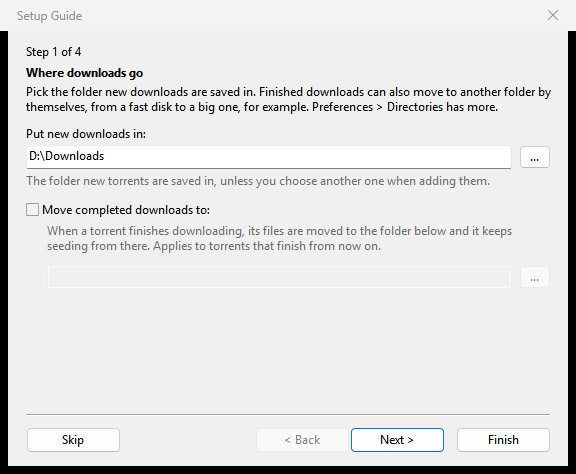
Each page has a title, "Step 1 of 4" above it, a short text and its settings. The buttons:
| Button | What it does |
|---|---|
| < Back | the page before |
| Next > | the next page |
| Finish | saves your answers and closes the guide |
| Skip | closes the guide and keeps the settings as they are. Esc and the window's close box do the same |
Nothing is saved until Finish, and Finish changes only the answers you changed. Rest the mouse on a setting to see what it does; the help also shows under the settings.
After Finish or Skip the guide does not open by itself again.
Pick the folder new downloads are saved in.
| Setting | Meaning |
|---|---|
| Put new downloads in: | the folder for new downloads. The default is your Downloads folder; in a portable folder it is the Downloads folder inside it |
| Move completed downloads to: | when ticked, finished downloads move to the folder beside it by themselves, from a fast disk to a big one, for example |
Options > Preferences > Directories has more folder settings. See Disk and storage.
Every connection to a peer takes a place in your router's connection table. Older routers and the basic boxes of internet providers have small tables; when one fills up, the router drops connections, slows down the whole house or restarts.
Which router do you have?
- Modern (bought after about 2015), or not sure: Rookparcel's normal numbers of connections.
- Older, or the internet provider's basic box: fewer connections: 100 in all, 40 per torrent, and 8 new ones a second.
The older answer is a starting point. You can change these numbers later in Options > Preferences > Bandwidth and Advanced. Answering modern later puts the normal numbers back.
The same page has Keep ping low (limit speeds automatically). Tick it if you play games or make calls while Rookparcel runs: it holds the speeds down while your line is busy. See Keep ping low.
Use smart disk I/O keeps the computer responsive while Rookparcel reads and writes:
- checks run at the system's background disk priority;
- each drive is tuned for its type (SSD, hard disk, network share);
- transfers slow down while a disk answers slowly.
Gentle checks and the tuning per drive are on from the start. The box adds the slow-down while a disk is busy. Checks take longer while something else uses the disk. Options > Preferences > Advanced > Disk I/O sets each part on its own. See Disk and storage.
Rookparcel can start when you sign in, and open .torrent files and magnet: links from your browser and file manager.
| Setting | Meaning |
|---|---|
| Start Rookparcel on system startup | starts Rookparcel when you sign in |
| Associate with .torrent files | double-clicking a .torrent file opens it in Rookparcel |
| Associate with magnet: links | clicking a magnet: link in the browser opens it in Rookparcel |
Options > Preferences > General changes these later. See Tray, notifications and startup.
This page is left out where it does not apply:
- The Windows installer already asked about the associations, so an installed copy shows three pages at its first start. The page is there when you open the guide from the menu.
-
The Flatpak shows only the startup box: the desktop decides which program opens
.torrentfiles andmagnet:links. So does macOS where Rookparcel cannot set the associations itself (a named profile, or a bare binary outsideRookparcel.app).
Choose Options > Setup Guide, or press Ctrl+G. The guide shows your current settings, and Finish applies the answers you changed, as OK in Preferences does.
- The GTK version (Linux, the BSDs) has the same guide, with the same pages, at the first start of each profile and under Options > Setup Guide (Ctrl+G).
- The macOS app has it too, under Rookparcel > Setup Guide (⌘+G).
-
rookparcel-noxand the Web UI have no guide. Set them up in the Web UI's Preferences: see Web UI and Running rookparcel-nox.
The main window opens. Next steps:
- Adding torrents
- The main window
- Connection, ports and firewall, if downloads stay slow
- Preferences reference, for every other setting