Repository navigation
Speed limits and scheduler
This page covers how to cap Rookparcel's download and upload speeds: for all torrents together, for single torrents, and by the hour with the weekly scheduler. For limits that follow your line's ping by themselves, see Keep ping low.
All rates are in kB/s, where 1 kB is 1024 bytes. In every rate box, 0 means unlimited.
The global limits cap all torrents together.
- Open Options > Preferences (Ctrl+P) and choose Bandwidth.
- Under Global Upload Rate Limiting, set Maximum upload rate (kB/s): [0: unlimited].
- Under Global Download Rate Limiting, set Maximum download rate (kB/s): [0: unlimited].
- Click OK or Apply. The new limits apply at once.

Both are unlimited by default. A limited upload is the usual reason to set one: when Rookparcel uploads as fast as the line allows, web pages, games and calls slow down for everyone in the house.
The same page has three boxes that change what the limits count:
| Option | What it does | Default |
|---|---|---|
| Apply rate limit to transport overhead | Counts the TCP/IP headers of peer traffic, estimated per packet, against the global limits, so the limits match what the line carries. | Off |
| Apply rate limit to uTP connections | Applies the global limits to uTP peers too. Off, uTP peers are slowed only by uTP's own delay control, which gives way to other traffic. | On |
| Keep ping low (limit speeds automatically) | Caps uploads and downloads automatically while the delay on your line grows. See Keep ping low. | Off |
The Number of Connections group on the same page is not a speed limit, but it affects speed:
| Setting | Meaning | Default |
|---|---|---|
| Global maximum number of connections: | The most peer connections open at once across all torrents. Lower it if the router struggles. | 200 |
| Maximum number of connected peers per torrent: [0: no limit] | The most peers one torrent connects to. | 0 |
| Number of upload slots per torrent: [0: no limit] | How many peers one torrent uploads to at once. | 0 |
| Global number of upload slots: [-1: no limit] | How many peers all torrents together upload to at once, the fastest ones chosen. Fewer slots give each peer more speed. | 8 |
The two per-torrent values apply to torrents added from now on; a torrent's Properties can change its own upload slots. The Setup Guide's router question can lower the connection numbers for an older router: see First start and the Setup Guide.
A torrent can have limits of its own, below the global ones. The global limits still apply on top.
From the right-click menu:
- Select one or more torrents in the list.
- Right-click and choose Bandwidth Allocation > Set Download Limit or Bandwidth Allocation > Set Upload Limit.
- Pick a rate: Unlimited, or one of 10, 25, 50, 100, 250, 500, 1000, 2500 and 5000 kB/s.
The first selected torrent's current rate is ticked.

From Torrent Properties, for any rate:
- Select the torrents and choose Properties (Enter).
- Under Bandwidth Settings, set Maximum upload rate (kB/s): [0: unlimited] and Maximum download rate (kB/s): [0: unlimited].
- To give the torrent its own number of upload slots, tick Override default number of upload slots and fill in Number of upload slots: [0: unlimited].
- Click OK.
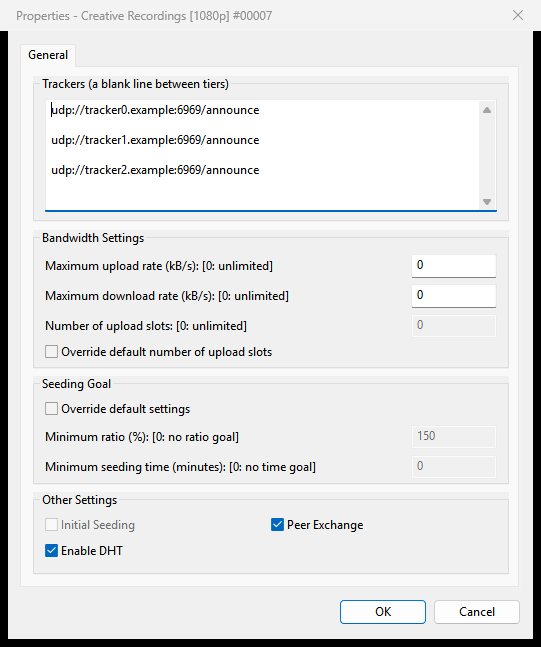
A torrent's own limits show in the Down Limit and Up Limit columns of the torrent list and on the General tab. See Torrent details and files for the rest of the Properties dialog.
A torrent that reaches its seeding goal can also get an upload limit by itself: see Queueing and seeding.
The status bar at the bottom of the main window shows the current rates and the totals of this session, as D: 1.2 MB/s T: 3.4 GB for download and U: ... T: ... for upload. While Keep ping low or the busy-disk slow-down holds a direction back, its part shows the automatic cap too, as U: 412.0 kB/s (auto 450.0 kB/s) T: ....
The status bar has no speed menu. Set the global limits in Preferences, or the torrents' own limits from their menu.
With Show current speed in the title bar on (Options > Preferences > UI Settings), the window's title and taskbar button start with the speeds too.
The scheduler follows a weekly table, hour by hour, and switches Rookparcel between four modes. It is off by default.
- Open Options > Preferences > Scheduler.
- Tick Enable Scheduler. The table is grey until you do.
- Click a cell in the Scheduler Table to move that hour to the next mode. Hold the button and drag to paint the cells you pass over with the same mode.
- Under Scheduler Settings, set the rates for the Limited hours.
- Click OK or Apply.

The table has one row per day, Monday first, and one column per hour, in your computer's local time. A click cycles Full speed, Limited, Turn off and Seeding only. The line under the table names the hour under the pointer and its mode, such as "Mon 09:00 - 10:00: Full speed".
| Mode | Colour | What Rookparcel does in that hour |
|---|---|---|
| Full speed | dark green | Runs with your normal settings. |
| Limited | light green | Uses the two Limited rates below in place of the global limits. |
| Turn off | white | Pauses every torrent. With Disable DHT when turning off, the DHT is switched off too, so Rookparcel stays quiet on the network. |
| Seeding only | light red | Uploads, but downloads nothing. Torrents added during these hours wait too. |
| Scheduler setting | Meaning | Default |
|---|---|---|
| Limited upload rate (kB/s): [0: unlimited] | The global upload limit during Limited hours. | 0 |
| Limited download rate (kB/s): [0: unlimited] | The global download limit during Limited hours. | 0 |
| Disable DHT when turning off | Also switches the DHT off during Turn off hours. | On |
What to expect:
- When the hour changes mode, the status bar's network part adds Scheduler: limited, Scheduler: turned off or Scheduler: seeding only, and the Logger tab writes a line such as "Scheduler: Limited". Full speed shows nothing.
- Turn off does not change the torrents' own state. When Full speed comes back they carry on as before, and a torrent you stopped stays stopped.
- Untick Enable Scheduler to go back to full speed with your normal settings at once.
- Keep ping low and the busy-disk slow-down can still lower the speeds during any hour; they never raise them.
The Windows and GTK windows have no alternative speed limits; use the scheduler's Limited hours instead.
rookparcel-nox's Web UI has them, under Preferences > Bandwidth > Alternative Rate Limits:
| Setting | Meaning | Default |
|---|---|---|
| Alternative upload rate (kB/s): [0: unlimited] | The global upload limit while the alternative limits are on. | 10 |
| Alternative download rate (kB/s): [0: unlimited] | The global download limit while they are on. | 10 |
| Use the alternative rate limits now | Switches to the alternative limits until you switch back. | Off |
Apps that switch qBittorrent's speed limits mode through the Web UI (see Sonarr, Radarr and Prowlarr) switch the same thing. The scheduler's Limited hours still win over both sets while they last.
When a desktop window serves the Web UI (Preferences > Web UI in the window), this group is not shown and the alternative limits cannot be switched on: the window's own limits and scheduler apply.
- GTK window (Linux, BSD): the same Preferences pages, the same Bandwidth Allocation submenu in the torrent menu, the same scheduler table, edited the same way.
- Web UI: the same pages under its Preferences, and the same Bandwidth Allocation submenu. Its status bar shows a global limit in brackets after the rate while one is set, and the automatic cap the same way as the window.
-
rookparcel-nox without the Web UI:
--dl-limit KIBand--ul-limit KIBset the global limits at start (0 = unlimited). The scheduler, the seeding goal and the alternative limits are set in the Web UI's Preferences.