Repository navigation
Queueing and seeding
This page covers how Rookparcel decides which torrents run at once (the queue), what happens when a finished torrent has seeded enough (the seeding goal), initial seeding for new torrents, and moving finished downloads to another folder.
The settings are on Options > Preferences > Queueing.
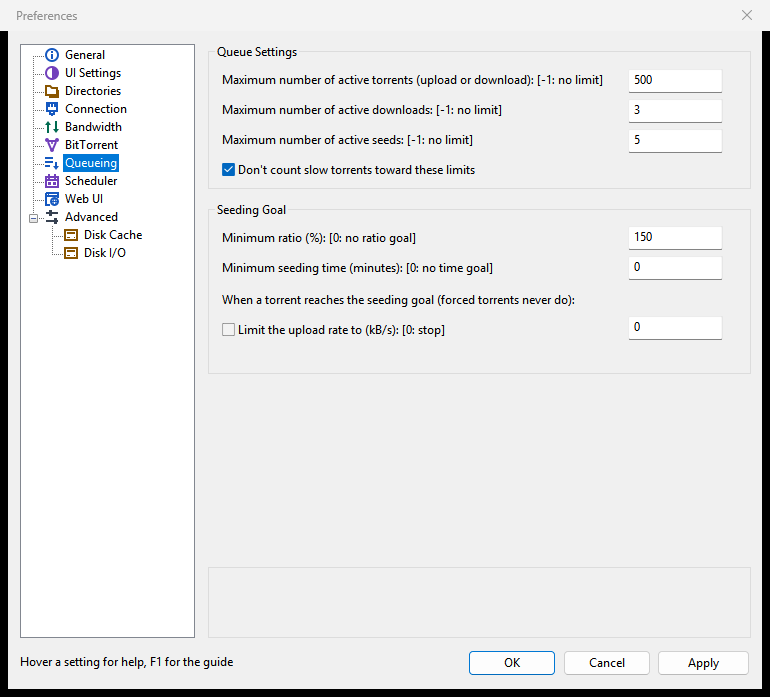
A torrent you start is handed to the queue. The queue runs as many torrents as its limits allow and lets the rest wait:
| Status | Meaning |
|---|---|
| Downloading, Seeding | Running, in a slot of the queue. |
| Queued | Waiting for a download slot. |
| Queued Seed | Finished, waiting for a seeding slot. |
| [F] Downloading, [F] Seeding | Started with Force Start, outside the queue. |
| Stopped, Paused, Finished | Taken out of the queue by you (or, for Finished, by the seeding goal). |
- Start hands the selected torrents to the queue.
- Force Start runs them now, outside the queue, even when its limits are reached. Forced torrents never reach a seeding goal: they seed until you stop them.
- Stop and Pause take torrents out of the queue until you start them again.
- Move Up Queue, Move Down Queue, Move to Top of Queue and Move to Bottom of Queue in the right-click menu change the order. The # column shows each torrent's place. Torrents higher up get a slot first.
See Managing torrents for these commands and their keys. A new torrent can be added at the top of the queue with Add to top of queue in the Add New Torrent window (Adding torrents).
Under Queue Settings:
| Setting | Meaning | Default |
|---|---|---|
| Maximum number of active torrents (upload or download): [-1: no limit] | The most queued torrents running at once, downloads and seeds together. | 500 |
| Maximum number of active downloads: [-1: no limit] | The most queued torrents downloading at once. The next one starts when one finishes or stops. | 3 |
| Maximum number of active seeds: [-1: no limit] | The most finished queued torrents seeding at once. | 5 |
| Don't count slow torrents toward these limits | A torrent moving less than about 2 kB/s for a minute stops taking a download or seed slot, so another can start. It still counts toward the total. | On |
To let everything run at once, set the limits to -1. To download one torrent at a time, set Maximum number of active downloads to 1.
"Slow" is set on the Advanced page: inactive_down_rate and inactive_up_rate (bytes per second, default 2048) and auto_manage_startup (seconds a torrent must stay below them, default 60).
The seeding goal decides when a finished torrent has seeded enough. Under Seeding Goal:
| Setting | Meaning | Default |
|---|---|---|
| Minimum ratio (%): [0: no ratio goal] | Upload this percentage of what the torrent downloaded. 150 means one and a half times. | 150 |
| Minimum seeding time (minutes): [0: no time goal] | Seed for at least this many minutes. | 0 |
With both set, both must be reached. With both at 0, there is no goal and torrents seed until you stop them.
When a torrent reaches the seeding goal (forced torrents never do):
- By default it is stopped. It leaves the queue and shows as Finished.
- Tick Limit the upload rate to (kB/s): [0: stop] and enter a rate to keep it seeding slowly instead: its own upload limit is set to that rate. With 0, it is stopped anyway. A lower limit the torrent already has stays.
The Logger tab writes "seeding goal reached, stopped" or "seeding goal reached, upload limited to ..." with the torrent's name.
Only queued torrents are checked: a force-started, stopped, checking or still-downloading torrent is left alone.
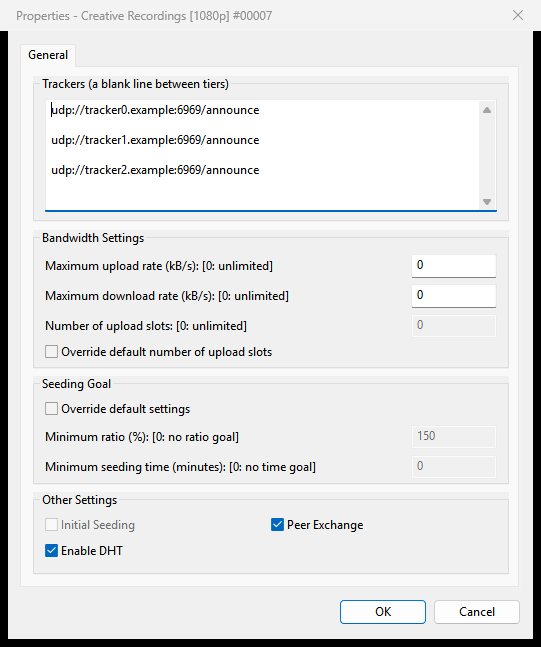
- Select the torrent and choose Properties (Enter).
- Under Seeding Goal, tick Override default settings.
- Set Minimum ratio (%): [0: no ratio goal] and Minimum seeding time (minutes): [0: no time goal]. Both 0 makes this torrent seed for ever.
- Click OK.
Initial seeding (super-seeding) helps you spread a torrent you have just created, when you are its only seed: each peer gets pieces no one else has yet, so the swarm gets a full copy sooner.
- Right-click a seeding torrent and choose Advanced > Initial Seeding. The item is grey unless every selected torrent is seeding; choose it again to turn it off.
- Or tick Initial Seeding under Other Settings in the torrent's Properties.
While it is on, the status shows [S] Seeding. See Creating torrents for making a torrent to seed. For rookparcel-nox, --super-seed does the same for complete torrents.
Rookparcel can move a torrent's files to another folder when it finishes downloading, for example from a fast disk to a big one. It keeps seeding from the new place. Set it on Options > Preferences > Directories, under Location of Downloaded Files:
- Tick Move completed downloads to: and choose the folder below it.
- Optionally tick Append the torrent's label: a torrent with a label goes into a folder named after the label, inside that folder. The label it has when it finishes counts.
- Leave Only move from the default download directory ticked to move only torrents saved in the folder for new downloads (Put new downloads in:); torrents you saved elsewhere then stay where they are. Untick it to move every finished torrent.
- Click OK.
It applies to torrents that finish from now on. More on folders and moving files: Disk and storage.
Options > Auto Shutdown > ... When Everything Completes waits for every seed to stop. A seed with no seeding goal, or a forced one, seeds on and holds it back. See Auto Shutdown.
- GTK window: the same Queueing page, Properties and menus.
- Web UI: the same Queueing page. Its seeding goal box reads Limit the upload rate instead of stopping the torrent, with the rate beside it; 0 stops the torrent anyway. The torrent menu has the same queue and Initial Seeding items.
-
rookparcel-nox: the queue limits and the seeding goal are set in its Web UI's Preferences.
--move-on-complete DIRmoves each torrent that finishes into a folder.