BlenderKit add on documentation
BlenderKit is an online database of materials, brushes and 3D models which you can search, download, upload and rate directly from the add-on.
Install BlenderKit to the newest version of Blender.
- Open Blender. Go to preferences and, then open Add-ons.
- Click on Install and find blenderkit-3.3.2.221220.zip in your Downloads folder.
- BlenderKit will appear in the add-ons list. Click on checkbox to enable BlenderKit.
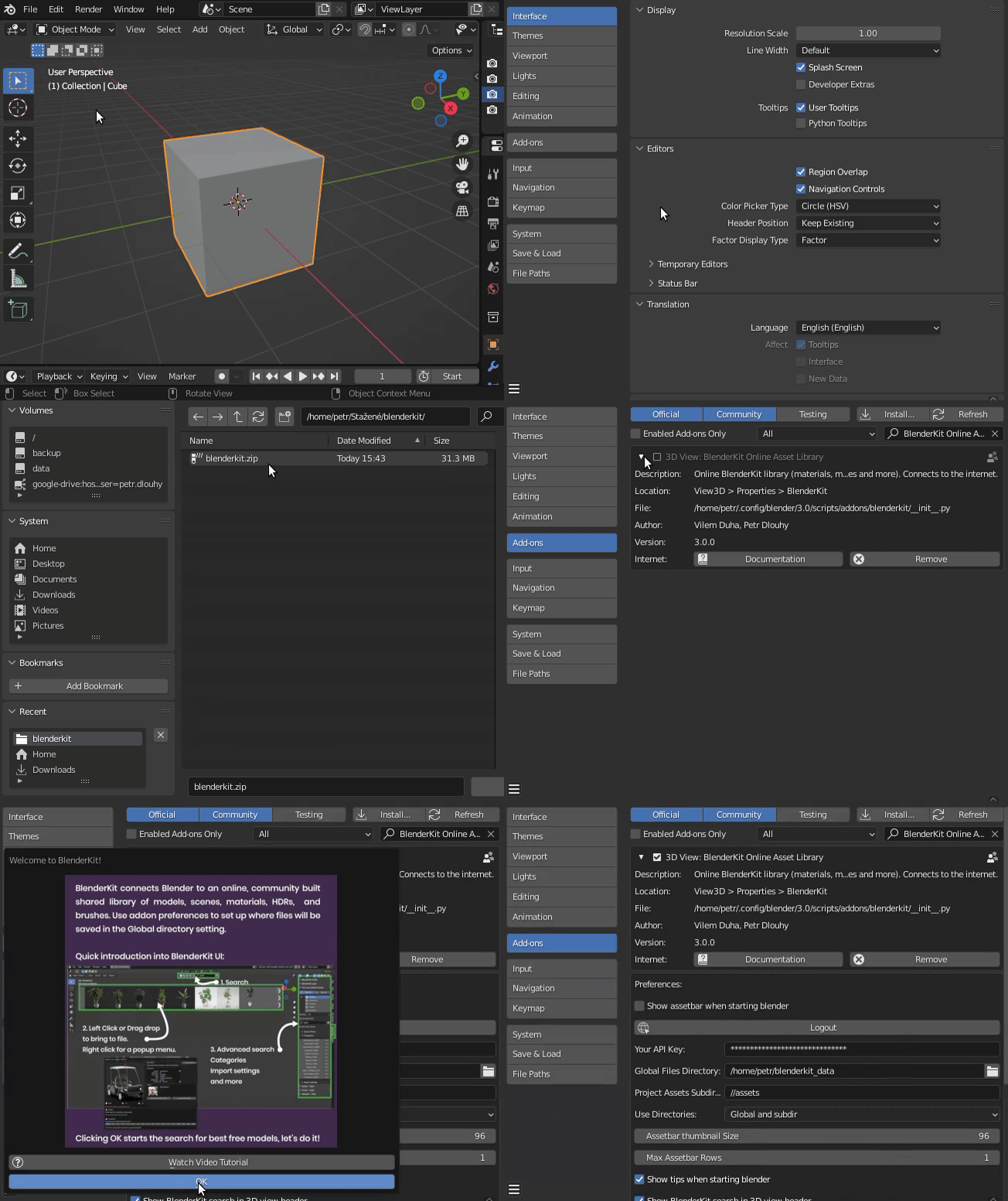
Click on the sign-up button to create a new account and activate it by pressing Log in directly in BlenderKit settings. It will direct you to log in through our website.
Type a search term into the search field.
- Type a search term into the search field.
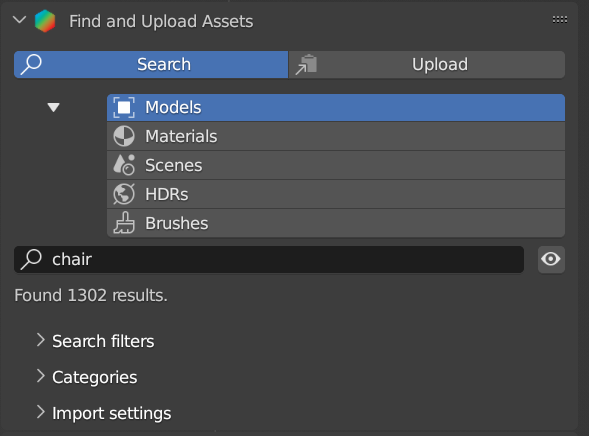
- The results are shown in the Assetbar.

- The results are shown in the Assetbar.
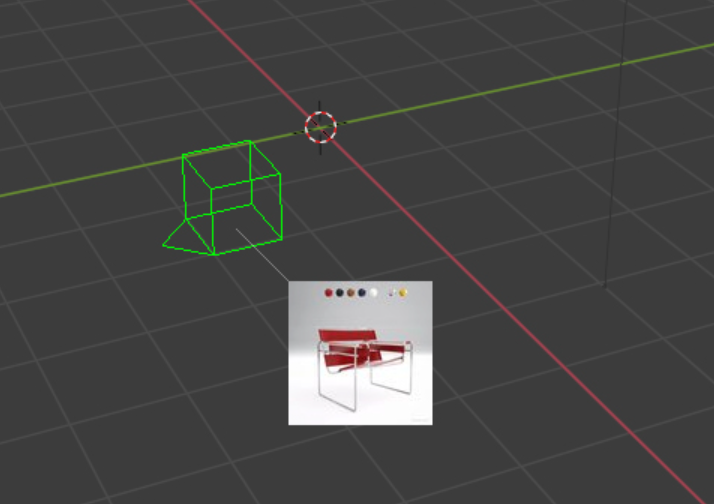
Reference Panel: Assetbar
The Assetbar shows search results and allows you to interact with them. It pops up when the search results are retrieved from the server. The Assetbar can be shown or hidden by clicking the toggle with the eye icon next to the search field.
- Drag and dropping an object or material directly into the scene.
- Click on an item to link/append it to the scene.
- Open the context menu of an item for further interaction (right click):
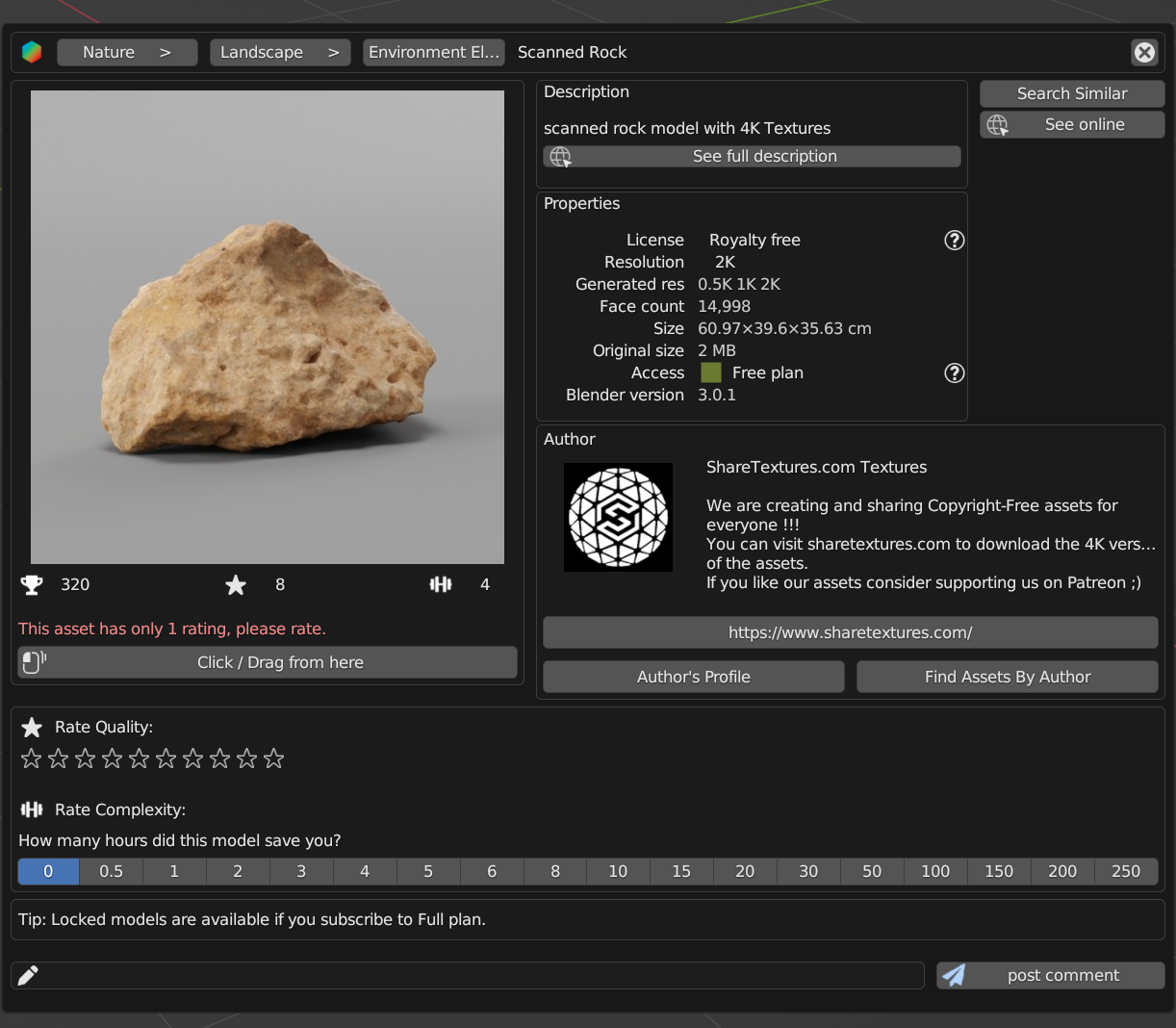
- Search similar: Shows similar assets.
- See online: Opens the BlenderKit web page with this asset.
- Author profile: Opens the link that the author has specified in a web browser.
- Finds assets by Author: Displays all assets uploaded by the author of the selected 3D model.
- Click/drag from here: Transmits the asset directly to the scene.
- See full description: Shows the full description of the asset.
- Rate quality: Allows you to rate the quality of the asset.
- Rate complexity: Allows you to rate complexity of the asset.
- Work hours: Allows you to evaluate how many hours this asset has saved you time.
- Post comment: Allows you to comment on this asset.
- Replace Active Models: Replace all selected assets with the last selected asset (active). If you use this option from the context menu, the target asset is downloaded and replaces selected assets.
- Use the Wheel to scroll the results.
- Click arrows on the side of the Assetbar for a jump to the next or previous page.
- Left-click and move the asset panel to the desired location.
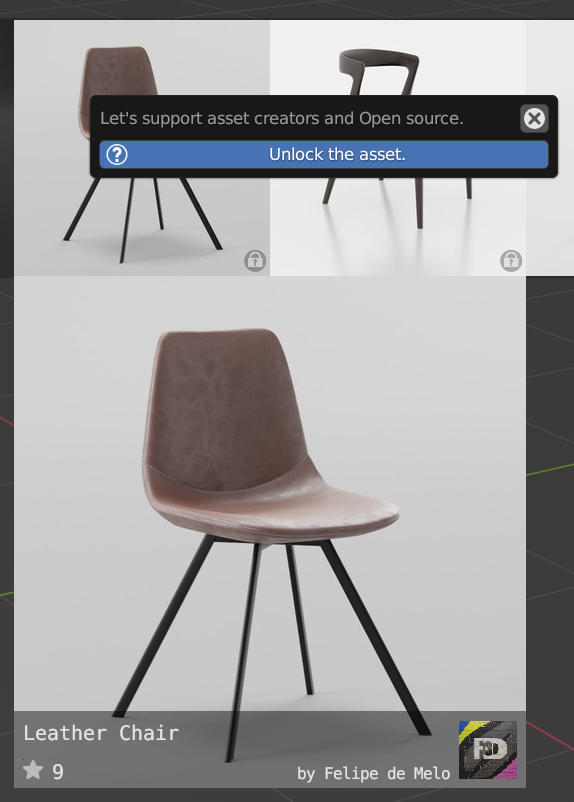
- Unlock the asset (when the user has a free plan).

- Find models
- Find Materials
- Find Scenes
- Find HDRs
- Find Brushes
Search for these keywords.
Click to hide asset bar.
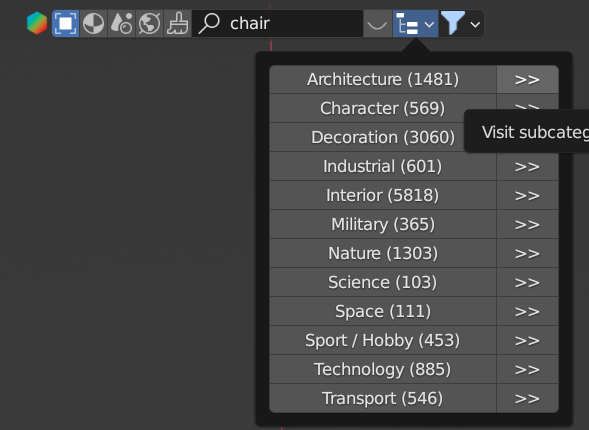
Search assets in categories.
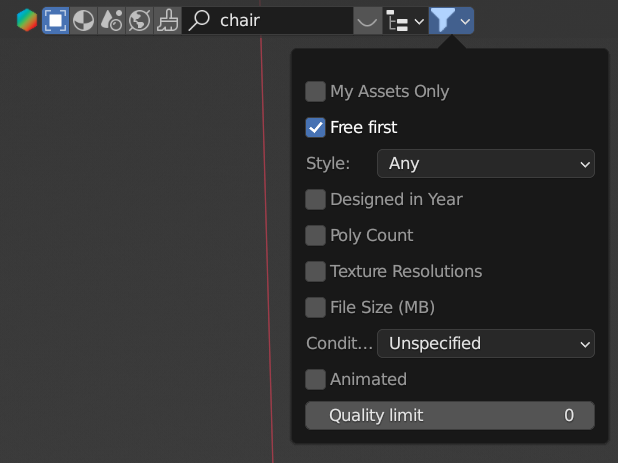
Search only for your 3D models.
Show only free models. This option is available only for models, since all Materials and all Brushes are free.
Search filter limiting the results (Any, realistic, painterly, lowpoly, anime, 2D vector, 3D graphics, polygonal and other). Designed In (min - max) When the object was approximately designed in terms of year. Can be used for parallel worlds or future sci-fi dates (search for sci-fi assets by entering 2100 as minimum year).
Use the poly count of 3D object for filtering.
Limit search to the texture resolutions in a range.
Limit search file size. This uses the basic file size of the original file.
Condition of the object (Unspecified, New, Used, Old, Desolate). Animated Search only animated assets.
Only shows assets with a higher quality.
Reference Panel: Sidebar ‣ BlenderKit ‣ BlenderKit Profile
This panel shows your login information, plan and information about your public and private remaining storage.