Installation
Borsdata Excel Plugin is a file you need to manualy install into Excel.
You need to know if you have excel version 32bit or 64bit. How to check this is shown below.
1. If you dont have an Api Key you need to apply for one as PRO member of Börsdata. (Link)
2. Download Zip file from github and unpack to local folder
3. Check if your Excel is installed as 32bit or 64bit. (Link)
4. Install plugin in Excel. (See "Step by Step" below)
5. Enter API Key in Borsdata Excel plugin
6. Done
1. Open Excel and go to File (1) -> Account (2).
2. "About Excel" (3) -> Check if you have 32-bit or 64-bit (4).
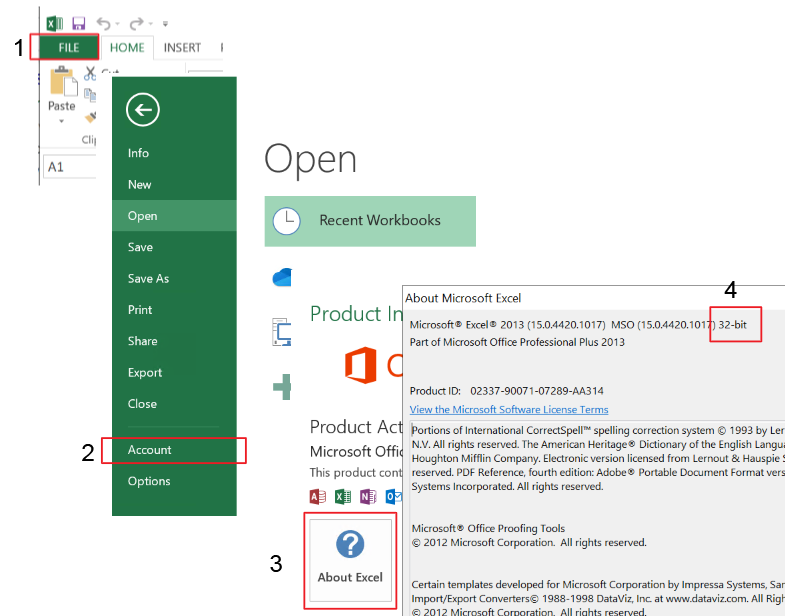
In Excel 2010 you go to "HELP" -> Version (32-bit or 64-bit)
Follow the steps to install the Borsdata Excel Plugin into Excel.
-
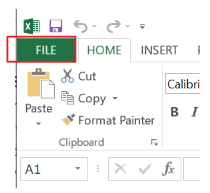
Open Excel and go to File.
-
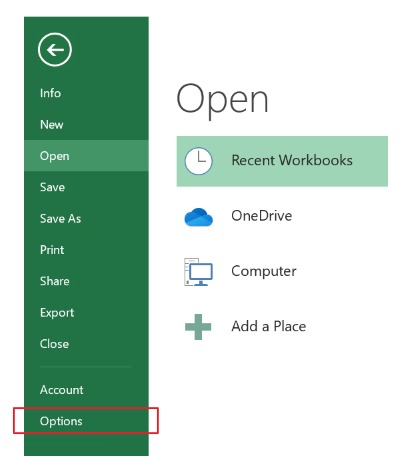
Option
-
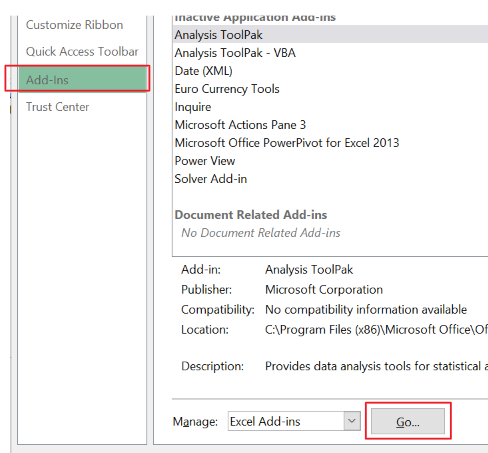
Add-Ins -> Go..
-
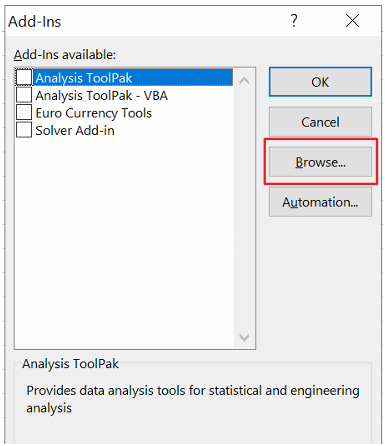
Browse...
-
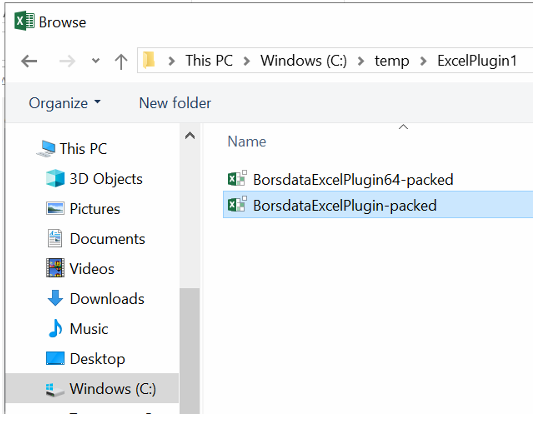
Open the folder where you unzipped the Borsdata excel plugin.
There is two files in the folder. Select the file that match you Excel version.
32bit => BorsdataExcelPlugin-packed
64bit => BorsdataExcelPlugin64-packed -
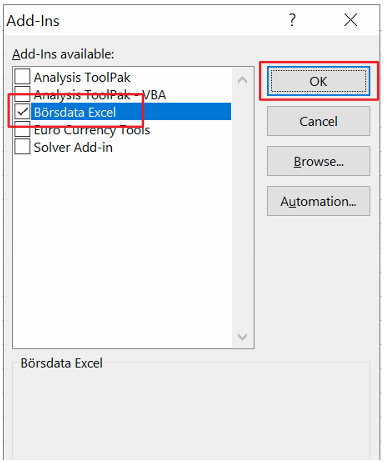
Make sure Börsdata Excel is shown in Add-Ins avaible list.
Press Ok. -
Now you should see the Börsdata Ribbon in Excel.
-
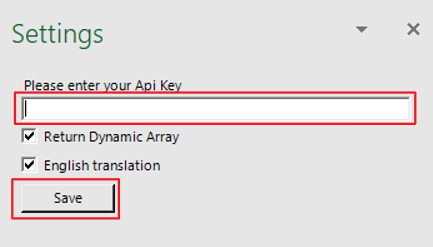
Finally you need to enter your API KEY under SETTINGS.
-
Now installation is ready!