Installation
Borsdata Excel Plugin is a file you need to manualy install into Excel.
You need to know if you have excel version 32bit or 64bit. How to check this is shown below.
- If you dont have an Api Key you need to apply for one as PRO member of Börsdata.
- Download Zip file from github and unpack to local folder.
- Check if your Excel is installed as 32bit or 64bit.
- Install plugin in Excel. (See "Step by Step" below)
4.1. Important! Add the folder where you have the .xll file to 'Trusted Locations' in Excel. (See "Step by Step" below) - Enter API Key in Borsdata Excel plugin
- Done
1. Open Excel and go to File (1) -> Account (2).
2. "About Excel" (3) -> Check if you have 32-bit or 64-bit (4).
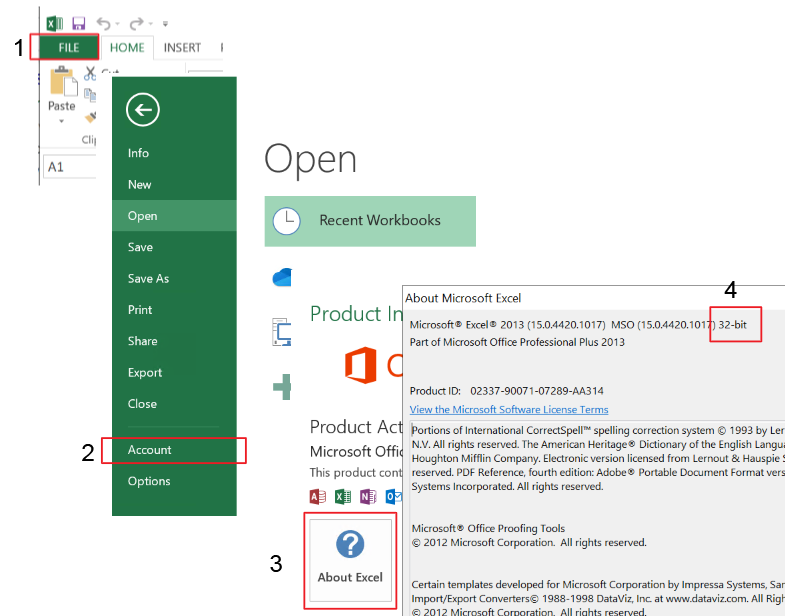
In Excel 2010 you go to "File"-> "Help" -> Check Version (32-bit or 64-bit)
You need to tell Excel that the .xll folder is trusted before you install the .xll file.
- Excel Options (Alternativ)
- Securitycenter (Säkerhetscenter) ->
Settings for securitycenter - Trusted Locations->
Add new Location - Browse.. -> Select the folder
Done
IMPORTANT! Make sure that Add-ins => Reqire ApplicationsAdd-ins to be signed by Trusted Publisher is DISABLED.
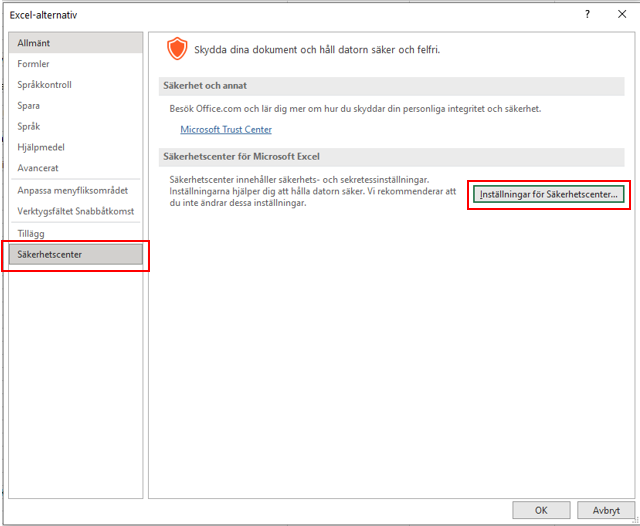
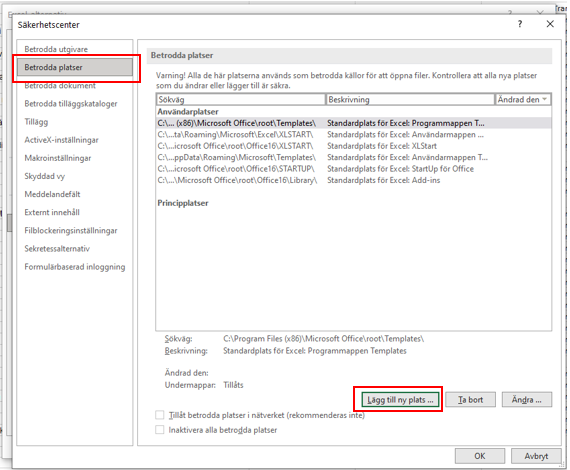
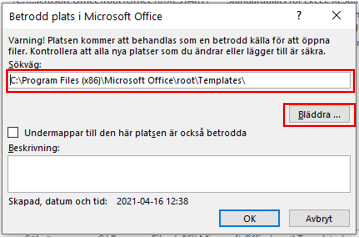
Follow the steps to install the Borsdata Excel Plugin into Excel.
- Download zip file from github.

Chrome and Firefox can give a warning that file is not normaly used. Ignore this warning. Keep file.
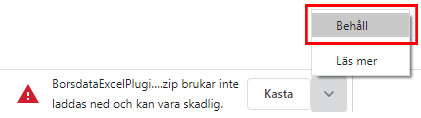
-
When Zip file is downloaded you need to UnZip the Zip file into a new folder.
Right-click on the Zip file and select "Extract All".
How to unzip
Now you have a new folder with two .xll files that can be used by Excel. -
Important! Add the folder where you have the .xll file to 'Trusted Locations' in Excel. (See "Step by Step")
-
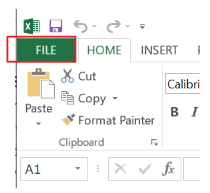
Open Excel and go to File.
-
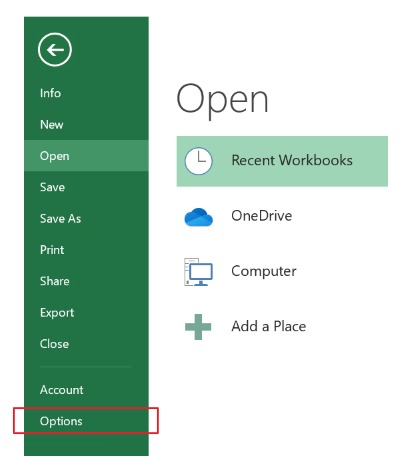
Option
-
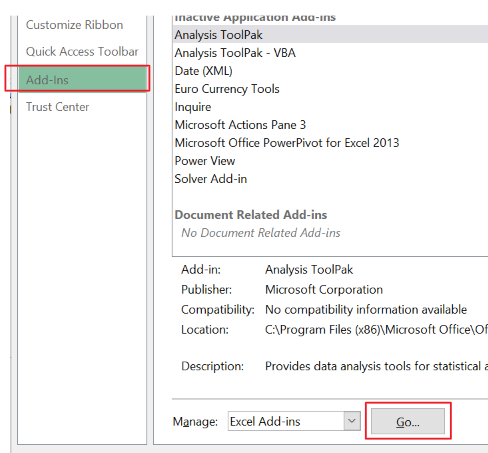
Add-Ins -> Go..
-
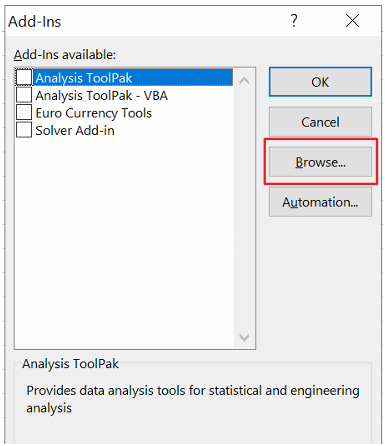
Browse...
-
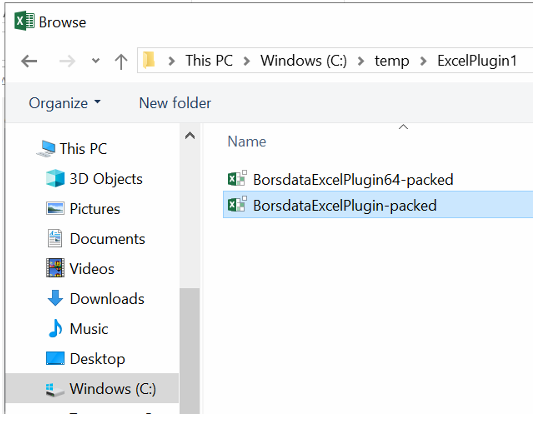
Open the folder where you unzipped the Borsdata excel plugin. (See point 2)
There is two files in the folder. Select the file that match you Excel version.
32bit => BorsdataExcelPlugin-packed
64bit => BorsdataExcelPlugin64-packed -
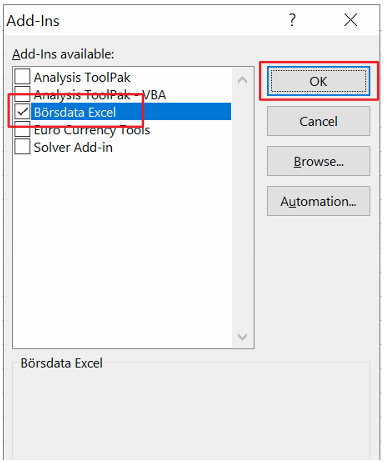
Make sure Börsdata Excel is shown in Add-Ins avaible list.
Press Ok. -
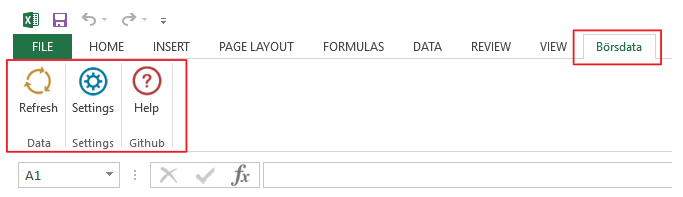
Now you should see the Börsdata Ribbon in Excel.
-
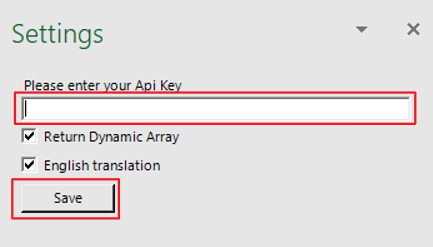
Finally you need to enter your API KEY under SETTINGS.
-
Now installation is ready!
Download new zip from Github and replace your existing local .xll file.
Restart Excel and you should have the new version automaticly loaded into excel.