Repository navigation
Speech and Offline Audio
A communication device that cannot speak is useless. BridgeAAC is engineered with a four-layer resilient speech architecture designed to guarantee speech output in every environment — with or without internet access, and whether or not the operating system provides built-in voices.
Note
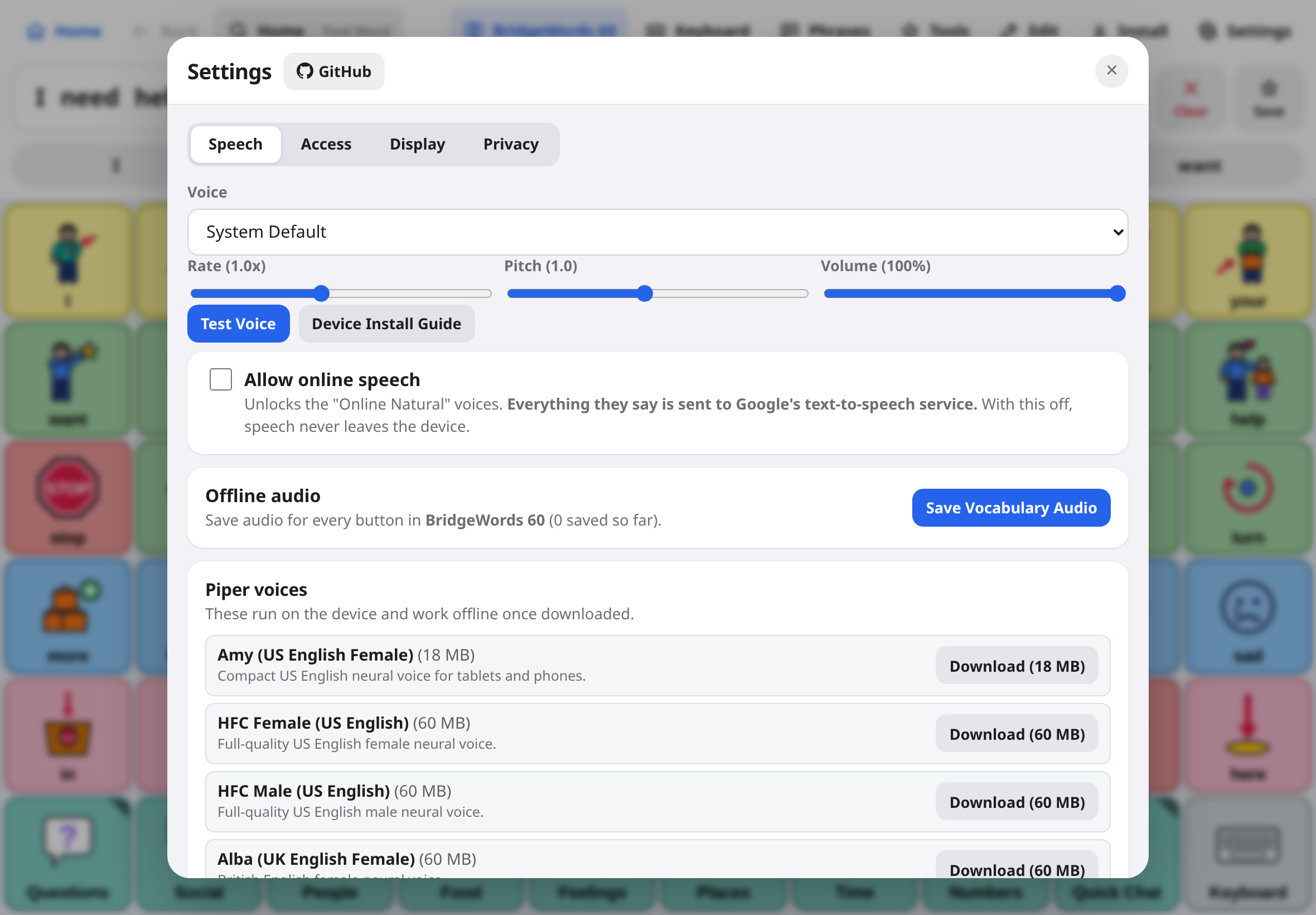
On-device by default: With the default settings, speech is generated on your device (Piper neural voices, the bundled meSpeak voice, or your operating system's voices). BridgeAAC does not send what you say anywhere.
The optional Online Natural voices are the exception. They are off by default, and when turned on (Settings → Speech → Allow online speech) they send the text being spoken to Google's text-to-speech service. See Privacy & Security.
User triggers speech ("I want water")
                │
                ▼
┌───────────────────────────────────────────────┐
│  Tier 1: Pre-Cached Vocabulary Audio (IndexedDB)│ ──> Instant WAV playback (0ms latency)
└───────────────────────────────────────────────┘
                │ (if sentence is typed / not in cache)
                ▼
┌───────────────────────────────────────────────┐
│  Tier 2: Offline Neural Voices (Piper ONNX)   │ ──> On-device high-definition neural speech
└───────────────────────────────────────────────┘
                │ (if neural voice not installed)
                ▼
┌───────────────────────────────────────────────┐
│  Tier 3: System SpeechSynthesis (OS Voices)   │ ──> Native Apple / Android / Windows voices
└───────────────────────────────────────────────┘
                │ (if system voice fails or times out)
                ▼
┌───────────────────────────────────────────────┐
│  Tier 4: Built-in Instant meSpeak Web Audio   │ ──> 100% offline bundled fallback (zero download)
└───────────────────────────────────────────────┘
- How it works: By tapping Pre-Cache Active Vocabulary in Settings → Speech, BridgeAAC pre-synthesizes spoken WAV audio for every button and grammar inflection on your board and saves it in IndexedDB.
- Benefits: Button presses produce instantaneous sound with zero processing lag, zero network usage, and zero CPU spikes. Ideal for older iPads or low-cost Android tablets.
- How it works: Uses the high-performance Piper VITS neural text-to-speech engine compiled to WebAssembly with ONNX Runtime Web.
-
Storage: When you download a neural voice, the model (
.onnx), configuration (.json), and phonemizer dictionaries are stored directly in your browser's Origin Private File System (OPFS) or IndexedDB. - Benefits: Produces lifelike, natural human speech for novel sentences typed on the on-screen keyboard, completely on-device without contacting any cloud servers.
- How it works: Connects directly to the device's native speech synthesizer (Apple AVSpeechSynthesizer on iPad/iPhone/Mac, Android Text-to-Speech on Samsung/Pixel tablets, SAPI on Windows).
- Benefits: Can use Apple’s premium natural Siri/Samantha voices or Android’s enhanced speech voices.
- Watchdog Protection: If the OS speech synthesizer is muted, silent, or hangs, BridgeAAC’s 350ms watchdog timer aborts and falls back to Tier 4 so the user is never left without a voice.
- How it works: Bundled directly into the core application code. Requires zero downloading and works on day one out of the box.
-
Languages Included: Bundled phoneme tables for English (
en-us,en-rp), Spanish (es-la), French (fr), German (de), Portuguese (pt), Italian (it), Chinese Pinyin (zh), plus phonetic romanization engines for Arabic (ar) and Hindi (hi).
BridgeAAC provides a curated catalog of lightweight, natural-sounding Piper neural models:
| Language | Model Identifier | Voice Character | Model Size |
|---|---|---|---|
| English (US) | en_US-amy-low |
Clear, friendly female child/youth | ~18 MB |
| English (US) | en_US-hfc_female-medium |
Warm adult female voice | ~35 MB |
| English (US) | en_US-hfc_male-medium |
Natural adult male voice | ~35 MB |
| English (UK) | en_GB-alba-medium |
Natural Scottish / British female | ~34 MB |
| Spanish (Mexico) | es_MX-ald-medium |
Clear Latin American Spanish male | ~35 MB |
| Spanish (Spain) | es_ES-davefx-medium |
European Castilian Spanish male | ~34 MB |
| French (France) | fr_FR-siwis-medium |
Expressive European French female | ~36 MB |
| German (Germany) | de_DE-thorsten-medium |
High-clarity German male | ~35 MB |
| Portuguese (Brazil) | pt_BR-faber-medium |
Natural Brazilian Portuguese male | ~34 MB |
| Italian (Italy) | it_IT-riccardo-x_low |
Fast Italian male voice | ~16 MB |
| Arabic (Jordan) | ar_JO-kareem-medium |
Clear Modern Standard Arabic male | ~34 MB |
| Chinese (Mandarin) | zh_CN-huayan-medium |
Standard Mandarin Chinese female | ~35 MB |
- Tap Settings (gear icon) → Speech.
- Scroll to Offline Neural Voices (Piper).
- Select your voice and tap Download.
- A progress bar will show the download percentage. Once completed, a green checkmark will appear.
- Tap Test to preview the voice output.
In Settings → Speech, you can customize every aspect of the spoken output:
-
Speech Rate (
0.5x – 2.0x): Adjust how fast sentences are spoken. A slower rate (0.8x) is recommended for early communicators or individuals with auditory processing needs. -
Pitch (
0.5 – 1.5): Modify the pitch of the voice to match the age and personality of the user (e.g., higher pitch for a young child). -
Volume (
0% – 100%): Set the master audio gain for BridgeAAC. -
Auto-Speak Button Tap:
- Enabled: Every button tapped speaks immediately aloud and adds the word to the message bar.
- Disabled: Buttons only add words to the message bar silently; the user taps the message bar or Speak button when they are ready to say the full sentence.
Certain family names, nicknames, medical terminology, and brand names are mispronounced by standard text-to-speech engines. BridgeAAC lets you create phonetic pronunciation overrides:
- Tap Settings → Speech → Pronunciation Overrides.
- Tap Add Override.
- In Word, enter the written word as it appears on the button (e.g.,
Joaquin). - In Pronounce As, enter the phonetic respelling (e.g.,
Wah-keen). - Tap Save.
- When the word
Joaquinis tapped on the board or spoken in a sentence, BridgeAAC substitutes the phonetic pronunciation under the hood while preserving the correct spelling visually.
- Check Hardware Mute Switch: On iPads with a physical switch, verify it is not switched to mute (orange indicator hidden). On newer iPads, open the iOS Control Center and verify the Bell icon (Silent Mode) is turned off.
- Audio Output Routing: If Bluetooth headphones or hearing aids were recently connected, the iPad may still be routing audio to them. Open iOS Control Center and check the AirPlay audio destination.
- First-Tap Audio Context: iOS Safari requires one physical user touch on the screen before the Web Audio system is allowed to play sound. Tap any button once to initialize audio.
- Private Browsing / Incognito: Private browsing modes in Safari and Chrome block persistent IndexedDB and OPFS storage. Make sure BridgeAAC is running in standard mode or installed as a PWA.
-
Device Storage Full: Neural voice models require approximately 20–35 MB of free disk space. Check device storage in
Settings > General > iPad Storage.
If you run BridgeAAC in a school district, clinic, hospital, or home server environment with restricted internet access, you can host Piper voice models on your own local HTTP(S) server or NAS:
- Copy the desired
.onnxand.onnx.jsonfiles to your server (e.g.,https://voices.bridgeaac.orgorhttp://192.168.1.100:8080/voices/). - Ensure your server sends standard CORS headers (
Access-Control-Allow-Origin: *). - In BridgeAAC, navigate to Settings → Speech → Voice Download Server / Mirror.
- Enter your custom server URL and tap Test Connection.
- When downloading neural voices, BridgeAAC queries your local server first before falling back to distributed global mirrors.