The vmmenu.cfg file
When first run, VMMenu will create a vmmenu.cfg file with various default settings for the colours, controls and menu options. There are 4 sections to the file:
- [interface], customises how the menu behaves
- [controls], this is for mouse/spinner options
- [keys], defines which keys are bound to which menu functions
- [colours], defines the colours and intensities of various elements on screen
[interface]
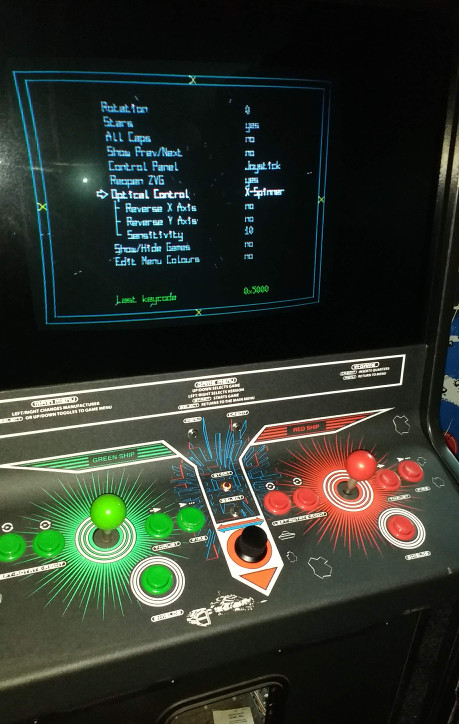
Most of the interface options can be set via the in game settings menu, which by default is accessed by pressing the backtick key, usually found below the escape key. Tip: It can be useful to bind this function to the test or service switch in your cabinet.
3 main control panel types can be selectied within the settings page:
- A "buttons" control panel (e.g. Asteroids)
- A "Joystick" control panel
- A "Spinner" control panel (e.g. Tempest)
Essentially, a pair of keys is bound to the Left and Right directions, and a pair to the Up and Down directions. A Spinner control will move the cursor Up and Down the menus. Use the appropriate controls to navigate up and down the lists, and left and right to navigate between clones and manufacturers. Sensible defaults are chosen for each type of control panel based upon the keycodes specified in the cfg file. Default key values are set to use Mame key bindings.
Default key values from the vmmstddef.h file are used (see [keys] section below), you can change these manually in the vmmenu.cfg file if you want to customise them.
[controls]
This section will be populated by the in game settings menu, which allows you to set up a mouse or spinner and reverse the axes, alter the sensitivity etc. The sensitivity value denotes how many pulses must be generated before a movement event is triggered. Mouse types can be a Spinner bound to the X-axis, a Spinner bound to the Y-axis, or a trackball which moves both axes.
[keys]
This section binds the controls to your preferred key presses. For DOS users, you can use the supplied keycode.exe to display the keycode of a key pressed, or you can press a key whilst in the settings pahge and make a note of the keycode displayed (from v1.3.1). Simply change the value against the desired function. The default values and the keycodes for both Linux and DOS are listed in the vmmstddef.h file.
[colours]
Here is where you can define the colours and intensities of various elements of the menu. Colour values are prefixed with c_ and intensities with i_
Valid colour values are red, magenta, cyan, blue, yellow, green and white. Intensity values range from 0 to 25, dimmest to brightest.
From VMMenu v1.4.2, the colour of the various menu items can now be configured from within the menu. The colour configuration page can be found withing settings.