Repository navigation
Placing and Editing
- Any face of a block: walls (all four directions), floors and ceilings.
- Non-full blocks such as chests, barrels, doors and trapdoors: the note lies on the real surface of the block (on a chest a little inside the block edge).
-
Up to four notes per block face (server setting
maxNotesPerFace). A note is placed where you click and snaps to a fine grid; it is moved inwards if it would hang over the edge. A note that would cover most of another note is refused with the message "Too close to another note" – click a free spot instead. - Notes on floors and ceilings turn so that the text faces the player who placed them.
- A note needs a solid surface: not on air, water, flowers or other blocks without collision.
- Notes take no block space and change no collision: you can still walk past, open chests next to them and so on.
| Action | Control |
|---|---|
| Place a note | right-click a block face while holding a note |
| Open a note | right-click the note |
| Edit your locked note | Shift + right-click it |
| Remove your note | Shift + left-click it (you get the item back) |
The click is decided on the exact paper square: a note on a chest or a door opens the note, a click next to the note opens the chest or uses the door as usual. The note you are looking at gets a thin white frame, and the block outline is hidden, so you always see what you will click.
Holding Shift + left mouse on a note never breaks the block behind it.
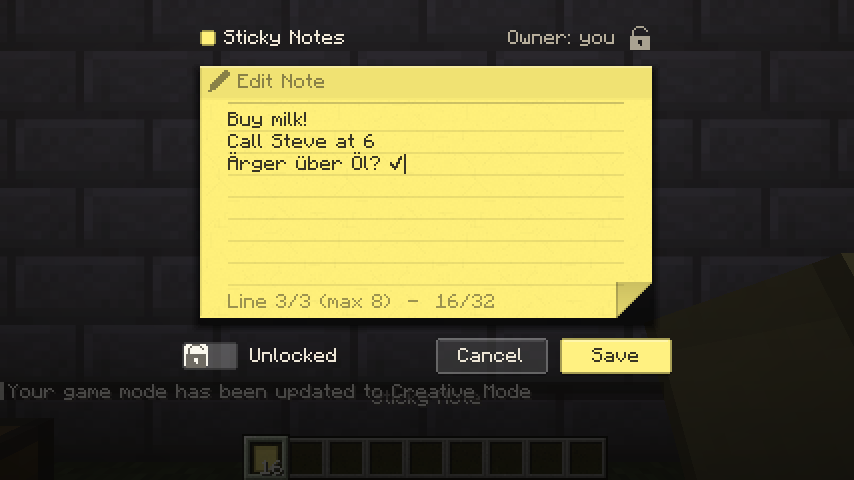
- Header: a colour dot, Sticky Notes, the owner and a lock icon (hover it for an explanation).
- Paper: the note's own colour with paper grain, adhesive strip and a folded corner. The text sits on faint lines; the bottom line shows Line x/y (max n) – characters in this line/limit.
- Toolbar: the lock switch (only for the owner), Cancel and Save. Hover a button to see its shortcut.
- Up to 8 lines of up to 32 characters each (server settings). Long lines wrap at the last space; very long words break.
- Line breaks are kept exactly. Unicode letters, accents and emoji are fine; colour codes and control characters are removed.
- What you type beyond the limit is not accepted; pasted text is shortened to what fits.
| Key | Action |
|---|---|
| Enter | new line |
| Ctrl + Enter (or Ctrl + S) | save |
| Esc | close without saving |
| Arrows | move the cursor (with Ctrl: by word, with Shift: select) |
| Home / End | start / end of the line (with Ctrl: of the whole text) |
| Page Up / Page Down | jump by a page |
| Ctrl + A / C / X / V | select all, copy, cut, paste |
| Backspace / Delete | delete (with Ctrl: a whole word) |
| Tab / Shift + Tab | move between text, lock switch and buttons |
| Mouse | click to place the cursor, drag to select, double-click selects a word, wheel scrolls long notes |
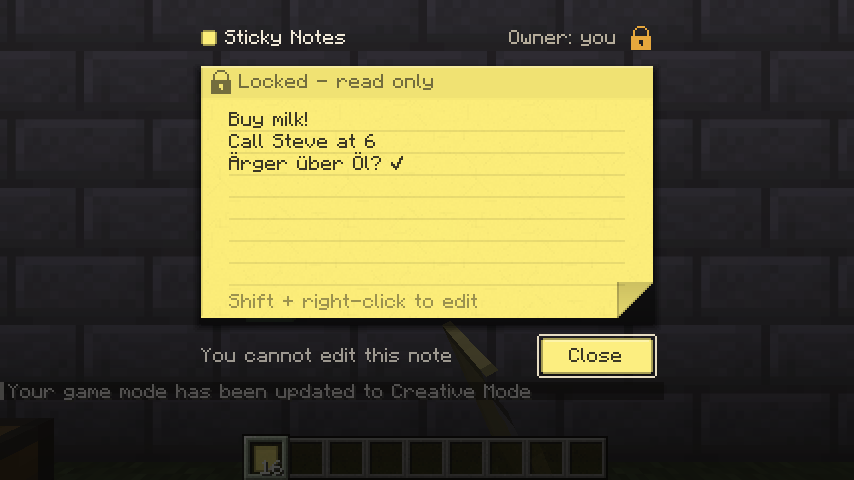
A note you may not edit (or your own locked note without Shift) opens in the read view: the same paper, no cursor, "Locked – read only" on the strip and a Close button.
If another player saves the same note while you are editing, the strip turns orange: "Note has changed since you opened it". Choose Load latest (discard your text and show theirs) or Overwrite (replace theirs with yours). Nothing is ever overwritten without this choice.
The editor scales with the window and the GUI scale and always fits on screen. Size and animations can be changed in the client configuration.