PADSI is a security software package designed for Linux desktop users which allows them to run programs within constrained environments regarding access to files and network resources. It is in a way similar to what Qubes OS achieves but using Linux's kernel isolation mechanisms instead of virtual machines (and is thus inherently less secure), in a way it can be seen as using containers on a desktop setup.
As opposed to traditional system where security primarily aims at preventing threat actors from executing any malicious code on a system, PADSI is built to tolerate that threat actors execute some malicious code but ensures they cannot do anything nefarious (barring any unknown vulnerability). Of course, a system where PADSI is deployed should also be hardened to further limit risks.
The key to design of those environments, which are called zones, is to map them to the users' various activities and their relative security needs, in an exclusive mode. For instance, for a personal usage, one might define a "private" zone in which all personal sensitive work is being done (such as banking, or e-mailing) and an "internet" zone in which the user surfs the global Internet. Applications running in the first zone should have access to personal files and a limited set of network resources (like the bank's web site and the personal e-mail services) whereas in the second zone, no personal files is accessible but all the Web sites on the Internet are (with the exception of bank's web site and the personal e-mail services).
A correctly configured PADSI system (refer to the Configuration section below) can very reliably protect against the following attack techniques:
- lateral movement,
- credential theft,
- ransomware deployment,
- phishing,
- data exfiltration,
- other various social engineering attacks like ClickFix.
- end-users can easily run applications in zones with a visual feedback (a colored outline around each window and icon) to identify which application is running in which zone;
- zones need not be completely isolated (even though they are by default), they can share some directories (in read-only or read-write mode);
- end-users and administrators can easily see which network access has been blocked (and sometimes which network access are actually used);
- system administrators can route the network traffic of some zones to go through one or more VPNs (often to be able to reach internal services), referred to as traffic shapers (anticipating future features related to network handling);
- programs running outside of any zone, sometimes referred to as the "init zone" are constrained by the netfilter firewall to some white listed network resources. For example incoming SSH connections might be granted to allow remote SSH access to the system.
- if VPNs are used, some incoming and outgoing network traffic can also be allowed via a VPN using administration namespaces;
- end-users can run and manage virtual machines to achieve specific tasks:
- system administrators define the set of virtual machine templates which can be used and are responsible for the configuration and maintenance of these templates;
- each virtual machine run by a user is customized for the end user, specifically (but depending on how the virtual machine template is set up), the user has a local account in the virtual machine which is the same as the one in the host system;
- each virtual machine is running in the context of a zone and is at least constrained by that zone (administrators can add more constraints if needed), and can (depending on their definition) share directories in the user's home on the host system;
- users can simultaneously run more than one virtual machine based on the same template (of course within the hardware's capabilities) to create a local network of systems (and for example SSH into each if the SSH service is enabled on them);
- users are responsible to manage their own virtual machines in a way similar to how one managed Docker or Podman containers.
- Web traffic can be routed through external Web proxies;
- access to known malicious or ads distribution web sites can be blocked on a per zone basis.
- PADSI is primarily designed to work in a desktop environment using Wayland, and lets X11 clients being run if specified;
- PADSI only supports using the GNOME desktop environment as no test with any other environment has been done, and as the colored outline around the windows will need to be adapted for each desktop environment;
- end-users can't use container technologies like Docker or Podman or virtual machines via libvirt as the services providing these features are running in the "init zone";
- PADSI has currently been only tested on a Debian 13 system, but it should work with minimal adaptations on other (recent) Linux distributions;
- PADSI does not yet support any internationalization.
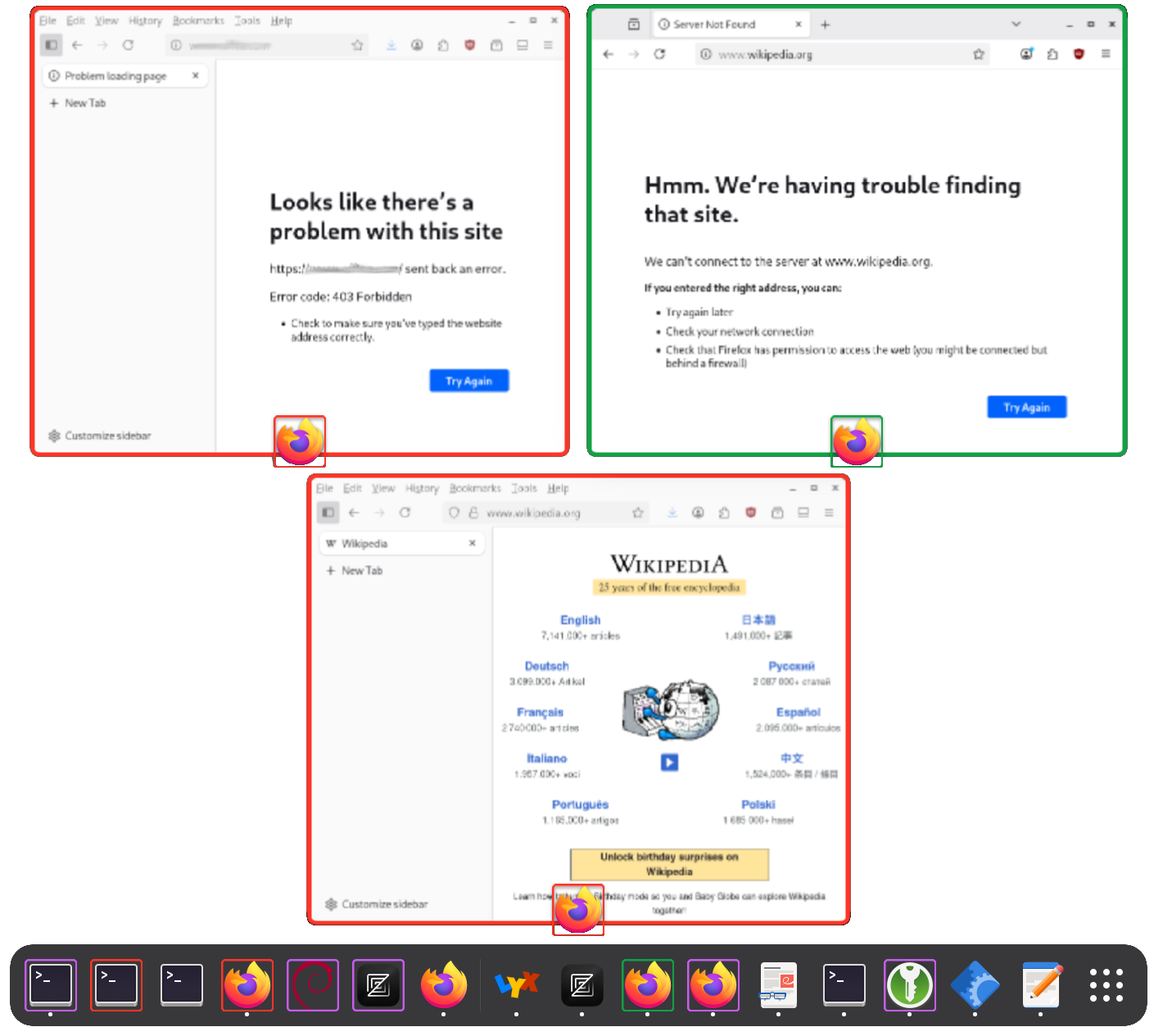
Here is an example of the GNOME desktop's overview where applications and icons are outlined with colors corresponding to the zone in which they are running (or will be running for launcher icons). The icons without outlines correspond to a zone for which outlines have been disabled to avoid a visually stressing environment.
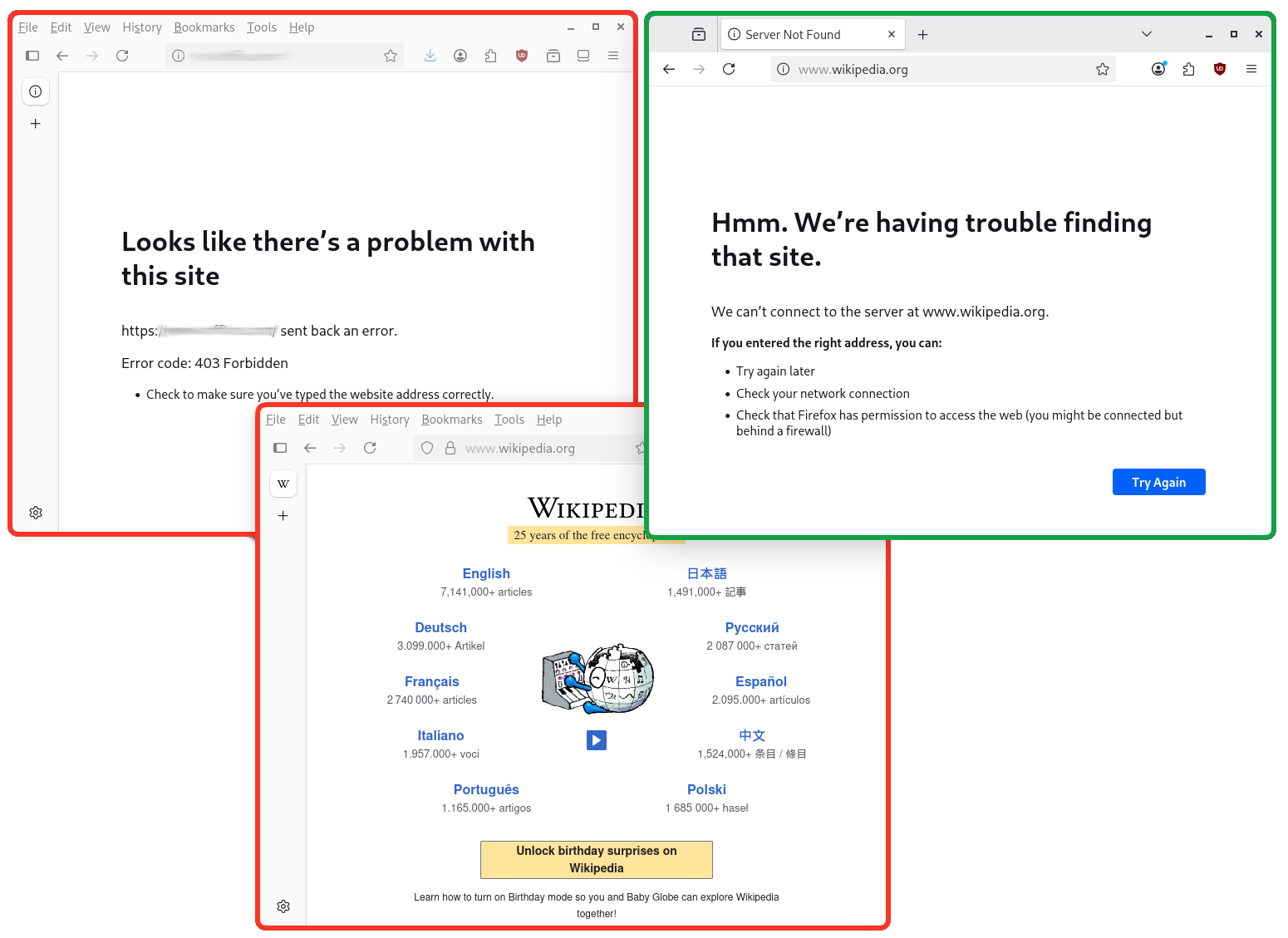
To illustrate how network access filtering might appear, the screenshot below shows two Firefox web browser running in a zone where Internet access is allowed but prevents access to “business applications” (outlined in orange), and in a zone where broad Internet access is blocked and only some specific business applications can be used (outlined in green). Note the following:
- browser settings differ per zone (one shows the vertical tabs in its sidebar, whereas tabs are horizontal in the other), as each zone has its own user settings;
- being a public Web site (no business here), access to the Wikipedia is blocked in the “green” zone whereas it displays nicely in the “orange” zone;
- similarly, access to a business application is blocked in the “orange” (and would be allowed in the “green” one if it was shown here);
- finally, the error messages where access is blocked differ in this case as the failure to connect reason for the browser's perspective varies (a Web proxy blocked the connection in the “orange” zone and the DNS failed to resolve “www.wikipedia.org” in the “green” zone). Of course the situation actually depends on how PADSI is configured.
Here a very concise summary of how PADSI is implemented:
- The isolation features are implemented as a global systemd service which instantiates a per-user process for each logged-in user;
- when a user first start a program in a specific zone, PADSI creates the following "bubbles" (in reference to the Bubblewrap tool which does all the work):
- one for the dedicated infrastructure in support for the applications running in the zone (DNS, web proxy, firewall logging, Wayland proxy, etc.)
- one for the end user's applications.
- each zone configuration has its own HOME directory (located in
<padsi's root path>/home/<UID>/<zone name>) but can also mount directories from the HOME directory of the user in the host (user's files), or system wide directories; - the colored outline around each window of each application is performed via a GNOME shell extension (a customized version of the Rounded Window Corners Reborn extension);
- virtual machines are run using QEMU (libvirt is not used);
- many other ancillary programs ensure a smooth integration with the GNOME desktop and provide some extra security;
- PADSI is mainly written in Python and Rust.
For further information, please refer PADSI's documentation.
To compile PADSI, refer to the dedicated README-dev.
For a quick test, using a Debian 13 Linux system:
- download and install the padsi package or compile it;
- create the
/etc/padsidirectory and copy in it the example configuration files from/usr/share/doc/padsi/conf-example/; - start the padsi service (
systemctl start padsi).
Adjust the configuration according to the needs, and restart the padsi service each time it is modified (PADSI can't simply reload the configuration). Keep in mind that restarting the padsi service will terminate all the programs running in all the zones (save any unsaved data first)
In order for PADSI to provide the best security, absolutely respect the following rule for any defined zone: either allow an almost unconstrained access to the Internet OR (in an exclusive way) grant access to files and network resources which have any kind of value, DON'T mix the two. This rule protects against lateral movement, credential theft and most ransomwares (it does not though protect against wipers). The reasoning behind this very simple rule is that any malicious piece of software which might be running in a zone MUST NEVER be able to simultaneously communicate with the threat actor's Command and Control infrastructure (including via DNS resolution) and have access to files or network resources which have any sort of value.
Another rule which should be taken into account is: don't allow access to any authenticated service in a zone if this zone also allows an almost uncontrolled access to the Internet. This rule protects againts phishing when the user is informed that he/she should NEVER provide any kind of credential in the zone which allows an almost uncontrolled access to the Internet.
Finally, in order to protect against data exfiltration and avoid any communications with a threat actor's Command and Control infrastructure, a 3rd rule can be to prevent uncontrolled DNS resolution. In the context of unrestricted Internet access, one can rely on external web proxies (which perform DNS resolution themselves) and still prevent any direct DNS resolution.
The configuration is a set of JSON files located in the /etc/padsi directory by default, refer to the documentation for all the available settings. Basically:
- the
padsi.conffile holds the global configuration: - network resources (grouping network resources by use case) are defined in
.netresfiles; - zones' configurations are defined in
.zonefiles; - Virtual machines configurations are defined in
.vmfiles; - traffic shapers are defined in
.tspfiles; - administration namespaces are defined in
.admnsfiles.