The new ViLO is being built using the GRAND stack (GraphQL, React, Apollo, Neo4j):
- Front-end: React.js, communicating with the back-end using Apollo Client
- Back-end: Node.js, hosting a GraphQL API server using Apollo Server
- Database: Neo4j - a graph database
Read 'Some background' below to learn why we chose Neo4j
There are three core directories in the project:
api- GraphQL server, running on Node.jsui- React web client with some sample queries to demonstate how to get data from the API serverneo4j- contains a file which can be used to run Neo4j locally (using Docker)
Video: hands on with the GRAND stack
The core part of this project is the API server. The React app is just a demo and I've had more success with spinning up a Neo4j sandbox than running it locally.
Why are we using a graph database like Neo4j?
Graph databases are generally a great fit for any scenario where the connections (edges) between nodes is just as important as the nodes themselves, like in a social network.
Considering that ViLO is all about visualizing the connections between learning concepts (so the connections between concepts are super important), Neo4j felt like a perfect fit.
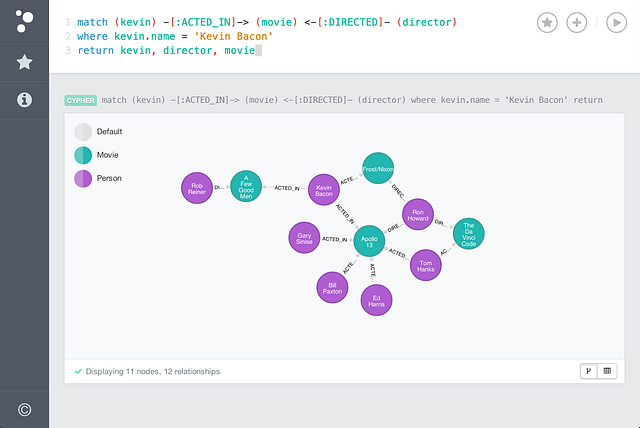
This is what a typical Neo4j CYPHER query and associated visualisation might look like:
Learn more about the background of how this project was built (and why we chose this technology stack) here on Notion

In theory, you should not need to perform any Neo4j queries. You should be able to do everything you need using GraphQL queries and mutations (which is much simpler).
But first, we need to get things running. There are two ways to run this:
- 🤺 Manually
- 🚢 Using Docker
When getting started for the first time, I suggest installing things manually so you get a feel for how the various components come together. Later, it may be easier to use Docker.
- Install Neo4j
- Create a database & install the APOC plugin
- Import our data to the database
- Launch the database
- Install Node.js
- Set up the Node.js server
- Launch the server
- Set up the React web client
- Launch the web client
First, open up Terminal and clone this repisitory by running:
git clone https://github.com/DMeechan/ViLO-GRAND.git- Download Neo4j Desktop
- Install and open Neo4j Desktop.
- Create a new database by clicking "New Graph", and clicking "create local graph".
- Set password to "letmein" (as suggested by
api/.env), and click "Create". - Make sure that your database's credentials match the credentials in
api/.env. The default is:NEO4J_URI=bolt://localhost:7687 NEO4J_USER=neo4j NEO4J_PASSWORD=letmein - Click "Manage" on your database (in Neo4j desktop)
- Click "Plugins"
- Find "APOC" and click "Install"
- Click the "play" button at the top of left the screen, which should start the server
- Wait until it says "RUNNING"
TODO: import the data somehow
- Install Node.js LTS from here
- Open up your
ViLO-GRANDproject folder in Terminal - Enter the server's folder:
cd api - Create a .env file:
cp example.env .env - Install dependencies:
npm install - Start the Node.js server:
npm run start
Make sure you have the Neo4j database running (on port 7687) before starting your Node.js server. Otherwise, you may encounter problems.
You should already have Node.js LTS installed from the steps above. If you do not, install it from here.
- Open up your
ViLO-GRANDproject folder in Terminal - Enter the web client's folder:
cd ui - Create a .env file:
cp example.env .env - Install dependencies:
npm install - Start the web client:
npm run start
We can use docker-compose to quickly spin up the API server and Neo4j database.
- Install Docker Desktop from here (this installs both Docker and Docker Compose)
- Open up your
ViLO-GRANDproject folder in Terminal - Create a .env file for the API server:
cp api/example.env api/.env - Create a .env file for the web client:
cp ui/example.env ui/.env
Now we can spin up the containers with:
make run
If you want to populate the DB with sample data (this is not our actual data) after the services have been started:
make seed
To close the server, run:
make stop
Need help? Run:
make help