JPTrainer helps the user practice writing Japanese characters using a drawing pad in which characters are detected using an AI model. For more details on JPTrainer, check the overview linked below.
JPTrainer is a program built to help beginners of the Japanese language practice writing foreign characters. You can use it to learn any combination of Hiragana, Katakana, or Kanji characters. The current iteration of the program is limited to N5 Kanji due to a lack of clear data on higher-level Kanjis. More levels could be easily added by simply finding relevant training images and running the buildModel.py file.
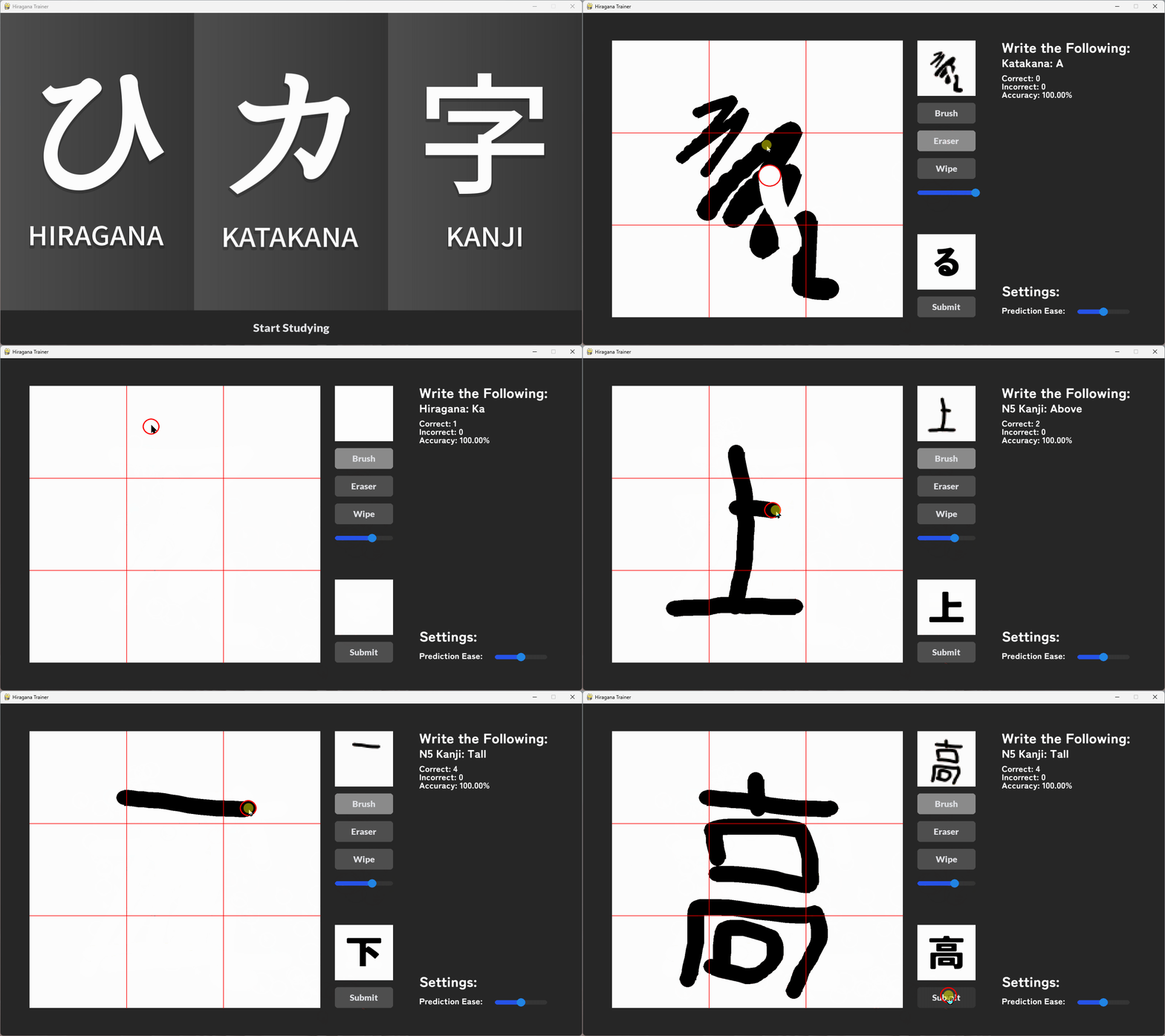
The user is given random characters from the chosen subset which have to be drawn and submitted using the provided canvas. An AI model will try to predict what the user is trying to draw in real-time displaying the current guess in a small window to the right of the canvas. There are separate models specialized in the different character collections (Hiragana, Katakana, and Kanji) which work together to better guess what the user has drawn. Using this decentralised collection of highly specialized models leads to a much higher prediction accuracy than using a single more general algorithm (~95% vs ~80% accuracy). Below is a short video of the program being used:
To use the program you must first ensure that you have the necessary libraries. To install the missing ones, access the project folder using your console or IDE and run the following command:
pip install -r requirements.txt
After installing the missing libraries, simply run the main.pyw file using python.
If you want to rebuild the model or give it a different set of data, use the buildModel.py script in the model folder. Keep in mind that due to privacy concerns, the data used to build this model is not included, you can read more about this on the _IMPORTANT.txt file.
Main menu:
- Select the set of characters that you want to train by clicking on them, colored sets are the ones that will be used.
- After you are happy with your selection, click on the "Start Studying" button to begin.
Training screen:
- Draw on the canvas the character defined at the top right of the screen.
- Click on the brush or eraser button to change between the two
- Change the brush or eraser size by using the slider below the wipe button. The red circle around the mouse tells you the current size.
- Press the wipe button to clear the canvas
- See the correct/incorrect status of your responses at the top right of the screen
- Use the prediction ease slider to change how strict predictions are, increase it if you are having trouble with predictions.