Bash Prompt Helpers
When creating bash based tools, it's often helpful to prompt the user for input or confirmation.
Coyote comes pre-packaged with a handful of prompt helpers for your bash-based tools. These helpers can be used to prompt the user for various types of input, such as yes/no confirmations, text input, and selections from a list.
The utility script is located at functions/utils/prompt-utils.sh within your Coyote functions directory.
The Coyote functions directory varies between machines, so you can find its location on your system by running the following command in your terminal:
coyote --info | grep functions_dir | awk '{print $2}'In order to use the bash prompt helpers in your bash scripts, you need to source the provided prompt-utils.sh script.
This script is pre-packaged with Coyote and is located here.
When sourcing the file in your bash script, you use the LLM_PROMPT_UTILS_FILE environment variable that automatically
populates the functions/utils/prompt-utils.sh path for you.
Thus, to properly source and enable all the bash prompt helpers in your Bash tools, add the following prelude to your scripts:
source "$LLM_PROMPT_UTILS_FILE"Coyote runs each tool as a subprocess and captures the tool's stderr into a buffer. When the wrapped command exits
non-zero, that buffer is attached to the tool result returned to the LLM as error_json["stderr"].
All the interactive helpers below (input, confirm, list, checkbox, password, etc.) write their prompt text and
terminal escape sequences to stderr. Without redirection, the prompt leaks into the LLM-visible error JSON the next time
your tool exits non-zero, which can produce hallucinations where the model "sees" a confirmation prompt that was meant
for the user.
The fix is to send the helper's stderr straight to the user's terminal:
answer=$(confirm "Proceed?" 2>/dev/tty)Helpers read user input from /dev/tty directly, so the redirect only affects the output (the prompt itself). Every
example below uses this pattern. Copy it as-is whenever you wrap a helper in $(...).
guard_operationandguard_pathalready apply this redirect internally so you do not need2>/dev/ttywhen calling them.
Below are the built-in bash prompt helpers that can be used to enhance user interaction with your tool scripts.
Prompt for text input

Example With Validation:
text=$(with_validation 'input "Please enter something:"' validate_present 2>/dev/tty)Example Without Validation:
text=$(input "Please enter something:" 2>/dev/tty)Show a confirm dialog with options for yes/no

Example:
confirmed=$(confirm "Do the thing?" 2>/dev/tty)
if [[ $confirmed == "0" ]]; then echo "No"; else echo "Yes"; fiRenders a text based list of options that can be selected by the user using up, down, and enter keys that then returns the chosen option.
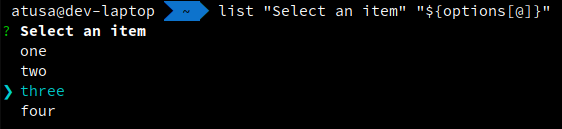
Example:
options=("one" "two" "three" "four")
choice=$(list "Select an item" "${options[@]}" 2>/dev/tty)
echo "Your choice: ${options[$choice]}"Render a text based list of options, where multiple options can be selected by the user using down, up, and enter keys that then returns the chosen options.

Example:
options=("one" "two" "three" "four")
checked=$(checkbox "Select one or more items" "${options[@]}" 2>/dev/tty)
echo "Your choices: ${checked}"Show a password prompt displaying stars for each character typed.

Example With Validation:
validate_password() {
  if [[ ${#1} -lt 10 ]]; then
    echo "Password must be at least 10 characters"
    exit 1
  fi
}
pass=$(with_validate 'password "Enter your password"' validate_password 2>/dev/tty)
Example Without Validation:
pass="$(password "Enter your password:" 2>/dev/tty)"Open the default editor ($EDITOR); if none is set, default back to vi
Example:
text=$(editor "Please enter something in the editor" 2>/dev/tty)
echo -e "You wrote:\n${text}"Evaluate the given prompt command with validation. This prompts the user for input until the validation functions returns 0.
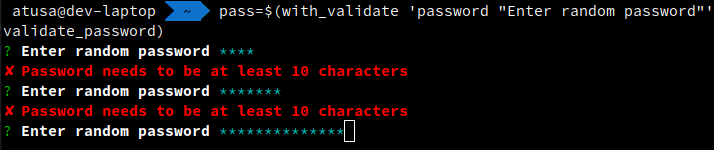
Example:
# Using the built-in 'validate_present' validator
text=$(with_validate 'input "Please enter something and confirm with enter"' validate_present 2>/dev/tty)

# Using a custom validator; e.g. for password
validate_password() {
  if [[ ${#1} -lt 10 ]]; then
    echo "Password needs to be at least 10 characters"
    exit 1
  fi
}
pass=$(with_validate 'password "Enter random password"' validate_password 2>/dev/tty)Validate that the prompt returned a value.
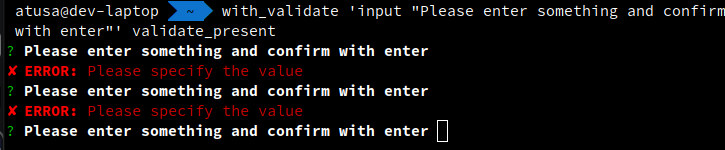
Example:
text=$(with_validate 'input "Please enter something and confirm with enter"' validate_present 2>/dev/tty)Detect the current OS.
Returns one of the following:
solarismacoslinuxbsdwindowsunknown
Example:
detect_osDetermines the Os-specific file opening command (i.e. the command to open anything)
Example:
# Returns 'xdg-open'
get_openerOpens the given link in the default browser
Example:
open_link https://www.google.comPrompt for permission to run an operation.
Can be disabled by setting the environment variable AUTO_CONFIRM.
Example:
guard_operation "Execute SQL?"
_run_sqlPrompt for permission to perform path operations.
Can be disabled by setting the environment variable AUTO_CONFIRM.
Example:*
guard_path "$target_path" "Remove '$target_path'?"
rm -rf "$target_path"Patch a file and show a diff using the default diff viewer. Uses git diff syntax.
Example:
new_contents="$(patch_file "$path" file.patch)"Log an error

Log a warning

Log info

Log a debug message

Log a trace message

The following commands allow users to output text in specific colors.
redgreengoldbluemagentacyanwhite
Example:
red "This will be red"
yellow "This will be yellow"