A Fork of BrianDMG's Powershell script that recursively searches through a user-defined file path (or paths) and convert all videos of user-specified file types to MKV with H265 video and AAC audio as needed using ffmpeg. If a conversion failure is detected, the script re-encodes the file with HandbrakeCLI. Upon successful encoding, Plex libraries are refreshed and source file is deleted. The purpose of this script is to reduce the amount of transcoding CPU load on a Plex server and increase video compatibility across platforms.
Dependencies
This script requires ffmpeg (ffmpeg.exe, ffprobe.exe) and Handbrake (HandbrakeCLI.exe) to be installed. You can download them from here:
ffmpeg
Handbrake
Usage
- conv2x265-ps.ps1: the executable script.
To use this script on a Windows computer, simply right click the file (conv2x265-ps.ps1) and choose "Run with Powershell". Additionally, you can run the script as a scheduled task for full automation. - cfg_conv2x265-ps.ps1: configuration file, contains user-defined variables.
NOTE: If you're upgrading from v2.2 or lower, you may copy your old settings over, but take care not to delete the variables that have been added since the last update.
User-defined variables (cfg_conv2x265.ps1)
There are several user-defined variables you will need to edit using notepad or a program like Notepad++.
$mediaPath = the path to the media you want to convert (no trailing "\")
NOTE: For network shares, use UNC path if you plan on running this script as a scheduled task. If running manually and using a mapped drive, you must run "net use z: \\server\share /persistent:yes" as the user you're going to run the script as (generally Administrator) prior to running the script.
$fileTypes = the extensions of the files you want to convert in the format "*.ex1", "*.ex2"
$logPath = path you want the log file to save to. defaults to your desktop. (no trailing "\")
$logName = the filename of the log file
$plexIP = the IP address and port of your Plex server (for the purpose of refreshing its libraries)
$plexToken = your Plex server's token (for the purpose of refreshing its libraries).
NOTE: Plex server token - See https://support.plex.tv/hc/en-us/articles/204059436-Finding-your-account-token-X-Plex-Token. Plex server token is also easy to retrieve with PlexPy, Ombi, Couchpotato, or SickRage.
$ffmpegBinDir = path to ffmpeg bin folder (no trailing "\"). This is the directory containing ffmpeg.exe and ffprobe.exe
$handbrakeDir = path to Handbrake directory (no trailing "\"). This is the directory containing HandBrakeCLI.exe
collectGarbage = $True enables garbage collection. $False disables garbage collection.
$script:garbage = the extensions of the files you want to delete in the format "*.ex1", "*.ex2"
$appendLog = $False will clear log at the beginning of every session, $True will append new session log to old session log.
$keepSubs = $False will remove subtitles from converted files. $True will keep subtitles.
$useOutPath = $False will use #mediaPath as the output folder. $True will output converted files to $outPath
$outPath = If $useOutPath = $True, converted files will be written to this directory (no trailing "\")
Scheduled task example
To fully automate this script on a Windows system, you will need to set it as a scheduled task. The following is a brief example of how to do that.
- Open task scheduler and choose "Create task"
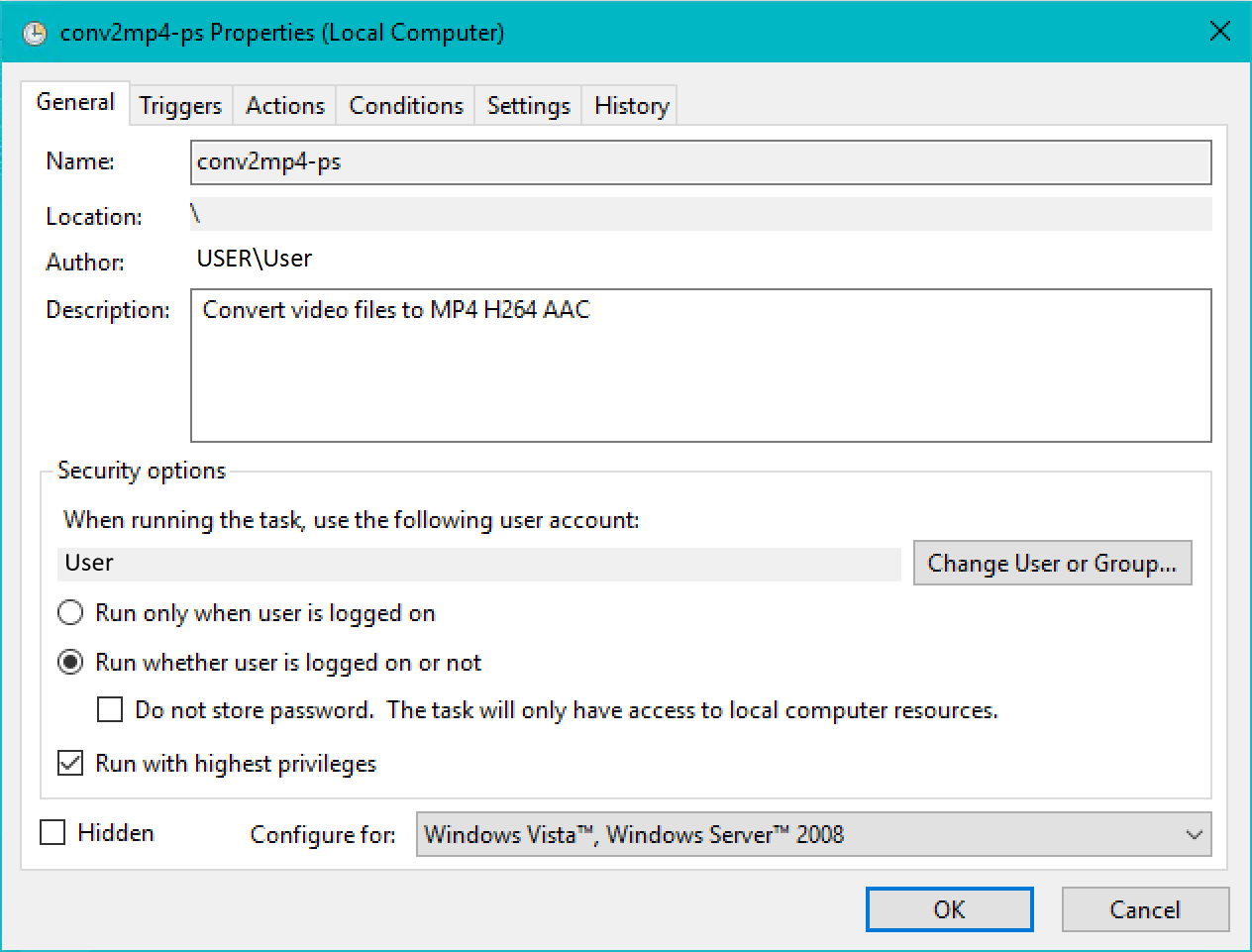
- On the General tab:
- Give the task a name. This can be whatever you like, but should be something descriptive.
- (Optional) Write a short description of the task.
- Click the Change User or group button, and ensure that both the computer name and user name show up in the format of "Computer\User".
- Click the Run whether user is logged in or not radio button
- Check the Run with highest privileges button
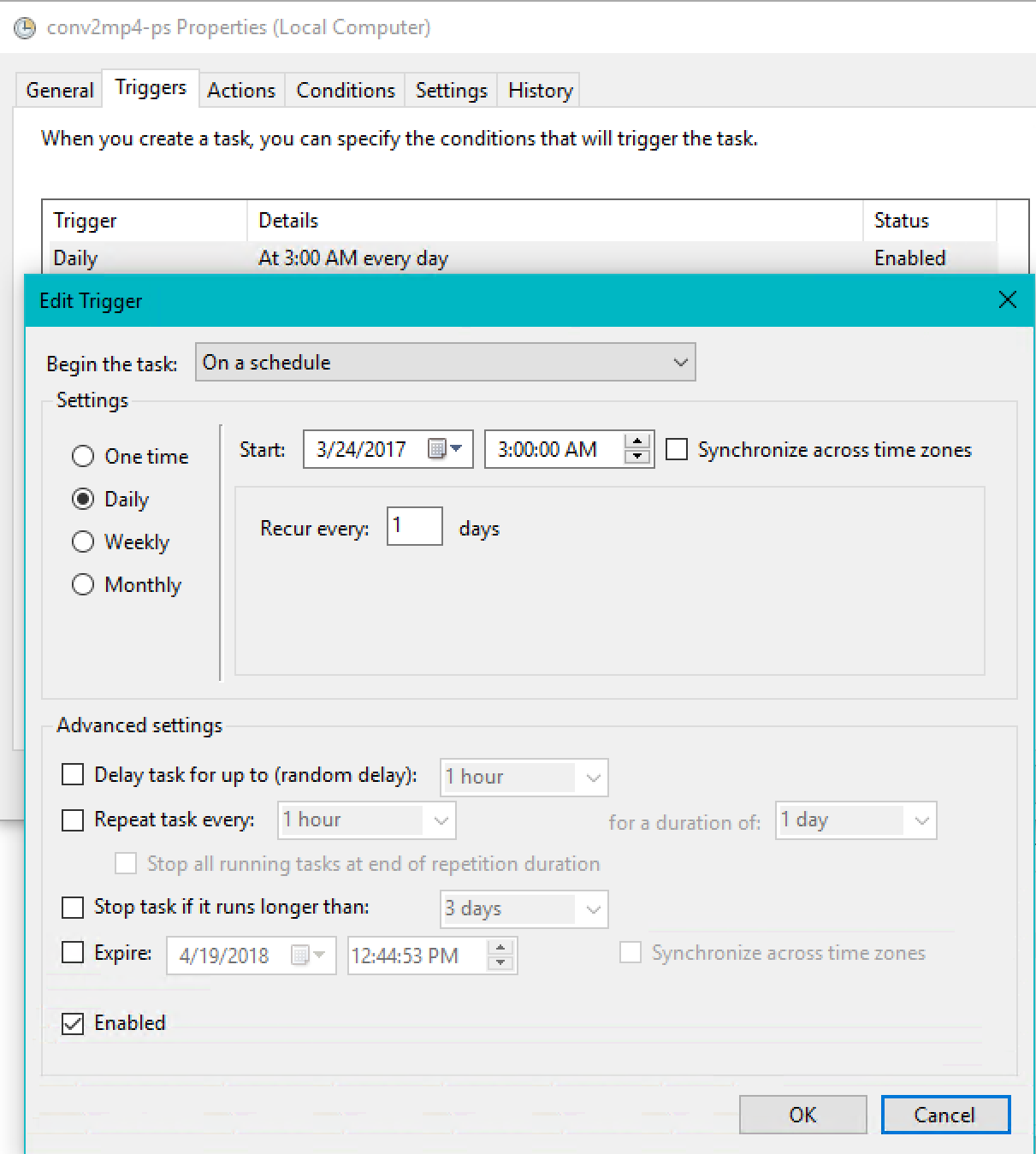
- Under the Triggers tab:
- Change "Begin the task" dropdown to On a schedule
- Change the scheduling settings to your liking. Choose a time when your server's usage is typically minimal, and allows time for the script to run and complete before usage picks back up.
- Ensure the Enabled checkbox is selected
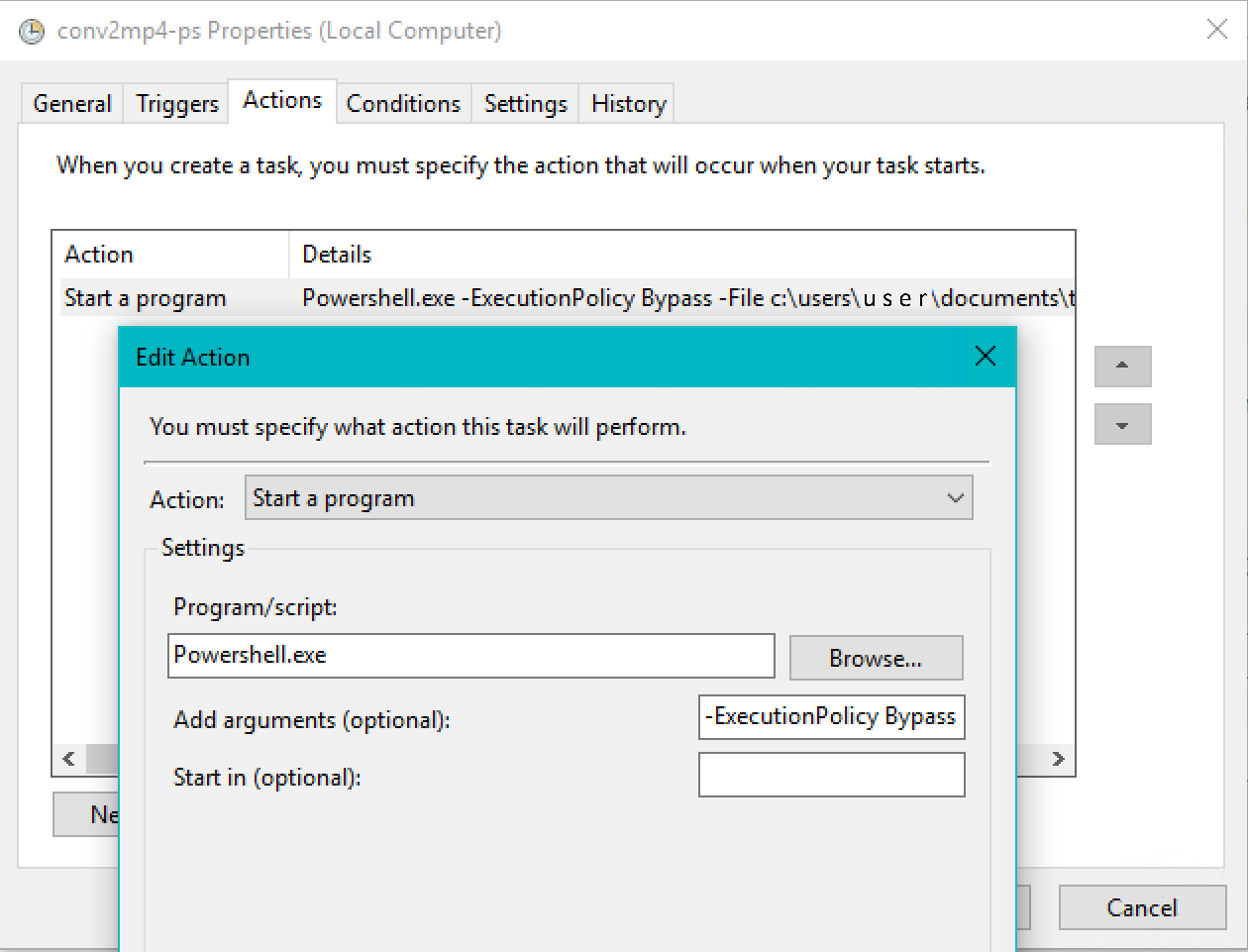
- On the Actions tab:
- Click the New action button.
- Change the Action dropdown to Start a program.
- Under Program/script, type Powershell.exe
- In the Add arguments field, enter -ExecutionPolicy Bypass -File c:\path\to\script\conv2x265-ps.ps1
- (Optional) Tailor settings under the Conditions and Settings tabs to your liking
The script will now run automatically to your specifications.