






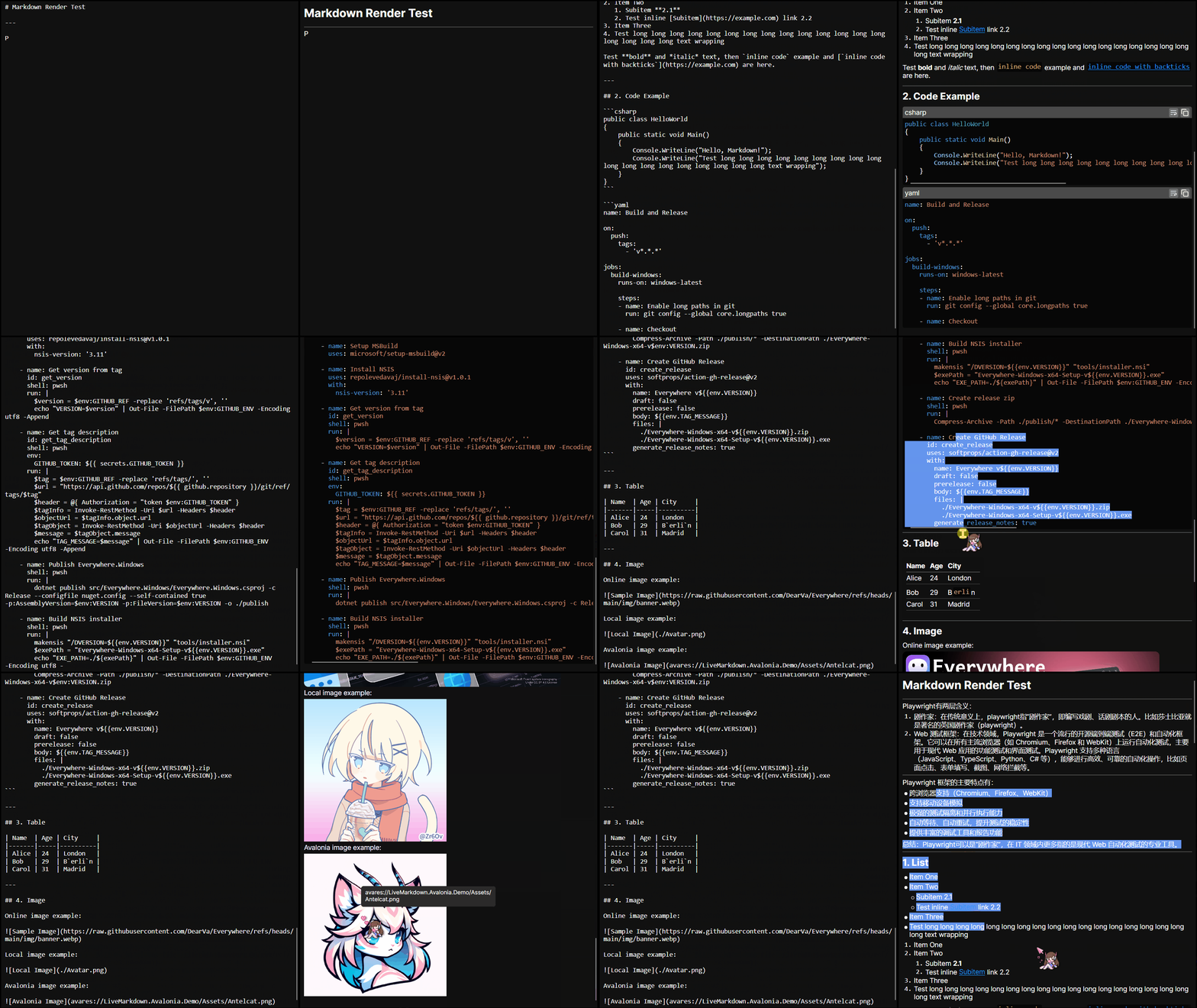
LiveMarkdown.Avalonia is a High-performance Markdown viewer for Avalonia applications.
It supports real-time rendering of Markdown content, so it's ideal for applications that require dynamic text
updating, especially when streaming large model outputs.
- 🚀 High-performance rendering powered by Markdig
- 🔄 Real-time updates: Automatically re-renders changes in Markdown content
- 🎨 Customizable styles: Easily style Markdown elements using Avalonia's powerful styling system
- 🔗 Link support: Clickable links with customizable behavior
- 📊 Table support: Render tables with proper formatting
- 📜 Code block syntax highlighting: Supports multiple languages with TextMateSharp
- 🖼️ Image support: Load online, local even
avaresimages asynchronously - ✍️ Selectable text: Text can be selected across different Markdown elements
- 🔎 Text search and customizable highlights: Search rendered or off-screen Markdown with shared literal matching, custom matchers, and CSS-like highlight styles
- 🧮 LaTeX support: Render mathematical expressions using CSharpMath
- 🖋️ Mermaid diagram full support: Render flowcharts, sequence diagrams, and more using Mermaider
- 🛠️ Extensible Markdown pipeline: Register custom Markdown nodes and extend the rendering pipeline
Note
This library currently only supports Append and Clear operations on the Markdown content, which is enough for LLM
streaming scenarios.
This project is fully open-source and free. Your support will improve this project a lot. I sincerely thank all my sponsors!


- Basic Markdown rendering
- Real-time updates
- Link support
- Table support
- Code block syntax highlighting
- Image support
- Bitmap
- SVG
- Online images
- Local images
-
avaresimages - Extensible Async image loading
- Extensible Image caching (Memory and File-based, with HTTP freshness support)
- Selectable text across elements
- Text search and customizable highlights
- LaTeX support
- HTML support
- Mermaid diagram support
- Pan&Zoom support
- Flowchart
- State diagram
- Sequence diagram
- Class diagram
- ER diagram
- Pie chart
- Quadrant chart
- Timeline chart
- Git Graph
- Radar Graph
- Treemap
- Venn diagram
- Extensible Markdown pipeline and node registration
- Customizable styles for Markdown elements
You can install the latest version from NuGet CLI:
dotnet add package LiveMarkdown.Avaloniaor use the NuGet Package Manager in your IDE.
<Application
  x:Class="YourAppClass" xmlns="https://github.com/avaloniaui"
  xmlns:x="http://schemas.microsoft.com/winfx/2006/xaml" RequestedThemeVariant="Default">

  <Application.Styles>
    <!-- Your other styles here -->
    <StyleInclude Source="avares://LiveMarkdown.Avalonia/Styles.axaml"/>
  </Application.Styles>

  <Application.Resources>
    <!-- Your other resources here -->
    <ResourceDictionary>
      <ResourceDictionary.MergedDictionaries>
        <ResourceInclude Source="avares://LiveMarkdown.Avalonia/Defaults.axaml"/>
      </ResourceDictionary.MergedDictionaries>
    </ResourceDictionary>
  </Application.Resources>
</Application>Add the MarkdownRenderer control to your .axaml file:
<YourControl
  xmlns:md="clr-namespace:LiveMarkdown.Avalonia;assembly=LiveMarkdown.Avalonia">
  <md:MarkdownRenderer x:Name="MarkdownRenderer"/>
</YourControl>
Then stream Markdown content through MarkdownBuilder:
var markdownBuilder = new ObservableStringBuilder();
MarkdownRenderer.MarkdownBuilder = markdownBuilder;

// Append each chunk received from the streaming source.
markdownBuilder.Append("# Hello, Markdown!");
markdownBuilder.Append("\n\nThis is a **live** Markdown viewer for Avalonia applications.");

// Clearing or replacing text also triggers a render update.
markdownBuilder.Clear();
MarkdownBuilder is the primary API for live output. Its change events let the renderer update the visual tree
incrementally instead of treating every token as an unrelated document. ObservableStringBuilder is not thread-safe;
update it on the Avalonia UI thread. See the FAQ for completed-document caching and application-owned parsing pipelines.
If you want to load local images with relative paths, you can set the MarkdownRenderer.ImageBasePath property.
MarkdownRenderer.ApplyTextSearch searches the text of the Markdown text blocks owned by the renderer and paints the
matching ranges without changing text shaping or line breaking. The convenience overload supports literal matching,
case sensitivity, and whole-word matching:
using Avalonia;
using Avalonia.Media;
using LiveMarkdown.Avalonia;

var highlightStyles = new TextHighlightStyles();
highlightStyles.Set(
    MarkdownRenderer.DefaultTextSearchHighlightName,
    new TextHighlightStyle
    {
        Background = new SolidColorBrush(Color.FromArgb(96, 255, 193, 7)),
        Foreground = Brushes.Black,
        CornerRadius = new CornerRadius(2),
        Padding = new Thickness(1, 0),
    });

// HighlightStyles is inherited by the MarkdownTextBlock controls inside the renderer.
MarkdownTextBlock.SetHighlightStyles(MarkdownRenderer, highlightStyles);

var matches = MarkdownRenderer.ApplyTextSearch(
    "render",
    TextSearchOptions.WholeWord,
    priority: 0);

foreach (var match in matches)
{
    // match.Block is the concrete MarkdownTextBlock containing the match.
    // match.Range uses UTF-16 offsets local to that block.
}

// Remove the active search and its ranges.
MarkdownRenderer.ClearTextSearch();
For full control over matching, pass a TextSearchMatcher. The matcher receives the concrete text block and its local
layout text, and returns TextHighlightRange values in UTF-16 coordinates:
using System;

var matches = MarkdownRenderer.ApplyTextSearch(
    static (_, text) =>
    {
        var index = text.IndexOf("TODO", StringComparison.Ordinal);
        return index >= 0
            ? [new TextHighlightRange(index, "TODO".Length)]
            : [];
    },
    highlightName: "todo",
    priority: 1);
Named ranges can also be assigned directly to a MarkdownTextBlock:
block.Highlights.Set(
    "current-match",
    [new TextHighlightRange(start: 12, length: 6)],
    priority: 10);
Use TextHighlightStyles.Set to define the visual style for each name. A style can specify Background, Foreground,
CornerRadius, and Padding; the registry priority determines which overlapping highlight wins.
MarkdownTextProjector parses a committed builder snapshot with the same Markdig pipeline used by
MarkdownRenderer. It produces one searchable buffer for each visual Markdown text block, without constructing
Avalonia controls:
var projector = new MarkdownTextProjector();
var pattern = new TextSearchPattern("render");

// Capture the text and its matching version on the builder's owning thread.
var snapshot = markdownBuilder.CaptureSnapshot();
var projection = await Task.Run(
    () => projector.Project(snapshot, cancellationToken),
    cancellationToken);

// Discard stale work if the source changed while it was being projected.
if (projection.SourceVersion == markdownBuilder.Version)
{
    var matchCount = projection.Buffers.Sum(
        buffer => pattern.FindRanges(buffer.Text).Count());
}
MarkdownTextBuffer.Text is a Markdig StringSlice. Simple literals and single-line code blocks can therefore reuse
their existing source storage; only projections that combine multiple inline fragments allocate one final string.
TextSearchPattern.FindRanges(StringSlice) returns offsets local to the slice, so callers must not add
StringSlice.Start when mapping a result to a MarkdownTextBlock.
Derive from MarkdownTextProjector when custom Markdig nodes have searchable visual text. The default traversal calls
the protected virtual AppendBlock, AppendLeafBlock, AppendCodeBlock, AppendInlines, and AppendInline hooks.
Override TryGetDirectInlineText as well when a custom single inline can expose an existing StringSlice without
building a string. BlockNode.HasMoreSpecificBlockNodeFactory and InlineNode.HasRegisteredInlineNodeFactory are
public helpers for keeping custom projection dispatch consistent with renderer factory registration.
For example, an application-specific inline can expose the same display text in both the composite and direct paths:
public sealed class AppMarkdownTextProjector : MarkdownTextProjector
{
    protected override void AppendInline(
        Markdig.Syntax.Inlines.Inline inline,
        StringBuilder builder,
        CancellationToken cancellationToken)
    {
        cancellationToken.ThrowIfCancellationRequested();
        if (inline is MentionInline mention)
        {
            builder.Append(mention.DisplayText);
            return;
        }

        base.AppendInline(inline, builder, cancellationToken);
    }

    protected override bool TryGetDirectInlineText(
        Markdig.Syntax.Inlines.Inline inline,
        CancellationToken cancellationToken,
        out StringSlice text)
    {
        cancellationToken.ThrowIfCancellationRequested();
        if (inline is MentionInline mention)
        {
            text = new StringSlice(mention.DisplayText);
            return true;
        }

        return base.TryGetDirectInlineText(inline, cancellationToken, out text);
    }
}
MarkdownRenderer.RenderedTextProjection exposes the equivalent buffers produced by the realized visual tree. It is an
Avalonia DirectProperty; observe RenderedTextProjectionProperty through a binding, GetObservable, or
AvaloniaObject.PropertyChanged when a consumer needs to replace an off-screen result with the authoritative rendered
result. Its SourceVersion identifies the rendered source version. MarkdownTextBuffer.SourceSpan identifies the
corresponding source range within that version; it is not a stable identity across later edits.
The off-screen projector covers the built-in Markdown nodes. Registered custom inline nodes are represented as embedded
objects, and custom nodes with specialized visual rendering may only be represented accurately by
RenderedTextProjection after the renderer is realized.
Search and highlight ranges always use UTF-16 offsets local to one MarkdownTextBlock:
| Property | Meaning |
|---|---|
ActualText |
Logical text used for copying, including text inside nested inline controls. |
LayoutText |
Exact text coordinate space of this block's own TextLayout. Embedded controls occupy one U+FFFC position and their child text blocks have independent coordinates. |
TextSearchMatcher receives LayoutText. The object-replacement position is deliberately not searchable. To navigate
to a concrete match, use GetTextRangeBoundsInControl and transform the returned rectangles to the owning viewport:
var rectangles = match.Block.GetTextRangeBoundsInControl(
    match.Range.Start,
    match.Range.Length);
One range can produce multiple rectangles when it crosses a wrapped line.
LaTeX is supported via the LiveMarkdown.Avalonia.Math package. You can install it via NuGet:
dotnet add package LiveMarkdown.Avalonia.MathThen register both the MathInlineNode and MathBlockNode before using LaTeX in your Markdown content (e.g. App.axaml.cs):
using LiveMarkdown.Avalonia;

MarkdownNode.Register<MathInlineNode>();
MarkdownNode.Register<MathBlockNode>(); // This is also required for block-level LaTeX support, e.g. $$...$$

// Also, you can use the following code to register/unregister multiple nodes at once if needed:
MarkdownNode.Edit(builder => builder
    .Register<MathInlineNode>()
    .Register<MathBlockNode>()
    // .Unregister<SomeBuiltInNode>() // You can even unregister some built-in nodes if you want to disable certain Markdown features
);SVG rendering is supported via the LiveMarkdown.Avalonia.Svg or LiveMarkdown.Avalonia.Svg.Skia package. You can install one of them via NuGet:
dotnet add package LiveMarkdown.Avalonia.Svgor
dotnet add package LiveMarkdown.Avalonia.Svg.SkiaNote
The LiveMarkdown.Avalonia.Svg and LiveMarkdown.Avalonia.Svg.Skia packages provide two different implementations for SVG rendering.
The former uses Svg.Controls.Avalonia which is more Avalonia-native, while the latter uses Svg.Skia which is more powerful and has better compatibility.
Then register the SvgImageDecoder into the AsyncImageLoader before using SVG images in your Markdown content (e.g. App.axaml.cs):
using LiveMarkdown.Avalonia;

AsyncImageLoader.DefaultDecoders =
[
    SvgImageDecoder.Shared,
    DefaultBitmapDecoder.Shared
];
You can also set the AsyncImageLoader.Decoders property on a per-renderer basis if you want different renderers to use different decoders.
Mermaid diagram rendering is supported via the LiveMarkdown.Avalonia.Mermaid package. You can install it via NuGet:
dotnet add package LiveMarkdown.Avalonia.MermaidThen register the MermaidBlockNode before using Mermaid diagrams in your Markdown content (e.g. App.axaml.cs):
using LiveMarkdown.Avalonia;

MarkdownRenderer.ConfigurePipeline += x => x.UseMermaid();
MarkdownNode.Register<MermaidBlockNode>();
You can also include the default Mermaid styles and override them from your application styles:
<StyleInclude Source="avares://LiveMarkdown.Avalonia.Mermaid/Styles.axaml"/>MermaidPresenter.RenderOptions lets the native renderer use the same Mermaider options for the parts of rendering that are still owned by Mermaider: parsing constraints, layout spacing, custom layout providers, strict mode, and rounded-edge routing.
using LiveMarkdown.Avalonia;
using Mermaider.Models;

var presenter = new MermaidPresenter
{
    RenderOptions = new RenderOptions
    {
        Padding = 56,
        NodeSpacing = 48,
        LayerSpacing = 72,
        RoundedEdges = false,
        Strict = new StrictModeOptions
        {
            // Add pre-approved classes here when strict mode is enabled.
            AllowedClasses = []
        }
    }
};
The native renderer intentionally does not map RenderOptions color, font, or theme values back into Avalonia properties. Use Avalonia styles for visual appearance instead, for example md|MermaidPresenter.MermaidBlock for the presenter and renderer-part selectors such as md|MermaidPresenter md|DefaultRenderer for diagram-specific tokens.
For Markdown Mermaid blocks, complex RenderOptions objects are usually easiest to configure in C# in one central place. You can also assign a shared options object from a style:
<Style Selector="md|MermaidPresenter.MermaidBlock">
  <Setter Property="RenderOptions" Value="{StaticResource MermaidRenderOptions}"/>
</Style>
Current native synchronization scope:
- Flowchart and state diagrams pass
Padding,NodeSpacing,LayerSpacing,LayoutProvider,Strict, andRoundedEdgesto Mermaider layout. - Class and ER diagrams use
RenderOptions.LayoutProviderwhen supplied. - Sequence diagrams use Mermaider's sequence layout, which currently does not accept
RenderOptions. - Colors, fonts, and Mermaid theme variables remain Avalonia style concerns in native rendering.
AsyncImageLoader uses the in-memory RamBasedAsyncImageLoaderCache.Shared by default.
If you want persistent caching for remote images, enable the file-backed cache explicitly:
<Image md:AsyncImageLoader.Source="https://example.com/image.png" md:AsyncImageLoader.Cache="File"/>Or set it globally:
AsyncImageLoader.DefaultCache = FileBasedAsyncImageLoaderCache.Shared;FileBasedAsyncImageLoaderCache defaults to a cache directory under %LocalAppData%/LiveMarkdown.ImageCache,
but you can configure it to any directory you want.
using LiveMarkdown.Avalonia;

FileBasedAsyncImageLoaderCache.CacheDirectory = Path.Combine(
    Environment.GetFolderPath(Environment.SpecialFolder.LocalApplicationData),
    "YourApp",
    "ImageCache");
FileBasedAsyncImageLoaderCache.MaxCacheSizeBytes = 256L * 1024L * 1024L;
FileBasedAsyncImageLoaderCache.MaxEntrySizeBytes = 32L * 1024L * 1024L;
FileBasedAsyncImageLoaderCache.DefaultFreshnessLifetime = TimeSpan.FromDays(7);
HttpAsyncImageLoaderHandler.Shared.EnableConditionalRequests = true;
The file cache stores original image bytes under SHA-256 keys and uses common HTTP freshness/validation headers
such as Cache-Control, Expires, ETag, and Last-Modified when available.
For advanced scenarios, you can even implement your own AsyncImageLoaderCache.
Markdown elements can be styled using Avalonia's powerful styling system. You can override the default styles by defining your own styles in your application styles.
Avalonia Styling Docs:
The <ResourceInclude Source="avares://LiveMarkdown.Avalonia/Defaults.axaml"/> line in your App.axaml imports the
default resources used by the renderer. You can override these resources in your application to customize the look and
feel.
Here are the available resource keys:
| Key | Type | Description |
|---|---|---|
BorderColor |
Color |
Color of borders (e.g., code blocks, tables) |
ForegroundColor |
Color |
Default text color |
CardBackgroundColor |
Color |
Background color for tables |
SecondaryCardBackgroundColor |
Color |
Background color for code blocks and quotes |
CodeInlineColor |
Color |
Text color for inline code |
QuoteBorderColor |
Color |
Border color for blockquotes |
FontSizeS |
Double |
Small font size (not used yet) |
FontSizeM |
Double |
Medium font size (default text size) |
FontSizeL |
Double |
Large font size for Heading4, Heading5 and Heading6 |
FontSizeXl |
Double |
Extra large font size for Heading3 |
FontSize2Xl |
Double |
2XL font size for Heading2 |
FontSize3Xl |
Double |
3XL font size for Heading1 |
CodeInline is a text run rather than an embedded control, so it participates in the paragraph's normal selection,
search, font fallback, bidirectional shaping, and line wrapping. It can be styled directly:
<!-- md maps to clr-namespace:LiveMarkdown.Avalonia;assembly=LiveMarkdown.Avalonia -->
<Style Selector="md|CodeInline">
  <Setter Property="Background" Value="#242424"/>
  <Setter Property="Foreground" Value="#E6B566"/>
  <Setter Property="CornerRadius" Value="4"/>
  <Setter Property="Padding" Value="2,0"/>
  <Setter Property="Margin" Value="6,0"/>
</Style>
Horizontal Padding and Margin reserve real layout width and therefore affect wrapping. Vertical Padding only
expands the painted background; vertical Margin is currently retained for API symmetry but does not affect layout or
painting. In contrast, TextHighlightStyle.Padding is always paint-only and never changes line breaking.
You can customize the syntax highlighting theme for code blocks. The default theme is DarkPlus.
To set the theme globally for a MarkdownRenderer instance, use the CodeBlockColorTheme property:
<md:MarkdownRenderer CodeBlockColorTheme="LightPlus"/>Register an arbitrary TextMate IRawTheme once, then select it by name. Custom theme names are separate from the built-in ThemeName values:
SyntaxHighlighting.RegisterCustomTheme("MyApp.Dark", rawTheme);<md:MarkdownRenderer CodeBlockCustomColorTheme="MyApp.Dark"/>When CodeBlockCustomColorTheme is not set, CodeBlockColorTheme remains the fallback. An unregistered custom name also falls back to CodeBlockColorTheme.
You can also use Avalonia styles to set the theme for specific code blocks or based on conditions:
<Style Selector="md|CodeBlock">
  <Setter Property="ColorTheme" Value="SolarizedDark"/>
</Style>
or use registered custom theme names:
<Style Selector="md|CodeBlock">
  <Setter Property="CustomColorTheme" Value="MyApp.Dark"/>
</Style>
Supported themes are defined in TextMateSharp.Grammars.ThemeName.
Custom themes must be registered with SyntaxHighlighting.RegisterCustomTheme before they are used.
Custom names cannot collide with built-in ThemeName names.
By default, the renderer implements the standard Markdown emphasis styles (e.g., *italic*, **bold**, ~~strikethrough~~) using simple font weight and style changes. If you want to customize these styles or extended styles like ==highlight==, you can define your own styles for the corresponding elements.
Here is a sample style definition that customizes the emphasis styles and adds support for subscript, superscript, underline and highlight. Note that the BaselineAlignment seems to be ignored in some cases due to Avalonia's text layout behavior.
<Style Selector="md|MarkdownRenderer">
  <Style Selector="^ Span.Emphasis">
    <!-- You can even set the bold style separately for **star** and __underscore__ -->
    <!-- For a full list of available style classes, please refer to the source code of the renderer -->
    <!-- https://github.com/DearVa/LiveMarkdown.Avalonia/blob/main/src/LiveMarkdown.Avalonia/Nodes/Inline/EmphasisInlineNode.cs -->
    <Style Selector="^.Bold.Star">
      <Setter Property="FontWeight" Value="Bold"/>
    </Style>
    <Style Selector="^.Bold.Underscore">
      <Setter Property="FontWeight" Value="Normal"/>
    </Style>

    <!-- You can define custom styles for the extended emphasis elements like subscript, superscript, underline and highlight -->
    <Style Selector="^.Subscript">
      <Setter Property="BaselineAlignment" Value="Subscript"/>
      <Setter Property="FontSize" Value="8"/>
    </Style>
    <Style Selector="^.Superscript">
      <Setter Property="BaselineAlignment" Value="Superscript"/>
      <Setter Property="FontSize" Value="8"/>
    </Style>
    <Style Selector="^.Underline">
      <Setter Property="TextDecorations" Value="Underline"/>
    </Style>
    <Style Selector="^.Highlight">
      <Setter Property="Background" Value="DarkOrange"/>
    </Style>
  </Style>

  <!-- You can set the style for error LaTex rendering result like this -->
  <Style Selector="^ md|MarkdownTextBlock.Math.Error">
    <Setter Property="Foreground" Value="Red"/>
  </Style>

  <Style Selector="^ md|MarkdownTextBlock.MathBlock.Error">
    <Setter Property="Foreground" Value="Red"/>
  </Style>
</Style>-
Q: Wait, I just want to render a single Markdown string. Why do I need
ObservableStringBuilder? -
A: You do not need to manage an
ObservableStringBuilderyourself just to bind one string. Use the built-in value converter:<md:MarkdownRenderer MarkdownBuilder="{Binding MarkdownString, Converter={x:Static md:ValueConverters.ToObservableStringBuilder}}"/>
or set the
MarkdownBuilderproperty in code-behind:MarkdownRenderer.MarkdownBuilder = new ObservableStringBuilder(MarkdownString);
ObservableStringBuilderbecomes valuable when content is arriving or may continue to change. It preserves incremental change information and is the most efficient path for streaming output.For completed, immutable content that may be realized repeatedly—such as conversation history in a virtualized list—parse it once and keep the resulting
MarkdownDocumentUpdatein the model. This trades memory for faster realization because the renderer can reuse the parsedMarkdownDocumentwhenever the item comes back on screen.public sealed class ChatMessage { public required string Content { get; init; } public MarkdownDocumentUpdate? CachedDocumentUpdate { get; private set; } public async Task PrepareDocumentAsync() { if (CachedDocumentUpdate is not null) return; var content = Content; CachedDocumentUpdate = await Task.Run(() => { var document = Markdown.Parse(content, MarkdownUpdateProducer.DefaultPipeline); return new MarkdownDocumentUpdate.Full(document); }); } } await message.PrepareDocumentAsync(); // DocumentUpdate must be assigned on the Avalonia UI thread. MarkdownRenderer.DocumentUpdate = message.CachedDocumentUpdate;
DocumentUpdatecan also be bound directly from a view model:<md:MarkdownRenderer DocumentUpdate="{Binding CachedDocumentUpdate}" />
Assigning it synchronously updates the visual children even before the renderer is attached, so its first measure sees the complete document. Treat every published
MarkdownDocumentas immutable. Release the cached update when reclaiming memory is more valuable than avoiding a later reparse. -
Q: How can I use a custom Markdown pipeline or own the update lifetime?
-
A: Assign an application-owned
MarkdownUpdateProducer.MarkdownBuilderis a convenience proxy to the renderer's lazily created producer, but it does not prevent replacing that producer:renderer.UpdateProducer = new MarkdownUpdateProducer { Pipeline = customPipeline, MarkdownBuilder = markdownBuilder, };
The producer observes and parses its source while it has subscribers and synchronously replays its latest valid update to a new subscriber. The renderer owns only its subscription. Custom producers can implement
IMarkdownUpdateProducerand publishMarkdownDocumentUpdatevalues from another source. -
Q: Why some emojis not rendered correctly (rendered in single color)?
-
A: This is a known issue caused by Skia (the render backend of Avalonia). You can upgrade SkiaSharp version (e.g. >= 3.117.0) to fix this. Related issue
-
Q: How does cross-block text selection work?
-
A:
MarkdownRendererusesMarkdownTextBlockto provide selection across Markdown blocks, including paragraphs, headings, tables, inline code, and code blocks. By default, the bundled style marks eachMarkdownRendereras a selection scope, so users can drag-select text across all selectable text blocks inside the same renderer.If you need multiple renderers or custom containers to share one selection, set
MarkdownTextBlock.IsSelectionScope="True"on their nearest shared visual parent:<StackPanel md:MarkdownTextBlock.IsSelectionScope="True"> <md:MarkdownRenderer/> <md:MarkdownRenderer/> </StackPanel>
When scopes are nested, the topmost scope is used. This makes it possible to set a broad application-level selection scope, while still keeping the default renderer-level behavior for simple cases. The old
MarkdownRenderer.SelectionScopeNameAPI is kept for compatibility, but new code should useMarkdownTextBlock.IsSelectionScope.During drag selection, moving the pointer outside a
ScrollViewerautomatically scrolls the nearest scrollable parent. For nested scroll viewers, the renderer follows Avalonia scroll chaining: it tries the innerScrollViewerfirst and continues to outer scroll viewers only whenScrollViewer.IsScrollChainingEnabledallows it. -
Q: Why is LaTeX like
\(xxx\)not rendered? -
A: The default Markdig math parser supports
$...$and$$...$$. To support\(...\)and\[...\], enable the extended math parser before creating anyMarkdownRendererinstances:MarkdownRenderer.ConfigurePipeline += x => x.UseExtendedMathematics(); MarkdownNode.Edit(builder => builder .Register<MathInlineNode>() .Register<MathBlockNode>() );
We welcome issues, feature ideas, and PRs! See CONTRIBUTING.md for guidelines.
Distributed under the Apache 2.0 License. See LICENSE for more information.
- markdig - BSD-2-Clause License
- Markdown parser for Everywhere.Markdown rendering
- Source repo: https://github.com/xoofx/markdig
- Svg.Skia - MIT License
- Svg rendering for images
- Source repo: https://github.com/wieslawsoltes/Svg.Skia
- TextMateSharp - MIT License
- Syntax highlighting for code blocks
- Source repo: https://github.com/danipen/TextMateSharp
- CSharpMath - MIT License
- LaTeX rendering support
- Source repo: https://github.com/verybadcat/CSharpMath
- Mermaider - MIT License
- LA pure dotnet mermaid parser, layout engine AND renderer, no js runtime, AOT ready.
- Source repo: https://github.com/nullean/mermaider