Repository navigation
Using the Viewer
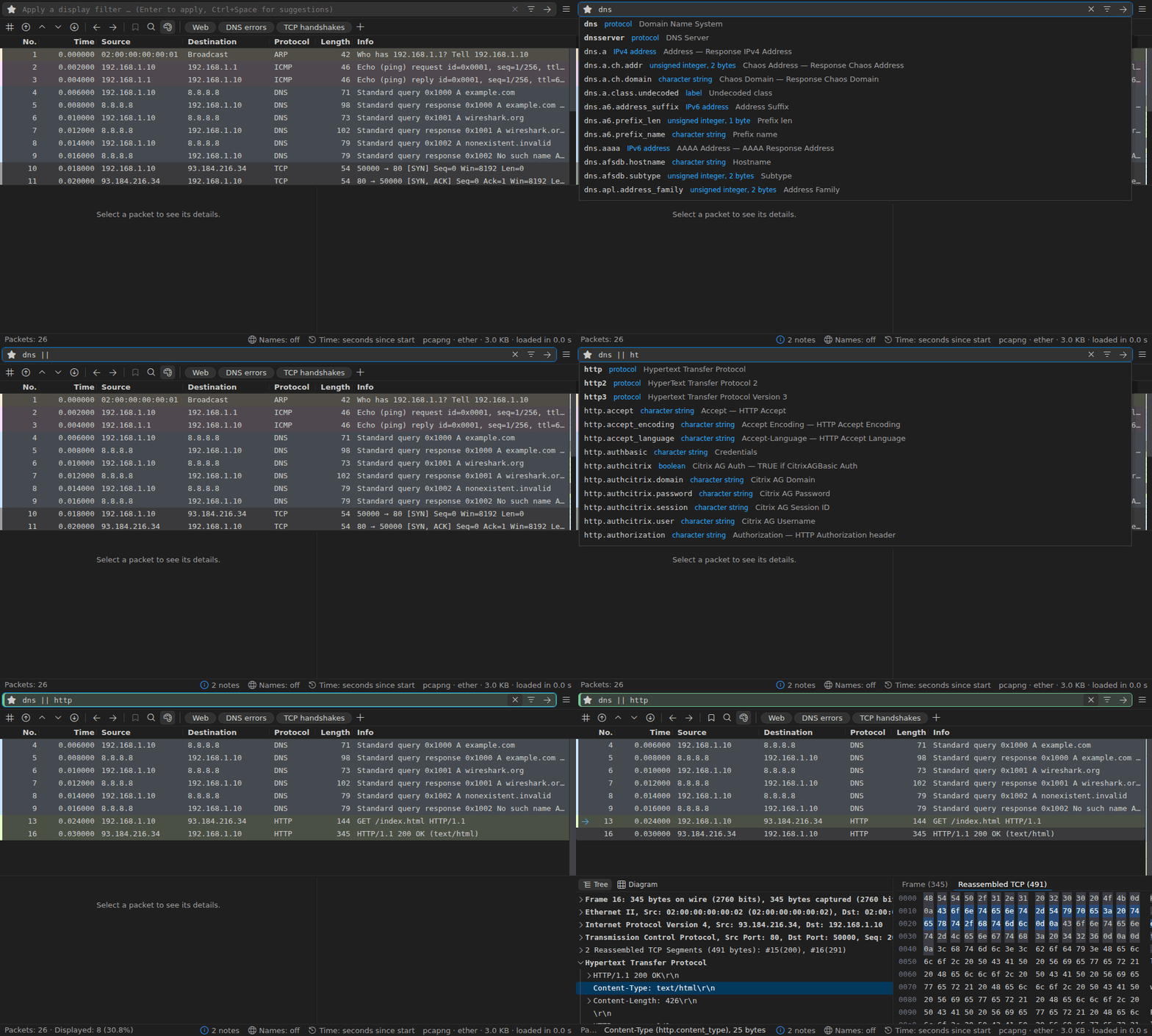
The viewer has the filter bar and toolbar at the top, the packet list, then
the packet's details (protocol tree) and bytes. The toolbar's Pane
Layout button puts the details and bytes below the list, stacked or
beside it, with or without the bytes (pcapViewer.paneLayout,
pcapViewer.showBytesPane). Drag the splitters, or focus one and use the
arrow keys.
Every command is in the ☰ menu at the end of the filter bar, grouped
and searchable, with its keyboard shortcut; recently used ones come first.
Right-click a packet, a field, a byte or a column header for the commands
that apply to it. Shift+F10 opens the same menus from the keyboard.
- Columns: click a header to sort (the backend sorts every packet, not just the visible ones). Drag a separator to resize a column; double-click it to fit the column to its contents, as in a spreadsheet. The header's menu hides, shows, renames and reorders columns.
- Custom columns: right-click a field in the details and pick Apply as Column, or use PCAP: Manage Custom Columns.
-
Time: PCAP: Time Display Format… (also the status bar) switches
between seconds since the start, since the previous packet, absolute times
and more; PCAP: Set/Unset Time Reference (
Ctrl+T) measures from a packet. -
Density: compact, normal or comfortable rows (
pcapViewer.listDensity). - Overview strip: beside the scroll bar, a strip shows each part of the list's coloring, marks, comments and Find matches; click it to jump there.
Packets are colored by rules like Wireshark's, evaluated by tshark.
PCAP: Edit Coloring Rules edits them, PCAP: Colorize with Filter…
adds one from a filter, and the row menu's Colorize Conversation colors a
conversation until you Reset Colorization. PCAP: Toggle Packet
Coloring turns colors off. In dark and high-contrast themes the light
Wireshark colors are drawn as a tint or a stripe
(pcapViewer.coloringStyle).
- The protocol tree and the bytes highlight each other: select a field to see its bytes, click a byte to find its field. Reassembled, decrypted and decompressed data get their own byte tabs.
- Right-click a field to apply or prepare it as a filter, colorize with it, add it as a column, copy it, open its protocol's preferences or disable the protocol.
-
Expand All and Collapse All: the buttons beside Tree | Diagram,
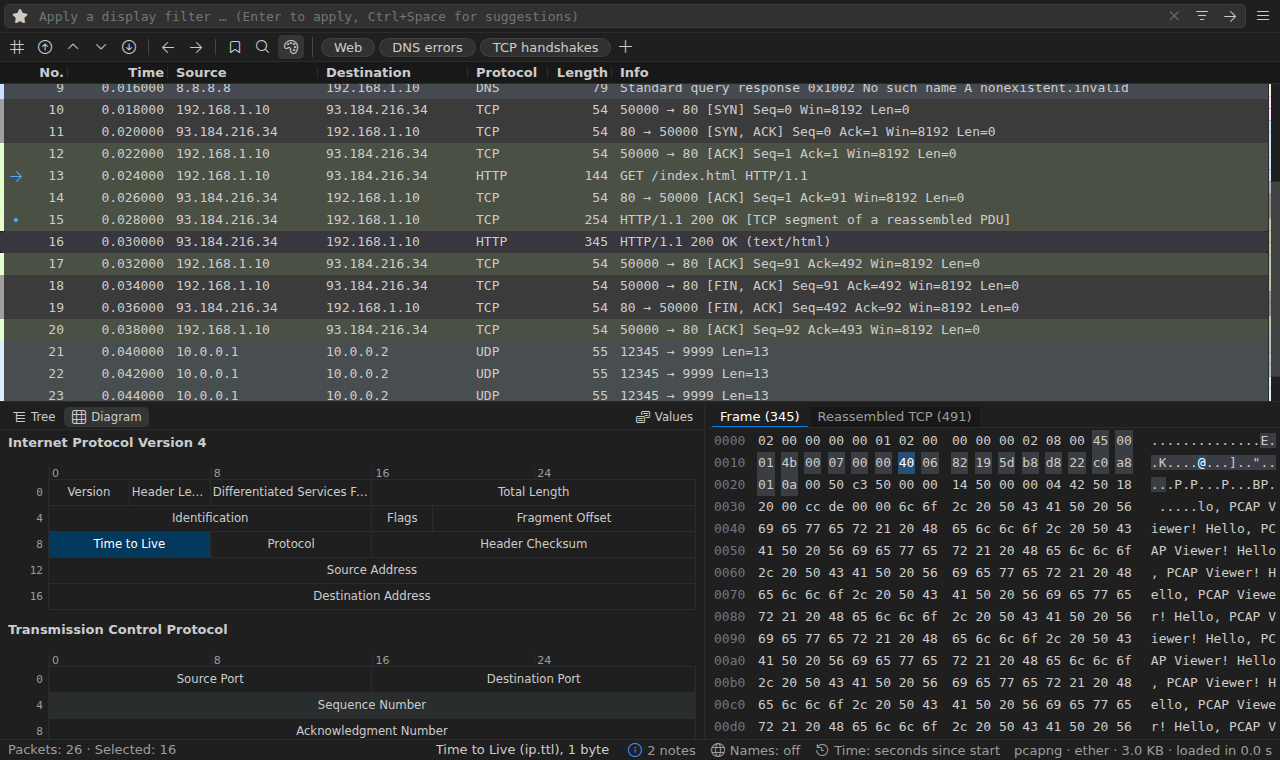
Ctrl+RightandCtrl+Leftin the tree (Cmdon macOS), or the tree's menu, which also has Expand Subtrees and Collapse Subtrees for one field (Shift+Rightexpands its whole subtree). What you open stays open for the next packets. A huge tree opens in steps, and at most 50,000 fields at once. - Packet diagram: the details pane's Diagram tab draws each header 32 bits a row, every field to the bit, like Wireshark's.
- Show Packet Bytes (field menu): a field's bytes decoded (Base64, gzip/deflate, hex, percent-encoding, quoted-printable, ROT13) and shown as text, a hex dump, a C or Rust array, YAML or an image.
- Show Packet in New Window and Show File Format (the pcap/pcapng blocks of the file itself).
- Compare Packets…: two packets' trees side by side, differences marked.
- The status bar shows the selected field ("Time to Live (ip.ttl), 1 byte") and the expert summary (errors, warnings, notes); click the summary for Expert Information.
-
Marks (
Ctrl+M) highlight packets;Ctrl+Shift+N/Ctrl+Shift+Bgo to the next or previous one; marked packets can be exported. -
Ignored packets (
Ctrl+D) stay in the list, dimmed, and are left out of statistics and exports. -
Packet comments in pcapng files:
Ctrl+Alt+Cadds or edits one in the bar above the details. Edits have undo and redo and are saved withCtrl+S; saving a pcap asks to save a pcapng instead. -
Multi-select:
Ctrl/Cmd+click andShift+click,Ctrl+Afor every packet in the view. The row menu then acts on the selection: copy rows, mark, export selected packets, ask Copilot about them.
Cmd for Ctrl on macOS; ? in the viewer lists them all.
| Key | Action |
|---|---|
Ctrl+/ |
Apply display filter |
Ctrl+F, F3, Shift+F3
|
Find packet, next, previous |
Ctrl+G, Ctrl+Home, Ctrl+End
|
Go to packet, first, last |
Alt+Left, Alt+Right
|
Back / forward |
Ctrl+., Ctrl+,
|
Next / previous packet in conversation |
Ctrl+M, Ctrl+Shift+N / B
|
Mark; next / previous marked |
Ctrl+D, Ctrl+T, Ctrl+Alt+C
|
Ignore, time reference, packet comment |
Ctrl+Right, Ctrl+Left
|
Details: expand all, collapse all |
Shift+Right |
Details: expand the field's subtree |
Ctrl+A, Shift/Ctrl+click |
Select all, select a range or more |
Shift+F10 |
Context menu |